
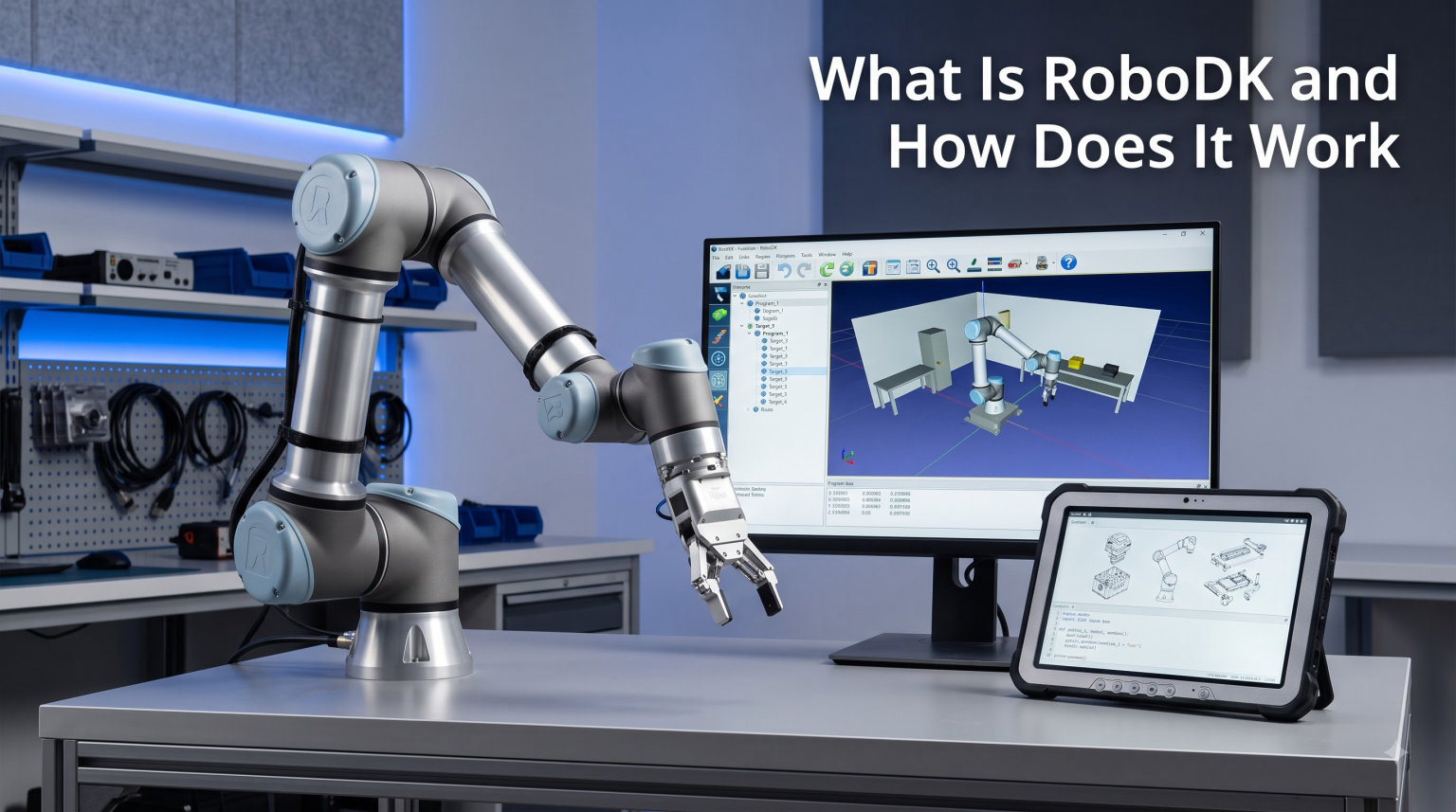
RoboDK is a powerful, cross-platform simulation and offline programming tool for industrial robot arms and cobots. It lets engineers and educators program, simulate, and validate robot behavior on a computer before sending code to a real machine, which removes the need to shut down production just to test a new motion path.
If you have ever wondered what robot simulation software actually does, how offline programming works, or whether RoboDK fits a beginner’s skill set, this guide is for you. I have spent years working with industrial automation tools and teaching newcomers how to use them, and RoboDK consistently stands out as one of the most accessible options on the market. By the end of this article, you will know exactly what RoboDK is, how it works under the hood, what it costs, and whether it is the right choice for your project in 2026.
Before we dive in, you may also want to check our beginner-friendly explainers on What Is an Arduino and How Does It Work and How Wi-Fi Control Works on a Robot to round out your robotics foundation.
Table of Contents
What Is RoboDK? A Clear Definition
RoboDK is a commercial robot simulation and offline programming software package for industrial robots, collaborative robots, and CNC machines. The software runs on Windows, macOS, and Ubuntu, and it ships with a library of more than 1,400 robot models from over 80 manufacturers. Rather than teaching a robot through a clunky teach pendant, you build the entire program on your laptop, simulate it, and then push the finished code straight to the controller.
The software was created in 2015 by Albert Nubiola, a former robotics researcher, with one goal: make industrial robot programming as approachable as 3D printing became once good slicers appeared on the scene. The result is a tool that looks a lot like a video-game level editor, where you drop a robot into a virtual cell, give it a tool, add some objects, and record the moves you want it to make.
RoboDK is widely adopted in both education and industry. According to the vendor, more than 5,000 customers around the world use it, including names like Airbus, NASA, GE, and Intel. That kind of adoption matters because it means the post processors, kinematics, and documentation tend to be well maintained.
Key Features of RoboDK You Should Know
RoboDK ships with a surprisingly deep set of features for a product that is approachable enough for first-time robot users. The list below covers the capabilities I see used most often in real engineering work.
Extensive robot library. The library includes 1,400+ pre-configured robots from brands such as ABB, KUKA, FANUC, Yaskawa (Motoman), Universal Robots, Stäubli, Epson, Omron, and many more. Each model arrives with correct kinematics, axis limits, and a matching post processor, which saves days of setup.
Digital twin simulation. Every robot is a 3D model that mirrors its real-world twin. You can move parts, import your own fixtures, and watch the simulation collide, reach, or run out of joint limits before anything is sent to the shop floor.
CAD and CAM integration. RoboDK imports STEP, IGES, STL, and OBJ files directly, and it can read APT and G-code from most major CAM packages. That makes it a natural fit for robotic machining, 3D printing, and trimming applications.
Post processors for almost any controller. A post processor is a small script that converts your simulation into the exact programming language a specific robot controller speaks. RoboDK ships with hundreds of them and lets you edit the source.
Python API and scripting. Beyond the graphical interface, the entire software can be driven from a Python script. Power users automate complex routines, run batch jobs, and integrate with external tools like ROS or a custom MES system.
External axes and turntables. You can add linear rails, rotary tables, and positioners to extend a robot’s reach. This is essential for welding large parts or machining long features.
Collision detection and cycle-time estimates. The simulator flags collisions and warns about singularities or axis limits in real time. It also reports an estimated cycle time, which is invaluable when you are quoting a job.
How Does RoboDK Work? The Core Workflow Explained
RoboDK works by creating a digital twin of your robot cell and turning simulated motions into vendor-specific robot code. The whole process follows a predictable workflow that beginners can pick up in an afternoon.
Here is the five-step loop I use whenever I start a new project in RoboDK.
Step 1: Build the cell. Drop a robot from the library into an empty station, then add the reference frame (the origin of your work area) and any 3D objects, fixtures, or CNC tools you need.
Step 2: Define the tool. Create a Tool Center Point (TCP), which is the point on the end of the robot that you want to be precisely controlled. RoboDK includes a TCP calibration wizard for teaching this from physical probing.
Step 3: Create targets. Targets are simply named positions the robot must reach. You can add joint targets (specific axis angles) or cartesian targets (X, Y, Z plus orientation). You click a point in space, and RoboDK solves the inverse kinematics automatically.
Step 4: Simulate and validate. Hit play, watch the robot move, and use the built-in collision checker. If a motion fails, you can rewind, edit, and re-simulate without ever touching the real hardware.
Step 5: Post process and deploy. Right-click the program, choose your post processor, and RoboDK outputs a ready-to-run script in the native language of the controller (RAPID for ABB, KRL for KUKA, TP for FANUC, URScript for Universal Robots, and so on). You can send that file to the controller over Ethernet, USB, or a driver plugin.
That offline workflow is the real magic. Programming a robot the traditional way with a teach pendant can take days of trial and error. With RoboDK, the same work often takes a few hours, and the production line never stops moving. This is why the term “offline programming” is so closely associated with the software.
Which Robots and Brands Does RoboDK Support?
RoboDK supports well over 1,400 robot models from more than 80 manufacturers. The list is constantly updated, and most new robots on the market get a post processor within weeks of their release. Major supported brands include:
- ABB
- KUKA
- FANUC
- Yaskawa (Motoman)
- Universal Robots (UR3, UR5, UR10, UR16, and the newer e-Series and UR20)
- Stäubli
- Epson
- Omron (TM and Adept)
- Techman Robot
- Mitsubishi
- Nachi
- Comau and Kawasaki
Beyond the arm itself, RoboDK also models external axes, so you can simulate a robot mounted on a linear rail or a 2-axis positioner. This matters for welding and machining cells where the workpiece is too large for the robot’s reach alone.
For users who need a custom robot or a proprietary kinematic chain, the post processor and kinematics can be edited in plain text. The vendor also publishes a Python API for adding your own robot models if one is missing from the library.
Real-World Applications and Use Cases
RoboDK shines in any application where motion planning matters more than simple pick-and-place loops. Across the industry, the most common use cases fall into a handful of categories.
Robot machining. By importing CAM toolpaths, RoboDK turns a robot arm into a large-format CNC router or 3D printer. This is popular for trimming composite parts, milling foam molds, and additive manufacturing of large structures.
Welding. The software can generate multi-pass weld paths and synchronize a robot with a positioner. Both MIG/MAG and TIG workflows are supported, including weaving patterns for arc welding.
Painting and dispensing. Surface-offset toolpaths let you program a painting gun or glue dispenser to follow a curved surface at a constant standoff distance. This is hugely useful for automotive and aerospace finishing.
Polishing, deburring, and grinding. Force-controlled paths and contact offsets help you finish cast or machined parts with consistent quality.
Palletizing and pick-and-place. Although these are simpler applications, RoboDK still makes them faster by letting you set up patterns, stacking rules, and conveyor logic visually.
Industry adoption is broad. The vendor’s customer page lists deployments at Airbus, NASA, GE, Intel, MIT, Stanford, and many smaller contract manufacturers. That is consistent with what I have heard from users on robotics forums, where RoboDK is regularly described as “excellent for industrial robotics” and praised for its path and trajectory planning.
Getting Started With RoboDK: A Beginner’s Walkthrough
If you want to try RoboDK for yourself, the on-ramp is short. The following walkthrough mirrors the steps in the official getting-started guide, and I have added notes from my own experience for what to watch out for.
Step 1: Download and install. Grab the installer from the RoboDK website. It works on Windows, macOS, and Ubuntu, and the trial version gives you the full feature set for 30 days. After that, the software continues to run in a limited trial mode unless you enter a license.
Step 2: Create a new project. Open RoboDK, choose File, then New Station. You will see an empty 3D scene with a reference frame anchored at the world origin.
Step 3: Add a robot. Open the robot library, browse by brand, and drag your chosen model into the station. You can pick any robot even if you do not own it; the simulation runs the same way.
Step 4: Add a reference frame and TCP. A reference frame marks where your workpiece lives. A Tool Center Point (TCP) marks the tip of your gripper, welder, or spindle. Setting both up correctly is the single biggest factor in simulation accuracy.
Step 5: Import your 3D objects. Drag a STEP, IGES, or STL file into the scene to represent your fixture or part. You can also import APT or G-code from Fusion 360, Mastercam, and most other CAM packages.
Step 6: Create targets. Use the “Teach Target” tool to click on points in the 3D view. Each click creates a cartesian target. You can drag the robot with the jog panel to fine-tune.
Step 7: Build a program. Add program instructions like MoveJ (joint move), MoveL (linear move), or Set DO (digital output). Drop targets into the program in the order you want the robot to visit them.
Step 8: Simulate and post process. Click play, watch the simulation, fix any issues, and then right-click the program to choose Generate Robot Program. RoboDK will create a script ready to load onto the matching controller.
For a deeper tutorial, the free RoboDK Academy courses cover everything from basic moves to advanced 3D printing, and they are a great supplement once you have completed your first project.
RoboDK Pricing, Licensing, and Student Access
RoboDK is a paid commercial product, but the company has made serious efforts to keep it affordable. As of 2026, there is a 30-day free trial that unlocks every feature, plus a perpetual free version with limited functionality for very small projects.
Paid licenses are sold as a one-time purchase with one year of updates and support. Renewal is optional, so the software does not stop working if you decide not to renew. There is also a monthly subscription option for users who prefer lower upfront costs.
For students, teachers, and researchers, RoboDK offers a free educational license. The same license is also free for makers using robots in non-commercial projects. To qualify, you typically need to provide proof of enrollment or a non-commercial project description.
Because pricing can change, the most reliable way to get a current quote is to use the contact form on the RoboDK website. I will not quote specific numbers here, since they vary by region and edition, but the official page lists the most up-to-date options.
Frequently Asked Questions
How much does RoboDK cost?
RoboDK is sold as a one-time license with one year of updates and support, plus an optional monthly subscription. The exact price depends on your region and the edition you choose, so check the vendor’s website for the latest figures. There is also a 30-day free trial of the full product and a free educational license for students and researchers.
Is RoboDK free for students?
Yes. RoboDK offers a free educational license to students, teachers, and academic researchers. You typically need to provide proof of enrollment and use the software for non-commercial projects to qualify. The free license includes the same features as the paid edition, only with an annual renewal that is also free.
What is the best robotics simulation software for beginners?
RoboDK is widely considered one of the best robotics simulation packages for beginners because it combines a friendly graphical interface with a powerful Python API. It also ships with a huge library of ready-made robots, so new users can start simulating in minutes without writing code.
How do I connect RoboDK to a real robot?
You connect RoboDK to a real robot by post processing a simulated program and loading the resulting script onto the controller. Most modern controllers accept programs over Ethernet, USB, or via a RoboDK driver plugin. After the file is loaded, you can run it from the teach pendant or trigger it remotely using the driver.
Is RoboDK used in industry?
Yes. RoboDK is used by more than 5,000 customers worldwide, including well-known names like Airbus, NASA, GE, and Intel. It is a popular choice for robotic machining, welding, painting, and dispensing, as well as for academic and research projects.
How does RoboDK work?
RoboDK works by creating a digital twin of your robot cell, letting you simulate and validate motions, and then generating a vendor-specific program with a post processor. You build the cell, define tools and reference frames, create targets, simulate, and finally export code for the real controller. The whole workflow happens offline, so the real robot never has to stop.
What are the limitations of RoboDK?
Some users report that simple digital IO operations can be more cumbersome than expected, and a few niche robot brands have less complete post processors than the major manufacturers. The price may also be a barrier for hobbyists, although the free trial and student license help offset this.
Does RoboDK work with Python?
Yes. RoboDK ships with a Python API that lets you drive every part of the software from a script. Power users use it to automate complex routines, run batch jobs, and integrate RoboDK with other tools like ROS or a custom MES. The Python SDK is widely praised for being cleaner and lighter than alternatives like ROS.
Final Thoughts on RoboDK
RoboDK is one of those rare tools that genuinely lives up to its marketing. It turns what used to be a tedious, stop-the-line activity into a fast, visual workflow that engineers and students can pick up in a single afternoon. If you are weighing robot simulation software for the first time, the combination of a 1,400+ robot library, accurate offline programming, and a clean Python API is hard to beat.
My recommendation is simple. Download the trial, follow the RoboDK Academy tutorials, and run a small project end-to-end. By the time you post process your first program and see it run on a real robot, you will know whether RoboDK belongs in your toolbox for 2026 and beyond.