
If you have ever worked with ROS and tried to figure out where your robot’s sensors are pointing, you have probably run into the term “TF Tree.” I remember my first week debugging a robot arm that kept picking up the wrong objects. The problem was not my code. The problem was that I did not understand how the TF Tree connected my robot’s parts together.
A TF Tree in ROS (Robot Operating System) is a data structure that tracks how multiple coordinate frames relate to each other over time. The “TF” stands for “transform,” and the tree structure lets every sensor, joint, and link know exactly where it is relative to the rest of the robot. Without it, your robot cannot answer basic questions like “where is my gripper in relation to my base?” or “what is my camera seeing right now?”
In this guide, I will walk you through exactly what a TF Tree is, how coordinate frames work, why ROS uses a tree instead of a graph, and how to debug common issues. Whether you use ROS1 or ROS2, the underlying tf2 library behaves the same way, and I will point out the small differences as we go.
Table of Contents
What Is a TF Tree in ROS
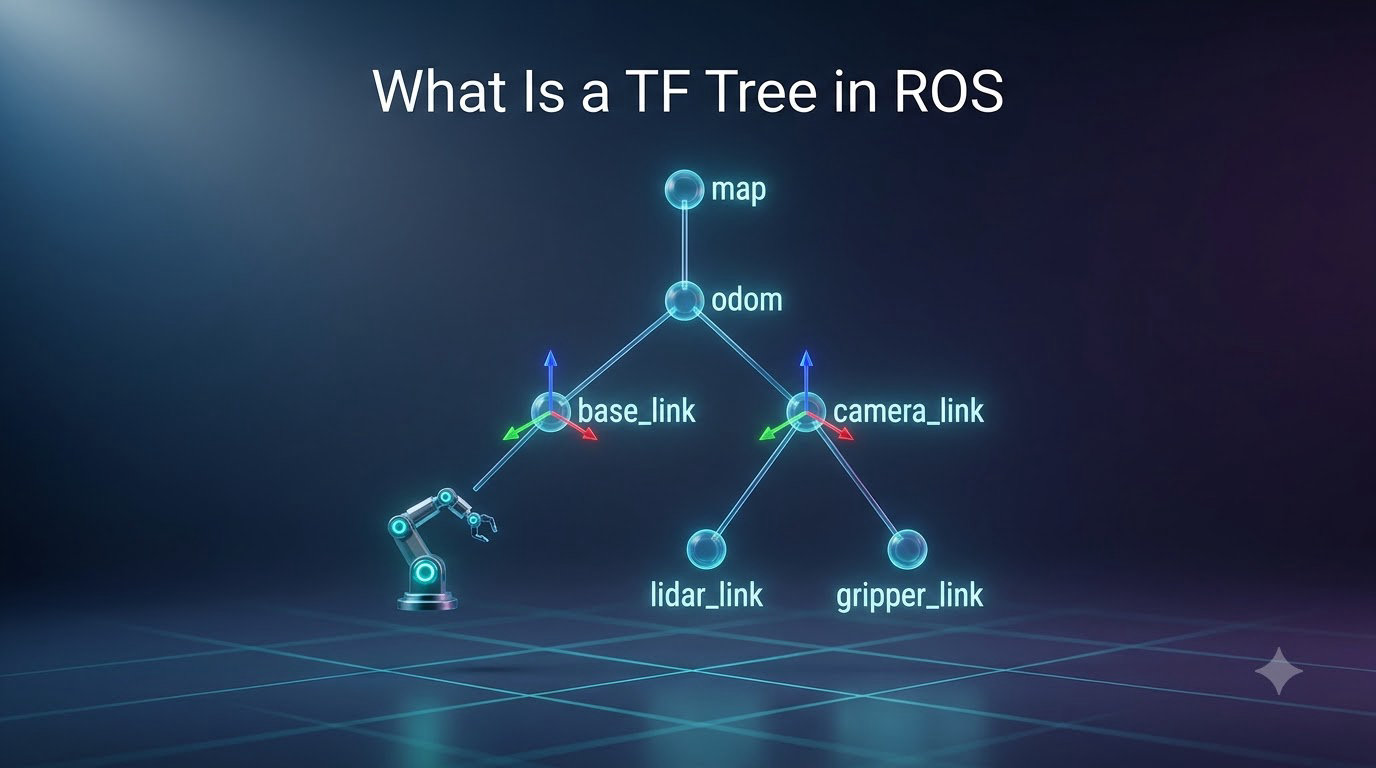
A TF Tree in ROS is a hierarchical structure of coordinate frames connected by transforms. The tf2 library keeps track of every frame’s position and orientation relative to its parent frame, all the way up to a single root frame (usually called “world” or “map”).
Think of it like a family tree. The root frame sits at the top. Below it, you have children like “base_link” (your robot’s body), and below that, you have grandchildren like “wheel_left,” “wheel_right,” and “camera_link.” Each connection in the tree represents a transform that tells ROS how to convert coordinates from one frame into another.
The tree has a strict rule: every frame has exactly one parent. This means if your camera is mounted on your robot’s head, your camera’s frame has one parent (the head frame), which has one parent (the base), which has one parent (the world). This rule is what makes the tree a tree and not a more complex graph.
How Do Coordinate Frames Work in ROS
Coordinate frames are the foundation of everything in the TF Tree. A coordinate frame is simply a 3D reference system with an origin point and three axes (X, Y, and Z) used to describe positions and orientations in space.
Every frame in ROS needs a unique name called a frame_id. Common frame names you will see include:
- world or map: The global reference frame, usually the root of the tree
- base_link: Your robot’s main body, typically the center of the chassis
- odom: The odometry frame, representing where your robot thinks it is
- camera_link, laser_link, imu_link: Sensor mounting frames
The parent-child relationship is key. When I attach a camera to my robot, I declare a transform from the camera’s frame to its parent (say, the head frame). That transform tells ROS: “to find where the camera is, start at the head, then apply this translation and rotation.”
Frames are useful because different parts of a robot have different needs. Your wheels spin around their own axles, your arm joints pivot at specific points, and your camera needs to know where it points. Each of these gets its own frame, and the TF Tree ties them all together.
Understanding Transforms: Translation and Rotation
A transform is the mathematical relationship between two coordinate frames. It contains two pieces of information: a translation vector and a rotation.
The translation tells you how far to move along each axis. If your camera is mounted 0.3 meters in front of your robot’s center, the translation vector would be [0.3, 0, 0] (X = 0.3m forward, Y = 0, Z = 0).
The rotation tells you how the child frame is oriented relative to the parent. ROS uses quaternions for rotations because they avoid the gimbal lock problem you get with Euler angles. A quaternion is a 4-number representation: [x, y, z, w].
Tf2 combines these into a 4×4 homogeneous transformation matrix that lets you convert any point from one frame to another. If you have a point P in the camera’s frame and you want to know where it is in the world frame, tf2 multiplies the transform matrices along the path from camera to world.
For a practical example, imagine your robot is at position (5, 2, 0) in the world, and your gripper is 1 meter forward from the robot’s center. The gripper’s world position is (6, 2, 0). This kind of calculation happens thousands of times per second in any real robot application.
Why tf2 Uses a Tree Structure Instead of a Graph
This is one of the most common questions on the ROS subreddit, and I have asked it myself. The short answer is that a tree makes lookups faster and prevents contradictory data.
In a graph, a frame could have multiple parents, and those parents could disagree. Imagine your wheel odometry says you are at (5, 2), but your GPS says you are at (5.1, 2.05). In a graph, you would need a system to resolve the conflict. In a tree, there is only one path from any frame to the root, so there is no conflict to resolve.
Trees also make lookups faster. When you ask “where is the camera relative to the world?”, tf2 just walks up the tree from the camera to the world. The time to walk up a tree is proportional to its depth, which is usually small (3-5 levels for most robots).
For sensor fusion, ROS uses a different mechanism. The robot_localization package combines multiple sensors (wheel odometry, IMU, GPS) and publishes a single, smoothed transform. That result becomes the parent of everything else in the tree. So even though robots have multiple sensors, the TF Tree still has a clean hierarchy.
Static vs Dynamic Transforms Explained
Transforms in ROS come in two flavors: static and dynamic. Knowing the difference will save you hours of debugging.
| Feature | Static Transforms | Dynamic Transforms |
|---|---|---|
| Changes over time | No, published once | Yes, updated continuously |
| Use case | Fixed sensor mounts, robot links | Moving joints, wheel rotation, robot pose |
| ROS tool | static_transform_publisher | geometry_msgs/TransformStamped broadcasts |
| Example | Camera mounted on robot head | Robot arm moving, wheel spinning |
| Performance | Very low overhead | Higher overhead, time-buffered |
A static transform describes a relationship that never changes. If your lidar is bolted to the top of your robot, the transform from the lidar to the base is static. You publish it once, and tf2 stores it forever.
A dynamic transform describes a relationship that changes. Your robot’s position in the world changes as it moves. Your arm joint angles change as the arm extends. These need to be broadcast at a regular rate (usually 10-100 Hz) so that tf2 always has fresh data.
I have seen many beginners try to make a moving sensor use a static transform. This works for a few seconds until the robot moves and everything breaks. Use dynamic transforms for anything that changes.
How tf2 Manages the Transform Tree Over Time
Tf2 uses three core components to manage the tree: broadcasters, listeners, and a buffer.
A transform broadcaster is a node that publishes transform data. Your robot’s main node might broadcast the base_link to odom transform every 20ms. Your arm controller broadcasts the joint transforms. Any node that knows about a frame relationship can be a broadcaster.
A transform listener is a node that needs to look up transforms. When your perception node wants to know where an object detected by the camera is in world coordinates, it uses a listener to query tf2.
The tf buffer is the heart of the system. It stores every transform for a configurable amount of time (usually 10 seconds by default). When you ask for a transform at a specific time, tf2 interpolates between the closest stored values to give you an accurate answer.
This buffering matters because of network delays and processing time. Your camera might detect an object at time T, but by the time you query tf2, the robot has moved slightly. The buffer lets you look up the transform at time T, not just “right now.”
TF vs tf2: What Changed Between ROS1 and ROS2
The original TF library came with ROS1. The newer tf2 library is the default in both ROS1 (Melodic onward) and ROS2. Here is what is different:
tf2 uses a compiled C++ library instead of a pure Python implementation, which makes it much faster. It also has a cleaner API and better time synchronization.
In ROS2, you no longer use the deprecated TransformListener API. Instead, you use the Buffer and TransformListener classes directly with a tf2_ros import. The core concepts (frames, transforms, the tree) are identical.
For Python users in ROS2, the import looks like from tf2_ros.buffer import Buffer and from tf2_ros.transform_listener import TransformListener. The rest of your code stays almost the same as in ROS1.
Visualizing and Debugging Your TF Tree
You cannot fix what you cannot see. ROS provides three main tools for inspecting your TF Tree.
rviz is the 3D visualization tool. When you add a TF display, rviz draws every frame as a labeled axis and shows the arrows connecting parent frames to child frames. If a frame is missing, you will see a gap in the tree.
view_frames creates a PDF diagram of your entire tree. Run rosrun tf2_tools view_frames.py (ROS1) or the ROS2 equivalent, and you get a static snapshot of the tree structure. This is perfect for documentation and for sharing with teammates.
rqt_tf_tree is an interactive GUI plugin. You can run it with rqt and add the TF Tree plugin. It updates in real-time, so you can see frames appear and disappear as nodes start and stop.
Common debugging tips I have learned the hard way:
- If a frame is missing, check that its broadcaster node is running
- If a transform is wrong, verify the parent frame name is spelled correctly
- If transforms look jittery, increase your broadcast rate or check for network issues
- Use
ros2 run tf2_ros tf2_echo [source_frame] [target_frame]to see a live transform between any two frames
Frequently Asked Questions
What does ‘tf’ stand for in ROS 2?
The ‘tf’ in ROS 2 stands for ‘transform.’ It refers to the transform library that tracks the relationships between coordinate frames. The modern version of this library is called tf2, which is the default in both ROS1 (Melodic and later) and all ROS2 distributions. Tf2 keeps track of multiple coordinate frames over time and maintains their relationships in a tree structure.
What does TF mean in robotics?
In robotics, TF stands for ‘transform.’ A transform is the mathematical relationship between two coordinate frames, describing both the translation (position offset) and the rotation (orientation difference) between them. ROS uses the tf2 library to maintain a tree of these transforms so that any part of a robot can be located relative to any other part at any point in time.
What is the difference between TF and tf2?
TF was the original transform library in ROS1, implemented primarily in Python. Tf2 is its successor, written in C++ for better performance, with cleaner APIs and improved time handling. Tf2 is the default in modern ROS1 versions (Melodic and later) and all ROS2 distributions. The core concepts (frames, transforms, tree structure) are identical between TF and tf2, but tf2 offers better real-time performance and is the recommended choice for new projects.
Why does tf2 use a tree structure instead of a graph?
Tf2 uses a tree structure because it guarantees that every frame has exactly one parent. This eliminates conflicting data from multiple sources and makes lookups faster. In a graph, a frame could have multiple parents with different positions, creating ambiguity. For sensor fusion, ROS uses a separate package (robot_localization) that combines multiple sensor inputs into a single, smoothed transform that then sits in the tree as the parent of other frames.
How do I view the TF tree in ROS 2?
You can view the TF tree in ROS 2 using three main tools: rviz (add a TF display to see live 3D axes for every frame), rqt_tf_tree (a real-time interactive GUI plugin), or the view_frames script (which generates a PDF snapshot of the entire tree). The tf2_echo command also lets you print the live transform between any two specific frames for quick debugging.
Wrapping Up the TF Tree in ROS
Understanding the TF Tree in ROS is one of those foundational skills that pays off for years. Once it clicks, suddenly sensor fusion, navigation, and arm kinematics all make more sense because they are all built on top of the same tree structure.
The key takeaways: a TF Tree tracks how coordinate frames relate to each other through transforms. Every frame has one parent, and tf2 stores these relationships in a time-buffered tree. Use static transforms for fixed mounts and dynamic transforms for anything that moves. Visualize with rviz, view_frames, or rqt_tf_tree.
For your next steps, I recommend opening rviz and adding a TF display to any ROS project you are working on. Seeing the tree update in real-time makes the concepts stick far better than reading alone. If you want to dive deeper, the official ROS2 tf2 tutorials on docs.ros.org are excellent, and the Foxglove blog has great real-world examples with working code.
The TF Tree in ROS might seem abstract at first, but it is the backbone of almost every robotics application. Master it, and you will save yourself countless hours of debugging later.