
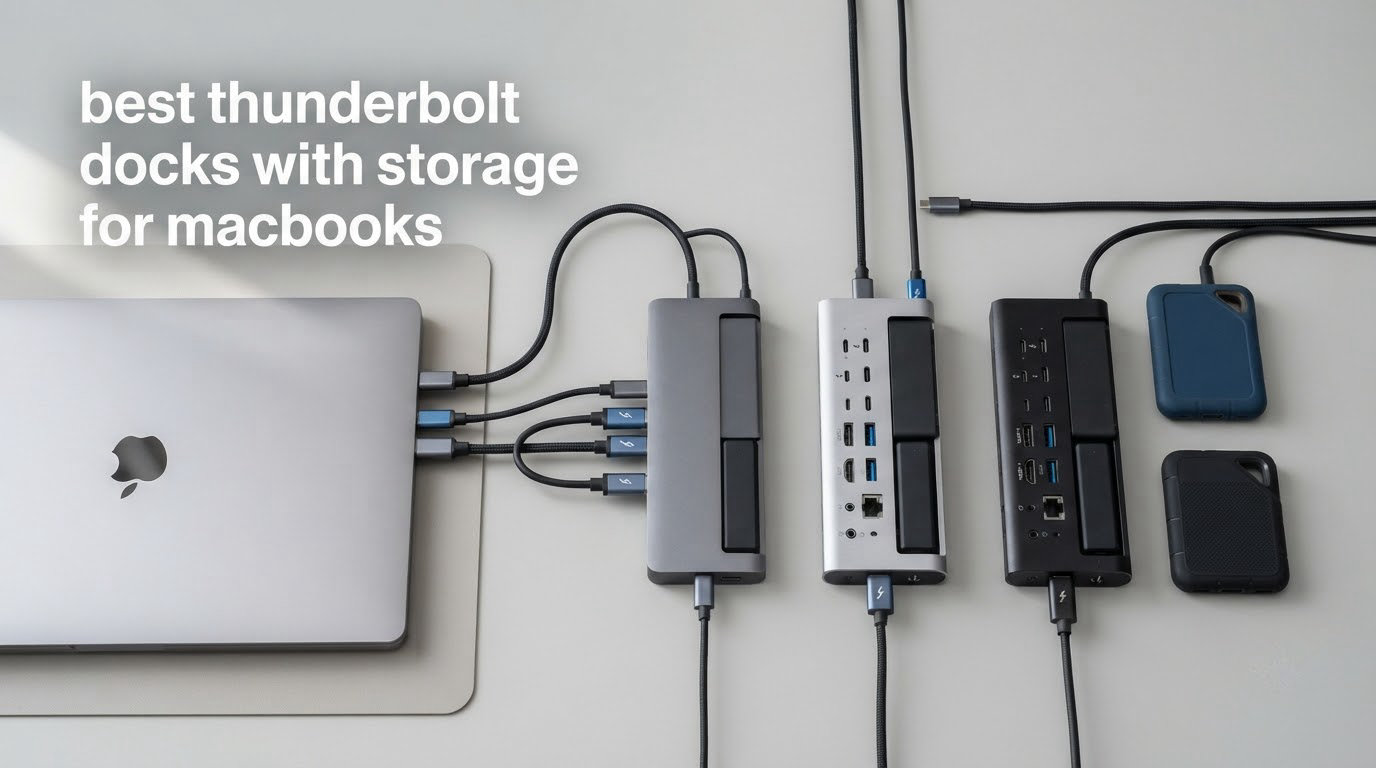
Only a handful of Thunderbolt docks ship with a real drive bay inside them, and the best of them for a MacBook in 2026 are the UGREEN Maxidok, the WAVLINK TB5 and the Satechi Thunderbolt 5 CubeDock. We looked at every shipping storage-equipped dock we could verify, checked the M.2 slot rules, the host charging wattage, the display ceilings and the port layouts, and ranked them below.
The reason this list is short matters. A dock with storage is not a general Thunderbolt dock with a bonus USB port. It is a second machine on your desk that happens to share a cable with the first one, and the number of manufacturers building one is small enough that we could cover all of them rather than pad the list.
Our approach was specification-first. We compared the M.2 slot protocol and form factor, the maximum drive capacity each bay accepts, whether the slot is cooled, whether the enclosure is inside the chassis or a separate box, the power delivery figure against the MacBook you actually own, and the number of external displays your chip can drive through the dock. Where reviewers have measured real throughput from an inserted drive, we used their numbers rather than the headline bandwidth.
Every dock here is a Thunderbolt 5 device that also works on Thunderbolt 4 MacBooks, at reduced speed, and most of them cap at two extended displays on macOS regardless of how many video outputs the chassis has. Those two facts eliminate more options than price ever will, so we spend a section on them.
The fastest route to a clean one-cable desk is a dock whose drive bay sits inside the chassis, because it removes a second Thunderbolt enclosure and a second cable. If you want to see how that compares with buying storage as a separate box, we cover it in the buying guide below. Related reading on our site includes our picks for security cameras with local storage if you are building out a small office, and our digital storage oscilloscope guide if the desk is a lab bench rather than an editing suite.
Table of Contents
Top 3 Thunderbolt Docks With Storage for MacBooks (October 2026)

UGREEN Maxidok TB5 17-in-1
- M.2 NVMe slot up to 8TB
- 17 ports
- 120Gbps bandwidth
- 2.5Gb Ethernet

The UGREEN takes the top slot because it is the only one of the three that combines a full-size M.2 bay with 17 ports, a 60mm cooling fan and the largest review base in the category. The WAVLINK scores highest on rating and is the most storage-focused unit here, with three downstream Thunderbolt 5 ports for daisy-chaining. The Satechi is the one to buy if the dock has to look like it belongs next to a Mac mini.
Every Dock Compared Side by Side in 2026
| Product | Specifications | Action |
|---|---|---|
| UGREEN Maxidok Thunderbolt 5 Dock 17-in-1 |
|
Check Latest Price |
 WAVLINK Thunderbolt 5 Dock 13-in-1 WAVLINK Thunderbolt 5 Dock 13-in-1 |
|
Check Latest Price |
| Satechi Thunderbolt 5 CubeDock |
|
Check Latest Price |
 HyperDrive Next Thunderbolt 5 Dock HyperDrive Next Thunderbolt 5 Dock |
|
Check Latest Price |
 Sonnet Echo 21 Thunderbolt 5 SuperDock Sonnet Echo 21 Thunderbolt 5 SuperDock |
|
Check Latest Price |
 Sonnet Echo 13 Thunderbolt 5 SSD Dock Sonnet Echo 13 Thunderbolt 5 SSD Dock |
|
Check Latest Price |
 Razer Thunderbolt 5 Dock Chroma Razer Thunderbolt 5 Dock Chroma |
|
Check Latest Price |
 Kensington EQ Pro Thunderbolt 5 Dock Kensington EQ Pro Thunderbolt 5 Dock |
|
Check Latest Price |
Two columns in that table deserve a warning label before you read any further. Every one of these docks needs a MacBook with a Thunderbolt 5 port to hit its stated bandwidth, and none of them can push a base M-series MacBook past two extended external displays. A dock adds ports. It does not add display support that the processor does not have.
1. UGREEN Maxidok Thunderbolt 5 Dock: Widest Port Layout and the Most Flexible M.2 Bay
UGREEN Maxidok Thunderbolt 5 Docking Station, 8TB M.2 NVMe SSD Support
- 17 ports including three 10Gbps USB-A and three 10Gbps USB-C
- 8TB M.2 capacity
- active 60mm fan cooling
- works across M-series MacBooks and Thunderbolt Windows laptops
- Runs warm around the SSD bay
- no HDMI port so an active DisplayPort adapter is required
- heatsink height limit excludes some high-capacity drives
The Maxidok is the one I would put on a desk first. It carries 17 ports, which means the display adapters, the card readers, the Ethernet jack and the audio interfaces are all present, and the only thing missing is an HDMI socket. That omission is worth planning around, because you will need an active DisplayPort-to-HDMI adapter if your monitors are HDMI-only, and the DisplayPort output does not support DP ++ passthrough for a simple passive adapter.
Storage is the headline. The built-in slot takes an M.2 NVMe PCIe Gen4x4 drive from 2230 to 2280 in length, up to 8TB, and reviewers report throughput from the bay landing close to what a dedicated external Gen4 enclosure delivers. On Windows the dock can drive three independent displays through the two downstream Thunderbolt 5 ports plus DisplayPort, and dual 8K@60Hz output is supported. On macOS it settles at dual displays.
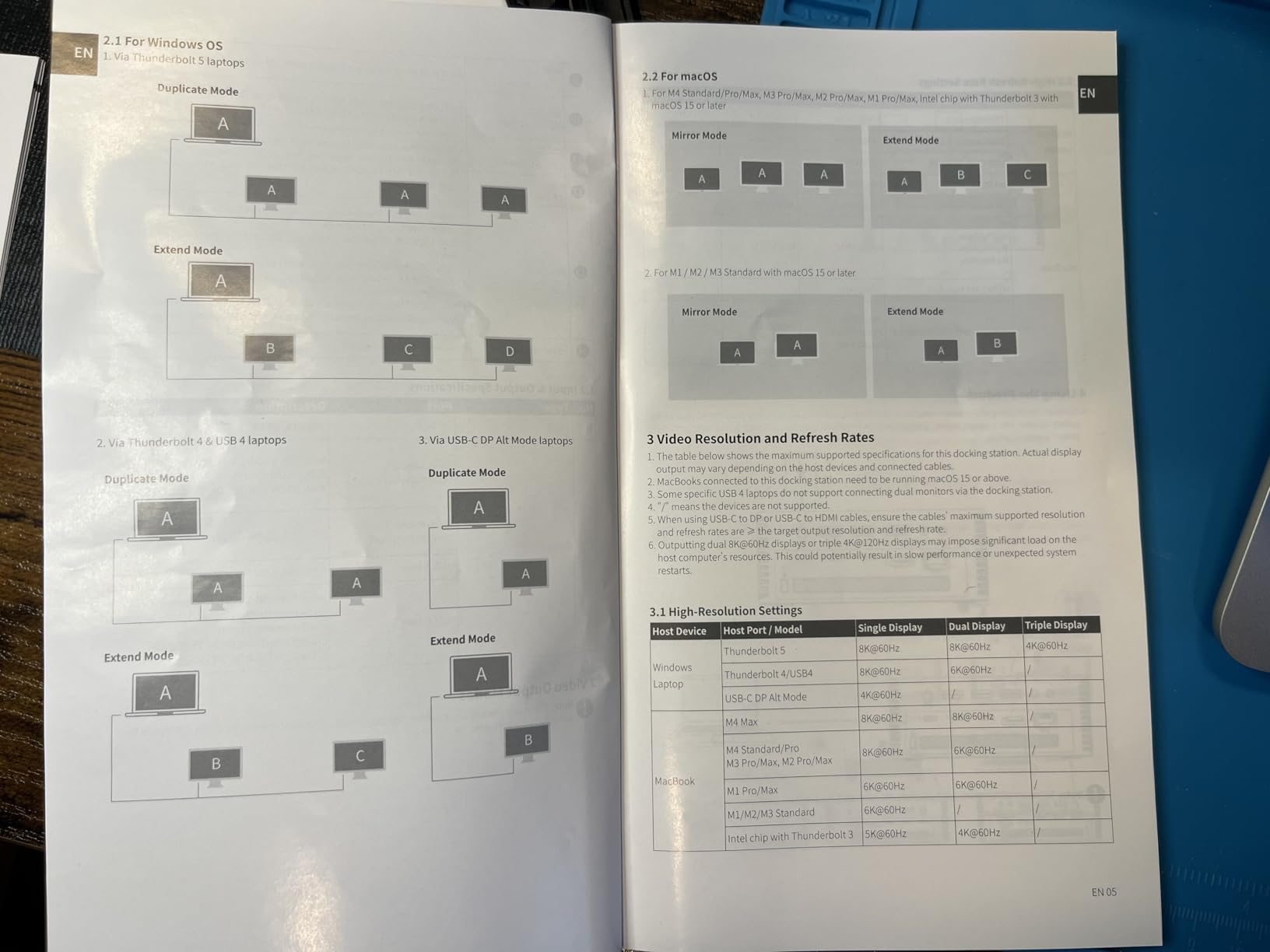
Power delivery is generous. The system accepts up to 240W total, with 140W going to the host laptop, which means a MacBook Pro under sustained load still charges rather than drawing from its own battery. Compatibility covers MacBook M4 standard, Pro and Max models, earlier M1 through M3 Pro and Max machines, Mac mini with M4 Pro, and Thunderbolt 5 or 4 Windows laptops, with macOS 15 or later required on the Mac side.
The single biggest trap is drive clearance. The slot accepts SSDs with a heatsink up to 12mm tall and 24mm wide, which rules out several factory-fitted high-capacity drives including the FireCuda 530, the Samsung 9100 PRO and the WD_BLACK SN850X Premium. Check your drive against that ceiling before you buy a dock, because a bare drive that needs its own heatsink for sustained writes is the wrong part for this bay.
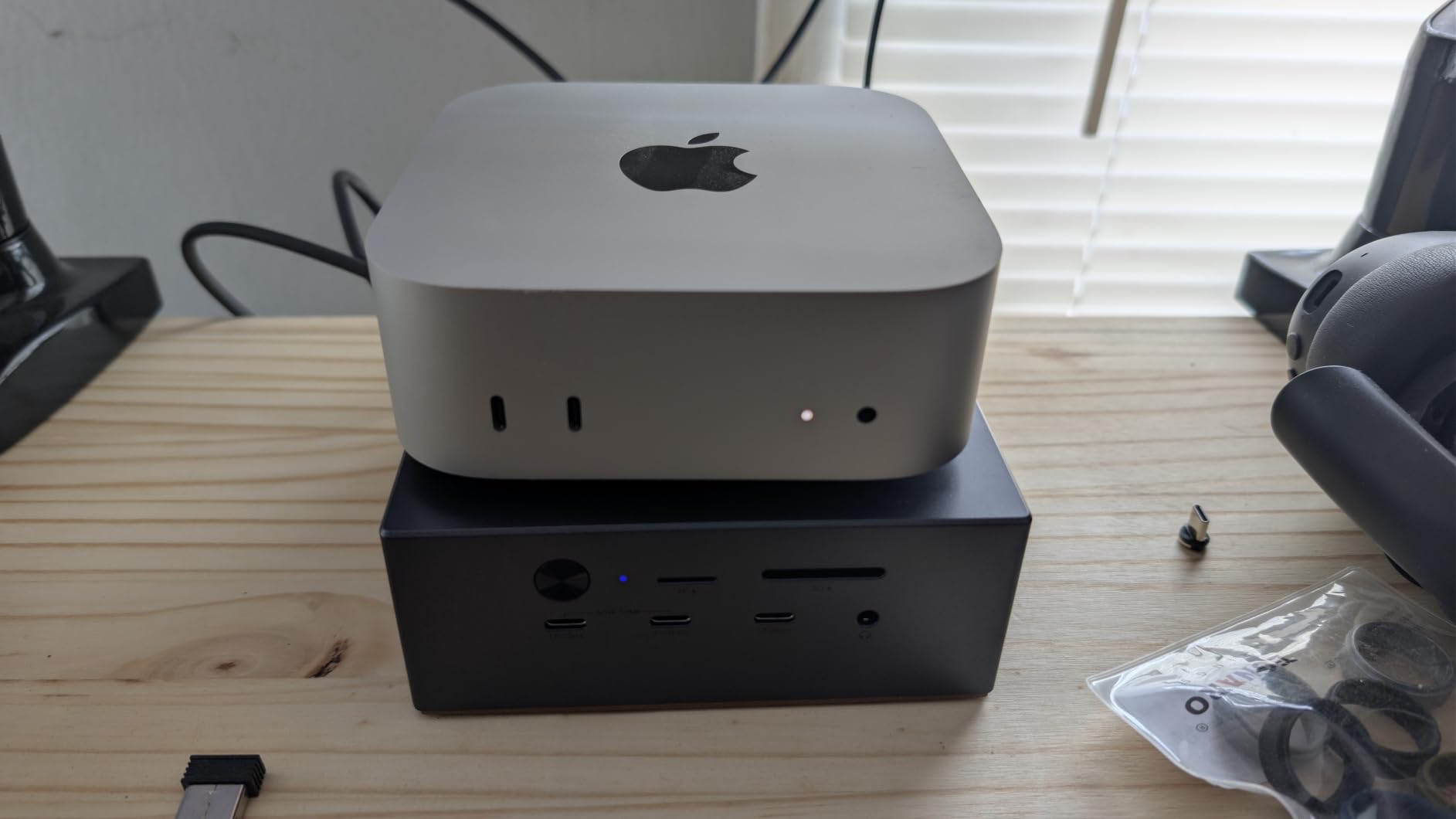
What the M.2 slot will and will not accept
This is an NVMe-only bay. There is no SATA fallback, so older M.2 SATA drives are physically incompatible, and a SATA ribbon or a 2.5-inch drive is not an option either. The PCIe Gen4x4 interface is the ceiling on speed even though the Thunderbolt 5 link above it can move far more, which is a normal arrangement and not a defect.
Because the enclosure sits inside a metal chassis with an active fan, sustained transfers behave better here than in a passively cooled slot. Some owners still report reduced write speeds after the bay has been running hot for a while, so for long ingest jobs leave the top clear and do not stack the dock under a closed shelf.
Where it falls short for MacBook owners
There is no HDMI output, and that pushes an extra adapter into your cable chain. A few owners also report that the barrel power connector or the rear USB ports disconnect if the dock is bumped while a cable is plugged in, so treat the rear panel as fixed rather than grab-and-go.
The 3.5mm audio connectors and the 2.5Gb Ethernet jack are both welcome, and the security lock on the aluminium unibody chassis is a sensible touch for a shared office. The warranty runs two years. Overall this is the most complete package of the group, and the reason it leads the list.
2. WAVLINK Thunderbolt 5 Dock: The One That Replaces a Dock and an Enclosure
- Highest rating in the group at 4.6
- internal SSD measured on par with a dedicated enclosure
- three downstream Thunderbolt 5 ports
- 140W host charging
- No HDMI or DisplayPort so adapters are needed
- no internal fan for the M.2 bay
- 2280 M-Key only
The WAVLINK is the most storage-first design in the list. It has one upstream Thunderbolt 5 port rated at 120Gbps with 140W of power delivery, three downstream Thunderbolt 5 ports, and a PCIe Gen4 x4 M.2 slot. At 81 reviews with a 4.6 average, it also has the highest rating of any dock we covered, though the sample is smaller than the leader’s.
What that rating reflects is throughput. Reviewers running Final Cut Pro disk speed tests report the internal bay matching a standalone Acasis Thunderbolt 5 enclosure, with some measuring 10% to 15% faster than that enclosure. One owner replaced a separate OWC dock plus a Thunderbolt NVMe enclosure with this single chassis, which is the clearest argument for the built-in bay route.
Display options are wide on Windows: a single 8K@144Hz screen, dual 8K@60Hz, or triple 4K@144Hz, with the triple-display mode requiring Windows 11 and Thunderbolt 5. On macOS the dock is limited to dual external displays, and that limit is enforced by the host, not by the dock. There is no HDMI and no DisplayPort jack, so screens attach over USB-C or Thunderbolt with a suitable cable.
Host charging is 140W, which is enough to keep a MacBook Pro at full battery through a heavy render. Ethernet is 2.5Gb RJ45 alongside four USB-A 3.2 ports, an SD 4.0 reader, a 3.5mm audio and mic jack and a Kensington lock slot. The measured weight is around 1lb 13oz without the power adapter, and the brushed aluminium body sits flat with rubber feet that resist sliding.
What the storage bay accepts and how it cools
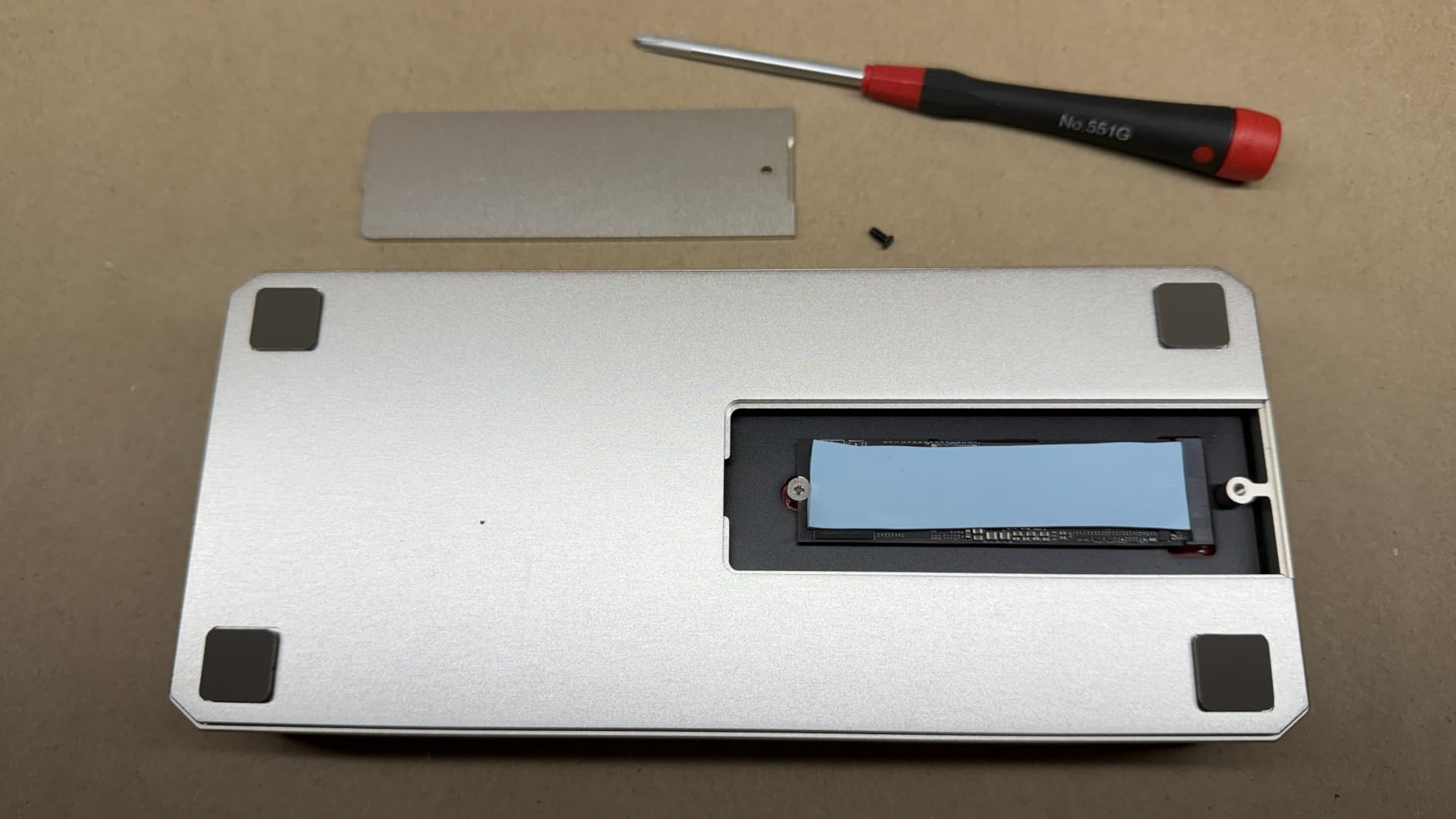
The slot is M-Key 2280 only, and it will not deliver the Gen5-class speed that the Thunderbolt 5 branding implies, with the enclosure rated up to 64Gbps. Cooling is a thermal pad and cover that doubles as the heatsink, and a drive with a tall factory heatsink will not fit with that cover closed. The dock itself weighs about 1lb 13oz without the power adapter, and the 180W external brick is the part that eats desk space.
No drive is included, and the USB-C to HDMI or DisplayPort cables and the security lock are separate purchases. The included host cable is removable, which is convenient when you travel with the dock and leave the cable at the desk.
Where it falls short for MacBook owners
Two gaps stand out on macOS. There is no HDMI or DisplayPort output, so every monitor needs a USB-C or Thunderbolt cable or an adapter, and macOS caps extended displays at two regardless of the dock’s Windows capabilities. Reviewers also note that the 2.5GbE port falls short of the full 2.5GbE bandwidth quoted in the manual.
There is no internal fan, so a high-capacity NVMe drive in this bay can run hot and drop off its peak rate on some machines. For a MacBook Air or a base Pro where the drive is a scratch disk rather than an archive, that trade is usually worth making. The horizontal form factor also wants real desk depth in front of it.
3. Satechi Thunderbolt 5 CubeDock: The One That Looks Like It Belongs Next to a Mac Mini
Satechi Thunderbolt 5 CubeDock with Built-in NVMe SSD Enclosure, Silver
- Built-in actively cooled 8TB M.2 enclosure
- three downstream Thunderbolt 5 ports
- SSD fits with the supplied screwdriver and thermal pads
- works with no drivers
- Runs warm enough that it cannot sit under or beside a Mac mini
- fan runs continuously even when the host sleeps
- only two USB-A ports
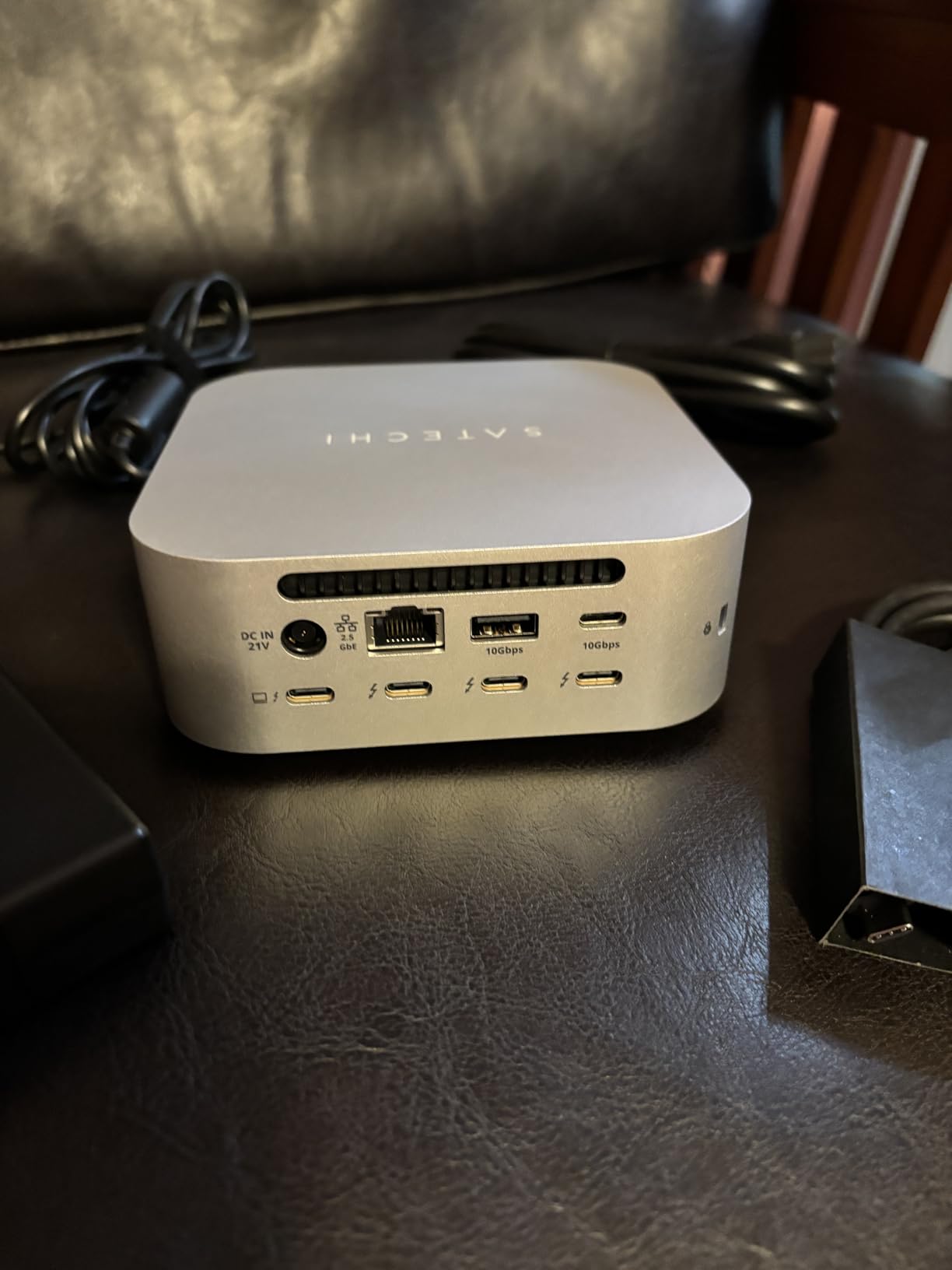
The CubeDock is a 5 inch by 5 inch by 2 inch aluminium cube weighing 1229g, and that is not a styling accident. Satechi designed it to sit beside a Mac mini or a Mac Studio without looking like a different product family. For a desk where appearance counts, that is a real feature, and owners of Mac-centric setups call it out constantly.
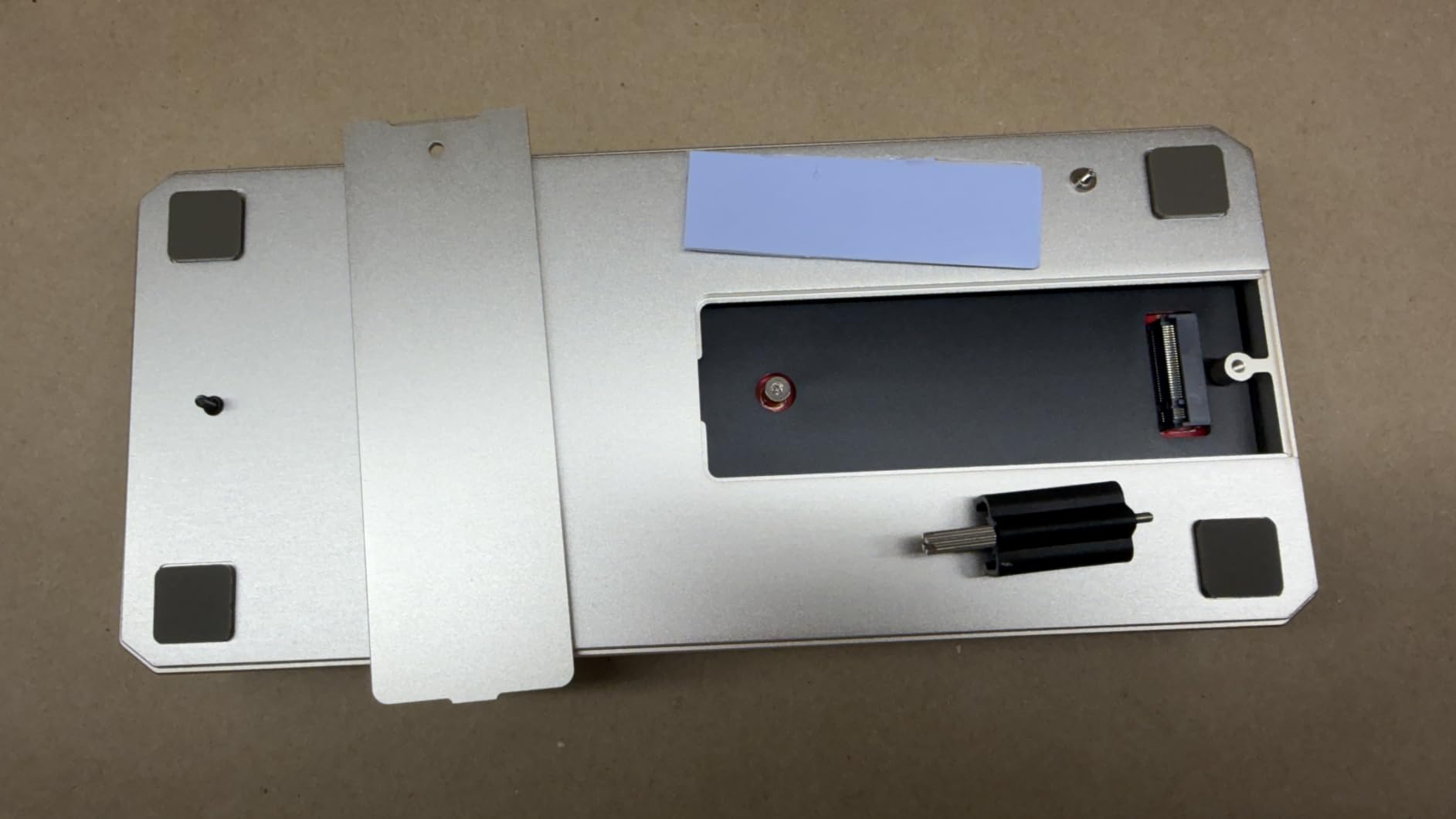
The storage bay is on the underside and holds an M.2 NVMe PCIe 4×4 drive up to 8TB, rated at up to 6000MB/s. It is actively cooled with adaptive vented aluminium and a fan rated between 20 and 40 dB(A), and owners report stable speeds through large transfers rather than the early drop-off that passive slots tend to show. The box includes a Thunderbolt 5 cable, a 180W power supply, a C5 cable, a screwdriver, two screws and two thermal pads, though no SSD.
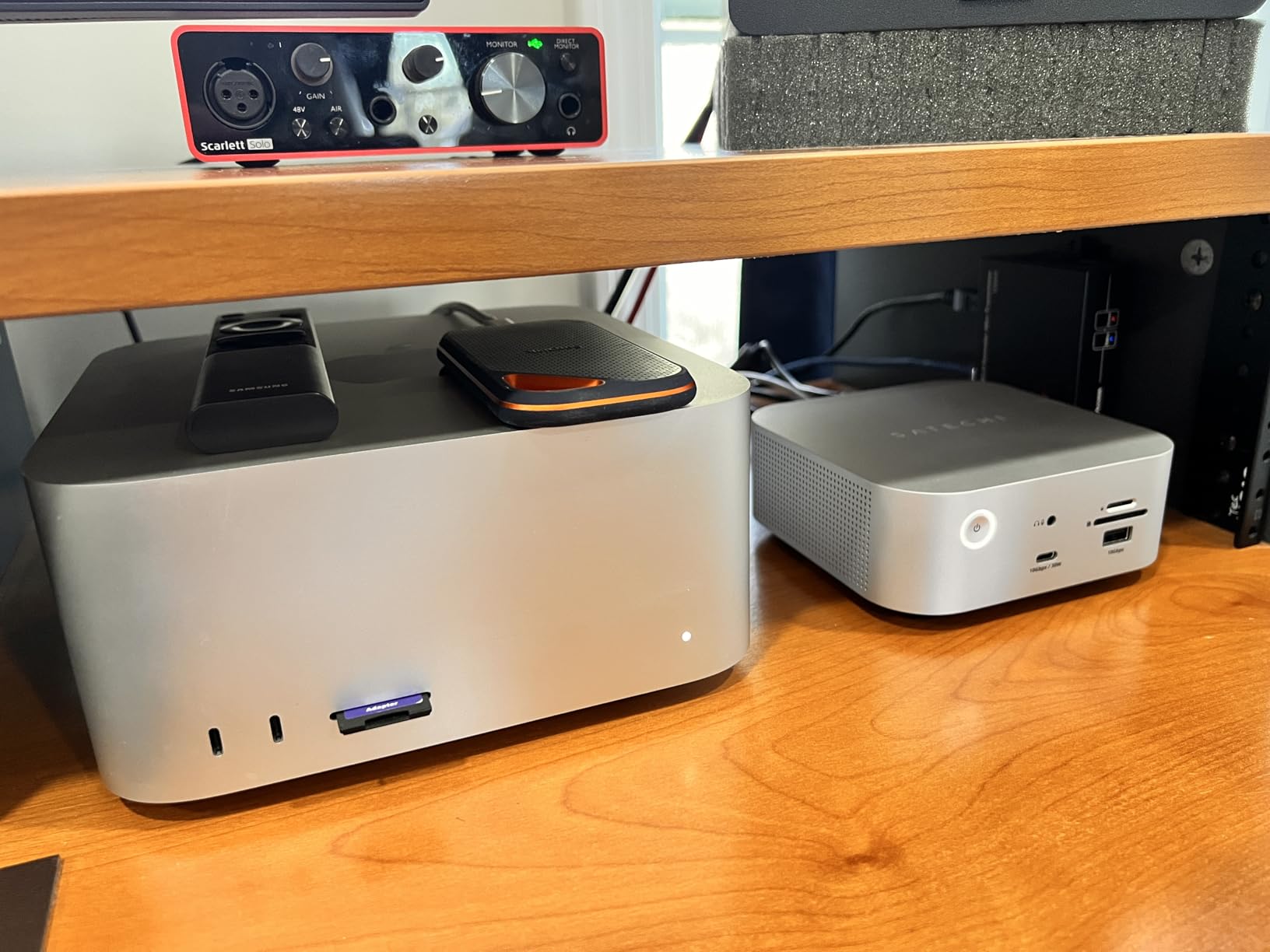
Display support is broad: a single 8K at 144Hz, dual 8K at 120Hz or triple 8K at 60Hz on Windows, and dual 6K at 60Hz on macOS with M3, M4 and M5 chips. It is plug-and-play with no drivers and no DisplayLink, which means the Mac sees a normal extended desktop rather than a compressed one. Host charging is 140W with an additional 30W USB-C power delivery port for a phone or accessory.
Compatibility is wide for a Thunderbolt 5 product: MacBook Pro 14 and 16 inch, MacBook Air 13 and 15 inch, iPad Pro, Mac mini, iMac, Mac Studio, and a range of Windows laptops. There is a two-year limited warranty and a front power button.
How the cooling and the fit work in practice
Because the fan is active, the drive bay is the one part of this dock that behaves like a small computer rather than an accessory. The thermal pads sit on the underside cover, so getting a good contact is part of installation, and the supplied screwdriver makes that a two-minute job. If you use a bare drive without a heatsink of its own, the included pads are the right way to manage temperature.
The trade is heat in the room. Owners report the unit running warm enough that it cannot be stacked with or placed directly under a Mac mini, and the fan continues running even when the host computer is asleep. On a desk where silence matters, that background movement is the first thing you will notice after the first week.
Where it falls short for MacBook owners
Only two USB-A ports are fitted, which forces some owners to keep legacy adapters on hand for older peripherals. There is no HDMI and no DisplayPort jack, so displays run over Thunderbolt or USB-C, and there is no CF card reader despite the photographic audience the design appeals to.
There are also no under-desk mounting holes, the front power button is easy to catch when you pull a stubborn front cable, and the power indicator light is bright enough to notice in a dark room. None of that ruins it. It simply means this is a desk dock, not a permanent install.
4. HyperDrive Next Thunderbolt 5 Dock: Storage Plus Thunderbolt Share
- Thunderbolt Share moves files and shares one keyboard and mouse between two machines
- M.2 bay doubles as local scratch storage with an included heatsink
- driver-free setup on Mac
- 140W one-cable charging
- Thunderbolt Share is Windows-centric so Mac-to-Mac sharing needs a USB switch
- passive cooling leaves the chassis warm
- no HDMI or DisplayPort and fewer ports than rivals
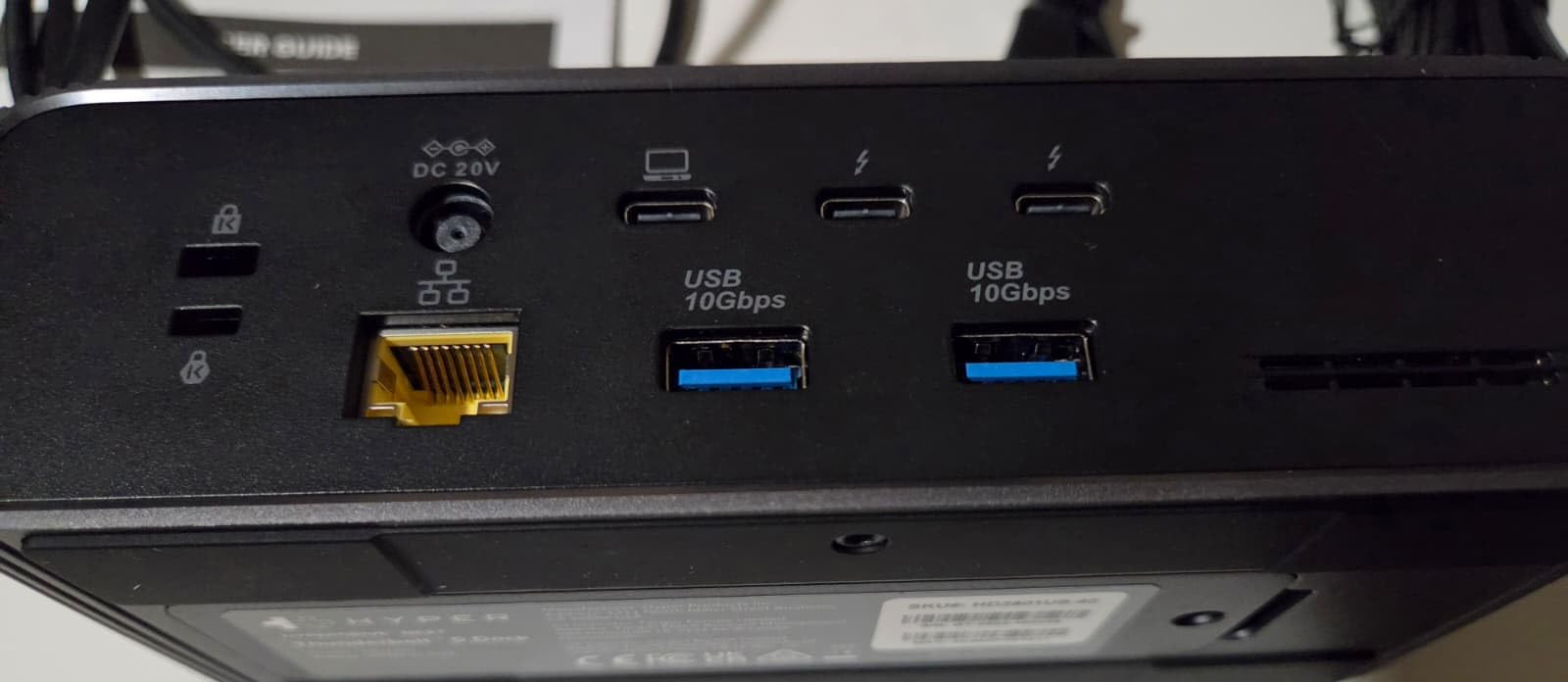
HyperDrive’s differentiator is Thunderbolt Share, which lets two computers sit behind one dock and share files, devices and keyboard and mouse control without any network involvement. On a desk that alternates between a Mac and a Windows machine it is genuinely useful, and owners use it to move between a Windows workstation and a Mac mini without swapping cables.
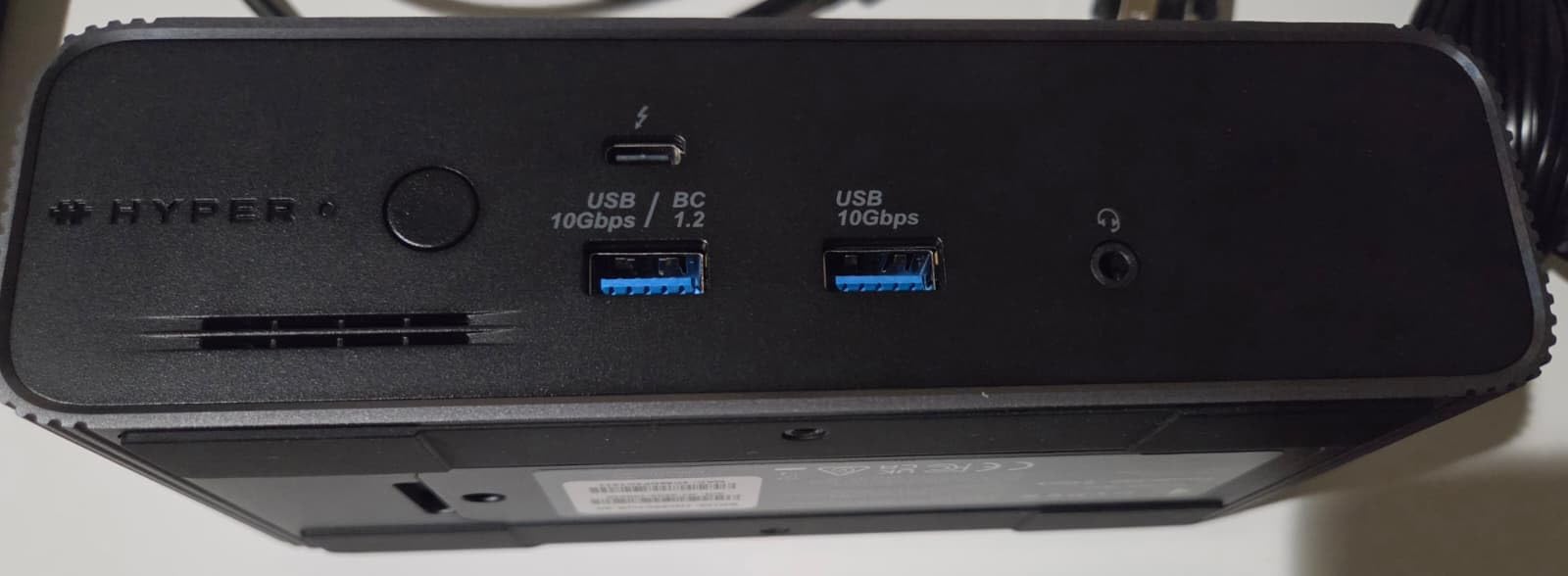
The storage bay is a built-in M.2 PCIe Gen4 x4 or Gen3 enclosure, and it also accepts other compatible PCIe-based M.2 modules such as AI accelerators, so the same slot is not limited to a plain SSD. The included heatsink covers the drive. The host connection is 120Gbps Thunderbolt 5 with 140W of power delivery, and there are two downstream Thunderbolt 5 ports, three 10Gbps USB-A ports, a 2.5Gbps RJ45 jack and a 3.5mm audio jack.
Displays run up to three 4K at 60Hz or one 8K at 144Hz on Windows and on MacBook Pro M5 Pro and Max models. macOS and Chrome OS are limited to two extended displays, which is the same host-side ceiling the other docks in this list carry. On the Mac the setup is fully driver-free, with nothing more than a permission prompt, and that is the simplest installation any Mac owner in this roundup describes.
Both nano and standard security lock slots are fitted, the chassis is a heavy metal body that does not slide, and the front USB ports and audio jack are reachable without reaching behind. Dimensions are 6.89 by 3.03 by 1.97 inches, which is a larger footprint than the travel-oriented docks.
How the M.2 bay behaves in this chassis
This is a passively cooled slot, so the difference from the Satechi or the UGREEN is thermal rather than electronic. With a drive fitted the chassis runs warm to the touch, and for a scratch disk that is fine. For a sustained multi-hour ingest while the drive is also being read randomly by an editing timeline, the actively cooled bays hold their rate better.
The bay does not ship with an SSD, and the single M.2 slot caps capacity at whatever the current largest NVMe sizes are. If your plan needs more than one drive, this dock is one volume and a separate enclosure, not a two-bay machine.
Where it falls short for MacBook owners
Thunderbolt Share needs Windows-based machines, so if your second computer is a Mac, you need a separate USB switch to get the same sharing. Laptop power delivery did not work reliably for one reviewer, and at least one owner found the port roles unclear from the manual alone.
There is no HDMI and no DisplayPort, and 11 ports is fewer than most rivals at this level. At 6.89 inches long it also claims more desk width than the cube-shaped options, so it suits a desk where the dock stays put rather than one that gets packed away.
5. Sonnet Echo 21 Thunderbolt 5 SuperDock: 21 Ports and the Only Native 10Gb Ethernet
Sonnet Echo 21 Thunderbolt 5 SuperDock 10GbE NVMe HDMI DP 140W USB-C 8K Mac
- Widest port count here at 21 interfaces
- only dock with native 10Gb Ethernet for large media transfers
- built-in 8TB M.2 slot
- includes both HDMI and DisplayPort
- Only three customer reviews so long-term reliability is unproven
- no Thunderbolt cable or SSD included in the box
The Echo 21 exists for one reason: transfer speed across the network. It is the only dock in this group with native 10Gb Ethernet rather than 2.5Gb, and for a studio pushing large camera files to a shared NAS or a media server, that difference is the whole decision. Everything else on the chassis is built to match that brief.
There are 21 interfaces in total: three Thunderbolt 5 ports, nine 10Gbps USB ports split across USB-A and USB-C, HDMI, DisplayPort, 10Gb Ethernet, SD and microSD card readers, the M.2 NVMe slot and audio I/O. The storage bay takes a user-installed M.2 NVMe drive up to 8TB, and the Thunderbolt 5 link provides 80Gbps bidirectional data with up to 120Gbps for display.
Display output is the most flexible here, because it has both HDMI and DisplayPort natively. One display up to 8K over HDMI or one 4K over DisplayPort is guaranteed, and up to two 8K displays or three to four 4K, 5K or 6K screens are possible depending on the host computer. Power delivery is up to 140W over a single cable, and the listed compatibility covers Mac, Windows, Chromebook and iPad Pro.
The honest caveat is the review base. Three customer reviews, all five stars, is not evidence of long-term reliability, and we would treat this as a specification-led purchase rather than a proven one. The chassis measures 9.63 by 4.5 by 1.38 inches and weighs 2.9 pounds, with a two-year limited warranty.
What the storage bay gives you here
The M.2 slot is user-installed and accepts drives up to 8TB, so you bring your own. Paired with 10Gb Ethernet, the useful pattern is fast local scratch next to a MacBook plus fast network transfer to shared storage, which is exactly the setup a small post-production team ends up with.
Neither a Thunderbolt cable nor an SSD is included in the box, so budget for both if you are starting from nothing. The drive bay is not described as actively cooled in the published specification, which makes the thermal behaviour of a large, hot drive worth checking in your own workflow before committing to long transfers.
Where it falls short for MacBook owners
With only three reviews, there is no track record for sleep and wake reconnection with a mounted drive, which is one of the most common complaints in this category. Firmware or driver issues that affect thousands of owners of an established dock simply have not accumulated yet.
It is also the second-longest chassis here at 9.63 inches across, and the port count includes some you may never touch. If you do not need 10Gb Ethernet, the UGREEN or the Satechi give you a more compact desk with a comparable storage bay.
6. Sonnet Echo 13 Thunderbolt 5 SSD Dock: Storage That Arrives Already Fitted
Sonnet Echo 13 Thunderbolt 5 SSD Dock 2TB NVMe 2.5GbE 8K Mac Windows USB4
- Only pick here with 2TB of NVMe storage installed and ready to use
- Kingston PCIe 4.0 drive reaches up to 6600MB/s over Thunderbolt 5
- four Thunderbolt 5 ports
- 140W charging via included cable
- Only five customer reviews and one rates it two stars
- no HDMI or DisplayPort output
- installed SSD capacity cannot be raised above the chosen variant
This is the only dock in the roundup that arrives with storage inside it. A 2TB Kingston PCIe 4.0 NVMe drive is already installed, and it runs at up to 6600MB/s over Thunderbolt 5 or up to 3400MB/s when the host is Thunderbolt 4 or 3. If you have never installed an M.2 drive and would rather not, that removes the single most common source of buyer error in this category.
The port layout is 12 high-speed connections: four Thunderbolt 5 ports, three 10Gbps USB-A Type-A charging ports, one 5Gbps USB-A, a 2.5Gb RJ45 Ethernet jack, a 3.5mm combo audio jack, and SD and microSD slots. You can attach three Thunderbolt 5, 4 or 3 peripherals behind it, and it also supports USB4 v2, USB4 and USB3 devices.
Display support runs from 1080p to 8K at up to 240Hz, with up to three 4K, two 6K or 8K, or a single 4K, 5K or 6K display depending on the host. Charging is up to 140W through the included Thunderbolt 5 cable, and the compatibility list covers Chromebook, Mac, MacBook Pro, Windows and iPad Pro.
Everything here runs on one Thunderbolt 5 host cable. Behind it you can attach three Thunderbolt 5, 4 or 3 peripherals, which is what makes the four-port layout worth having on a desk that already owns external enclosures.
What a fitted drive actually gets you
Out of the box the volume mounts as an ordinary external drive in Finder, so a first-time Thunderbolt 5 owner can plug in one cable and immediately copy media to it. That convenience comes with a fixed ceiling: the installed capacity is whatever variant you choose, and this model is also offered at 1TB and 4TB or as an add-your-own-SSD version if you want to specify the drive.
Speed depends on the host. The 6600MB/s figure requires a Thunderbolt 5 connection, and a Thunderbolt 4 MacBook will see roughly half that. A Thunderbolt 4 MacBook can still use the whole dock, it just will not unlock the headline number.
Where it falls short for MacBook owners
There is no HDMI and no DisplayPort output, so displays must be driven over Thunderbolt, which on a MacBook means USB-C or Thunderbolt cables rather than the display cables you may already own. The review base is five, and one of those is a two-star rating, so the long-term picture is genuinely thin.
It also weighs 3 pounds across 8.75 by 3.9 by 1.4 inches, and the installed capacity is fixed at purchase. If your storage plan will grow, paying for storage you cannot replace later is a poor trade.
7. Razer Thunderbolt 5 Dock Chroma: M.2 Expansion With High-Refresh Multi-Display Support
Razer Thunderbolt 5 Dock Chroma, 11 Ports + M.2 SSD Slot, Black
- Most reviewed dock here at 135 reviews
- M.2 slot accepts drives up to 8TB
- display support includes triple 4K 144Hz and 8K 60Hz
- active cooling and Thunderbolt Share
- Lowest average rating in this group at 3.6 with 17 percent one-star feedback
- only Gigabit Ethernet
- 11 ports is modest for the category
The Razer is the most documented product in this roundup and, on the numbers, the weakest. It carries 135 reviews and a 3.6 average, with 17 percent of feedback at one star and 12 percent at two stars. We include it because it is heavily reviewed and widely bought, not because it wins.
What it does offer is real. The built-in M.2 NVMe slot accepts drives up to 8TB, adding fast local storage without an external enclosure, and the Thunderbolt 5 link runs at up to 120Gbps. Display support covers up to 8K at 60Hz, 4K at 240Hz, triple 4K at 144Hz, or 1440p at 500Hz, which makes it the most capable of the group for high-refresh multi-screen work.
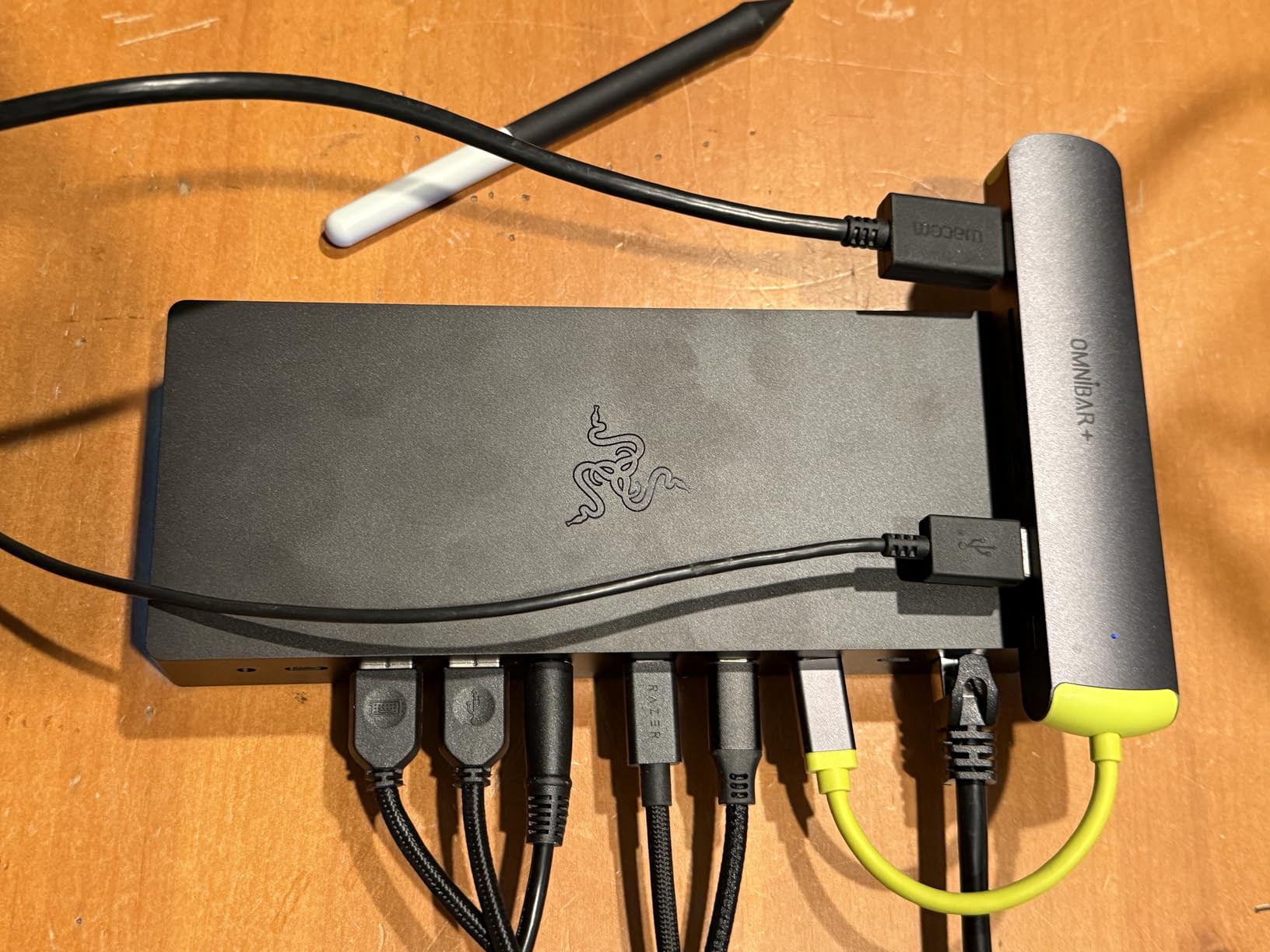
Charging is 140W, cooling is active, and Thunderbolt Share is supported, so the feature set is competitive on paper. The 11-port layout includes multiple Thunderbolt 5 ports, Gigabit Ethernet, a 3.5mm audio combo jack, a UHS-II SD slot and USB Type-A 3.2 Gen 2 ports, and the listed compatibility spans the full M-series Mac range including MacBook Air, MacBook Pro, Mac mini, iMac, Mac Studio and Mac Pro, plus Thunderbolt 5 and 4 Windows machines.
Dimensions are 8.08 by 3.35 by 1.18 inches and the warranty is one year, which is the shortest of the group alongside the HyperDrive. It is available in Black and Mercury White.
What the M.2 slot means for a Razer owner
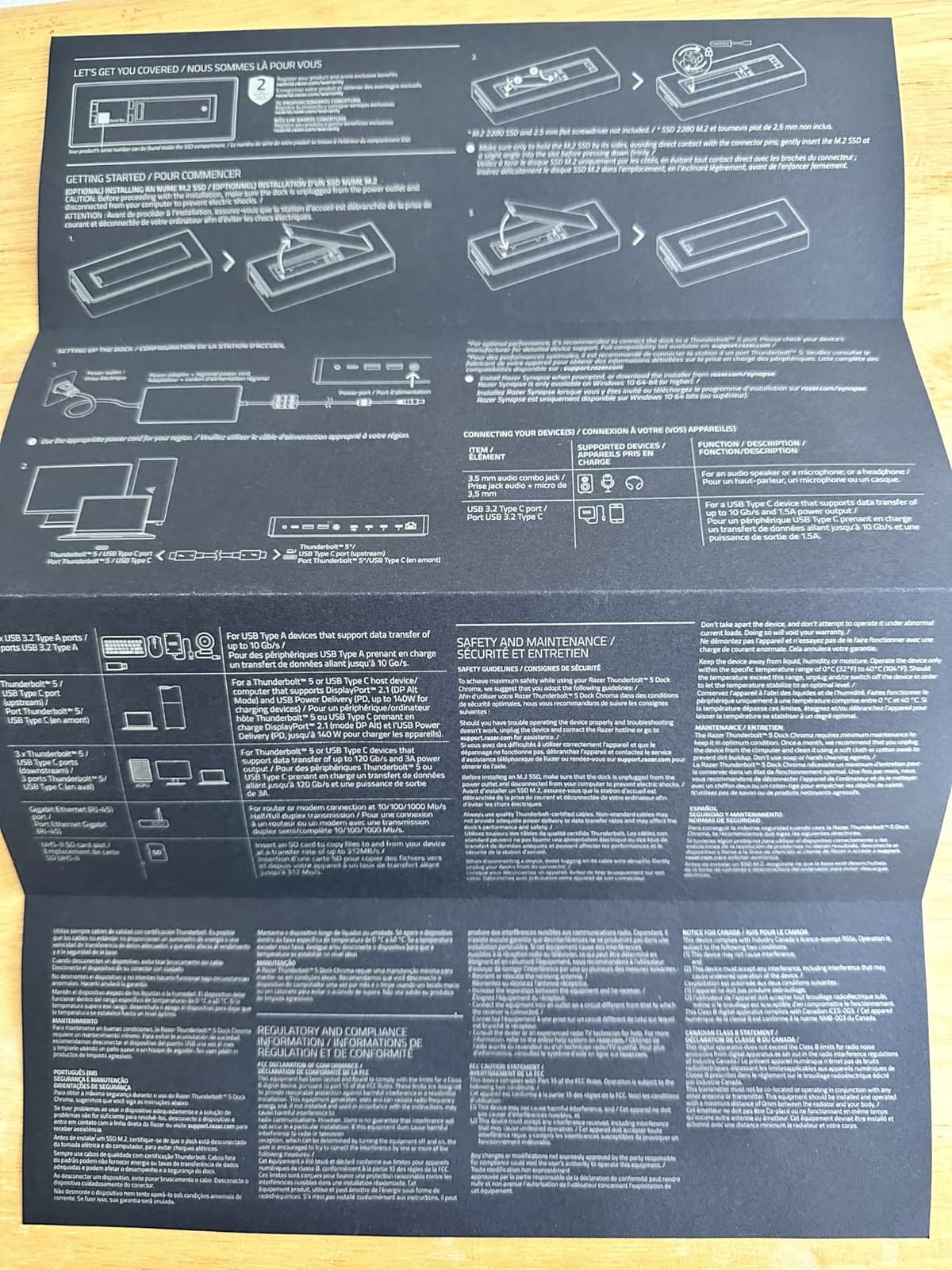
The bay is a straightforward user-installed M.2 NVMe slot with an 8TB ceiling, and active cooling means an installed drive has somewhere to shed heat. For a laptop user who wants a project scratch volume and game library in one place, the idea works, and the storage is the reason people buy this dock rather than a generic one.
Warranty length is the practical concern. A one-year term on a dock you plan to keep permanently connected for years is a shorter safety net than the three years on the Kensington or the two years on the Satechi and the Sonnet units.
Where it falls short for MacBook owners
Networking is the biggest gap. Gigabit Ethernet is slower than the 2.5GbE that the UGREEN, the WAVLINK, the Satechi, the HyperDrive and both Sonnets provide, and on a dock built for Thunderbolt 5 that is a step backwards.
Eleven ports is also modest, and only two USB ports appear in the specification listing, which is restrictive for a desk that still has legacy peripherals attached. With a 3.6 average and a one-in-six chance a review is a one-star complaint, this is the pick we would look at last unless the high-refresh display support is the deciding factor.
8. Kensington EQ Pro Thunderbolt 5 Dock: Lockable M.2 Slot and Three Card Readers
- Lockable M.2 slot secures the drive inside the chassis
- only dock here with CF plus SD plus microSD 4.0 readers
- 140W Dynamic Power Delivery with KonstantCharge
- longest warranty at three years
- Lowest average rating in this group at 3.4 with 20 percent one-star feedback
- requires macOS 14.5 or later and a Thunderbolt 5 MacBook
- SSD not included and mounting bracket sold separately
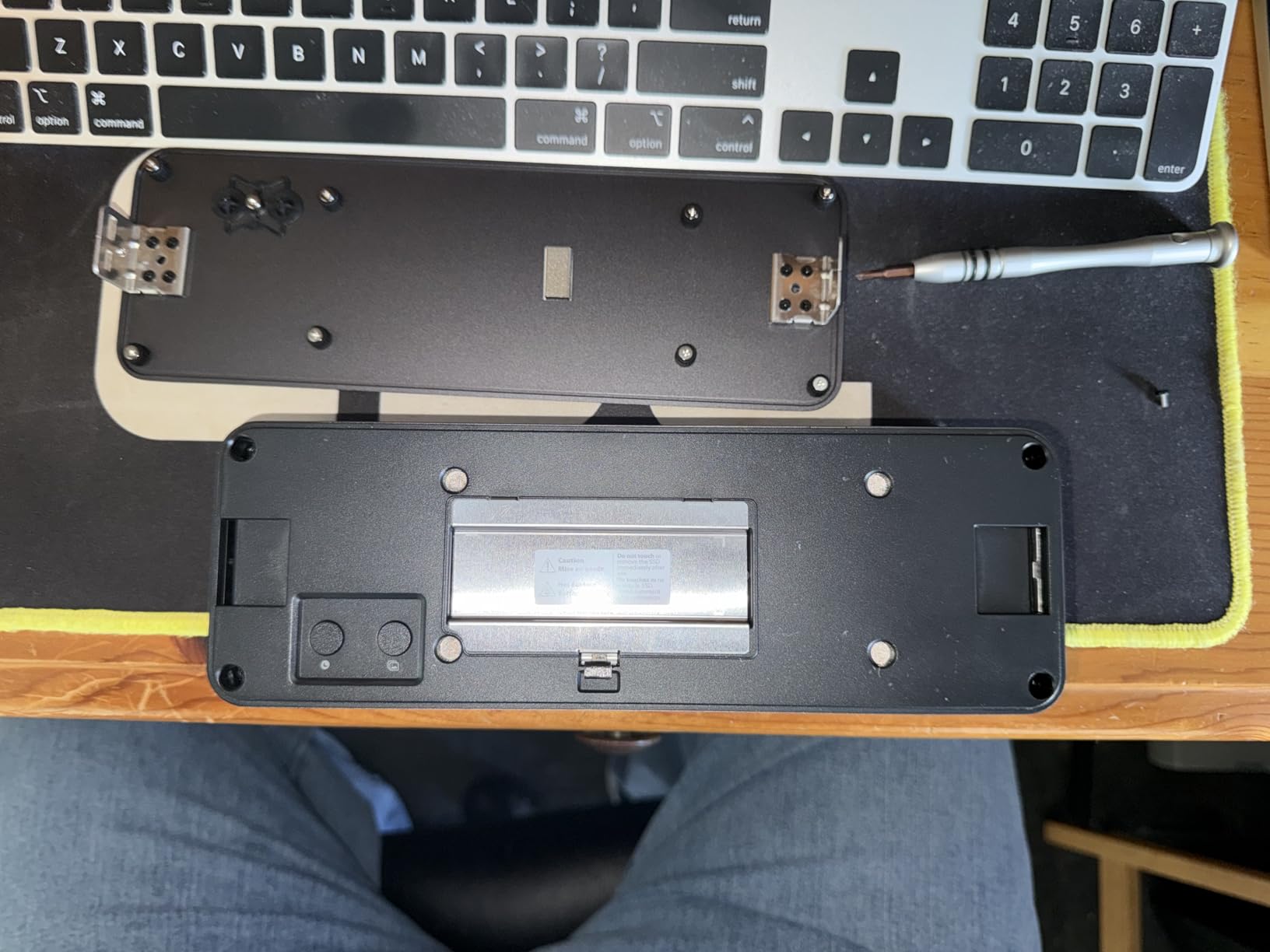
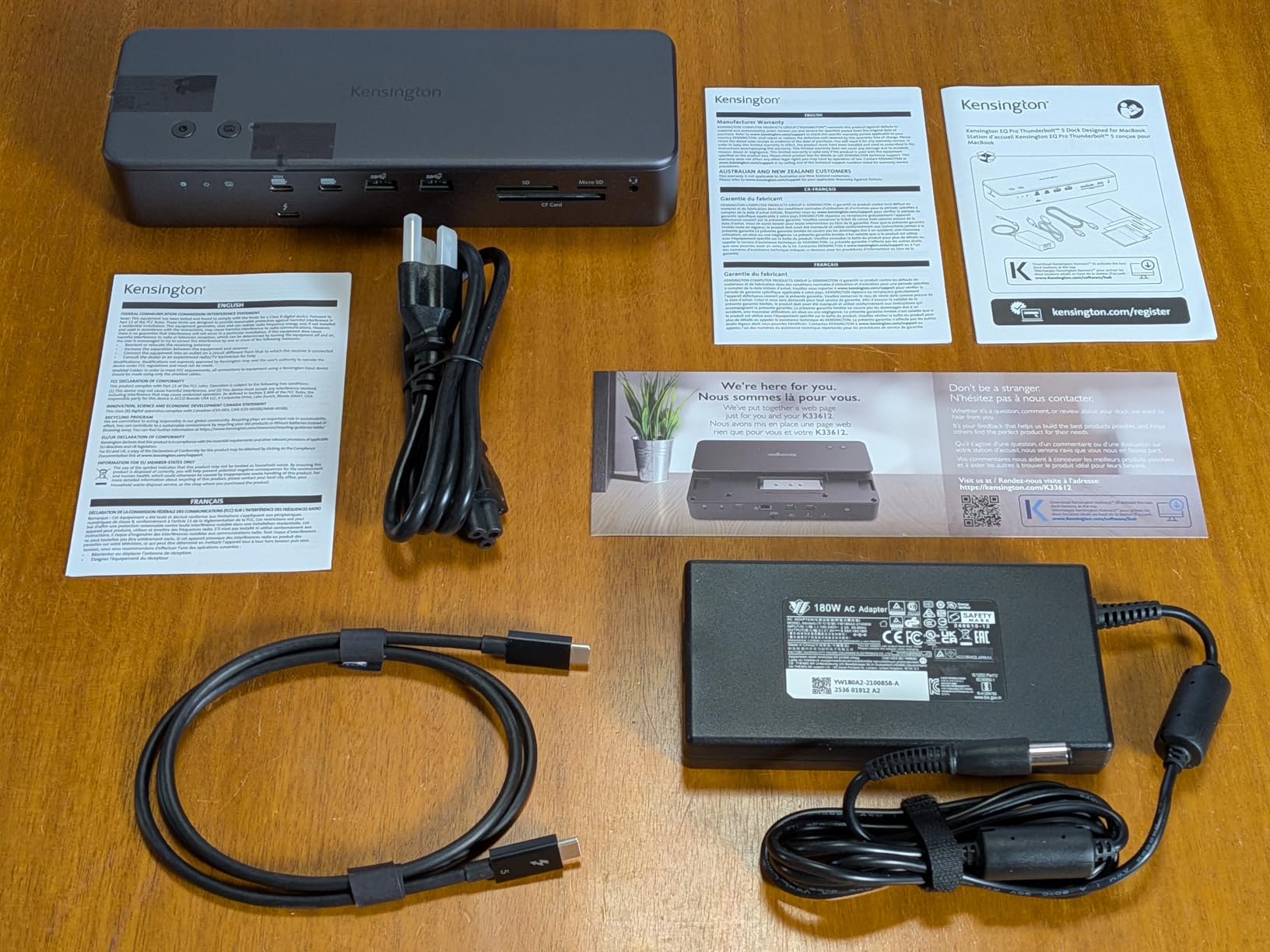
The Kensington EQ Pro is the most explicitly MacBook-oriented dock here, and it carries the most genuinely differentiated hardware. The M.2 slot is built in and lockable, so the drive is secured inside the chassis rather than sitting in an enclosure that can be pocketed. It is also the only dock with CF, SD and microSD 4.0 readers alongside four audio options.
The 19-in-1 layout includes three downstream Thunderbolt 5 ports and a host port, four USB-A 3.2 Gen 2 at 10Gbps, two USB-C Gen 2 at 10Gbps with one delivering up to 30W, three card slots, four audio options, the PCIe M.2 slot and 2.5Gbps Ethernet. Bandwidth is 80Gbps bidirectional with up to 120Gbps via Bandwidth Boost for video-heavy work, and display support reaches one 8K or two 6K at 60Hz on M-series Pro, Max and M4 base Macs.
Power delivery is 140W dynamic, and KonstantCharge keeps connected devices charging even when the laptop is undocked, which is the sort of detail that matters in a hot-desk environment. Konnect software configures the dock buttons for iPhone photo backup and Focus mode. The warranty is three years, the longest in this roundup, and an under-desk mounting bracket and Kensington cable lock are available as separate accessories.
Compatibility is narrow by design. It needs macOS 14.5 or later and a MacBook with Thunderbolt 5, so this is not a general-purpose dock for a mixed shop floor. The chassis weighs 2 pounds.
What the lockable bay changes in practice
A lockable slot is a security feature first and a convenience feature second. In a shared office, a studio edit bay or a lab, it means the scratch drive cannot be walked off with the cable, and Kensington also advises letting an M.2 drive cool before removing it after use, which matters if the drive has been running at full write load.
No SSD is included, so the storage cost lands on you separately, and the mounting bracket and cable lock are extras rather than box contents. Check the bay’s drive requirements before purchase the same way you would for any other dock here, because a drive with its own tall heatsink is rarely a good fit in a secured internal slot.
Where it falls short for MacBook owners
The rating is the problem. At 3.4 across 31 reviews, with one in five at one star and only 47 percent five-star, this is the lowest-rated product we cover. Buyers complain about paying a premium for what is functionally a Mac-only accessory, and about paying again for the bracket and the lock.
There is also no HDMI or DisplayPort in the port list, so displays attach over Thunderbolt, and the macOS 14.5 plus Thunderbolt 5 requirement rules out older MacBooks and every non-Apple machine. If the lockable bay is not a requirement for your site, the higher-rated options above serve the same storage purpose better.
How to Choose a Thunderbolt Dock With Storage?
Confirm your MacBook has Thunderbolt 5 first
Every dock on this list is a Thunderbolt 5 device, and every one of them will connect to a Thunderbolt 4 MacBook, but the headline bandwidth and the stated drive speeds assume a Thunderbolt 5 host. The Sonnet Echo 13 is the clearest illustration: its fitted Kingston drive is quoted at up to 6600MB/s over Thunderbolt 5 and up to 3400MB/s over Thunderbolt 4 or 3. A Thunderbolt 4 MacBook is a supported user, just a slower one.
Ports matter more than the badge. A USB-C port that carries only USB data will not enumerate Thunderbolt storage or drive displays properly, so check the port list on the machine itself, not the marketing name. Backward compatibility to Thunderbolt 3 and USB4 devices is present across this group, but the speed step down is real.
Know the display ceiling your chip imposes
This is where most buying guides go quiet and most buyers get disappointed. macOS limits external displays by processor, not by dock, and no dock bypasses it. A base M-series MacBook Air and a base M4 MacBook Pro will drive two extended external displays and no more, regardless of whether the dock offers triple 4K output on Windows. Several docks here describe triple-display support for Windows 11 with Thunderbolt 5, and that capability simply does not apply on macOS.
Pro and Max chips lift the ceiling, and the Satechi quotes dual 6K at 60Hz on macOS with M3, M4 and M5 chips, while the HyperDrive notes triple 4K output on MacBook Pro M5 Pro and Max. Treat any display claim on the box as a Windows claim until you have checked the Mac side.
Dock bay or separate Thunderbolt enclosure?
Compare on three axes. Desktop footprint: a dock-internal bay removes a second box and a second Thunderbolt cable from the desk, which for most people is the entire argument. Portability: an enclosure with the drive inside it is the thing you can throw in a bag, while a dock is fixed furniture. Cost per terabyte: buying a larger single drive in a bay is usually more efficient than adding a second enclosure, but the total depends entirely on the capacities you need and the drive you already own.
That footprint calculation only works if the rest of the desk is already organised. If the dock is sharing surface with hand tools, test gear or camera bodies, a proper bench is the thing that actually clears the workspace, and our picks for tool storage systems cover the options for that side of the desk.
Forum discussion in this category keeps landing on the same practical answer. Users who need both heavy storage and full port coverage frequently run two devices, keeping a Thunderbolt storage box permanently connected alongside the dock, because a single-bay dock is still one volume. If your plan is a scratch disk plus an archive, or a scratch disk plus a NAS, two devices may genuinely be the right answer.
Format and manage the dock drive in macOS
An SSD fitted in a dock bay appears in Disk Utility as an external volume, so the workflow is the same as for any external drive. Format to APFS for a drive used only with your Mac, since it handles the file system conventions macOS expects better than alternatives. Use exFAT if you need the same drive to mount on a Windows machine, and accept that it has no journaling. Whichever you choose, format before you start filling the drive rather than after.
For a dock-mounted drive as a backup target, point Time Machine at it through System Settings rather than leaving it as a plain volume. The drive stays connected with the dock, so it is always available when the laptop is at the desk, which is exactly when you want a local backup running.
Watch the drive run hot over long transfers
The most common complaint in this category is thermal, and it applies to every unit with a passive or low-airflow bay. Docks with an active fan, like the UGREEN with its 60mm fan and the Satechi with adaptive cooling, hold their rates better through long ingest jobs. Passively cooled slots run the chassis warm, and reviewers report slower sustained writes once the enclosure heats up.
Leave the top of the dock clear, avoid enclosing it in a drawer or a shelf, and do not stack another device on a warm chassis. If your workflow involves hours of continuous writes, prefer a cooled bay or a standalone enclosure with a metal body and its own heat path.
Plan for sleep and wake reconnection
The most-reported problem in this whole category is not storage. It is USB-A peripherals disappearing after the MacBook wakes from sleep with the dock still attached. In practice, a full power cycle of the dock usually restores them, and a dock with a power button makes that a single press rather than an unplug. The Kensington’s KonstantCharge behaviour, which keeps charging connected devices when the laptop is undocked, is a small example of vendors addressing this area directly.
A second cable limitation is worth stating plainly. A dock that ships with a host cable is one fewer thing to buy, and a cable that is not Thunderbolt-certified will cap your storage speed regardless of the dock inside. The WAVLINK and the Satechi both include a host cable; the Sonnet Echo 21 does not.
Frequently Asked Questions
What is the best docking station for a MacBook Pro right now?
For a MacBook Pro that needs storage, monitors, Ethernet and charging on one cable, the UGREEN Maxidok Thunderbolt 5 Dock is our top pick. It combines a built-in M.2 NVMe slot accepting drives up to 8TB with 17 ports, 140W host charging, 2.5Gb Ethernet and active cooling. The WAVLINK is the alternative if storage is your only reason for the dock, and the Satechi CubeDock if desk appearance matters.
What is the best dock for a MacBook Pro with dual monitors?
Any of the Thunderbolt 5 docks on this list will drive two external displays from a MacBook Pro, provided your MacBook has Thunderbolt 5 and macOS 15 or later. Base M-series MacBooks cap at two extended displays, so triple 4K claims that appear in dock specifications apply to Windows and not to macOS. The Satechi CubeDock additionally supports dual 6K at 60Hz on M3, M4 and M5 chips.
Is the Thunderbolt 5 dock worth it?
It is worth it if your MacBook has Thunderbolt 5 and you regularly move large volumes, run two or more displays, or want a single cable for charging, network, storage and peripherals. On a Thunderbolt 4 MacBook the docks still work, but drive speeds roughly halve, for example 3400MB/s instead of 6600MB/s on the Sonnet Echo 13. If you only need one extra display and a couple of USB ports, a USB-C hub is enough.
Which is better, a Thunderbolt dock or a USB-C dock?
A Thunderbolt dock is better when you need displays, fast external storage or sustained high-bandwidth transfers, because it provides 40Gbps on Thunderbolt 4 and up to 120Gbps on Thunderbolt 5, plus native multi-display output without a DisplayLink adapter. A USB-C dock is better for a light desk with one display, charging and a few peripherals, and it draws less power. Thunderbolt also runs hot enough that fan and thermal design matter at this bandwidth.
Does the Kensington docking station work with a Mac?
Yes, and it is built specifically for MacBook. The Kensington EQ Pro Thunderbolt 5 Dock requires macOS 14.5 or later and a MacBook with a Thunderbolt 5 port, and it is optimised for M-series Pro and Max models plus M4 base Macs. It offers 19 ports, 140W Dynamic Power Delivery, a lockable M.2 SSD slot, and CF, SD and microSD readers. No SSD is included, and the mounting bracket is a separate accessory.
What are common problems with Thunderbolt docks?
The most frequent issues are USB-A peripherals not reappearing after a MacBook wakes from sleep with the dock attached, which usually clears with a full power cycle of the dock. Others are heat and reduced sustained write speeds in an enclosed M.2 bay, missing HDMI outputs that force an active DisplayPort-to-HDMI adapter, and confusion about display limits, since macOS caps external displays by processor and a dock cannot bypass it.
What is the best docking station for both a Mac and a PC?
For a desk that alternates between a Mac and a Windows PC, the HyperDrive Next Thunderbolt 5 Dock is built for it. Its Thunderbolt Share feature moves files and shares one keyboard and mouse between two computers with no network involved, and it also carries a built-in M.2 PCIe Gen4 x4 storage bay. Note that Thunderbolt Share is Windows-centric, so a Mac-to-Mac setup still needs a separate USB switch.
What are the best Thunderbolt docks?
The best overall Thunderbolt dock with storage for MacBooks is the UGREEN Maxidok Thunderbolt 5 Dock, with 17 ports and an 8TB-capable M.2 slot. The WAVLINK Thunderbolt 5 Dock rates highest overall and is the most storage-focused, the Satechi CubeDock suits Apple-style desks, the Sonnet Echo 21 is the only option with 10Gb Ethernet, and the Sonnet Echo 13 arrives with 2TB already installed.
Which Thunderbolt Dock With Storage Should You Buy?
The UGREEN Maxidok is the pick we would buy for the best thunderbolt docks with storage for macbooks in 2026. Its 17 ports, active cooling and 8TB-capable M.2 bay make it the most complete desktop unit here, and 317 reviews is the deepest evidence base any storage-equipped dock in this category has.
Buy the WAVLINK instead if the storage is the point and you want the highest rating and three downstream Thunderbolt 5 ports. Buy the Satechi CubeDock if it has to look right next to a Mac mini, and the Sonnet Echo 13 if you would rather not install a drive yourself.
Whatever you choose, confirm three things before you order: your MacBook has Thunderbolt 5, your chip supports the number of displays you plan to connect, and the drive you intend to fit clears that dock’s bay dimensions. Those three checks prevent nearly every regret we saw in owner feedback across this group.