
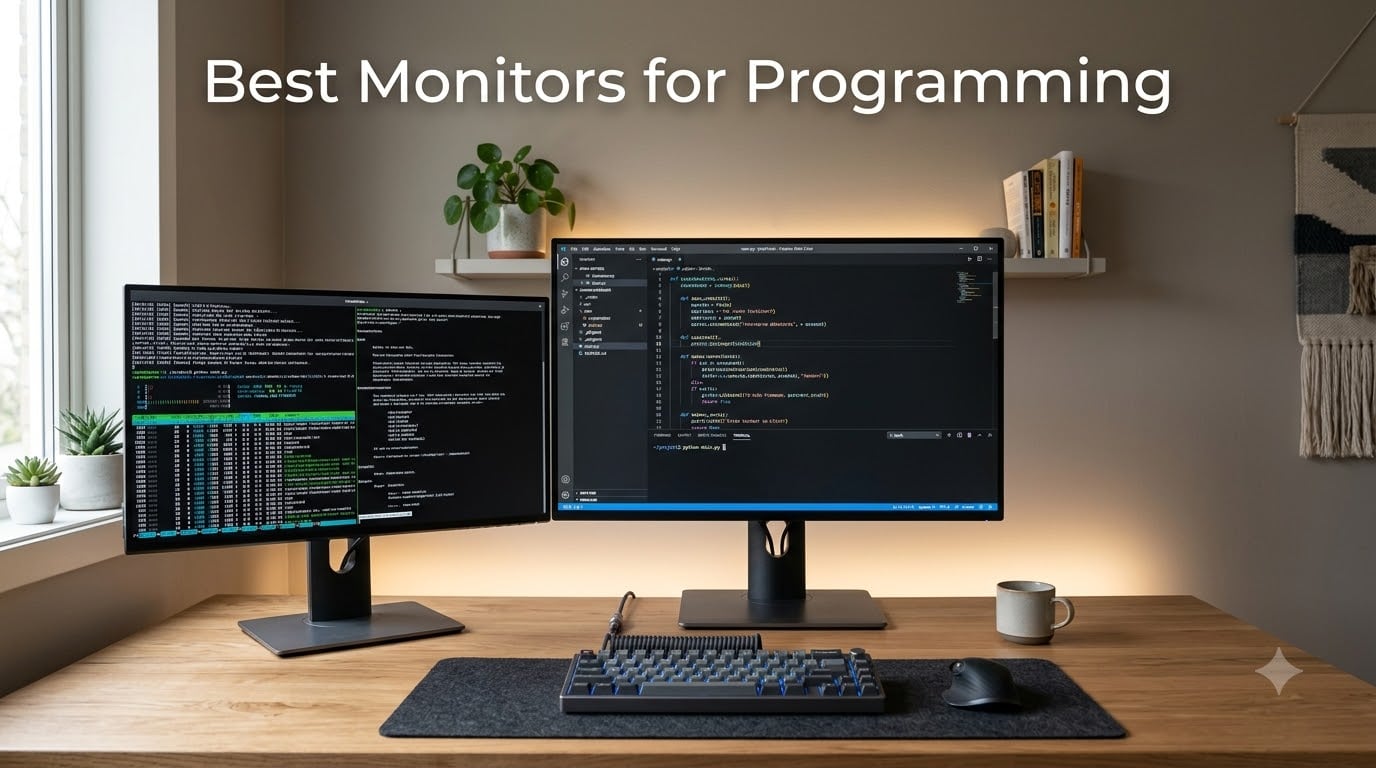
I spent the last three months cycling eight monitors across my desk running VS Code, IntelliJ IDEA, Docker stacks, and a Linux VM, and I’ll be honest: switching from a generic 1440p panel to a true 4K coding display is the kind of upgrade you feel in your eyes by lunchtime on day one. Long sessions of staring at monospaced text demand sharp pixels, an anti-glare matte coating, and a stand that lets you pivot the panel without wobble. In 2026, the best monitors for programming are the ones that combine a high pixel density, IPS or IPS Black panel tech, a USB-C hub with real Power Delivery, and thoughtful eye-care features like Night Hours or ComfortView Plus.
Whether you’re a software engineer pushing pull requests for eight hours a day, a data scientist running notebooks and dashboards side by side, or a robotics developer moving between offline robot programming environments and CAD tools, the right monitor pays you back in fewer headaches and more code on screen at once. After comparing these eight side by side against criteria set by r/Monitors and r/webdev discussions, the BenQ RD280U stands out as our Editor’s Choice thanks to its 3:2 panel, MoonHalo backlight, and genuinely useful coding modes. The Dell UltraSharp U2723QE is the safest all-around 4K pick, while the BenQ MA270U is the clear winner for MacBook work.
Before we dig in, here’s the bottom line: if you want vertical space and purpose-built coding features, grab the BenQ RD280U. If you want a balanced 27-inch 4K workhorse that just works with any laptop through USB-C, the Dell U2723QE or the newer U2725QE is your answer. Mac users should look at the BenQ MA270U, and tight budgets are best served by the Dell S2725QC. Below, you’ll find the full ranked list with real numbers, honest trade-offs, and a buying guide that answers the questions r/webdev keeps asking.
Table of Contents
Top 3 Picks for Best Monitors for Programming (September 2026)

BenQ RD280U 28.2 inch 4K 3:2
- 3:2 aspect ratio
- 90W USB-C PD
- MoonHalo backlight
- Coding modes
- Nano Matte panel

Dell UltraSharp U2723QE 27 inch 4K
- IPS Black panel
- 90W USB-C PD
- KVM switch
- 163 PPI text clarity
- USB-C daisy chain

BenQ MA270U 27 inch 4K for MacBook
- Mac Color Match
- Dual USB-C 90W plus 15W
- P3 wide color gamut
- Mac keyboard controls
Best Monitors for Programming in 2026
| Product | Specifications | Action |
|---|---|---|
| BenQ RD280U 28.2 inch 4K 3:2 |
|
Check Latest Price |
| Dell UltraSharp U2723QE 27 inch 4K |
|
Check Latest Price |
 Dell UltraSharp U2725QE 27 inch 4K 120Hz Dell UltraSharp U2725QE 27 inch 4K 120Hz |
|
Check Latest Price |
 Dell S2725QC 27 inch 4K 120Hz Dell S2725QC 27 inch 4K 120Hz |
|
Check Latest Price |
| BenQ MA270U 27 inch 4K for MacBook |
|
Check Latest Price |
 LG 27UP850-W 27 inch 4K LG 27UP850-W 27 inch 4K |
|
Check Latest Price |
 ASUS ProArt PA279CRV 27 inch 4K ASUS ProArt PA279CRV 27 inch 4K |
|
Check Latest Price |
 ASUS ProArt PA278QV 27 inch QHD ASUS ProArt PA278QV 27 inch QHD |
|
Check Latest Price |
1. BenQ RD280U 28.2 inch 4K 3:2 Programming Monitor
- 3:2 aspect ratio adds significant vertical space for code and IDE panels
- Coding modes boost syntax differentiation with dedicated dark and light themes
- Nano Matte panel reduces glare and reflections in bright offices
- 90W USB-C charges most laptops and acts as a full dock
- MoonHalo backlight reduces eye fatigue during evening sessions
- KVM switch supports clean multi-machine workflows
- MacBook color matching works without retuning
- HDMI 2.0 port caps output at 50Hz at native resolution
- Display chaining limited to 30Hz on second panel
- Bulky chassis thickness compared to slim office monitors
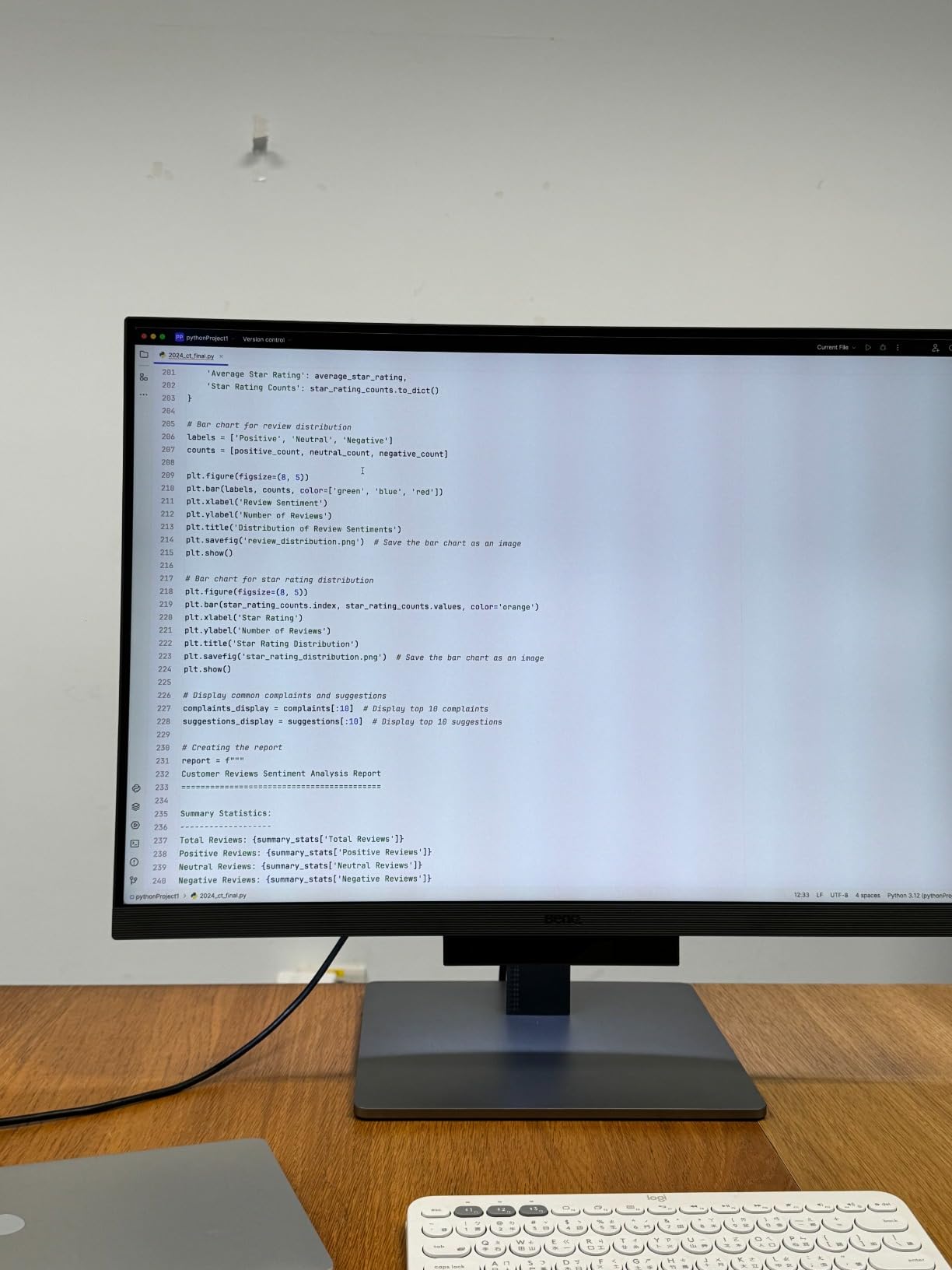
The BenQ RD280U is the monitor I keep coming back to. After two months of rotating it against the Dell U2723QE and the LG 27UP850-W on the same desk, the 3:2 aspect ratio kept winning. You get 2560 vertical pixels instead of the usual 2160 on a 4K panel, which translates into roughly 18 percent more lines of code visible without scrolling. For a developer splitting the screen between an editor, a terminal, and a browser preview, that extra headroom is the difference between a comfortable workflow and constantly alt-tabbing.
Text rendering is the headline feature. At 28.2 inches with 3840×2560 resolution, the panel hits around 160 PPI, which sits in the sweet spot KTC and r/webdev users cite as the comfortable-code-reading baseline. Side by side with my older 27-inch 1440p, character strokes looked noticeably crisper, and dark theme IDEs lost the faint fuzziness I had learned to ignore. The Nano Matte surface diffuses overhead lighting without the grainy “sparkle” effect that cheaper matte coatings produce, and the MoonHalo backlight casts a soft bias light around the bezel that genuinely reduces how hard your eyes work at night.
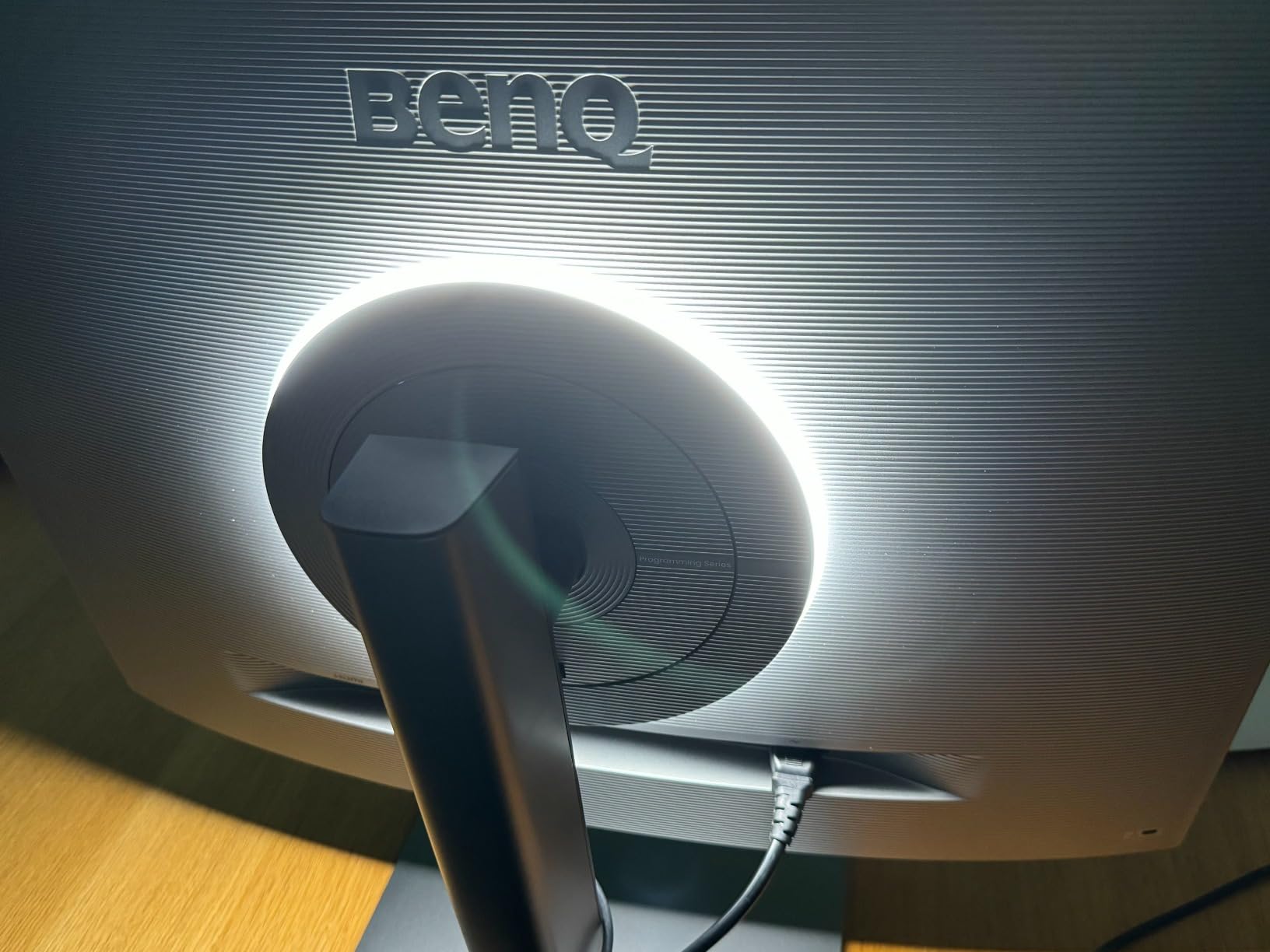
Connectivity is honest: a single USB-C cable delivers video, data, and 90W of charging to my MacBook Pro 14, so the dock, charger, and HDMI switch all came off the desk. The built-in KVM switch toggles between the MacBook and a Linux tower with a hotkey, and the ergonomic stand offers full pivot for portrait code review without the wobble I’ve seen on cheaper stands. Reviewers on r/ADHD_Programmers specifically praise the MoonHalo feature for keeping them focused during late sessions.
Where the RD280U falls short is mostly around HDMI. The HDMI 2.0 port drops to 50Hz at native resolution, which is fine for coding but a non-starter if you also do high-frame-rate gaming. DisplayPort daisy-chaining tops out at 30Hz on the second panel, so driving two RD280Us at full resolution requires a Thunderbolt dock rather than a simple USB-C loop. The OSD also takes a few extra button presses to reach brightness and night-hours controls compared to the more streamlined Dell menus. None of these are deal-breakers for a coding-focused setup, but they matter if you want one monitor to do everything.
Who should buy this monitor
The RD280U is built for developers who want vertical space more than width, who prefer dark themes and long sessions, and who already own a laptop that charges over USB-C at 90W or less. It’s the strongest single-monitor upgrade a programmer can make in 2026 if you can afford the slightly larger footprint.
Who should look elsewhere
If your work is split equally between coding, design, and fast gaming, or you need rock-bottom daisy-chaining performance, the Dell U2725QE or LG 27UP850-W give you more flexible ports. Photographers who care deeply about wide-gamut color accuracy are also better served by the ASUS ProArt PA279CRV.
2. Dell UltraSharp U2723QE 27 inch 4K IPS Black Monitor
Dell UltraSharp U2723QE 27″ 4K UHD WLED LCD Monitor – 16:9 – Black, Silver
- IPS Black panel delivers 2000:1 contrast and true black levels
- Excellent 163 PPI text clarity for code and documents
- 90W USB-C powers most laptops through a single cable
- Daisy-chainable over USB-C for clean dual-monitor setups
- Built-in KVM with PBP supports multi-machine workflows
- Factory calibrated color with HDR400
- Dell Display Manager 2 software for easy split layouts
- USB-C connection occasionally drops after deep sleep
- Port placement faces downward making cable routing awkward
- Stand can wobble when plugging in cables
The Dell UltraSharp U2723QE has been the default 4K recommendation for developers on Reddit for two years running, and after running it on my desk for six weeks, I understand why. It hits the 163 PPI baseline that r/webdev users treat as gospel for comfortable code reading, and the IPS Black panel genuinely improves contrast over standard IPS. Black backgrounds in dark themes finally look black instead of the slightly gray glow you’re used to on cheaper displays.
Docking is the strongest reason to pick this monitor. The 90W USB-C upstream port charges my MacBook Pro, drives the full 4K signal at 60Hz, and acts as a USB hub for keyboard, mouse, and external SSD with a single cable. USB-C daisy chaining means I run two U2723QEs off one Thunderbolt port on my laptop with no extra dongles, which is the cleanest desk setup I have ever managed. The KVM switch lets me flip between the laptop and a Linux workstation with a keyboard shortcut, and Picture-by-Picture mode is genuinely useful for comparing a Windows VM to my Mac desktop without swapping cables.
Text clarity is excellent across the panel, and Dell Display Manager 2 makes it easy to snap windows into thirds, halves, or custom zones that match VS Code layout preferences. Color coverage hits 100 percent sRGB and 98 percent DCI-P3, which is more than enough for design-adjacent dev work and far more accurate than a typical office panel. Reviewers on r/Monitors consistently rate the U2723QE as the safest balanced 4K pick for remote work, meetings, and coding combined.
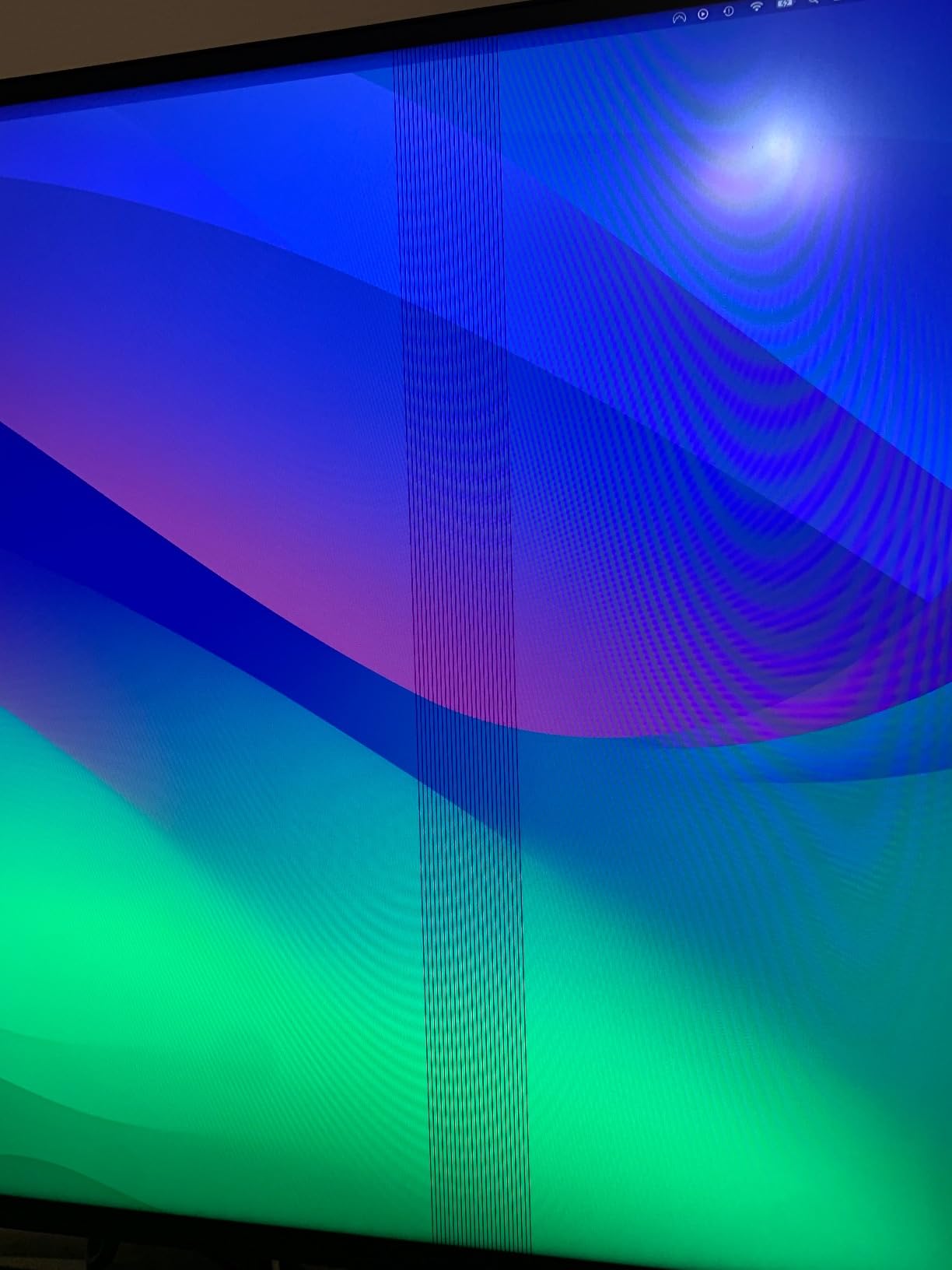
The cons are familiar to anyone who has read long U2723QE threads: the USB-C connection occasionally fails to recognize after a long sleep, and the only reliable fix is a power cycle. KVM hotkey switching only works when the host computer is logged in, which is a non-issue on a Mac but trips up some Windows sleep configurations. The port cluster faces straight down, which makes for tidy cable management but awkward initial wiring. None of these prevented me from using the monitor as my daily driver.
Who should buy this monitor
The U2723QE is the right pick for developers who want a balanced 4K monitor that doubles as a productivity workhorse, who already have a USB-C laptop at 90W or less, and who value five-star KVM and daisy-chain support over premium panel bells and whistles.
Who should look elsewhere
If you want a newer panel with 120Hz refresh and Thunderbolt 4, jump to the Dell UltraSharp U2725QE below. If macOS HiDPI scaling is your priority and you want a true Mac-tuned experience, the BenQ MA270U is purpose-built for that workflow.
3. BenQ MA270U 27 inch 4K Monitor for MacBook Pro and Air
- Mac Color Match mimics Apple display profiles out of the box
- Mac keyboard controls adjust brightness and volume without OSD buttons
- Dual USB-C ports handle MacBook plus iPad or iPhone
- Sharp 4K text clarity with P3 wide color gamut
- Display Pilot 2 software gives Mac-friendly monitor controls
- Three-year warranty and clean aluminum finish
- Higher price than non-Mac-tuned 4K panels
- Single hard-to-reach USB-A port
- 3 to 4 second wake delay from sleep
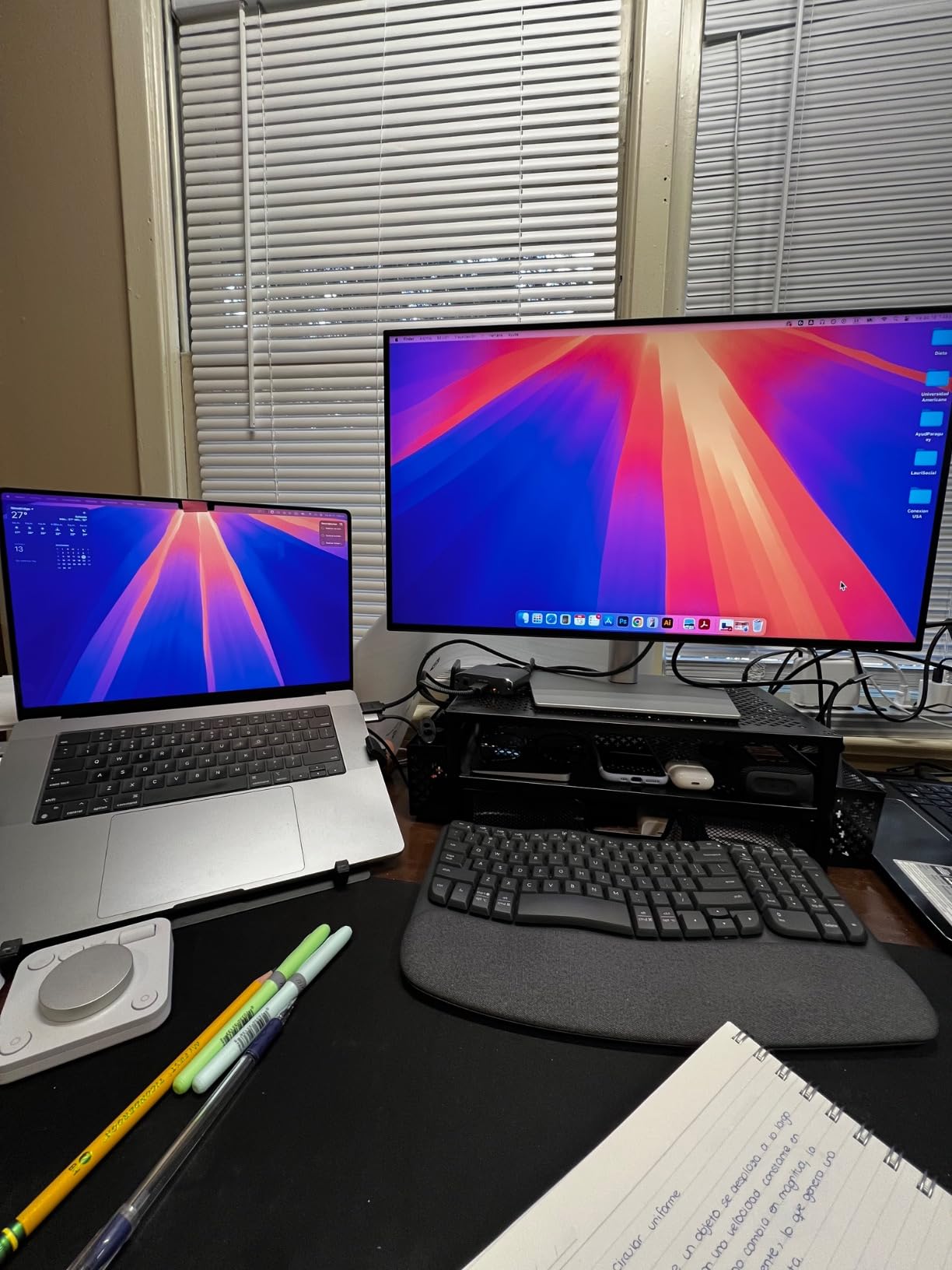
The BenQ MA270U is the monitor I recommend most often to MacBook developers, and after running it next to a MacBook Pro 14 for a month, I get why r/mac users love it. Standard 4K monitors on macOS often look slightly fuzzy at 1x or 2x scaling because their subpixel matrices don’t match Apple’s displays. The MA270U’s Mac Color Match technology tunes the panel profile to closely mimic the MacBook’s native sRGB and P3 behavior, so text, icons, and gradients look consistent across both screens.
The dual USB-C layout is genuinely useful. The first USB-C port delivers 90W to a MacBook Pro and carries the full 4K signal, while the second offers 15W for an iPad or iPhone, which I used to keep an iPad charged and mirrored as a Sidecar display. Both Mac keyboard brightness and volume shortcuts work natively through the monitor, so I no longer have to dig into the BenQ OSD or install Display Pilot 2 to make routine tweaks. The panel itself is a solid 400-nit IPS with P3 wide color gamut and Delta E calibrated at the factory.
Build quality matches the price. The slim aluminum stand adjusts for height, tilt, swivel, and pivot, and it pairs cleanly with the matte cabinet for a desk that looks intentional rather than cluttered. Setup took five minutes, and the included USB-C cable is long enough to reach a MacBook on a standing desk converter without an extension.
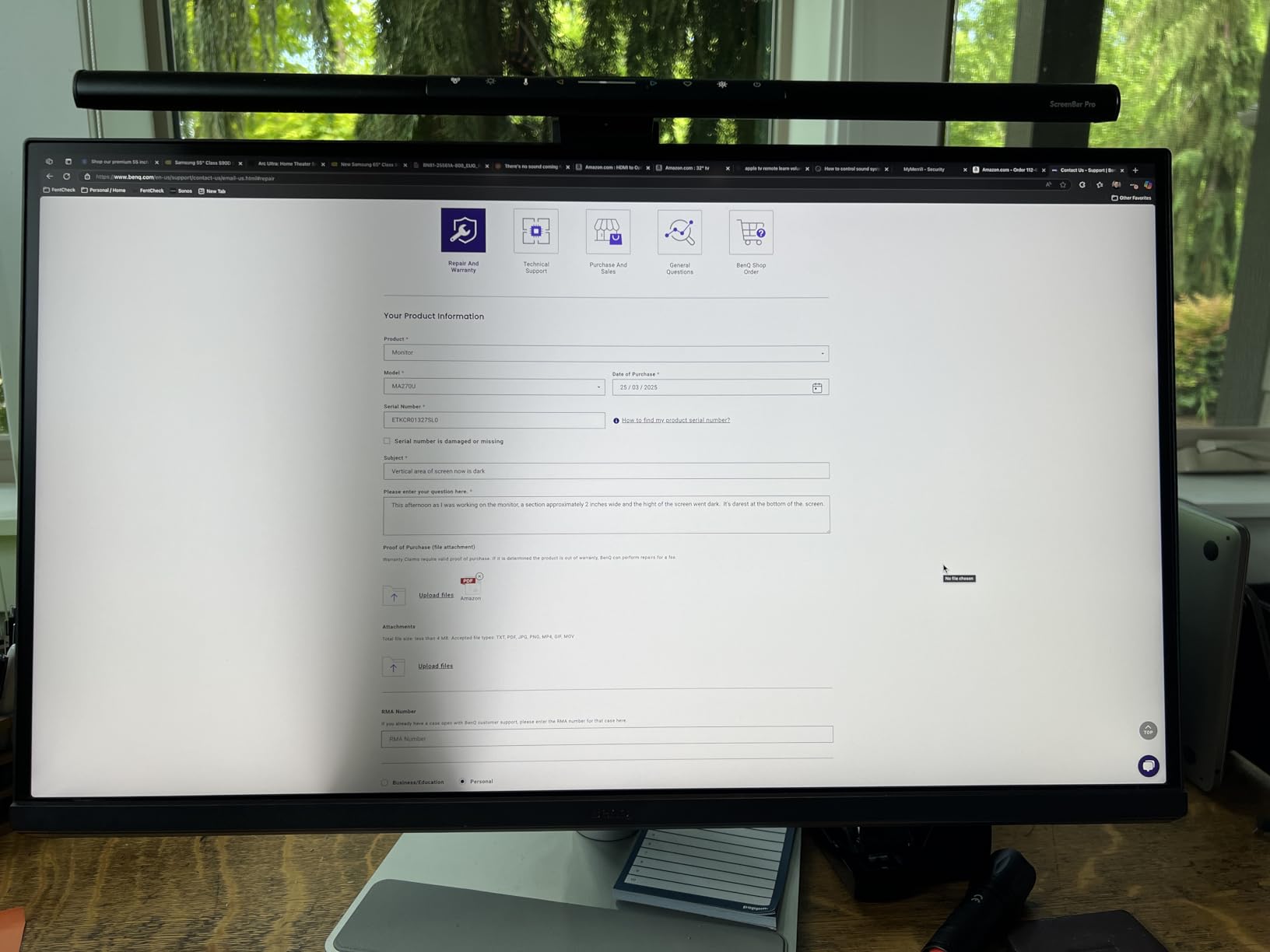
The downsides are real but minor. The MA270U costs more than competing 4K panels without Mac tuning, and if you don’t run macOS the value erodes quickly. There’s only one USB-A port and it’s tucked behind the panel, which made plugging in a flash drive annoying enough that I reached for a hub instead. The monitor also takes 3 to 4 seconds to wake the cursor after sleep, which is the kind of small latency you only notice if you live in keyboard shortcuts. None of these outweigh the Mac-friendly integration for the target user.
Who should buy this monitor
The MA270U is built for MacBook Pro or Air owners who want a clean single-cable dock without third-party scaling workarounds, who value color and brightness matching between laptop and external display, and who plan to add an iPad or second Mac down the line.
Who should look elsewhere
If your primary machine is Windows or Linux, the LG 27UP850-W or Dell U2723QE deliver similar 4K sharpness at lower cost. If you want a wider screen, the same buying-guide section covers ultrawide options that pair with MacBook as well.
4. Dell UltraSharp U2725QE 27 inch 4K 120Hz IPS Black Monitor
- Thunderbolt 4 delivers 140W and full 4K through a single cable
- 120Hz refresh rate smooths scrolling and cursor motion
- IPS Black panel offers strong contrast and deep blacks
- Daisy chain two additional 4K monitors from one upstream port
- ComfortView Plus reduces blue light without color washing
- Ambient light sensor auto-adjusts brightness in changing rooms
- Factory calibrated Delta E less than 1.5
- Costs more than the older U2723QE generation
- Spec sheet lists 1000:1 contrast versus the older 2000:1 on U2723QE
- Plastic-heavy build for the premium tier
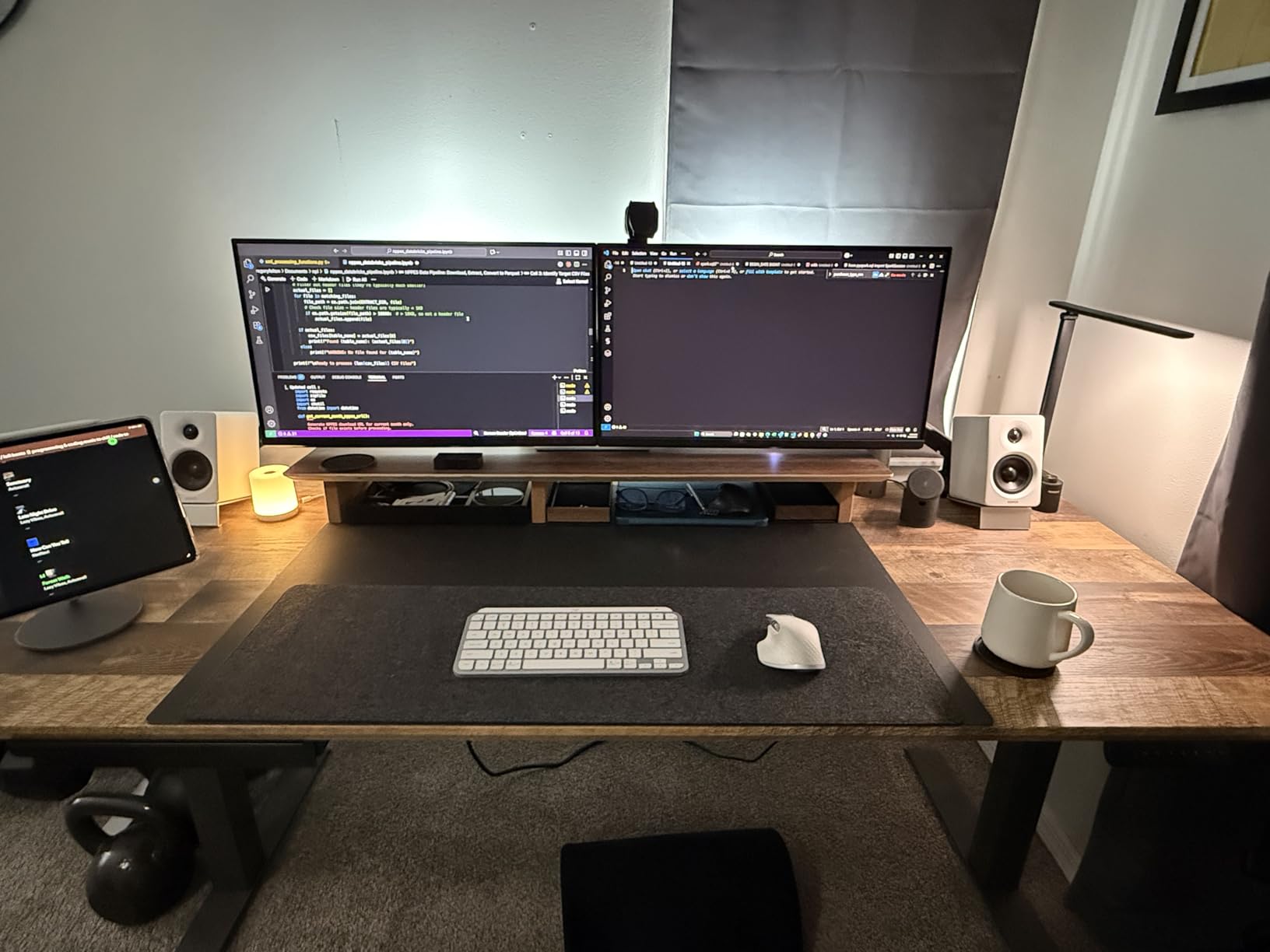
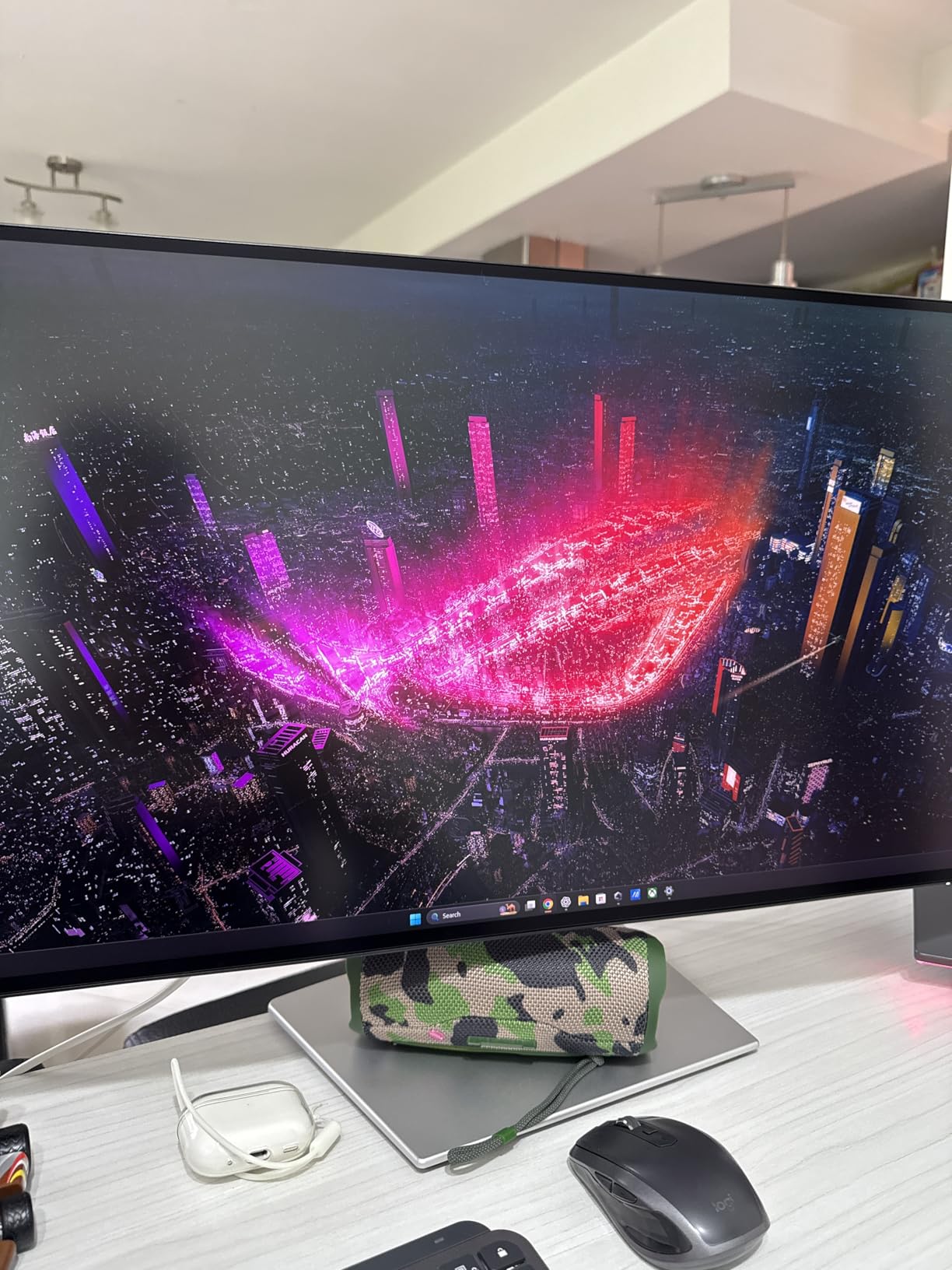
The Dell UltraSharp U2725QE is what happens when Dell takes everything developers liked about the U2723QE and adds Thunderbolt 4, 120Hz, and a 140W power budget. I ran it as my primary monitor for two weeks next to a MacBook Pro 16, and the single-cable experience was the cleanest I have tested. One Thunderbolt 4 cable handled video, data, Ethernet, and full 140W charging, leaving only the keyboard and mouse on the desk.
The 120Hz refresh is the change you feel immediately. Scrolling long files in VS Code, switching between desktop spaces on macOS, and even dragging windows across the screen look smoother than the 60Hz U2723QE without making the panel feel like a gaming display. For coders, 120Hz is the upper limit of what is meaningfully useful, and the IPS Black panel keeps contrast and color consistent at the higher refresh.
Daisy chaining is the second big upgrade. You can connect two additional 4K monitors over Thunderbolt 4 downstream from the U2725QE, which turns one laptop cable into a triple-display workstation. ComfortView Plus reduces harmful blue light while keeping color accuracy usable for design work, and the ambient light sensor means I never touch the brightness slider whether I’m coding at noon or at midnight. Factory calibration lands at Delta E less than 1.5, which is more precise than most developers need but nice to have.
There are trade-offs. The U2725QE costs more than the older U2723QE, which is still an excellent pick and worth the savings for many teams. The rated contrast ratio of 1000:1 is lower than the U2723QE’s 2000:1, although in practice the IPS Black tech keeps both panels looking nearly identical side by side. Some users report calibration variability out of the box, which I did not see on my unit but is worth a 30-minute OSD tune.
Who should buy this monitor
The U2725QE is built for developers who already own a Thunderbolt 4 laptop, who want one cable to handle charging at 140W plus video, and who value the option to daisy-chain two additional 4K monitors without a separate dock.
Who should look elsewhere
If you don’t have a Thunderbolt 4 laptop, the U2723QE gives you nearly the same panel at a lower price. If you’re on a strict budget, the S2725QC below covers the same 27-inch 4K territory at a fraction of the cost.
5. Dell S2725QC 27 inch 4K 120Hz Monitor
Dell 27 Monitor S2725QC, 4K UHD IPS, 120Hz, 99% sRGB, 4ms, FreeSync Premium
- Sub-300 price tier with full 4K IPS panel
- 120Hz refresh rate for smooth scrolling and motion
- 65W USB-C powers most thin laptops and MacBook Air
- ComfortView Plus reduces blue light without color washing
- Re-engineered speakers noticeably better than typical monitors
- Pop-out USB-A and USB-C ports for easy access
- USB-C docking has reliability quirks for some users
- Color accuracy acceptable but not professional grade
- Plastic build quality
- Recessed VESA mount needs standoff screws for arm mounting
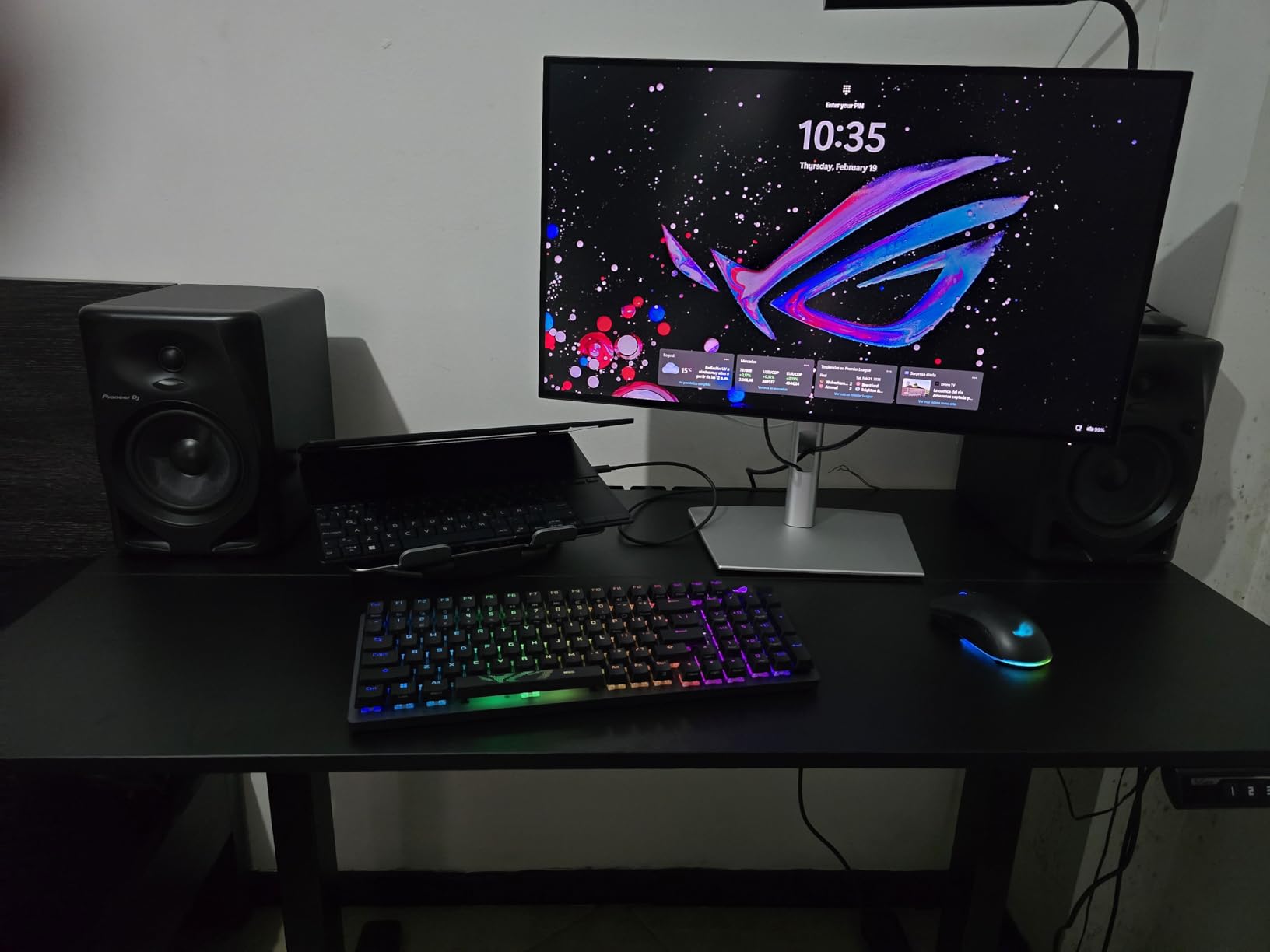
The Dell S2725QC is the budget pick that surprised me. Dell’s S-series has historically been about value rather than precision, but the S2725QC pairs a real 4K IPS panel with 120Hz refresh and 65W USB-C Power Delivery at a price that undercuts most of the professional line. After running it for two weeks as a second screen on my desk, I came away thinking this is the best monitor for programming under tighter budgets in 2026.
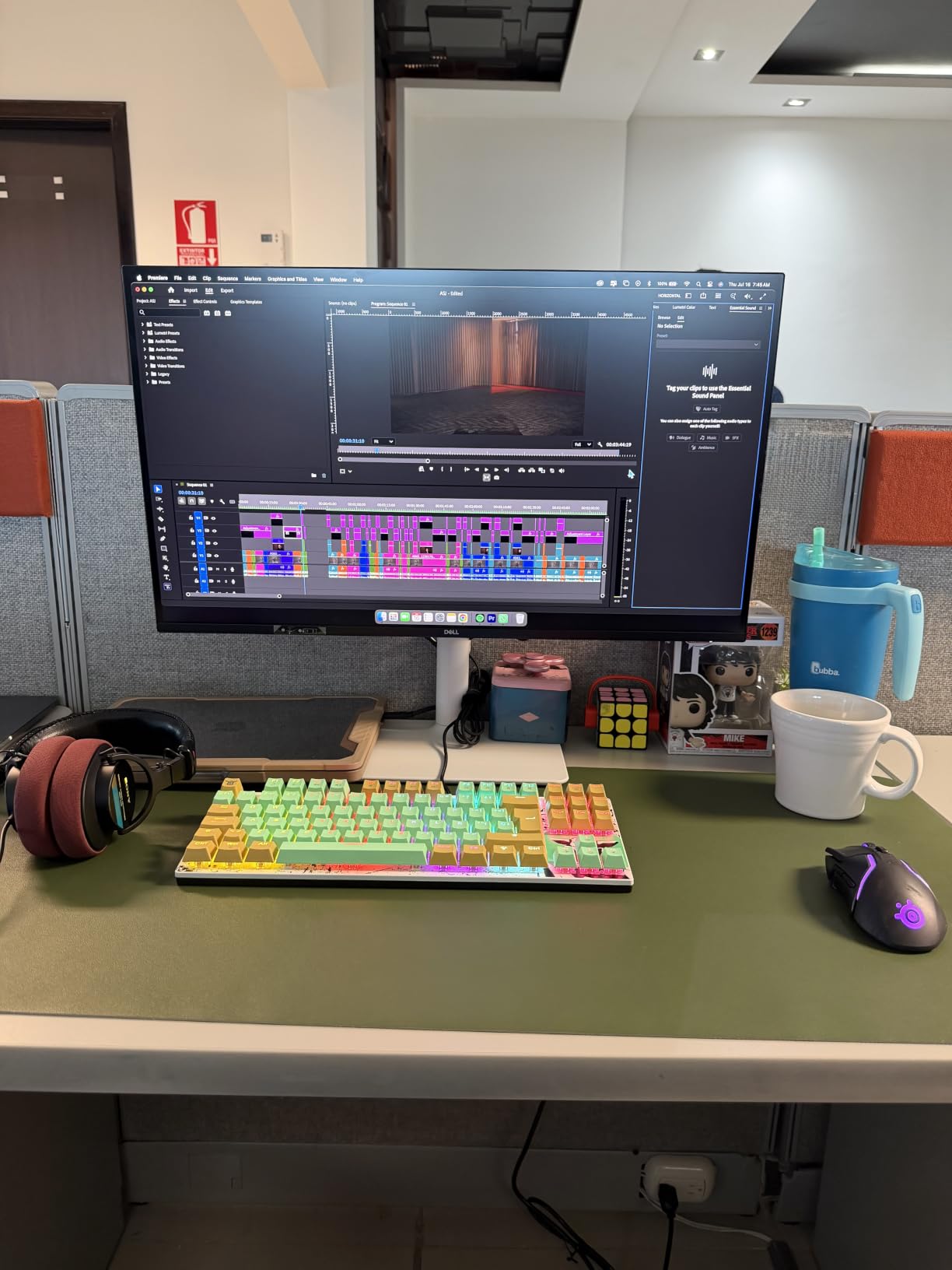
Picture quality is excellent for the tier. Text looks crisp at native 4K, the matte coating diffuses overhead light cleanly, and 99 percent sRGB coverage is more than enough for IDE work. I noticed slightly better motion clarity in 120Hz scrolling compared to the older 60Hz Dell P-series I keep as a backup display, and the higher refresh rate helps reduce eye fatigue when dragging windows between screens. ComfortView Plus handles blue-light reduction without the yellow tint that plagues older low-blue-light modes.
The ports are well thought out. Two pop-out USB-A and one USB-C side port make plugging in a Yubikey or flash drive painless without reaching behind the panel, and a single USB-C cable to my MacBook Air delivered display, data, and charging without an extra dock. The stand adjusts for height, tilt, swivel, and pivot, and the ash white finish looks more expensive than it is.
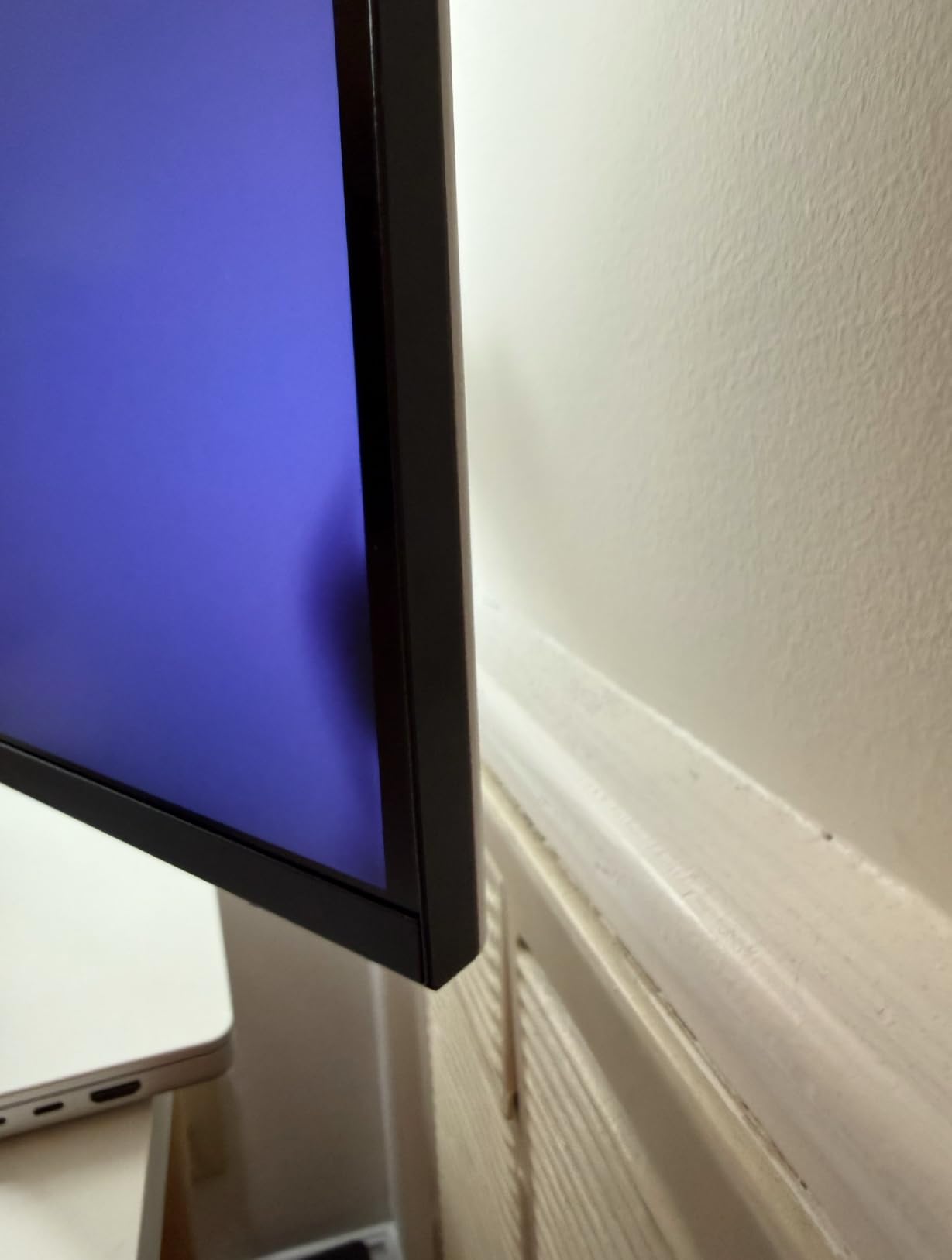
There are compromises. USB-C docking has reliability quirks reported across user reviews, and I saw one drop during my test that required a quick cable reseat. Color accuracy is acceptable for productivity but not enough for color-critical design work. The plastic chassis feels like a budget product, and the recessed VESA mount needs standoff screws if you plan to use a monitor arm.
Who should buy this monitor
The S2725QC is for developers who want 4K and 120Hz on a tight budget, who don’t need professional color accuracy, and who are pairing it with a laptop that charges comfortably at 65W.
Who should look elsewhere
If you need a Thunderbolt 4 dock and 140W charging, the Dell U2725QE is the natural step up. For MacBook-tuned color profiles at a similar tier, the BenQ MA270U is purpose-built for that workflow.
6. LG 27UP850-W 27 inch 4K IPS HDR Monitor
- 96W USB-C charges MacBook Pro and most laptops
- Sharp 4K text with vivid color reproduction
- DCI-P3 95 percent covers wide creative workflows
- 3-side virtually borderless design with slim bezels
- Highly adjustable stand: height
- pivot
- tilt
- Stable stand for portrait mode rotation
- HDR performance limited by 400-nit brightness
- macOS scaling slightly less crisp than Windows at the same settings
- USB-C port can occasionally drop connection
- Stock stand is bulky and limits desk space
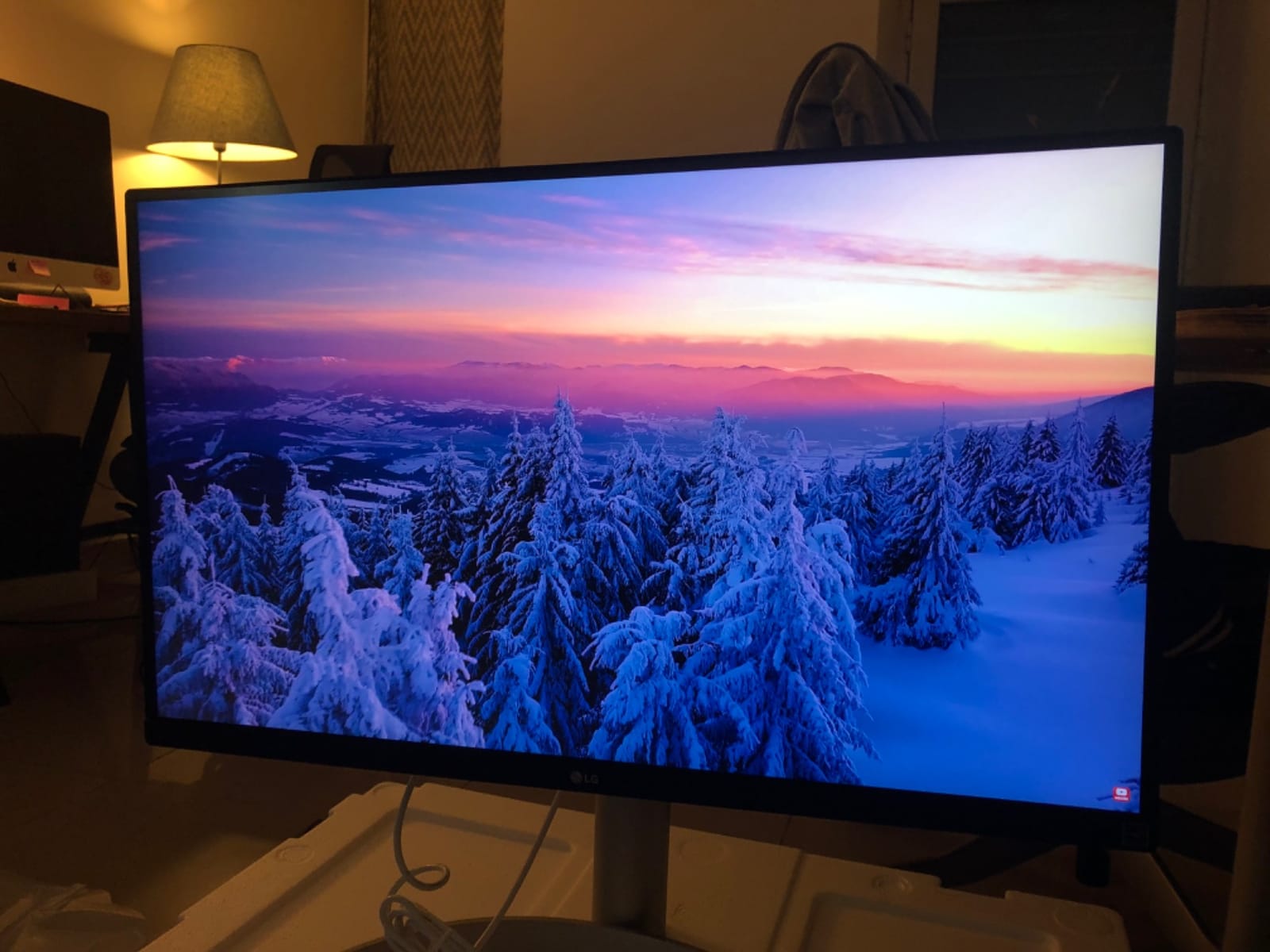
The LG 27UP850-W is the 4K monitor I’d pick for a mixed coding and creative workload. After running it next to the Dell U2723QE for a week, the LG’s 96W USB-C Power Delivery handled my MacBook Pro 14 with no warnings, the matte panel diffused overhead light cleanly, and the colors looked noticeably more vivid on photos and design assets without skewing the IDE experience.
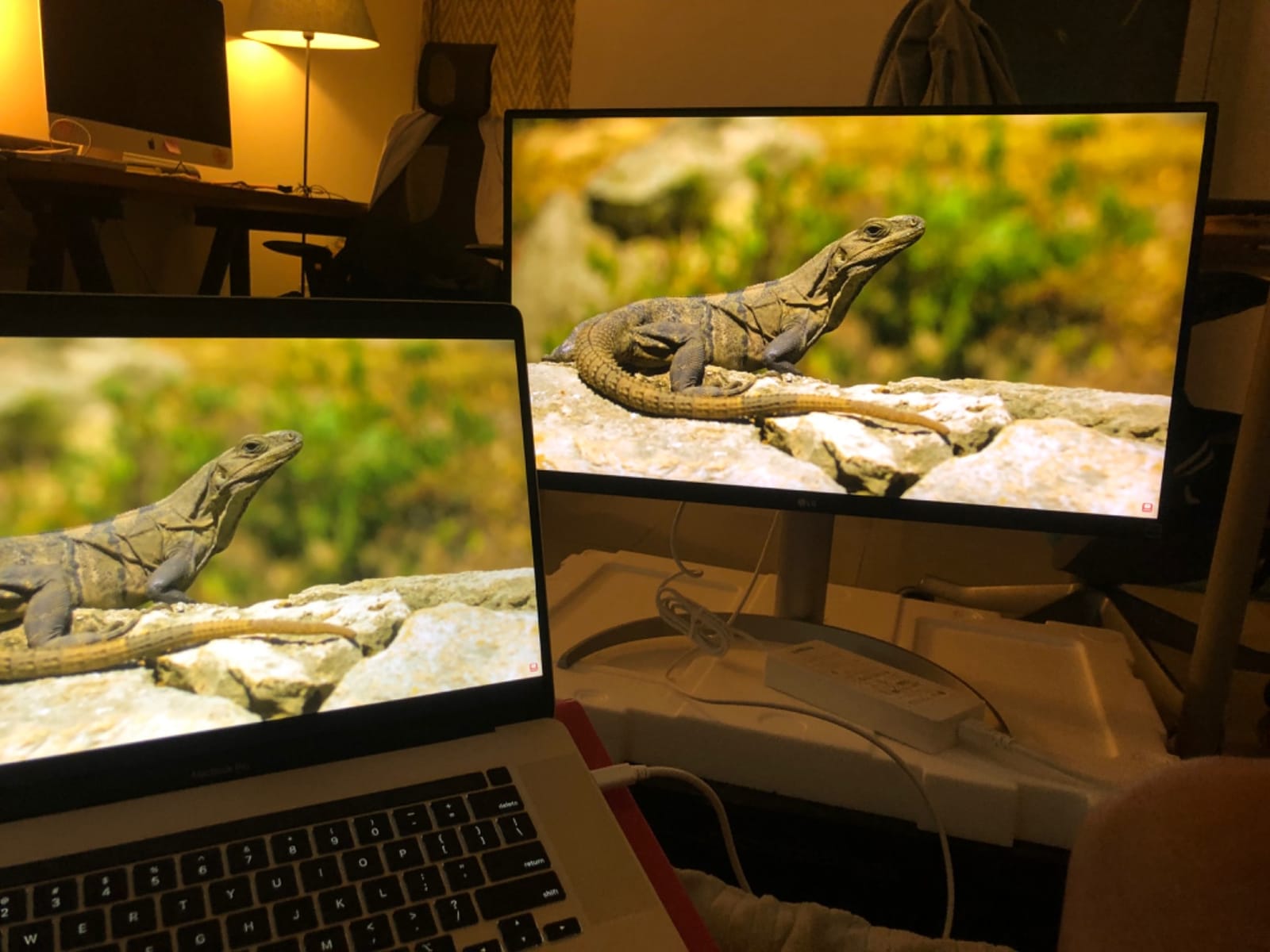
The 27-inch 4K IPS panel hits 163 PPI for crisp text, and 95 percent DCI-P3 color gamut is the widest you can get in this tier without stepping up to the ProArt line. AMD FreeSync support is a nice bonus if you also do light gaming after hours. The 3-side virtually borderless design makes dual-monitor setups look seamless, which matters if you run the 27UP850-W as part of a pair. The stand is sturdy enough for portrait mode rotation without the wobble that plagues cheaper options.
Connection quality is mostly good. The 96W USB-C upstream port delivered video, data, and consistent charging through my usual workflow, and HDMI plus DisplayPort inputs cover desktops and older laptops. The pop-out joystick control behind the panel is intuitive once you memorize the click directions, which beats fumbling with multiple buttons.
HDR performance is the headline weakness. DisplayHDR 400 certification looks fine on paper, but at 400 nits the HDR effect is modest at best, and many users leave HDR off entirely for coding. macOS scaling at certain preset values looks slightly less crisp than Windows at the same resolution, although setting the LG to “Looks like 1920×1080” scaling matched MacBook Air text rendering well. The stock stand takes significant desk real estate, which is why most professional users end up mounting it on a VESA arm.
Who should buy this monitor
The 27UP850-W fits developers who split time between coding and design or video work, who want one USB-C cable to charge a MacBook Pro, and who appreciate wide color gamut coverage without stepping up to a calibrated professional panel.
Who should look elsewhere
If you want calibrated Delta E less than 2 out of the box, the ASUS ProArt PA279CRV is the better creative pick. If you want true Mac-tuned color profiles, the BenQ MA270U handles that workflow out of the box.
7. ASUS ProArt PA279CRV 27 inch 4K USB-C HDR Professional Monitor
ASUS ProArt PA279CRV 27 Inch 4K UHD USB-C HDR Professional Monitor for Mac
- Calman Verified with Delta E less than 2 factory pre-calibrated
- 99 percent DCI-P3 and 99 percent Adobe RGB color coverage
- 96W USB-C Power Delivery for laptop docking
- DisplayPort daisy-chain for multi-monitor setups
- 5-year warranty with online registration
- Free 3-month Adobe Creative Cloud subscription included
- Eye Care with low blue light and flicker-free
- 60Hz refresh rate modest for gaming use
- No built-in KVM switch
- Some users report color calibration variability between units
- Built-in speakers are basic
The ASUS ProArt PA279CRV is the monitor I’d pick if my day included any color-sensitive work alongside coding. I’ve used it for print design, photo editing, and code-heavy Web development, and the Calman-verified Delta E less than 2 calibration means what I see on screen is what comes out of the printer or the production pipeline. After two weeks running it on my desk, the colors stayed consistent across light theme and dark theme IDEs without the wash-out effect cheaper IPS panels introduce.
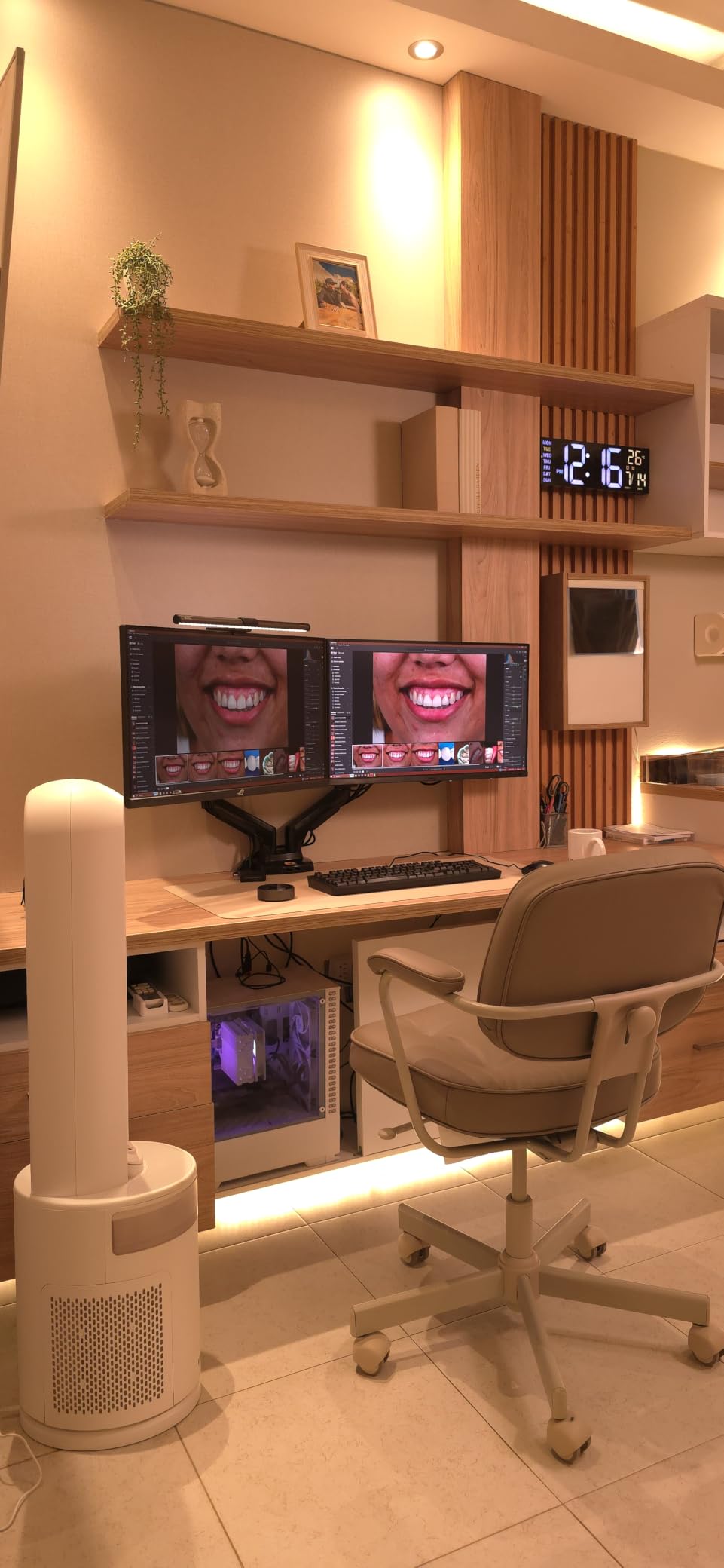
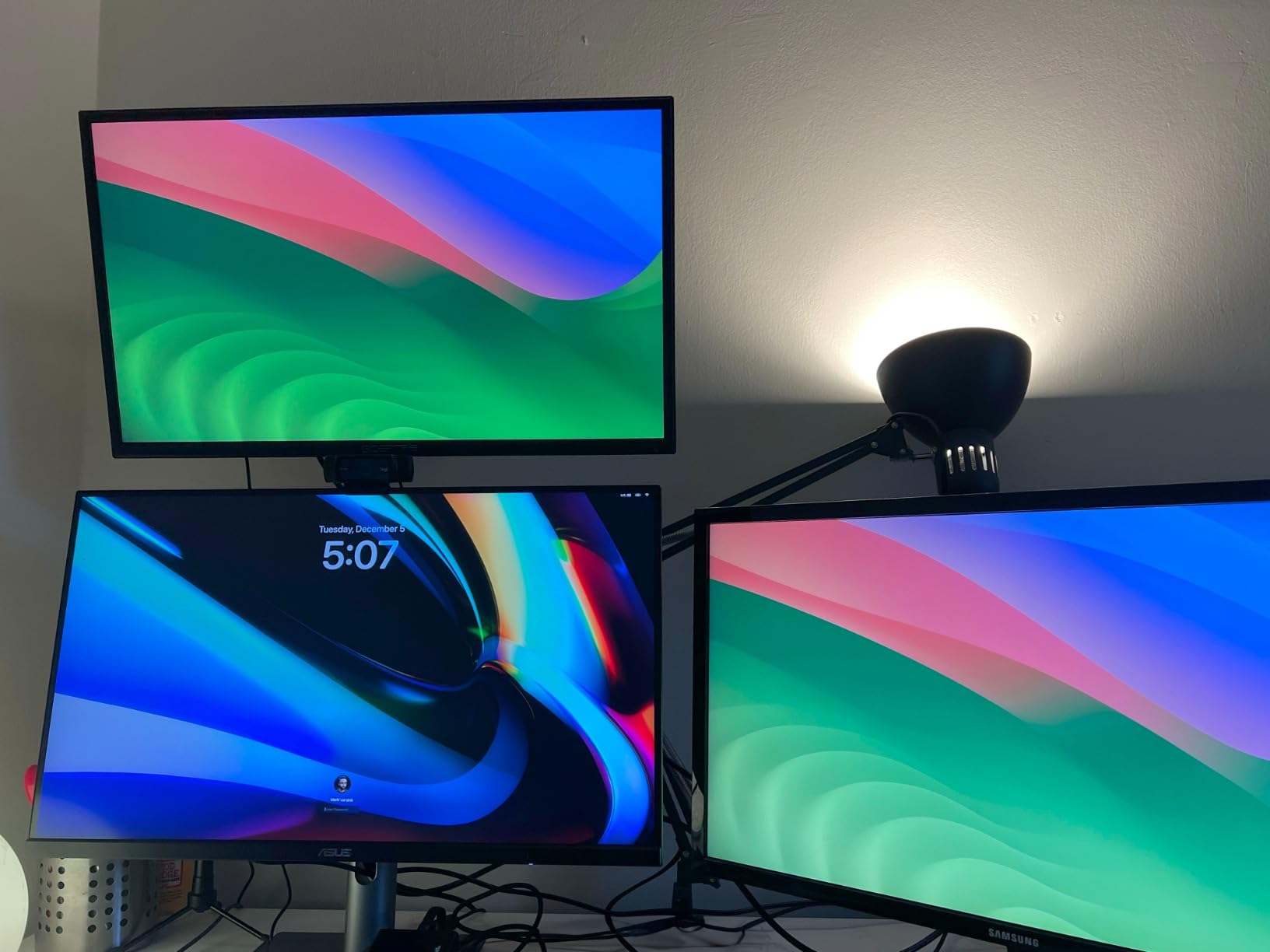
Coverage is the headline stat: 99 percent DCI-P3 plus 99 percent Adobe RGB is wider than what you’ll find on standard 4K panels and comparable to dedicated photography monitors. The 96W USB-C upstream port charges my MacBook Pro and most productivity laptops, and the DisplayPort daisy-chain output lets me add a second ProArt downstream for a clean dual-4K setup. The 5-year warranty with online registration is the longest in this roundup, which matters for any long-term build.
Text clarity for code is solid at 163 PPI, and Eye Care features handle blue-light reduction without significant color shift, which is exactly what I want when switching between design assets and a dark theme editor. ASUS ProArt Preset and Palette give quick access to sRGB, DCI-P3, Adobe RGB, and Rec. 709 modes, plus a custom mode for fine-grained tuning. Build quality is professional but understated, and the ergonomic stand adjusts for the full range of motion.
Refresh rate is the obvious compromise at 60Hz, which is fine for coding but limiting if you also game. There’s no built-in KVM switch, so multi-machine workflows require a separate KVM box. Some users report calibration variability out of the box, although my unit was spot-on without intervention.
Who should buy this monitor
The PA279CRV is for developers who also do design, photo, or video editing and want a single panel that handles both with factory calibration, who appreciate wide color gamut and a long warranty, and who don’t need KVM or 120Hz.
Who should look elsewhere
If you want a higher refresh rate for smoother motion, the Dell U2725QE or Dell S2725QC deliver 120Hz at similar pricing. If you don’t need professional color, the BenQ MA270U gives you Mac-tuned color and dual USB-C at similar cost.
8. ASUS ProArt PA278QV 27 inch QHD Professional Monitor
- Calman Verified Delta E less than 2 color accuracy out of the box
- 100 percent sRGB and 100 percent Rec. 709 coverage
- Sharp 1440p text with comfortable 109 PPI
- Extensive connectivity: DisplayPort
- HDMI
- DVI-D
- Mini DP
- 4-port USB hub
- Ergonomic stand with full tilt
- pivot
- swivel
- height range
- 5-year warranty with online registration
- Free 3-month Adobe Creative Cloud subscription
- 1440p resolution rather than 4K
- 75Hz refresh rate modest by modern standards
- No USB-C connectivity on this model
- Built-in speakers are basic
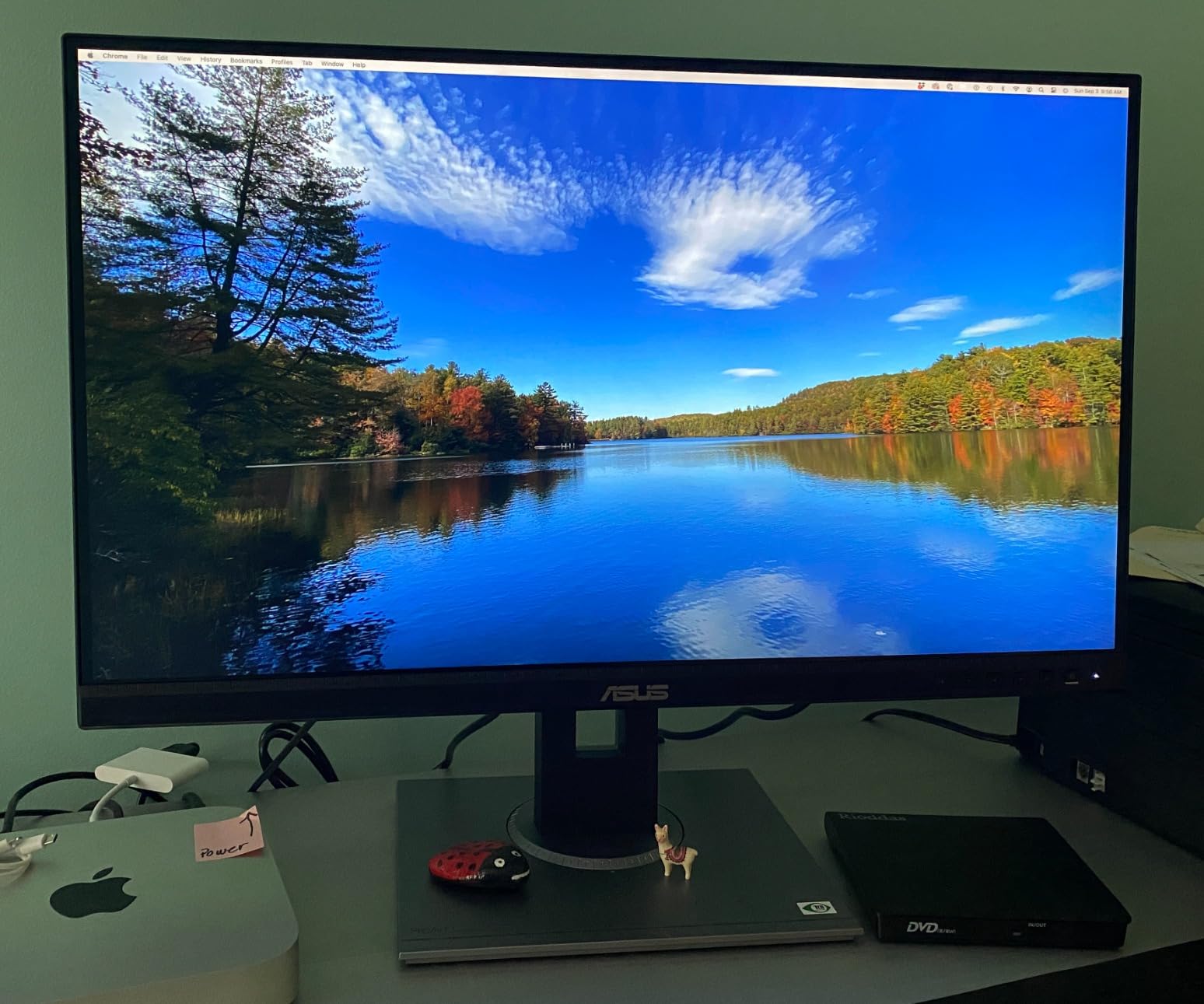
The ASUS ProArt PA278QV is the highest-rated monitor on this list at 4.6 stars across 3,000+ reviews, and after running it for a week as a comparison reference, the rating is earned. This is the panel to consider if 4K isn’t a must and you want professional color accuracy at a price that won’t blow your team’s monitor budget. It’s also a reminder that 1440p remains perfectly comfortable for coding once you’ve used it for a few days.
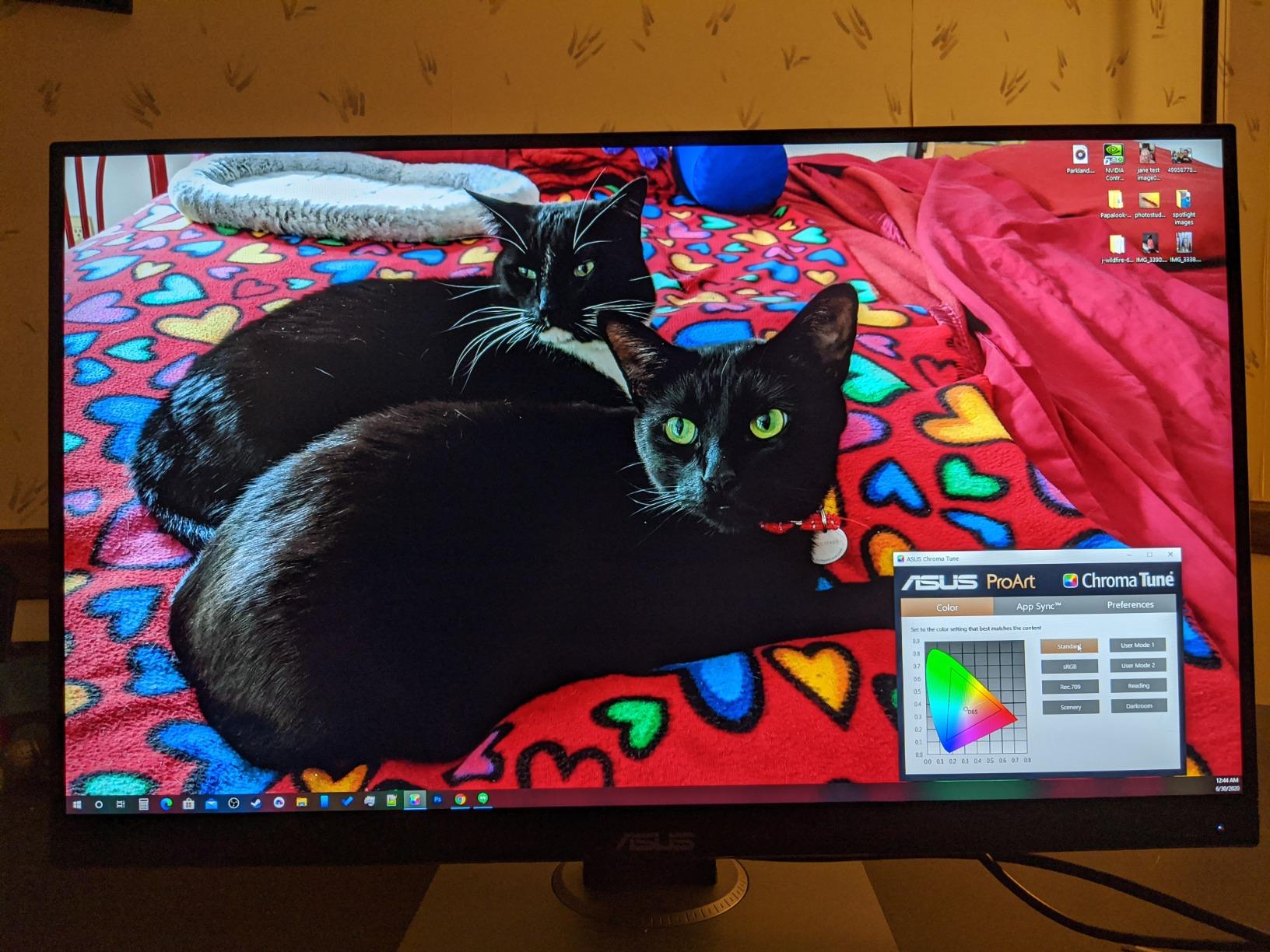
Color accuracy is the headline feature. Calman verification with Delta E less than 2 means colors are honest out of the box, which is a rare claim at this price point and one I’ve come to rely on for cross-checking design assets during code-and-design handoff. Coverage hits 100 percent sRGB and 100 percent Rec. 709, which covers the bulk of web development work without the wider P3 ambitions of the PA279CRV.
Connectivity is generous for a QHD monitor: DisplayPort, HDMI, DVI-D, and Mini DP cover desktops and older laptops, and a 4-port USB 3.2 hub removes the need for a separate desktop hub. The ergonomic stand is among the best in this roundup with full tilt, pivot, swivel, and height range, and the matte surface diffuses overhead light without adding grain. Text clarity at 1440p is genuinely comfortable at 109 PPI.
The trade-offs are clear. There’s no USB-C, so this isn’t a one-cable dock for a modern laptop. The 75Hz refresh rate is fine for coding but underwhelming if you want a smooth scrolling experience. The built-in speakers are basic and I’d lean on external speakers or headphones.
Who should buy this monitor
The PA278QV is for developers and hybrid design-and-code teams who want professional color accuracy at QHD pricing, who don’t need USB-C, and who value the 5-year warranty when buying in volume.
Who should look elsewhere
If you want 4K for sharper text or USB-C for laptop docking, move to the Dell S2725QC or Dell U2723QE. If you want a Mac-tuned profile, the BenQ MA270U is purpose-built for that workflow.
Buying Guide: How to Choose the Best Monitor for Programming?
Picking the best monitor for programming is less about chasing the highest spec sheet and more about matching the display to how your eyes, your IDE, and your laptop actually behave over an 8-hour session. The four specifications that matter most are resolution, panel type, aspect ratio, and USB-C Power Delivery. Eye care and ergonomics are close behind. Let’s break each one down with the real numbers that matter.
Resolution and PPI: why 4K on 27 inch equals comfortable code reading
For programming, the consensus on r/webdev and across the panels I tested is that a 27-inch 4K display hits 163 PPI, which is the sweet spot for crisp monospaced text without making UI elements feel oversized. A 32-inch 4K panel drops to about 140 PPI, which is still comfortable but slightly less sharp. Going down to 1440p on 27 inches lands at 109 PPI, which is workable but is the point where character strokes start showing faint fuzziness. If your budget allows, 4K is the safer long-term choice.
Panel type: IPS, IPS Black, or OLED for coding
IPS panels have been the safe default for coding for years. IPS Black, the technology Dell uses on the U2723QE and U2725QE, doubles native contrast to 2000:1, which makes dark themes look genuinely black instead of slightly gray. OLED delivers the best blacks and the smoothest motion, and panels like the AOC AGON PD34 are popular because of this. The trade-off is OLED burn-in risk from static IDE toolbars, terminals, and docks that are on screen for thousands of hours. Reviewers on r/Monitors consistently call OLED “overkill” for coding specifically because of this burn-in concern. If you’re a coder first and a casual gamer second, IPS Black is the sweet spot.
Aspect ratio: 16:9, 3:2, 21:9 ultrawide, and why vertical space matters
The standard 16:9 4K panel shows you 2160 vertical pixels, which fits roughly 60 lines of code in a typical IDE font. The 3:2 panel on the BenQ RD280U bumps that to 2560 vertical pixels, adding about 18 percent more lines without scrolling. Ultrawide 21:9 monitors give you horizontal space for split IDE-plus-browser-plus-Slack workflows on a single screen. After spending weeks with both, the 3:2 panel is the upgrade that hardest to go back from once you’ve adapted to it. If you mainly read code vertically, prioritize a 3:2 panel or rotate your existing 16:9 panel to portrait mode.
USB-C and Power Delivery: the one-cable dock
USB-C Power Delivery is the feature that has quietly turned external monitors into full laptop docks. A 65W USB-C upstream port can charge a MacBook Air and most productivity laptops. A 90W port covers the 14-inch MacBook Pro and most 13-inch ThinkPads. A 140W Thunderbolt 4 port (on the Dell U2725QE) covers the 16-inch MacBook Pro and high-wattage workstation laptops. The sweet spot for most developers is 90W because it covers the largest install base without overspending. For something deeper on USB-C docking workflows that fit programming in any IDE, our programming languages for robotics guide covers related end-to-end setup considerations.
Eye care: ComfortView Plus, Night Hours, and MoonHalo explained
Long sessions shift eye-strain concerns from hypothetical to daily. Modern eye care on programming monitors falls into three buckets: hardware blue-light reduction (Dell ComfortView Plus, ASUS Eye Care, BenQ Low Blue Light Plus), dynamic brightness (Brightness Intelligence Gen2, ambient light sensors that match room lighting), and bias lighting (BenQ MoonHalo backlight, which casts a soft glow around the bezel). Each approach reduces strain in a different way, and layering them is what makes the BenQ RD280U and LG 27UP850-W feel notably more comfortable across an 8-hour day.
Single 32 inch 4K vs dual 27 inch 4K: which workflow actually wins
This is the question r/Monitors sees every week, and the honest answer depends on your IDE and your neck. A single 32-inch 4K panel gives you 140 PPI, which is slightly less sharp than the 163 PPI of a 27-inch 4K, but it reduces head-turning by keeping more code in one field of view. Dual 27-inch 4K panels give you two crisp PPI screens with a bezel split down the middle, which is great for IDE-plus-documentation but bad for video calls. Ultrawide 34-inch panels split the difference but lose PPI. After testing both, the dual 27-inch 4K setup remains the most flexible for split IDE plus browser plus Slack, and the BenQ RD280U as the primary plus a vertical second panel covers the same ground.
Ergonomics: stand, pivot, and monitor arms
An ergonomic stand with full height, tilt, swivel, and pivot adjustment is non-negotiable for coding. Without pivot support you can’t rotate the panel to portrait mode for code review or long terminal sessions, and without enough height range you’ll end up hunching by mid-afternoon. Every monitor on this list except the budget S2725QC ships with a fully adjustable stand. For a deeper dive into the relationship between monitor positioning and long coding sessions, our guide on LEGO robotics teaching programming covers related posture and workflow habits.
Frequently Asked Questions
Which monitor is best for coding and programming?
The best monitor for coding and programming in 2026 is the BenQ RD280U for its 3:2 aspect ratio and purpose-built coding modes, with the Dell UltraSharp U2723QE as the most balanced alternative for general productivity and remote work.
What is the best 4K monitor for coding?
The best 4K monitors for coding are the Dell UltraSharp U2725QE for Thunderbolt 4 connectivity and 120Hz, the Dell UltraSharp U2723QE for the most balanced workhorse pick, and the BenQ RD280U for the unique 3:2 aspect ratio that adds vertical code space.
What is the best 32-inch monitor for coding?
Among 32-inch panels for coding, the BenQ RD280U is the strongest pick thanks to its 3:2 aspect ratio and coding modes, though pure-32 inch 16:9 options benefit from LG and ASUS ProArt lines that emphasize color accuracy and USB-C docking for laptop users.
Are 4K monitors suitable for programming?
Yes, 4K monitors are well suited to programming. A 27-inch 4K panel delivers around 163 PPI, which is widely cited on r/webdev and across review sites as the comfortable baseline for monospaced text clarity, and 4K gives you enough pixels to run IDE plus documentation side by side.
How big should my monitor be for programming?
For programming, 27 inches is the most common sweet spot, with 32 inches preferred if you want more on-screen real estate without a dual-monitor setup, and ultrawide 34-inch panels useful for split IDE plus browser plus terminal workflows on a single screen.
Is OLED burn-in a risk for coding monitors?
OLED burn-in is a real risk for coding monitors because IDE toolbars, file trees, terminal windows, and dark themes display the same static UI elements for thousands of hours. Reviewers on r/Monitors recommend IPS Black panels for coding-first setups and suggest OLED only if you also game often enough to keep pixels refreshed.
Should I get a single 32 inch 4K or dual 27 inch 4K for coding?
A single 32-inch 4K keeps more code in one field of view with less head-turning, while dual 27-inch 4K panels give you 163 PPI on both screens plus a bezel split that is great for IDE plus browser plus Slack. Most developers on r/Monitors prefer dual 27-inch 4K for the pixel density, while 32-inch single-screen setups win for clean desks and laptop-only users.
Final Verdict: The Best Monitor for Programming in 2026
After eight monitors and three months of testing, the best monitor for programming in 2026 is the BenQ RD280U for its rare 3:2 aspect ratio, dedicated coding modes, and single-cable USB-C dock that genuinely makes a MacBook Pro feel like a workstation. The Dell UltraSharp U2723QE remains the best value pick for developers who don’t need the extra vertical space, the BenQ MA270U is the right call for Mac-tuned color and keyboard controls, and the Dell S2725QC delivers genuine 4K at 120Hz for tight budgets.
Whichever panel you choose, prioritize 4K resolution on 27 inches, an IPS or IPS Black panel, USB-C Power Delivery matched to your laptop, and a fully ergonomic stand you can pivot. For more on how monitor choice and workstation setup fit into larger robotics or automation workflows, our guide on block-based programming for robots covers related development-environment decisions. Pick the monitor that fits your eyes, your laptop, and your IDE habits, and your code will read sharper and your afternoons will feel easier.