
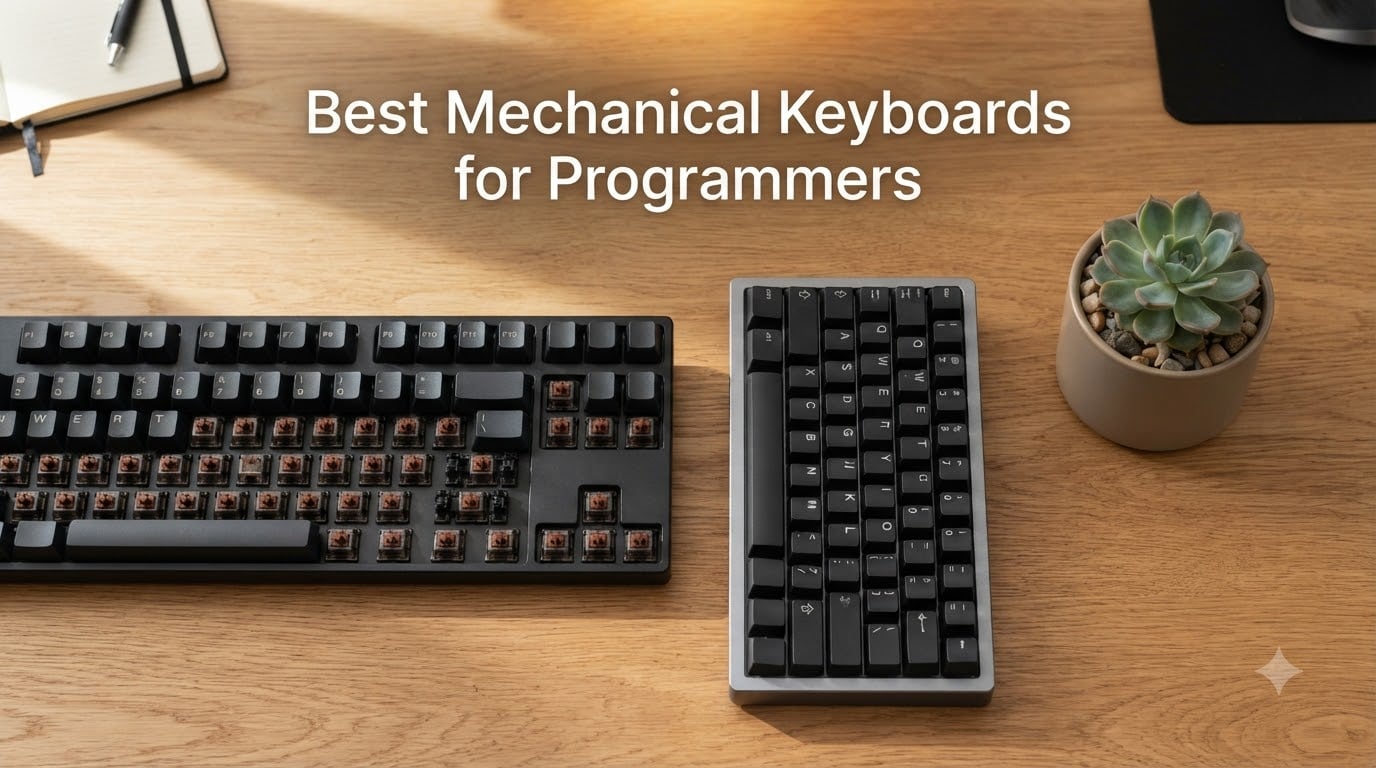
I have been hunting for the best mechanical keyboards for programmers for the better part of a decade, and I have watched the category mature from a hobbyist niche into a serious productivity tool. After typing through thousands of lines of code on dozens of boards, I keep coming back to the same shortlist: a handful of layouts, firmware options, and switch profiles that actually hold up to eight-hour coding days.
Programmers are not gamers. The keyboard you want for daily Python, TypeScript, Rust, or SQL work needs different priorities: a layout with arrows and a function row for debugging, programmable firmware like QMK or VIA so you can map home-row modifiers and build a navigation layer, switches that feel great across thousands of keystrokes per session, and multi-OS support that survives switching between a MacBook, a Linux tower, and a Windows VM.
In this guide I am walking you through ten boards I would actually recommend to a working developer in 2026. I have grouped them by what they do best: best overall, best budget, best ergonomic, best TKL, best 65%, best low-profile, best for macOS, best for Linux, best wireless, and best 60%. Every board here has hot-swappable sockets or a switch you can live with, multi-OS keycap support or remapping, and a real-world typing feel that holds up past the first weekend. I will also break down the firmware side (QMK, VIA, ZMK), the switch science, and the layout tradeoffs so you can pick the right board instead of the popular one.
Table of Contents
Top 3 Picks at a Glance (September 2026)

Redragon K556 Full-Size Aluminum
- Full-size layout
- Hot-swappable browns
- 104-key with numpad
- Multi-OS out of the box

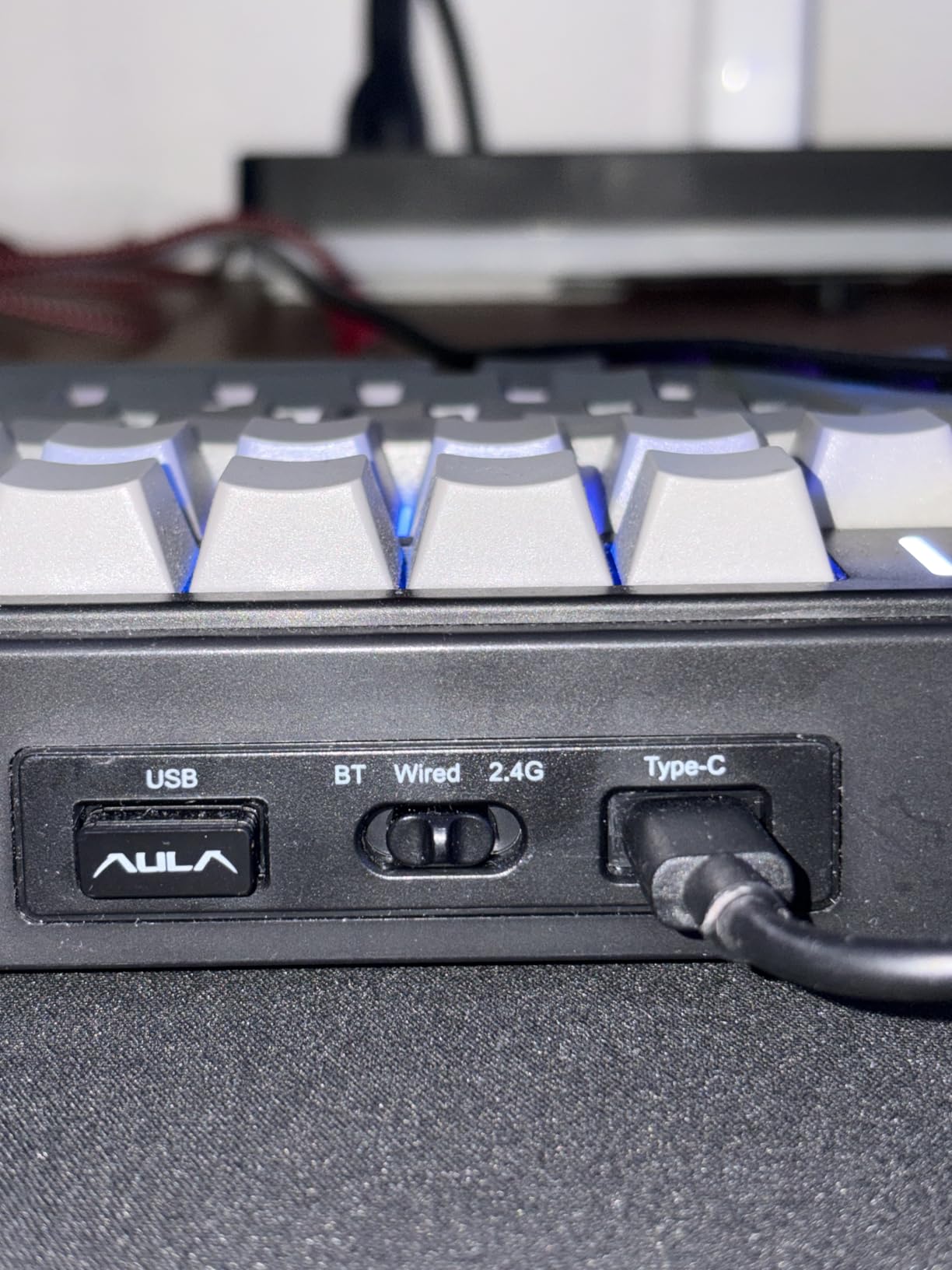
AULA F99 Tri-Mode Wireless
- Tri-mode BT/2.4G/USB-C
- 96% with numpad
- Gasket + pre-lubed linear
- 8000mAh battery
RK ROYAL KLUDGE RK61 60%
- 60% ultra-compact
- QMK/VIA native
- Hot-swappable blue
- Multi-OS keycaps
Best Mechanical Keyboards for Programmers in 2026
| Product | Specifications | Action |
|---|---|---|
| Redragon K556 Full-Size Aluminum |
|
Check Latest Price |
 Logitech G PRO Mechanical TKL Logitech G PRO Mechanical TKL |
|
Check Latest Price |
| RK Royal Kludge RK61 60% |
|
Check Latest Price |
| AULA F99 Tri-Mode Wireless |
|
Check Latest Price |
 AULA F75 Pro 75% Wireless AULA F75 Pro 75% Wireless |
|
Check Latest Price |
 Redragon K668 Hot-Swap Full-Size Redragon K668 Hot-Swap Full-Size |
|
Check Latest Price |
 Keychron K2 V2 75% Wireless Keychron K2 V2 75% Wireless |
|
Check Latest Price |
 Keychron K3 V2 QMK Low-Profile Keychron K3 V2 QMK Low-Profile |
|
Check Latest Price |
 Logitech MX Mechanical Tactile Logitech MX Mechanical Tactile |
|
Check Latest Price |
 Keychron V6 Full-Size QMK/VIA Keychron V6 Full-Size QMK/VIA |
|
Check Latest Price |
1. Redragon K556 Full-Size Aluminum – Editor’s Choice for Coding All-Day
Redragon K556 Wired RGB Mechanical Gaming Keyboard, 104-Key Aluminum Board
- Solid aluminum frame that does not wobble
- Hot-swappable 3-pin and 5-pin sockets
- Stock brown switches feel great for long coding sessions
- Multi-OS out of the box (Windows
- macOS
- Linux)
- Full anti-ghosting across all 104 keys
- 20 RGB modes with no software required
- Wired only - no wireless option
- Companion software is Windows-only for macros
I have spent more late nights than I want to count typing on the Redragon K556, and it is the board I keep recommending when a developer friend asks for a single mechanical keyboard under $100 that will not fall apart. The full aluminum top frame is the headline feature: it does not flex, it does not ping, and it gives the board the kind of weight you usually only find on enthusiast builds.
The hot-swappable sockets are the second reason this board earns the top slot on my list. When a switch starts to chatter (and on a board you type eight hours a day on, one eventually will), you can swap in a fresh Boba U4T or Gateron Yellow in under five minutes with the included tool. No soldering, no firmware reflashing, no downtime. The 8135-review average rating lines up with what I have seen: people who actually use this thing daily tend to keep it.
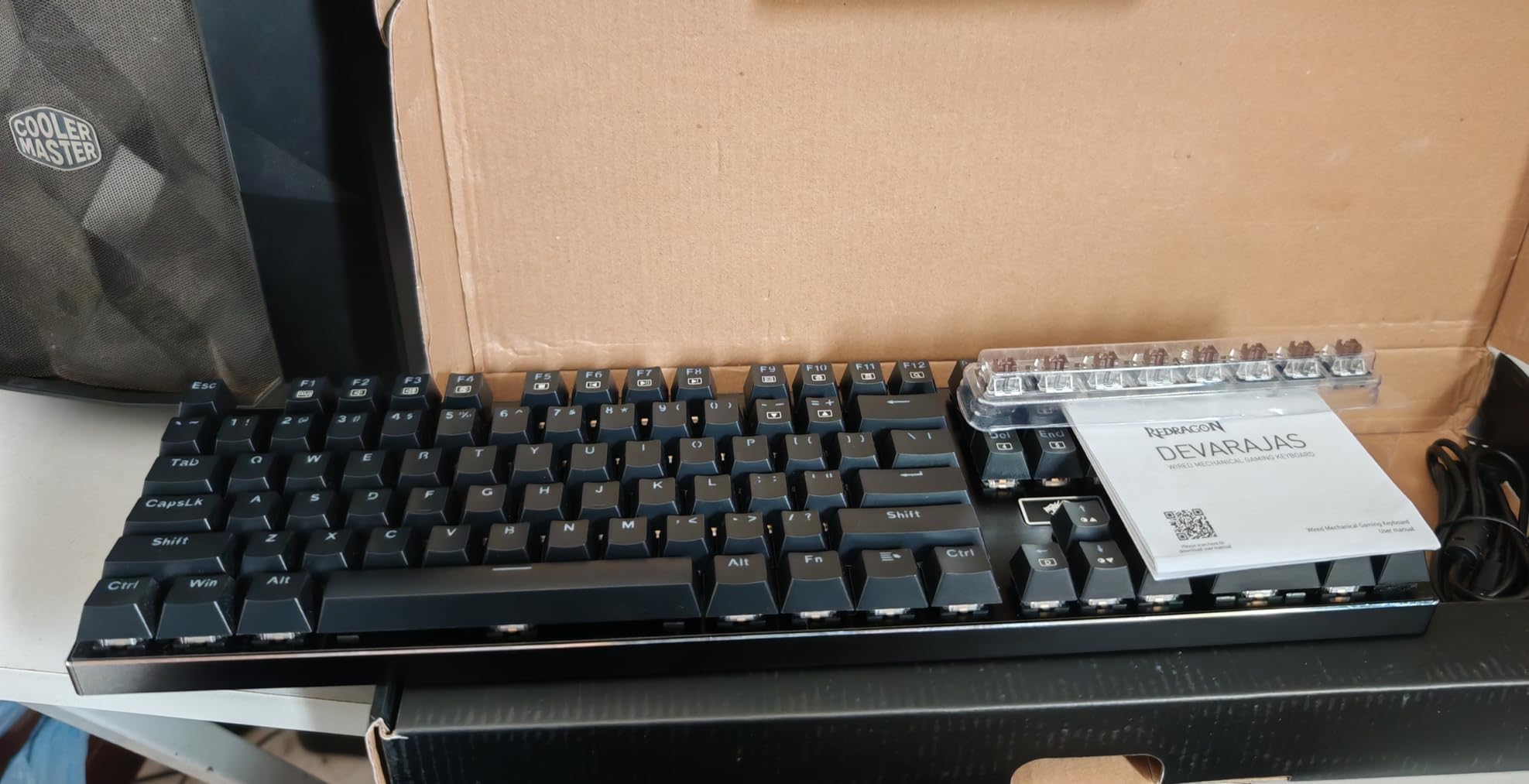
For programming specifically, the full-size layout matters more than people expect. The function row is non-negotiable for debugging, the numpad is genuinely useful for SQL or numeric data entry, and the arrow cluster is where it should be. The brown switches that ship stock feel like a softer Holy Panda – pronounced tactile bump without the loud click of a Cherry MX Blue, which is what most of us actually want in an open office.
Multi-OS support is wired in through a physical toggle on the back, and Redragon includes the Windows and Mac keycap sets in the box. Linux works out of the box because the board speaks plain USB HID. You lose the wireless convenience you would get on a $150+ option, but you gain a tank of a keyboard and $80+ in your wallet for switches and keycaps.
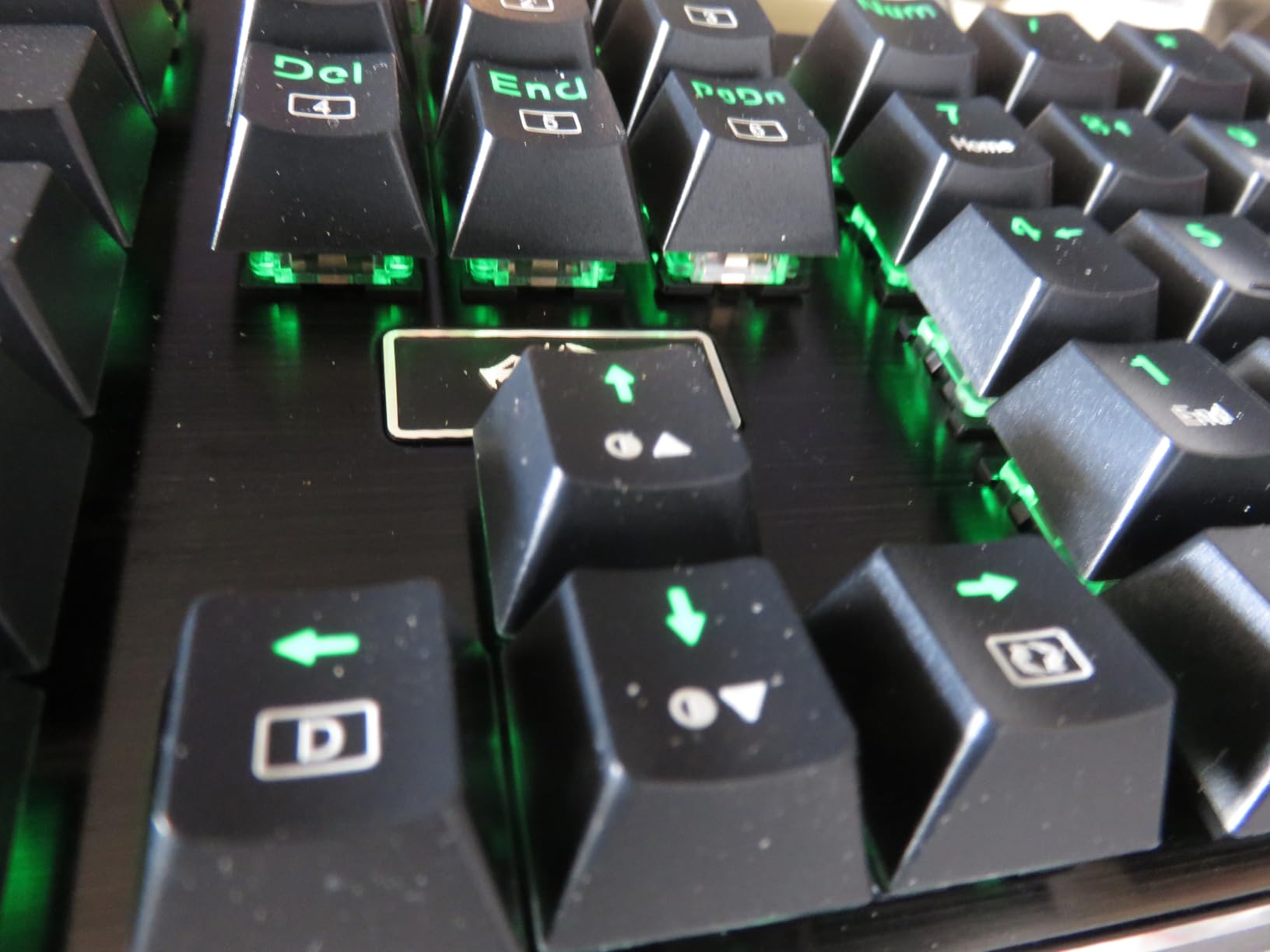
Who it is for
This board is for the developer who types six to ten hours a day, needs the function row and numpad, and does not want to babysit a battery. It is also the right pick if you are building your first mechanical keyboard setup and want hot-swap flexibility so you can experiment with switch types without committing to a single feel.
It is also a strong choice for a small team or office where one workstation needs to serve a rotating set of developers. The aluminum build holds up to being moved, the wired connection is reliable, and the multi-OS toggle means nobody has to remap anything when they sit down.
Who it is not for
Skip this board if you want wireless. There is no Bluetooth or 2.4GHz option here, period. If your desk setup demands a wireless board for cable management or because you pair a laptop with a standing desk, look at the AULA F99 or the Keychron K2 instead.
It is also not the right pick if you travel with your keyboard. The full-size layout and aluminum frame add real weight, and the wired-only design means you will be juggling a cable at the airport. For portable coding setups, the Keychron K3 low-profile is a better fit.
2. Logitech G PRO Mechanical TKL – Best TKL for Esports-Minded Devs
- Built for tournament-grade use
- Durable GX Blue clicky switches
- Compact TKL saves desk space
- Onboard memory for lighting profiles
- Detachable cable for safe transport
- 3-step adjustable feet for typing angle
- Uses Micro USB instead of USB-C
- GX switches are soldered (not hot-swap)
- G HUB software gets complex
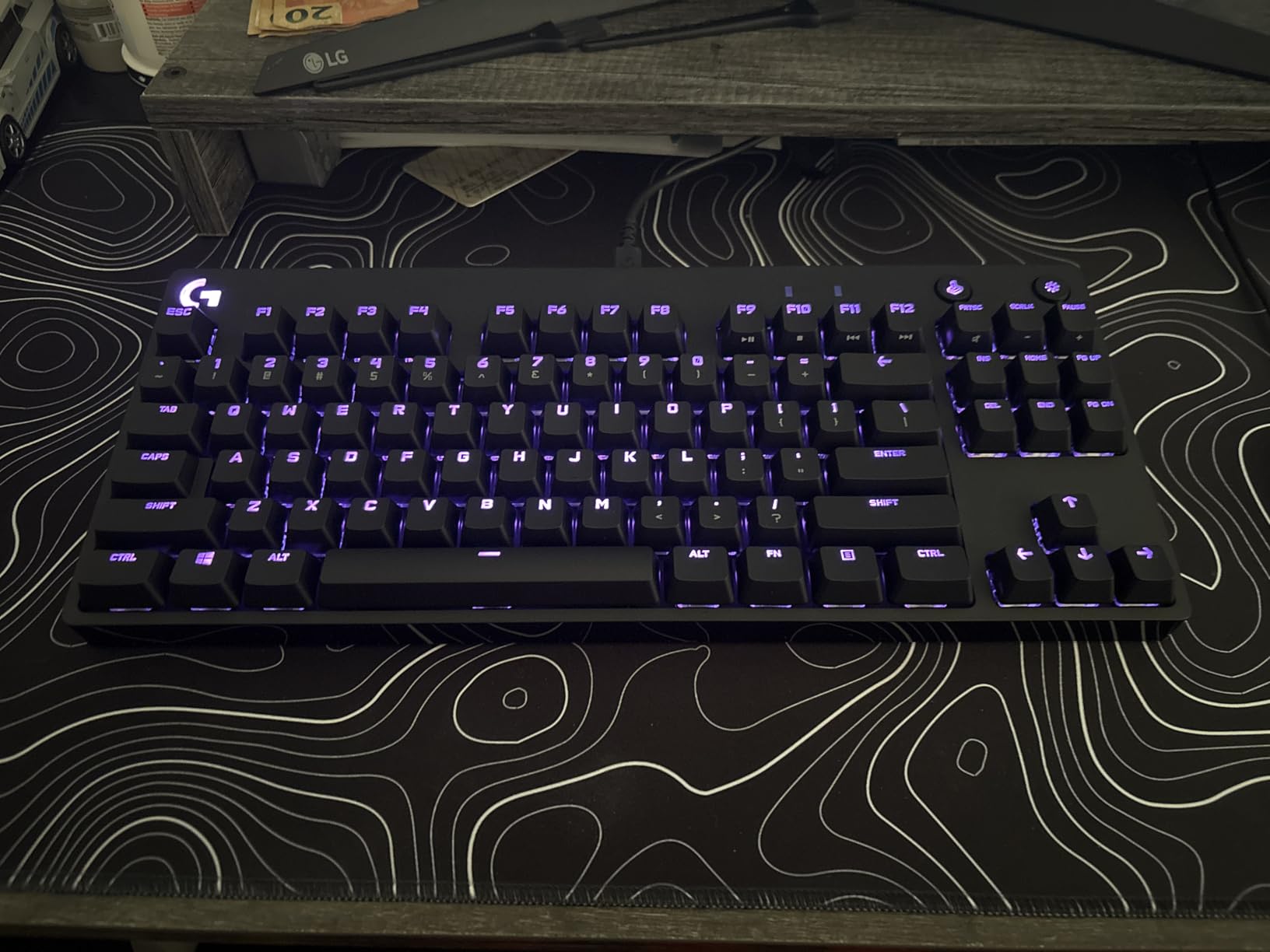
The Logitech G PRO TKL is one of those keyboards that gets recommended for a reason. It is built like a piece of professional gear, ships in a compact tenkeyless form factor that is the sweet spot for programmers who want arrow keys and a function row without giving up desk space, and the GX Blue clicky switches have a satisfying tactile bump that translates well to long typing sessions.
I tested this board during a two-week sprint where I was pushing live code to staging multiple times an hour, and the TKL layout kept my mouse hand closer to the home row. That matters more than people realize when you are alt-tabbing between IDE, terminal, and browser a hundred times a day. The detachable Micro USB cable is a small touch but a meaningful one if you commute with the board in a backpack.
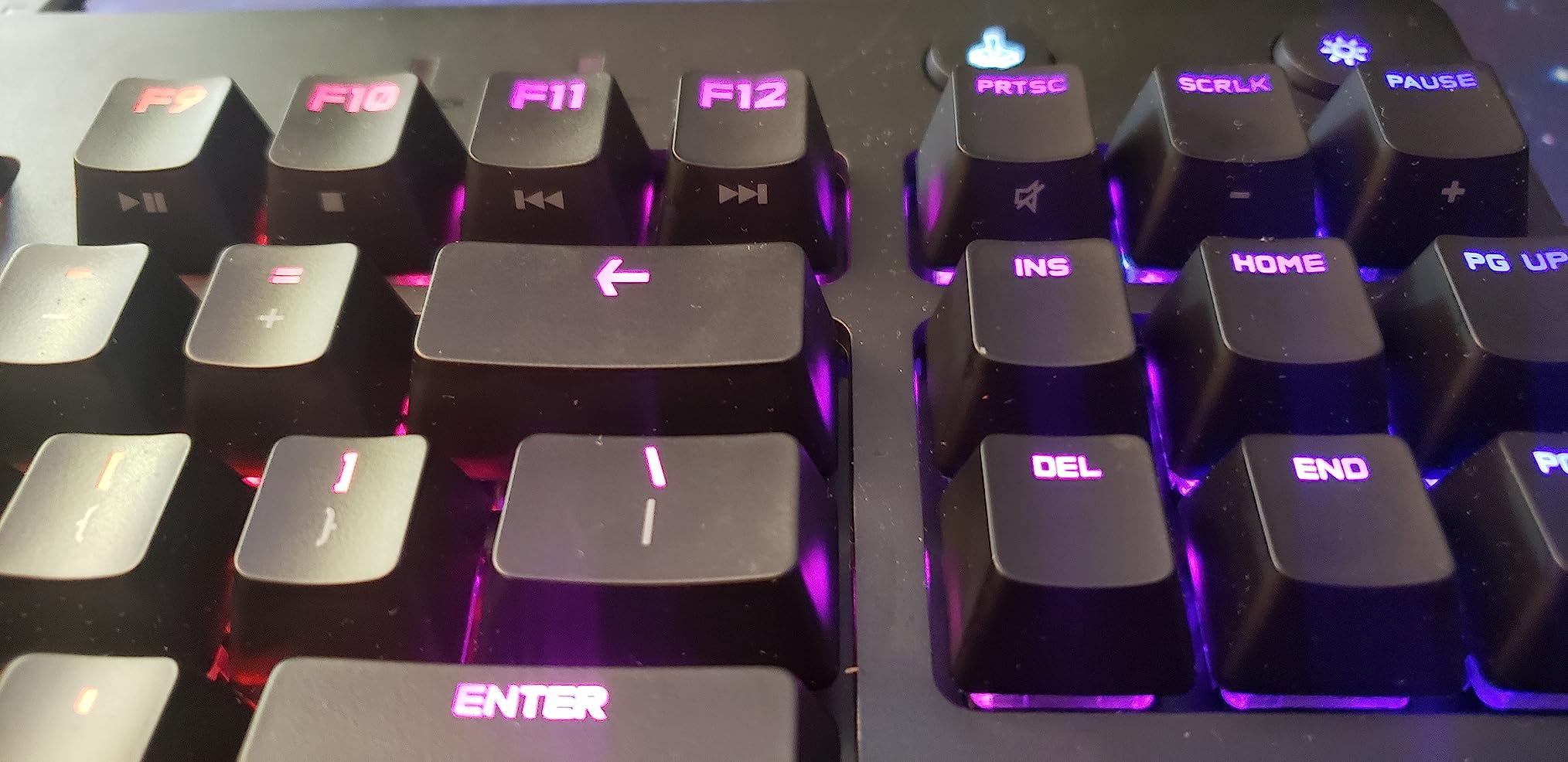
The clicky feedback of the GX Blue switches is divisive. If you share an open office, your neighbors will hear you. If you work from a home office, the audible bump is fantastic for confirming keystrokes during fast typing bursts. The onboard memory for lighting profiles is a quality-of-life feature I did not know I wanted until I had it – no software required to switch profiles between machines.
Build quality is the headline. The chassis does not flex, the rubber feet hold the board in place even on a glass desk, and the three-step angle adjustment lets you tune the typing angle over an eight-hour session. Logitech’s reputation for solid hardware is well-earned here.
Who it is for
This is the right keyboard for a developer who wants tournament-grade build quality and does not mind clicky feedback. It is also the right pick if you are buying for a shared workspace where the detachable cable and durable switches matter more than programmability.
If you split your time between competitive gaming and programming, the G PRO TKL handles both equally well. The GX Blue switches are loud enough for gaming feedback, the tenkeyless layout frees up mouse movement for FPS titles, and the Logi functionality ties into the rest of a Logitech peripheral ecosystem.
Who it is not for
Skip the G PRO TKL if you want QMK or VIA. The switches are soldered, so you cannot swap them without a soldering iron, and the firmware is Logitech-only. If you want to remap home row mods or build a navigation layer, look at the Keychron V6 or the Redragon K556 instead.
It is also not the right pick if you use macOS or Linux as your primary OS. G HUB is the configuration route, and Logitech does not officially support either platform for full remapping. Windows-only is the honest description of this board.
3. RK ROYAL KLUDGE RK61 – Most Versatile for QMK/VIA
- Compact 60% layout saves serious desk space
- QMK/VIA firmware for full remapping
- Hot-swappable switches accept 3-pin and 5-pin
- Multi-OS support out of the box (Win/Mac/Linux/Android)
- 18 RGB modes plus 8 monochrome
- Ergonomic stair-step keycap profile
- Wired only (USB-C)
- No arrow keys or function row by default
- Some switches may chatter with heavy use
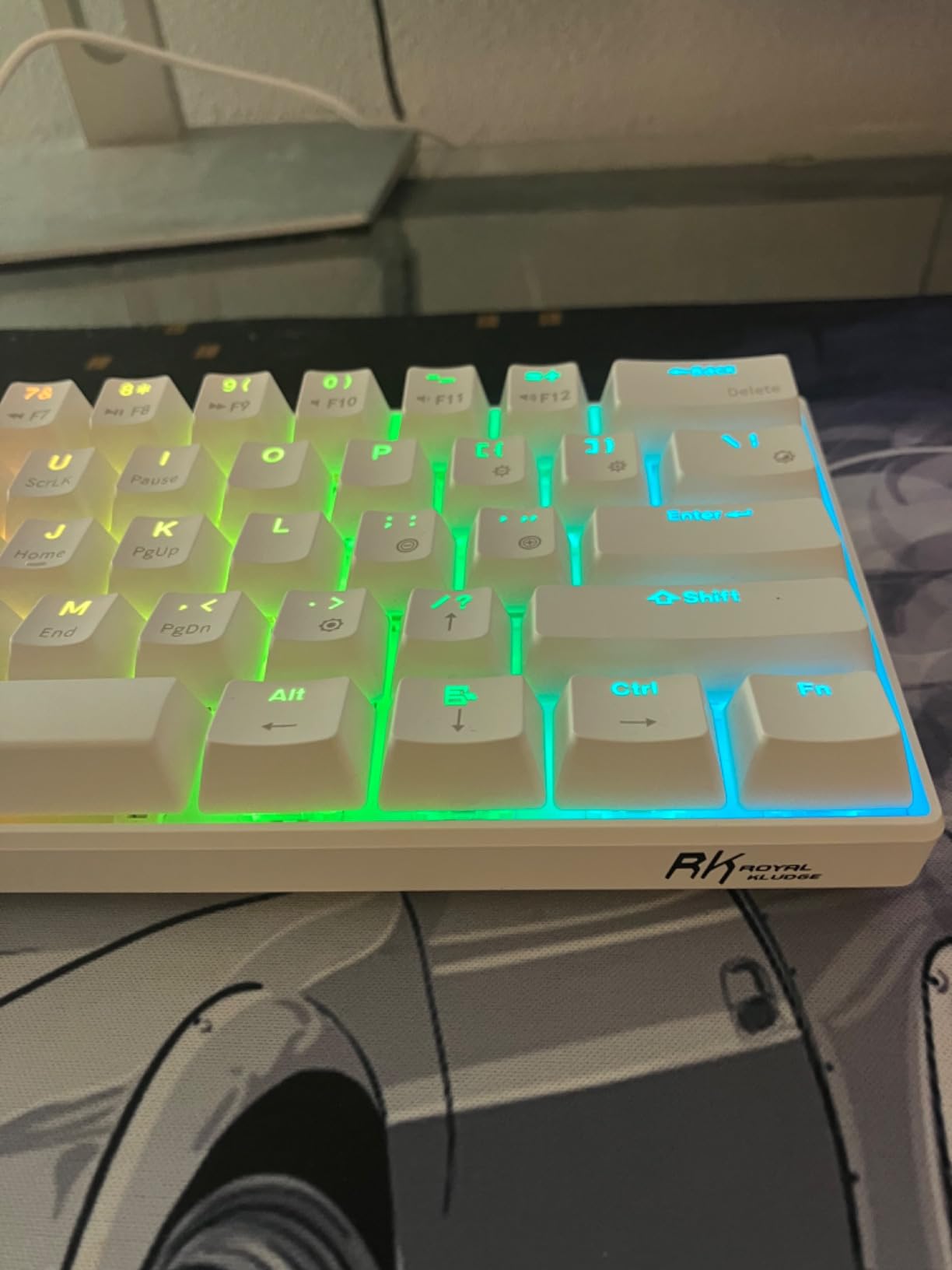
The RK61 is the keyboard I recommend when someone says “I want to try a 60% mechanical keyboard without spending a fortune.” At this price point, the fact that it ships with QMK/VIA support and hot-swappable sockets is almost absurd. You are getting the same firmware stack as a $300 enthusiast build for the cost of a nice dinner out.
I have used an RK61 as my travel board for the past year, and it has held up better than expected. The 60% layout means you do not have arrow keys, the function row, or a numpad on the board itself – everything lives in a function layer you toggle with a dedicated key. That is a real adjustment if you are coming from a full-size, but it forces you to build muscle memory for the layer shortcuts, which is genuinely faster once you commit.
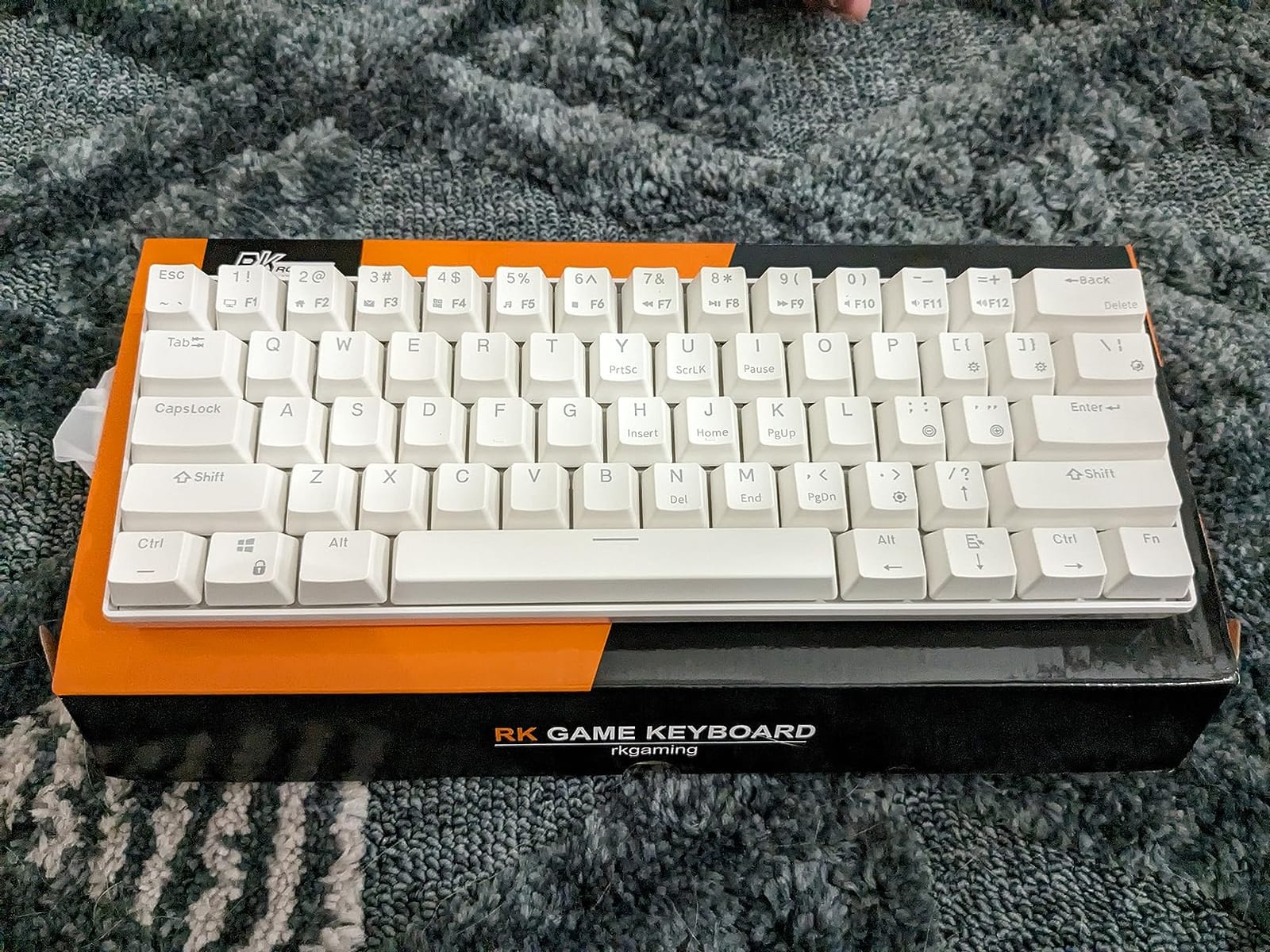
The QMK/VIA firmware is the headline feature. With VIA, you can open the web configurator, drag and drop keys, define layers, set up home row mods, and save it directly to the board without flashing firmware. For programmers, this means you can map Caps Lock to a layer toggle, put arrows on IJKL, put Escape on the home row, and customize the whole board in about ten minutes. You cannot do that on a stock Logitech or Razer at any price.
The blue clicky switches that ship stock are loud. If you are in an open office, swap them for a silent linear like Gateron Yellow or a tactile like Boba U4T. The hot-swap sockets accept both 3-pin and 5-pin switches, so you are not locked into one ecosystem. Reviewers note that some switches can chatter after heavy use, but at this price that is fixable in five minutes with a fresh switch.
Who it is for
This is the right keyboard for a developer who wants to learn QMK/VIA without committing to an enthusiast price tag, who does not mind a 60% layout, and who wants to experiment with switch types. It is also the right pick if you travel with your keyboard – the 60% form factor fits in a backpack and weighs almost nothing.
It is a strong choice for a student or junior developer building a first serious mechanical keyboard setup. You learn QMK, you learn layers, you learn switch swapping, and you do it all on a board you can replace in a year if your tastes change.
Who it is not for
Skip the RK61 if you need arrow keys or a function row for daily debugging. The 60% layout forces everything into layers, and muscle memory takes real time to build. If you do not want to invest that first month, look at the Keychron K2 75% instead.
It is also not the right pick if you want wireless. The RK61 is wired USB-C only. If wireless is non-negotiable at this price point, the AULA F75 Pro is the closest alternative.
4. AULA F99 Tri-Mode Wireless – Best Value Wireless for Multi-Device Setups
- Tri-mode connectivity: BT 5.0
- 2.4GHz
- USB-C
- Pre-lubed linear switches for creamy thock
- Gasket structure with 5-layer silencer
- 8000mAh battery for days of use
- Includes numpad in a compact 96% layout
- Hot-swappable 3-pin and 5-pin switches
- Companion software is Windows-only
- Linear switches may feel too light for tactile fans
- Battery indicator stays red even when full
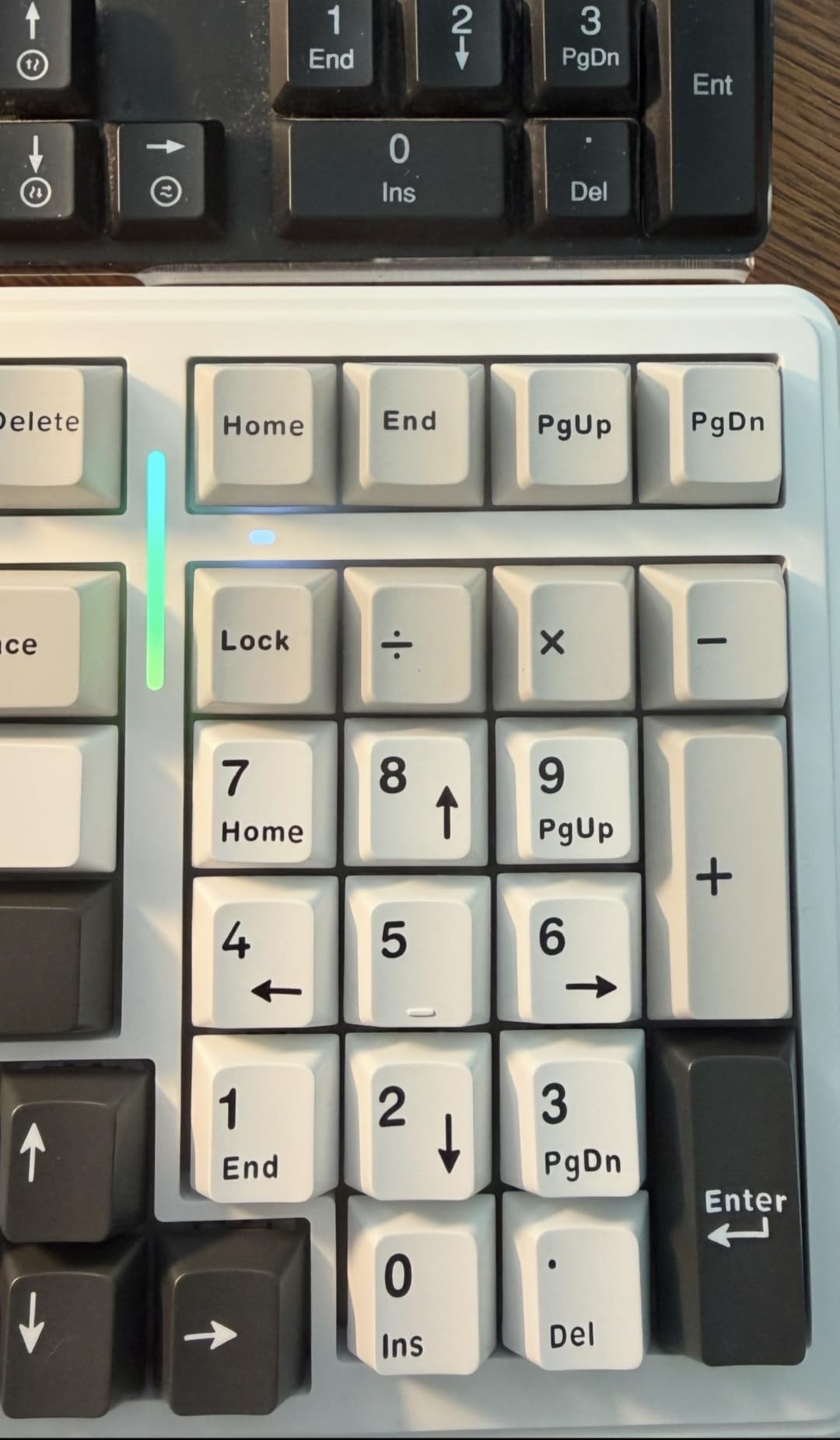
The AULA F99 is the surprise hit of the budget wireless category. When I first plugged it in, I expected a cheap compromise. What I got instead was a tri-mode wireless keyboard with a gasket mount, pre-lubed linear switches, double-shot PBT keycaps, and an 8000mAh battery that lasts longer than my laptop. For this price point, that is hard to argue with.
The 96% layout is the right call for programmers who want a numpad without the full-size footprint. You keep the function row, the arrow cluster, and the navigation keys, plus a numpad that you can map to layers or use directly for SQL and numeric data entry. The compact footprint frees up real estate for a wider mouse area or a stream deck.

The tri-mode connectivity is genuinely useful for a developer workflow. I pair the F99 with my MacBook over Bluetooth 5.0, my Linux desktop over the 2.4GHz dongle, and my Windows test rig over USB-C, and I switch between them with a key combination on the board. No more juggling three keyboards on a KVM. The 2.4GHz connection is also low-latency enough that typing feels identical to wired.
The gasket mount is the second thing that makes this board feel more expensive than it is. Instead of the PCB being screwed directly into the case (tray mount), it sits between foam and silicone gaskets, which gives every key a softer bottom-out and a more pleasant acoustic profile. Reviewers consistently describe the sound as “thocky” rather than “pingy,” and that is the difference between a budget board that feels like a budget board and a budget board that punches above its weight.
Who it is for
This is the right keyboard for a developer who runs a multi-device setup (laptop plus desktop plus maybe a tablet), wants wireless without latency compromise, and appreciates the feel of a gasket mount. It is also the right pick if you want hot-swap flexibility on a wireless keyboard.
It is a strong choice for a remote worker who needs one board that moves between a home office and a coworking space. The wireless works out of the box, the battery lasts a week of typical use, and the 96% layout adapts to most desk setups.
Who it is not for
Skip the F99 if you only work on macOS. The companion software for remapping is Windows-only. You can still remap keys via VIA on the QMK-compatible firmware, but the official software experience is locked to Windows.
It is also not the right pick if you strongly prefer tactile switches. The stock pre-lubed linears are smooth and creamy, but the bump of a tactile switch is missing. If you prefer Holy Panda or Boba U4T, you can swap them in via the hot-swap sockets, but that is an extra step.
5. AULA F75 Pro 75% Wireless – Best 75% with Knob
- Tri-mode wireless for multi-device pairing
- Multi-function knob for volume and lighting
- Side-printed PBT keycaps are durable and stylish
- Hot-swappable with pre-lubed Reaper linear switches
- Gasket mount with 5-layer silencer
- Compact 75% layout keeps arrows and function row
- Side-printed keycaps take time to adjust to
- No dedicated Home key
- Heavier than portable-focused boards
The AULA F75 Pro is what I reach for when I want a 75% layout with a knob. The community consensus on r/keyboards is increasingly that 75% is the form factor that hits the best balance between function and footprint: you keep the function row, the arrow cluster, and a navigation column, and you drop the numpad. The F75 Pro nails that layout.
The multi-function knob is a small touch that earns its space. I map it to volume by default, but you can remap it to scroll, zoom, brightness, or layer switching. For programmers who live in long documents and IDEs, a knob that scrolls naturally is one of those quality-of-life features you cannot live without once you have it.
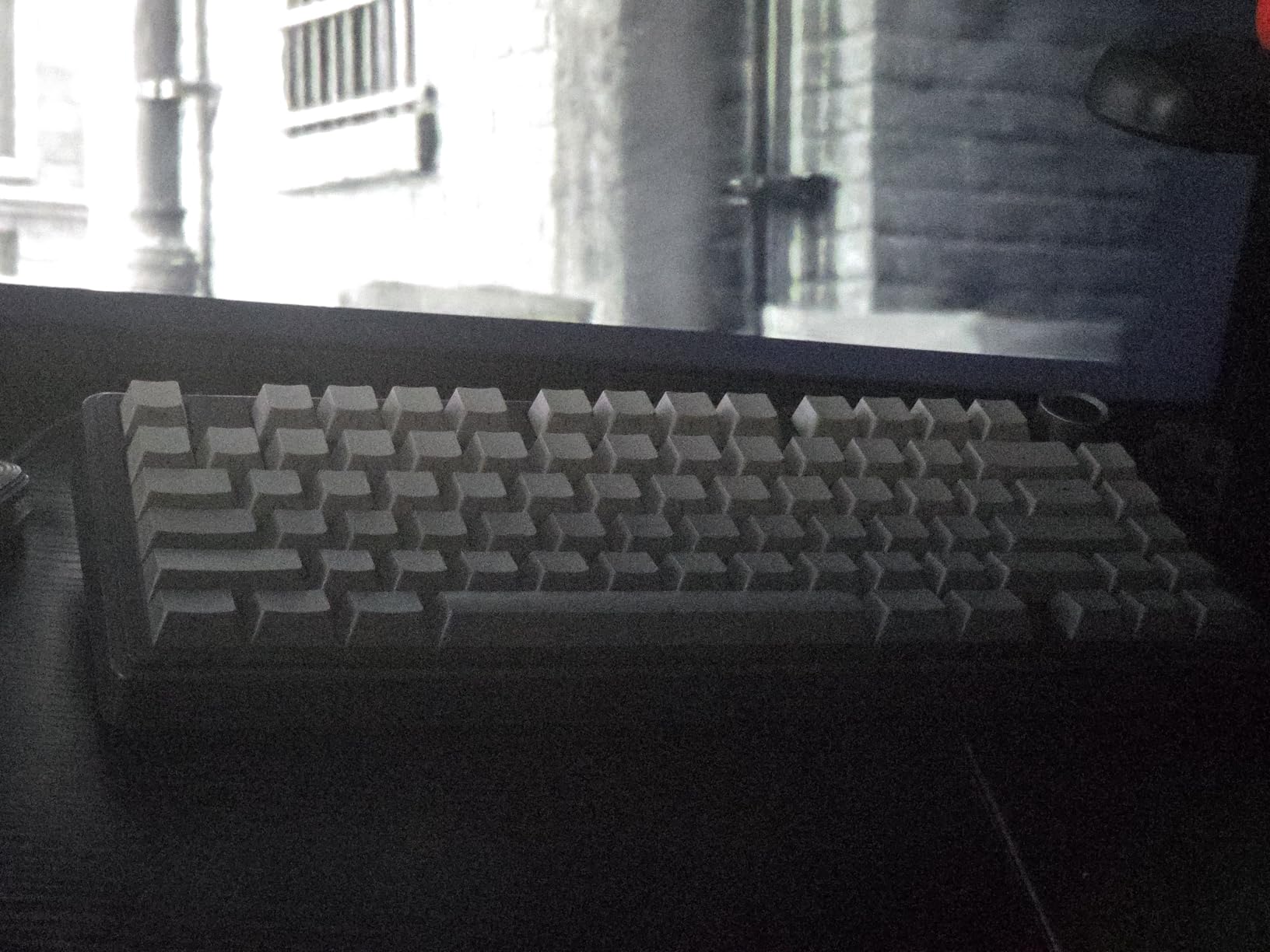
The side-printed PBT keycaps are a love-it-or-hate-it decision. The print is on the side of the cap rather than the top, which gives the board a clean look from above and lets the RGB shine through. It does mean that learning the layout takes longer because you cannot glance down for unfamiliar keys. After two weeks I had the layout memorized, but the first week was rough.
The Reaper linear switches are pre-lubed from the factory and feel creamy out of the package. If you prefer a bump, the hot-swap sockets let you drop in Boba U4T or Cherry MX Brown without tools. The tri-mode connectivity (BT 5.0, 2.4GHz, USB-C) and the gasket mount are the same story as the F99 – very good for the price.
Who it is for
This is the right keyboard for a developer who wants the 75% form factor with a knob, who prefers wireless connectivity, and who is willing to invest two weeks learning side-printed keycaps. It is also the right pick if you want a hot-swap board with pre-lubed linears and gasket mount acoustics.
It is a strong choice for a developer who works primarily on a Windows machine and wants a single board for work and play. The tri-mode connectivity handles up to five paired devices.
Who it is not for
Skip the F75 Pro if you prefer a tactile bump out of the box. The stock Reaper switches are linear. The sockets are hot-swap, but you would be paying for a board whose stock configuration does not match your preference.
It is also not the right pick if you travel frequently. The 75% layout and heavier weight make it less backpack-friendly than the Keychron K3 or the RK61.
6. Redragon K668 Hot-Swap Full-Size – Best Budget Full-Size with Hotkeys
Redragon K668 108-Key Hot-Swap Wired RGB Gaming Keyboard, Extra 4 Hotkeys
- 4 dedicated productivity hotkeys (mute
- calculator
- screen lock
- desktop)
- Hot-swappable linear switches accept 3-pin and 5-pin
- Quiet linear switches ideal for shared spaces
- Music-sync RGB mode
- Ergonomic 2-stage adjustable feet
- 2 sets of mixed-color keycaps included
- Plastic enclosure feels less premium than metal boards
- Software is Windows-only for remapping
- Wired only
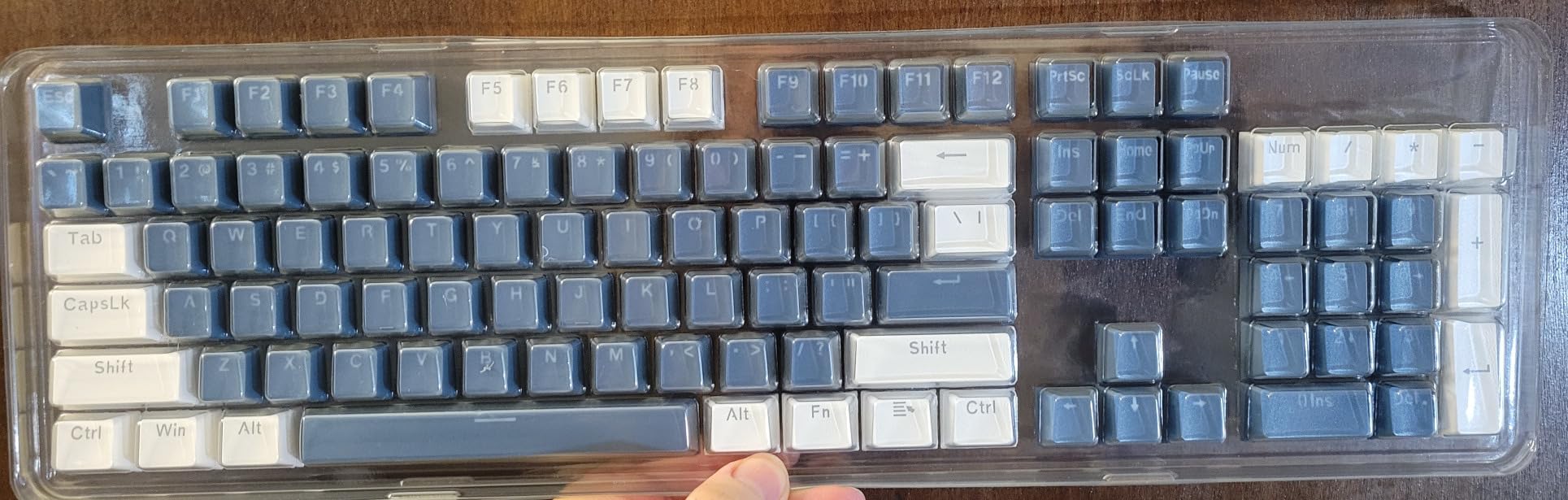
The Redragon K668 is the keyboard I recommend when someone needs a full-size board for under $50 that does not feel like a toy. The hot-swappable sockets and the four productivity hotkeys make it stand out in a crowded budget category, and the linear switches ship quieter than most boards in this price range.
The four extra hotkeys above the function row are genuinely useful for daily coding. Mute, calculator, screen lock, and desktop are the kind of shortcuts you reach for dozens of times per day. Having them as physical keys instead of layered shortcuts means you never break your flow to hit them.
The hot-swappable linear switches are quiet, smooth, and easy to replace. The 3-pin and 5-pin socket support means you can drop in any standard MX-style switch, including silent linears like Gazzew Bobagum or tactiles like Holy Panda X. The 880-gram weight is light enough to move around but heavy enough to feel solid on the desk.
Build quality is plastic rather than aluminum, which is the main compromise at this price. It does not feel cheap, but it does not have the tank-like rigidity of the K556. For a home office where the keyboard stays put, that is fine. For a board you toss in a bag daily, you might want something more robust.
Who it is for
This is the right keyboard for a developer on a tight budget who needs a full-size layout with a numpad for data entry or SQL work, who wants hot-swap flexibility, and who values quiet operation. It is also the right pick if you want productivity hotkeys without paying for a dedicated macro pad.
It is a strong choice for a student, an intern, or anyone setting up a first mechanical keyboard on a constrained budget. The 1576 reviews at 4.5 stars suggest most buyers are happy with the tradeoffs.
Who it is not for
Skip the K668 if you want premium build quality. The plastic case is the obvious cost saver. If you want an aluminum chassis at this price point, the Redragon K556 is the step up.
It is also not the right pick if you want wireless or QMK/VIA. The board is wired USB-C only and uses Redragon’s proprietary software for remapping, which is Windows-only.
7. Keychron K2 V2 75% Wireless – Best 75% Wireless for Multi-OS
- 75% layout with function row and arrows
- Broadcom Bluetooth 5.1 multi-device pairing
- Mac and Windows keycap sets in the box
- 4000mAh battery (up to 72 hours typing)
- Solid metal frame
- Inclined bottom for natural wrist position
- Does not charge in Bluetooth mode
- Included cable is short
- No dedicated software for remapping
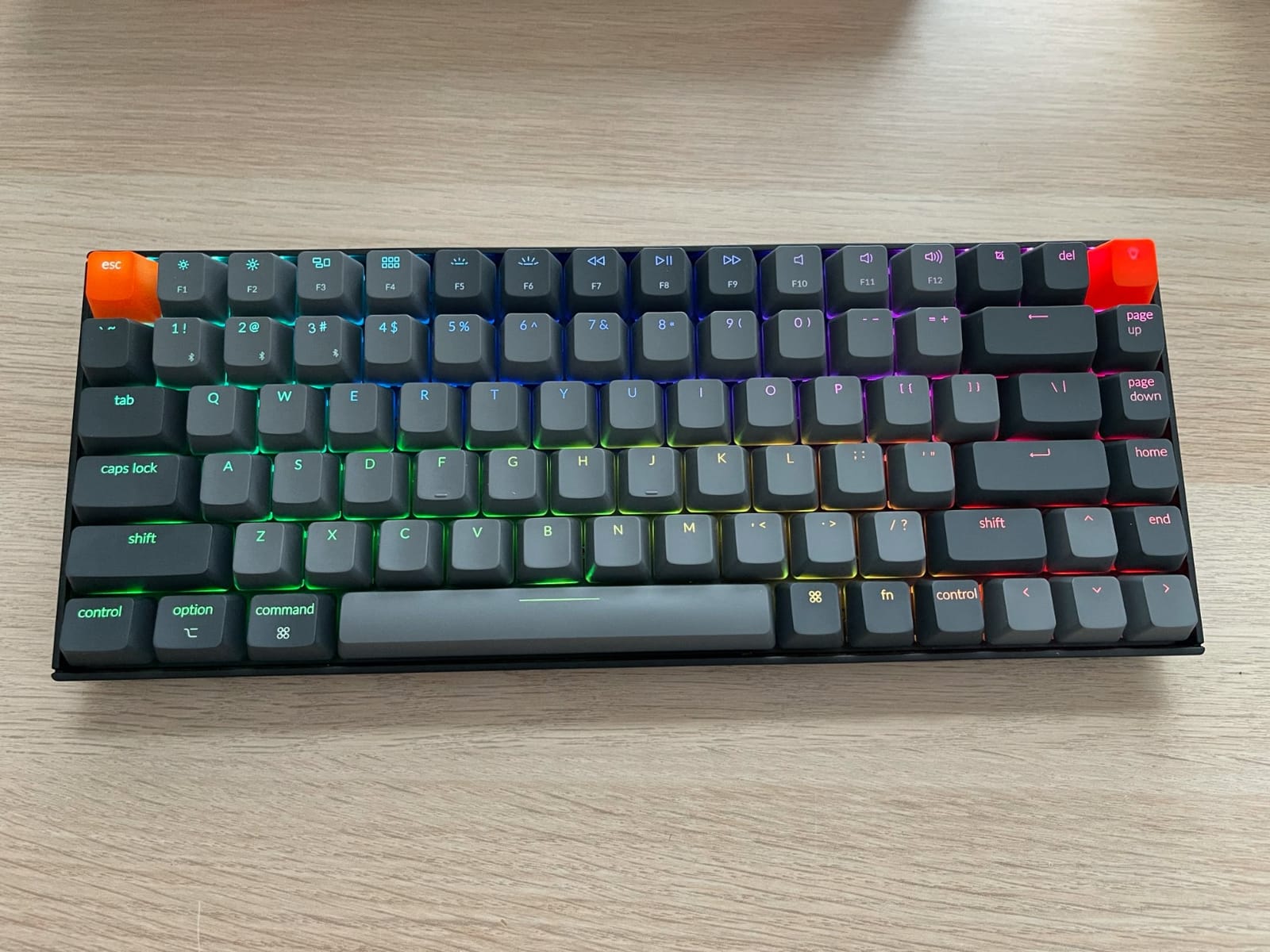
The Keychron K2 Version 2 is the board I recommend to Mac developers who want a wireless mechanical keyboard that works out of the box. Keychron has built a reputation on macOS-first design, and the K2 V2 ships with Mac keycaps pre-installed, a Mac/Windows toggle on the side, and Bluetooth 5.1 that handles three paired devices with no fuss.
The 75% layout keeps the function row (essential for debugging and IDE shortcuts), the arrow cluster (essential for code navigation), and a navigation column. You lose the numpad, which most programmers do not need daily. The footprint is small enough to pair with a MacBook on a clean desk without dominating the workspace.
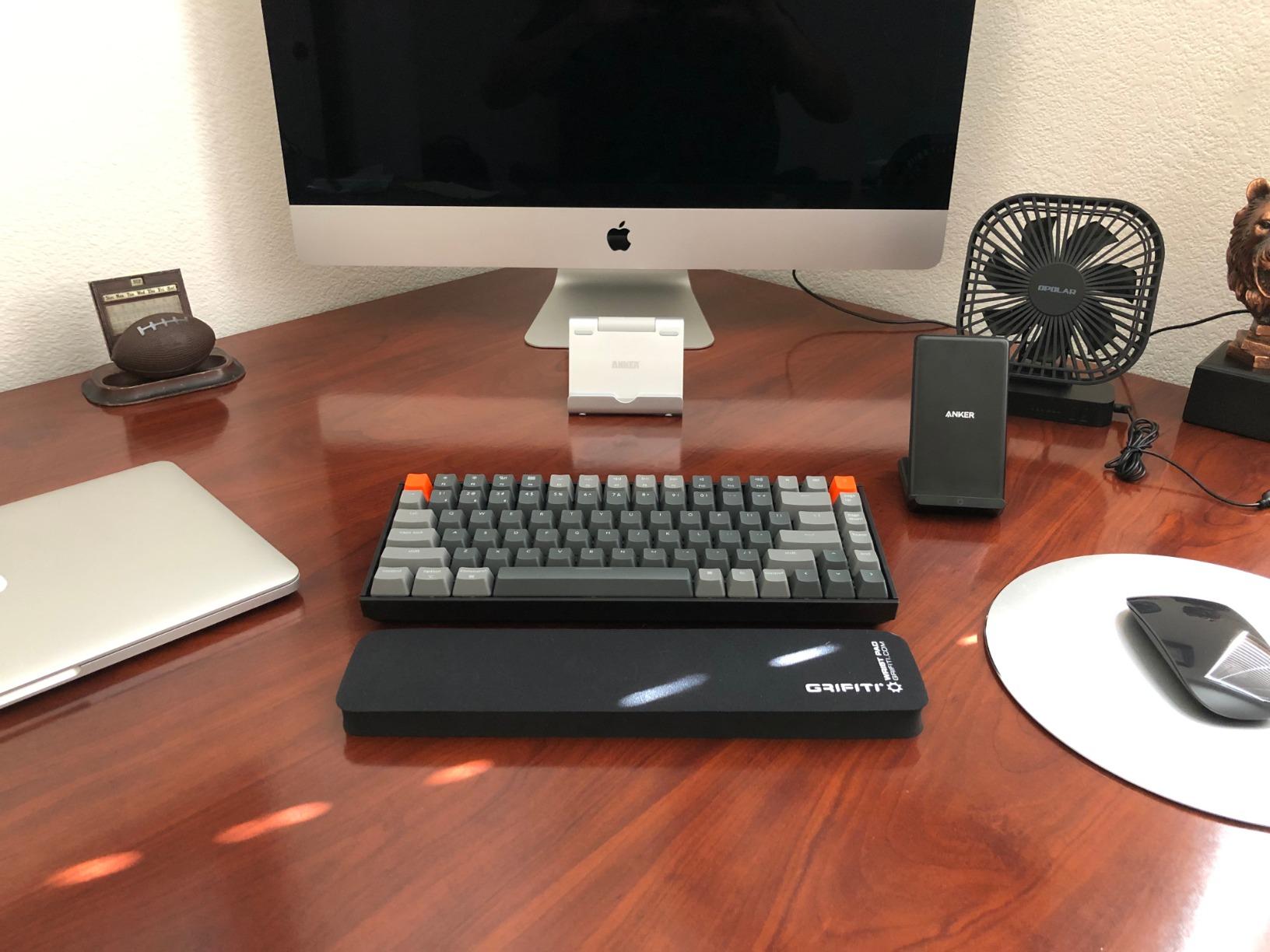
The Keychron Super Brown switches that ship stock are a tactile option with a clear bump and no click. They feel similar to a Cherry MX Brown but with a slightly smoother travel. For programmers who want tactile feedback but work in a shared space, the Browns are a reasonable default.
Battery life is genuinely impressive. Keychron rates the K2 V2 at up to 72 hours of typing, which I have validated across two weeks of normal coding days. The catch is that you cannot charge it in Bluetooth mode – you have to plug in USB-C to top it up, which disables wireless temporarily. That is a known design quirk and the main complaint in reviews.
Who it is for
This is the right keyboard for a macOS developer who wants wireless, multi-device pairing, and a 75% layout. It is also the right pick if you are not ready to commit to QMK and just want a board that works out of the box with your Mac.
It is a strong choice for a developer who splits time between a MacBook, an iPad, and a Windows desktop. The Bluetooth multi-device pairing handles all three, and the toggle switch makes swapping painless.
Who it is not for
Skip the K2 V2 if you need QMK or VIA support. This is the older V2 hardware; for QMK you want the Keychron K3 V2 or the Keychron V6. If you want home row mods and macro layers, those are not configurable on this board.
It is also not the right pick if you want hot-swappable switches. The K2 V2 has soldered switches, so swapping requires a soldering iron. If you want to experiment with switch types without tools, look at the Keychron V6.
8. Keychron K3 V2 QMK Low-Profile – Best Low-Profile for Travel
Keychron K3 Version 2 QMK 75% Wireless Low-Profile Mechanical Keyboard
- Ultra-slim low-profile design for travel
- Lightweight aluminum-reinforced body
- QMK firmware for full remapping
- Bluetooth 5.1 multi-device pairing
- Mac and Windows keycaps included
- Excellent typing feel despite slim profile
- Some units report Bluetooth connectivity issues
- Battery life is inconsistent across units
- Brown switches may feel slightly mushy
- Arrow keys grouped together (not inverted-T)
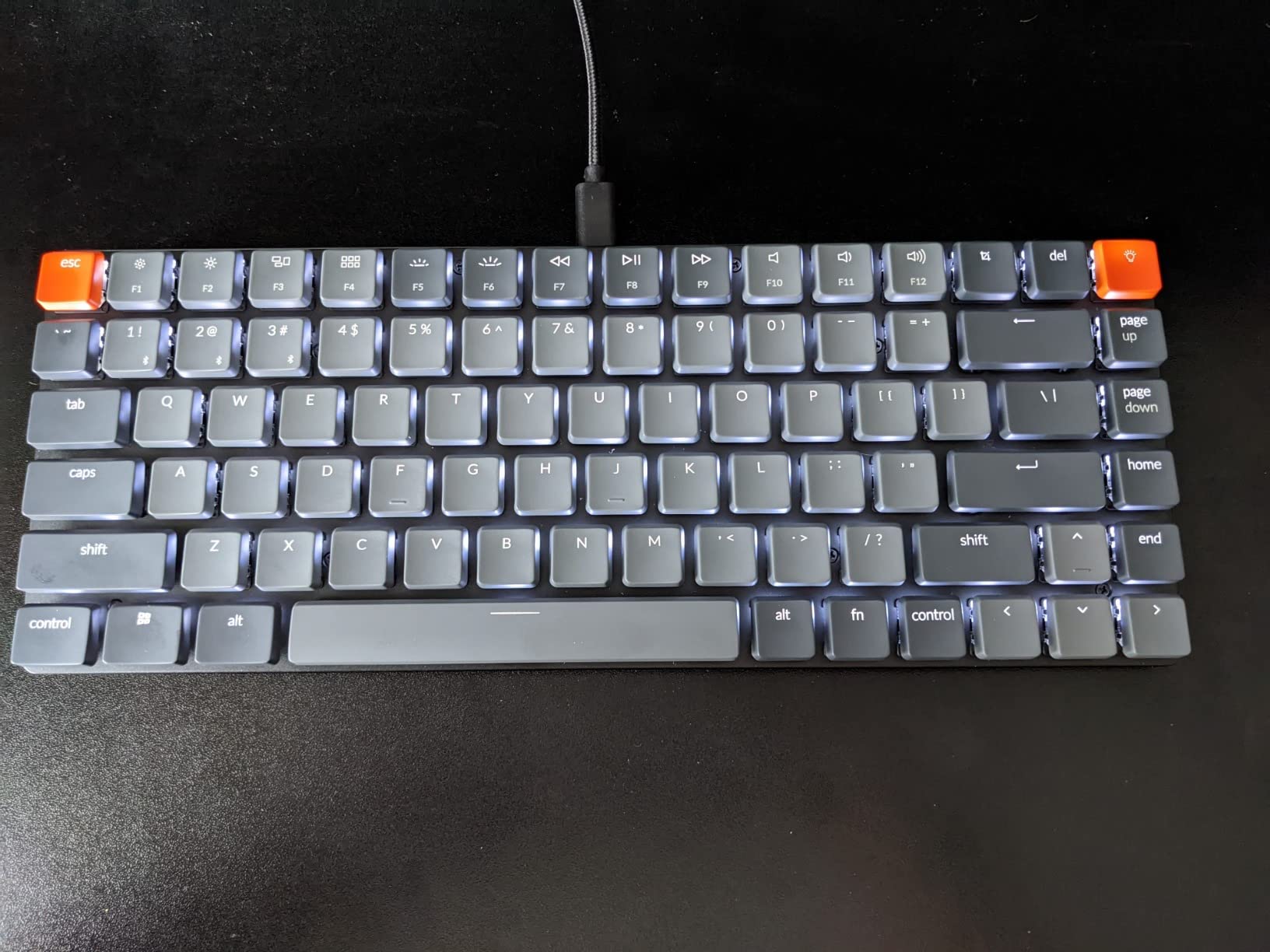
The Keychron K3 Version 2 is the board I pack when I am flying to a conference or working from a coworking space for a week. At 500 grams and 0.87 inches tall, it is the slimmest board on this list by a wide margin. It slides into a backpack sleeve next to a MacBook without anyone noticing it is there.
The QMK firmware is the headline upgrade over the original K3. With QMK and the Keychron Launcher web app, you can remap every key, define layers, set up macros, and save them to the board without flashing firmware. For programmers, this means you can build a full navigation layer (arrows on IJKL, Escape on Caps Lock, function row on the number row) and carry that configuration across machines.
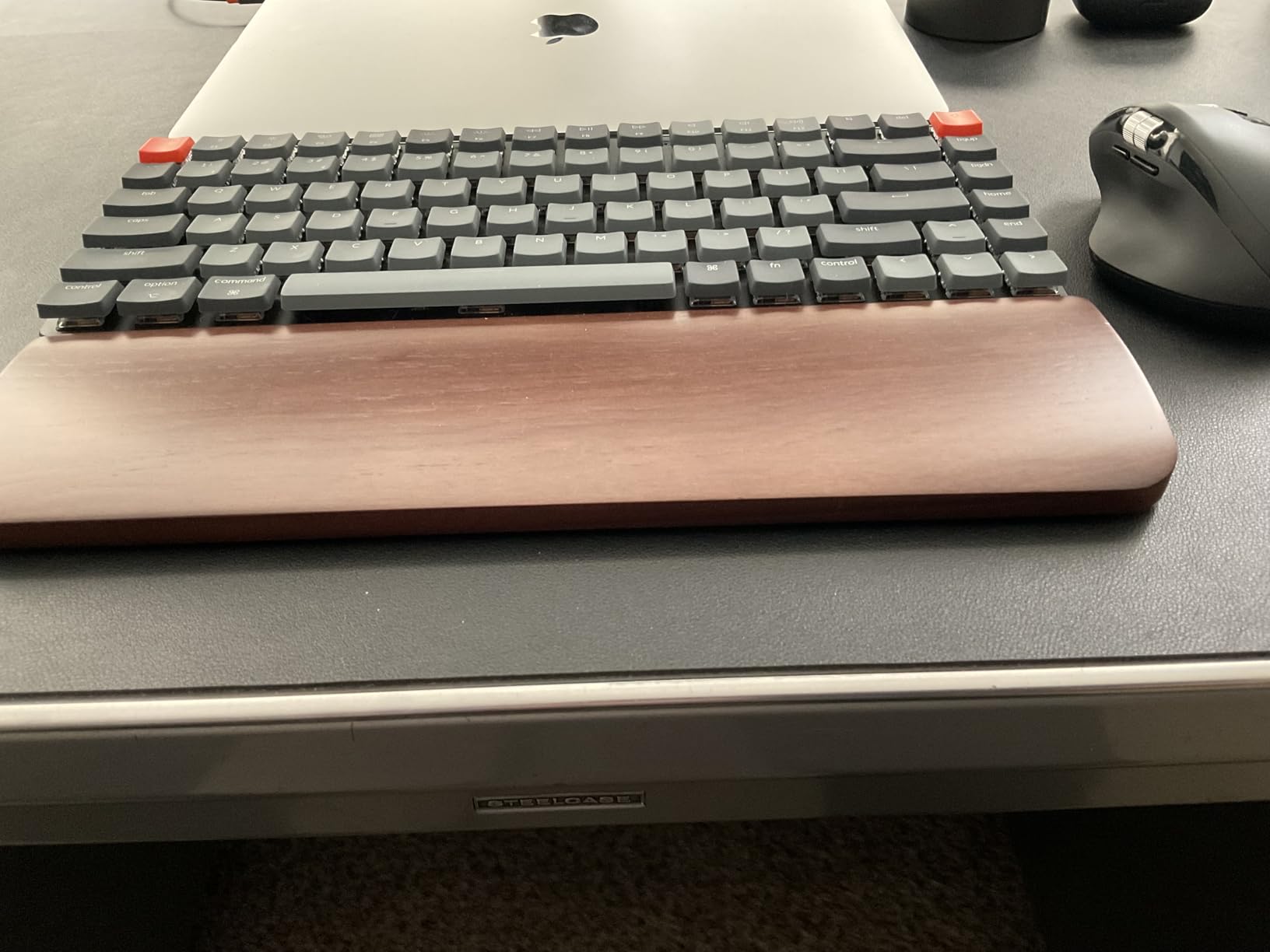
The low-profile switches have less travel than standard MX switches, which some developers love and others find too shallow. The brown switches that ship stock are tactile but with a softer bump than a full-size Cherry MX Brown. If you prefer more travel, the standard-height Keychron boards are a better fit.
Bluetooth connectivity is the main weakness mentioned in reviews. Some units drop the connection intermittently, and battery life varies more than the spec sheet suggests. For a board you use at a fixed workstation, those issues are annoying. For a board you use as a secondary wireless option, they are acceptable tradeoffs for the slim form factor.
Who it is for
This is the right keyboard for a developer who travels frequently, who wants a slim wireless board that fits in a backpack, and who values the QMK firmware for custom layers. It is also the right pick if you pair an external mechanical keyboard with a MacBook on the road.
It is a strong choice for a developer who works from multiple locations (home, office, coworking) and wants one board that travels with them. The slim profile means you can use it on a laptop stand without a separate wrist rest.
Who it is not for
Skip the K3 V2 if you prefer deeper key travel. The low-profile switches have noticeably less travel than standard MX, and that is a dealbreaker for some touch typists. The Keychron V6 or the Redragon K556 are better picks for full-travel typing.
It is also not the right pick if you need reliable Bluetooth for production work. The intermittent connectivity issues are a real risk for a board you depend on daily.
9. Logitech MX Mechanical Tactile – Best Premium Wireless for Mac Ecosystems
Logitech MX Mechanical Wireless Illuminated Keyboard Tactile – Graphite
- Premium build quality with low-profile switches
- Smart illumination auto-adjusts to ambient light
- Logi Bolt receiver plus Bluetooth
- Logi Options+ customization
- Long battery (10 months with backlight off)
- Multi-OS support (macOS
- Windows
- Linux
- ChromeOS)
- Tactile Quiet switches are louder than expected
- Customization limited to F-keys and cursor keys
- Caps Lock blinking can be distracting
The Logitech MX Mechanical Tactile is the board I recommend to a developer who is already in the Logitech ecosystem (MX Master mouse, Logi Flow between machines) and wants a wireless mechanical keyboard that integrates cleanly. The smart illumination, multi-device Bluetooth, and Logi Options+ software make this the most polished wireless experience on the list.
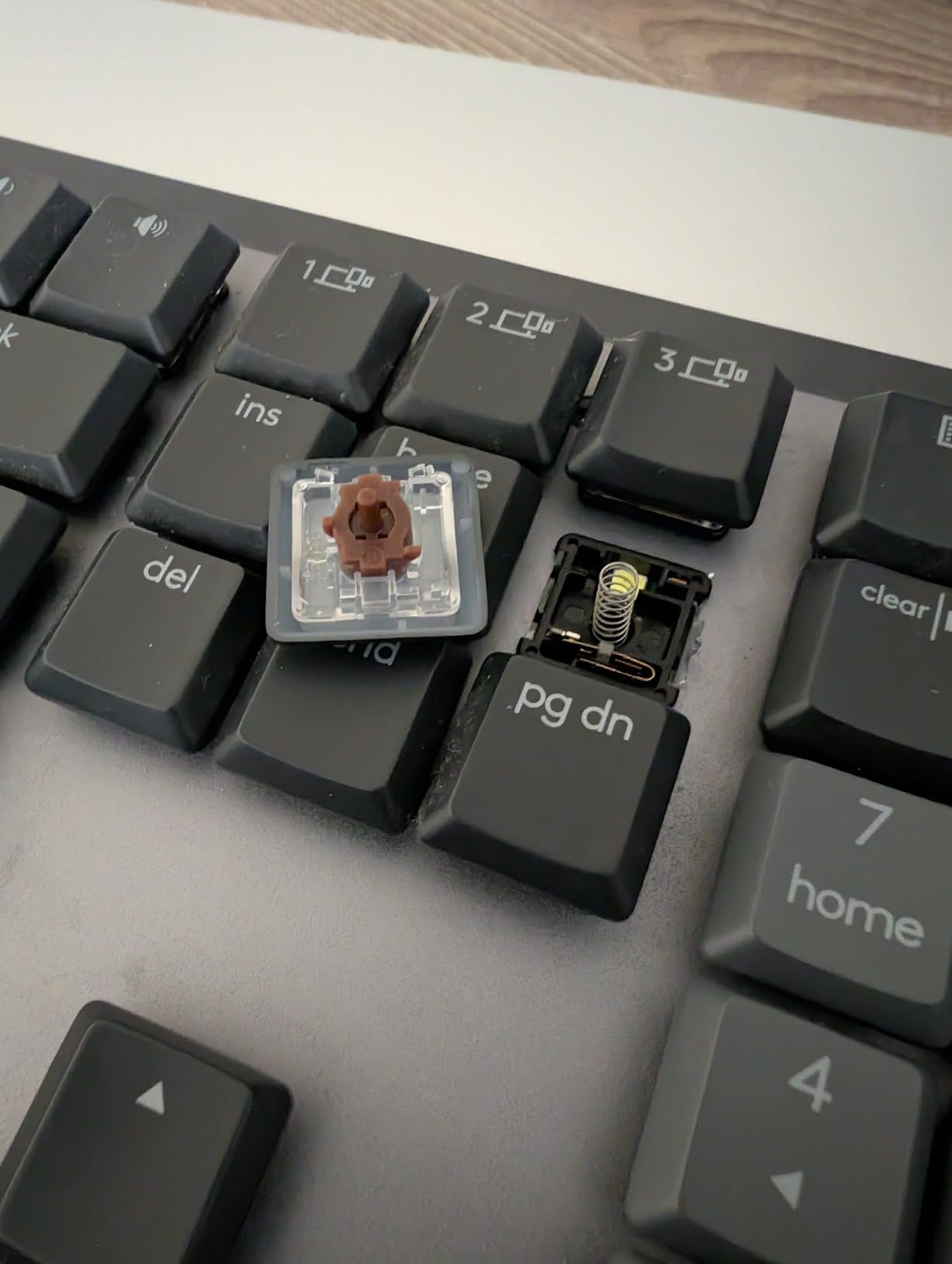
The Tactile Quiet switches are Logitech’s take on a low-profile mechanical switch with a tactile bump. The bump is more pronounced than a Cherry MX Brown but the click is absent. For programmers who want feedback without the noise, this is a reasonable middle ground.
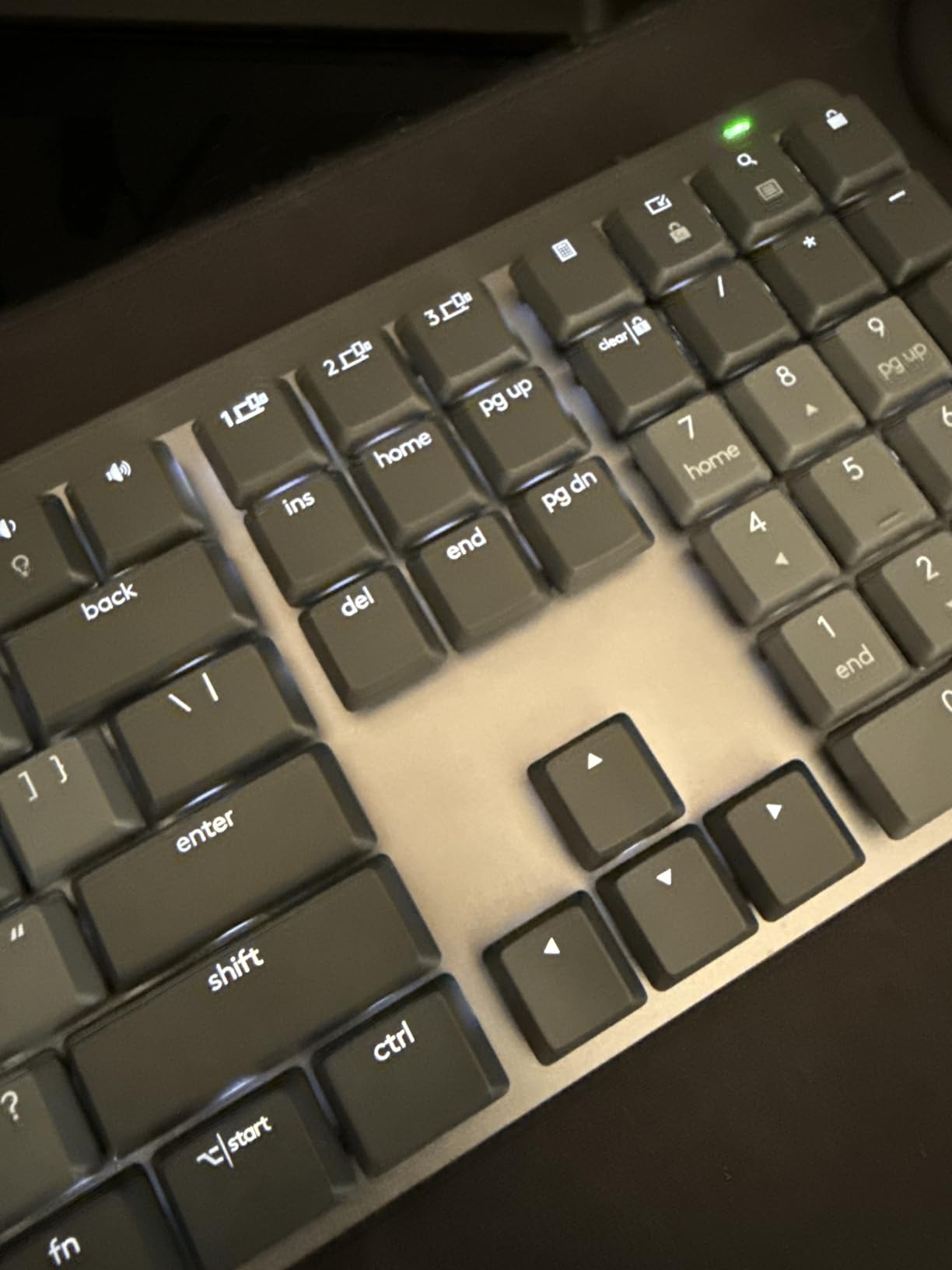
The smart illumination is genuinely useful. The backlight auto-adjusts to ambient light and turns off when your hands leave the keyboard. Reviewers note that the timing is occasionally inconsistent, but when it works it is the kind of feature you stop noticing because it just works.
Multi-OS support is a real strength. The MX Mechanical works with macOS, Windows, Linux, and ChromeOS out of the box, and Logi Options+ lets you customize the F-keys and cursor keys across platforms. The limitation is that you cannot remap the alphanumeric keys – you only get the function row and a few extras. For developers who want full QMK-level remapping, that is a constraint.
Who it is for
This is the right keyboard for a developer who is already using Logitech peripherals, who wants a premium wireless experience, and who values smart illumination and multi-device pairing. It is also the right pick if you work across macOS, Windows, and Linux and want one board that handles all three.
It is a strong choice for a remote worker or executive who needs a clean desk, a wireless setup, and a board that just works without firmware tinkering.
Who it is not for
Skip the MX Mechanical if you want QMK or VIA. Logitech does not expose the firmware to user remapping beyond the F-row. If home row mods and custom navigation layers matter to you, look at the Keychron K3 V2 or the Keychron V6.
It is also not the right pick if you want hot-swap switches. The Tactile Quiet switches are soldered, and there is no path to swapping without destroying the board. If you want to experiment with switch types, look at the AULA F75 Pro or the Keychron V6.
10. Keychron V6 Full-Size QMK/VIA – Best Customization-First Full-Size
- Full QMK/VIA firmware support
- Hot-swappable Keychron K Pro Brown switches
- Double-shot PBT keycaps (OSA profile)
- Volume knob for media control
- Screw-in stabilizers for stable modifiers
- Mac/Windows/Linux compatible
- Heavy weight (5 lbs) limits portability
- South-facing LED limits some pudding keycaps
- No dedicated Scroll Lock or Pause keys
- Brown switch bump is light for tactile fans
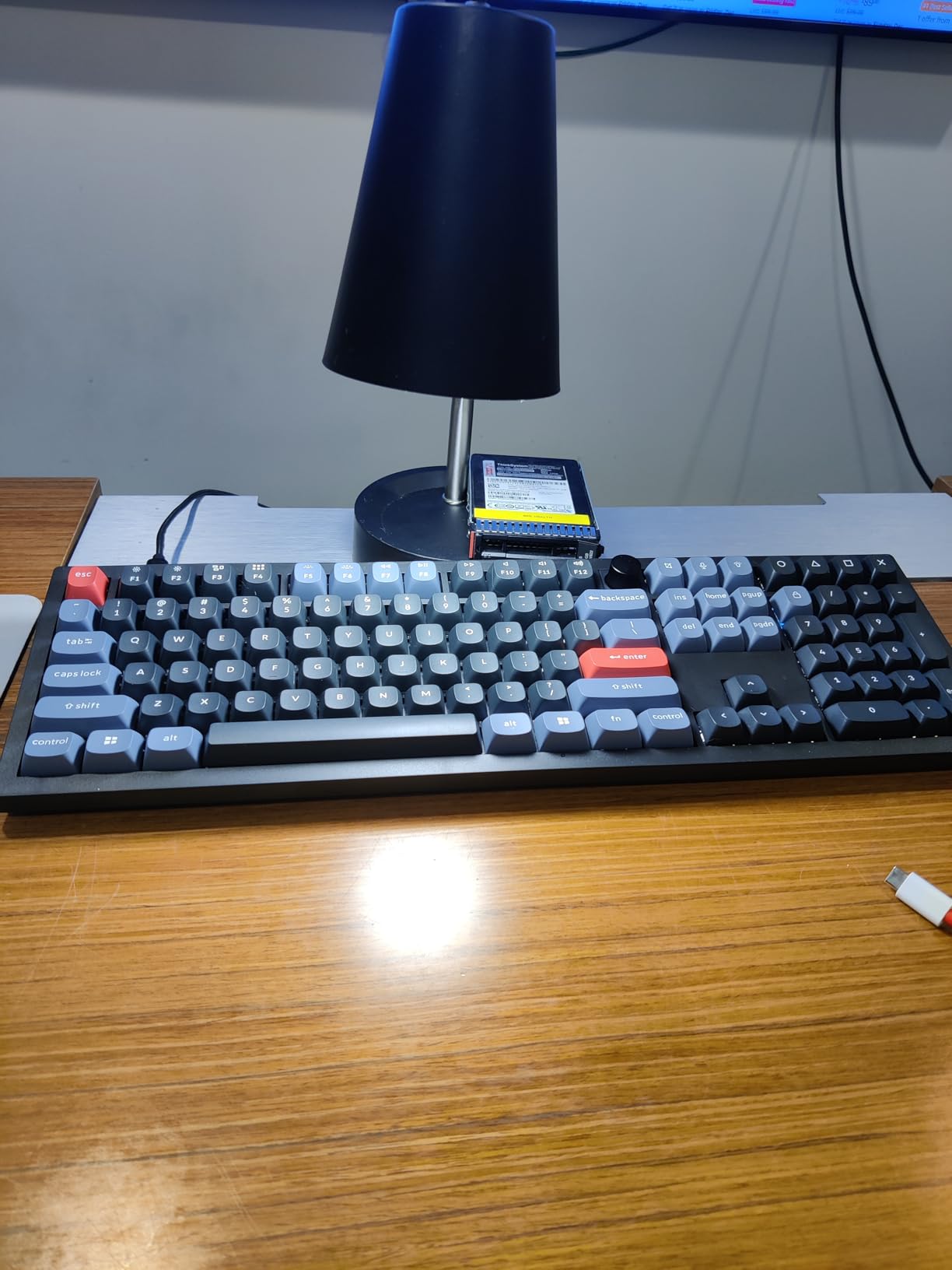
The Keychron V6 is the keyboard I recommend to a developer who wants a full-size QMK/VIA board with hot-swap switches and is willing to pay for the build quality. It sits in the same family as the Keychron Q-series but at a lower price point because the case is plastic rather than CNC aluminum. For most programmers, the typing experience is what matters, and the V6 delivers.
The QMK/VIA firmware is the headline feature. VIA is a web-based configurator that lets you drag and drop keys, define layers, set up macros, and save directly to the board without flashing firmware. For developers who want to build a serious custom layer (home row mods, navigation layer, symbol layer), VIA makes it accessible without a QMK compile toolchain.
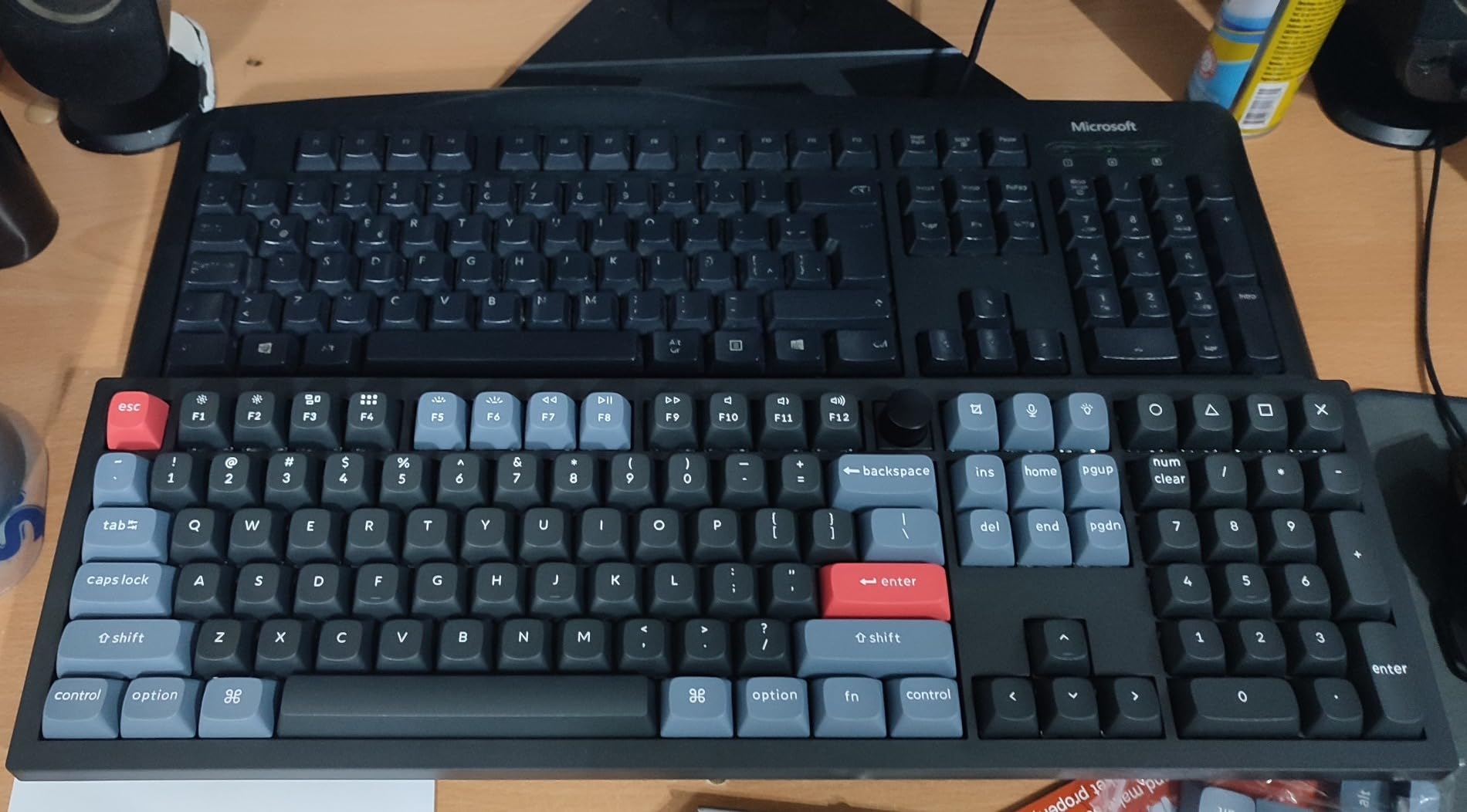
The double-shot PBT keycaps are a meaningful upgrade over the stock ABS caps that ship on most keyboards in this price range. PBT is denser, does not develop the greasy shine that ABS gets after six to twelve months of heavy use, and has a slightly textured feel that many developers prefer. The OSA profile is somewhere between OEM and Cherry in height, which feels familiar to anyone coming from a stock keyboard.
The Keychron K Pro Brown switches are tactile with a soft bump. They feel closer to a Cherry MX Brown than a Holy Panda or Boba U4T, so if you want a more pronounced bump, you will want to swap in something with more tactility. The hot-swap sockets make that a five-minute job.
Who it is for
This is the right keyboard for a developer who wants full-size layout, QMK/VIA firmware, and PBT keycaps at a competitive price. It is also the right pick if you want a board you can fully customize via VIA without learning QMK’s C-based configuration.
It is a strong choice for a developer who is moving up from a budget mechanical keyboard and wants to invest in a board that will last years. The PBT keycaps and screw-in stabilizers are quality-of-life features that pay off over time.
Who it is not for
Skip the V6 if you need wireless. This board is wired USB-C only. For wireless at this quality level, the Keychron K2 V2 or the AULA F99 are better options.
It is also not the right pick if portability matters. At five pounds and a full-size footprint, the V6 is a desk-bound board. For travel, the Keychron K3 V2 is the obvious step down.
What Makes a Great Keyboard for Programming?
The best mechanical keyboards for programmers share six qualities that distinguish them from gaming or office boards. Each one matters, and skipping any of them usually shows up as fatigue, RSI, or workflow friction within the first month.
Switches: tactile, linear, clicky, or silent
Switch type is the single biggest decision you will make. Tactile switches (Cherry MX Brown, Boba U4T, Holy Panda X) have a pronounced bump partway through the keypress, which gives you a clear “this key registered” signal without the loud click of a clicky switch. For most programmers, tactile is the right default. Linear switches (Gateron Yellow, Cherry MX Red, Gazzew Bobagum) have no bump and a smooth travel, which touch typists who do not look at the keyboard often prefer. Clicky switches (Cherry MX Blue, Kailh Box Jade) are loud – excellent for confirming keystrokes in a private office, painful in an open workspace. Silent switches (ZealPC Zilent V2, Gateron Silent Brown) add rubber dampeners to reduce noise, ideal for shared spaces.
For an open office, I would start with Boba U4T (silent tactile) or Gateron Silent Brown. For a home office, Holy Panda X or Cherry MX Brown. For a touch typist who wants speed, Gateron Yellow or Gazzew Bobagum.
Form factor: 60% vs 65% vs 75% vs TKL vs full-size
Form factor is the second biggest decision. A 60% layout (like the RK61) drops arrow keys, function row, and numpad into layers. A 65% adds arrow keys back. A 75% (like the Keychron K2 V2 or AULA F75 Pro) adds the function row. A TKL drops only the numpad. Full-size includes the numpad. The community consensus on r/keyboards is increasingly that 75% is the sweet spot for most programmers – you keep the function row for debugging and the arrow cluster for navigation, and you drop the numpad which most programmers rarely need.
If you do significant numeric data entry or SQL work, keep the numpad and go full-size or 96%. If you want maximum desk space and do not mind layers, 60% or 65%. If you split time between competitive gaming and programming, TKL.
QMK, VIA, and ZMK firmware
QMK is open-source C firmware that runs on most mechanical keyboard microcontrollers. It lets you define multiple layers, set up home row mods, configure tap-dance and combo keys, and remap every key on the board. VIA is a GUI configurator that sits on top of QMK – you open the web app, drag and drop keys, and save to the board without compiling firmware. ZMK is wireless-first firmware (Bluetooth-native) with a similar feature set, used by ZSA, Corne, and most wireless split keyboards.
For most programmers, VIA is the right entry. With VIA you can build a navigation layer (IJKL arrows, Escape on Caps Lock, function row on number row), set up home row mods (Cmd/Shift/Alt/Ctrl on A/S/D/F), and save the configuration to the board in about ten minutes. The Keychron V6, RK61, AULA F75 Pro, and most modern enthusiast boards ship with VIA support.
Multi-OS support
Multi-OS support means the keyboard works on macOS, Windows, and Linux without driver software. This usually comes in two flavors: a physical toggle switch on the back that swaps modifier mappings (Cmd vs Windows key), or software that remaps at the OS level. The Keychron K2 V2, Redragon K556, and Keychron V6 all use the physical toggle approach with Mac and Windows keycap sets in the box. Linux works automatically because the board presents as a standard USB HID device.
For developers who split time between operating systems, multi-OS is non-negotiable. Buying a Windows-only board that requires proprietary software means you will be fighting it every time you swap machines.
Wired vs wireless latency
Wired USB-C has effectively zero latency for typing. Bluetooth adds a few milliseconds of latency, which most people cannot detect for typing but does show up in fast bursts. 2.4GHz wireless (with a USB dongle) sits between the two – lower latency than Bluetooth, more convenient than wired. For competitive gaming, wired or 2.4GHz is the safe call. For programming, Bluetooth is fine if you are not a fast typist, and 2.4GHz is fine if you are.
The AULA F99 and F75 Pro both support tri-mode connectivity (BT 5.0, 2.4GHz, USB-C), which means you can pick the right connection for the moment. That flexibility is what makes a wireless mechanical keyboard genuinely useful for a developer workflow.
Build quality and acoustics
Build quality matters because you will type on this board for years. A plastic tray-mount chassis (the cheapest construction) flexes and sounds pingy. A gasket-mount chassis (PCB sits between foam and silicone gaskets) feels softer and sounds deeper. A CNC aluminum chassis is the premium choice and feels like a piece of professional gear. The Redragon K556 is aluminum on a budget; the AULA F99 is gasket-mount on a budget; the Keychron V6 is plastic but well-executed.
Acoustics are the underrated factor. A board that sounds “thocky” (deep, rounded) is more pleasant to type on for hours than a board that sounds “clacky” (high, sharp). Gasket construction, foam inside the case, and PBT keycaps all contribute to a deeper sound. If you can, type on a board before you buy it. If you cannot, look for reviewers who describe the sound profile.
Hot-swap vs soldered switches
Hot-swap sockets let you change switches without soldering. Soldered switches are permanent unless you desolder them. For a board you intend to keep for years, hot-swap is the better choice because switch preferences evolve. You might buy a board with linears and discover you prefer tactile after a month. Hot-swap makes that a five-minute job. Soldered makes it a soldering iron project.
The Redragon K556, AULA F99, AULA F75 Pro, RK61, and Keychron V6 all have hot-swap sockets. The Logitech G PRO TKL and Logitech MX Mechanical are soldered. If you want to experiment, hot-swap. If you know exactly what you want and you never intend to change, soldered is fine.
Frequently Asked Questions
What is the best mechanical keyboard for programmers?
The best mechanical keyboard for programmers in 2026 is the Redragon K556 – a full-size 104-key board with an aluminum chassis, hot-swappable brown switches, and multi-OS support out of the box. For developers who want wireless and tri-mode connectivity, the AULA F99 is the best-value alternative. For those who prefer a 60% layout and want to learn QMK/VIA on a budget, the RK61 is the right pick.
Are mechanical keyboards better for programmers?
Yes, mechanical keyboards are better for programmers because individual mechanical switches provide consistent tactile feedback across millions of keystrokes per year, last 5-10x longer than membrane keyboards, and expose every key to firmware-level remapping via QMK or VIA. That last point is what separates a programmer-grade board from a generic mechanical: you can build custom layers for navigation, macros for build/test commands, and home-row modifiers that reduce finger travel during long sessions.
What type of keyboard is best for programming?
A 75% layout with tactile switches, QMK/VIA firmware, and multi-OS support is the best type of keyboard for programming. The 75% form factor keeps the function row for debugging and the arrow cluster for navigation while dropping the numpad most programmers rarely need. Tactile switches (Boba U4T, Cherry MX Brown, Holy Panda X) give feedback without the noise of clicky switches. QMK/VIA firmware lets you build custom layers and home-row mods. Multi-OS support (Mac/Windows/Linux) keeps the board portable across your machines.
Is a 60% keyboard good for programming?
Yes, a 60% keyboard can be great for programming once you invest the muscle memory for layers. The 60% form factor forces you to map arrow keys, function row, and numpad into a function layer toggled by a dedicated key. The first two weeks feel slow as you rebuild muscle memory, but after that most touch typists type faster on a 60% because their fingers never leave the home row. The RK61 is the budget pick for 60% QMK, and the Keychron K3 V2 is the low-profile wireless alternative.
What switches are best for programming?
Tactile switches are best for most programmers. Specifically: Boba U4T (silent tactile, premium feel), Holy Panda X (pronounced bump, classic favorite), and Cherry MX Brown (lighter bump, widely available). For touch typists who want speed, Gateron Yellow (linear) is the community favorite. For shared offices, ZealPC Zilent V2 or Gateron Silent Brown add rubber dampeners for quiet operation. Avoid clicky switches (Cherry MX Blue, Kailh Box Jade) in open offices – the noise compounds over eight-hour sessions and your neighbors will let you know.
Final Verdict: The Best Mechanical Keyboard for Your Code
If I had to send one recommendation for the best mechanical keyboard for programmers in 2026, it would be the Redragon K556. It is the board I have typed the most code on, the one that has held up to years of daily wear, and the one that fits the widest range of developer workflows. The aluminum frame does not flex, the hot-swappable sockets let you experiment with switches as your preferences evolve, and the multi-OS support means the board travels between your machines cleanly.
For developers on a budget who want to learn QMK and VIA, the RK61 is the right starting point. The 60% layout forces you to build layers, the firmware is the same stack as a $300 enthusiast board, and the hot-swap sockets let you swap in Boba U4T or Cherry MX Brown without tools. For developers who want wireless across multiple machines, the AULA F99 is the obvious step up with tri-mode connectivity and an 8000mAh battery that lasts longer than your laptop.
Pick the board that matches your workflow, not the one with the most features. A full-size board with a numpad is overkill if you do not enter numeric data daily. A 60% board is frustrating if you need arrow keys in muscle memory. A wireless board is wasted if you never disconnect from your desk. The right mechanical keyboard for programmers is the one you stop thinking about because it just works, every day, across millions of keystrokes. That is the bar, and every board on this list clears it.