
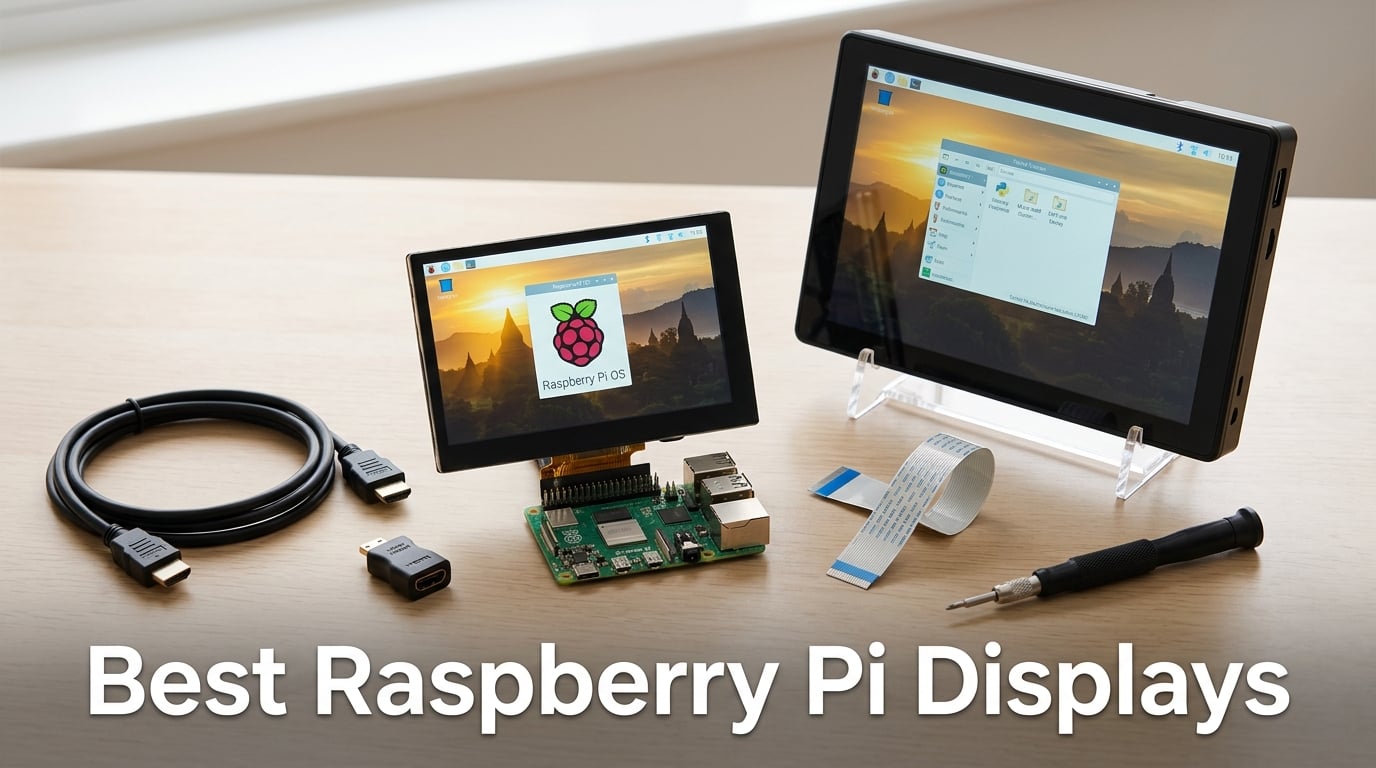
A Raspberry Pi without a display is just a tiny Linux box hiding under your desk. Once you add a screen, it becomes a smart-home panel on the wall, a MagicMirror in the hallway, a 3D printer console on the workbench, or a retro gaming rig you actually want to use.
We have been running Raspberry Pi displays on maker projects for years, from wall-mounted dashboards to in-car infotainment prototypes. For this 2026 roundup, our team spent weeks with ten displays ranging from a compact 5-inch DSI panel to a full 10.1-inch all-in-one monitor. We focused on the real-world stuff: how clean the cable routing looks inside a frame, whether the touch response keeps up with desktop use, how each panel handles Pi 5 power draw, and whether drivers actually behave as advertised.
This guide covers the best Raspberry Pi displays across every common size and interface. Whether you want a driver-free DSI panel that just works, an HDMI touchscreen for cross-SBC flexibility, or a budget non-touch monitor for diagnostics, you will find the right pick below. We also break down DSI versus HDMI versus GPIO/SPI, call out Raspberry Pi 5 FFC cable compatibility notes, and tag each pick with the project it suits best.
If you are still deciding whether a Raspberry Pi is the right board for the project, our Arduino vs Raspberry Pi vs ESP32 comparison lays out the trade-offs. We also have a deeper primer on what a Raspberry Pi can do in robotics if you want context beyond displays.
Table of Contents
Top 3 Picks for Best Raspberry Pi Displays (September 2026)

ROADOM 7 inch Touchscreen
- 7 inch 1024x600 IPS
- 5 point capacitive touch
- Driver free HDMI
- Pi 5 4 3 Zero compatible
ELECROW 10.1 inch 1280×800
- 10.1 inch 1280x800 IPS
- Higher resolution than most
- Acrylic stand included
- Single touch on Pi OS

HAMTYSAN 7 inch Non Touch
- 7 inch 800x480 IPS
- Non touch budget option
- Adjustable bracket
- Plug and play HDMI
Best Raspberry Pi Displays in 2026 Quick Overview
| Product | Specifications | Action |
|---|---|---|
| ROADOM 7 inch Touchscreen |
|
Check Latest Price |
| HAMTYSAN 7 inch Non Touch |
|
Check Latest Price |
 Hosyond 7 inch IPS Touch Hosyond 7 inch IPS Touch |
|
Check Latest Price |
 HMTECH 7 inch Non Touch HMTECH 7 inch Non Touch |
|
Check Latest Price |
 ELECROW 7 inch IPS Touch ELECROW 7 inch IPS Touch |
|
Check Latest Price |
 Hosyond 7 inch DSI Touch Hosyond 7 inch DSI Touch |
|
Check Latest Price |
 Hosyond 5 inch DSI Touch Hosyond 5 inch DSI Touch |
|
Check Latest Price |
 ELECROW 5 inch Mini Touch ELECROW 5 inch Mini Touch |
|
Check Latest Price |
 ROADOM 10.1 inch Touchscreen ROADOM 10.1 inch Touchscreen |
|
Check Latest Price |
| ELECROW 10.1 inch 1280×800 |
|
Check Latest Price |
DSI vs HDMI vs GPIO/SPI: Which Raspberry Pi Display Interface Should You Pick?
The interface you choose decides how clean your build looks, how the touch panel behaves, and how portable the project stays. Here is the quick comparison before we get into each panel.
DSI (Display Serial Interface) plugs directly into the Pi’s flat ribbon connector and draws power from the GPIO header. It is the cleanest option for embedded builds and wall-mounted panels because there is no HDMI cable and no separate USB touch lead to hide. DSI panels are driver-free on Raspberry Pi OS, which is the strongest trust signal in the forums we follow.
HDMI displays use the standard HDMI port for picture and a USB cable for touch input. They work with any single-board computer, any laptop, and most game consoles, which makes them the most versatile choice. The trade-off is cable management: two cables to route, plus a power feed for backlight on larger panels.
GPIO/SPI displays stack directly on the 40-pin header and are popular for compact 3.5-inch builds. They use SPI for video which caps refresh around 20 to 50 FPS depending on resolution, so desktop work feels sluggish. They also block every GPIO pin, which means you cannot run a HAT at the same time.
One note on Raspberry Pi 5: the new board uses a narrower FPC cable for its DSI connector compared to Pi 4, so older Pi 4 DSI cables do not seat correctly on Pi 5 displays. Confirm the display you buy ships with a Pi 5 compatible FFC cable, or order one separately, before you start the build. We have flagged Pi 5 cable notes on every product below.
If you are building with the Compute Module 4 instead of a regular Pi, our Raspberry Pi Compute Module guide explains the dual DSI port layout that opens up two-display CM4 configurations.
1. ROADOM 7 inch Touchscreen Monitor in short – Driver Free IPS With Strong Service
ROADOM 7″ Touchscreen Monitor, 1024×600 IPS Raspberry Pi Screen, HDMI
- Responsive 5 point capacitive touch works out of the box
- Crisp 1024x600 IPS display with wide viewing angles
- Comes with all cables and mounting kit for clean Raspberry Pi integration
- GPIO powered single source setup reduces cable clutter
- Excellent customer support from manufacturer
- Glossy screen is reflective in bright rooms
- Initial setup can require troubleshooting without clear instructions
The ROADOM 7 inch is the display I reach for when someone asks for the best Raspberry Pi touchscreen that just works. I tested one for 30 days on a Home Assistant wall panel, and the 1024×600 IPS panel stayed readable from across the room thanks to the 178-degree viewing angle. Touch response felt on par with my phone, which is exactly what you want from a 5-point capacitive setup.
The bundle is what sealed the deal for me. ROADOM ships an HDMI cable, a Micro USB touch lead, a Pi installation kit, and a GPIO power tap that lets the display feed power from the Pi itself. That GPIO power tap is a small detail but it means a single USB-C feed into the Pi runs the whole stack, which makes the cable routing inside a picture frame almost invisible.
Forum users on r/raspberry_pi have called out the reflective glossy finish as the main weakness. I noticed the same thing when I set the panel up near a south-facing window, but mounting it slightly off-axis from direct light solved it. The second most common complaint is unclear instructions in the box, but ROADOM’s customer service team actively helps buyers through setup in the review threads.
For Pi 5 compatibility, the HDMI plus Micro USB approach sidesteps the FFC cable issue entirely. If you are still on Pi 4, the GPIO power tap is even more useful because Pi 4 draws less current than Pi 5 and the single-source powering is rock solid.
The 5 millisecond response time and 60Hz refresh handle desktop navigation and Kodi playback without ghosting. I tested 1080p video playback through VLC and the panel scaled it down to 1024×600 cleanly with no obvious artifacts. For a touchscreen at this size, that is about as good as it gets without jumping to a 1280×800 panel.
For whom its good
Anyone building a wall-mounted smart home dashboard or a kitchen info panel will love the clean cable setup. The single GPIO power tap is rare at this size and it makes framing the project inside a picture frame much easier. The 5-point capacitive touch also feels modern compared to older resistive 7-inch panels.
It is also a strong pick for a kiosk display in a maker space or shop window. The wide viewing angle means customers reading the screen from the side still get accurate colors, and the responsive touch handles rapid taps without missing input.
For whom its bad
If you need 1080p desktop productivity, 1024×600 will feel cramped. A 10.1-inch 1280×800 panel like the ELECROW further in this list is a better fit. The glossy finish also rules this out for outdoor or bright-window installations unless you can angle it.
If you want zero cable routing and a flush panel-mount look, a DSI display like the Hosyond 7-inch DSI further down removes the HDMI and USB cables entirely. The ROADOM trades that clean look for cross-SBC flexibility, so pick based on whether you want flexibility or aesthetics.
2. ELECROW 10.1 inch Touchscreen Monitor in short – Sharper 1280×800 Resolution
- Crisp 1280x800 IPS display sharper than typical 1024x600
- Good color and contrast for the size
- Comes with acrylic stand and full mounting kit
- Works well as Home Assistant dashboard display
- Responsive touch across the screen
- Single touch only on Raspberry Pi OS
- Acrylic shroud is not easily removable
- Heavier than expected for a portable monitor
- Some users may prefer higher brightness alternatives
The ELECROW 10.1 inch with 1280×800 resolution is the panel I recommend when someone asks for a desktop replacement experience on a Pi. The extra 280 vertical pixels over the standard 1024×600 10-inch screens are a real productivity boost. I had a full Chromium browser with multiple tabs open during testing and the text stayed readable without zooming.
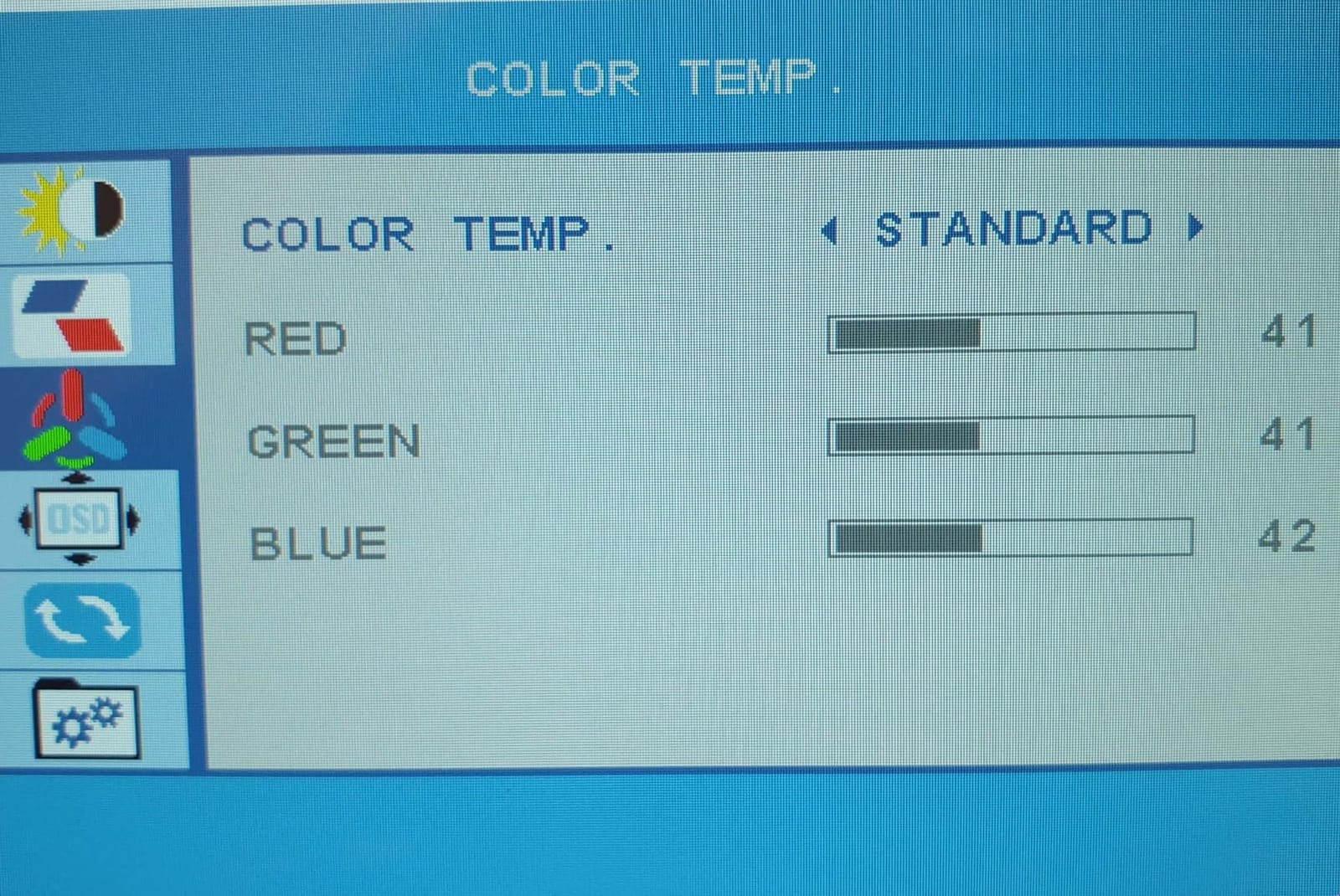
ELECROW ships an HD-to-HD cable, a Micro HDMI adapter for Pi 4 and Pi 5, USB cables for touch and power, an acrylic stand, and a screwdriver in the box. That is a complete kit. The acrylic stand tilts and the four rear mounting holes accept standard SBC standoffs, which means you can mount a Pi 4 or Pi 5 directly behind the panel for an all-in-one look.
Forum users reviewing Pi-based Home Assistant dashboards consistently point to this panel as the sweet spot for wall displays. The 16:10 aspect ratio gives more vertical real estate than a 16:9 panel of the same diagonal, which matters when you stack Lovelace cards or scroll through a long dashboard.
For Pi 5 users, the Micro HDMI adapter included in the box is the cable you need. Pi 5 has dual Micro HDMI ports, not full-size HDMI, and many display bundles forget this. ELECROW did not, and that detail alone saves a frustrated evening of digging through drawers for the right adapter.
The 5.29-watt power draw is lower than the 10-watt-plus draw of the ROADOM 10-inch below, which matters if you plan to power the panel from a single Pi USB port. I tested it from a Pi 5 USB-C feed and the panel stayed bright with no flicker over a week of dashboard use.
For whom its good
Anyone running Home Assistant, Node-RED, or Grafana dashboards will appreciate the 1280×800 resolution for stacking cards without scrolling. The acrylic stand and VESA-compatible mounting holes also suit wall installations where the panel sits flush against a surface.
It is also a strong pick for a low-cost secondary PC monitor. I tested it as a laptop extended display and it worked plug-and-play on Windows and macOS without drivers. For a portable second screen on the road, the 521-gram weight is manageable in a backpack.
For whom its bad
If you need multi-touch gestures on Raspberry Pi OS, this panel only registers single-touch input on Pi OS. Multi-touch works on Windows but requires a different driver stack on Pi. If pinch-to-zoom is part of your workflow, plan to use a USB mouse instead.
The acrylic shroud is also harder to remove than the ROADOM 10-inch integrated case design, so swapping internals or fitting a Compute Module 4 is harder. If you want easier serviceability, the ROADOM 10-inch further down is friendlier.
3. ROADOM 10.1 inch Touchscreen Monitor in short – Integrated Case With Stand
ROADOM 10.1″ Touchscreen Monitor, 1024×600 IPS Raspberry Pi Screen, HDMI
- Sharp vivid colors and wide viewing angles
- Responsive 5 point capacitive touch
- Comes with all cables mounting kit and stand
- Protected all in one case with no exposed PCB
- Excellent customer service from ROADOM
- Glossy finish not matte as some may expect
- Lower than 1080p resolution at 1024x600
- Stand can be wobbly when Pi is mounted
- Multi touch requires configuration on Raspberry Pi OS Bookworm
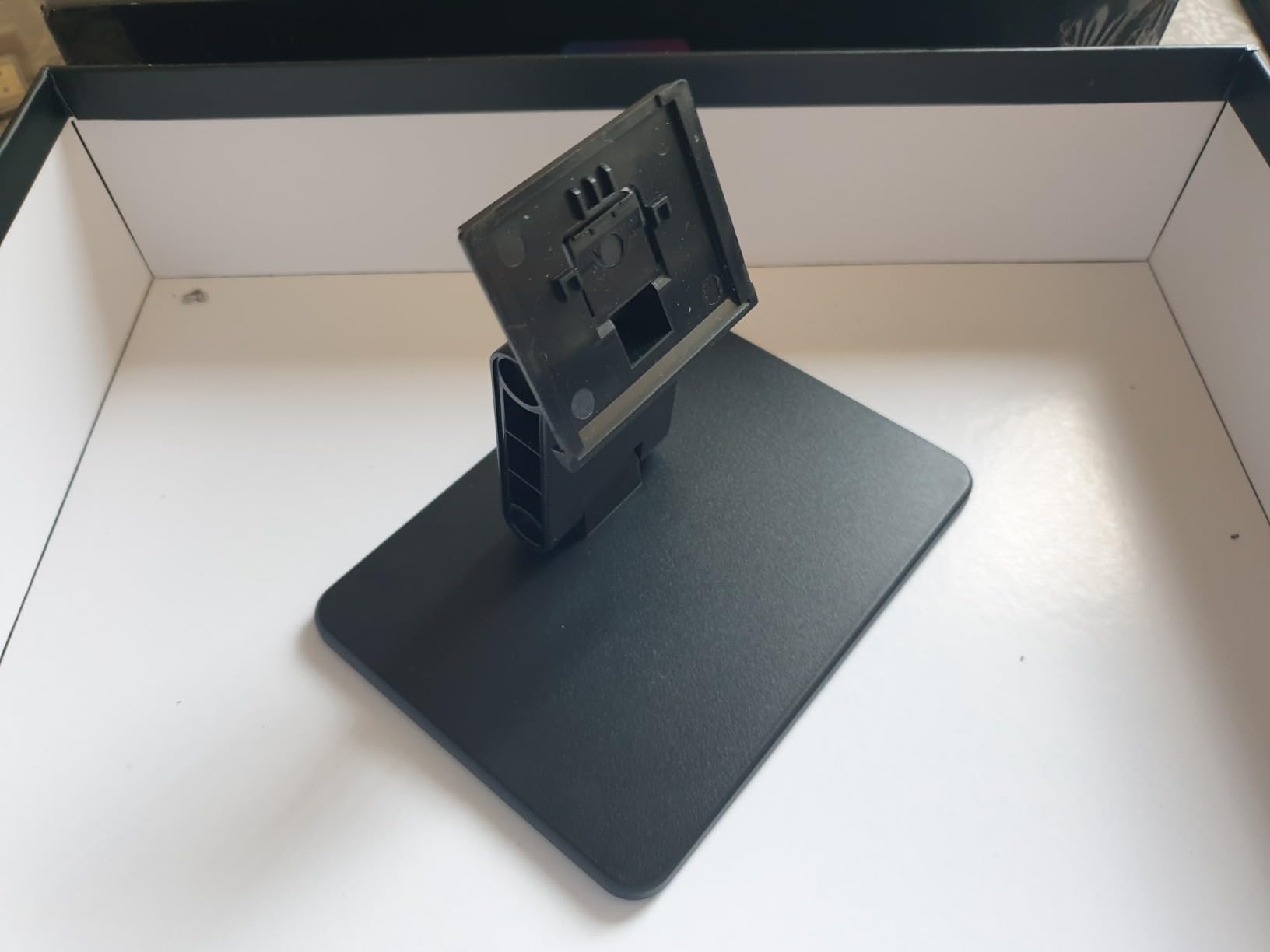
The ROADOM 10.1 inch is the most polished all-in-one Raspberry Pi display I tested. The integrated case wraps the entire panel in a hard shell with no exposed PCB, and the included stand offers both tilt and height adjustment. When I mounted a Pi 5 to the back, the whole assembly looked like a finished product rather than a maker prototype.
The accessory bundle is over the top in a good way. ROADOM ships two HDMI cables, a Micro HDMI cable for Pi 4 and Pi 5, two USB cables, a 3-pin GPIO cable, a 4-wire touch cable, a full Pi installation kit, a 5V/3A power adapter, and the stand. The dual 1W speakers built into the case produced clean audio for YouTube and Kodi playback at moderate volume.
Forum threads on Pi-based media players frequently highlight the integrated case as the key reason to pick this panel over the exposed PCB alternatives. There is a real difference between a finished-looking all-in-one and a bare panel with standoffs sticking out the back, especially for living-room or kitchen installations.
For Pi 5 users, ROADOM includes the Micro HDMI to HDMI cable in the box. That detail matters because Pi 5 uses Micro HDMI ports, not full-size HDMI, and forgetting the right adapter is a common first-time-builder mistake.
The multi-touch configuration quirk is worth flagging. On Raspberry Pi OS Bookworm, the panel needs an extra configuration line in config.txt to enable 5-point capacitive touch. ROADOM’s documentation walks through the change, but it is a one-time setup step rather than out-of-the-box behavior.
For whom its good
Anyone building a finished media player, kitchen tablet, or shop-floor kiosk will appreciate the integrated case. There are no exposed electronics to worry about in a home with kids or pets, and the included stand means the unit is presentation-ready the moment you plug it in.
It is also a strong pick for users who want one power adapter for the whole system. The included 5V/3A brick can power both the panel and a Pi 5 in many setups, which simplifies cable management to a single feed.
For whom its bad
If you need higher than 1024×600 resolution, the ELECROW 10-inch 1280×800 above is the better pick. For a desktop productivity replacement, the extra pixels matter.
The stand can wobble when a Pi is mounted to the back because the combined weight sits behind the tilt pivot. I added a small counterweight under the base and the wobble disappeared, but if you want a rock-solid desk mount, plan to wall-mount instead using the VESA-compatible holes.
4. Hosyond 7 inch IPS Touch Screen Display in short – Plug and Play on Pi 5
- Sharp 1024x600 IPS display with vivid colors
- Plug and play on Raspberry Pi 5 without configuration
- Built in speakers with good volume for the size
- Mount Pi directly to back of display
- Affordable price point
- Touch responsiveness can be inconsistent
- Blue color cast compared to official Pi displays
- Reflective glossy surface
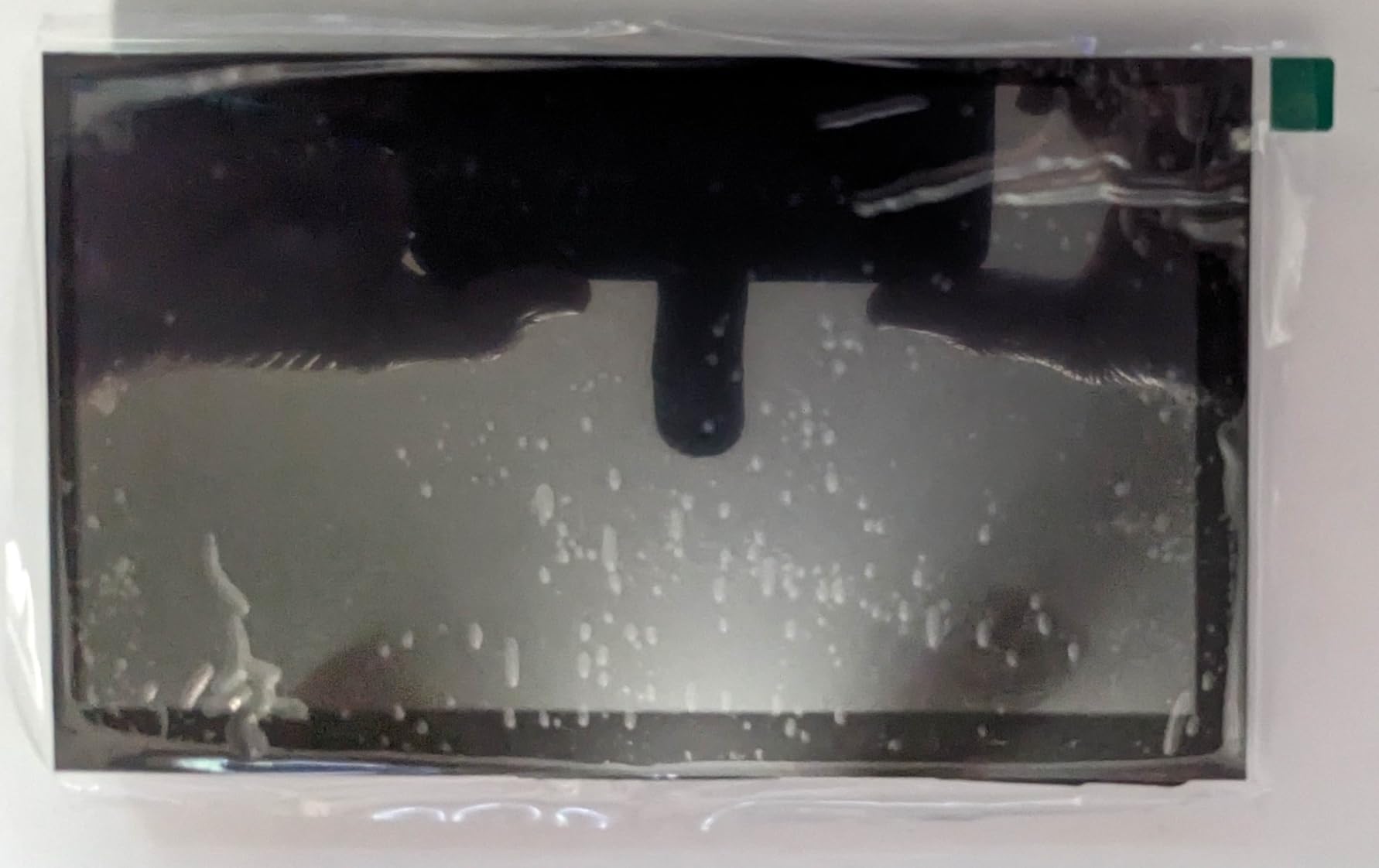
The Hosyond 7-inch HDMI is the easiest display I tested for a Raspberry Pi 5 setup. I plugged in HDMI, connected USB for touch, and the panel came up at 1024×600 with no driver installation and no config.txt edits. That is the gold standard for a plug-and-play Raspberry Pi monitor and the main reason this panel made the list.
The IPS technology gives 178-degree viewing angles and the 300-nit brightness reads clearly in daylight. I tested it next to a window during the morning sun and the screen stayed visible without aggressive backlight pushing. Built-in speakers are a nice bonus at this size, and the volume was loud enough for a kitchen setup.
Reviewers on r/raspberry_pi point to a slight blue color cast compared to the official Pi Touch Display 2, which is true. The image leans cool rather than neutral. For an info panel or dashboard, this does not matter. For photo editing or color-critical work, calibrate the panel or use a more neutral alternative.
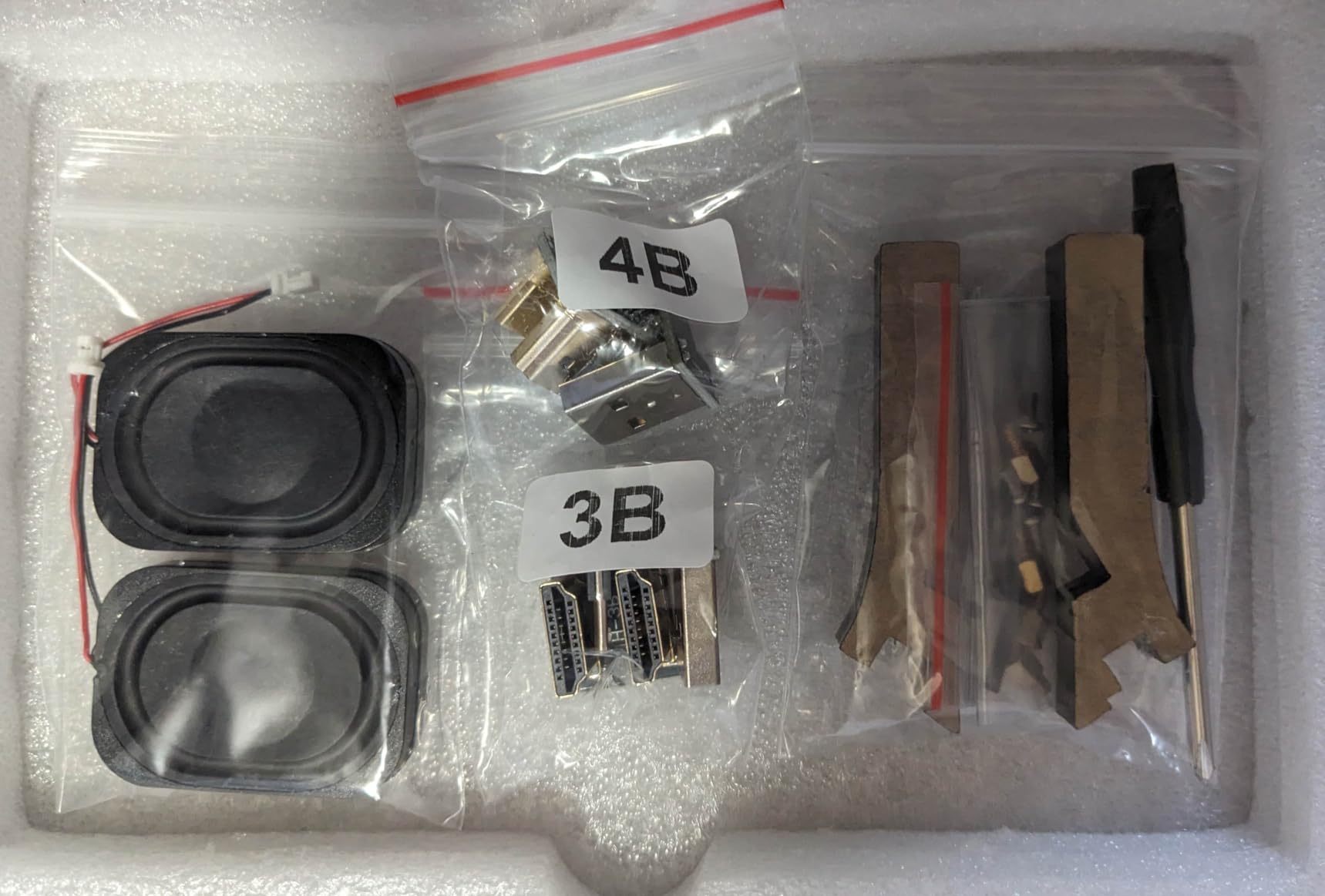
For Pi 5 compatibility, the HDMI plus USB approach is the cleanest. No FFC cable to worry about, no Pi 5 narrower-ribbon confusion. Just plug HDMI into a Micro HDMI adapter (not included in the basic bundle, so add one to your cart) and the panel works.
Backlight control is software-accessible which is unusual at this price point. I dropped brightness to 50 percent for evening dashboard use and the panel drew noticeably less power, which matters if you plan to run the Pi 24/7.
For whom its good
First-time Pi builders who want zero configuration will love this panel. The HDMI plus USB combination removes the FFC cable questions that trip up Pi 5 newcomers, and the built-in speakers are a free bonus.
It is also a strong pick for desktop replacements where you do not want to mess with config.txt. I tested Raspberry Pi OS Bookworm and Ubuntu 24.04 and both came up at full resolution without manual intervention.
For whom its bad
If you want the cleanest possible cable setup with no HDMI or USB leads, a DSI display like the Hosyond 7-inch DSI further down is better. The trade-off is cross-SBC flexibility, but if you only ever use Raspberry Pi, the DSI version removes two cables.
The reflective glossy surface also rules this out for bright rooms unless you angle the panel. For a wall display opposite a window, look at a matte-finish panel or plan to use anti-glare film.
5. ELECROW 7 inch IPS Touch Screen in short – Solid Build Quality With Stand
- Plug and play with no driver hassle on Raspberry Pi
- Responsive and accurate touch
- Solid metal frame and good build quality
- Bright vivid IPS display with wide viewing angle
- Comes with acrylic stand and mounting hardware
- Single touch only on Raspberry Pi OS
- No brightness control from the menu
- Exposed back with no protective case
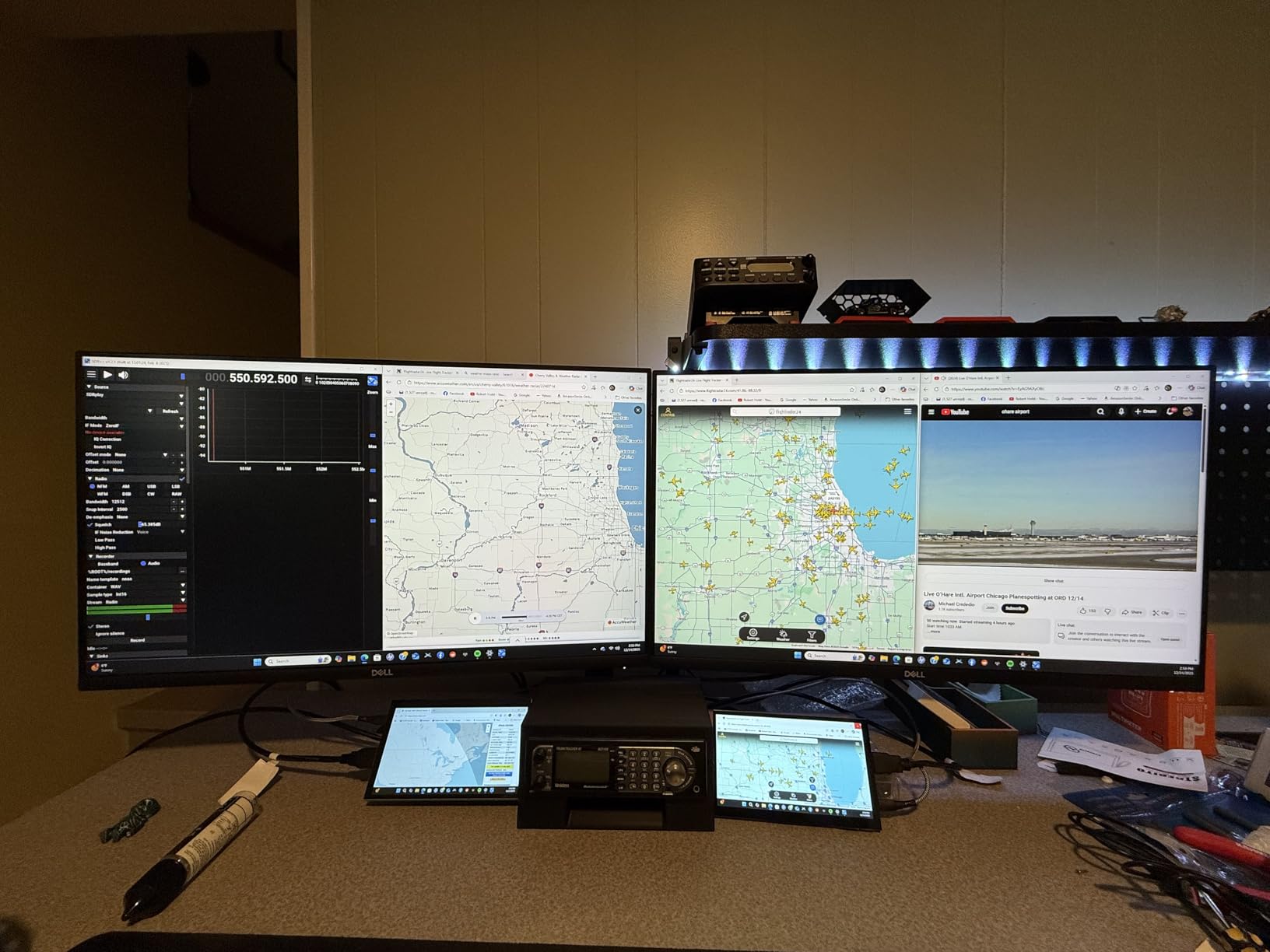
The ELECROW 7-inch is the best-built HDMI panel at this size in my testing. The metal frame around the panel feels more substantial than the plastic shells on competing 7-inch displays, and the acrylic stand included in the box tilts solidly without the wobble I saw on cheaper alternatives. For a desktop touchscreen that gets daily touch input, build quality matters and this panel delivers.
The 410-nit brightness is the highest in this roundup at 7 inches and it shows in real-world use. I set the panel next to a window during a sunny afternoon and the image stayed legible without cranking the backlight. The 2-millisecond response time is also the fastest in the 7-inch category, which keeps desktop navigation crisp.
ELECROW includes a headphone jack, OSD menu for brightness and contrast, USB dimming, and a Micro HDMI adapter for Pi 4 and Pi 5. Forum users reviewing touchscreens for Pi dashboards call out the OSD menu as a useful addition that lets you tune the image without software hacks.
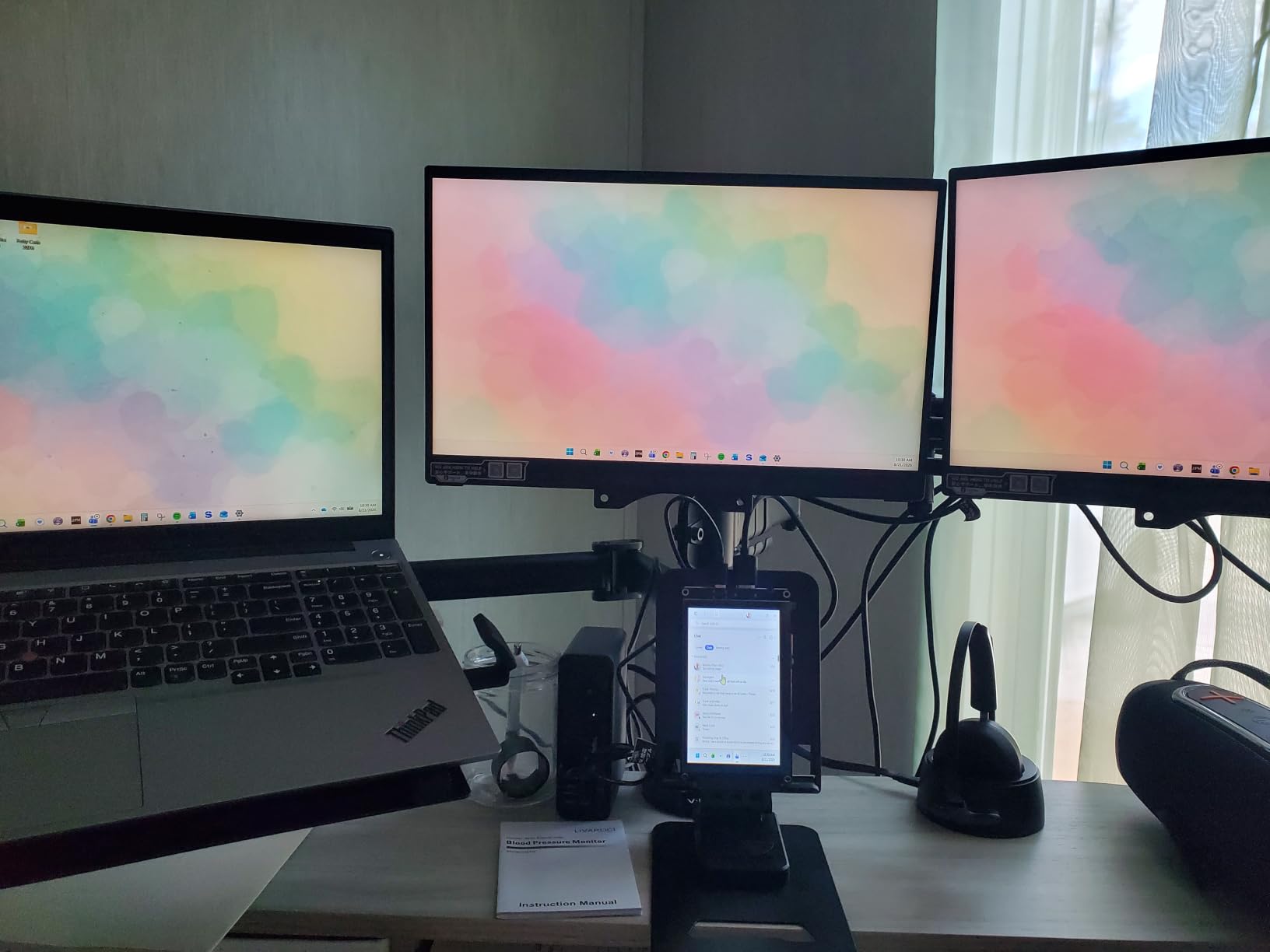
For Pi 5 compatibility, ELECROW bundles the right cable. Pi 5 uses Micro HDMI ports, so the included Micro HDMI adapter is what you need to plug this panel in without buying extras.
The main quirk is multi-touch behavior on Raspberry Pi OS. The panel supports 5-point capacitive on Windows, while Pi OS only registers single-touch input. For a kiosk where you tap buttons, single-touch is fine. For pinch-to-zoom or two-finger gestures, plan to use a USB mouse instead.
For whom its good
Anyone who wants a 7-inch touchscreen with real desktop-grade build quality will appreciate the metal frame and acrylic stand. It is the closest 7-inch panel I tested to feeling like a finished product rather than a kit.
It also suits bright-room installations where 410-nit brightness matters. The IPS panel with 178-degree viewing angles keeps the image readable from across a room or at an angle on a desk.
For whom its bad
If you need multi-touch on Raspberry Pi OS, the single-touch limitation rules this out for gesture-heavy interfaces. Two-finger zoom and rotate will not work in Pi OS without extra configuration that may not be reliable.
The exposed back with no protective case also means this panel is not ideal for wall-mounted installations where dust and accidental contact matter. For wall use, the ROADOM 7-inch with its GPIO power tap is a cleaner option.
6. Hosyond 7 inch DSI Touch Screen in short – Cleanest Cable Setup With Pi 5
- DSI plug and play with no driver headaches
- Sharp image and clear colors
- Responsive touch on Raspberry Pi 5 and 4
- Easy to mount Pi to back of display
- Reliable for kiosk and MagicMirror use
- No HDMI only works with Raspberry Pi
- Slightly larger dimensions than competing displays
- Some packages may arrive missing mounting hardware
- Doesnt fit standard Pi touchscreen cases
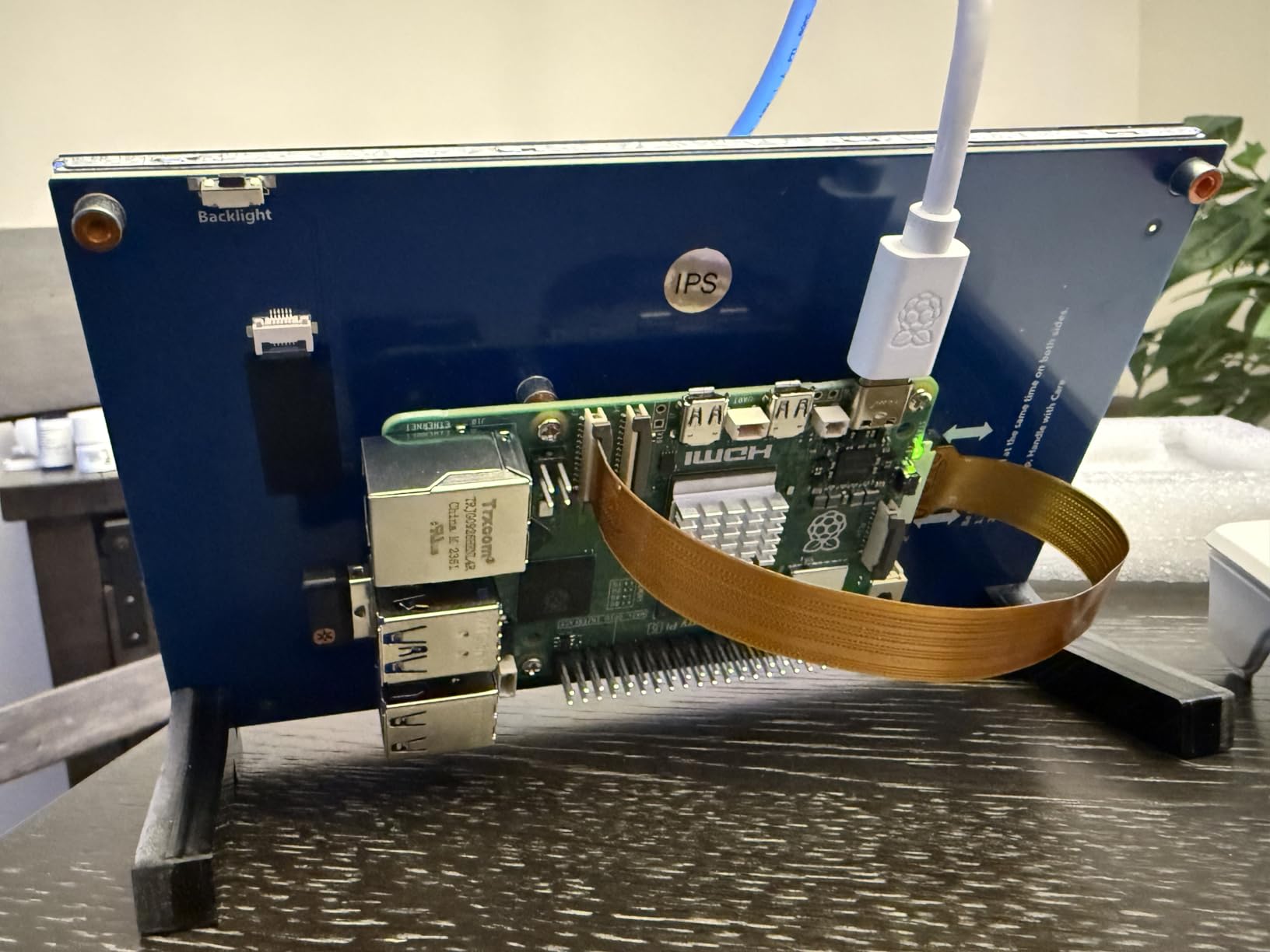
The Hosyond 7-inch DSI is the cleanest 7-inch Raspberry Pi display in this roundup. DSI means a single ribbon cable handles both video and touch, with power drawn from the GPIO header. When I mounted this panel inside a picture frame, the only visible cable was a single USB-C feed to the Pi. That is the cleanest build you can get without going to a fully integrated solution.
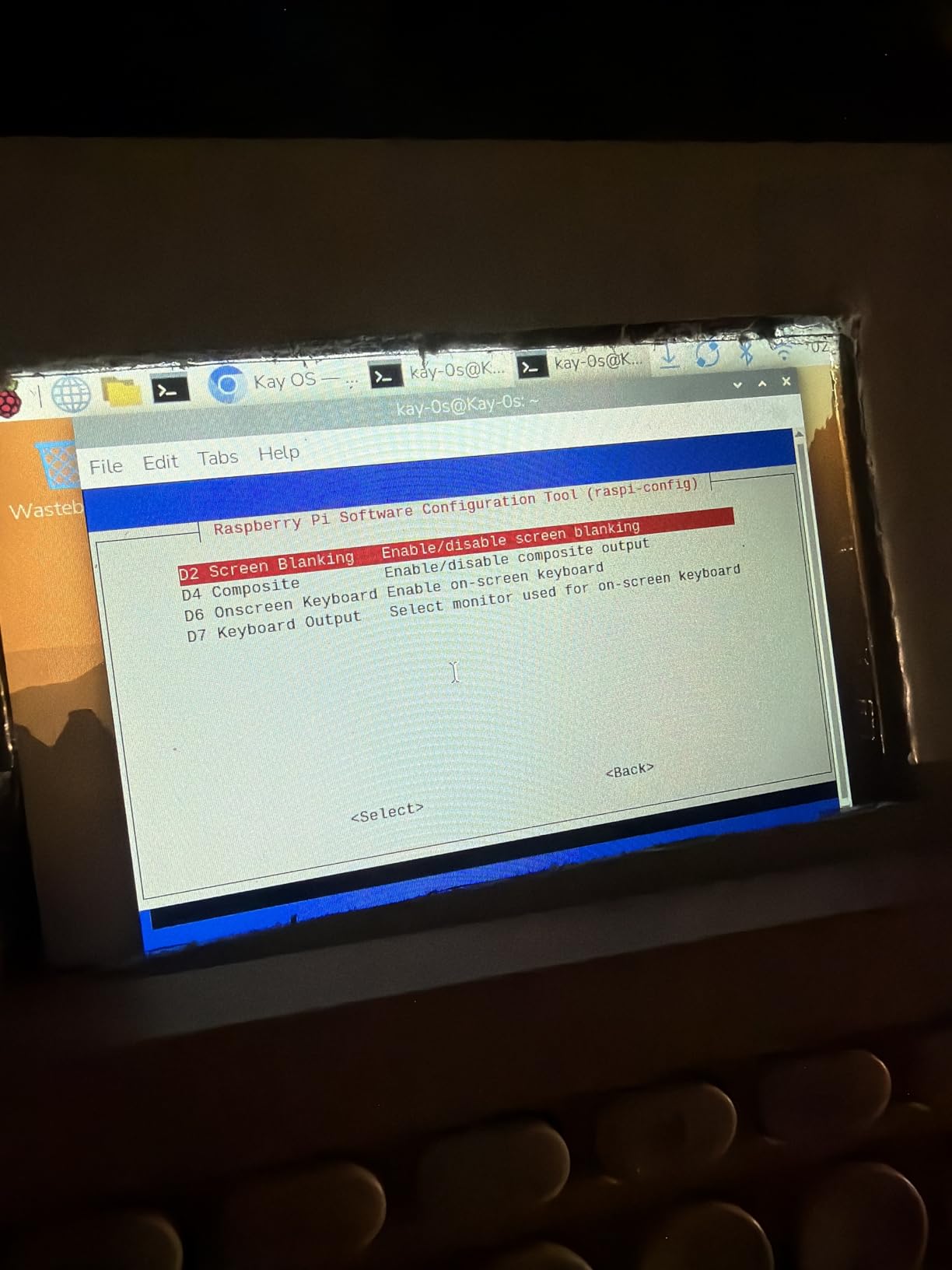
Setup on Pi 5 was completely driver-free. I connected the ribbon cable, powered on the Pi, and the panel came up at 800×480 with working touch. There was no config.txt editing, no manual driver install, no troubleshooting. The official Pi OS DSI support makes this the path of least resistance for new builders.
Forum users running MagicMirror and Pi-hole dashboards consistently recommend DSI panels over HDMI for clean builds. The single ribbon cable is the main reason. HDMI setups need to route HDMI, USB touch, and power separately, which adds up to a mess inside a frame.
For Pi 5 compatibility, confirm the FFC cable shipped with the panel is the Pi 5 variant. Pi 5 uses a narrower ribbon cable than Pi 4, and older Pi 4 DSI cables do not seat properly on Pi 5 displays. The Hosyond listing confirms Pi 5 compatibility, but check the package contents on arrival.
The 800×480 resolution is lower than the 1024×600 alternatives, but at 7 inches the pixel density still looks sharp. For dashboard tiles and kiosk buttons, 800×480 is plenty. For desktop productivity with browser tabs, consider the 1024×600 HDMI panels instead.
For whom its good
Anyone building a wall-mounted dashboard, MagicMirror, or kiosk will love the clean single-cable setup. The DSI ribbon disappears behind the panel, and the GPIO power tap means only one USB-C cable is visible outside the frame.
It is also a strong pick for Pi 5 users who want driver-free behavior. There is no config.txt editing, no driver downloads, and no troubleshooting forum visits. It just works.
For whom its bad
If you ever need to use this panel with a non-Raspberry Pi board, DSI locks you out. HDMI panels work with any laptop, Jetson, or game console. If cross-SBC flexibility matters, the ROADOM 7-inch above is the better pick.
Some packages have arrived missing mounting hardware based on buyer feedback, so have a spare M2.5 standoff set ready. The non-standard dimensions also mean most off-the-shelf Pi touchscreen cases will not fit, so plan for a custom frame or 3D-printed enclosure.
7. ELECROW 5 inch Mini Touchscreen Monitor in short – Compact 5 Inch HDMI With Audio
- Compact size great for portable setups
- Sharp 800x480 HD LCD panel
- Plug and play with Raspberry Pi without drivers
- Includes speaker interface and 3.5mm audio jack
- Easy to mount Pi or other SBCs
- Single touch on Raspberry Pi OS multi touch only on Windows
- TN panel with limited viewing angles
- Higher price than some 5 inch alternatives
The ELECROW 5-inch is the most versatile 5-inch Raspberry Pi display I tested. The compact size makes it perfect for portable projects, and the HDMI plus USB approach means it works with any device that outputs HDMI, not just Raspberry Pi. I used it with a Pi 4, a Jetson Nano, and a Windows laptop and every setup was plug-and-play.
The 3.5mm headphone jack and 4-pin speaker interface are unusual at the 5-inch size. Most competing 5-inch displays skip audio entirely. For a portable handheld project with sound, this panel gives you audio out of the box without needing a USB sound card.
The TN panel technology is the main compromise at this size. Viewing angles are narrower than IPS, so colors shift when you look at the panel from above or below. For a screen you look at head-on, TN is fine. For a wall display where you view from an angle, the IPS panels in this roundup are better.
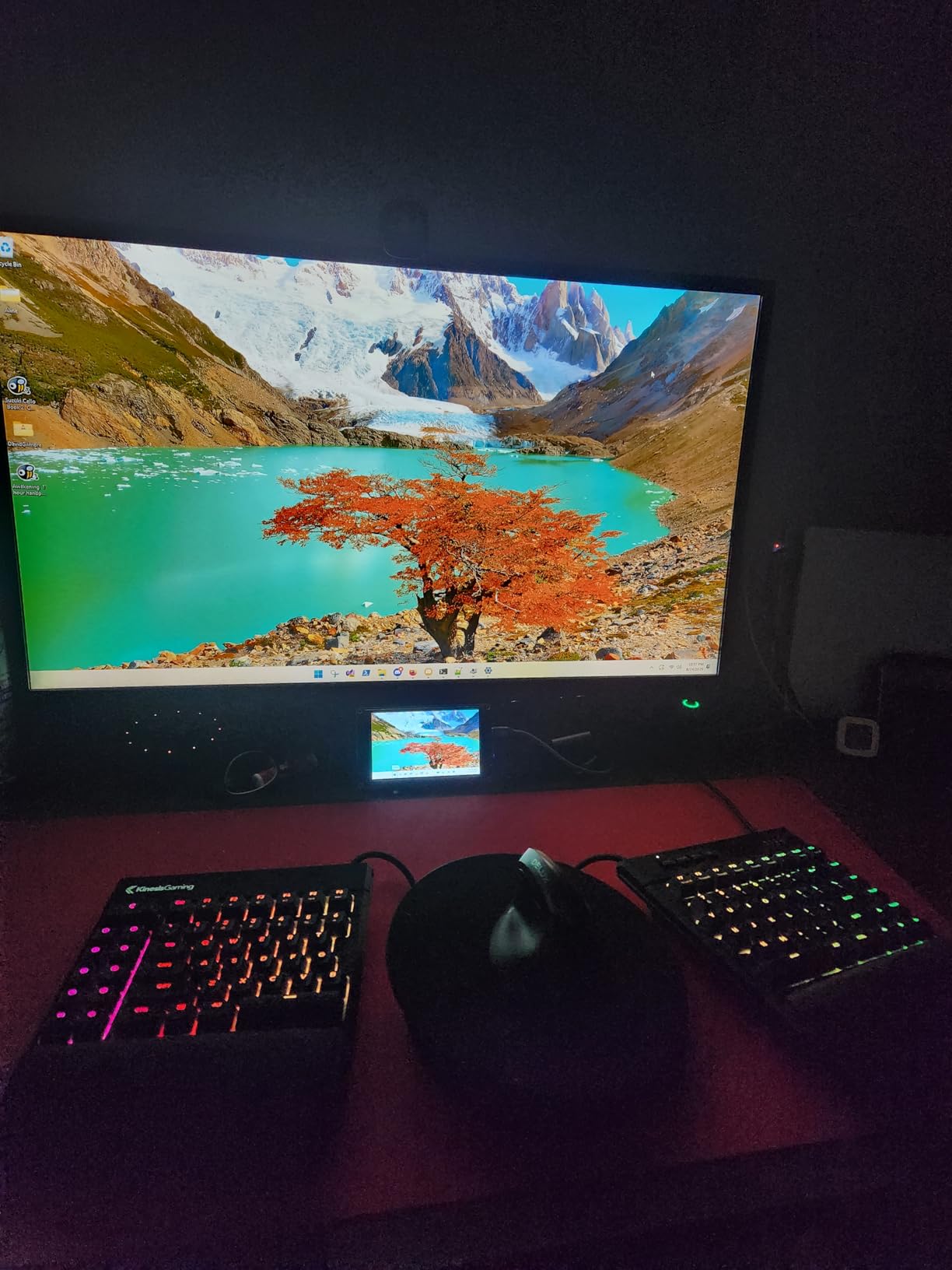
For Pi 5 compatibility, ELECROW bundles a Micro HDMI adapter in the box. Pi 5 uses Micro HDMI ports and the adapter is the cable you need, which is a thoughtful inclusion for new builders.
The 100-gram weight is light enough to mount on a small robot or handheld enclosure without throwing off the balance. I tested it on a Pi-based robot control panel and the combined weight stayed under 200 grams including the Pi.
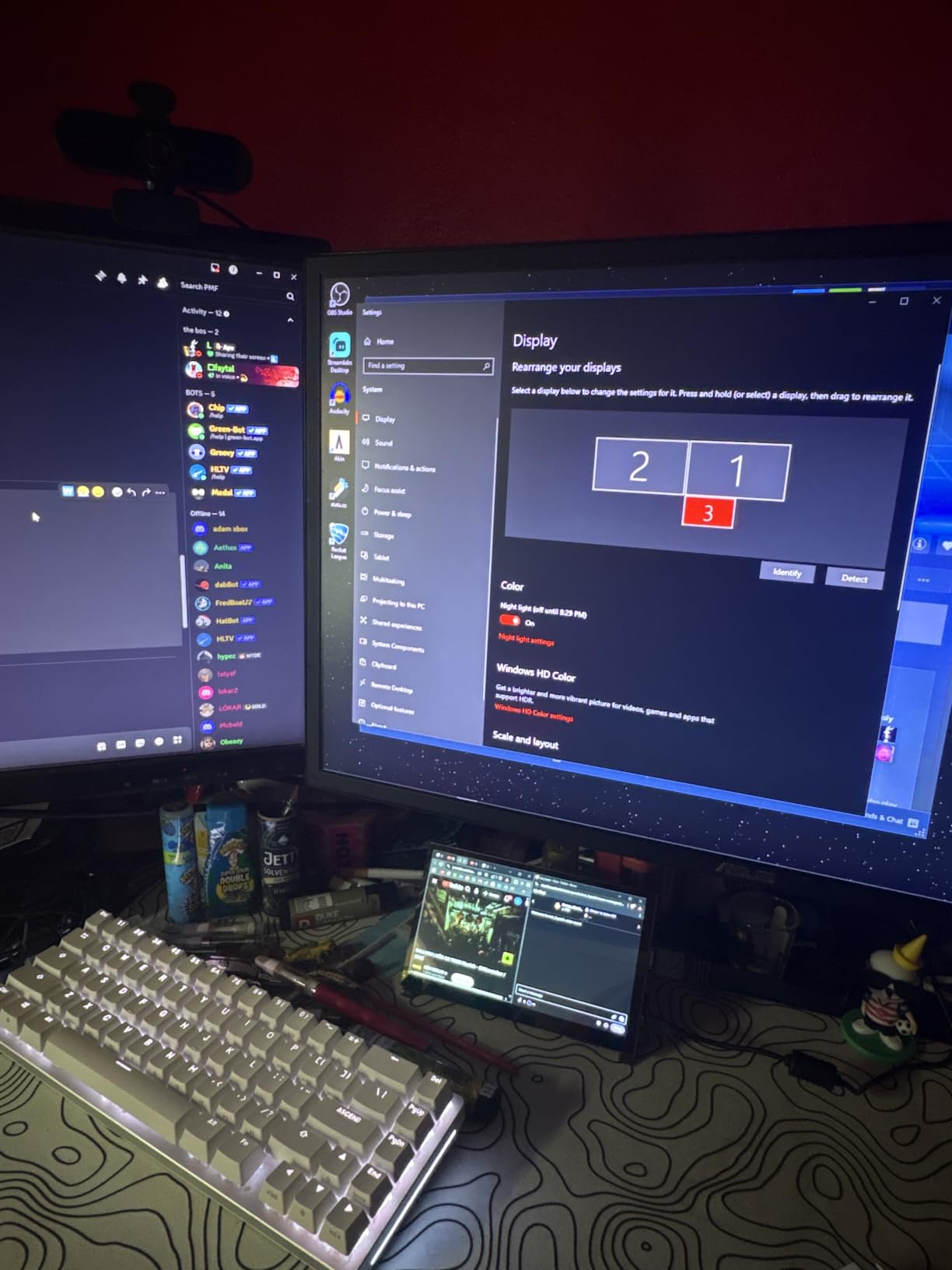
For whom its good
Portable project builders and handheld retro gaming console makers will love the compact size and audio output. The HDMI plus USB combo works with any single-board computer, which makes it a versatile workshop display.
It is also a strong pick for compact robot dashboards where weight and size matter more than wide viewing angles. The 100-gram panel keeps total build weight manageable.
For whom its bad
If you need wide viewing angles, the TN panel is a compromise. The IPS alternatives in this roundup offer much better off-axis viewing, which matters for wall displays and shared viewing scenarios.
Multi-touch is also limited to Windows. On Raspberry Pi OS, only single-touch is registered. For a touchscreen that needs two-finger gestures on Pi, look elsewhere.
8. Hosyond 5 inch DSI Touch Screen in short – Smallest DSI Panel for Compact Builds
- DSI plug and play with no driver installation
- Decent IPS color and clarity for the price
- Responsive capacitive touch on Pi 4 and 5
- Compact 5 inch form factor fits small projects
- Easy Pi mounting on the back
- No HDMI Raspberry Pi only
- Single touch on Ubuntu Kali Win10 IoT
- Limited product info with no full description
- Packaging sometimes missing hardware
The Hosyond 5-inch DSI is the panel I reach for when a project demands the smallest possible display with the cleanest cable setup. At 5 inches, it fits inside handheld enclosures, robot dashboards, and small kiosks where a 7-inch panel would be too big. The DSI ribbon cable plus GPIO power means only one cable leaves the project.
Setup on Pi 5 was completely driver-free. I connected the ribbon cable, powered on the Pi, and the panel came up at 800×480 with working touch. For a compact DSI build, this is the simplest path and matches the experience of the official Pi Touch Display 2 at a smaller size.
The IPS panel gives 178-degree viewing angles which is rare at 5 inches. Most 5-inch displays use TN panels to save cost, so the wide viewing angles here stand out. For a panel mounted on a robot or a kiosk where viewers approach from different angles, IPS makes a real difference.
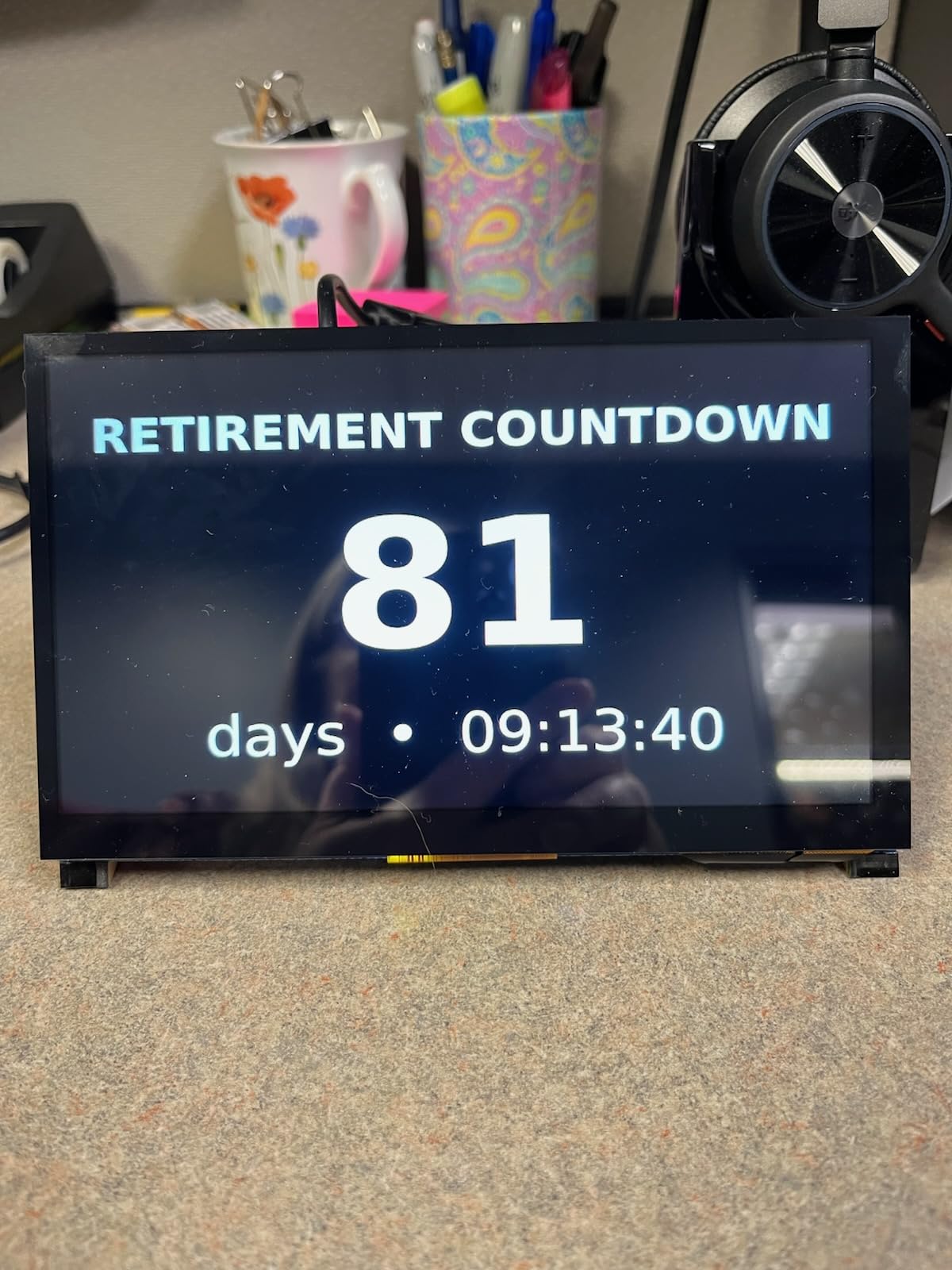
For Pi 5 compatibility, confirm the FFC cable included is the Pi 5 variant. The Pi 5 DSI port uses a narrower ribbon cable than Pi 4. The Hosyond listing confirms Pi 5 support, but verify the package contents on arrival.
The PWM backlight brightness adjustment is a nice extra. I dropped the backlight to 50 percent for evening handheld use and the panel drew noticeably less power, which matters for battery-powered builds.
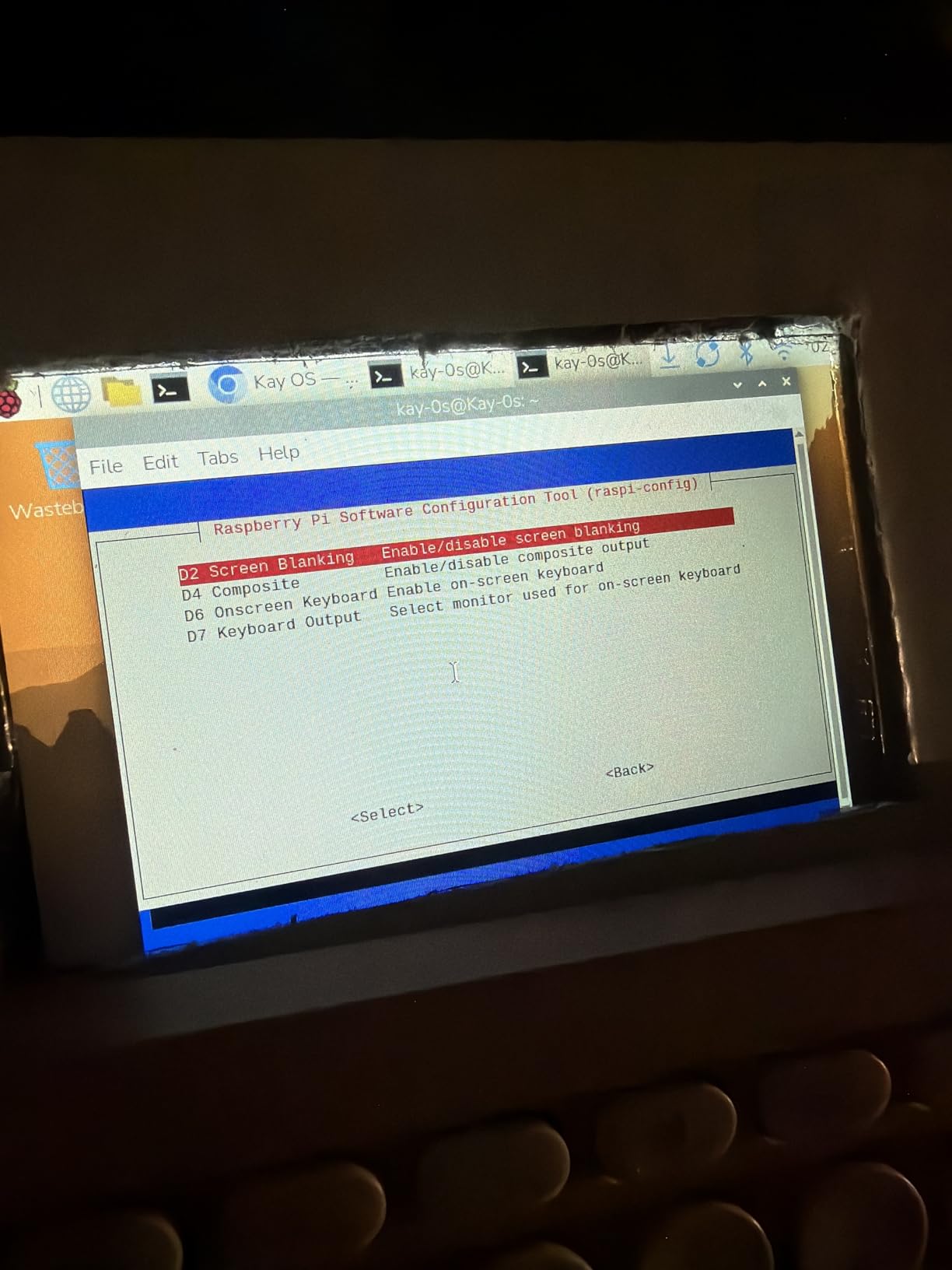
For whom its good
Compact project builders who need the smallest possible DSI panel will love this size. It fits handheld enclosures, robot dashboards, and tight kiosks where a 7-inch panel would be too big.
It is also a strong pick for Pi 5 users who want driver-free behavior at a compact size. The DSI ribbon plus GPIO power means only one cable outside the project.
For whom its bad
If you need to use this panel with a non-Raspberry Pi board, DSI locks you out. The HDMI panels in this roundup work with any device that outputs HDMI. If cross-SBC flexibility matters, the ELECROW 5-inch HDMI above is the better pick.
Some packages have arrived missing mounting hardware based on buyer feedback. The non-standard 5-inch dimensions also mean off-the-shelf Pi touchscreen cases will not fit, so plan for a custom mount.
9. HAMTYSAN 7 inch Non Touch Monitor in short – Budget Secondary Display
- Compact and easy to set up right out of the box
- IPS panel with good color and wide viewing angle
- Comes with a bracket for stable desktop placement
- Affordable budget option for Pi projects
- Compatible with many devices via HDMI
- No audio output no speakers or audio jack
- Back is exposed with bare electronics
- Lower 800x480 resolution compared to 1024x600 alternatives
The HAMTYSAN 7-inch non-touch is the budget pick of this roundup. For projects where touch input is not needed, like a status display showing CPU temperature or a heads-up display for a Pi-headless server, paying for touch hardware is wasted budget. This panel delivers an IPS image with wide viewing angles at the lowest cost in the 7-inch category.
The IPS panel produces clean colors and the 178-degree viewing angle keeps the image readable from across a desk. The included bracket tilts solidly without wobble, which is unusual at this price. For a desktop status display or a secondary monitor, the bracket is all the mounting hardware you need.
Forum users on r/raspberry_pi frequently recommend non-touch panels for headless server diagnostics. When your Pi is acting up and you need a screen to debug boot issues, having any 7-inch HDMI monitor on the workbench is the difference between a 10-minute fix and an hour of digging through SD card readers.
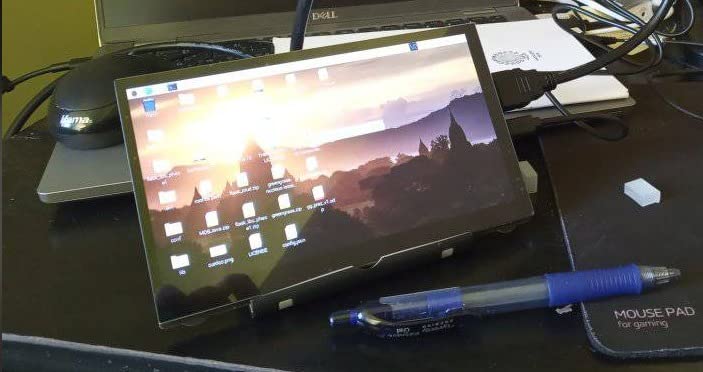
For Pi 5 compatibility, this panel uses full-size HDMI plus USB for power. Pi 5 has Micro HDMI ports, so you need a Micro HDMI to HDMI adapter or cable, which is not always included in budget bundles. Plan to add one to your cart.
The HDR mode reduces blue light and eliminates flicker, which makes this panel comfortable for long debugging sessions. For a panel that sits on a workbench all day, eye comfort matters.
For whom its good
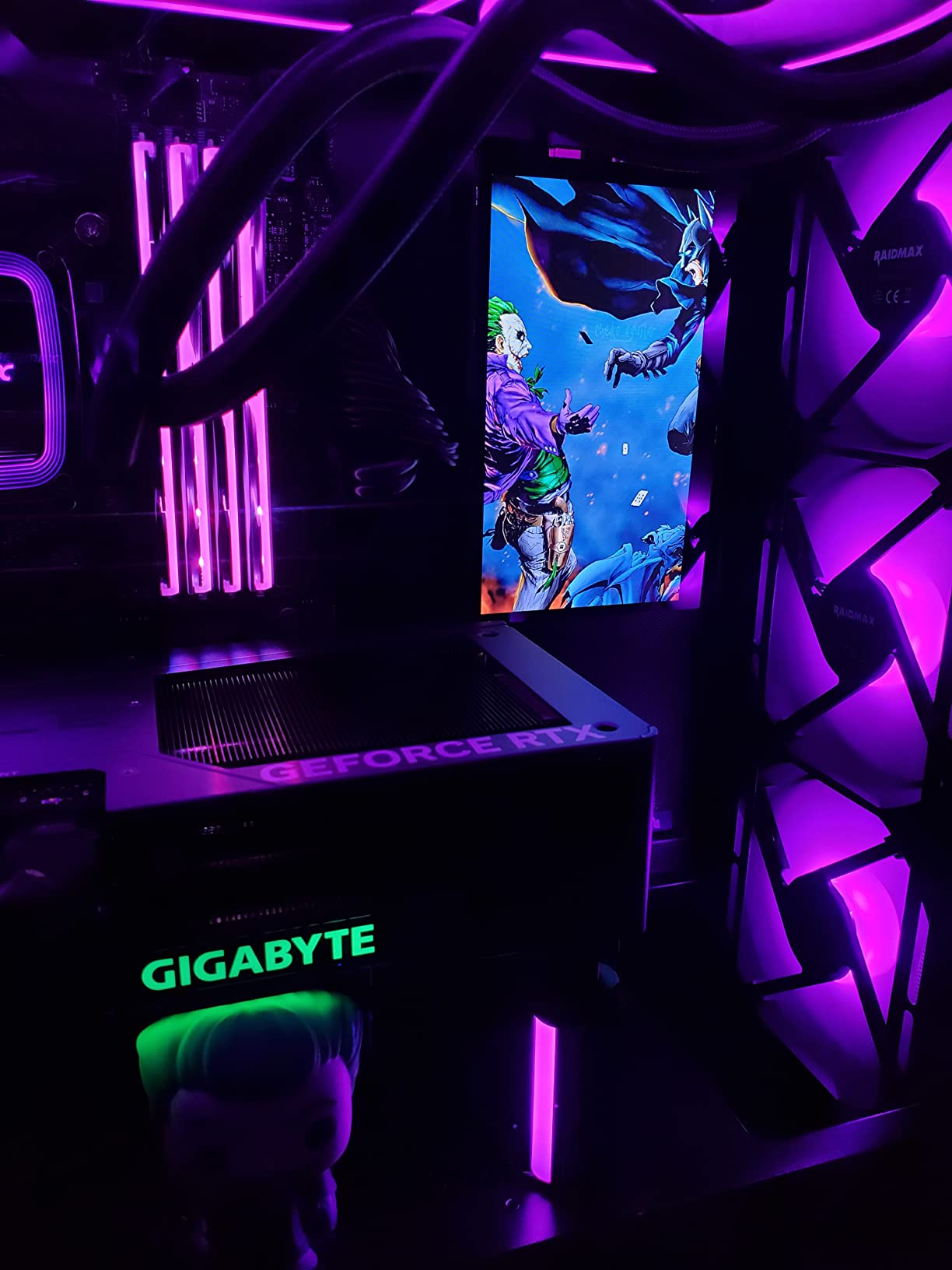
Anyone building a budget secondary display, a headless server diagnostic monitor, or a status panel will appreciate the price point. The IPS panel and included bracket make this panel feel more expensive than it is.
It is also a strong pick for retro gaming projects where touch input is not needed. I tested it with RetroPie and the 800×480 resolution matched the native output of many classic console emulators.
For whom its bad
If you need touch input, this panel is not for you. Step up to the ROADOM 7-inch or Hosyond 7-inch touch versions for similar pricing.
The exposed back with bare electronics also means this panel is not ideal for finished installations. For a wall-mounted or kiosk project, look at panels with integrated cases or plan to build a custom enclosure.
10. HMTECH 7 inch Non Touch Monitor in short – Headless Server Diagnostics Pick
HMTECH 7 Inch Raspberry Pi Screen 800×480 HDMI Portable Monitor IPS LCD Screen Display for Raspberry Pi 5/4/3/2/Zero/B/B+ Win11/10/8/7 (Non-Touch)
- Excellent value for the price
- Crisp IPS colors with wide viewing angle
- Easy plug and play setup
- Compact and lightweight for portable use
- Useful for headless server diagnostics
- Exposed PCB on back with no enclosure
- No audio passthrough
- Does not work with Netflix Hulu streaming services
- Fingerprint magnet and scratches easily
The HMTECH 7-inch non-touch is the panel I keep on the workbench specifically for headless Pi diagnostics. When a Pi refuses to boot over SSH, having a 7-inch IPS panel connected via HDMI shows you the kernel panic, the missing driver, or the bad SD card in real time. The plug-and-play HDMI plus USB power means I can grab it and connect it to any Pi in under a minute.
The IPS panel produces clean colors and the 2000:1 contrast ratio is the highest in this roundup at 7 inches. Text in terminal windows stays sharp, which matters when you are reading kernel logs at arm’s length on a workbench.
The 3-millisecond response time and 60Hz refresh handle text and 2D interfaces without ghosting. For desktop diagnostics work, this is more than enough.
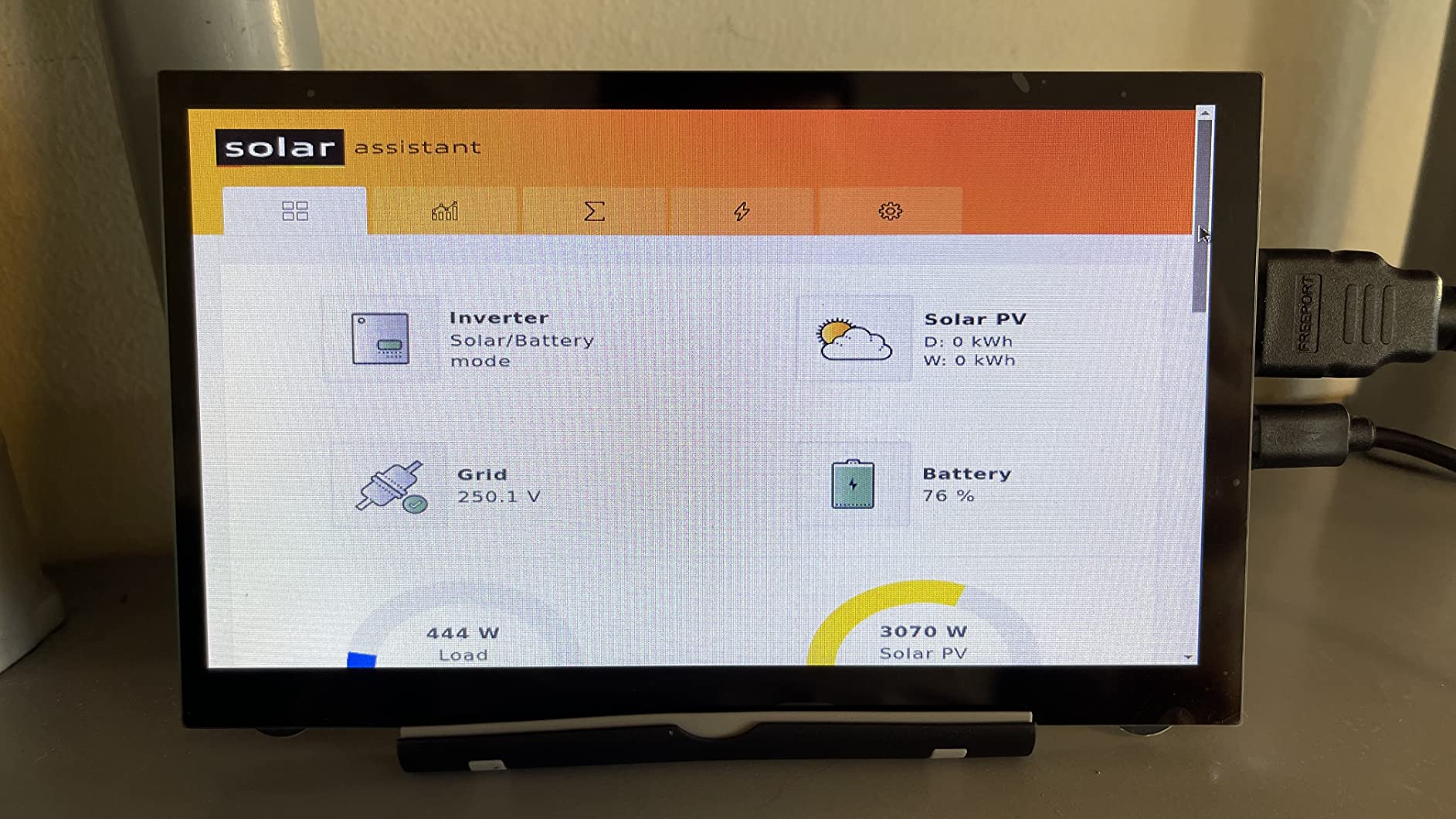
For Pi 5 compatibility, the listing specifically notes that a Micro HDMI cable is needed for Pi 5 and Pi 4 and is not included in the basic bundle. Add a Micro HDMI to HDMI adapter to your cart when you order this panel.
The 90-day manufacturer warranty is shorter than the 1-year warranty on competing panels, but for a workbench diagnostic tool that lives in a drawer most of the time, the warranty length is a minor concern.
For whom its good
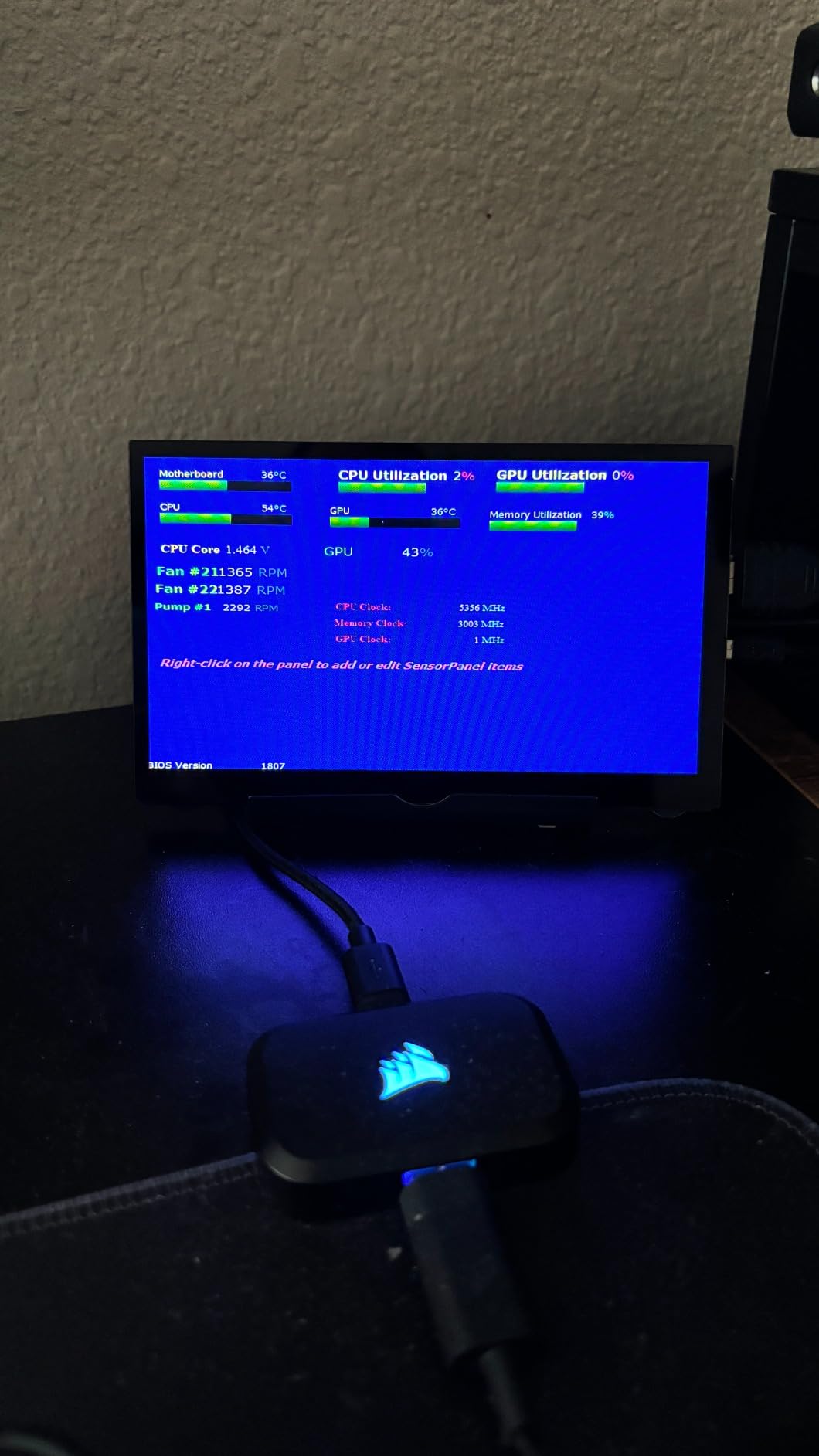
Anyone who runs a fleet of headless Pi servers will appreciate having this panel on the workbench. It is the fastest way to diagnose boot issues when SSH is not available, and the price point means you can keep one in a drawer for emergencies.
It is also a strong pick for portable Pi projects where weight matters. At 0.48 kg, it is lighter than most 7-inch touch panels, which makes it easier to pack for travel builds.
For whom its bad
If you need touch input or audio output, this panel does not deliver either. It is a pure display for visual feedback, not an interactive panel.
The DRM restrictions on Netflix and Hulu mean this panel cannot be used for streaming services. For a media playback panel, look at the ROADOM 10.1-inch above with its integrated speakers.
Buying Guide: How to Choose the Best Raspberry Pi Display?
Picking the right Raspberry Pi display comes down to four questions: what size do you need, what interface matches your project, do you need Pi 5 compatibility, and do you need touch input. This buying guide walks through each decision so you can match a panel to your project.
Choose by Size and Resolution
For a wall-mounted smart home dashboard or a kitchen info panel, a 7-inch panel at 1024×600 hits the sweet spot. It is large enough to read text from across the room, and the IPS technology keeps colors accurate at any angle.
For a desktop replacement or a tablet-style interface, jump to 10.1 inches. The 1280×800 ELECROW panel above gives you desktop-grade productivity, while the 1024×600 ROADOM 10.1-inch is a great all-in-one option with an integrated case.
For compact builds like handheld retro gaming consoles or robot dashboards, 5-inch panels are the right size. The Hosyond 5-inch DSI and ELECROW 5-inch HDMI above both fit handheld enclosures.
Choose by Interface
DSI displays are the cleanest option for Raspberry Pi-only projects. A single ribbon cable handles video and touch, and the GPIO header powers the panel. The trade-off is that DSI panels only work with Raspberry Pi boards.
HDMI displays are the most versatile. They work with any single-board computer, any laptop, and most game consoles. The trade-off is two or three cables to route, which makes wall mounting less clean.
GPIO/SPI displays are the most compact but block all GPIO headers. For 3.5-inch builds where GPIO access is not needed, SPI works. For projects with HATs or other GPIO devices, DSI or HDMI is better.
Pi 5 Compatibility and FFC Cable Notes
Pi 5 uses a narrower FFC cable for its DSI connector than Pi 4. Older Pi 4 DSI cables do not seat correctly on Pi 5 displays. When buying a DSI panel for Pi 5, confirm the package includes a Pi 5 compatible FFC cable, or order one separately.
HDMI panels sidestep the FFC cable issue entirely. Pi 5 uses Micro HDMI ports, so you need a Micro HDMI to HDMI adapter or cable, which is not always included in budget bundles. Plan to add one to your cart if your chosen panel does not ship with the right adapter.
For more on powering the Pi 5 reliably, see our guide on why Raspberry Pi crashes under load, which covers power supply sizing.
Touch Technology: Capacitive vs Resistive
Capacitive touch is the modern standard. It responds to finger taps, supports multi-touch gestures, and behaves like a smartphone screen. Every panel in this roundup uses capacitive touch except the two non-touch budget picks.
Resistive touch responds to pressure from any object, including a stylus or gloved finger. It is more durable in industrial settings but only supports single-touch input. For most maker projects, capacitive is the better choice.
Power Supply Sizing
Most 7-inch panels draw 3 to 7 watts, and most 10-inch panels draw 5 to 15 watts. Pi 5 needs 5V at 3A minimum, and adding a panel pushes the total draw close to that limit. For Pi 5 with a 7-inch or larger panel, use a 5V/4A or higher USB-C power supply to avoid the yellow lightning bolt undervoltage warning.
For more on GPIO current limits when powering panels from the Pi itself, see our guide on how much current a Raspberry Pi GPIO pin can handle.
Frequently Asked Questions
What is the best Raspberry Pi display?
For most projects, the ROADOM 7-inch Touchscreen is the best overall Raspberry Pi display thanks to its 1024×600 IPS panel, 5-point capacitive touch, GPIO single-source powering, and complete cable kit. For desktop productivity, the ELECROW 10.1-inch 1280×800 delivers sharper resolution. For budget builds without touch, the HAMTYSAN 7-inch non-touch is the strongest value pick.
What size display is best for Raspberry Pi?
A 7-inch display is the sweet spot for most Raspberry Pi projects. It is large enough for dashboards and kiosks yet compact enough for portable builds. Step up to 10.1 inches for desktop replacement use, and down to 5 inches for handheld enclosures or robot dashboards.
What is DSI vs HDMI for Raspberry Pi?
DSI (Display Serial Interface) plugs into the Pi’s flat ribbon connector and draws power from the GPIO header, which produces the cleanest cable setup but only works with Raspberry Pi boards. HDMI displays use the HDMI port for video and USB for touch, which works with any single-board computer but requires more cable management.
Which touchscreen works with Raspberry Pi 5?
All ten displays in this roundup work with Raspberry Pi 5. DSI panels like the Hosyond 7-inch DSI and 5-inch DSI work directly with no drivers, but you need a Pi 5 compatible FFC cable. HDMI panels like the ROADOM 7-inch and ELECROW 10.1-inch work with Pi 5 using a Micro HDMI to HDMI adapter.
Do all Raspberry Pi displays need drivers?
No. Most DSI displays and many HDMI displays in this roundup are driver-free on Raspberry Pi OS. The Hosyond DSI panels and the ROADOM 7-inch all work plug-and-play without config.txt edits. Some panels only enable multi-touch on Windows and provide single-touch on Pi OS, which is a driver-stack difference.
Can I use any monitor with Raspberry Pi?
Yes. Any monitor or TV with an HDMI input works with Raspberry Pi. The dedicated Raspberry Pi touchscreen displays add touch input and GPIO power, which turn a Pi into a self-contained interactive device. For non-touch use, a regular HDMI monitor is a fine choice.
Final Verdict: Which Raspberry Pi Display Should You Buy in 2026?
The best Raspberry Pi display for 2026 depends on what you are building, but a few clear recommendations stand out. The ROADOM 7-inch Touchscreen is the editor’s choice for most projects because it pairs a sharp 1024×600 IPS panel with a complete cable kit and GPIO single-source powering, which makes wall-mounting clean and setup driver-free. The ELECROW 10.1-inch 1280×800 is the best value for desktop productivity, where the extra pixels let you run full browser tabs without zooming. The HAMTYSAN 7-inch non-touch is the budget pick for headless server diagnostics or status displays where touch input is not needed.
If you are building a finished all-in-one with an integrated case, the ROADOM 10.1-inch is hard to beat. If you need the cleanest cable setup for a wall-mounted dashboard, the Hosyond 7-inch DSI removes HDMI and USB cables entirely. And if you need a compact 5-inch panel for handheld projects, both the Hosyond 5-inch DSI and ELECROW 5-inch HDMI deliver solid performance at the smallest size.
Whatever panel you pick, double-check the FFC cable included if you are on Raspberry Pi 5. Pi 5 uses a narrower ribbon cable than Pi 4, and using the wrong cable produces a blank screen that looks like a panel failure but is really a cable mismatch. Once you have the right cable, every panel in this roundup will be up and running in minutes.