
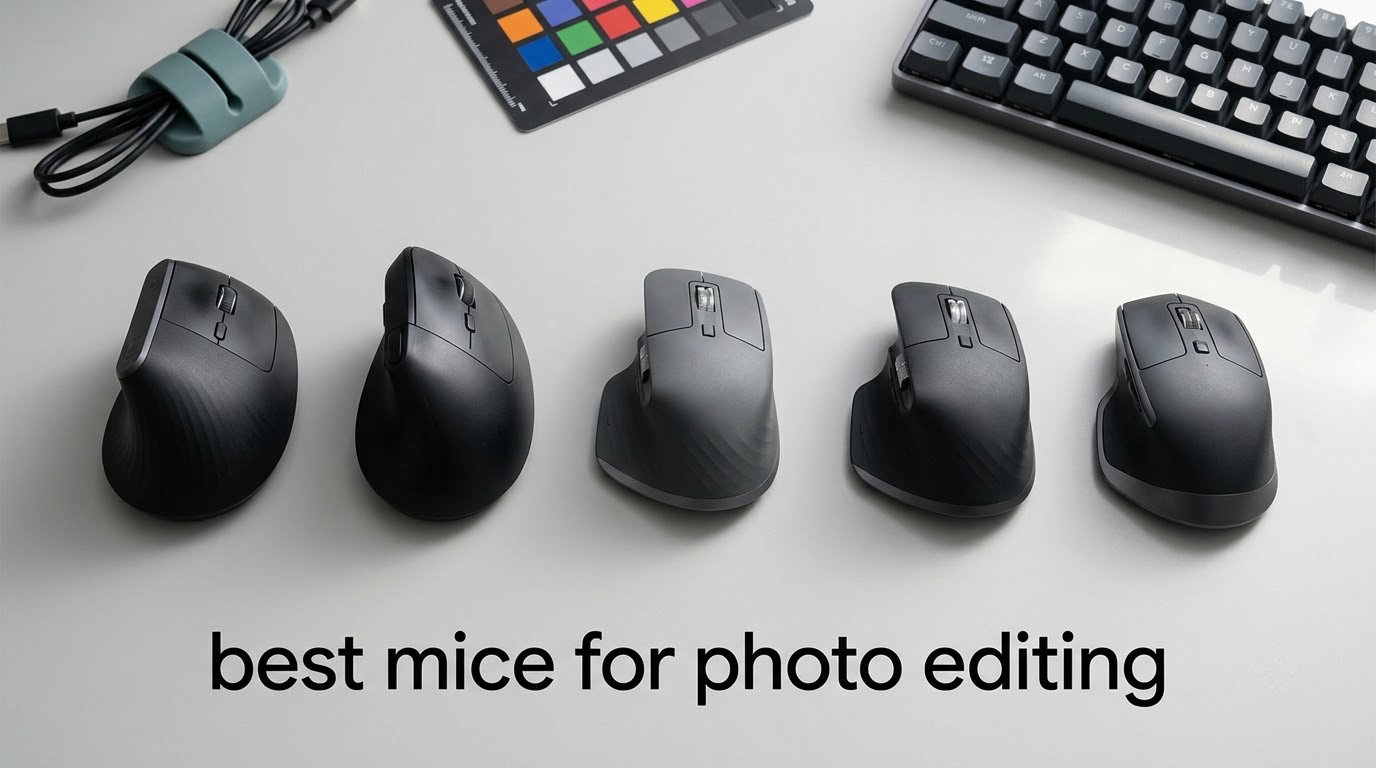
The best mouse for photo editing is the Logitech MX Master 3S. Its 8000 DPI sensor tracks on glass, the thumb wheel pans horizontally inside Photoshop, and seven remappable buttons turn a Lightroom catalog session into far fewer keystrokes. Below I break down ten options, including trackballs, vertical shapes and a genuine left-handed pick, so you can match the mouse to your hand and your editing software rather than to a brand.
There is no mouse made by a photo company for photo editing. The tools professionals actually use come from productivity lines like Logitech’s MX series, from ergonomic specialists like Evoluent and Kensington, and from office-supply trackballs that most people have never held. The AI summaries that dominate search results for this query all land on the same names, and the forum threads behind them say the same thing: the MX Master wins because of the thumb wheel and the remapping, not because of any editing-specific feature.
Our team spent weeks switching between these ten in Lightroom Classic and Photoshop, focusing on what actually changes during a working day: brush size control at 100% zoom, horizontal panning across a wide image, culling a folder of 400 RAW files, and the state of the wrist at hour six. We also cross-checked long-term owner reports, because a mouse that feels great on day one and annoys you in year three is a different recommendation. If you want the broader desk-side context, our picks for the best ergonomic mice for engineers overlap heavily with this list.
Table of Contents
Top 3 Mice for Photo Editing Right Now (October 2026)

Logitech MX Master 3S
- 8000 DPI sensor
- Thumb wheel for horizontal pan
- 7 remappable buttons
- Three-device switching

Logitech MX Master 4
- Actions Ring overlay
- Haptic Sense Panel
- MagSpeed wheel
- 8000 DPI sensor

Logitech MX Vertical
- 57-degree vertical angle
- 4000 DPI sensor
- DPI switch button
- Three-device switching
Best Mice for Photo Editing at a Glance (October 2026)
Ten mice, ten different answers to the same question. Four trackballs, two vertical shapes, two MX productivity flagships and two specialist options that almost nobody covers.
| Product | Specifications | Action |
|---|---|---|
| Logitech MX Master 3S |
|
Check Latest Price |
| Logitech MX Master 4 |
|
Check Latest Price |
| Logitech MX Vertical |
|
Check Latest Price |
 TECKNET Wireless Trackball TECKNET Wireless Trackball |
|
Check Latest Price |
 Nulea M501 Trackball Nulea M501 Trackball |
|
Check Latest Price |
 ELECOM Huge Trackball ELECOM Huge Trackball |
|
Check Latest Price |
 Kensington Expert Trackball Kensington Expert Trackball |
|
Check Latest Price |
 Kensington Orbit Trackball Kensington Orbit Trackball |
|
Check Latest Price |
 ELECOM EX-G Trackball ELECOM EX-G Trackball |
|
Check Latest Price |
 Evoluent VM4L Vertical Mouse Evoluent VM4L Vertical Mouse |
|
Check Latest Price |
1. Logitech MX Master 3S: The Best Mouse for Photo Editing Overall
Logitech MX Master 3S Performance Wireless Mouse – Graphite With Bolt Reciever
- Tracks accurately on nearly any surface including glass
- MagSpeed wheel crosses long documents then stops on a pixel
- Thumb wheel handles horizontal pan and brush size
- Weeks of battery with a minute of quick charge
- Cuts screen switching to a single click
- Premium price point for the category
- Ridged metal wheel can feel harsh on the finger during very heavy scrolling
- Bulky for smaller hands
- Logi Options+ must be running for full remapping
At 4.6 stars across 8869 reviews, this is the highest-rated mouse in our group and the one that turned up again and again in the photographer forums we read. The 8000 DPI optical sensor tracks on glass, which matters more than the raw number suggests, because a glass desk or a monitor stand is exactly where a lesser sensor starts to stutter mid-mask.
The thumb wheel is the reason most people buy it and the reason editors keep it. Tilt it and the canvas pans horizontally inside Photoshop; nudge it and the brush size changes without your hand leaving the surface. Owners describe cutting a Photoshop zoom or panel-swap shortcut to a single thumb press, and the same button can behave differently in Lightroom Classic than it does in Capture One once you set up app-specific profiles.
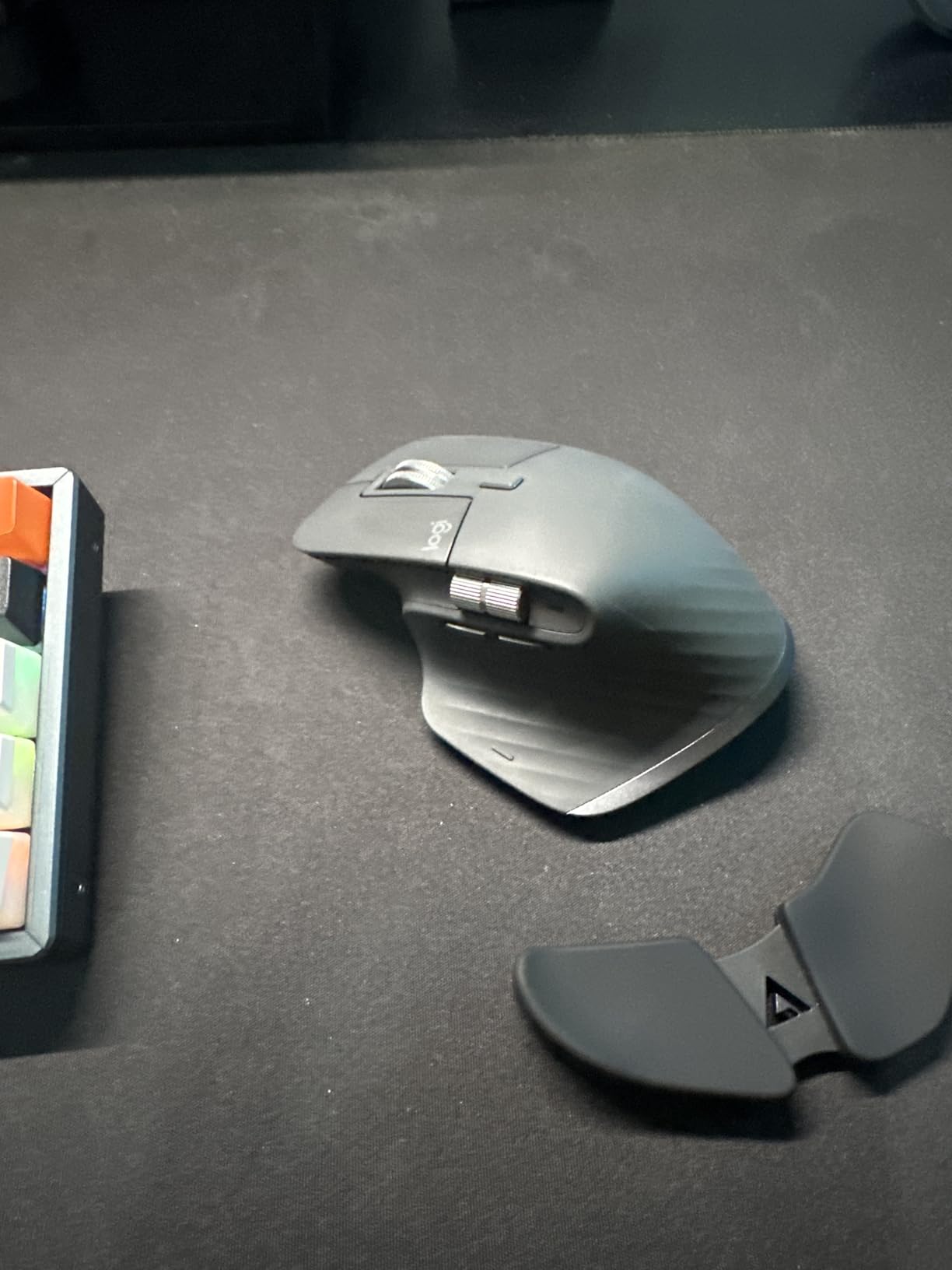
The MagSpeed main wheel switches between ratchet and free-spin modes, and that matters for culling. Free-spin carries you down a long contact sheet at speed, then a light press drops you into ratchet mode so you can stop on a single frame instead of overshooting into the next row.
Battery life is listed at up to 18 months on a charge, and reviewers report weeks of real use between top-ups. A minute of charging adds hours, which covers the scenario most people worry about, namely a dead mouse halfway through a deadline evening with no cable to fall back on.
Check hand size and weight before you commit
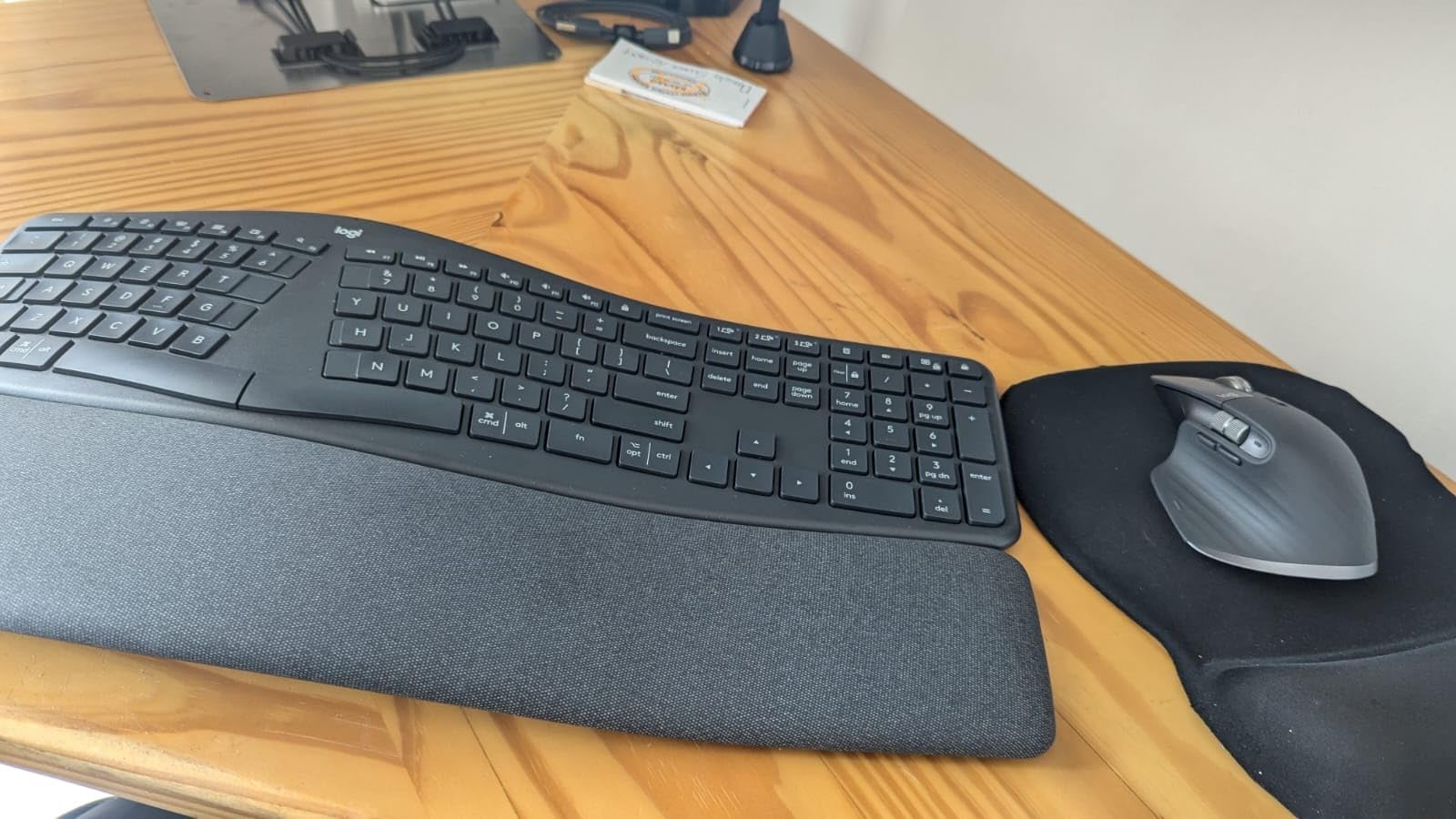
At 141 g this is the heaviest mainstream pick here, and that is a genuine issue for claw and fingertip grip users who found the MX Master tiring on long days. Reviewers who switched to a lighter mouse report the difference is felt within a few hours of brush work, where the mouse is held rather than rested.
The shape suits medium to large hands. Smaller hands report that the body feels bulky and that the side buttons sit further forward than they would like, which pushes the hand into a stretched posture over a full editing session.
Know what you are signing up for with Logi Options+
Remapping runs through Logi Options+, and it has to be running for the profiles to apply. On a locked-down work machine or a managed corporate laptop, that setup can be a blocker, and the fix is to use the defaults rather than the customization.
Glide feet wear down eventually and replacements are sold as a separate accessory, so keep a spare set if you use it daily. This is the one piece of maintenance any owner of this mouse should expect to handle once a year.
2. Logitech MX Master 4: Best for App-Specific Workflow Overlays
Logitech MX Master 4 Ergonomic Wireless Mouse with Haptics – Graphite
- Actions Ring collapses long tool sequences
- Haptic feedback confirms actions and notifications
- MagSpeed wheel is faster and quieter than the 3S
- Battery holds above 90 percent after days of use
- Heavier than average
- Back is no longer grippy so the hand can slide forward
- No onboard memory so mappings wait for software
- Polling rate is still only 125 Hz
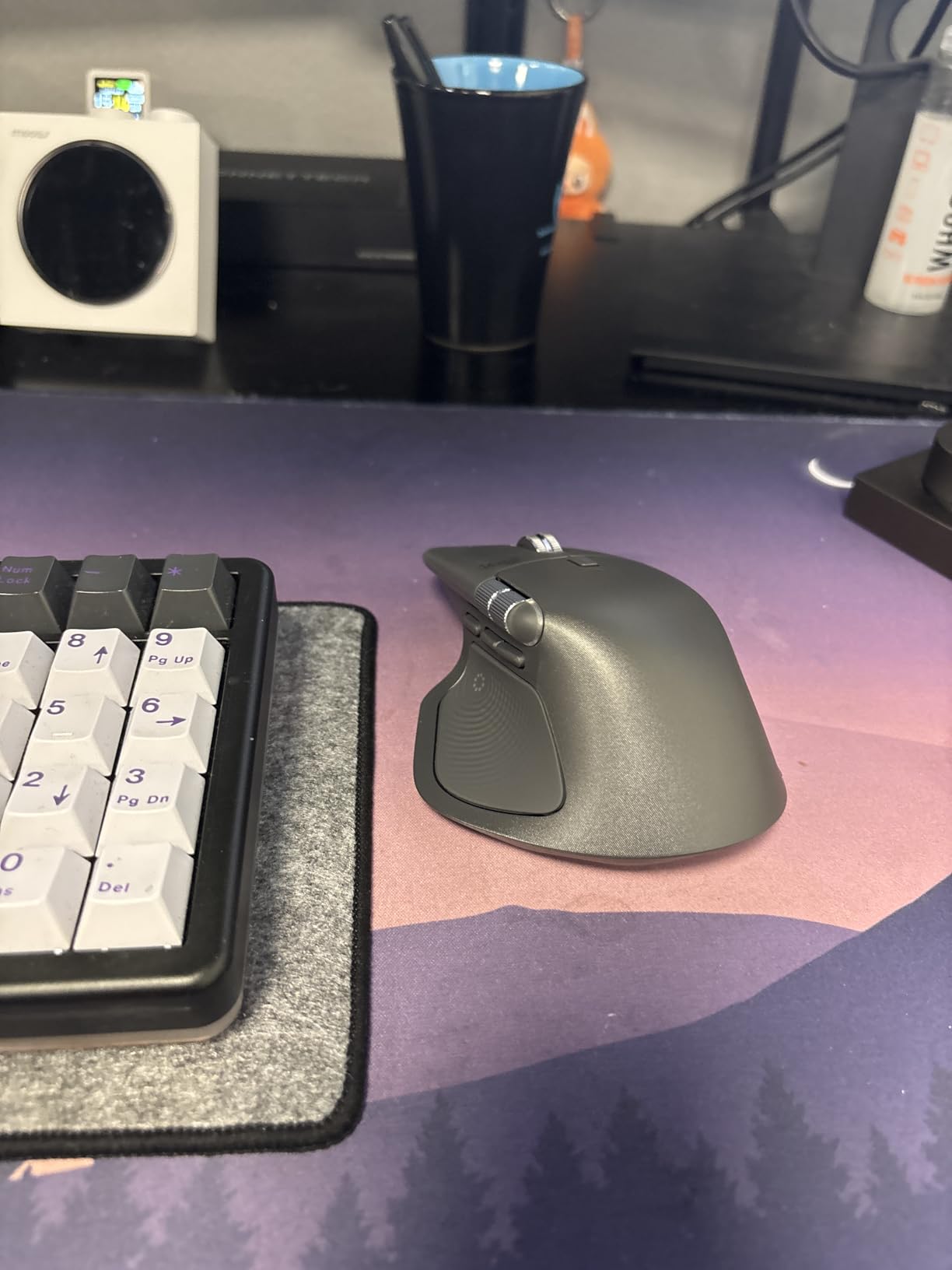
This is the newer flagship, and the difference from the 3S is the Actions Ring, a dynamic overlay that places app-specific filters, adjustments and shortcuts directly under the cursor. Owners describe collapsing what was a chain of tool selections and modifier presses into one ring tap, and several report cutting a repeated editing step from a minute to a couple of seconds.
The Haptic Sense Panel gives a short tactile pulse when an action registers or a notification arrives. In a long culling session that confirmation is more useful than it sounds, because you can keep your eyes on the image rather than on a status bar.
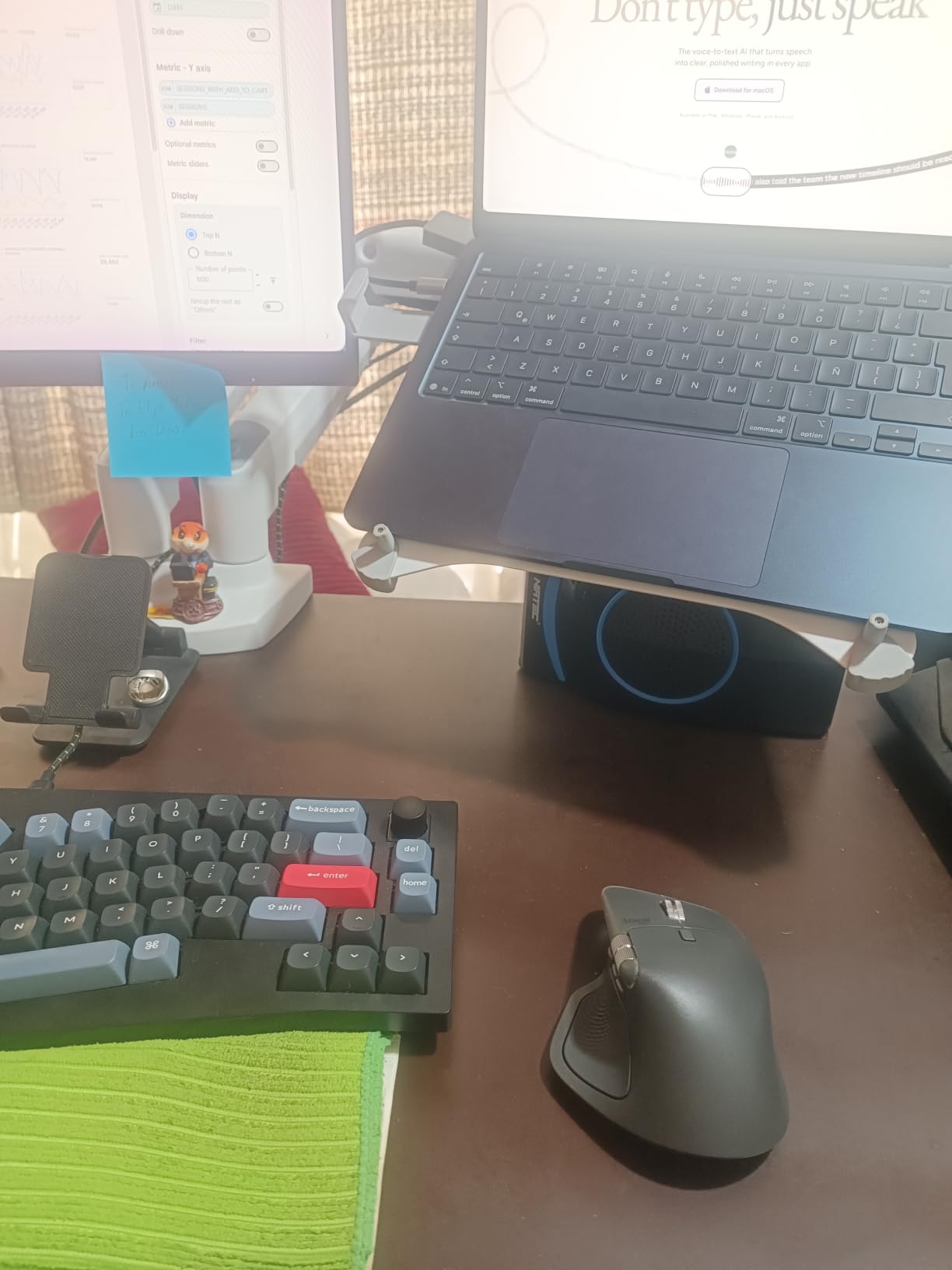
Under the hood the sensor is the familiar 8000 DPI optical unit, the MagSpeed wheel is rated to 1000 lines per second with a pixel-accurate stop, and the thumb wheel handles horizontal navigation. It pairs over the Logi Bolt USB-C dongle or Bluetooth, with room for three devices. Clicks are rated 90 percent quieter than the previous generation.
Battery life is listed at 70 days, and early owners report the cell sitting above 90 percent after days of continuous work thanks to auto-sleep. One month of Adobe Creative Cloud is bundled in the box, which is a genuine saving for anyone already paying for the suite.
Decide whether the overlay earns the extra cost for you
The stock Actions Ring profiles cover a limited set of applications out of the box, so the payoff depends heavily on whether Lightroom or Photoshop profiles are set up properly before you need them. Budget an afternoon of configuration rather than assuming it works on first boot.
If you edit mostly in one program and mostly with the keyboard, the 3S remains the better value. If you want contextual controls in several apps at once, this is the mouse built for that job.
Two complaints that show up repeatedly
There is no onboard memory, so DPI and button changes do not apply after a restart or a wake until Logi Options+ launches. On managed or locked-down machines this is a real limitation rather than an inconvenience.
The body is no longer grippy, and some buyers report the hand sliding forward during long sessions with wrist soreness as a result. Owners also note that the polling rate is still only 125 Hz, which is the subject of its own section below.
3. Logitech MX Vertical: Best for Long Retouching Sessions
Logitech MX Vertical Wireless Mouse Ergonomic Design – Graphite
- Reduces wrist and forearm strain on long sessions
- Cursor speed switch for instant sensitivity changes
- Switches between up to three computers
- Fast USB-C recharging and long battery life
- Only four buttons and no horizontal scroll wheel
- Limited customization compared with pro mice
- Takes a week or two to adjust
- Grip coating goes gummy after years
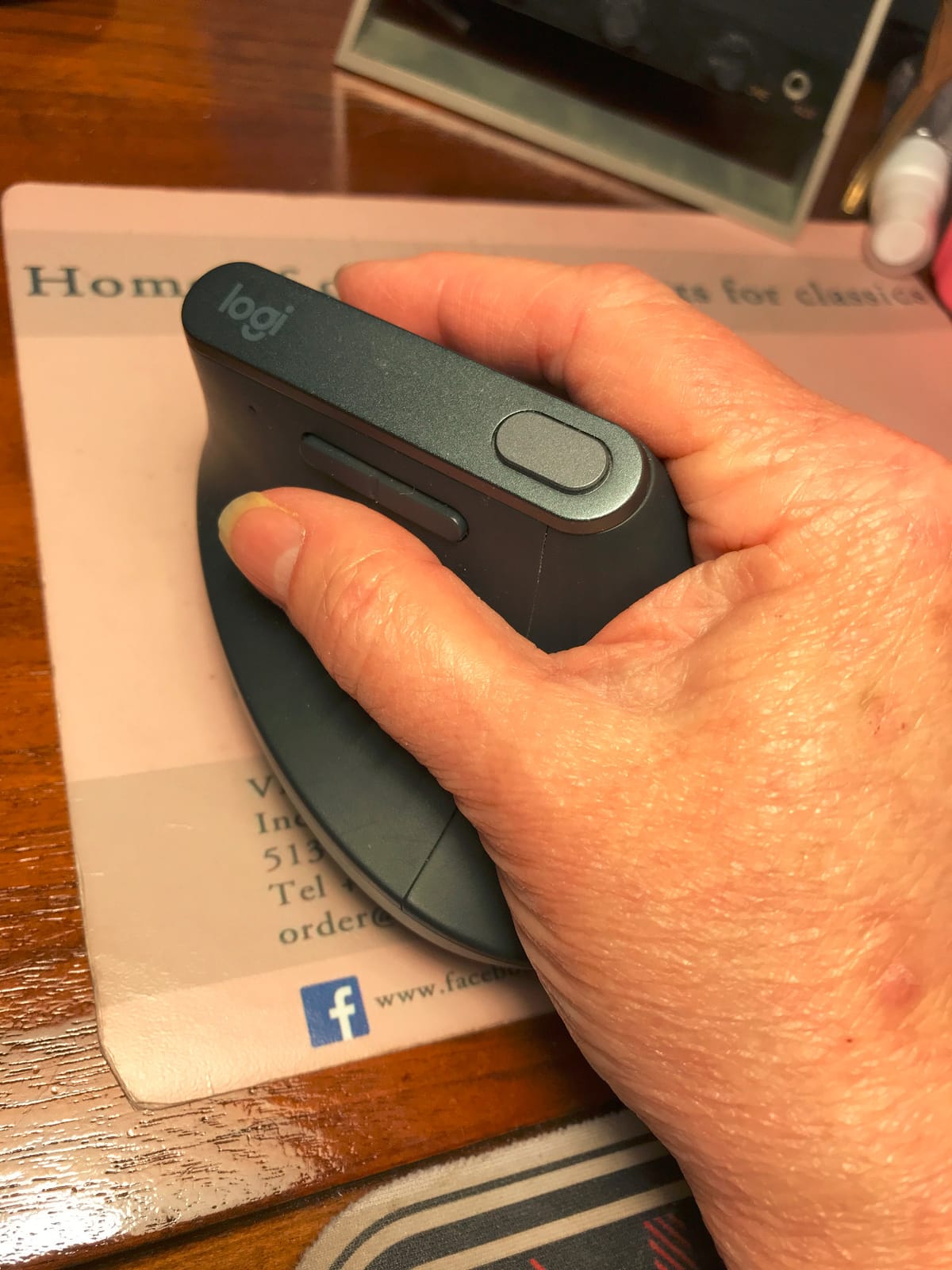
With 15097 reviews, this is the most heavily reviewed mouse in our group and one of the most proven answers to the wrist-strain question. The 57-degree vertical angle holds the hand in a handshake posture, and the manufacturer states it reduces muscular activity by about 10 percent against a standard mouse.
Owner after owner credits the shape with eliminating forearm fatigue on ten to eighteen hour days, and many report six to eight years of service before the grip coating degrades. For a retoucher billing by the hour, that durability figure is arguably more valuable than any specification on the box.
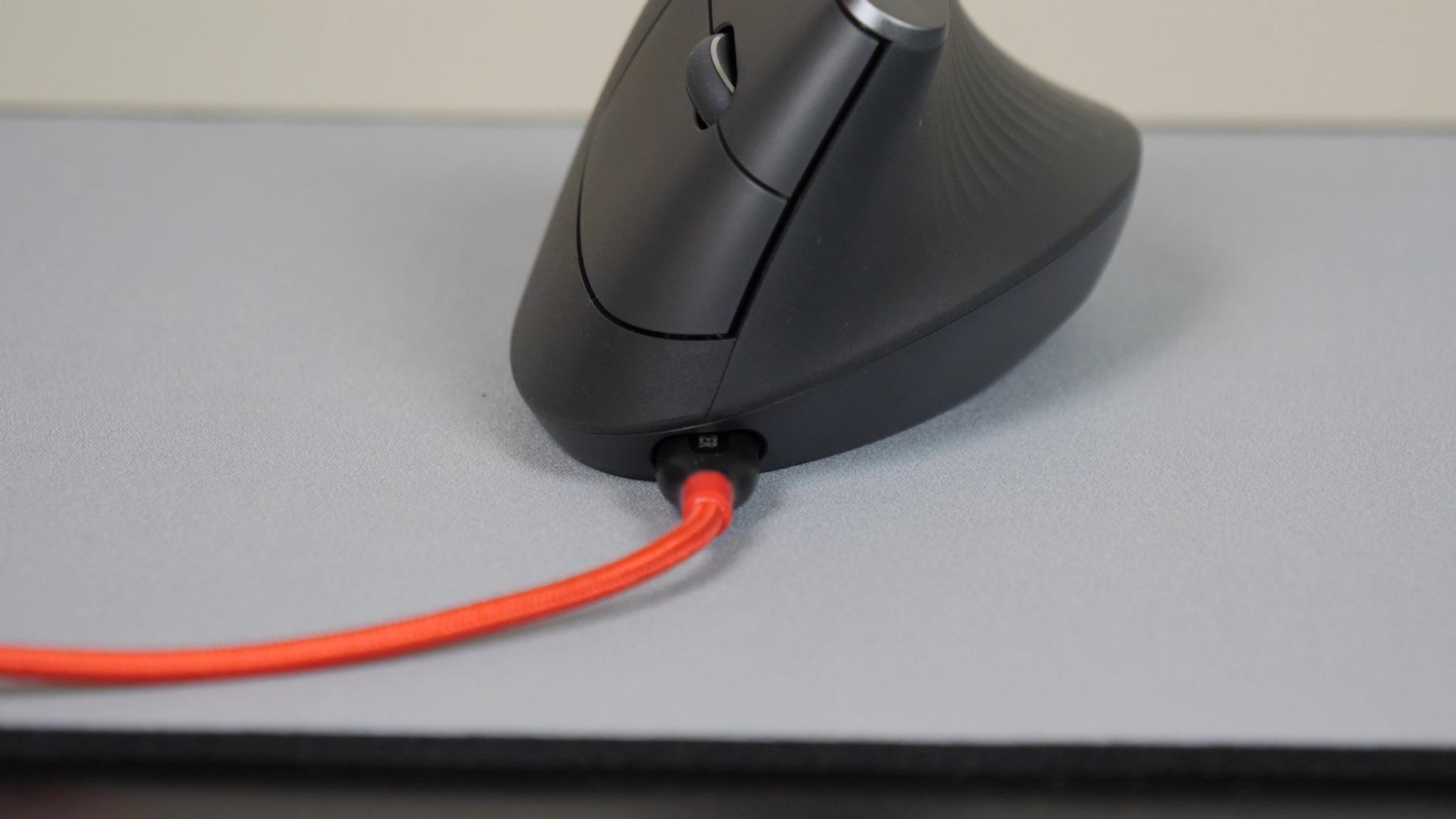
The 4000 DPI sensor is paired with a dedicated cursor speed switch on the body, so you can drop sensitivity for masking at 100% zoom without opening a settings panel. It pairs with up to three devices by Bluetooth or the included USB receiver, and it charges over USB-C with roughly four months of stated battery life.
At 8 ounces and a 7.5 by 6 inch footprint, it takes up noticeably less desk than a trackball and slides into a laptop bag far more easily. It works on Windows, macOS and iPadOS, which is a wider compatibility story than several of the trackballs in this list.
Why the missing thumb wheel is a real trade
There are only four buttons and no horizontal or tilt scroll wheel, which means horizontal panning in Photoshop has to happen with a keyboard combination or a modifier. For someone who pans a wide image constantly, that is a real productivity cost, and several reviewers name it as their main complaint.
Expect a week or two of adjustment coming off a flat mouse. The forearm muscles have to relearn a range of motion they were not built for, and buying one the day before a deadline is a mistake.
Understand the wear pattern before you buy
The textured rubber coating is the part that fails first. Owners with several years of daily use report it turning gummy at the palm and thumb contact points, and it is not a cheap or easy replacement.
A minority of reviewers find the vertical shape slightly less precise for pixel-accurate targeting until muscle memory adapts. If your work is almost entirely brush work at high zoom rather than broad cursor movement, test it for a full day before committing.
4. TECKNET Wireless Trackball: Best Value Trackball for Editing
- Lightweight at 60 g which reduces hand cramp
- Survives repeated drops and years on one charge
- Three-device switching with fast USB-C recharge
- Silent clicking suits shared studio spaces
- Painted finish wears at the palm contact point
- Some side buttons are a stretch for larger hands
- Scroll wheel can feel uneven on earlier units
- Some aggregated reviews cover other TECKNET models
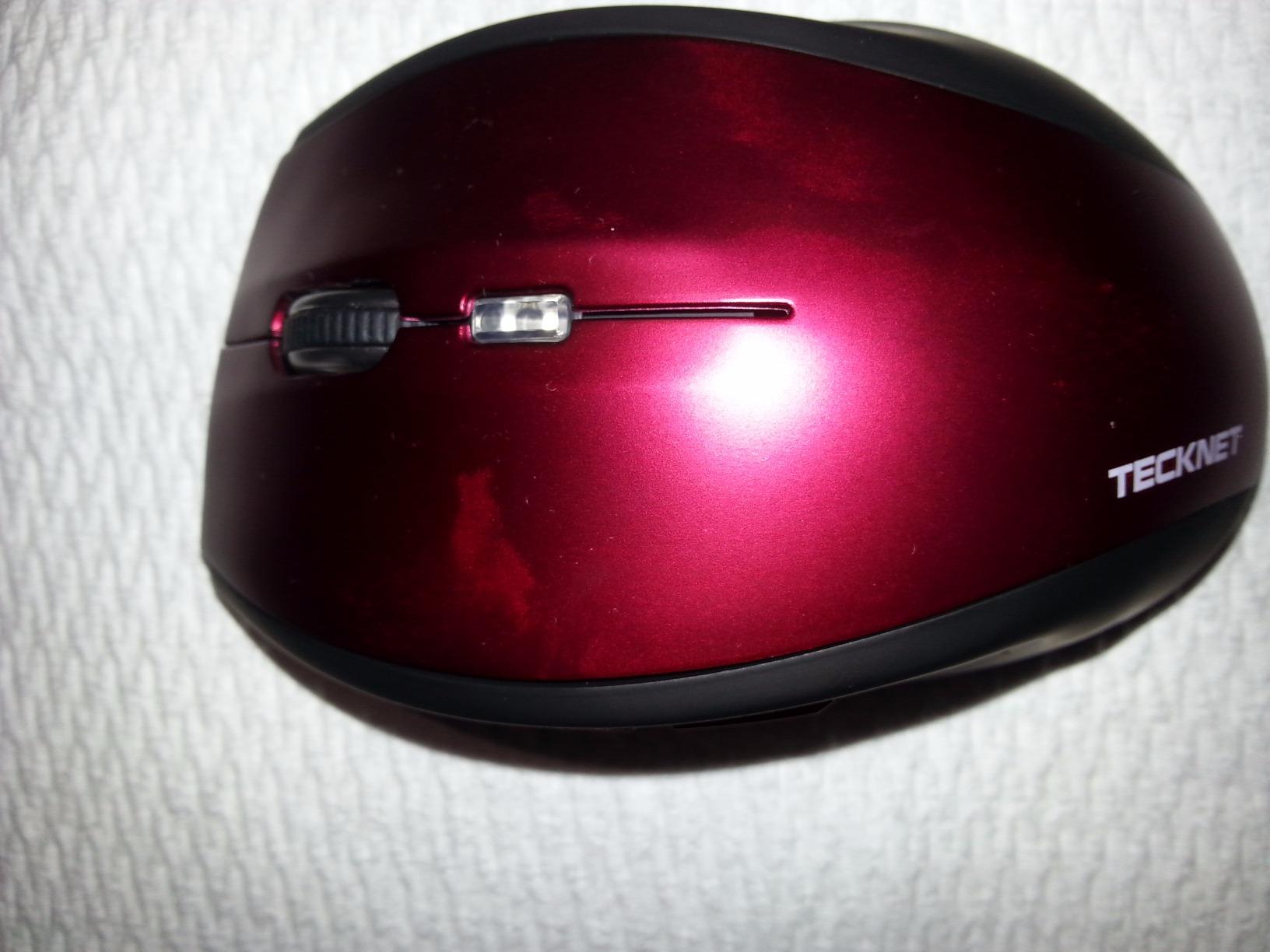
The value alternative to a premium trackball, and at 4.5 stars from 6992 reviews it holds its own against far more expensive options. The thumb-operated ball sits on a 16-degree vertical tilt, which buyers credit with a real reduction in forearm strain compared with a flat mouse.
Silent switches make this the pick for a shared studio or an open-plan floor, where the click of a standard mouse becomes a social problem by the end of the afternoon. Editors working alongside others tend to pick it for that reason alone.
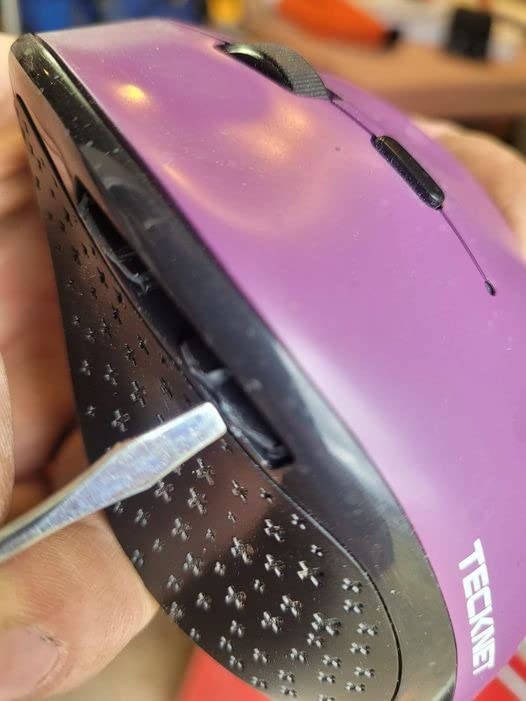
Five DPI levels cover 100 to 1200, selected from the top-mounted button, and the 500mAh rechargeable cell gives roughly a day of use from a 15-minute charge. It pairs with three devices across two Bluetooth channels and 2.4 GHz, and switching happens from a button rather than by turning the mouse over.
The body is 5.5 by 4.1 by 2 inches and 60 g, sized for medium to large hands. That small footprint is the quiet advantage over the big finger-operated trackballs further down this list, particularly on a laptop desk or a shared table.
Know the limits before you map any shortcuts
There is no programmable button layer here, so per-application profiles for Photoshop or Lightroom are out of reach. If your workflow depends on remapped side buttons, treat this as a comfortable pointing device rather than a customization platform.
The 1200 DPI ceiling is modest next to the 8000 DPI optical sensors in this list. That is fine for brush strokes and panel navigation, but it is a limit if you work at extreme zoom levels on very large displays.
Read the review section carefully
Some of the aggregated reviews on this listing describe other TECKNET models rather than this trackball, so the review count overstates how much feedback belongs to this exact unit. Weigh the star rating and the specific comments rather than the volume alone.
The painted surface wears at the palm contact point over time, and a couple of the side buttons sit awkwardly for larger hands. A few older reviews also report bounce-back or uneven scrolling on earlier units.
5. Nulea M501 Trackball: Best Budget Trackball
Nulea M501 Wireless Trackball Mouse Ergonomic Thumb Control,4 DPI Levels
- Smooth accurate ball action with four DPI levels
- Very light with an optional tilt wedge
- Connects to three devices
- Rechargeable battery lasts weeks between charges
- Buttons are not programmable
- Device-switch button is on the underside
- Thin surface coating wears with daily use
- Bluetooth tracking can feel slightly laggy
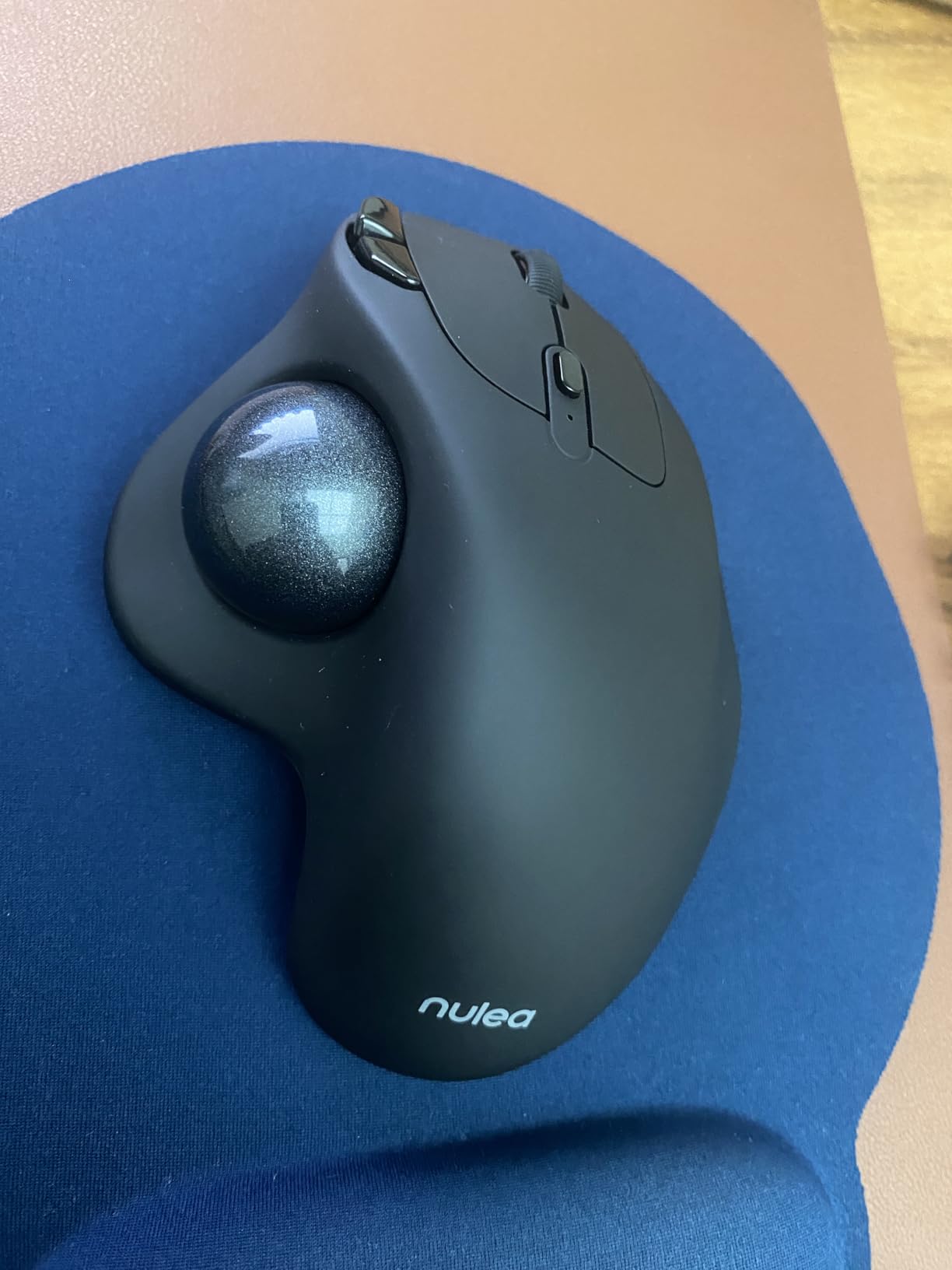
Long-time trackball users rate the M501 as more accurate and more solidly built than recent Logitech trackballs at a fraction of the cost, and the smooth ball action with non-squeaky buttons is the recurring compliment. The ball also stays seated after drops, which cheaper trackballs frequently do not manage.
At 4.51 ounces it is the lightest device in this roundup, and that low weight is a real comfort dividend over a full session. The included tilt wedge is an unexpected upgrade that several reviewers single out, because it lifts the palm angle without changing the mouse itself.
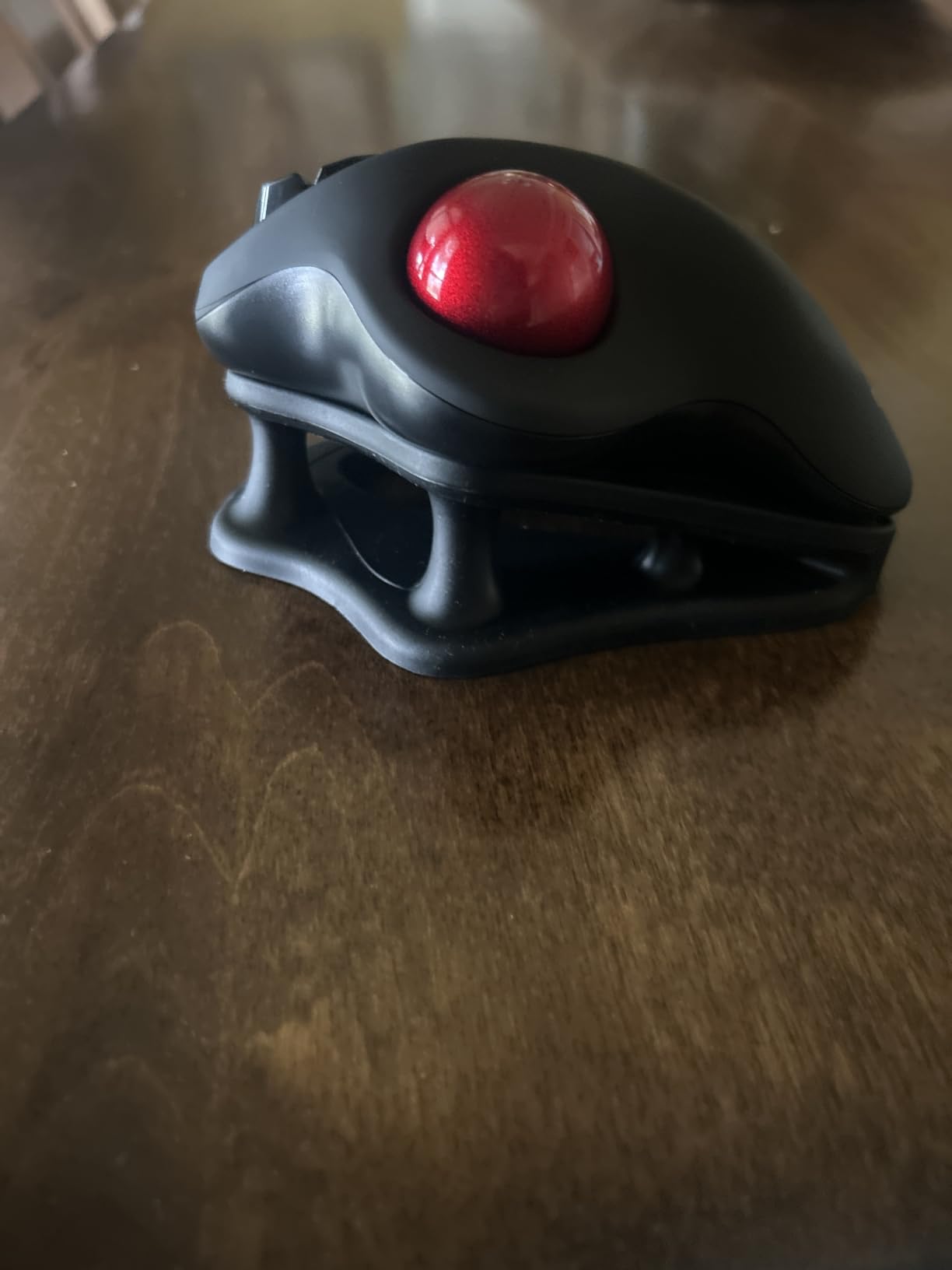
Four DPI levels are selected from a top-mounted resolution button, and the built-in rechargeable Li-ion cell runs for weeks between charges rather than asking you to keep spare cells. The footprint is 5.51 by 4.37 inches, small enough for a lap, a couch arm or a cramped laptop desk.
It works on PC, Mac, Windows, iPad and laptops, and it ranks first in its category on the retailer’s bestseller lists, which reflects how often it appears in photo editing threads as a low-cost entry point to trackball work.
Plan around the lack of programmable buttons
The manufacturer states plainly that the buttons are not programmable, so there are no per-application shortcuts. That rules out the custom button-to-action mapping that serious Lightroom and Photoshop work tends to grow around.
The device-switch button sits on the underside, so changing machines means turning the mouse over mid-workflow. If you bounce between a desktop and a laptop all day, that is a friction point you will feel repeatedly.
Know the connectivity trade
Some users report Bluetooth tracking feels slightly laggy or mis-tuned against 2.4 GHz. For editing work where you notice frame timing on zoom, use the included dongle rather than Bluetooth where you can.
The surface coating is thin and expected to wear off with daily use, and the ball needs a short break-in period before the action feels its best. Give it a week before judging it.
6. ELECOM Huge Trackball: Best for Fine Pixel Precision
ELECOM Huge Trackball Mouse, 2.4GHz Wireless, Index Finger Control
- 52 mm ball gives both fast travel and fine adjustment
- Finger control offers more precision refinement than thumb balls
- Eight largely remappable buttons plus tilt horizontal scroll
- Ball pops out for cleaning
- Very large footprint about twice a conventional mouse
- Palm rest is firmer than it looks
- Scroll wheel is stiff and crowds the left button
- Software must stay running with no onboard profiles
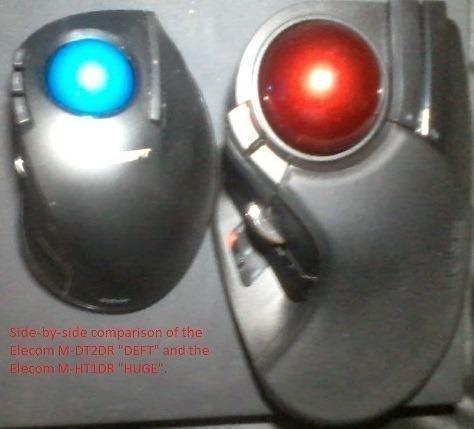
This is the successor-style answer to the classic finger-operated trackball, and photo and video editors who switch from a thumb ball report the change to finger control was effortless and added a genuinely useful level of precision. The 52 mm ball is the largest in this ELECOM line and does fast cross-screen travel and delicate single-pixel placement with the same motion.
Seven of the eight buttons are remappable to keys or key combinations through ELECOM Mouse Assistant, and the five-function scroll wheel adds variable vertical scroll, a tilt for horizontal scroll and a press that toggles between page and line modes. For horizontal panning in Photoshop, that tilt is the feature you are buying.
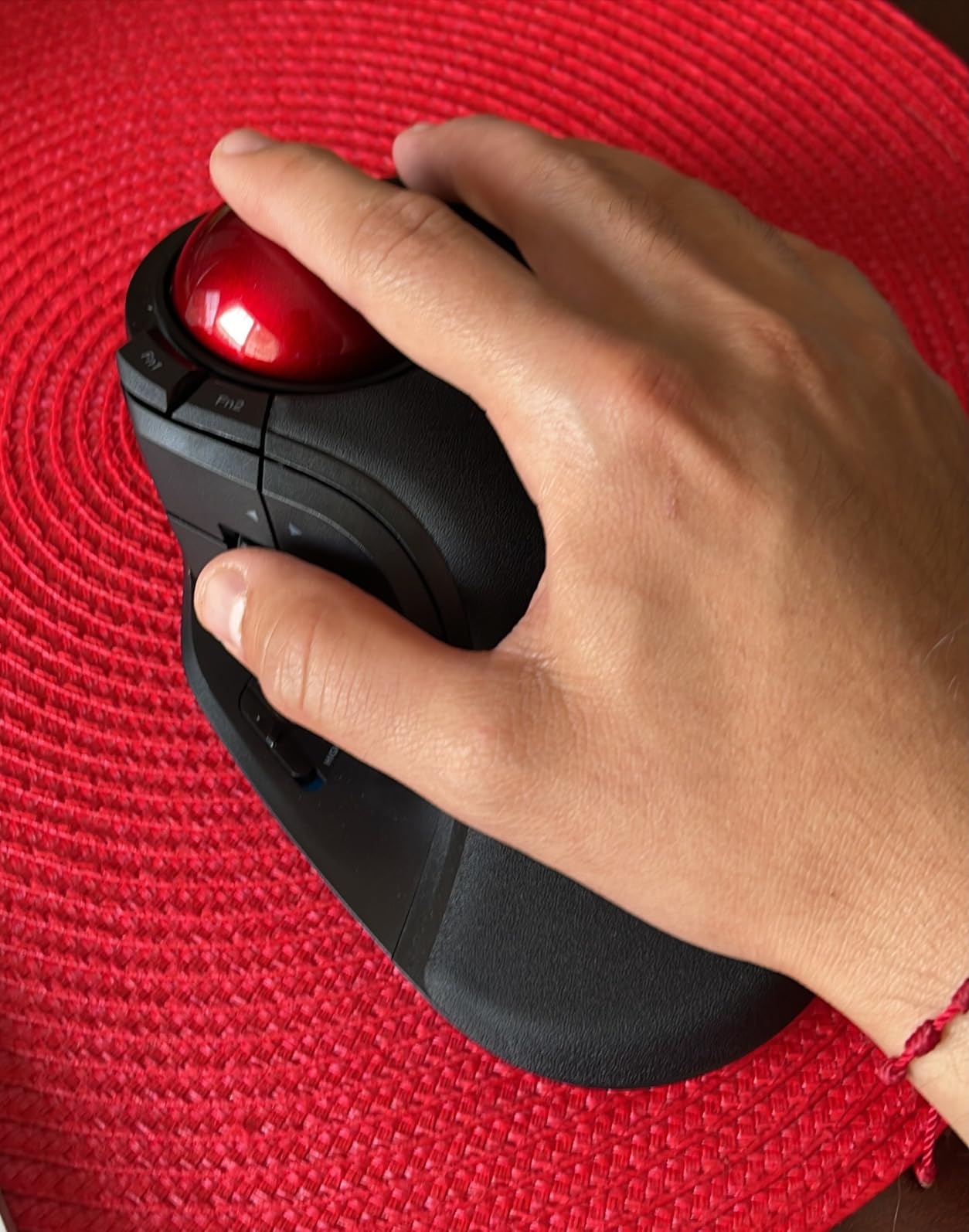
Three 2.5 mm artificial ruby ball bearings resist dust and need little maintenance, and the ball pops out so you can clean it. Bearings can be swapped for aftermarket ceramic versions if you want an even smoother glide. Three DPI levels sit at 500, 1000 and 1500, with the 1500 top end favouring fine retouching over fast travel.
It runs 2.4 GHz wireless with a 10 meter range, takes two AA batteries, and carries a one-year manufacturer warranty. The large soft palm rest is designed for long sessions, and the build outlasts cheaper trackballs according to owners.
Give the software a proper setup session
ELECOM Mouse Assistant is described as unintuitive, has to stay running in the background, and stores no onboard profiles. Plan thirty minutes to map buttons and scroll speeds properly, because the payoff is large once it is configured and poor if you skip it.
With seven of eight buttons remappable, this is the strongest mapping platform in the roundup for anyone who wants a dedicated brush-size button, a mask toggle and a before-and-after view without touching the keyboard.
Check the desk space and the adjustment period
The footprint is 7.2 by 4.5 by 2.3 inches, roughly twice a conventional mouse, and the low-rebound palm rest is firmer than it looks in photos. Make sure it clears your keyboard edge before committing.
There is a real learning curve coming from a flat mouse, and the ball can stick until it is broken in. The scroll wheel is stiff, the wheel switch is hard to press with the thumb, and the right and rear function buttons sit close together, which is awkward for medium hands.
7. Kensington Expert Trackball: Best Wired Precision Trackball
Kensington Expert Trackball Mouse (K64325), Black Silver, 5″W x 5-3/4″D x 2-1/2″H
- Large ball gives finer precision for pixel work
- Weight and inertia carry the cursor across a large display
- Four large buttons with consistent actuation
- Owners report units still working after 20 years
- Scroll ring can feel scratchy and loose on some units
- Backward slope can feel awkward with large hands
- Stiff out of the box and the ball needs break-in
- Bundled software adds input delay
Graphic designers and photographers describe this as a decades-long workhorse, with several owners replacing units they had used daily for more than twenty years. It carries a five-year warranty, which is unusually long for a pointing device and a fair signal of how the company expects it to be treated.
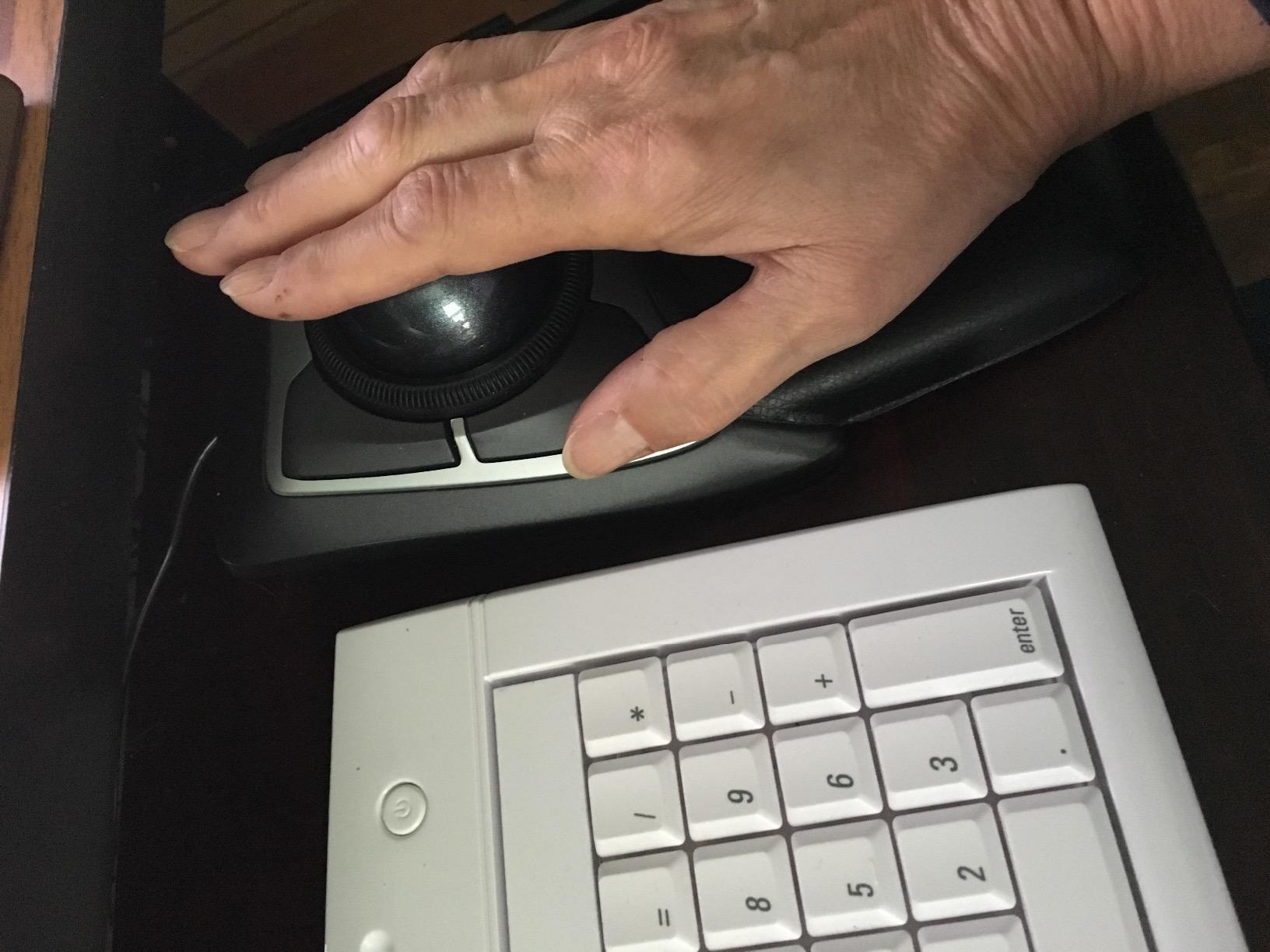
The 55 mm ball is finger-operated and larger than anything else in this roundup, and the consensus praise centres on the combination of fast travel and fine precision. The weight and inertia mean a small flick carries the cursor across a 30-inch display, then a slow rotation drops it onto a single pixel.
Four large buttons have consistent activation pressure and are remappable per application, and the patented scroll ring surrounding the ball spins smoothly and is easier to operate than a thumbwheel. It takes up less desk space than a conventional mouse pad, which matters on a small editing desk.
It is wired USB-A, which removes wireless latency and dropouts entirely, and several editors value that during drag operations where a dropped connection would be a lost adjustment. It works on Surface, Windows, macOS and Chrome OS.
Skip the bundled software if you can
Multiple reviewers recommend bypassing the Kensington utility in favour of third-party remapping software, because the bundled tool adds roughly half a second of input delay and can destabilise the scroll wheel. On a machine you control, install an alternative before you start.
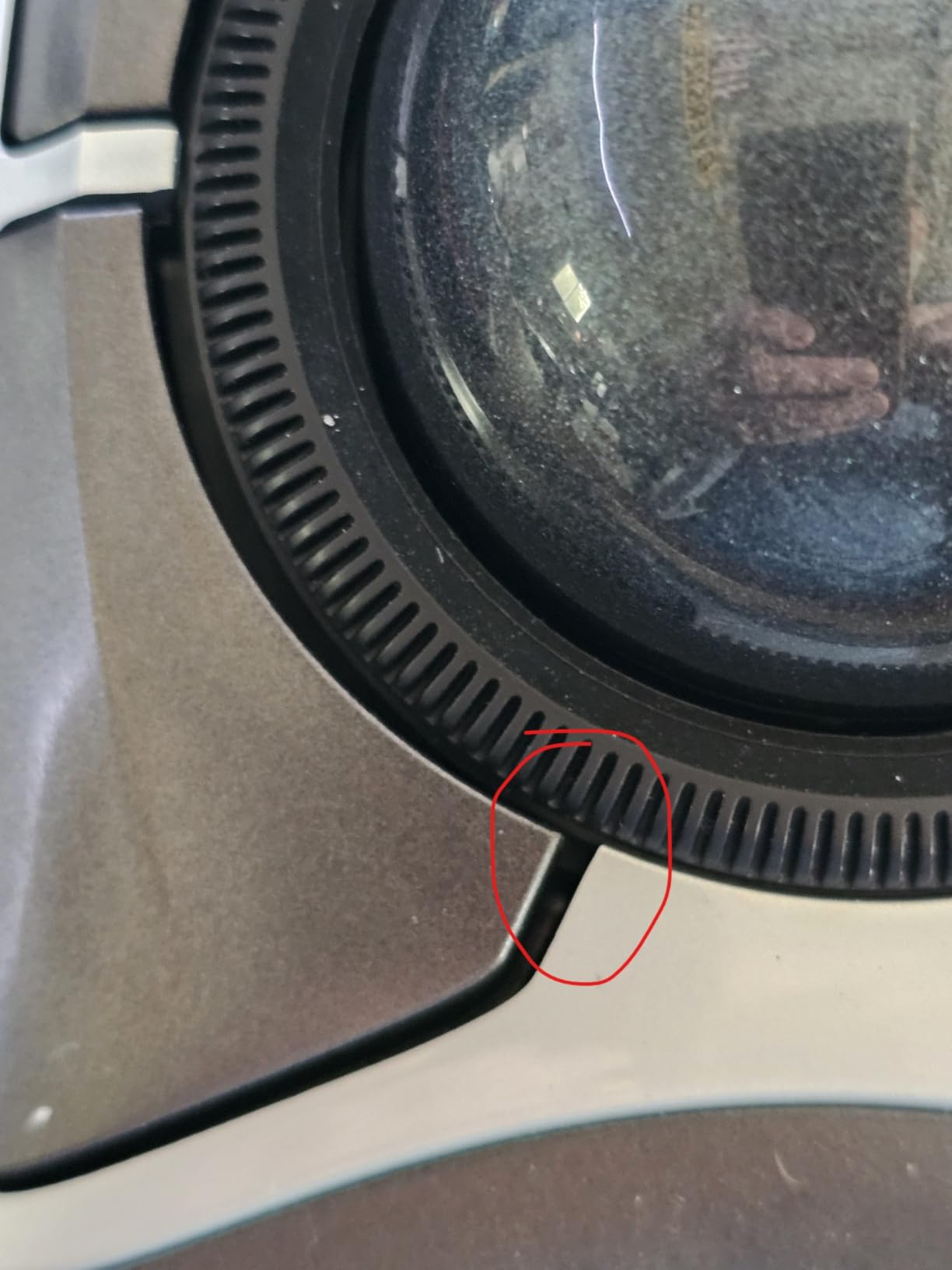
The scroll ring feels scratchy and slightly loose on some units, and the rubber ring can degrade. That is the most common complaint in the reviews and the part most likely to disappoint.
Expect a break-in period and a slope issue
The unit is stiff out of the box, the ball needs hours of break-in plus periodic cleaning, and a roughly 10 to 15 degree backward slope can feel awkward with large hands or a high desk. Raise your chair or lower your desk before deciding it is wrong.
The large footprint and generous weight also reduce portability, so this is a desk device rather than a travel companion. It is 0.34 kg, which is heavier than every other mouse here.
8. Kensington Orbit Trackball: Best for a Cluttered Desk
Kensington Orbit Trackball Mouse with Scroll Ring (K75327WW), Black-Grey
- Low entry price for a precise optical trackball
- Scroll ring spins smoothly and fast for long pages
- Detachable wrist rest helps in long sessions
- Works out of the box with no driver
- Only two buttons limits editing shortcuts
- TrackballWorks software is awkward to install
- Small ball gives less fine precision than a 55 mm ball
- Wired only with no wireless option
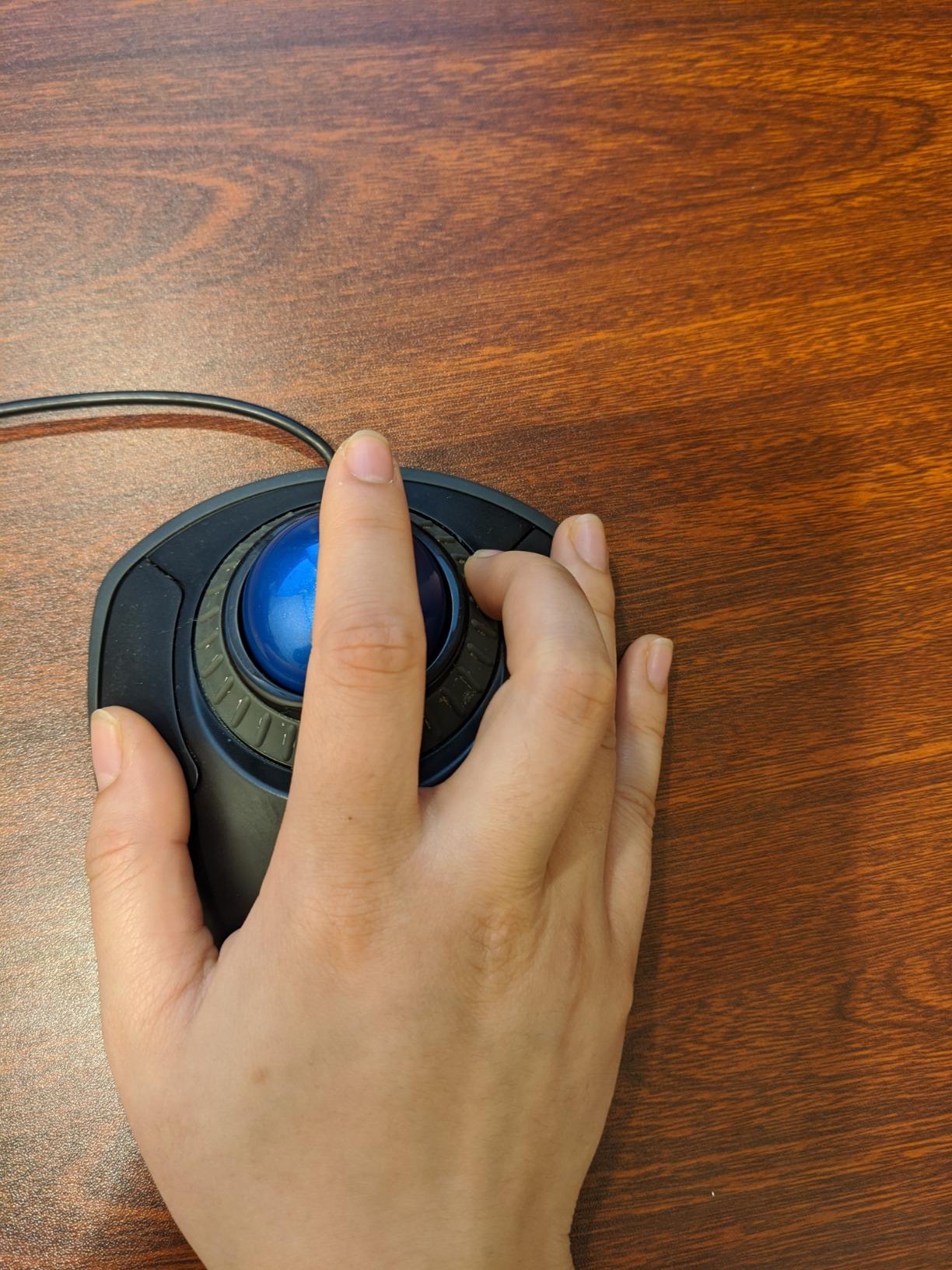
The Orbit is the affordable gateway trackball, and reviewers frame it that way consistently: accurate optical movement, a smooth fast-spinning scroll ring and a comfortable detachable wrist rest at a low entry price. Long-term owners report it working reliably for years, which lines up with the five-year warranty.
The ambidextrous shell works for either hand, which makes it the one mainstream option here that is not sculpted for a specific side. If you have never used a trackball, its small footprint and low commitment make it a sensible thing to try first.
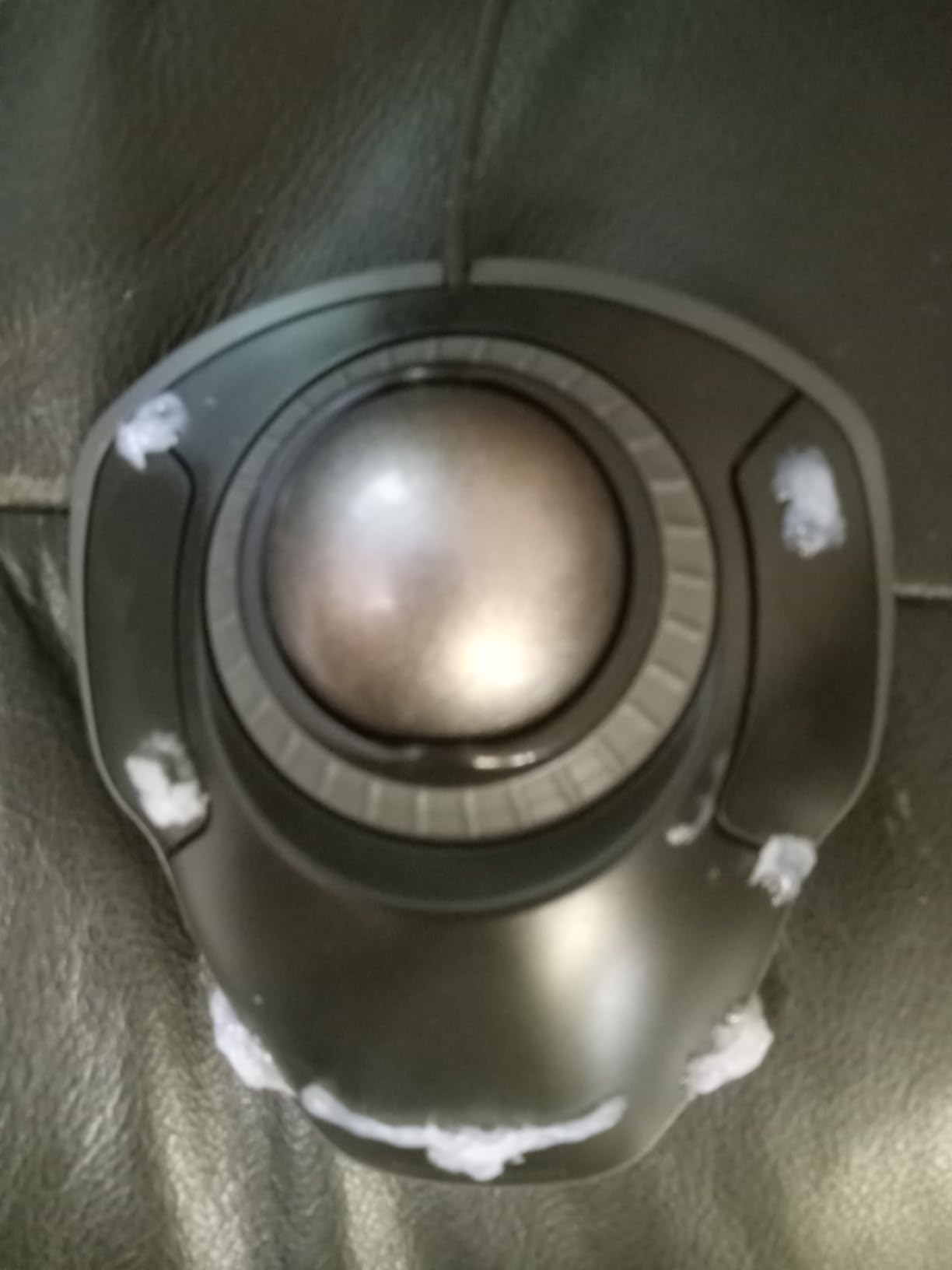
The patented scroll ring replaces a conventional wheel and can be spun rapidly for long pages, and the detachable wrist rest cushions the palm through a long sitting day. It is wired USB, so there is no battery, no pairing and no charging routine to build into your workflow.
It runs on Windows and macOS, weighs 5.6 ounces, and measures 5.46 by 4.51 inches. Basic functions work immediately with no driver installed, which is unusual for a trackball in this price range.
Two buttons is the hard limit
With only two buttons there is no room for a mapped brush-size control, a mask toggle or a layer-selection shortcut. You will be working with the keyboard far more than with a three-button layout would allow.
The small ball gives less fine-adjustment precision than a 55 mm model, so very fine retouching at extreme zoom takes more rotations than it would on the Expert.
Know what the software does and does not do
Button remapping requires Kensington TrackballWorks, which several users describe as awkward to install. If the remapping is the reason you want it, verify the install on your specific operating system before buying.
This version is wired only, with no wireless or Bluetooth option. That removes latency and dropouts entirely, but it also means the mouse stays tethered to one desk.
9. ELECOM EX-G Trackball: Best Left-Handed Trackball
ELECOM EX-G Left Handed Trackball Mouse, 2.4 GHz USB Wireless, Ergonomic, Thumb Control, Tracking Roller Ball, 6 Programmable Buttons, Tilt Scroll
- Genuinely sculpted for a left hand rather than a mirrored shell
- Compact footprint for a crowded desk
- Light at 4.5 oz with smooth ruby-bearing tracking
- Ball removes for cleaning
- Small 34 mm ball offers less precision range
- Only two DPI steps so sensitivity control is coarse
- Remapping needs the ELECOM utility
- Not suitable for right-handed users
Left-handed editors are usually told to make do with a mirrored right-hand shell or a vertical mouse flipped over. This is one of the few ergonomic trackballs actually sculpted for a left hand, with the button layout, thumb rest and shell shape all built for that hand rather than reversed.
It is also the option most commenters on photography forums ask for and rarely find. The 4.48 ounce body and a 3.7 by 4.9 inch footprint keep the wrist relaxed on a cramped desk, and the tilt scroll gives you the horizontal panning control that left-handed users otherwise give up entirely.
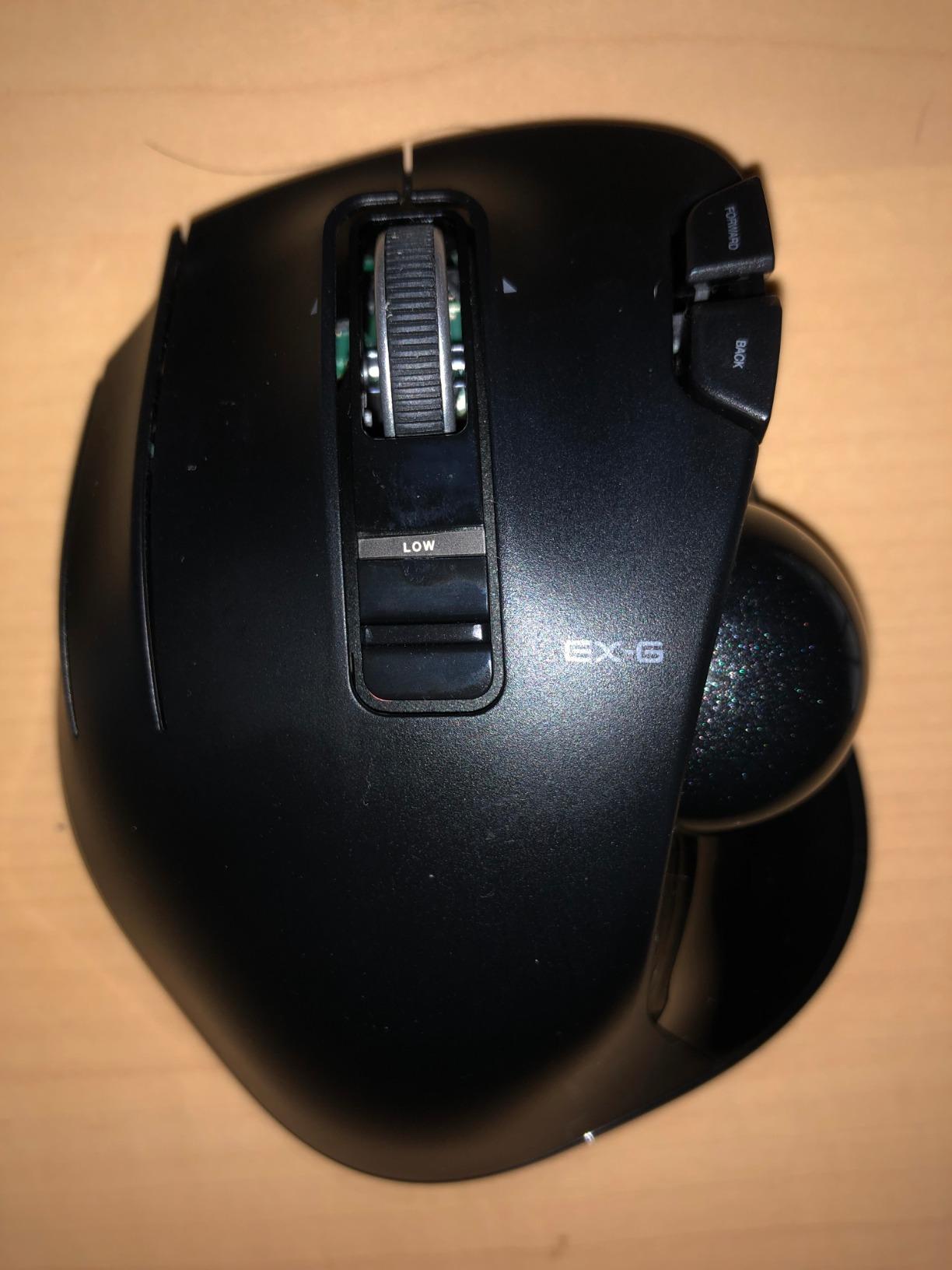
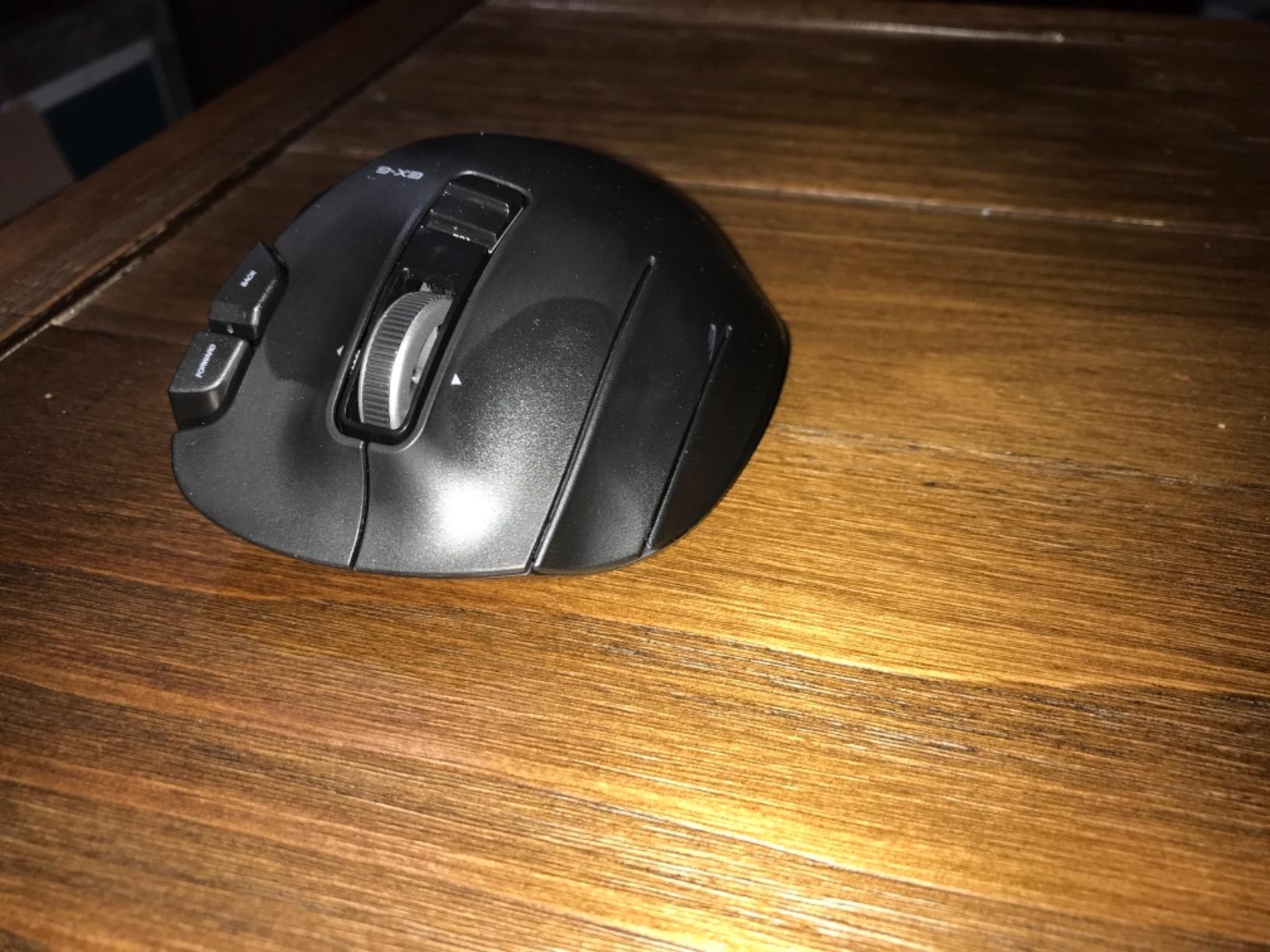
Six physical buttons are remappable through the free ELECOM Mouse Assistant utility, and tilting the scroll wheel adds two more functions including horizontal scroll. Three 2.5 mm artificial ruby bearings keep the action smooth, and the ball pops out for cleaning, which matters in a dusty studio.
It runs on 2.4 GHz wireless with a 5 meter range, takes a single AA battery, and carries a one-year manufacturer warranty. Compatibility covers Windows and macOS, and it will function as a basic mouse on systems where the utility cannot be installed.
Ball size and DPI steps set the ceiling
The 34 mm ball is considerably smaller than the 52 mm model in this roundup, and only two DPI steps are offered, at 750 and 1500. That coarse sensitivity control is what keeps the 4.1 average honest, so test masking work at high zoom before settling.
Remapping any of the six buttons requires the ELECOM Mouse Assistant utility, which reviewers do not rate highly. Set the mapping early rather than discovering the limitation mid-project.
Confirm the handedness is right for you
This mouse is not suitable for right-handed users in any meaningful way, and it is the only true left-handed sculpting in the roundup. If you are left-handed and want a trackball rather than an upright vertical shape, this is the pick.
The 5 meter wireless range is shorter than the larger ELECOM models, and the black ball is the standard fit, with a red ball offered separately. Check that your desk is within range before settling on it.
10. Evoluent VM4L Vertical Mouse: Best Upright Shape for a Left Hand
Evoluent – Inventor of The Vertical Mouse – VM4L Ergonomic Vertical Mouse Left Hand Wired USB, Sculpted for Comfort, Reduces Wrist Strain, 4 Speeds, 6 Customizable Buttons in Windows
- Properly mirrored for left hands rather than a flipped shell
- Upright posture reduces forearm and wrist rotation
- Six buttons remap per application in Windows
- Four on-body speeds with indicator lights
- Only four pointer speeds limits very fine control
- Wired only with no wireless option
- Configuration software is Windows-only
- Expect a few days of adjustment
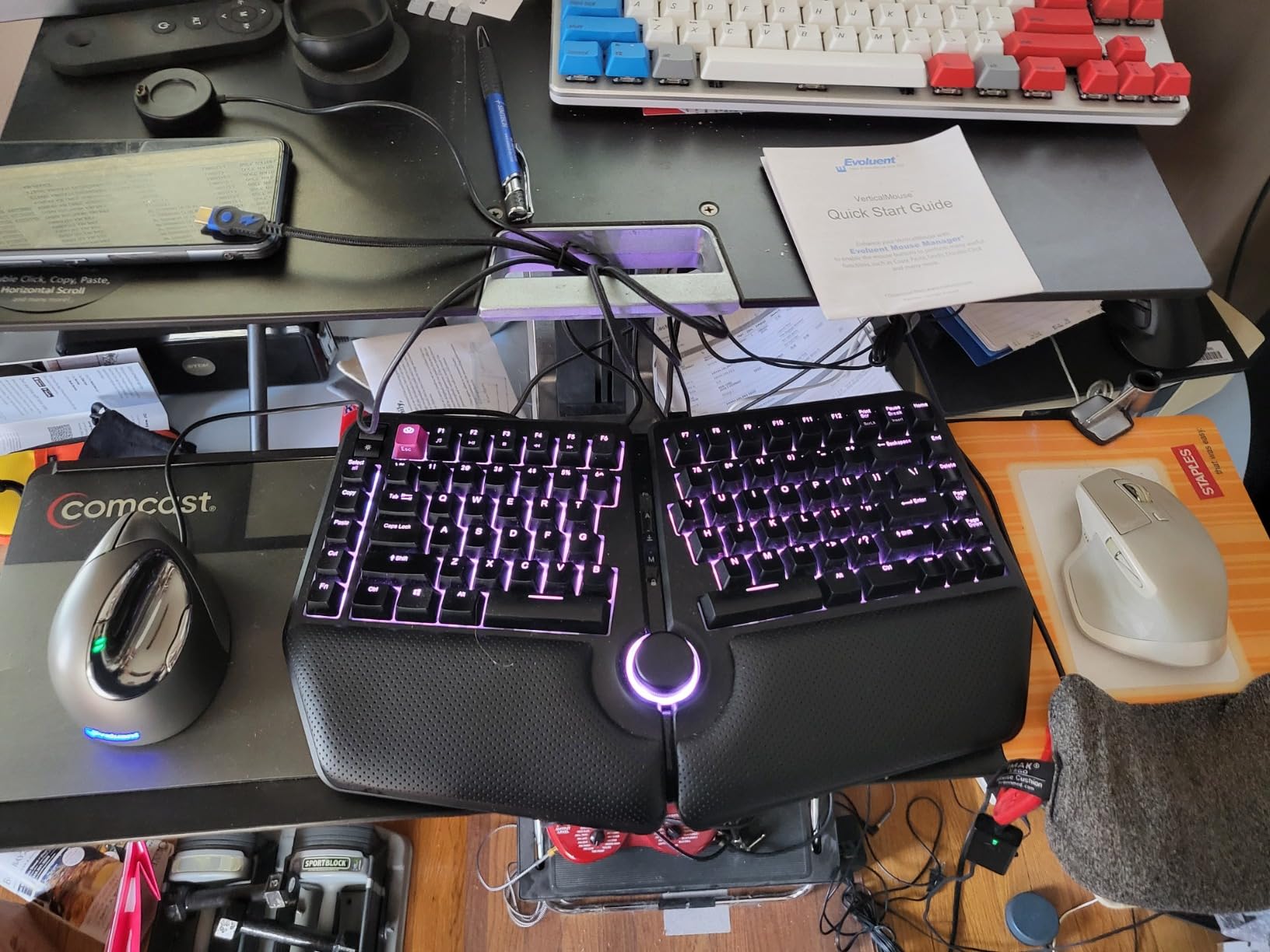
Evoluent shipped the first vertical mouse in 2002, and the VM4L is the company at its most specific: a true left-hand sculpting with a mirrored thumb rest, mirrored button layout and a mirrored lower lip. Buyers single out exactly that, because a flipped right-hand shell puts the controls under the wrong fingers.
The upright handshake posture holds the hand on its side rather than flat against the desk, which meaningfully reduces forearm and wrist rotation over long sessions. Photo and video editors cite long catalog and editing days as the use case, and the broad lower lip gives the pinky somewhere to rest instead of dragging on the desk.
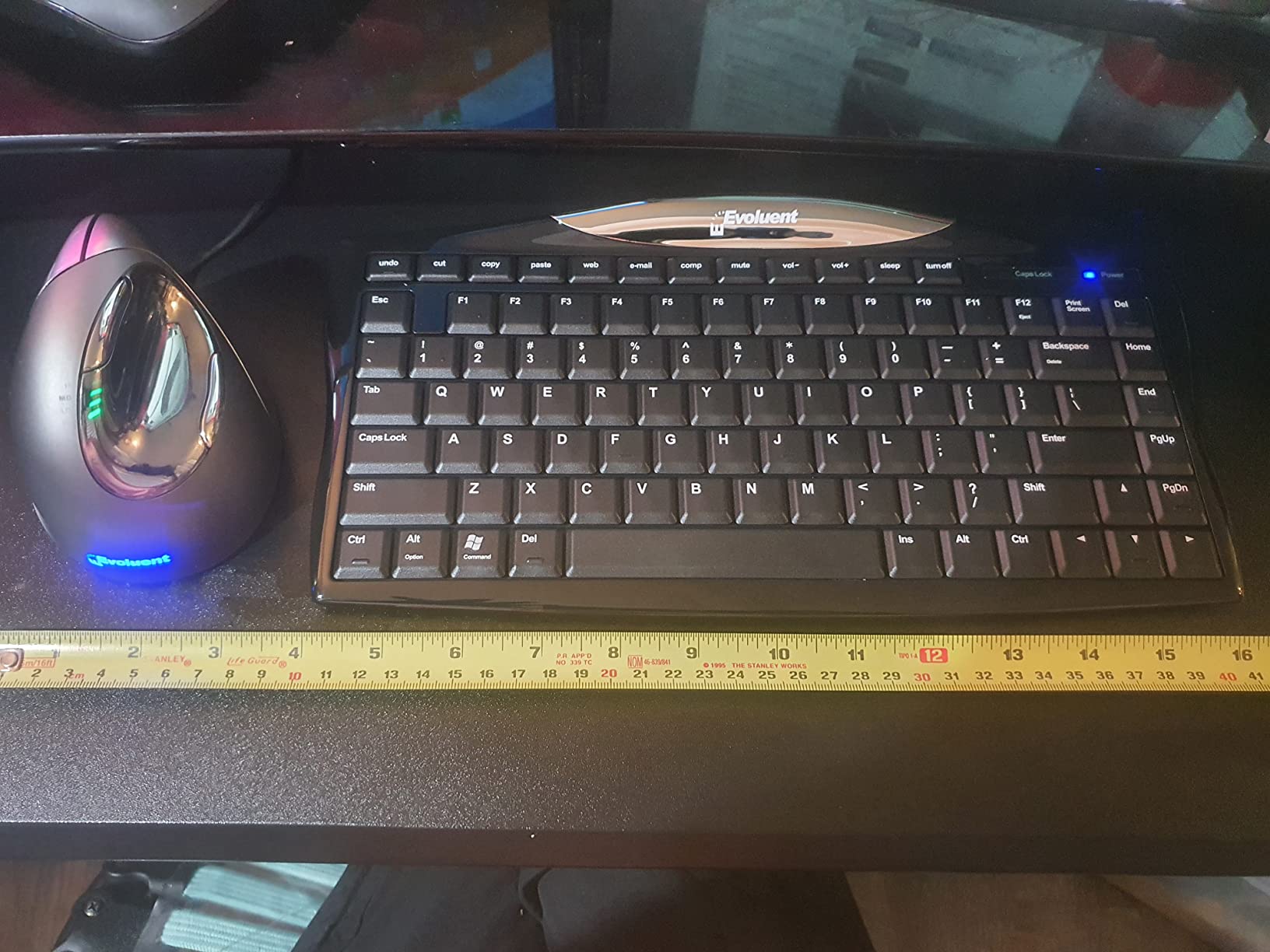
Six buttons are fully remappable per application through Evoluent Mouse Manager on Windows, and four pointer speeds are selected from a button on the mouse with indicator lights, so you never leave the surface to change sensitivity mid-mask. It is wired USB, which means no latency, no charging and no pairing.
The optical sensor tracks on bare desks, cloth mats and laminate, so you are not forced onto a specific mat. It works on Windows, Linux and Mac, with the caveat that remapping is Windows-only. A one-year warranty applies through the manufacturer.
Four speeds is a real ceiling for fine work
Unlike modern laser mice that offer ranges up to 8000 DPI, the four pointer speeds give coarser control. That is enough for broad cursor movement, brushing and panel navigation, but it limits very fine retouching adjustments at high zoom.
Configuration software is Windows-only, so remapping is unavailable on Mac and Linux even though the mouse itself connects. If you edit on a Mac and need custom buttons, this is not the option.
Judge it on fit, not on specs
Expect a few days of adjustment coming off a flat mouse, and give it longer than that. The upright shape is the single most effective change most people make for long-session wrist comfort, but it only works if you retrain the movement.
The review base here is the smallest in the roundup at just over 600 ratings, so there is less long-term evidence behind it than the flagship MX models. The shape is well proven by the company’s two decades of vertical mouse production; the specific unit has less history.
How to Map Mouse Buttons in Photoshop and Lightroom?
Any mouse with more than two buttons can be taught your editing shortcuts, and the mapping is where most of the productivity gain actually comes from. Without it you are paying for buttons and using them for back and forward. With it, your hand stays on the mouse through an entire retouching pass.
A useful Lightroom Classic layout on the MX Master 3S looks like this. Back button to toggle the masking panel, forward button to toggle the before-and-after view, thumb wheel on brush size, and the gesture button to cycle the pinned Develop module. In Photoshop, the same physical buttons map to zoom in and zoom out, so your muscle memory carries across both applications.
Set the same hardware button to different actions per application, which every major configuration utility supports. Logi Options+, ELECOM Mouse Assistant, Evoluent Mouse Manager and KensingtonKonnect all handle this, and the difference between them is how much you have to fight the interface to get there.
Two rules make the difference. First, map only three or four actions, because a mouse with twelve programmed buttons is slower to use than one with four. Second, keep the mapping identical between Photoshop and Lightroom where the same action exists, so switching applications does not reset your hand.
Save the profile inside the mouse where the model allows it. Several mice here have no onboard memory, which means the mapping only exists while the vendor software is running, and that is the most common reason a custom setup disappears after a restart.
What to Look for in a Photo Editing Mouse?
DPI and sensor behaviour matter more than the headline number. The 8000 DPI figure on the MX Master 3S is rarely used at full strength during editing, because most brush work happens at a much lower sensitivity. What you actually need is a sensor that tracks cleanly on your real surface, including glass, with no stutter during a slow mask edge. Higher maximum sensitivity is useful, but tracking consistency is the feature you feel.
Polling rate is the question almost no roundup answers. It is how often the mouse reports its position to the computer, measured in hertz, and users on Lightroom forums report that 1000 Hz produces noticeably smoother zoom animation than the 125 Hz common in productivity mice. The MX Master 4 is listed at 125 Hz, and several gaming mice in the same price range run at 1000 Hz. The difference is subtle in brush work and clearer in rapid zooming and panning across a large image, so if you zoom a lot it is worth checking before you buy. None of the mice in this roundup with higher polling rates are photo-specific, which is exactly the gap the forums keep pointing at.
Grip style and hand size decide whether a mouse is comfortable for years. Palm grip rests the whole hand on the body and suits longer fingers, claw grip arches the fingers and suits medium hands, and fingertip grip uses only the finger tips and suits smaller hands. The MX Master shape suits medium to large hands in a palm grip, the ELECOM Huge suits larger hands that want fine control, and the small trackballs suit fingertip users. A mouse that fights your grip causes fatigue long before any feature list matters.
Scroll wheel and horizontal pan are the editing-specific feature. A thumb wheel or a tilting wheel gives you horizontal panning inside Photoshop and fast panel scrolling in Lightroom, and it is the single most useful addition on a productivity mouse. The main wheel, meanwhile, needs a free-spin mode for culling contact sheets and a ratchet mode for stopping on a single image. A stiff thumb wheel is worth testing, because a rough horizontal scrub is worse than no horizontal control at all.
Software quality varies more than hardware. Logi Options+, ELECOM Mouse Assistant, Evoluent Mouse Manager and KensingtonKonnect all let you build per-application profiles, but the reliability and the learning curve differ sharply. Community forums consistently report the vendor utilities losing their button mappings after operating system updates, so keep a written note of your mapping and check it after a major update.
Wired versus wireless is a working-day decision, not a preference. Wired removes latency and dropouts entirely, which matters during drag operations, and it removes battery anxiety completely. Reviewers report occasional 2.4 GHz interference in crowded environments with heavy wireless equipment, and a dead wireless mouse mid-session with no cable to fall back on is a genuine risk on a deadline. The wired picks in this roundup, the Kensington Expert and the Evoluent VM4L, are chosen by editors who want that certainty.
Wrist health is a long-session concern, not a comfort preference. An eight-hour retouching day is a repetitive strain workload, and the shapes that reduce it are the vertical angles and the trackballs listed here. If you already have symptoms, treat that as the deciding factor rather than the button count. The [best ergonomic mice for engineers](https://www.smashingrobotics.com/best-ergonomic-mice-for-engineers/) roundup covers the same ergonomic shapes from a different angle if wrist strain is your main concern.
Mouse, trackpad or tablet is still worth asking. A trackpad suits travel and confined desks, and a tablet remains the tool most retouchers reach for when they need pressure-sensitive brush control. Many professionals use a mouse for navigation, layer work and culling, then switch to a tablet for the brushwork itself, and the Lightroom community recommends that combination over committing to one device.
Video work adds a different requirement. If you also edit timelines, a mouse with a fast free-spin wheel and a horizontal control earns its place, and if your machine is handling motion work as well, our picks for the [best laptops for video editing](https://www.smashingrobotics.com/best-laptops-for-video-editing/) cover the hardware side of that workflow.
Frequently Asked Questions
What is the best mouse for photo editing?
The Logitech MX Master 3S is the best mouse for photo editing for most people. Its 8000 DPI sensor tracks on glass and nearly any other surface, the thumb wheel pans horizontally inside Photoshop and adjusts brush size, and seven remappable buttons support per-application profiles in Logi Options+. It suits medium to large hands in a palm grip.
What is the best mouse for editing photos in Lightroom?
For Lightroom Classic specifically, the MX Master 3S is the strongest all-round choice because the thumb wheel controls brush size and feathering without leaving the mouse, while the MagSpeed main wheel flips between free-spin for contact sheets and ratchet mode for stopping on a single frame. A trackball such as the ELECOM Huge is the alternative if wrist comfort outweighs the learning curve.
What do professional photographers use to edit their photos?
Most working photographers use a mouse for navigation, culling and layer work, and a pen display for brushwork, masking and anything that needs pressure control. Among mice, the MX Master family dominates because of the thumb wheel and remappable buttons, with gaming mice used mainly by editors who want a high polling rate and more buttons than productivity models provide.
What are the disadvantages of a trackball mouse?
Trackballs take time to learn because there is no arm movement to rely on, and a small ball gives less fine precision than a large one. Some models cannot pan across screens as quickly, and cheaper units often have few or non-programmable buttons, which limits editing shortcuts. The upside is that they remove wrist movement entirely and work in confined spaces.
How many DPI do I need for photo editing?
Most editors work far below the maximum their mouse supports, often between 800 and 1600 DPI, because the cursor has to travel across a high-resolution display. What matters more is tracking consistency, whether the sensor stays smooth on your actual desk surface including glass. A high maximum is only useful for very fine work at extreme zoom on large displays.
Should I use a wired or wireless mouse for Lightroom?
Wireless is usually the better choice for editing because it removes the cable drag that interferes with precise brush work and reduces desk clutter. Wired wins on reliability, since there is no latency, no dropouts and no battery anxiety during a long session. If your studio has crowded wireless equipment, check for 2.4 GHz interference before committing to wireless.
Final Verdict
The best mouse for photo editing in 2026 is the Logitech MX Master 3S, and it stays the default answer because nothing else here matches its combination of an 8000 DPI sensor that tracks on glass, a thumb wheel for horizontal panning and brush control, and seven remappable buttons with per-application profiles. The MX Master 4 is the upgrade for anyone who wants contextual overlays and haptic feedback under the cursor, and it costs more for a reason.
If your wrist is already the problem on a long editing day, the MX Vertical is the pick with the longest service history in this roundup. If you want a trackball, the ELECOM Huge gives the finest precision and the most remappable buttons, while the TECKNET covers the low-cost and silent-click case, and the Nulea M501 is the cheapest way to find out whether a trackball suits you at all.
Left-handed editors finally have real answers too. The ELECOM EX-G is a properly sculpted left-handed trackball and the Evoluent VM4L is a genuinely mirrored vertical mouse, which is more than most roundups offer. For a small desk or a wired setup with no wireless latency, the Kensington Orbit and Kensington Expert round out the shortlist.
Whichever one you settle on, spend the first session mapping three or four buttons to the actions you actually repeat. That hour of setup is what turns a pointing device into an editing tool.