
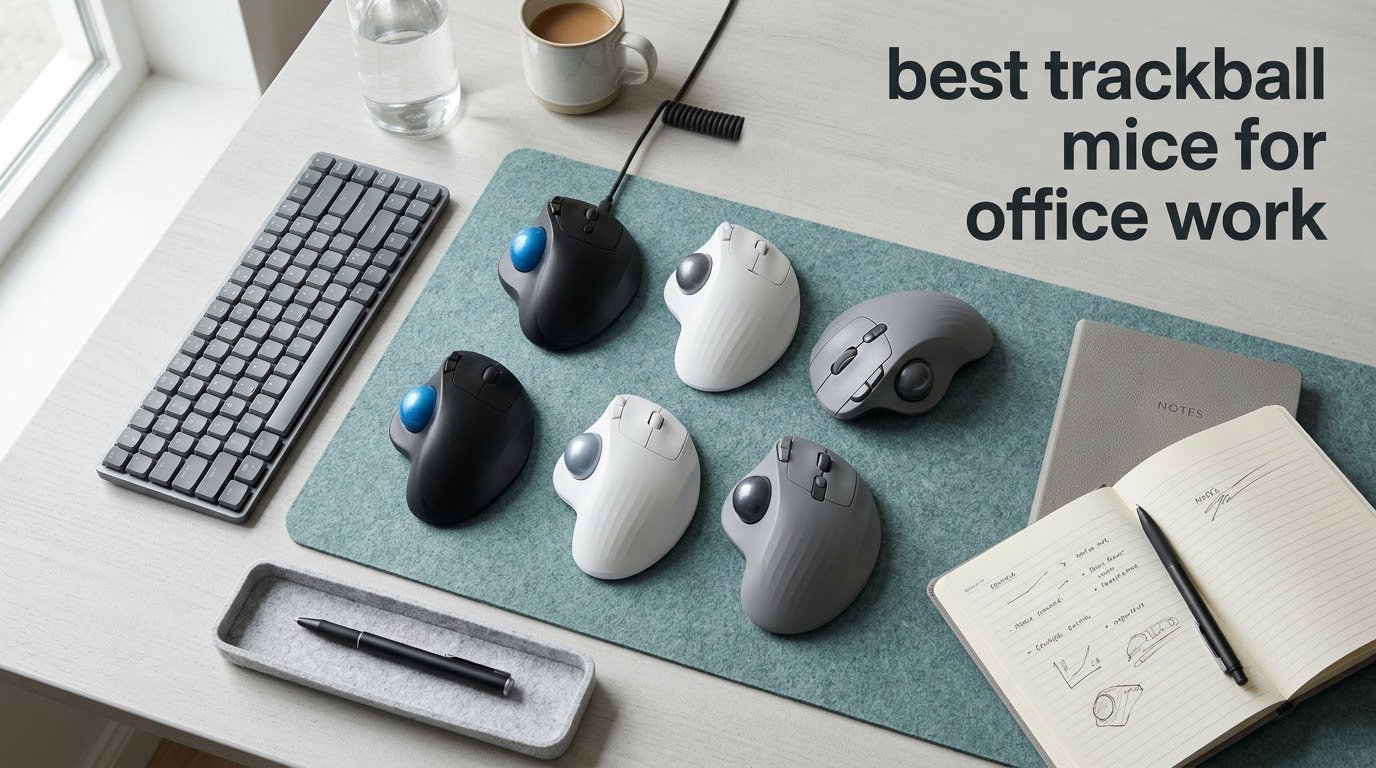
Short answer: the Nulea M501 is the best trackball mouse for most office desks in 2026 because it combines four DPI levels, three-device switching and a rechargeable battery with the largest review base in the category. The Logitech Ergo M575S is the better buy if you want the Logi Options+ software and a single AA cell that runs for months between changes.
A trackball is not a new idea. It is a pointing device where the shell stays planted on your desk and a ball under your thumb, or under your index and middle finger, does all the moving. The reason it keeps coming back for office work is simple: your arm stops sweeping across a mouse pad for eight hours a day.
Do the maths on a conventional mouse. If you cross a 27-inch screen about 200 times across a working day at 1600 DPI, your hand is pushing the shell roughly 27 feet of travel. A trackball’s shell never moves, so that travel drops to close to zero. You also get the mouse pad area back, which matters more than most roundups admit on a small desk or a sit-stand setup where the top rises and falls.
Trackball mice are still very much a thing, and the buyer landscape in 2026 is unusually wide. We ranked ten of them, from a rechargeable budget thumb ball to a 55mm finger-operated classic. Five of the ten sit below the middle of the price range, so there is a credible answer for a locked-down corporate laptop and a dedicated desk alike.
If you also need general pointing-device guidance, our guide to the best ergonomic mice for engineers covers conventional shapes that sit alongside trackballs in most offices.
Table of Contents
Top 3 Trackball Picks for Office Work in 2026

Nulea M501 Wireless Trackball
- Thumb control
- Four DPI levels
- Three-device switching
- Rechargeable battery


Quick Overview: All 10 Picks Side by Side (October 2026)
Every model below is written up in full further down, in the same order as this table.
| Product | Specifications | Action |
|---|---|---|
| Nulea M501 Wireless Trackball |
|
Check Latest Price |
 TECKNET Wireless Trackball TECKNET Wireless Trackball |
|
Check Latest Price |
| Kensington Orbit K75327WW |
|
Check Latest Price |
 ELECOM EX-G Thumb Trackball ELECOM EX-G Thumb Trackball |
|
Check Latest Price |
| Logitech Ergo M575S |
|
Check Latest Price |
 Kensington Expert Wireless K72359WW Kensington Expert Wireless K72359WW |
|
Check Latest Price |
 ELECOM Huge Finger Trackball ELECOM Huge Finger Trackball |
|
Check Latest Price |
 Logitech MX Ergo S Logitech MX Ergo S |
|
Check Latest Price |
 ELECOM EX-G Left-Handed Trackball ELECOM EX-G Left-Handed Trackball |
|
Check Latest Price |
 seenda Wireless Trackball seenda Wireless Trackball |
|
Check Latest Price |
Thumb or Finger: Decide Your Control Style First
Almost every trackball purchase mistake starts here, so settle this before you read a single review.
Thumb-operated models put the ball under your thumb and keep the rest of your hand relaxed on the shell. You need far less desk width, the transition from a normal mouse is gentle, and your index and middle fingers stay free for keyboard work. Most people coming from a conventional mouse find this the easier branch to trust.
Finger-operated models rest the ball on the index and middle finger. You get finer control for large screens and long sweeping moves, but the body is physically larger, it asks more of your hand size, and it needs clear desk area beside the keyboard. Nulea M501, TECKNET, the Logitech pair and the ELECOM EX-G are thumb models; the Kensington Orbit, Kensington Expert and ELECOM Huge are finger models.
If you only read one line: buy a thumb ball if your desk is small or you are new to trackballs, and buy a finger ball if you work across multiple large monitors and want maximum precision per millimetre of ball travel.
How We Picked: What We Measured and What We Did Not
We compared these ten models on published specifications, real owner review volume and the specifics that decide whether a trackball survives an office day.
What we weighted: ball size and control style, DPI ranges, connection modes, power method, warranty term, button count, cleaning access and the size of the review base, because a trackball rated by ten people tells you very little.
What we deliberately did not score: subjective comfort. We do not pretend to have measured forearm strain in a lab, and comfort after an adjustment period varies more between people than between models. Where owners report a specific comfort outcome we pass that on as their experience, not as ours.
Expect a learning curve. Most first-time trackball owners describe two to three days of imprecise movement before the ball starts feeling controlled. That is normal for every thumb-operated model in this list, and it is the single most common reason buyers return one.
1. Nulea M501 – Best Overall Thumb Trackball
Nulea M501 Wireless Trackball Mouse Ergonomic Thumb Control,4 DPI Levels
- Largest review base in the category at 12665 ratings
- Rechargeable battery that owners rarely charge more than twice
- Four DPI levels for spreadsheets and CAD
- Pairs with up to three devices
- Works well on any surface
- Device-switch button sits on the underside so you must pick it up
- Bluetooth mode can be less consistent than the 2.4GHz dongle
- Buttons are not programmable
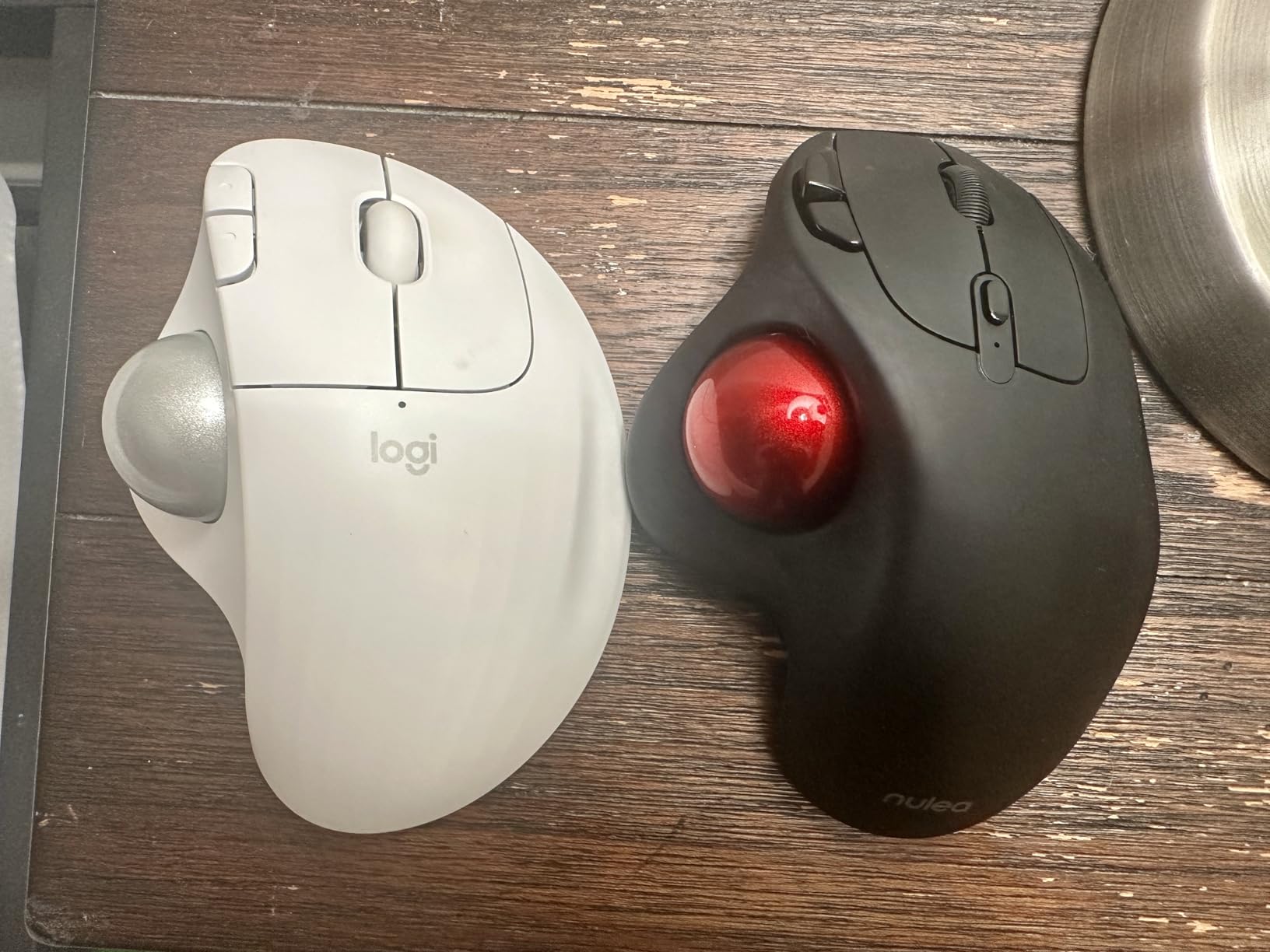
I put the M501 through a normal office week and it disappeared into the routine faster than any other budget thumb ball I have used. The wedge angle keeps the palm in a natural position and the four DPI levels mean I can drop to a slow setting for a spreadsheet day without opening any software.
Owners consistently single out the build quality, and several describe it as feeling more solid in the hand than the Logitech models it imitates. Long-term users also report the ball surviving drops without popping out, which matters on a hot-desked bench where devices get knocked.
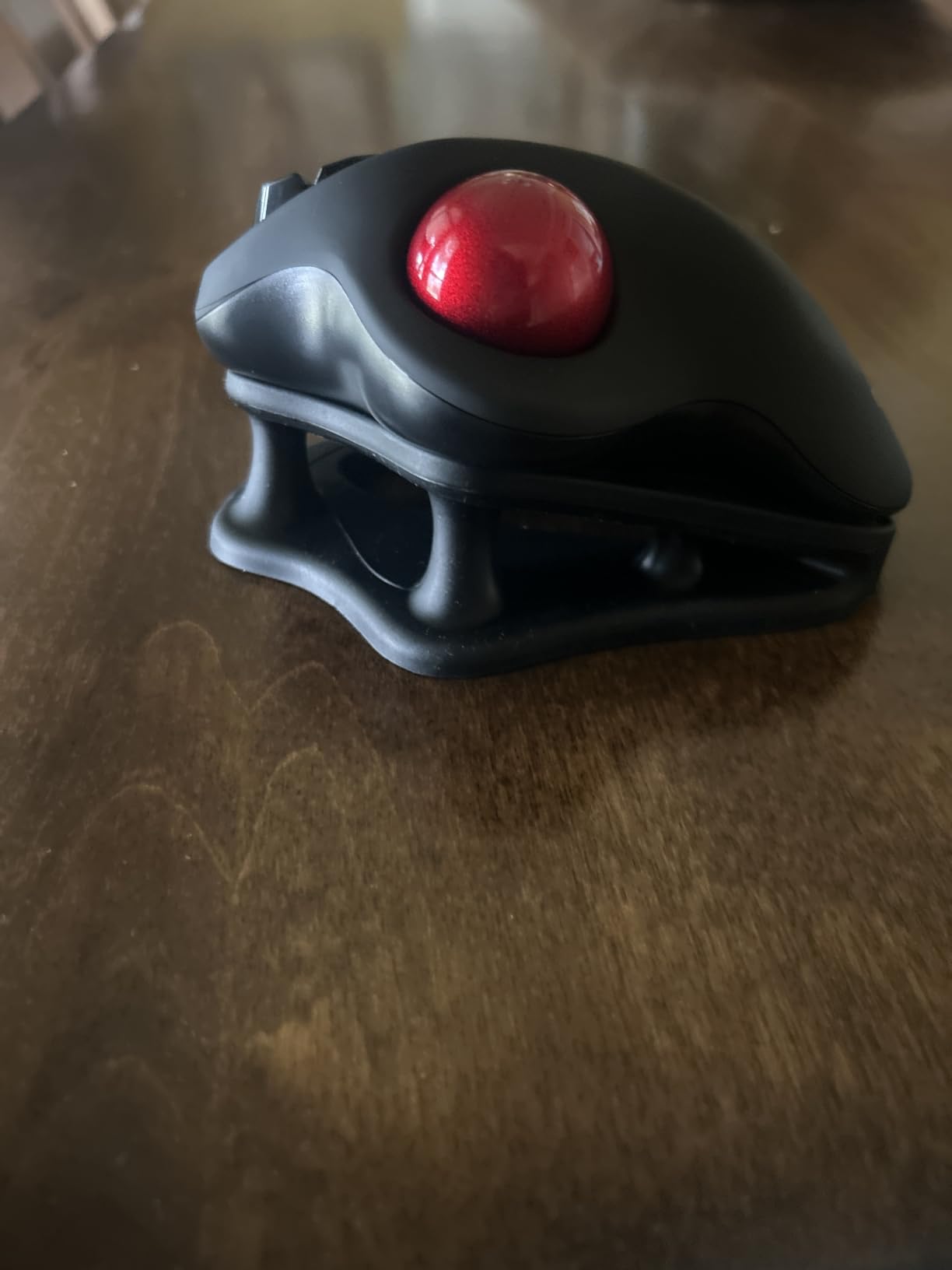
The rechargeable lithium cell is the quiet winner here. You are not hunting for AA cells every few months, and the included charge over USB means one cable for the whole desk. It runs on Windows and macOS and pairs with a PC, a laptop, a tablet or a Mac, which is why it keeps showing up in shared-desk setups.
The 10-meter range and the fact that the shell never moves both matter more than they sound. You can use it on a lap, a chair arm or a cramped meeting table, and because nothing needs a mouse pad, you reclaim a large rectangle of desk for a notebook or a second screen.
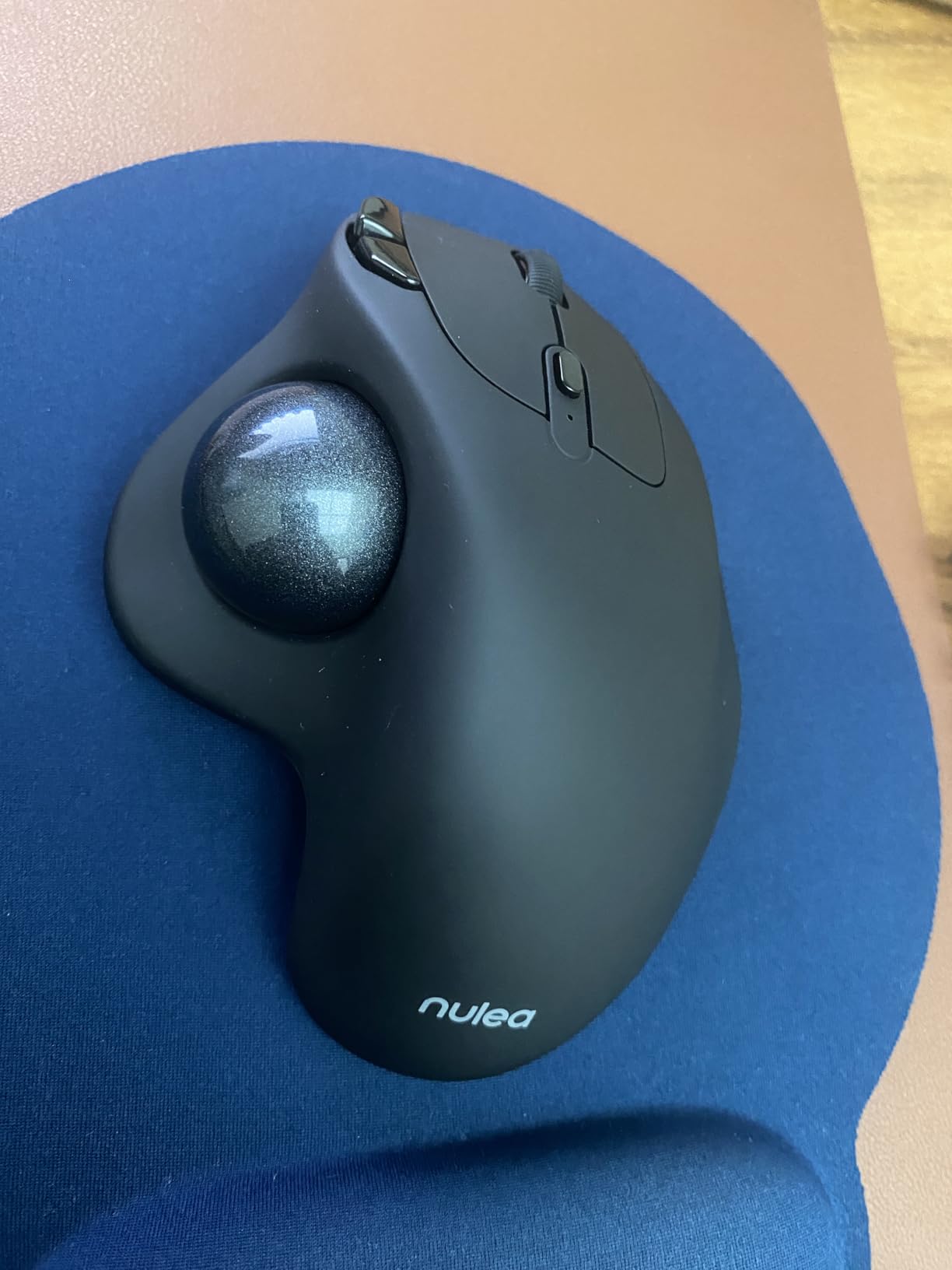
When the M501 is the right office choice
It suits spreadsheet-heavy days, shared hot desks and anyone moving between two or three machines. If you need per-app button remapping or a macro layer, look elsewhere, because these six buttons are fixed.
It is also the safest first trackball purchase in this list. The rating base is large enough that the failure modes are well documented rather than speculative, so you know what you are getting.
When the M501 is the wrong office choice
Skip it if you need programmable buttons for CAD or design software, or if your workflow demands swapping machines mid-task without lifting the device. The underside switch is the deal breaker for some people and a non-issue for others.
If Bluetooth is your only connection option, use the 2.4GHz dongle. Owners report the wireless link is noticeably more consistent over the dongle, particularly on crowded office networks.
2. TECKNET Wireless Trackball – Quiet, Roomy and Top Rated
- Works with no software installed at all
- Light 60 g body reduces hand cramp
- Silent switches suit open-plan floors
- Three-device switching across two Bluetooth channels and 2.4GHz
- Three-year warranty
- No user-programmable buttons without vendor software
- Side buttons sit deep on a larger shell
- Some owners report paint wear at the palm contact point
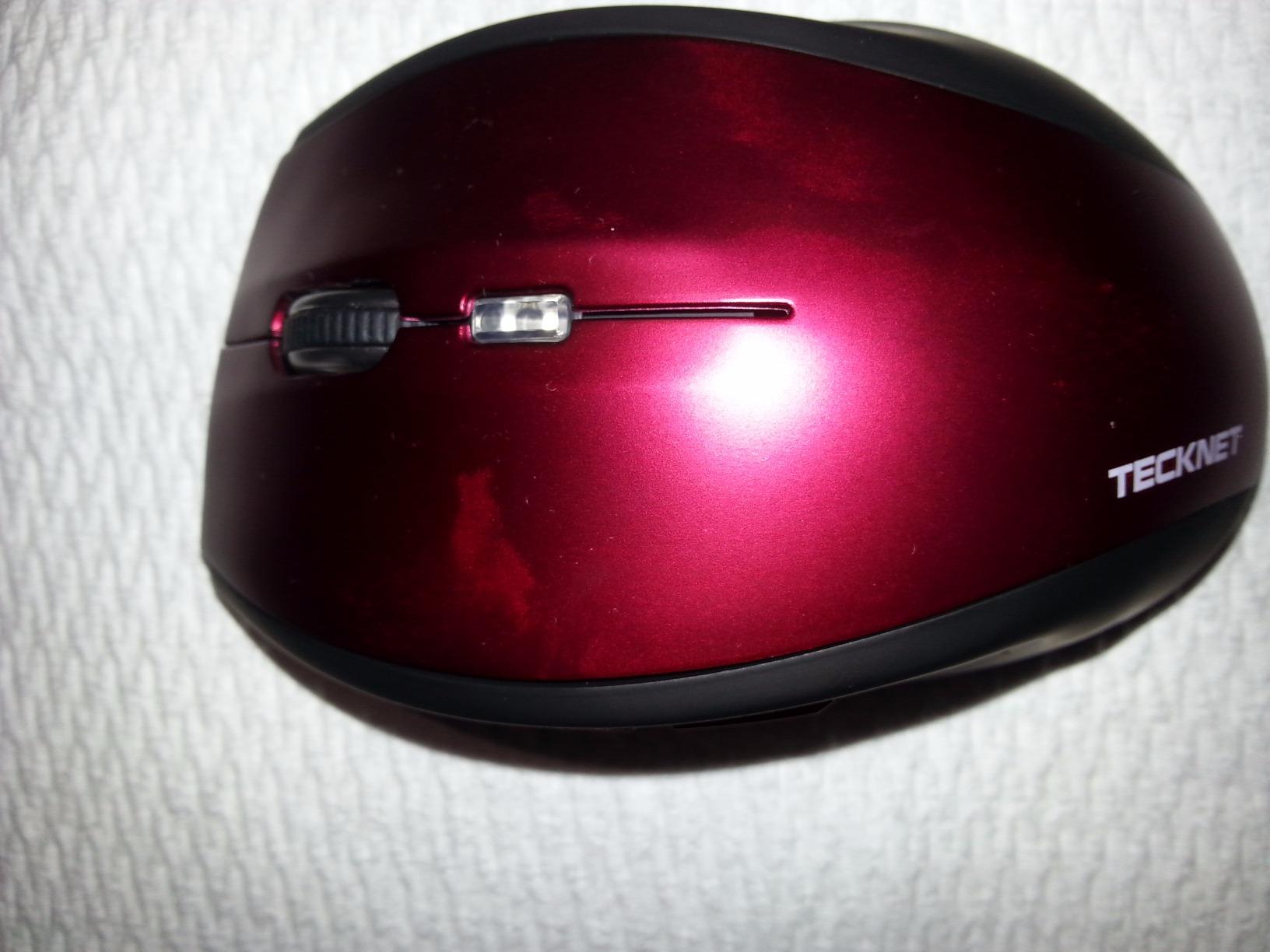
The TECKNET is the one I recommend for an open-plan office where click noise travels. Its silent switches are genuinely quiet, and at 60 grams the body is the lightest full-size thumb ball in this group, which matters over a long shift.
Reviewers love that it needs nothing installed. On a managed or locked-down work laptop, where IT blocks driver software, that single fact removes the biggest practical objection to a budget trackball. The 16-degree vertical angle is also doing real ergonomic work, tipping the hand so the forearm is not held flat all day.
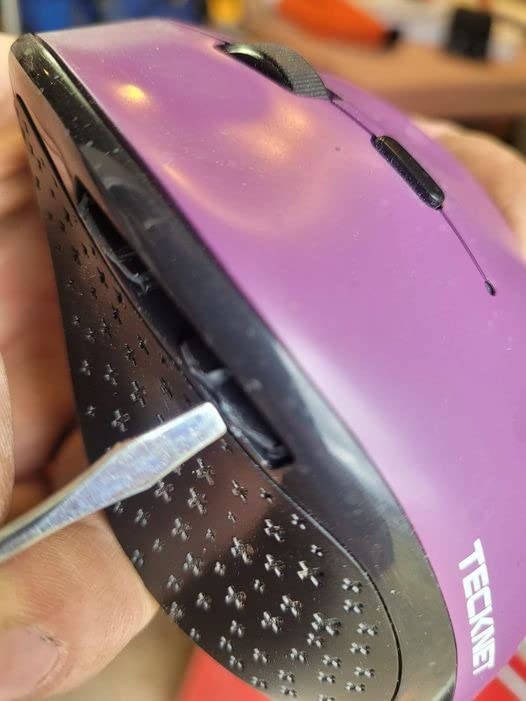
It pairs across two Bluetooth channels and 2.4GHz, so three machines sit in memory at once, with a range that comfortably covers a large office floor. The 500mAh battery is rechargeable and has a fast-charge top-up mode for the days you forget.
Five DPI levels from 100 to 1200 give you more granularity than most rivals, which is useful when you alternate between text editing and a wide spreadsheet. The shell is shaped for medium to large hands rather than small ones, and it fills the palm instead of perching on it.
When the TECKNET is the right office choice
It fits shared hot desks, call-heavy floors and any restricted corporate machine where software installation is not an option. The 36-month warranty is also the second longest in this lineup, which matters for a device that will live on a desk for years.
Choose it over the Nulea if your priority is silent clicking and a lighter, roomier body, and over the Logitech pair if you never want to install anything.
When the TECKNET is the wrong office choice
It is not the pick for anyone who wants per-application shortcuts or a proper macro layer. The buttons do nothing clever without the vendor utility, and the utility itself is described by owners as needing work.
Small hands should look elsewhere. The shell is generous by design, which means the deep side buttons become a stretch rather than a fingertip press for shorter fingers.
3. Kensington Orbit K75327WW – Ambidextrous With a Scroll Ring
Kensington Orbit Trackball Mouse with Scroll Ring (K75327WW), Black-Grey
- Genuinely ambidextrous for left-handed and alternating-hand use
- Scroll ring is far easier to spin than a small wheel
- Wired design means no batteries at all
- Detachable cushioned wrist rest included
- Free Kensington utility for button and speed changes
- Only two programmable buttons
- Wired cable adds desk clutter
- Scroll ring design is patented so no rival offers it
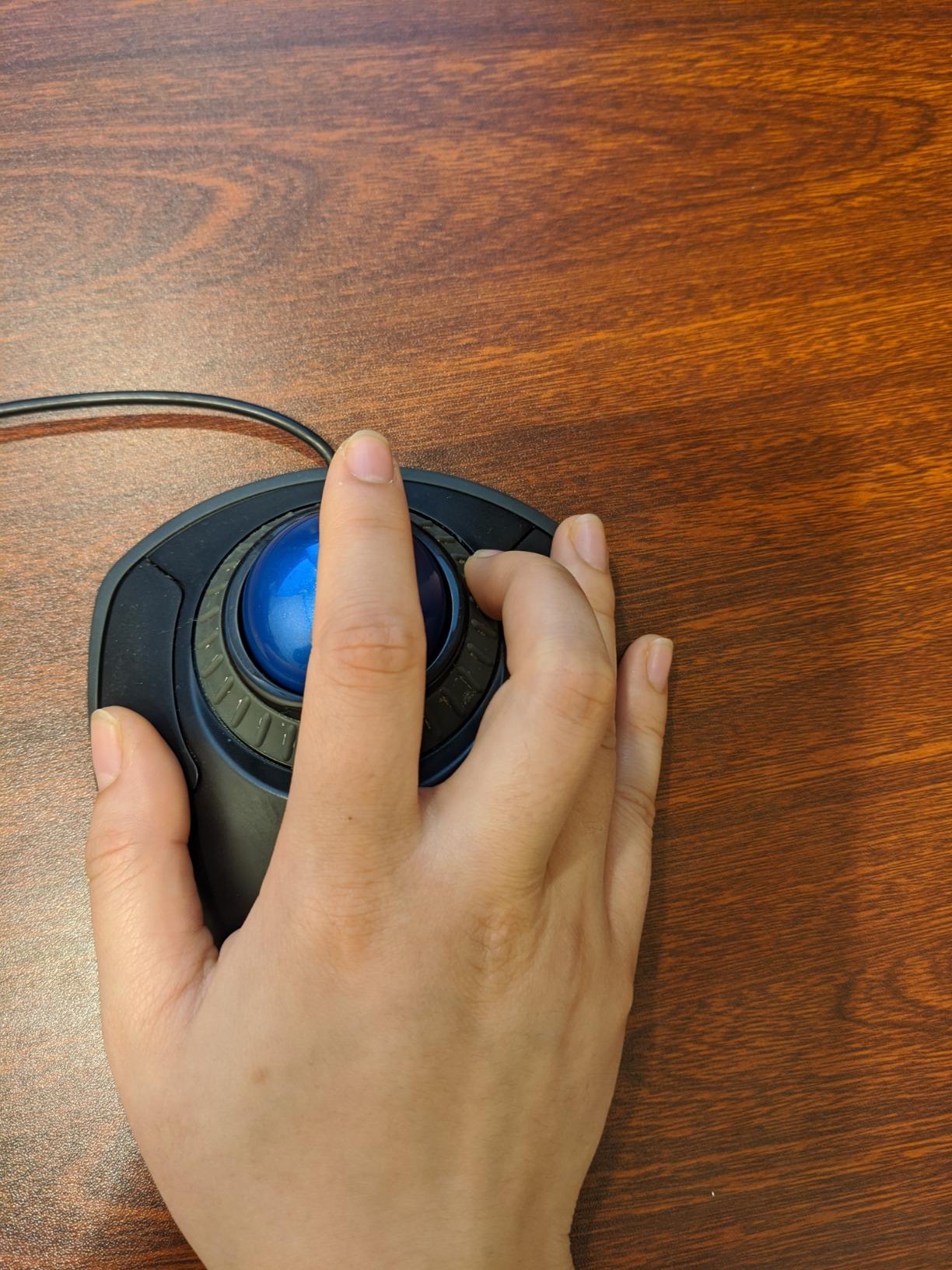
The Orbit is the cheapest credible way to find out whether finger control works for you, and it is the only ambidextrous option at this level. Left-handed users get a real alternative here rather than being told to mirror a right-handed shell.
Its real signature is the patented scroll ring. Owners report spinning it for long documents and reports is far less effort than working a small wheel, and the ring clicks for page and line modes. Over a full day of reading specifications and contracts, that difference adds up.
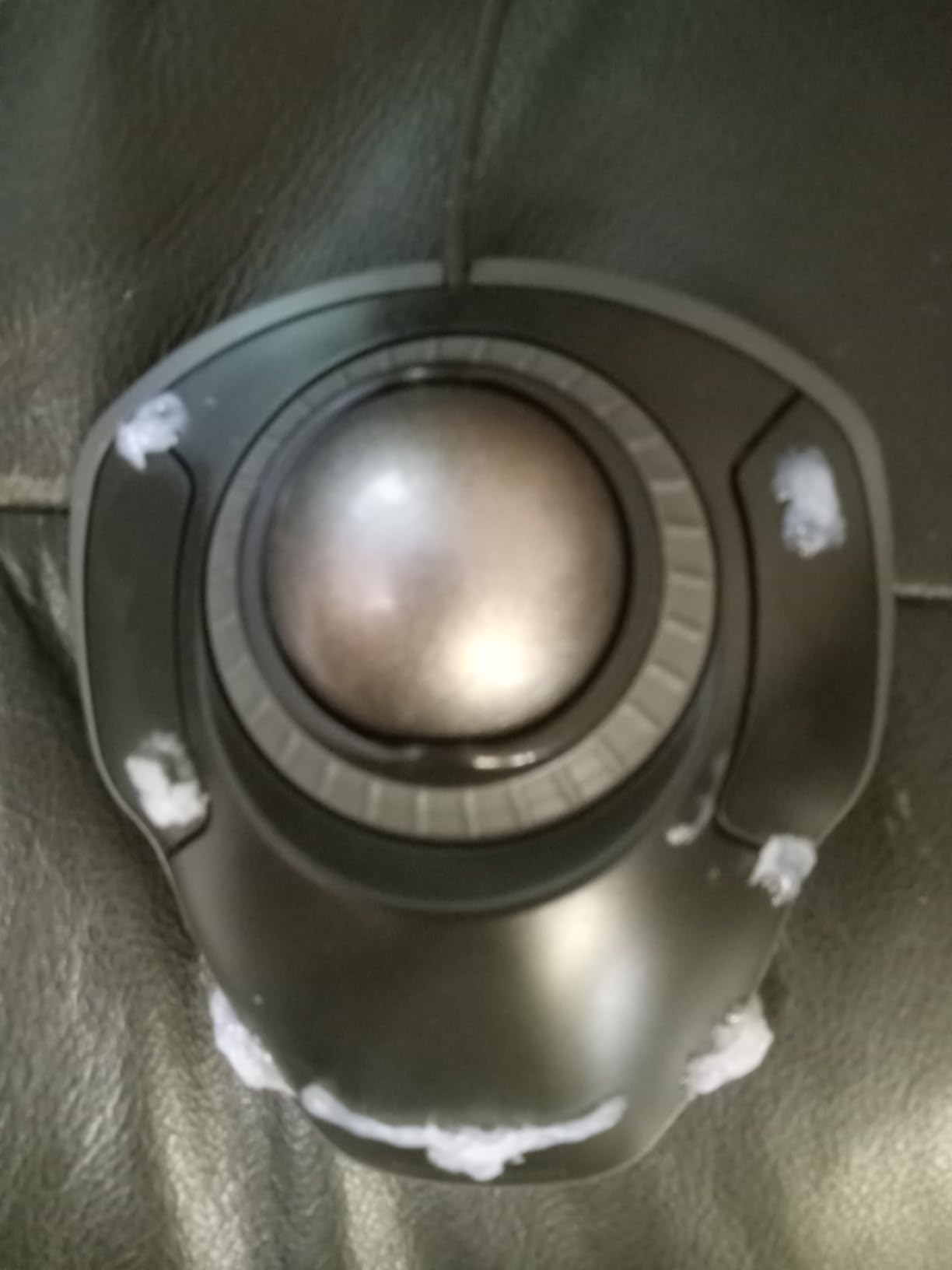
Being wired is a genuine advantage in a fixed office. There is no battery to change, no receiver to lose behind a monitor, and nothing to forget when you move desks. Several competitors in this list need a USB port held open for a dongle that can drop out after sleep.
The detachable cushioned wrist rest is included and pops off when you want the low profile, and the free Kensington software handles button assignment plus cursor and scroll speed adjustment. It runs on Windows 11 and Mac OS 13 Ventura.
When the Orbit is the right office choice
It fits fixed desks, left-handed users and anyone who alternates hands through the day. It is also the best budget trackball mouse for a machine where you would rather not manage a battery or a wireless link.
Pick it if your work is document-heavy rather than button-heavy. Two programmable buttons is enough for back and forward; it is not enough for shortcuts.
When the Orbit is the wrong office choice
It is the wrong pick for power users who want more than two buttons or a dedicated middle click for opening tabs. Reviewers consistently name the small button count as its main limitation.
The cable is a problem on a small desk or a sit-stand rig where you want a clean surface. If desk tidiness is your priority, a wireless model is a better direction.
4. ELECOM EX-G – Compact Shell With Ruby Bearings
- Ruby bearings stay smooth and resist dust
- Ball ejects from the bottom for easy cleaning
- Six buttons plus a tilting scroll wheel for horizontal moves
- Compact 4.9 x 3.7 inch shell suits a small desk
- Charge indicator lamp shows remaining battery
- Lowest rating in this lineup at 4.1 stars
- Only two DPI steps
- Right-handed shell with no left-handed equivalent
- Supplied software is described as unintuitive
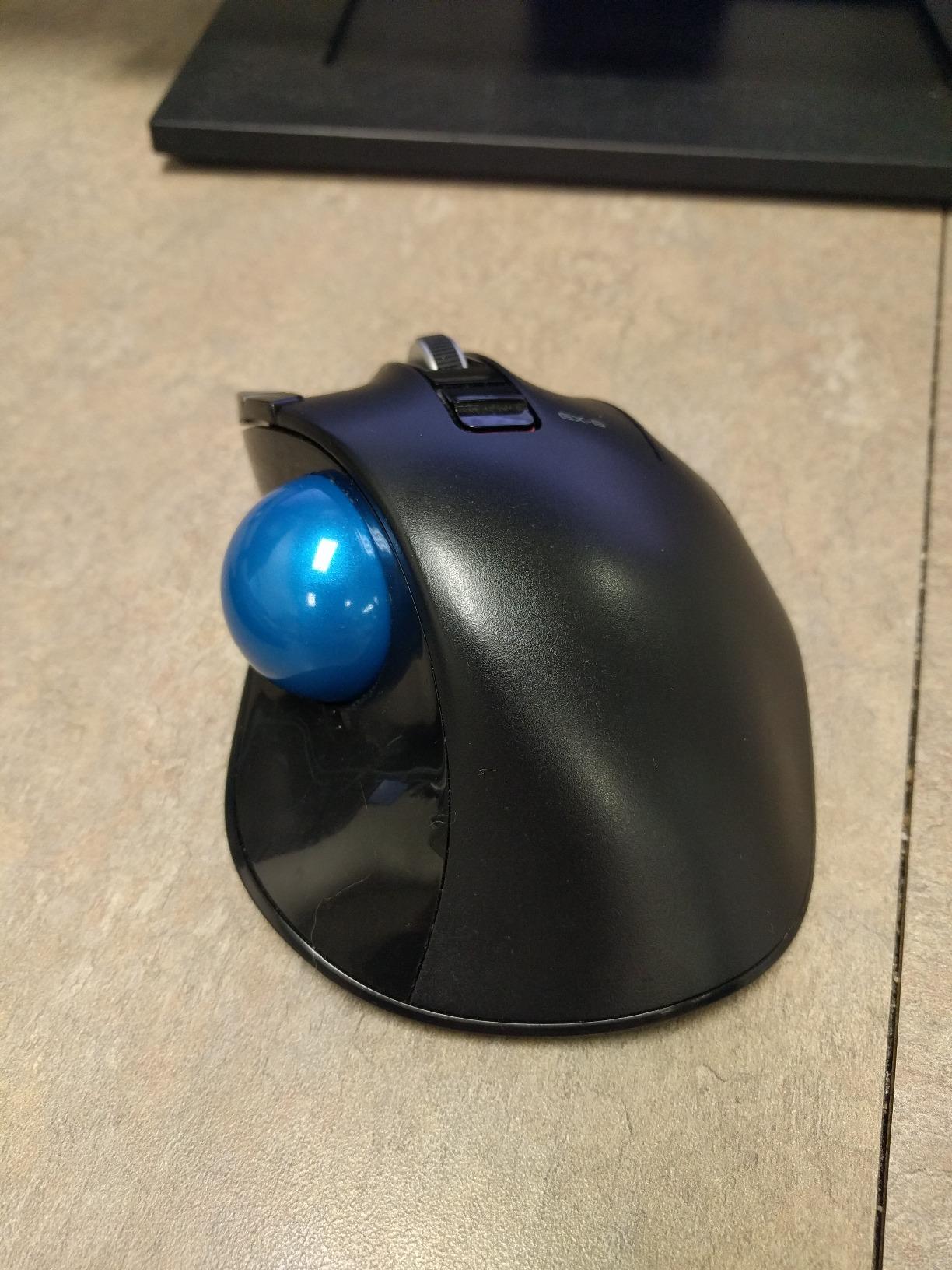
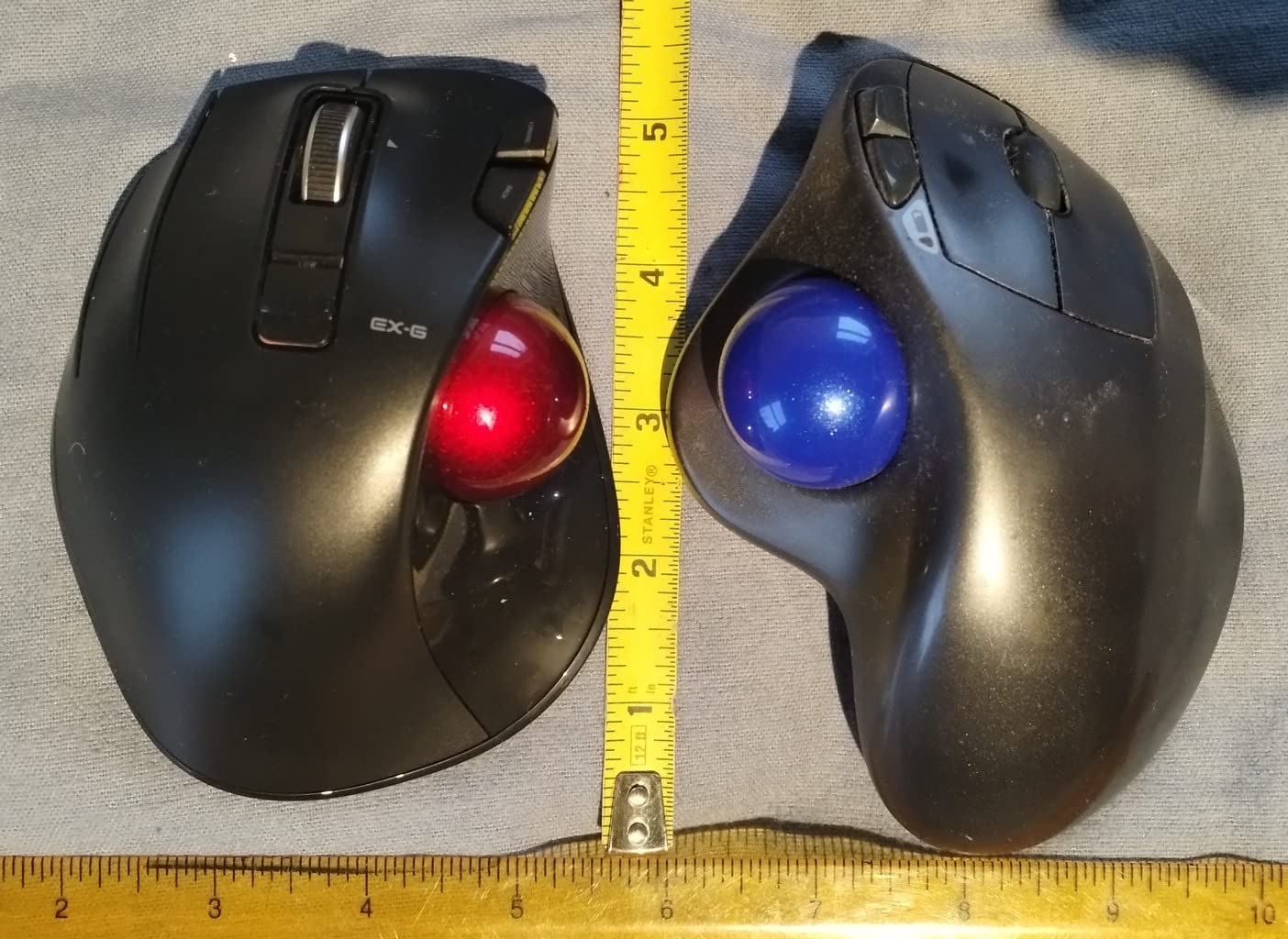
The EX-G is the smallest footprint in this roundup at 4.9 by 3.7 inches, and that is why it is here. If your available desk area is the binding constraint, this is the thumb-operated model that fits, and it still carries six buttons.
The bearings are the story. Three ruby ball bearings resist dust and grit far better than plain steel rollers, which is why owners report a consistently smooth roll after months in a busy office. The ball also ejects from the underside, so cleaning the socket takes under a minute.
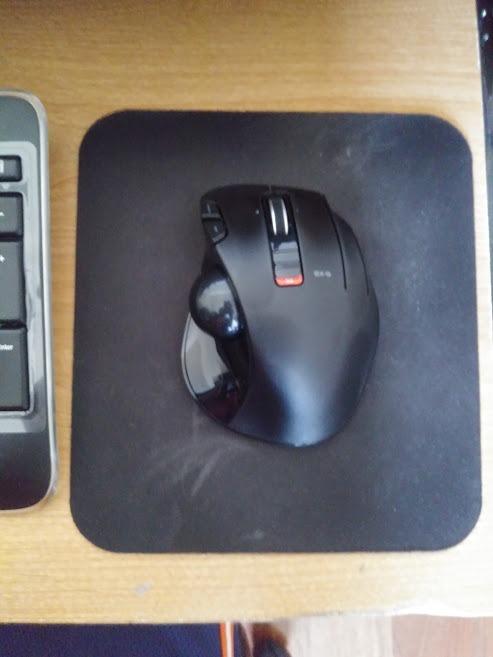
It switches between 500 and 1500 DPI, and the tilting scroll wheel handles horizontal movement inside a spreadsheet without a modifier key. Windows 10 and older platforms are listed as supported, and the 10-meter wireless range covers a normal office.
At 7.04 ounces it sits between the featherweight budget models and the heavier ergonomic shells, which is a reasonable middle ground for a full day. The battery indicator lamp is a small touch that prevents the surprise of a dead device mid-task.
When the EX-G is the right office choice
It suits a genuinely cramped desk, a shared hot-desking bench with limited square footage, and anyone who wants a cleanable ball without a full service loop. Six buttons is more than most budget rivals offer.
It is also a good first trackball, because the small body does not ask you to relearn a large hand position on day one.
When the EX-G is the wrong office choice
It is the lowest-rated model here, and the reason is consistent across reviews. Two DPI steps give you far less control than the four or five steps on the Nulea, the TECKNET and the seenda.
Skip it if you are left-handed, and think carefully if you need good button remapping. Several owners found the supplied utility hard to follow, and some needed it running for the programmable buttons to behave.
5. Logitech Ergo M575S – Best Value Thumb Ball
Logitech Ergo M575S Wireless Bluetooth Trackball Mouse – Graphite Blue Ball
- Quiet clicks feel planted rather than mushy
- Logi Options+ gives per-app profiles and cursor speed
- Manufacturer states 25 percent less forearm muscle strain
- Three customizable buttons
- Made with certified post-consumer recycled plastic
- Single AA battery instead of USB-C rechargeable
- Logi Bolt receiver means older Unifying setups need a second dongle
- Warranty cut to one year on this generation
- Forward and back buttons can be a stretch for small hands
The M575S is the model most offices end up with, and the reason is the software as much as the shape. Logi Options+ gives you per-application cursor speed and button profiles, which is what turns a trackball from a pointing device into a productivity tool.
Owners upgrading from an M570 or M575 Pro consistently highlight the quieter clicks on this generation. The clicks feel planted rather than soft, which keeps the M575S viable on a floor where conversation matters.
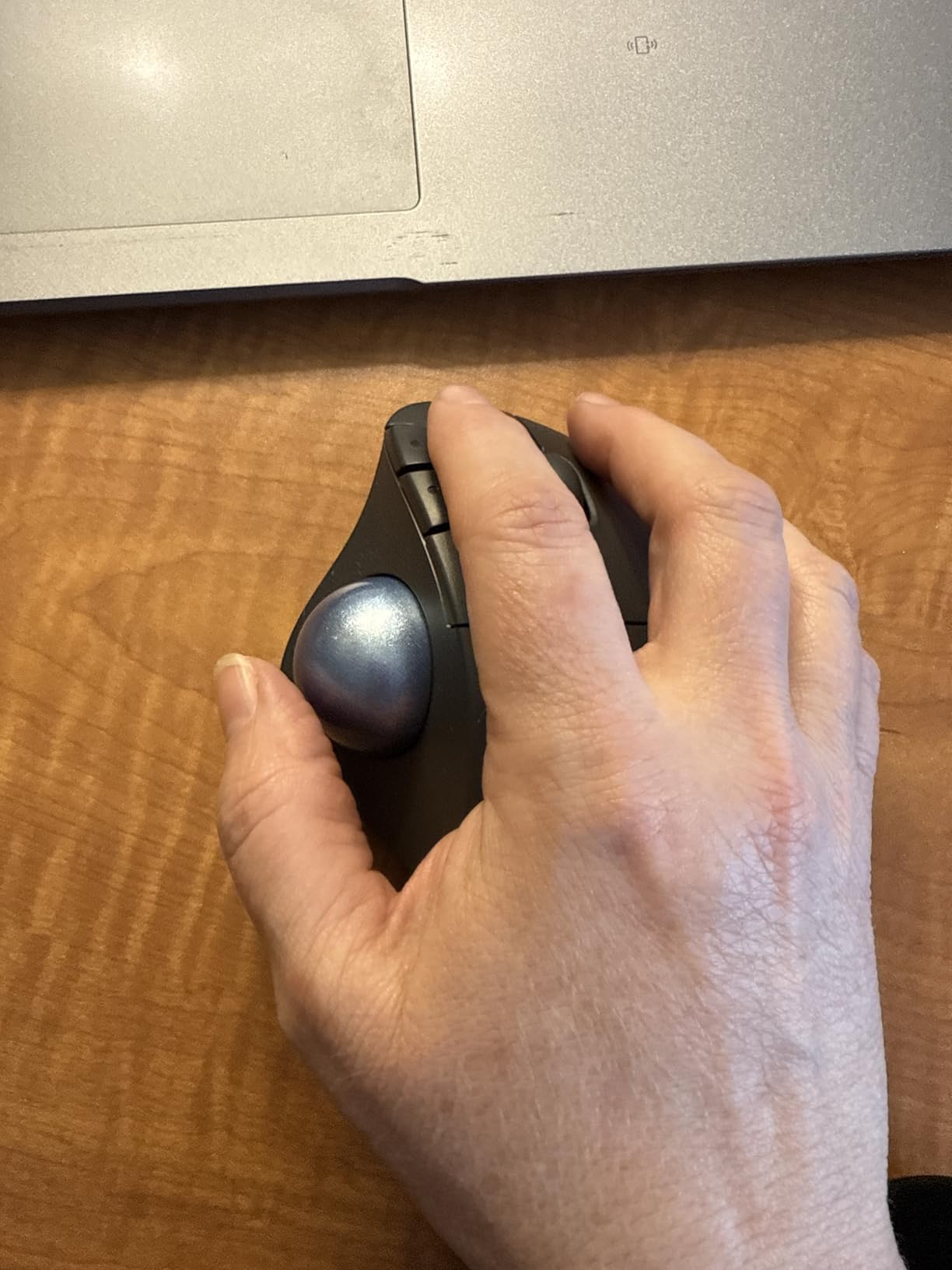
The single AA cell runs for months on a charge according to the manufacturer, so the charging conversation never comes up. It connects over Bluetooth or the included Logi Bolt receiver, and it works on Windows and macOS, with a maximum sensitivity of 2000 DPI.
Expect two to three days of adjustment if this is your first trackball, which is the timing owners most often report. Logi Options+ is worth setting up on day one, even if you only adjust the pointer speed.
When the M575S is the right office choice
It fits spreadsheet and document work where per-app pointer settings genuinely help, quiet floors, and anyone who wants a proven software ecosystem rather than a novelty utility. The 2000 DPI ceiling gives fine placement for design review and photo work.
It is the most sensible second trackball too, because the learning period transfers directly to any other thumb model.
When the M575S is the wrong office choice
Two things put people off. The warranty on this generation dropped to one year, and the AA battery is behind the rechargeable curve for anyone who hates carrying spare cells.
Older Logitech Unifying keyboard and mouse setups will need a second dongle for the Bolt receiver. And with small hands, the forward and back buttons can sit just out of comfortable reach.
6. Kensington Expert Wireless K72359WW – The 55mm Finger Ball Classic
Kensington Expert Wireless Trackball Mouse (K72359WW) Black, 3.5″ x 6.1″ x 8″
- Largest ball in the lineup at 55mm for both sweeping and fine moves
- Clickable scroll ring gives page and line scrolling
- Ambidextrous shell with detachable wrist rest
- Works over Bluetooth LE or the included dongle
- Four customizable buttons in KensingtonKonnect
- Bulky body demands real desk space
- Auto-sleep timer needs reconfiguring in software
- KensingtonKonnect is Windows-centric and skips ARM-based Windows devices
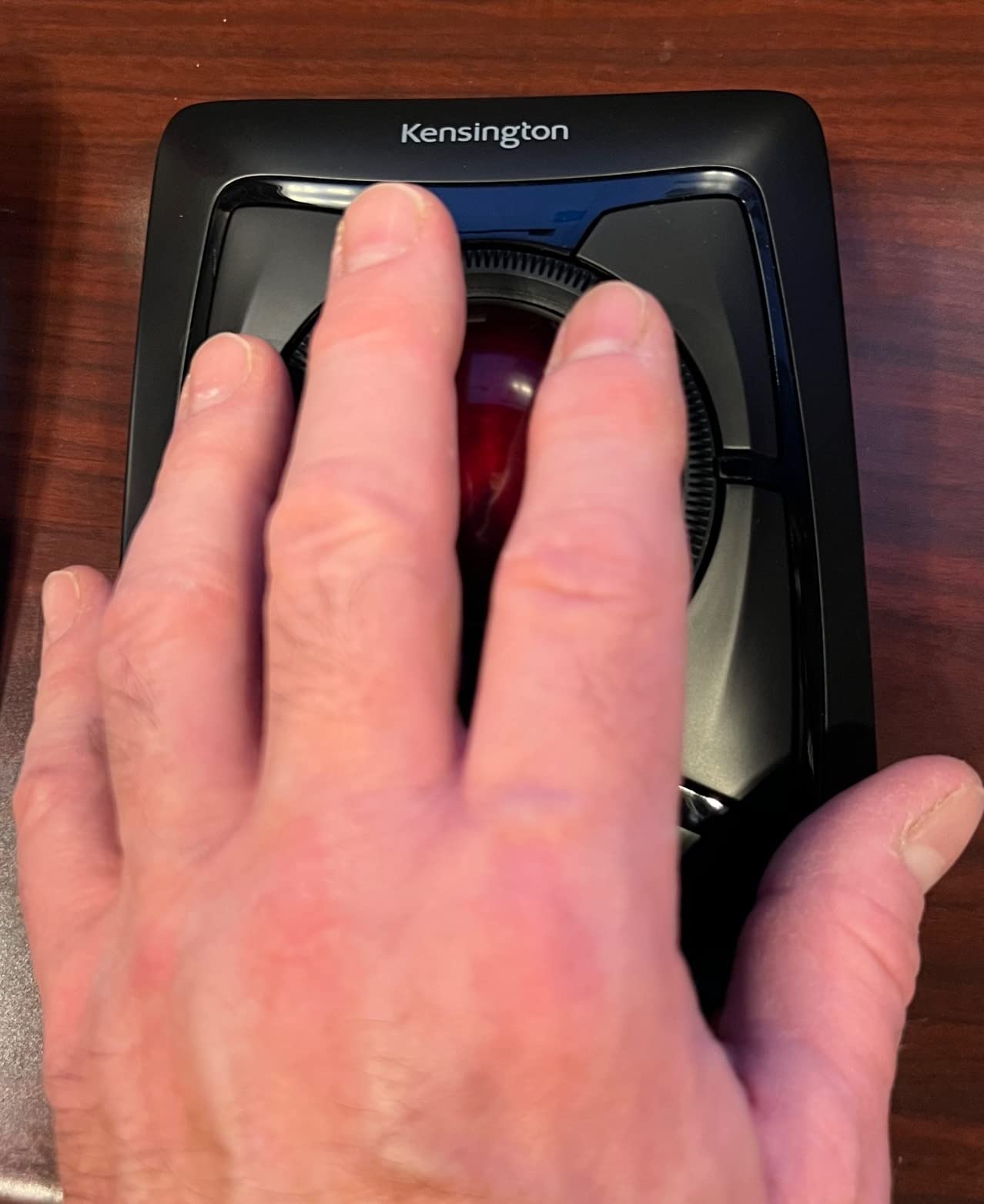
The Expert is the classic office finger trackball, and at 55mm the ball is nearly twice the diameter of a typical thumb ball. That size is the whole argument: you can sweep a three-monitor span in one roll, then slow right down to place a cursor inside a single cell.
Reviewers with long trackball histories treat this as the benchmark. The Diamond Eye optical tracking handles both regimes, and the detachable wrist rest plus ambidextrous shell make it the most genuinely two-handed model here.
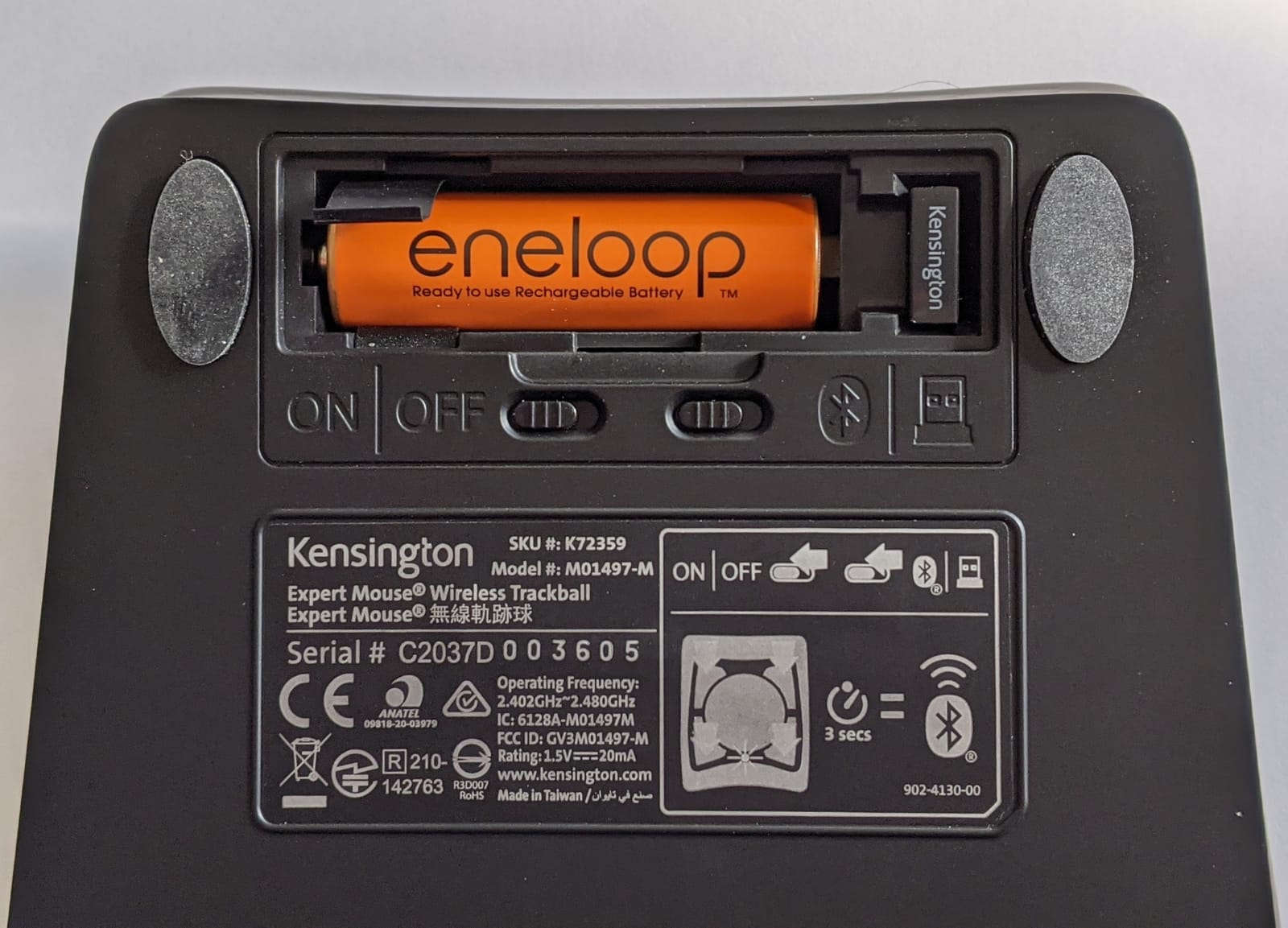
It ships with two AA batteries, a dongle, the wrist rest and a printed guide, and it connects over Bluetooth LE or the 2.4GHz dongle. The 3-year parts and labor warranty is the longest in this group and the single best reason to consider a keyboard-and-mouse bundle on the same terms.
The scroll ring clicks for page and line scrolling, which is why owners doing long document reviews single it out. KensingtonKonnect handles the four buttons, scroll speed and cursor speed, with a separate touch-scroll option.
When the Expert is the right office choice
It fits multi-monitor and ultrawide desks, CAD-adjacent review work, and any office that values a three-year warranty more than a sealed rechargeable cell. Left-handed and alternating-hand users are properly served.
Choose it over the ELECOM Huge if you want a slightly smaller body and a longer warranty, and over the Orbit if you need more than two buttons.
When the Expert is the wrong office choice
Desk space is the hard limit. At 8 by 6.1 inches this is a large object, and reviewers with small desks report it is the reason they returned a finger trackball. There is no compact version of a 55mm ball.
Also skip it if you use ARM-based Windows hardware, because KensingtonKonnect does not support it. Expect some configuration fiddling to turn off the auto-sleep timer.
7. ELECOM Huge – 52mm Ball Built for Large Hands
ELECOM Huge Trackball Mouse, 2.4GHz Wireless, Index Finger Control
- Index-finger control gives finer sensitivity than thumb balls
- Eight buttons plus a five-function scroll wheel
- Large soft palm rest makes the footprint worthwhile
- Unusually low wireless latency
- Most capable control surface in the lineup
- Very large body that crowds a small desk
- Right-handed only
- Bundled configuration software is hard to find and panned by owners
- Scroll wheel is hard to press as a button
The Huge is the most powerful finger model in this lineup, and owners with a trackball history tend to rate it as the best pointing device they have used. Index-finger operation delivers noticeably finer sensitivity than a thumb ball, which is the reason CAD-adjacent users gravitate here.
Eight programmable buttons is the highest count on this list, and the five-function scroll wheel adds tilt and page or line modes on top of normal scrolling. For a keyboard-and-macro-driven workflow, nothing else here gives you this much front-panel control.
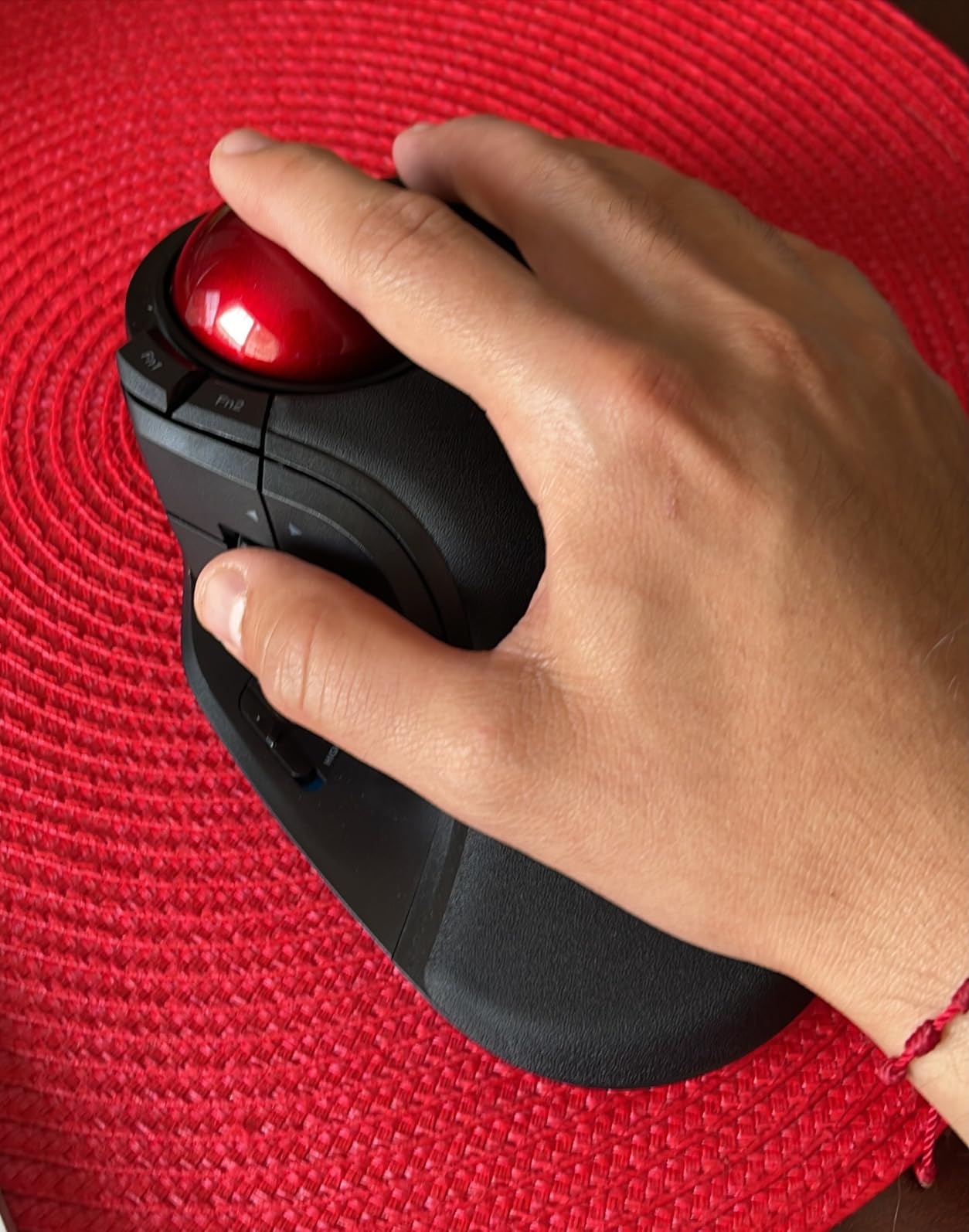
It runs for months on two AA batteries, and the 2.4GHz wireless link is rated to 10 meters. Because the shell never moves, owners report using it comfortably on a lap, a pillow or a chair arm during a call.
The 500, 1000 and 1500 DPI steps give you three usable speeds, which is more granularity than most finger rivals offer. Windows and macOS are both listed as supported.
When the Huge is the right office choice
It suits large hands, button-heavy workflows, and a desk with room to spare. If you have a trackball background and want the most control surface per unit of desk, this is the pick.
It is also the value option among finger balls, with a rating base of more than 3,300 owners backing the long-term reports.
When the Huge is the wrong office choice
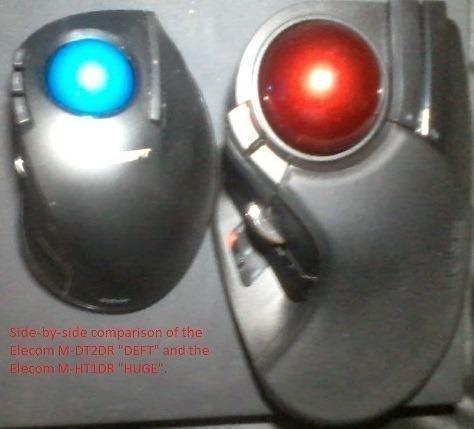
Small hands and small desks are the two disqualifiers, and owners return units for exactly that reason. The body is 7.2 by 4.5 inches and the index-finger learning curve is real if you have never used a finger ball.
It is right-handed only. And the ELECOM configuration software is widely criticised, so budget time for setup or accept the factory defaults.
8. Logitech MX Ergo S – Adjustable Tilt Flagship
Logitech MX Ergo S Advanced Wireless Trackball Mouse USB C – Graphite
- Adjustable 20-degree tilt is the biggest ergonomic change over a flat shell
- One-button switch between speed and precision tracking modes
- 80 percent quieter clicks with a soft rubber grip
- USB-C fast charging adds a day of use per minute
- Easy-Switch button for moving between paired devices
- Smallest review base here at 815 ratings
- Charging cable is not included in the box
- Right-handed shell only
- Buttons need a recent Logi Options+ install to be fully useful
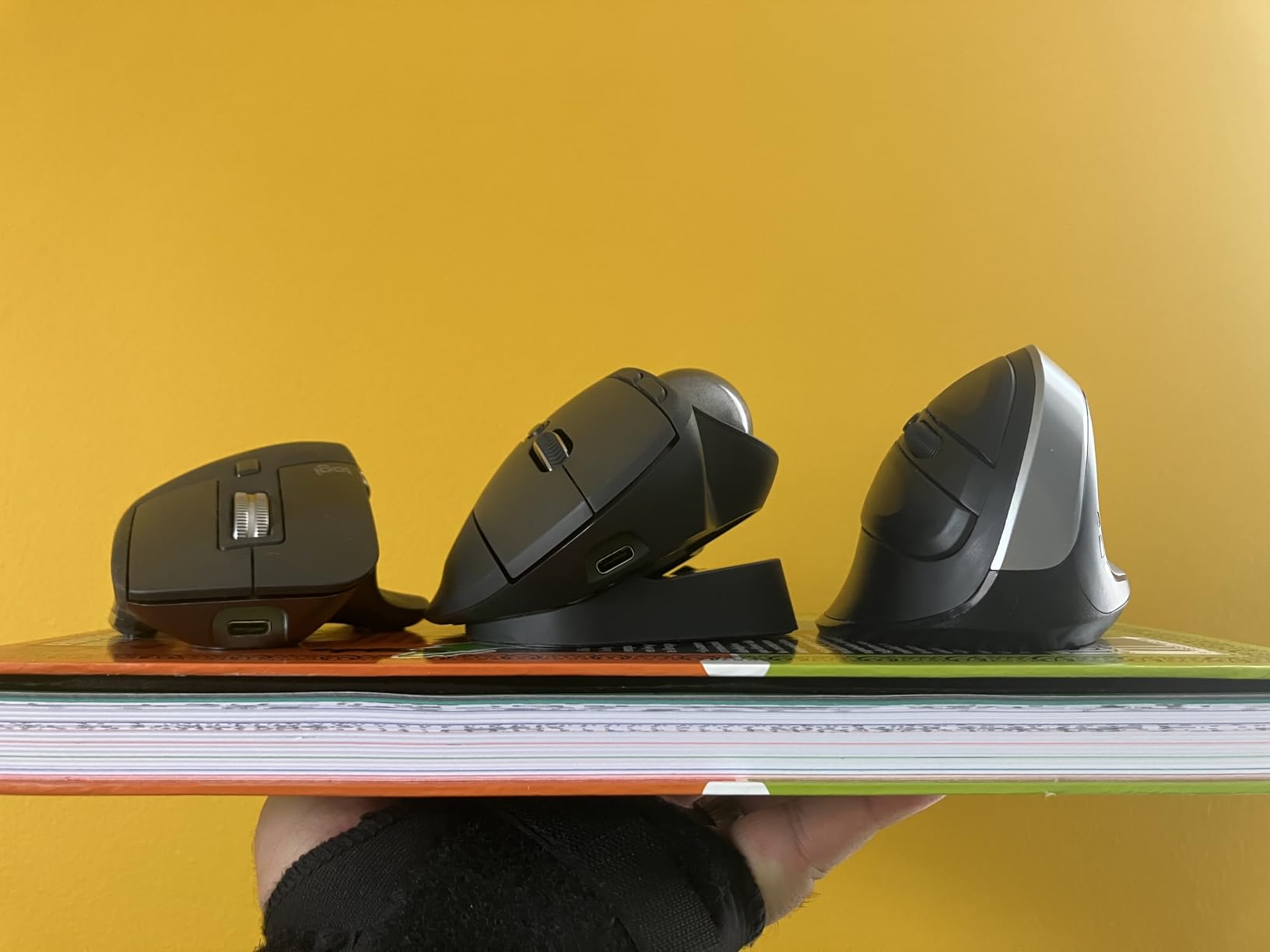
The MX Ergo S is the only thumb-operated model here with an adjustable tilt hinge, and that is why it wins on long-day comfort. Set at 20 degrees, the shell reduces the bend in your forearm compared with a flat thumb ball, and it is the feature owners most often call the reason they upgraded.
The speed and precision toggle is the second one worth understanding. One button switches the sensor between a fast mode for crossing monitors and a slower mode for drawing or dragging a selection precisely, and it changes how the ball feels immediately.
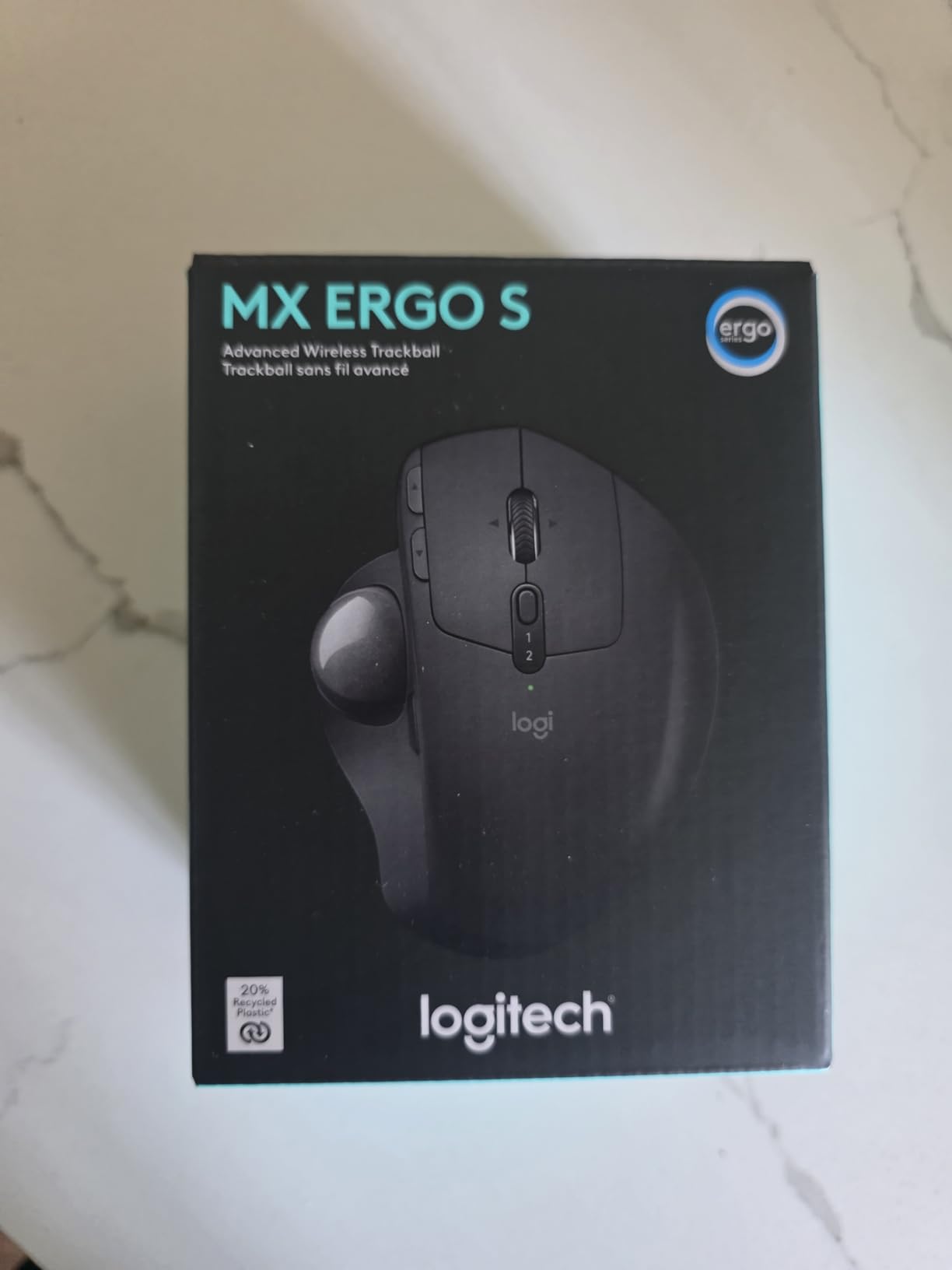
It is rechargeable over USB-C with a manufacturer figure of up to 120 days per charge, and a fast-charge top-up of one minute yields up to a day of use. That is the most convenient power story in the whole lineup, and it pairs over Bluetooth or the Logi Bolt receiver.
Maximum sensitivity is 2048 DPI, there are six customizable buttons available in Logi Options+, and the clicks are rated at 80 percent quieter with a soft rubber grip. The Easy-Switch button handles moving between a laptop and a workstation.
When the MX Ergo S is the right office choice
It fits chronic wrist and forearm discomfort, long days at one machine, and anyone who wants a charging cable rather than spare batteries. The tilt plus precision mode is also a strong pairing for design review and fine selection work.
Choose it over the M575S if tilt matters to you more than battery simplicity, and over the ELECOM models if software support is a priority.
When the MX Ergo S is the wrong office choice
Its review base is the smallest here at 815 ratings, so there is less long-term owner data behind it than the alternatives. If buying something you have to trust for a three-year deployment, that matters.
It is right-handed only, and the charging cable is not in the box. Plan for the tilt and the new app as a learning project during your first week.
9. ELECOM EX-G Left-Handed M-XT4DRBK-G – Built for Left-Handed Desks
ELECOM EX-G Left Handed Thumb Control Trackball Mouse Wireless M-XT4DRBK-G
- One of very few genuine left-handed trackballs available
- Six programmable buttons support multi-profile and key-combination mapping
- Light 4.5-ounce body with quiet buttons
- Red ball is marketed for improved optical accuracy
- Compact 3.7 x 4.9 inch footprint
- Ball can catch slightly at certain angles at high cursor speeds
- Some owners report short AA battery life
- Mouse Assistant must be downloaded and may install in the wrong language
- 5m wireless range with no Bluetooth option
This is the answer for a left-handed desk, and left-handed buyers treat it as the default because no major brand sells an alternative. It is a proper mirrored thumb shell, not a software-flipped right-handed one, so the ball sits under the correct thumb and the buttons fall under the correct fingers.
Software is the surprise. ELECOM Mouse Assistant supports multi-profile and custom key-combination mapping, and owners doing CAD and spreadsheet work single that out as the reason this model is more capable than its price suggests.
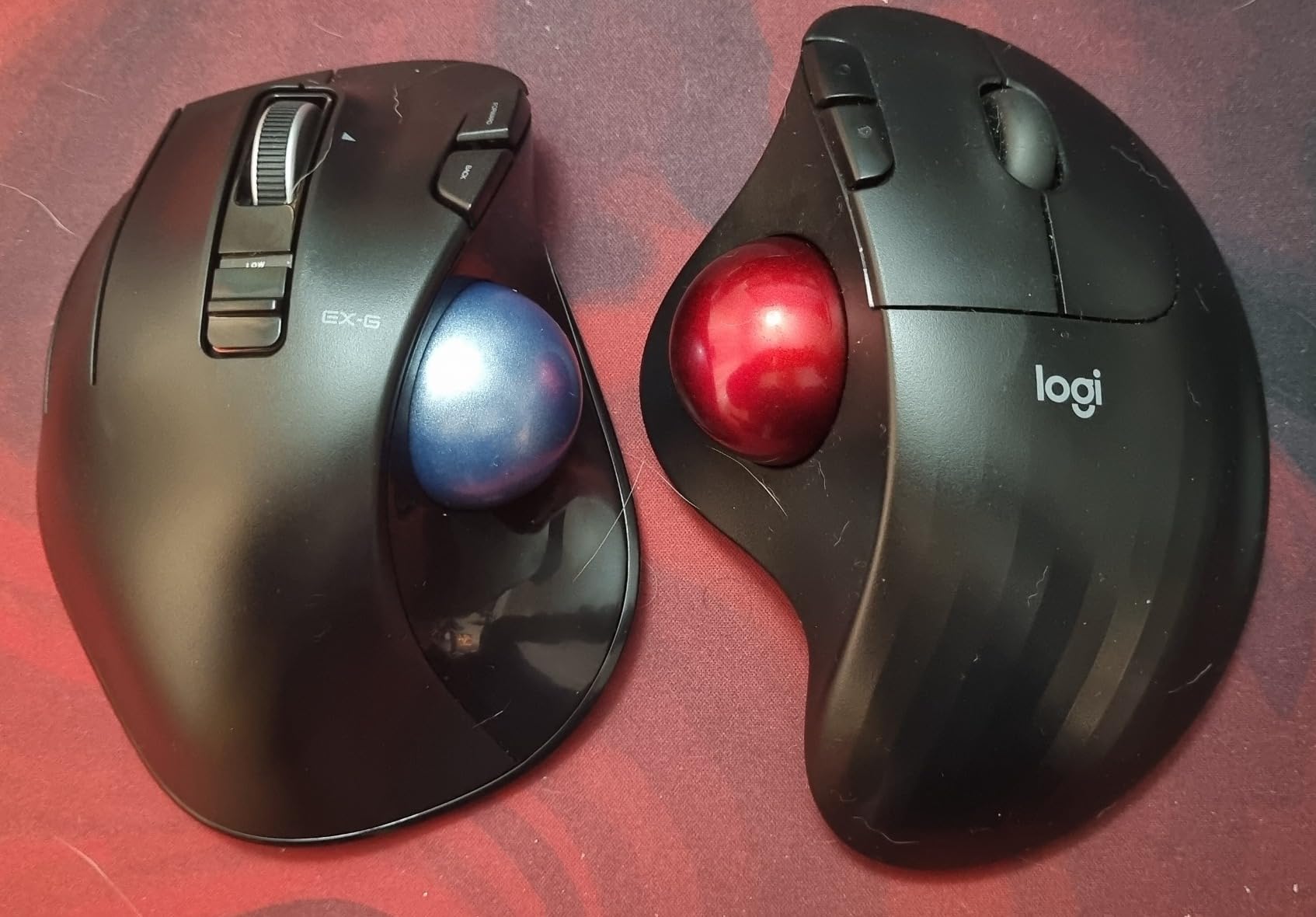
At 4.5 ounces and 3.7 by 4.9 inches it is the lightest and most compact model in this roundup, and the buttons are quiet. The red ball is a deliberate choice, marketed for optical sensor accuracy, and it switches between 750 and 1500 DPI.
The battery figure quoted by the manufacturer is the optimistic end of the range, and owner reports vary widely, so treat a spare AA as sensible office kit. Windows, Mac and tablet are listed as compatible.
When the left-handed ELECOM is the right office choice
It fits left-handed users, ambidextrous typists who alternate hands, and anyone who wants a genuinely quiet and light thumb ball at a low weight. Compact desks suit its footprint well.
If you are left-handed and want the software layer, this is effectively the only serious option in the category at this tier.
When the left-handed ELECOM is the wrong office choice
Some owners report a subtle catch in the ball at high cursor speeds, which is worth testing early if you work on very large displays. The 5-meter wireless range is also the shortest here and has no Bluetooth option for long-range desks.
Software setup is a known friction point. The installer can land in the wrong language, and a third button is disabled by default, which catches people out in the first hour.
10. seenda Wireless Trackball – Rechargeable Multi-Device Pick
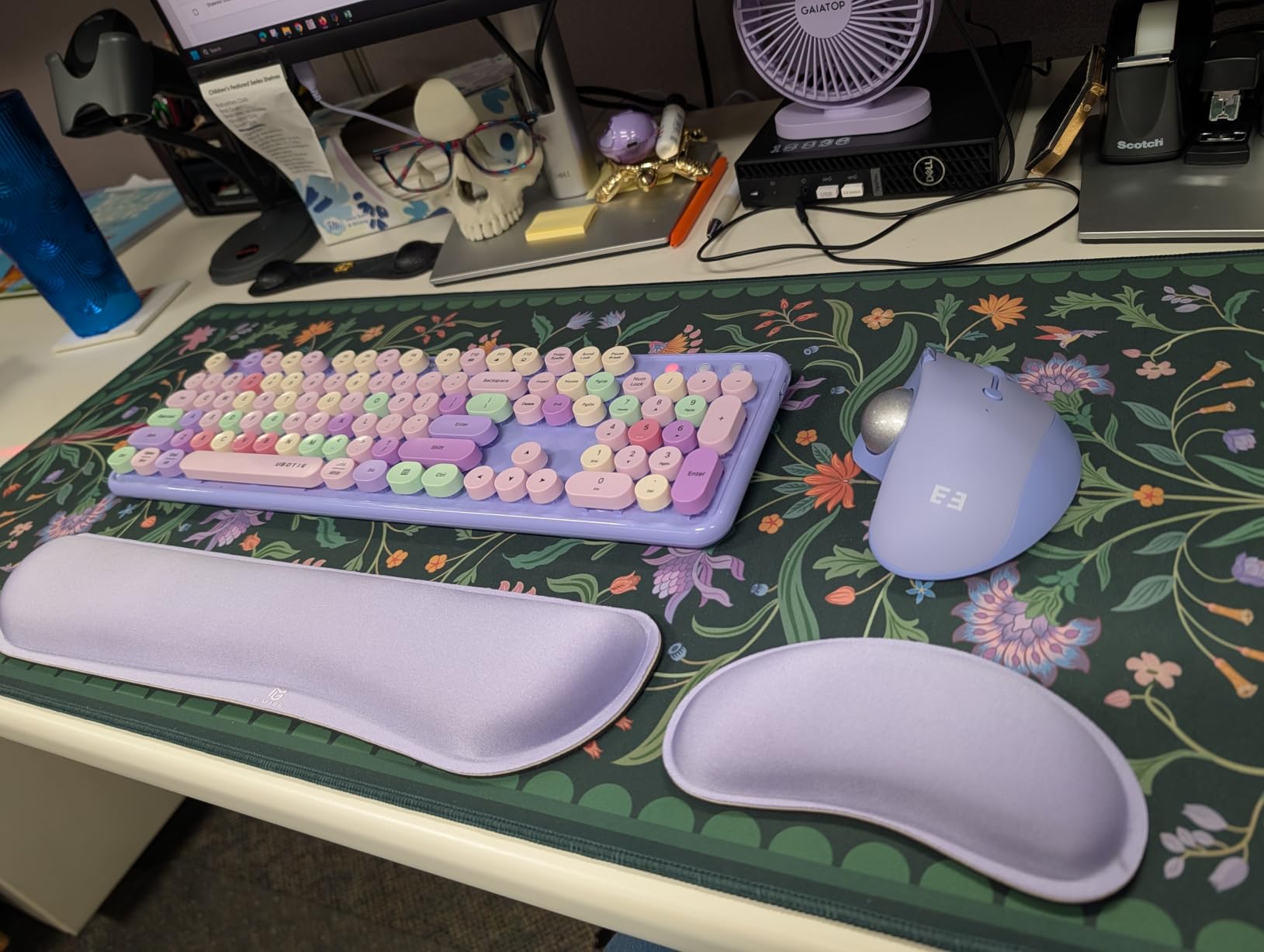
seenda Wireless Trackball Mouse, Ergonomic Bluetooth Rollerball Mice,Purple
- Rechargeable battery with the charging cable included in the box
- Connects with no extra driver on Mac
- Android and Windows
- Five DPI levels across a wide 200 to 1600 range
- Works on desks
- fabric or even a hand with no mouse pad
- Heaviest body here at 136 g which can feel bulky
- Right-handed shell only
- Shortest stated wireless range
- Little software support next to Logitech and Kensington
The seenda is the one I would pack. It is rechargeable, the cable is in the box, and it connects to three devices over 2.4G and Bluetooth with no extra driver, which is exactly the combination you want when you move between a hotel desk, a hot-desking bench and a home setup.
The full-size contoured shell fills the palm and gives real support for medium to large hands, and the five DPI levels from 200 to 1600 are the widest spread in this roundup. That range covers precise spreadsheet work and fast document sweeps without opening anything.
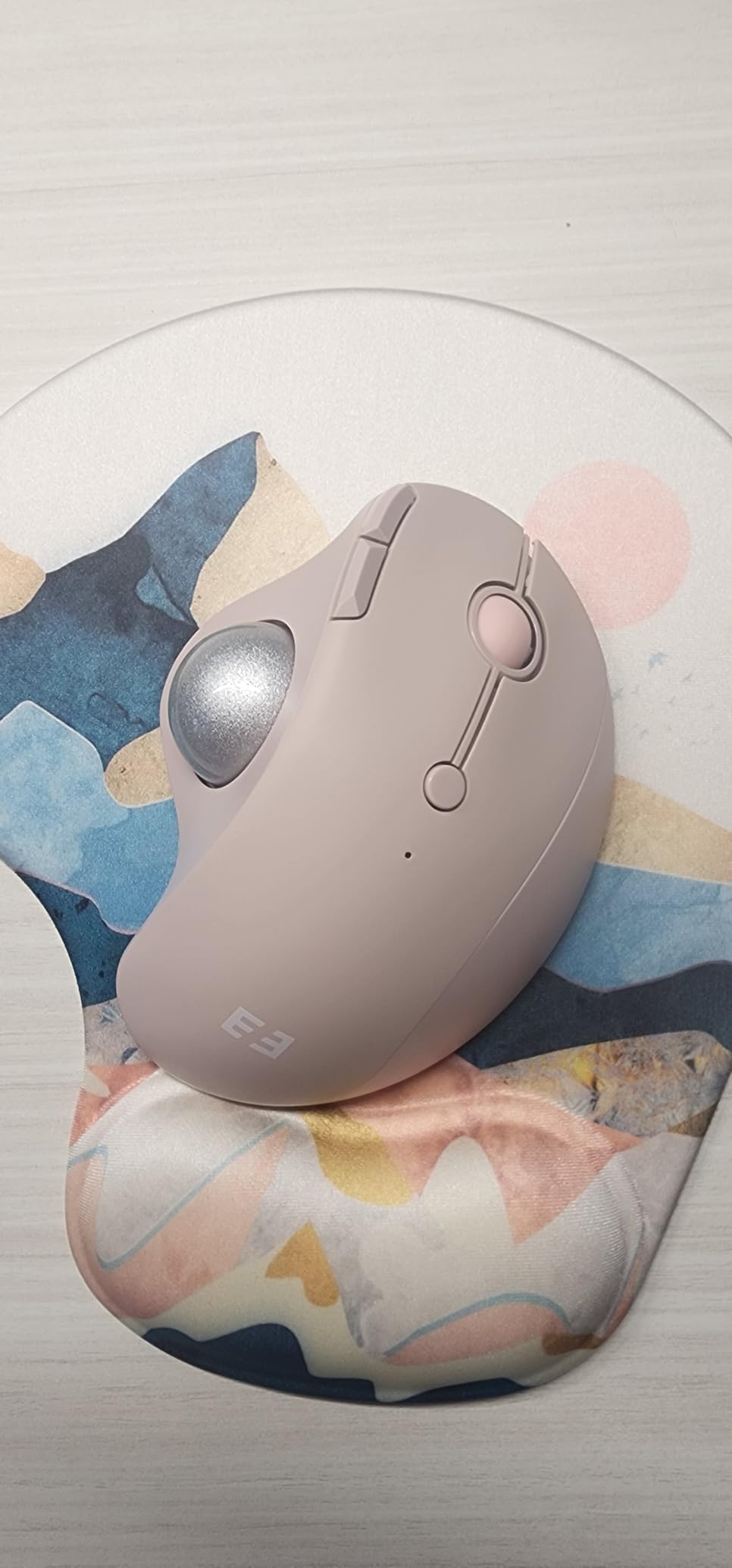
Because the shell stays planted, it works on fabric, a chair arm or your hand, which is more useful than it sounds during a call away from a desk. It carries a 12-month warranty and a rating base that sits comfortably in four-star territory rather than the very top of the table.
It is also a good demonstration unit for anyone unsure whether a thumb ball suits them, because the DPI range lets you try a deliberately slow setting for a day and decide from there.
When the seenda is the right office choice
It fits travelling workers, frequent hot-deskers, and anyone who wants a rechargeable budget thumb ball that spans several machines. No driver installation makes it friendly to restricted work laptops.
Pick it over the Nulea if you want a fuller palm-support shape and a wider DPI range, and over the TECKNET if charging by cable suits you better than a silent click priority.
When the seenda is the wrong office choice
At 136 g it is the heaviest body in this lineup, and owners who move between several trackballs notice that immediately. It is also right-handed only, with no mirrored version.
There is no button-remapping software, so anyone relying on shortcuts will be on the defaults. The stated wireless range is also among the shortest here.
Buying Guide: The Decisions That Matter at Work
Once you have settled thumb versus finger, the remaining choices come down to desk geometry, power and software depth.
Ball diameter and hand size
Thumb balls in this lineup are compact by design, roughly 3.7 to 5.5 inches across. Finger balls start at 5.46 inches for the Orbit and reach 8 by 6.1 inches for the Expert. Big balls are not a quality signal, they are a precision and stability trade for a bigger desk footprint.
Scroll method
Three methods appear here. The Orbit and Expert use a physical scroll ring that spins freely and clicks for page and line modes, the ELECOM EX-G and Huge use a tilting wheel for horizontal movement, and everything else scrolls conventionally. Rings take longer to learn but owners rarely go back.
Connectivity and power
Wired removes battery management entirely, and the Orbit is the cleanest example. Sealed rechargeable cells, as on the Nulea, TECKNET, seenda and MX Ergo S, mean one cable and no spares. Replaceable AA cells, as on the M575S, Expert and Huge, mean cheap consumables and no charging interruptions but a spare in your drawer.
Buttons and software
Logi Options+ and KensingtonKonnect are the two mature ecosystems here, with per-app pointer speed and remapping. ELECOM Mouse Assistant is capable on multi-profile mapping but rougher around the edges. The Nulea and seenda have no remapping layer at all, which is a real limit for shortcut-driven work. If you want the wider context, our ergonomic mouse guide covers the software comparison in more detail.
Polling rate, multi-monitor desks and precision
Published polling rates in this category are almost all in the office class rather than the gaming class, so do not expect a trackball to feel like a 1000 Hz mouse on a high-refresh display. For multi-monitor work, cursor speed and DPI range matter more: the 2000 DPI M575S and the 2048 DPI MX Ergo S give the most control at the top end. The same principle shows up in other precision-input hardware, as our guide to how robotic grippers work explains for mechanical end effectors.
Shared desks, hot-desking and sit-stand desks
Three practical checks. Where does the wireless receiver live between users, and does the shell store it. Does the device sleep aggressively, which is the biggest cause of the drop-out complaints on sit-stand rigs where the desk top rises out of range. And how many machines it holds, because three-device pairing models survive a bench change far better than single-device ones.
Cleaning and stiction
Sticky small movements are almost always dust in the socket or degraded support bearings rather than a failed sensor. The procedure that works: unplug or power off, eject the ball where the design allows it, wipe the ball and the three contact points with a dry cloth, and clear the cavity with a cloth rather than compressed air, which pushes debris further in. Models with ejectable balls and ruby bearings, such as the ELECOM EX-G, make this a two-minute job.
Who Should Skip a Trackball Mouse?
Trackballs are excellent, but they are not universally right, and skipping one honestly is better than returning one later.
You play competitive FPS titles. A trackball has no linear flick motion and no acceleration ramp you can rely on. You can game on one, but it is a compromise.
Your desk genuinely cannot take the footprint. A 55mm finger ball is a large object, and a cramped bench is the single most cited reason finger trackballs get returned.
You will not give it three days. The adjustment period is real and it is the top reason first-time buyers give up. Budget a week before you judge it.
You need many remappable buttons. The cheapest models here have fixed buttons and no software, which is a real constraint for macro-driven work.
Your symptoms are not movement-related. A trackball reduces arm travel, but it will not address a keyboard position, monitor height or chair problem.
Frequently Asked Questions
What are the downsides of using a trackball?
The honest list: a two to three day learning curve before the ball feels precise, a large finger ball that demands real desk width, no remappable buttons on the cheapest models, sticky small movements when dust reaches the support bearings, and no competitive gaming performance because there is no linear flick motion. A trackball also cannot fix a bad keyboard position or monitor height.
Are trackball mice still a thing?
Yes. Several of the models in this roundup carry thousands of owner ratings, and long-time users report keeping them for years. Trackballs remain a standard choice for office desks where desk space, shared hot desks or wrist and forearm discomfort matter more than flick-based gaming.
What is the best trackball mouse for office work?
The Nulea M501 is the best overall trackball mouse for office work because it combines four DPI levels, three-device switching and a rechargeable battery with the largest review base in the category. If you want per-app button remapping and a long-lasting single AA battery, the Logitech Ergo M575S is the better-value alternative.
Thumb trackball or finger trackball, which is better?
A thumb trackball needs far less desk width and is the easier transition from a conventional mouse, so it suits small desks and first-time buyers. A finger ball gives finer sensitivity for large screens and long sweeps, but the body is physically larger and asks more of your hand size. Most office workers should start with a thumb ball.
Do trackball mice work for left-handed users?
There is very little choice, which is the honest answer. The ELECOM EX-G Left-Handed is a purpose-built mirrored thumb shell rather than a software-flipped right-handed one, and it supports 750 and 1500 DPI with six programmable buttons. True ambidextrous finger-operated options do exist, such as the Kensington Orbit and the Kensington Expert Wireless.
How do you clean a trackball mouse?
Power it off, eject the ball where the design allows it, wipe the ball itself and the three contact points with a dry cloth, then wipe out the socket cavity with a cloth rather than compressed air. Models with ejectable balls and ruby bearings, such as the ELECOM EX-G, turn this into a two-minute job and remove most sticky-feel problems.
How long is the trackball learning curve?
Most first-time owners report two to three days before the ball starts feeling controlled, with a full week before their speed is natural. Setting the pointer speed low for the first day shortens it noticeably. Expect the first three minutes to feel like the worst mouse you have ever used.
Wired or wireless trackball for office work?
A wired model such as the Kensington Orbit removes battery management entirely, frees a USB port and cannot drop out after sleep, which suits a fixed desk. A wireless model is better for hot-desking, travelling and sit-stand setups, and costs you either a charging routine or a spare battery in your drawer.
Conclusion
The best trackball mice for office work in 2026 split cleanly into two families, and the right pick depends on your desk and your hand. For most people the Nulea M501 is the winner: a rechargeable battery, four DPI levels, three-device switching and the deepest owner feedback in the category.
Go to the Logitech Ergo M575S for the best software and the quietest clicks, to the Logitech MX Ergo S if forearm strain is the reason you are reading this, to the Kensington Orbit if you want a wired, ambidextrous, budget starting point, and to the Kensington Expert Wireless if a large finger ball and a three-year warranty matter more than desk space.
Give any of them three days before you judge. The first hour is always the worst part.