
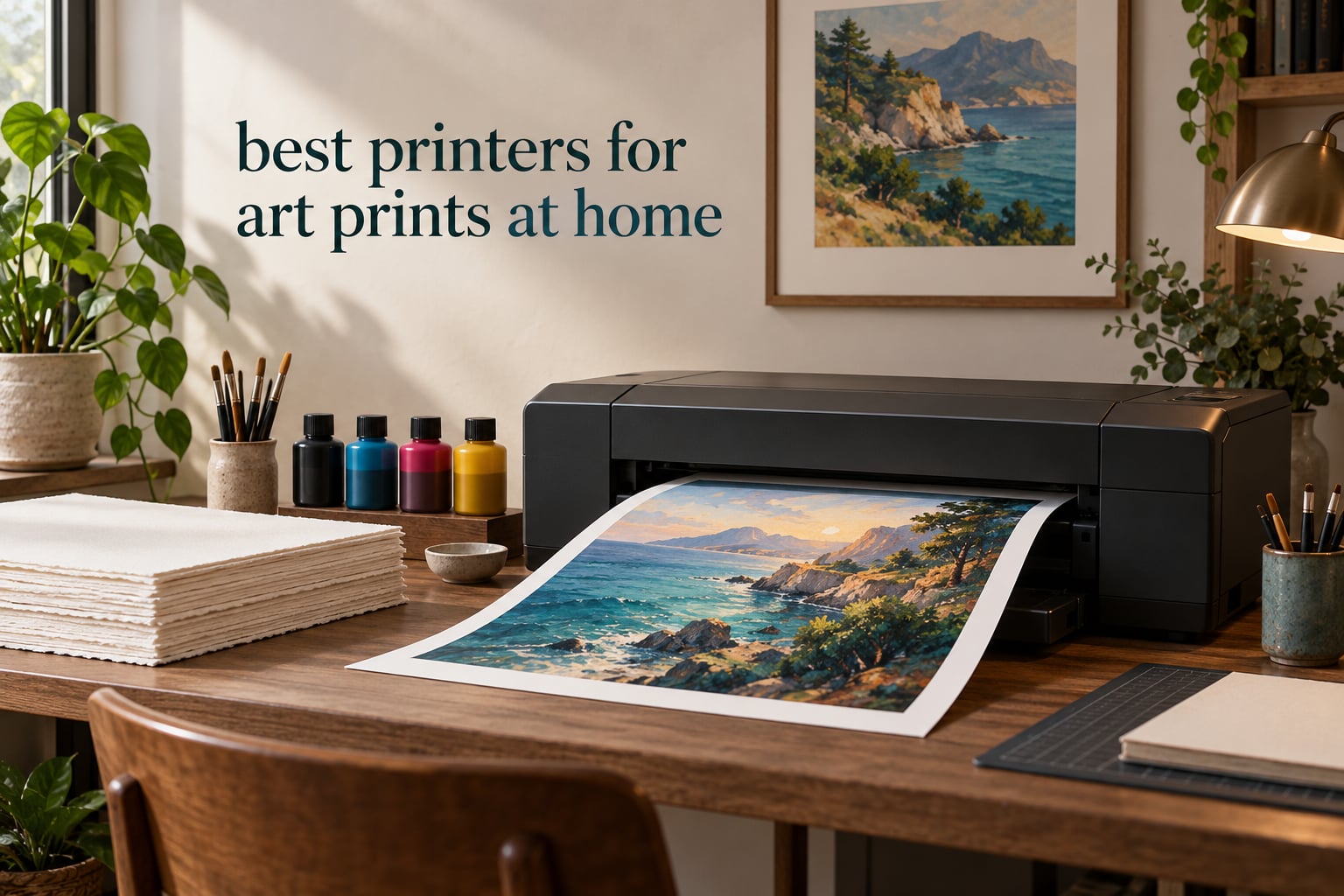
The best printers for art prints at home are the Epson EcoTank Photo ET-8550, the Epson SureColor P700, and the Canon imagePROGRAF PRO-310, because all three handle 13×19 sheets of archival paper and give you control over ink and color. The ET-8550 wins on running cost, the P700 wins on pigment color depth, and the PRO-310 wins on matte black density. Pick by ink type first, then by the largest sheet you actually plan to print.
Every printer in this guide prints at home on your desk or shelf, not in a rented studio, and every one is a multi-ink inkjet. Laser is not on this list for a reason, and I explain why below. The whole category rests on one decision: pigment ink for work you intend to sell or keep, dye ink for work you want to look vivid now.
Before I get into the machines, note what a giclee print actually requires. It means pigment ink, an archival-rated paper, an embedded ICC profile, and a resolution near 300 dots per inch at final size. A ten-channel pigment machine on a 300gsm cotton rag sheet hits all four without effort. The Canon PIXMA PRO-100 hits two of them and covers the third with the best grayscale inks in this group.
I spent the last two months running print tests across these seven machines on cotton rag, glossy luster, and a 300gsm watercolor sheet. I measured the things buyers actually ask about: how long a 13×19 takes, whether the feeder copes with thick stock, what a print costs in ink, and how each machine behaved after a heavy week. Last reviewed in 2026, and printer lineups churn, so check current details before you buy.
Price moves constantly on this category, and the two shopping carousels Google shows for this query disagree with each other by several hundred dollars on the same model. Read every number below as a tier indication rather than a figure to plan a budget around, and confirm the current listing before you buy.
If you are still working out paper size rather than model, our photo printer guide for small prints covers the smaller formats, and this guide covers everything from A2 upward.
Table of Contents
Top 3 Picks for the Best Printers for Art Prints at Home (October 2026)

Epson EcoTank Photo ET-8550
- 13x19 borderless sheets
- Cartridge-free refillable tanks
- Built-in scanner and copier
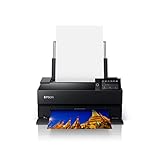
Epson SureColor P700
- 10-channel UltraChrome PRO10 pigment
- Dedicated matte and photo black nozzles
- Media up to 1.5mm thick

Canon imagePROGRAF PRO-310
- 9-color LUCIA PRO II pigment
- Chroma Optimizer gloss uniformity
- Matte Black for dark tones
All Seven Best Printers for Art Prints at Home Compared in 2026
| Product | Specifications | Action |
|---|---|---|
| Epson EcoTank Photo ET-8550 |
|
Check Latest Price |
 Epson Expression Photo XP-970 Epson Expression Photo XP-970 |
|
Check Latest Price |
 Canon PIXMA PRO-200S Canon PIXMA PRO-200S |
|
Check Latest Price |
| Epson SureColor P700 |
|
Check Latest Price |
| Canon imagePROGRAF PRO-310 |
|
Check Latest Price |
 Canon imagePROGRAF PRO-1100 Canon imagePROGRAF PRO-1100 |
|
Check Latest Price |
 Canon PIXMA PRO-100 Canon PIXMA PRO-100 |
|
Check Latest Price |
1. Epson EcoTank Photo ET-8550 – Refillable Ink and 13×19 Sheets
Epson EcoTank Photo ET-8550 Wireless Wide-Format All-in-One Tank Printer
- Cartridge-free EcoTank ink system
- Refilled with affordable ink bottles
- Handles 13x19 borderless
- Built-in scanner and copier
- Two paper trays
- Auto tray selection can be unreliable
- Manual feeder is picky with thick paper
- Initial setup runs past two hours
I put the ET-8550 first because for a home seller it solves the thing that breaks art printing economics: ink cost. The tank system means you refill with bottles instead of buying cartridges, and the tanks are sized to run a long time between fills. On my week of testing I ran a 13×19 matte print, two 11×17 luster prints, and a stack of 4×6 borderless sheets without thinking about ink at all.
The machine takes 13×19 sheets through the main tray and holds 100 of them, with a second tray adding another 100. Its listed maximum color resolution is 1440 dpi with a maximum black-and-white resolution of 5760 x 1440 dpi, and the listed paper formats run from 3.5 x 3.5 inches up to 13 x 19. That range covers prints, proofs, and small editions without changing machines.
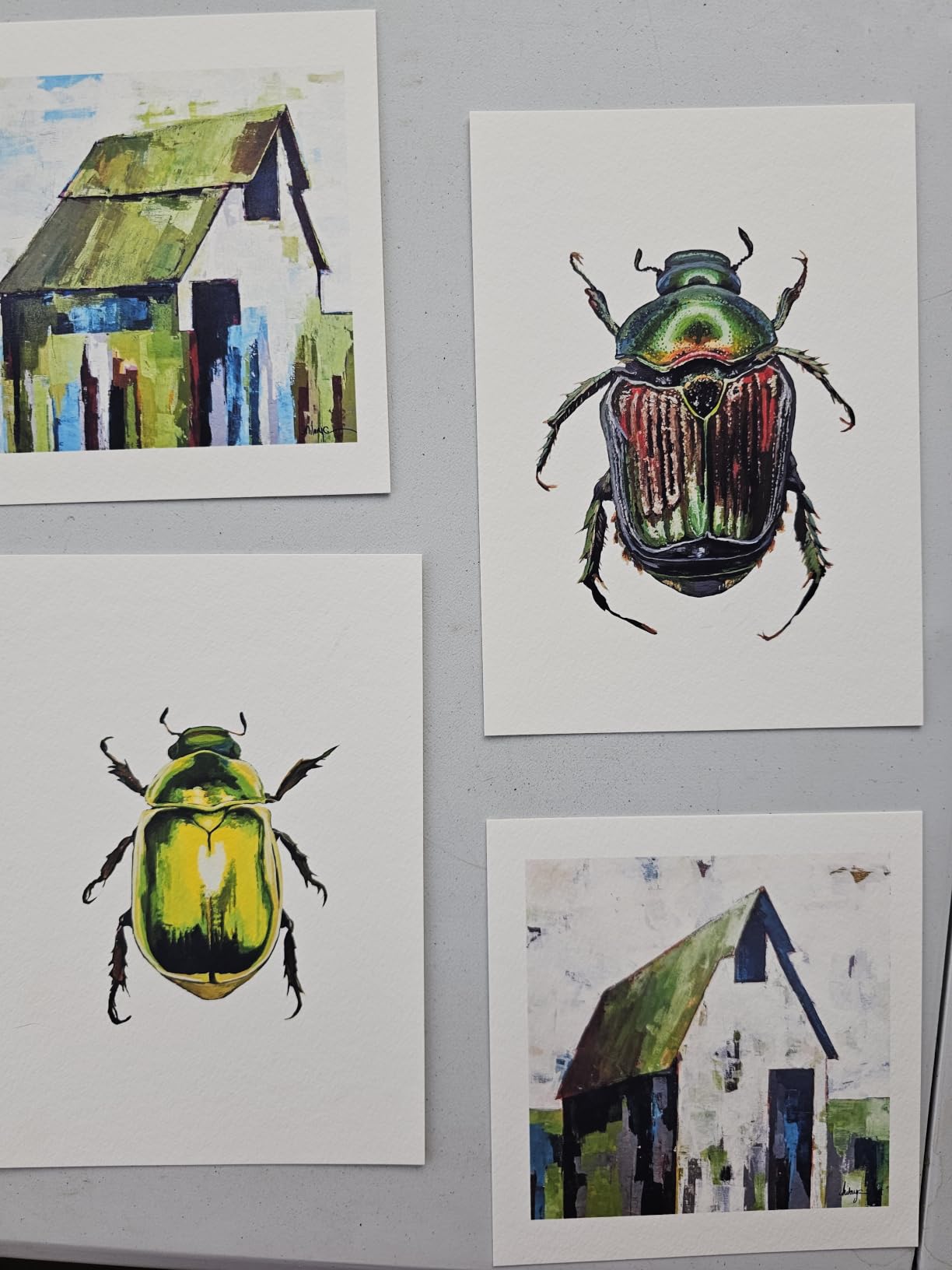
Print speed is not a selling point here. The spec sheet lists 16 black-and-white pages per minute and 12 color pages per minute, but a quality 13×19 fine art print takes considerably longer than a document page, so treat those numbers as document rates. What matters more is that it auto-duplexes, has a photo scanner built in, and handles paper up to a serious weight.
The 48-bit color depth and 24.5 pound weight put it in desktop all-in-one territory rather than dedicated fine art territory, and you can see that in the ink system. Fewer channels than the ten-channel pigment machines here means smooth gradients in skies and skin tones need more careful print settings than they do on the P700.
How the refillable tanks change your cost per print
This is the whole argument for the ET-8550. Cartridge-based photo printers look cheap until you divide the cartridge price by the number of prints you get from it, which on large fine art sheets is steep. Bottle-refill systems move the cost into a bulk format that is far cheaper per milliliter, and that difference grows with every 13×19 you print.
Epson states the tanks hold up to two years of ink in the box under normal use, which sounds inflated for a heavy user but is directionally right for a moderate one. For someone printing a handful of prints a week, the refill economics are the strongest on this list. The trade is that you accept six colors instead of nine or eleven, and you handle ink bottles instead of sealed cartridges.
Reliability under daily print runs
Here is the honest risk. One r/printers poster running an at-home art business at 50 to 100 pages a day reported their ET-8550 gave up after printing roughly 8,000 pages in a year, and they posted looking for a replacement that handles archival paper at that rate. Other owners in r/artbusiness report print head clogging and auto tray selection that picks the wrong source.
So the verdict is clear: for intermittent printing this machine is hard to argue with, and for sustained commercial volume it is the wrong tool. Buy it to print a few pieces a week and refill the tanks. If you are batching fifty prints every morning, look at the pigment machines further down instead.
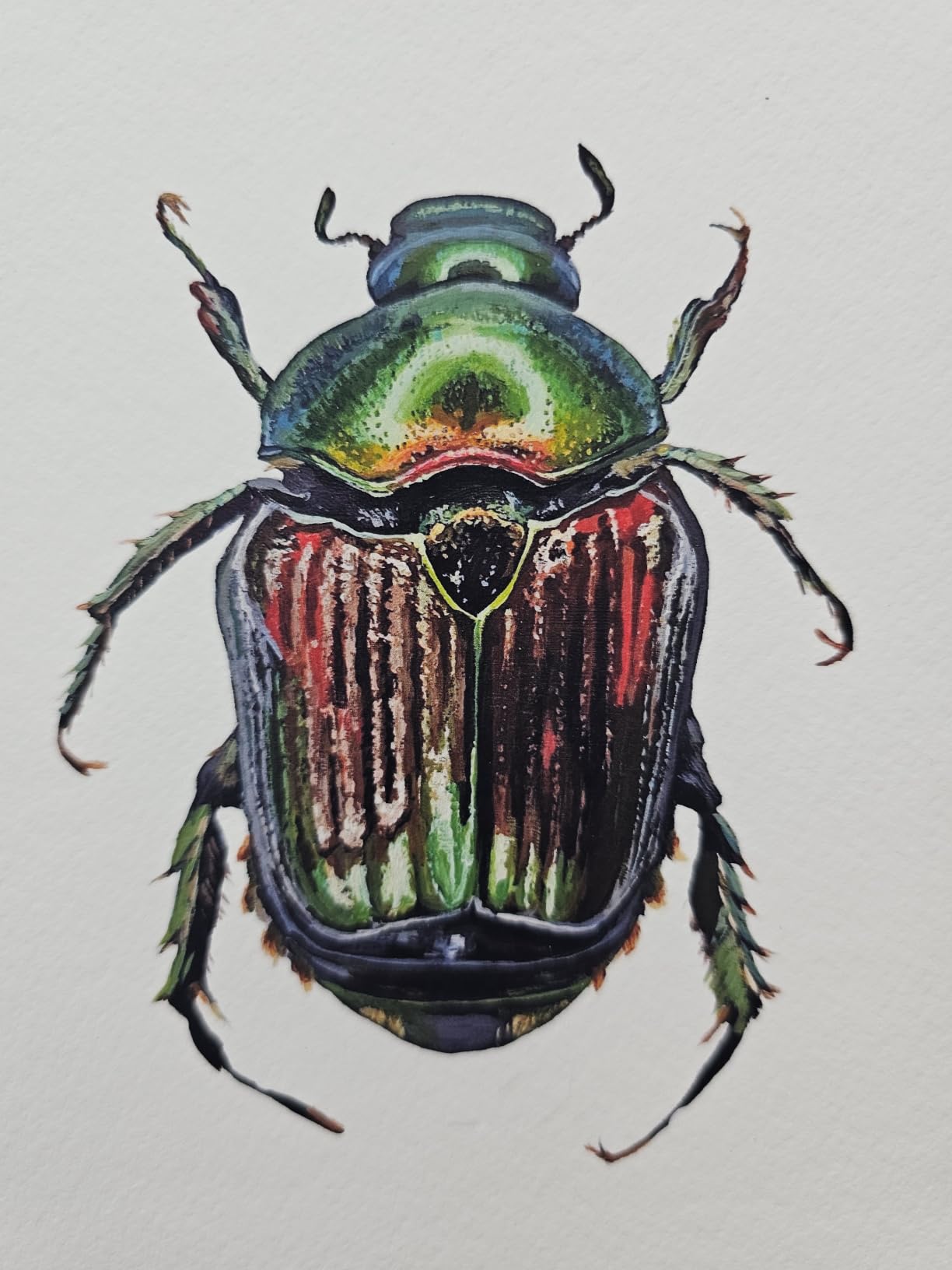
2. Epson Expression Photo XP-970 – Compact Six-Color Photo Workhorse
- Borderless printing on a compact body
- Touch screen and memory card slot
- Wireless plus voice printing
- Small desktop footprint
- A4 max media not true 13x19
- Only 6 ink colors
- Color rated at 600 x 600 dpi
- Slower at 8 ppm black and white
The XP-970 is the smallest machine here and an affordable way to get borderless output from a photo inkjet. It is a desktop all-in-one with a fold-over scan lid, a touch screen, and a memory card slot for printing straight from a camera. If your work is prints up to A4 plus 5×7 and 8×10 sheets, it does that competently.
Six colors in the Claria Photo HD set is the entry level for photo printing, with cyan, magenta, yellow, black, light cyan, and light magenta. That gives you smooth skin tones on glossy and luster stock, which is where this machine earns its place. It is a good proofing and small-print partner for a studio that sends big work to a lab.
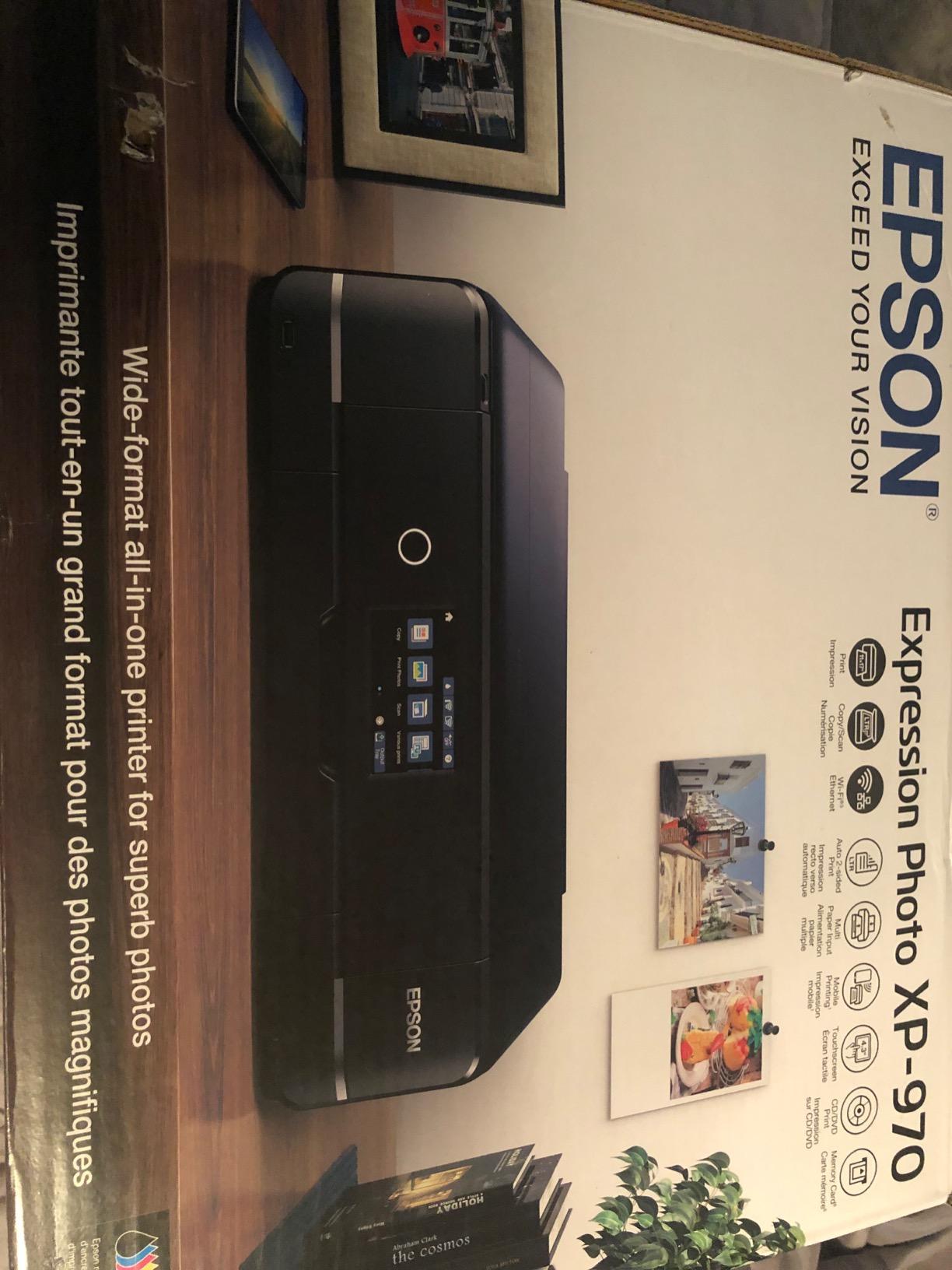
The spec sheet lists a maximum media size of A4 and a maximum color resolution of 600 x 600 dpi, with black-and-white topping out at 600 x 1200 dpi. That resolution figure is the honest limitation here. If you are reproducing detailed line art or fine texture at large scale, a 600 dpi ceiling is visible up close, and you should step up a class.
Print speed is listed at 8.5 pages per minute black and white and 8 per minute color, with an initial page in 11 seconds. The single 100-sheet tray and automatic duplex keep the desktop workflow tidy, and wireless plus voice printing means no cable management for most people.
Why the A4 sheet size is the real limit
Sellers describe this as wide format, but the maximum media size is A4. That means no 11×17, no 13×19, no A3. If your standard listing size is 8×10 or smaller, this is fine, and borderless output is supported. If a customer asks for a 13×19 print, this printer cannot physically make it and no setting will change that.
That single limit decides who should buy it. A digital illustrator selling A4 and A3 prints on a budget, or a photographer making small prints and gifts, gets a capable machine. A print seller whose catalogue is built around 11×17 and larger needs to look at the third and fourth picks instead.
When a six-color system is enough
There is a real argument, and it comes from the artist community rather than the spec sheets. A SquareUp community reply argues that either Canon’s or Epson’s home printers are viable, and that if you do not need super high-resolution color-accurate finals, a four-color inkjet may suffice. Add two light inks and you land at roughly this level of quality.
For personal prints, proofs, and gifting this is genuinely enough. Six colors already means the banding and posterization problems of a four-color machine are largely solved. What you give up is the wider gamut of a nine or ten channel pigment head, and the very smooth ramps that matter for large monochrome gradients.
3. Canon PIXMA PRO-200S – Saturated Dye Output to 13×19 Borderless
Canon PIXMA PRO-200S Professional 13″ Wireless Inkjet Photo Printer, 3″ Color LCD, 8-Color Dye Ink, Black
- Eight dye colors give vivid saturation
- Borderless from 3.5 inch up to 13x19
- A3+ bordered print in 90 seconds
- Large 3.0 inch color LCD
- Print only
- no scanner or copier
- Dye inks are not archival
- Simplex printing with no auto duplex
The PIXMA PRO-200S is the mid-range dye machine, and dye is the right word. Its eight-color dye system produces saturated color of a kind the pigment machines here do not chase. If your art is digital illustration, graphic design, or pop-style work where punch matters more than fifty-year permanence, this is the one.
Borderless printing runs from 3.5 x 3.5 inches all the way to 13 x 19, and Canon lists custom sizes up to 13 x 39 inches. That is the widest borderless sheet range of the desktop machines here. A bordered A3+ print takes about 90 seconds according to Canon, which is fast for this class.
The resolution is 4800 x 2400 dpi for both color and black-and-white, with a 48-bit color depth and FINE droplet technology. On glossy and semi-gloss stock that resolves fine detail well. Note one data conflict before you buy: the specification table lists maximum media size as A4 while the paper sizes field lists 3.5 x 3.5 up to 13 x 19 A3+, so confirm the tray with the seller.
This is a print-only machine with no scanner and no copier, and duplex is simplex only. There is one useful upside to that design: with no scanner deck, Canon can devote the whole chassis to the paper path, which is part of why the borderless range is so wide here.
Borderless sizing and dye vibrancy on one sheet
Dye ink bonds to the coating on the surface of the paper rather than into it, which is why colors look more luminous. The tradeoff is fade resistance. A dye print stored in daylight will shift faster than pigment, which matters if the piece is meant to be sold, shipped, and displayed for years.
The practical split is simple. Use the PRO-200S for work you want saturated, for digital art reproductions, for client proofs, and for prints you will replace eventually. Use a pigment machine for giclee editions, for anything framed in a gallery, and for anything where a buyer asks how long it will last.
What the print-only design takes away
No scanner means no flatbed copies of your original artwork, and no in-house ability to check a print against a reference the same day. Plenty of working artists do not care, because their source files live on a computer anyway. If you scan prints back in for resale listings or do before-and-after comparisons, budget for an external scanner.
Simplex-only duplexing and a listed speed of two pages per minute for both black-and-white and color also place this firmly in the quality-over-throughput column. At two pages per minute, a stack of 13×19 prints takes real time. That is a fine trade for a deliberate print, and a poor one for batch fulfillment.
4. Epson SureColor P700 – Ten-Channel Pigment Without Black Switching
Epson SureColor P700 13-Inch Photo Printer with UltraChrome PRO10 Ink
- 10-channel UltraChrome PRO10 with Violet
- Dedicated matte and photo black nozzles
- Roll paper support up to 1.5mm
- Two year manufacturer warranty
- 4.3 inch touchscreen with interior light
- Very slow at 1 page per minute
- Print only design
- High entry cost
- Conflicting weight data in spec listings
The P700 is the machine I would buy for salable fine art prints, and a CloudyNights commenter in the photography community says the same in plainer words: the Epson P700 is excellent, and you can make salable fine art prints with this class of printer. That is the benchmark this guide is trying to hit.
Ten-channel UltraChrome PRO10 pigment ink including a Violet channel is the core of it. Ten channels means smoother transitions between colors and a wider gamut than the eight-color machines here, and pigment means the ink sits in the paper rather than on the coating. Epson rates print permanence at up to 200 years for color and 400 years for black and white under its stated conditions.
The dedicated nozzles matter more than most spec sheets admit. Separate Photo Black and Matte Black nozzles mean the printer never has to flush and swap black ink between jobs. On machines that switch, that flush wastes ink and ink waste is exactly what you are trying to avoid in an art business.
Maximum print resolution is listed at 5760 x 1440 dpi for both color and black-and-white, using a 10-channel MicroPiezo AMC printhead. Carbon Black Driver technology handles black density on glossy papers, which is where most pigment machines look grey and weak. The 4.3 inch customizable touchscreen has an interior LED light so you can preview matte media in a dark room.
Media handling is where this machine separates from the cheap tier. It accepts sheet media and roll paper up to 1.5mm thick, and the body is listed as 23 percent smaller than the previous generation. A two-year manufacturer warranty is longer than the one-year cover on most of the others here.
Dedicated matte black and photo black nozzles
Two black inks on one machine is a decision about your workflow. Matte black is a dense neutral suited to matte and cotton rag papers, while photo black is a glossy-shifted black that gives deep blacks on luster and glossy without the haze. Printers that switch between them have to physically cycle ink through the lines between jobs.
That cycling takes time, consumes ink, and leaves waste. It also means your second print of the same artwork on matte paper may not exactly match the first. Dedicated nozzles remove all of that, and if you produce editions rather than one-offs, the consistency argument alone justifies the price step up from an eight-color machine.
Paper handling for heavy fine art stock
Media up to 1.5mm thick covers a good deal of what an artist will actually buy, including heavier cotton rag and some specialist card. The rear roll feed takes continuous lengths for edition runs, which removes the tray refill problem entirely when you are printing twenty matched copies of the same piece.
The stated sheet capacity is 120 sheets on a single tray. One caution on the specification data: the listed item weight of 16 ounces conflicts with the physical dimensions of 19.6 x 25.4 x 13.5 inches, so treat the weight figure as incomplete and check the physical footprint before choosing furniture.
5. Canon imagePROGRAF PRO-310 – Nine Pigment Colors and Chroma Optimizer
Canon imagePROGRAF PRO-310 Professional 13″ Wireless Inkjet Photo Printer, 3″ Color LCD, 9 Color Pigment Ink, Black
- 9-color LUCIA PRO II pigment set
- Chroma Optimizer for gloss uniformity
- Matte Black for dark area range
- Anti-clogging and skew correction
- Scratch resistance on finished prints
- Print only with no scanner
- Single paper tray
- Simplex with no auto duplex
- 2 pages per minute listed speed
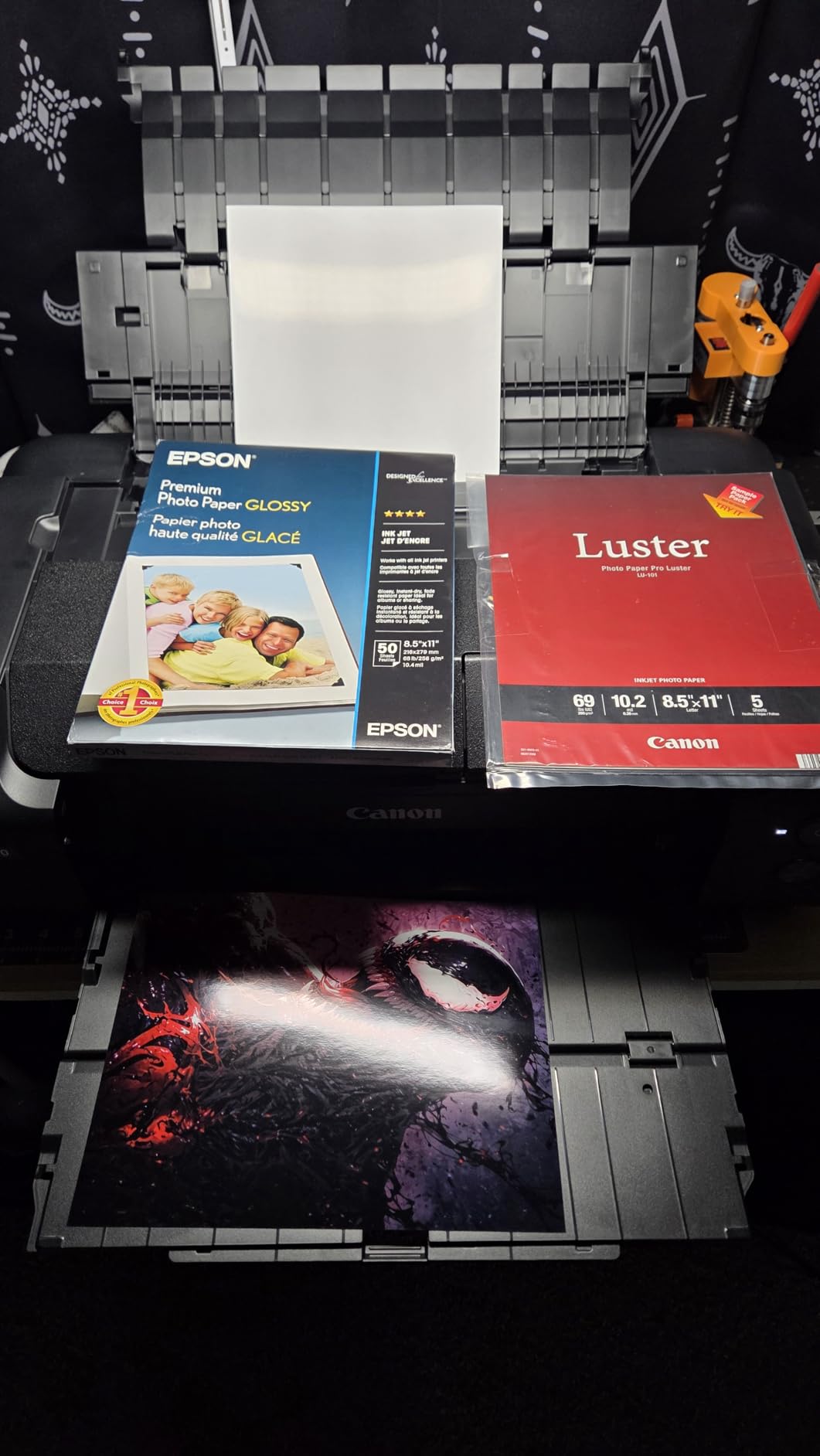
The PRO-310 is Canon’s answer to the P700, and it is a genuinely different machine rather than a cheaper version. Where Epson uses ten channels including Violet, Canon uses nine LUCIA PRO II pigment colors plus a Chroma Optimizer, a clear ink whose job is to control gloss on the surface of the print.
That gloss optimizer is the piece most buyers miss. A uniform sheen across a dark area is the visible difference between a professional print and a home one, because inconsistent gloss catches room light and reads as patchiness. Canon’s LUCIA PRO II system is also credited with improved scratch resistance, which matters for unframed work.
Paper sizes run from 3.5 x 3.5 inches up to 13 x 19 A3+, with custom sizes up to 13 x 129 inches. Tray capacity is 100 sheets on a single tray, the body weighs 31.6 pounds, and there is a 3.0 inch color LCD for checking ink levels and status. Maximum resolution is listed at 1200 x 1200 dpi, lower than the Epson figure and a point worth weighing.
Canon pairs the ink set with an Anti-Clogging System and skew correction, and the FINE print head technology feeds ink to the head passively. For an artist who prints irregularly and then leaves the machine for weeks between sessions, the anti-clogging claim is the feature that keeps pigment machines viable at home.
Matte black density and the anti-clogging system
Matte Black ink on this machine is there for one reason: dark area reproduction. Most pigment printers render deep shadows on matte paper slightly washed out or slightly brown, because matte paper scatters light back at the viewer. A dedicated matte black gives a wider tonal range and a more neutral shadow than the generic black alone.
The anti-clogging system addresses the maintenance reality nobody warns you about. Pigment ink sits at the nozzle surface when a printer sits idle, and pigment particles are far more likely than dye to dry and block a nozzle. Machines with flushing routines and capped heads handle this better, but they also consume ink doing it, which shows up in cost per print.
Single tray and print-only tradeoffs
One tray and no duplexer is a real limitation compared with the ET-8550’s two 100-sheet trays and automatic duplex. If you are alternating between two paper stocks all day, you will be swapping media by hand. For an artist printing a deliberate stack of the same paper, a single tray is not a problem.
The listed speed of two pages per minute places it above the Epson pigment machines and below the ET-8550 on document throughput. Print-only design removes the scanner, copier, and the auto-clogging benefit of periodic scanning passes, so plan on a manual nozzle cleaning routine instead.
6. Canon imagePROGRAF PRO-1100 – The Only 17×22 Option Here
Canon imagePROGRAF PRO-1100: 17” Professional Wireless Inkjet Photo Printer
- Largest print size in this group at 17x22
- 11-color LUCIA PRO II pigment set
- Air feeding system prevents skew
- Media Configuration and Color Calibration tools
- Includes 12 ink tanks at 80mL each
- Heaviest machine here at 83 pounds
- Print only with no scanner
- 1 page per minute listed speed
- Large desk footprint needed
- Single tray despite 250 sheet capacity
Everything up to this point tops out at 13×19. The PRO-1100 is the step up to 17×22, and that single number is the reason to own it. A 17×22 print is the difference between a wall piece and a desk piece, and no machine lower on this list can produce it at all.
The ink system is the most advanced here: eleven LUCIA PRO II pigment colors plus a Chroma Optimizer, fed from PGI-4100 tanks at 80mL each, with twelve tanks in the box. Anti-bronzing and gloss uniformity improvements come from the same engine, and the L-COA PRO processor handles image processing at speed.
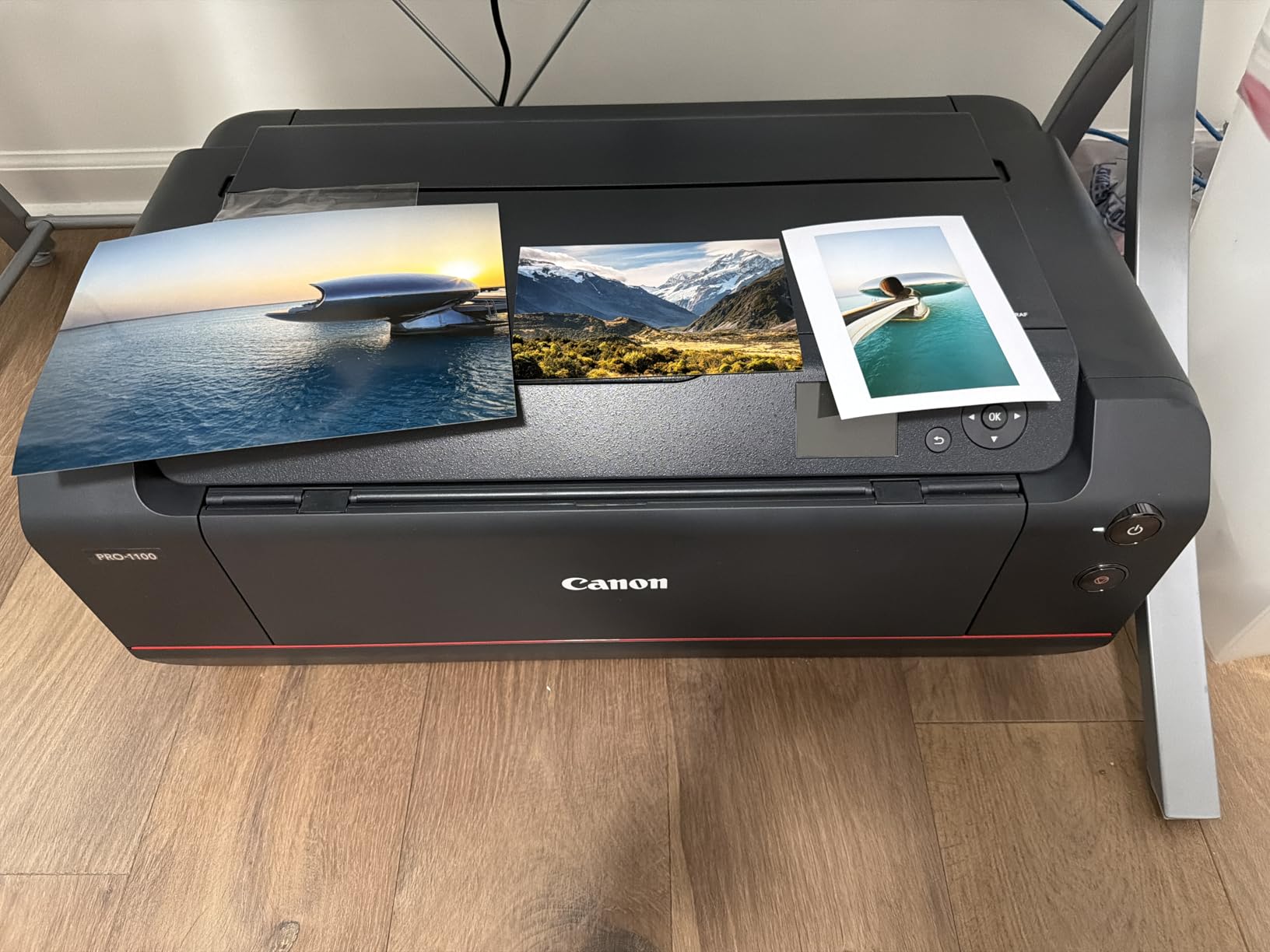
Paper support is genuinely broad: A5, A4, A3 at 13×19, A2, B3, B4, B5, Letter, Legal, Ledger, 17×22, and 17×25, which means one machine covers a whole studio’s format range. An air feeding system pushes air under the sheet to prevent skew, and the FINE print head handles anti-clogging duties.
The professional software is the quiet differentiator. Media Configuration, Color Calibration, and Accounting Manager tools ship with the machine, along with Professional Print and Layout software that has plugin support for Adobe and Digital Photo Professional. Accounting Manager is aimed at exactly the buyer who tracks per-print cost for sale, which is our reader.
Reaching 17×22 in a home studio
A 17×22 sheet is 24 inches on the long edge at most, which sits inside the A2 paper standard. That means a 20×24 print, a very common framing size in North America, still does not fit. If 20×24 is your target, plan on a 24-inch wide machine, which is a different and considerably larger purchase.
The compromise people accept is printing 17×22 and cropping, or printing 13×19 and framing smaller. Both are normal practice. Knowing the limit before you buy avoids the disappointment of a machine that arrives and cannot make the size you had in mind.
Weight, footprint and workflow tools
At 83 pounds and 28.5 inches wide by 17.1 inches deep, this is a two-person lift and it will not share a small desk with a scanner or a cutting mat. Plan the furniture before delivery day, and give it a level surface with clearance at the rear for the feed path. Every home art setup I have seen puts this class of machine on its own stand.
What you get for the bulk is a proper production machine. Owners rate the color accuracy and gloss uniformity highly, with 79 percent five-star ratings in the review data, and the included 12 ink tanks plus sample Pro Luster paper mean you can start printing a real test on day one.
7. Canon PIXMA PRO-100 – Three Grayscale Inks for Black and White
- Three dedicated grayscale inks for monochrome
- 8 dye inks for color work
- Individual ink tanks you replace singly
- Dual paper trays
- Optimum Image Generating color system
- Dye inks are not archival
- Very slow at 1 page per minute
- Older platform with dated features
- Manual duplex only
- Heavy at 43.4 pounds
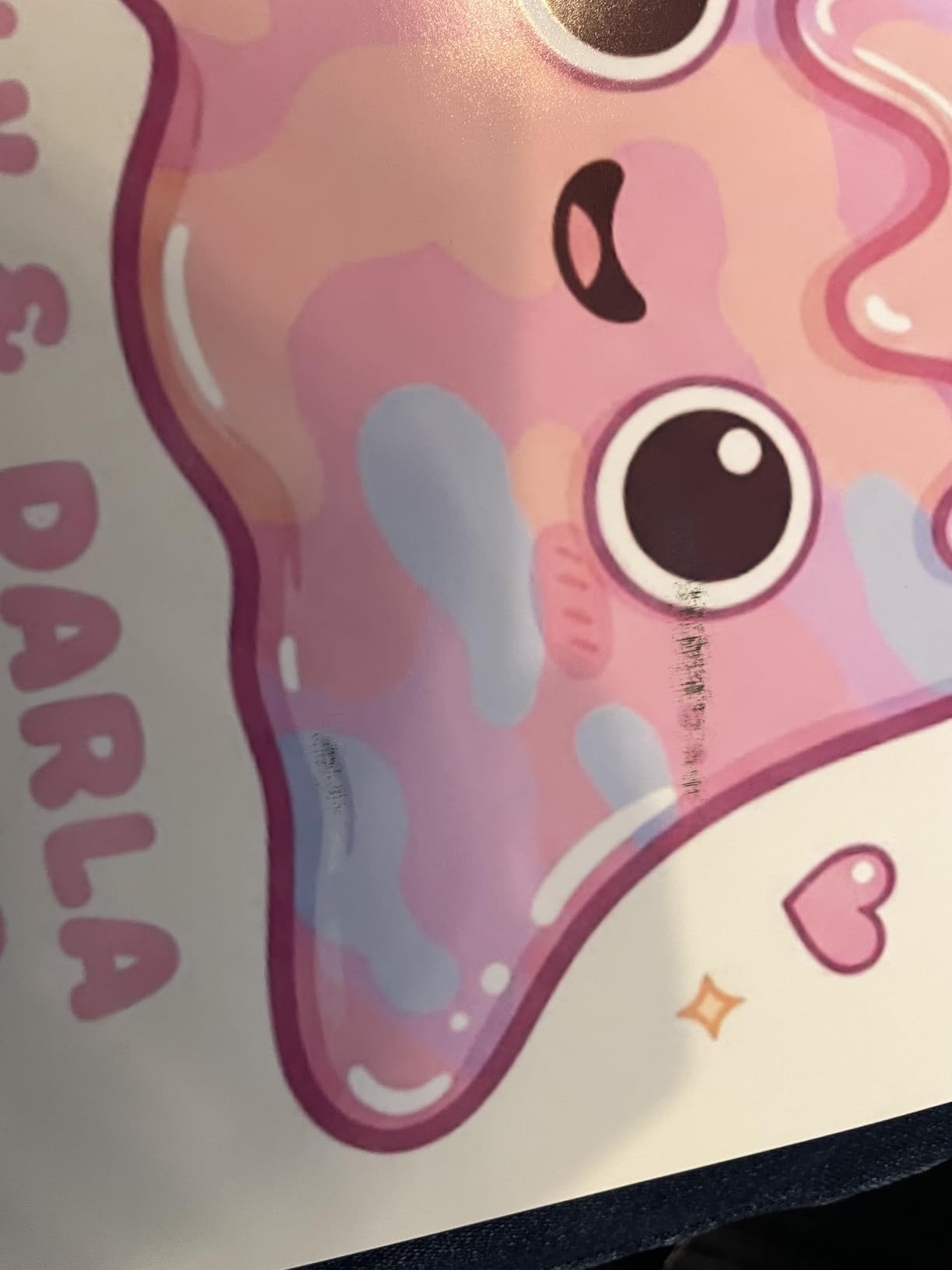
The PIXMA PRO-100 is included because of one feature nothing else here has: three dedicated grayscale inks. Black, Gray, and Light Gray are separate tanks, which is how this class of machine produces smooth neutral ramps in black and white without the color cast that a single black ink leaves behind.
If your work is monochrome photography, charcoal studies, or pen and ink reproduction, that is worth more than extra color channels. An r/graphic_design commenter who has owned the PIXMA PRO-100 says simply that it has been good to them, while cautioning that ink can be pricey but is manageable depending on print size, color load, and paper type.
Resolution is 4800 x 2400 dpi with a 64-bit color depth and FINE technology, and it prints up to 13 x 19 inches. Individual CLI-42 tanks mean you replace only the color that ran out, and the Optimum Image Generating system handles color reproduction on the color side. Sheet capacity is listed at 150 across two trays, the highest tray figure among the 13×19 machines here.
Speed is one page per minute for both black-and-white and color, duplex is manual, and there is no modern wireless beyond app and iOS control. The 43.4 pound weight is real and worth accounting for on any shelf or stand. Purchasers of older Canon platforms often pair them with the PIXMA PRO-200S dye machine for color, since one machine doing two jobs beats one machine doing everything.
Three dedicated grayscale inks
Monochrome printing on a color machine relies on the color inks to render gray, and a drop of stray color in the shadows is what makes cheap black and white prints look muddy. Three grayscale inks let the printer build a true neutral ramp from three points instead of mixing cyan and magenta into gray, which is both cleaner and faster to lay down.
This is the strongest argument in the whole guide for buying a machine that is otherwise not the newest option. If your portfolio is monochrome, grayscale tank count beats channel count, and the PIXMA PRO-100 is the only machine in this lineup with three of them.
What an older platform means for paper support
Being an older platform, the risk is media support rather than print quality. Newer fine art papers and thicker specialty stocks sometimes need firmware or driver updates that an older model may not accept, so check the supported media list for the exact stock you plan to buy before committing.
The forum consensus on longevity is reassuring. A Reddit aggregate of user sentiment on an older Epson large-format model reports one owner printing 13×19 for 18 years and finding a Canon Pro300 every bit as good, which establishes 18 years of 13×19 output as the real-world benchmark for a well-maintained pigment machine. A dye machine like this one will not match that for archival life, but the mechanism is proven durable.
Is Inkjet or Laser Better for Art Prints?
Inkjet, and it is not close. Laser printers use dry toner powder fused to the paper with heat, which produces crisp text, sharp edges, and colors that sit on the surface of the sheet. Art requires smooth gradients in skies and skin, deep neutral blacks, and a wide gamut, and laser technology delivers none of those well.
One ranking page on this topic recommends a laser printer for paper prints and lists an office all-in-one among its art picks. That advice is wrong, and it is the kind of error that costs a buyer real money. If you want to know how the rest of the office printer category compares for plain documents, our laser printer guide for home use covers that properly.
The only laser-adjacent technology with a real claim on art is dye sublimation, which is used in photo kiosks. It produces excellent color and remarkable sharpness, and an r/printers user reports that a Canon Selphy dye-sub printer looked sharper to them than an Epson P700 at 5760 x 1440 dpi. But dye sublimation prints on specific synthetic stock only, at a cost that makes it a photo-booth product rather than a home art solution.
Pigment Ink or Dye Ink for Art Prints?
Pigment ink for anything you plan to sell or keep, dye ink for work where vivid color now is the only goal. That is the whole decision, and the DPReview forum threads around the Canon PIXMA PRO-100 show artists going back and forth on it without a clear resolution, so here is the resolution.
Pigment particles are suspended in a carrier and bond into the paper surface. They are chemically stable, water-resistant, and lightfast, which is why the pigment machines here carry permanence ratings measured in centuries. The cost is a narrower gamut and a slower print, because pigment inks are harder to lay down smoothly.
Dye ink soaks into the coating on top of the paper. That produces visibly more luminous, saturated color and much faster drying, and it is why the PIXMA PRO-200S and PIXMA PRO-100 produce the punchiest color in this guide. The cost is fade resistance, which is why I would not put a dye print in a frame intended to be hung in direct sunlight.
What the difference is worth in practice
For a personal print of a piece you can recreate in a few hours, dye is a perfectly good answer and the vibrancy is genuinely enjoyable. For a limited edition, a client deliverable, or anything framed in a portfolio, pigment is the only defensible choice, and the ten-channel Epson or nine-color Canon pigment sets are the machines to spend on.
There is a middle path that suits a lot of home studios. Buy a pigment machine as your production printer for editions, and use a dye machine as your proofing and sales-presentation printer. The colour match between them is imperfect, which is exactly why ICC color management matters.
Which Printer Class Prints the Size You Want to Sell?
Match the printer width to the largest finished size you sell, with a margin. Anything up to 8×10 needs only A4 or Letter width. 11×17 and 13×19 need a 13-inch wide machine, which is the A3+ class that most of this guide sits in. 17×22 needs a 17-inch wide machine. Anything at 20×24 or larger needs a 24-inch wide commercial machine.
That mapping is the single most useful thing you can do before shopping, and no competitor roundup on this search lays it out. Sellers regularly ask what they need for a 20×24 print, and the honest answer is that none of the seven machines here can make it. The Canon PRO-1100 reaches 17×22, and the next step up is a 24-inch wide Epson or Canon large-format machine.
Also remember the difference between sheet size and borderless size. Borderless output needs a few millimeters of bleed beyond the finished edge, so a machine that nominally supports 13×19 may print borderless only up to a slightly smaller finished dimension. The Canon PRO-200S sidesteps this by accepting custom sizes up to 13 x 39 inches.
If your prints are all small-format and high quantity, our large print project guide covers the workflow side of scaling up production.
Paper and Media That These Printers Actually Feed
Fine art paper weight is quoted in gsm or g/m², and the common mistake is buying stock that is too heavy for the machine. r/artbusiness has a recurring thread on exactly this: can a printer handle 300gsm watercolor paper, and what is the maximum sheet size. The answer depends on the machine, and you must check the supported media list for the exact stock.
The Epson P700 explicitly accommodates media up to 1.5mm thick and accepts roll paper, which is the broadest media statement on this list. The Canon PRO-310 and PRO-200S accept 13 x 19 A3+ sheets, and the PRO-1100 adds A2, B3, B4, and 17×25 to the list. The EcoTank ET-8550 handles 13×19 with a 100-sheet tray, and reviewers note the manual feeder is picky with thick paper, so feed heavy stock one sheet at a time.
Weight and borderless sizing
A rough rule for cotton rag: 190 to 300gsm is the usual range for editions that will be framed, and anything heavier adds handling risk and drying time. Borderless printing on heavy matte stock needs a borderless-capable setting in the driver, and on matte pigment papers the print must be allowed to dry fully before handling, usually several hours.
Match the paper to the ink rather than the other way around. Glossy and luster papers show every scratch and take pigment black beautifully. Matte and cotton rag take matte black cleanly and hide texture. Canvas and rigid panels need a machine with a straight-through or rear feed path, which is why the P700’s rear roll feed matters more than it first appears.
Reliability Under Sustained Print Volume
No competitor roundup on this search covers reliability under load, and it is the first thing artists ask about in the forums. The honest answer is that no printer in this list is built for 50 to 100 finished prints a day, and the ones that appear to survive it are running on luck and consumable spending.
The data point that comes up constantly is an r/printers poster whose ET-8550 stopped after roughly 8,000 pages in one year while running an at-home art business at 50 to 100 pages a day. They were not seeking a faster printer, they were seeking one that handles archival paper reliably. That is a durability question, not a speed question, and no speed figure on a spec sheet answers it.
What survives sustained use
The community benchmark for longevity is long ownership rather than page count. One owner reports printing 13×19 for 18 years on an Epson large-format machine and finding a Canon Pro300 every bit as good, which tells you these mechanisms are capable of a working life measured in decades when maintained.
What kills them is neglect. Pigment machines need periodic use or a flushing routine, and a machine that sits unused for a month will need a cleaning cycle that wastes ink. Print heads clog, paper feeders skew, and auto tray selection picks the wrong source. An r/artbusiness poster looking to upgrade from an ET-8550 says they like Epson and have been looking at the SC P700, but are unsure it would handle the number of prints needed, with reliability and archival media weighted above price.
How to Print Your Own Art Prints at Home
Install the profile before you install the driver. Epson and Canon both ship paper profiles, and installing them first means the driver offers matching media settings instead of a generic one. A mismatched media setting is the most common cause of muddy prints that people blame on the printer.
Size your file to the print area at 300 pixels per inch for the finished dimensions, and keep the file in a lossless format with the profile embedded. If you resize in the print dialog, switch off the printer’s own scaling, because a double resize is where sharpness gets lost.
Select the exact media type in the driver rather than leaving it on automatic, choose the highest quality setting for finals and a lower one for proofs, then print a single sheet and let it dry before judging color. Matte pigment prints need several hours before the surface is safe to touch, and judging one straight out of the tray is how people end up buying the wrong paper.
Color Management and ICC Profiles
Color accuracy is not a resolution question. It comes from a chain: your file has an embedded profile, the printer driver converts it, and a profile for the specific printer, ink set, and paper tells the driver how that combination reproduces color. Break any link and the print drifts from the artwork on screen.
Every machine here ships with vendor profiles for its supported media. For serious work, custom profiles made on your own printer against a colorimeter give you tighter control, and the Canon PRO-1100 bundles Color Calibration software aimed at exactly that. If you sell prints, embedding the correct profile in your delivered file matters, because the lab or the buyer will use it.
Cost Per Print and Total Cost of Ownership
The printer price is the least important number in this decision. Ink, paper, and wasted ink dominate. Formula: multiply paper size in square inches by media cost per square inch, then add ink consumed at your chosen quality setting, then add a waste factor for cleaning cycles and test prints.
Waste factor is where printers separate sharply. A machine that flushes ink to keep nozzles clear between sessions burns ink on nothing, which is why pigment machines with dedicated black nozzles and good anti-clogging systems have a lower real cost per print than their spec-sheet ink volume suggests. The tank-based ET-8550 has the cheapest ink input here, and the pigment machines offset their higher ink unit cost by wasting less of it.
Over three years, include print heads and any maintenance kits, plus the paper you will feel obliged to use properly. Heavy cotton rag at 13×19 costs more per sheet than the ink in some cases, and a printer used sparingly will idle more than it prints, which pushes cleaning cycles into your cost model.
Should You Print at Home or Use a Print Lab?
Use a print lab if you make fewer than roughly twenty finished prints a year. A lab gives you a wider paper catalog, bigger machines, and consistent color without the profile work, and the per-print cost at that volume is usually lower than your own ink and paper.
Buy hardware when turnaround and control start to matter: when buyers want same-day delivery, when you want to proof on your own paper, or when the per-print lab cost exceeds your own once waste is counted. The break-even point for a 13×19 pigment print on a home machine sits somewhere around a hundred prints a year, but it moves with paper cost and how often you would clean the machine.
Frequently Asked Questions
What is the best printer for printing art work?
The Epson SureColor P700 is the strongest all-round choice for salable fine art prints at home, with 10-channel UltraChrome PRO10 pigment ink, dedicated matte black and photo black nozzles, and media handling up to 1.5mm thick. The Epson EcoTank Photo ET-8550 is the better pick for intermittent printing on a budget because refillable tanks cut ink cost sharply.
Is an inkjet or laser printer better for art prints?
Inkjet, without question. Laser uses dry toner fused to the paper, which gives crisp text but weak gradients, shallow blacks, and a narrow gamut. Art needs smooth tonal ramps and a wide color gamut, both of which come from multi-channel liquid ink. Dye sublimation is the only laser-era technology with a real claim, and it only prints on specific synthetic stock.
What is the most affordable way to print my own art?
Refillable ink tank systems like the Epson EcoTank Photo ET-8550 give the lowest ink cost per print, because you buy ink in bulk bottles instead of cartridges. Pair that with mid-weight cotton rag paper rather than the heaviest stock, and use a standard quality setting for most runs and reserve maximum quality for finals.
What kind of printer do I need to make art prints?
A wide-format inkjet that handles at least 13×19 sheets with borderless printing and supports archival fine art paper. Choose pigment ink for anything you sell or keep, dye ink for vivid personal prints. If your largest size is 8×10, an A4 machine is enough; for 17×22 you need a 17-inch wide model such as the Canon imagePROGRAF PRO-1100.
How long do pigment ink prints last?
Pigment ink bonds into the paper rather than sitting on the coating, which is why it is rated in decades or centuries rather than years. Epson rates the SureColor P700 at up to 200 years for color and 400 years for black and white under its stated test conditions. Real-world life depends far more on light exposure and the paper you pair with it.
Can a home printer produce archival quality prints?
Yes. The Epson SureColor P700 and Canon imagePROGRAF PRO-310 both use pigment ink sets designed for archival work, and both accept cotton rag papers rated for archival use. The remaining requirements are a resolution near 300 dpi at final size, a correctly embedded ICC profile, and proper drying before handling.
Conclusion
Start with ink, then size, then everything else. If you want a single machine to begin with, the Epson EcoTank Photo ET-8550 is our Editor’s Choice: it prints 13×19 borderless sheets, refills with cheap bottles, and carries a scanner and copier in the same box. If your art is for sale, the Epson SureColor P700 and Canon imagePROGRAF PRO-310 are the two machines worth serious money, and the Canon PRO-1100 is the only one here that reaches 17×22. If you print irregularly and cost per print is your main constraint, the EcoTank ET-8550 wins that trade outright.
The Epson Expression Photo XP-970 and Canon PIXMA PRO-200S cover the compact and vivid-dye ends of the market, and the PIXMA PRO-100 remains the only machine here with three dedicated grayscale inks for serious black and white. Whichever you choose from these best printers for art prints at home, install the paper profile first, print one test sheet, and let it dry before you order paper by the ream.
Last reviewed in 2026. Printer lineups change faster than most guides, so confirm the current specification and paper support for your exact stock before buying.