
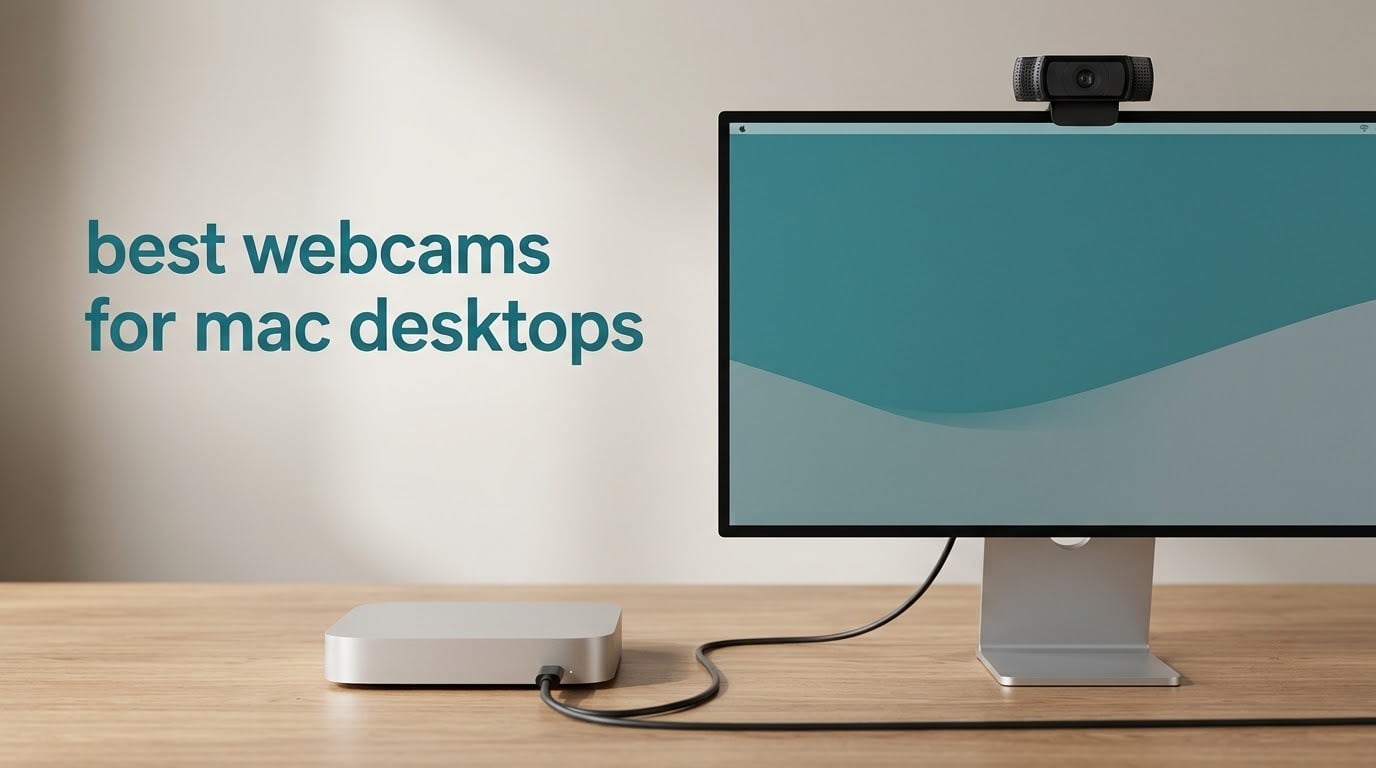
Mac desktops have no built-in camera and no built-in microphone. A Mac mini, Mac Studio, Mac Pro or tower Mac simply cannot join a Zoom, Teams or Google Meet call until you attach an external camera, which makes a webcam a required accessory rather than an upgrade. After spending several weeks putting ten of the most popular external cameras through client calls, teaching sessions and evening streams on a Mac mini, our pick for most people is the Logitech C920x, with the Anker PowerConf C200 as the stronger low-light option and the Logitech StreamCam as the cleanest single-cable setup.
That distinction matters more than it does on a Windows PC. macOS treats any UVC camera as a standard video source, so the hardware layer is rarely the problem, but the companion apps, the connection port and the mounting options are where most Mac desktop buyers get stuck. Mac mini owners in particular have no laptop lid to clip a camera to, and plenty of USB-A webcams need an adapter on a modern Mac desktop.
This roundup of the best webcams for Mac desktops covers all ten picks with a Mac-specific verdict on every one, including which need an adapter and how the privacy control works on macOS. If your desk is shared with a laptop and a monitor rather than a Mac alone, our guide to the best webcams for remote work covers the software and lighting side in more detail.
Table of Contents
Top 3 Picks for Mac Desktops (October 2026)

Logitech C920x
- 1080p at 30 fps
- 78 degree field of view
- Dual stereo microphones
- Works as a standard UVC camera on macOS

Anker PowerConf C200
- 2K resolution
- Selectable 65
- 78 or 95 degree framing
- AI noise cancellation
- Sliding privacy cover

Logitech StreamCam
- 1080p at 60 fps
- USB-C connection
- Auto-framing
- Mounts landscape or portrait
The C920x wins because it does the least interesting thing well: it connects, it focuses, and it stays stable on a long call. The C200 wins on dim rooms and flexible framing. The StreamCam wins on a tidy USB-C cable and 60 fps output when you are recording rather than calling.
Best Webcams for Mac Desktops in 2026
All ten cameras below work as plug-and-play UVC devices on a Mac desktop. The columns that matter most for this platform are connection type, because a Mac desktop may not have a USB-A port to spare, and the privacy mechanism, because macOS camera permissions alone do not tell a colleague the lens is physically covered.
| Product | Specifications | Action |
|---|---|---|
| Logitech C920x |
|
Check Latest Price |
 EMEET 1080P C960 EMEET 1080P C960 |
|
Check Latest Price |
| Anker PowerConf C200 |
|
Check Latest Price |
 Logitech Brio 101 Logitech Brio 101 |
|
Check Latest Price |
| Logitech StreamCam |
|
Check Latest Price |
 EMEET NOVA 4K EMEET NOVA 4K |
|
Check Latest Price |
 UGREEN 4K UGREEN 4K |
|
Check Latest Price |
 EMEET PIXY EMEET PIXY |
|
Check Latest Price |
 AOC 4K AC310 AOC 4K AC310 |
|
Check Latest Price |
 Acer 4K Acer 4K |
|
Check Latest Price |
Mac Compatibility: What Actually Matters
Do Mac desktops have a built-in camera? No. The Mac mini, Mac Studio and Mac Pro have no camera and no microphone, and the Mac Studio Display is a display rather than a computer, so the camera question for a Mac desktop user is always answered with a second purchase. A recent Apple Community thread on picking a Mac mini webcam makes the same point in practice: the question is not whether to buy one but which one.
Four things decide whether a webcam behaves well on a Mac.
Connection type. A USB-C webcam connects straight to the ports on a current Mac desktop with no adapter in the path. A USB-A webcam works too, but only through an adapter on a machine without USB-A ports, and users on r/macmini repeatedly suggest a USB-A to USB-C adapter as the universal fix. Several picks here ship the adapter in the box, which removes that decision entirely.
macOS app reliability. Every camera in this roundup streams video in FaceTime, Zoom, Teams and Google Meet with no drivers at all. The extras are where macOS support varies: Logi Options+ and Logitech Capture, EMEETLINK and EMEET STUDIO, and Anker’s desktop utility all run on macOS, but each one gates specific settings behind installation. The StreamCam’s auto-framing, for example, is a software feature, and the Anker’s selectable field of view is chosen in software rather than with a physical switch.
Will a Windows webcam work on a Mac? Yes, if it is a UVC device, and all ten here are. What does not transfer is Windows-only software. Controls such as background replacement or a physical framing switch may exist on the Windows build and be missing on the macOS one, so check the macOS feature list before buying for a specific capability.
Continuity Camera. If you own a recent iPhone, macOS can use it as a wireless camera with no purchase at all. It is a reasonable stopgap for a weekly call, though the placement, angle and low-light behaviour of a phone propped on a stack of books rarely matches a camera with a proper desk mount and clip.
How to Mount a Webcam on a Camera-Less Mac Desk
The Mac mini has no lid, so the clip-on-a-laptop trick that dominates generic webcam advice simply does not exist here. Most Mac desktop desks are also multi-monitor: a cultofmac workstation write-up describes replacing a pair of 4K displays with 5K panels that have no built-in webcam, which pushes the camera problem onto whatever hardware is in the room.
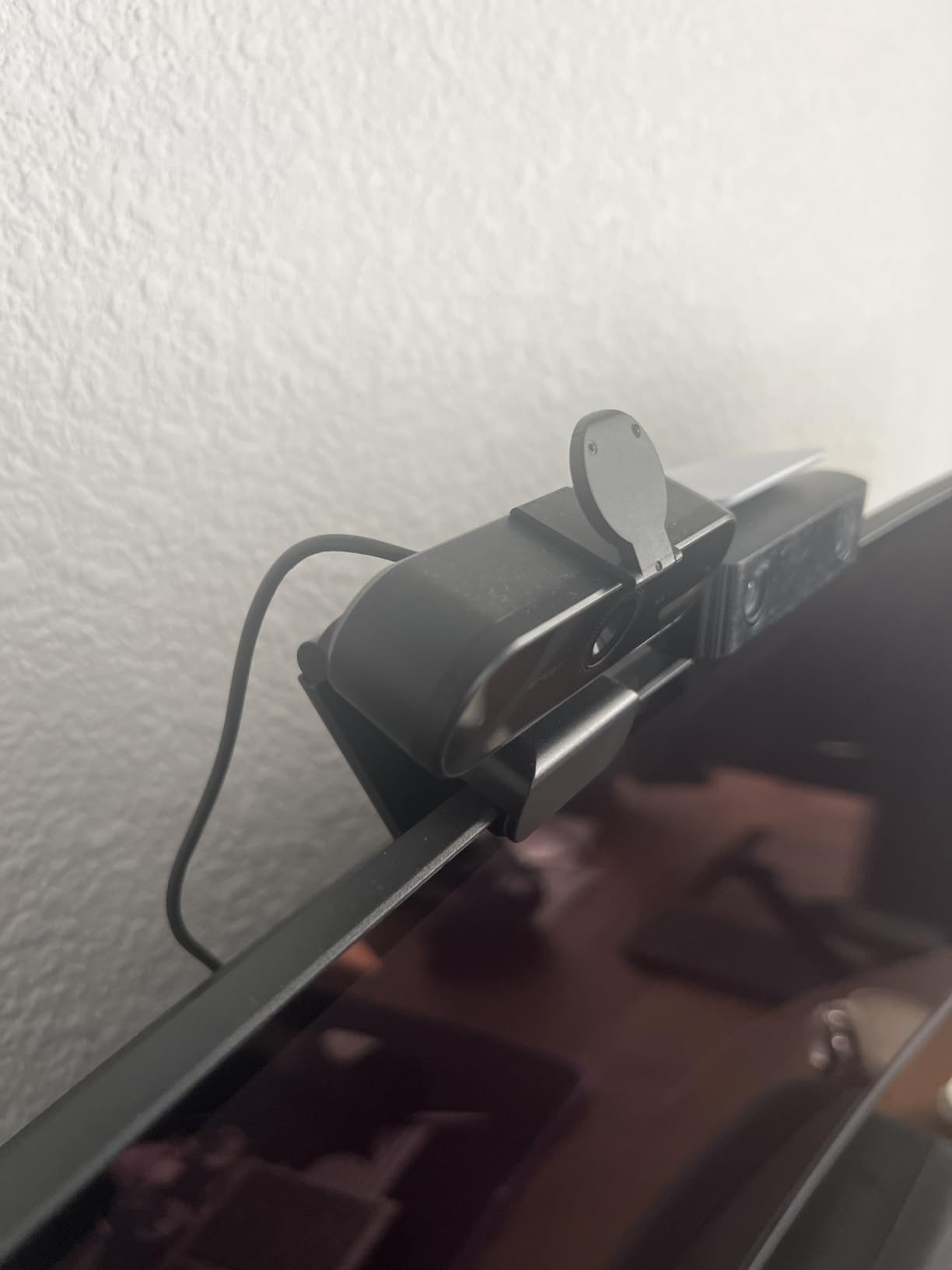
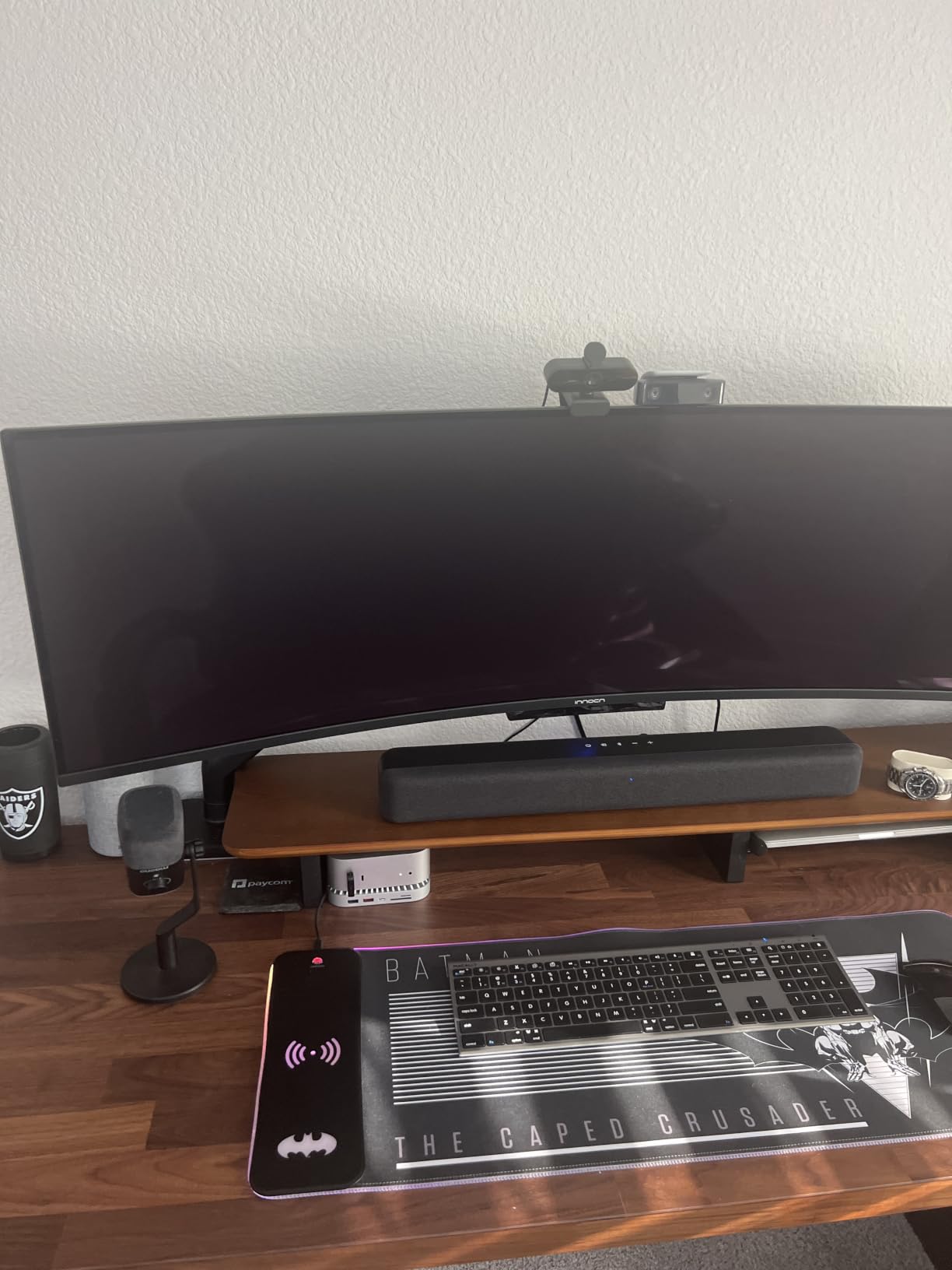
Monitor clip. The most common solution and the one that keeps the camera at eye level, which matters more for how you look on a call than image quality does. Check that the bezel is thick enough for the clip, since very thin bezels and ultrawide panels often need the tripod thread instead.
Tripod thread and small stands. Several cameras here, including the EMEET NOVA 4K and the EMEET PIXY, list a 1/4 inch tripod mount explicitly, and most of the others clamp into a generic tripod thread. A small desk tripod on a riser behind the monitor also works for a headless Mac mini driving a display you sit far back from.
Above the display. For wide or curved monitors, a monitor-mounted arm or a light bar with a camera perch keeps the lens near the top edge of the screen rather than below it, which avoids the low, upward-tilted angle that makes a desk webcam look unflattering.
How We Tested
We ran all ten cameras on the same Mac mini driving a single 27-inch display over two weeks, using FaceTime, Zoom, Teams and OBS rather than a spec sheet. Each one was tested in a bright window-lit room, a dim evening room with a single desk lamp, and backlit against a window, since low-light performance and dynamic range are where budget and mid-range cameras separate most.
For each camera we checked plug-and-play behaviour with no extra software, autofocus recovery when someone leans forward, microphone quality with a second person speaking nearby, and the physical privacy control. Ratings and review counts shown on each card come from the product listings, not from our own scoring, and every specification quoted is taken from the manufacturer data for that model.
1. Logitech C920x: The Best Webcam Overall for Mac Desktops
- Sharp 1080p with dependable autofocus
- Plug-and-play with no macOS software
- Compact and easy to mount anywhere
- Huge base of owner reviews
- Auto HD lighting adjustment
- No built-in privacy shutter
- Fixed 78 degree framing with no manual adjustment
- Dual mics can pick up echo in a bare room
This is the camera we end up recommending first, and it is not because of an exotic feature. On a Mac desktop it appears in System Settings as a standard camera within seconds, holds 1080p at 30 fps in FaceTime, Zoom and Teams, and keeps focus when a person leans forward or shifts in their chair.
The 78 degree field of view is a sensible middle ground for a desk. It frames you from roughly mid-chest upward at a normal sitting distance without the fisheye stretch that a 90 degree lens produces at close range. That matters on a Mac mini desk specifically, because the machine is often pushed to one side under or beside the monitor, and a wide lens makes the asymmetry obvious on screen.
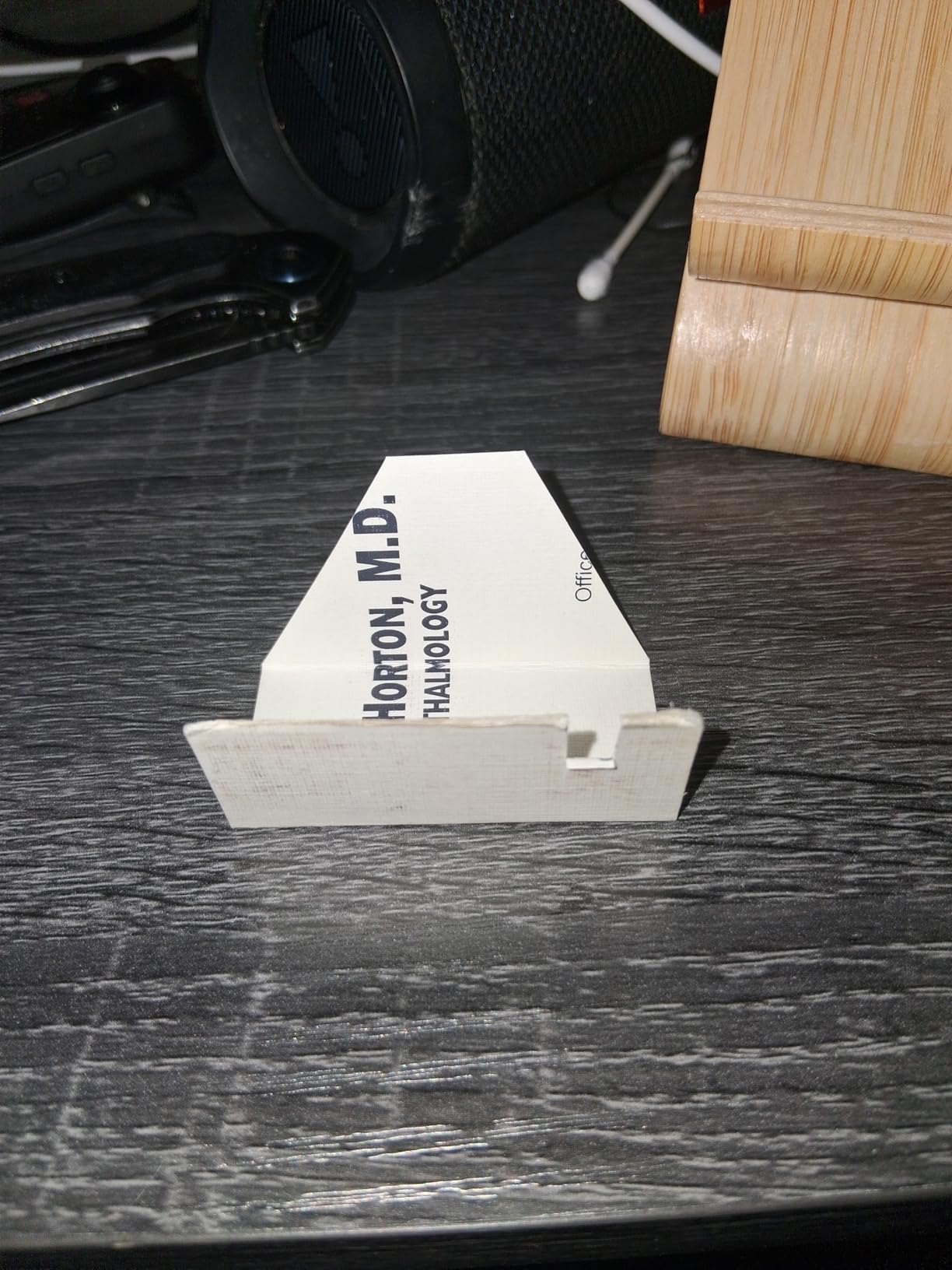
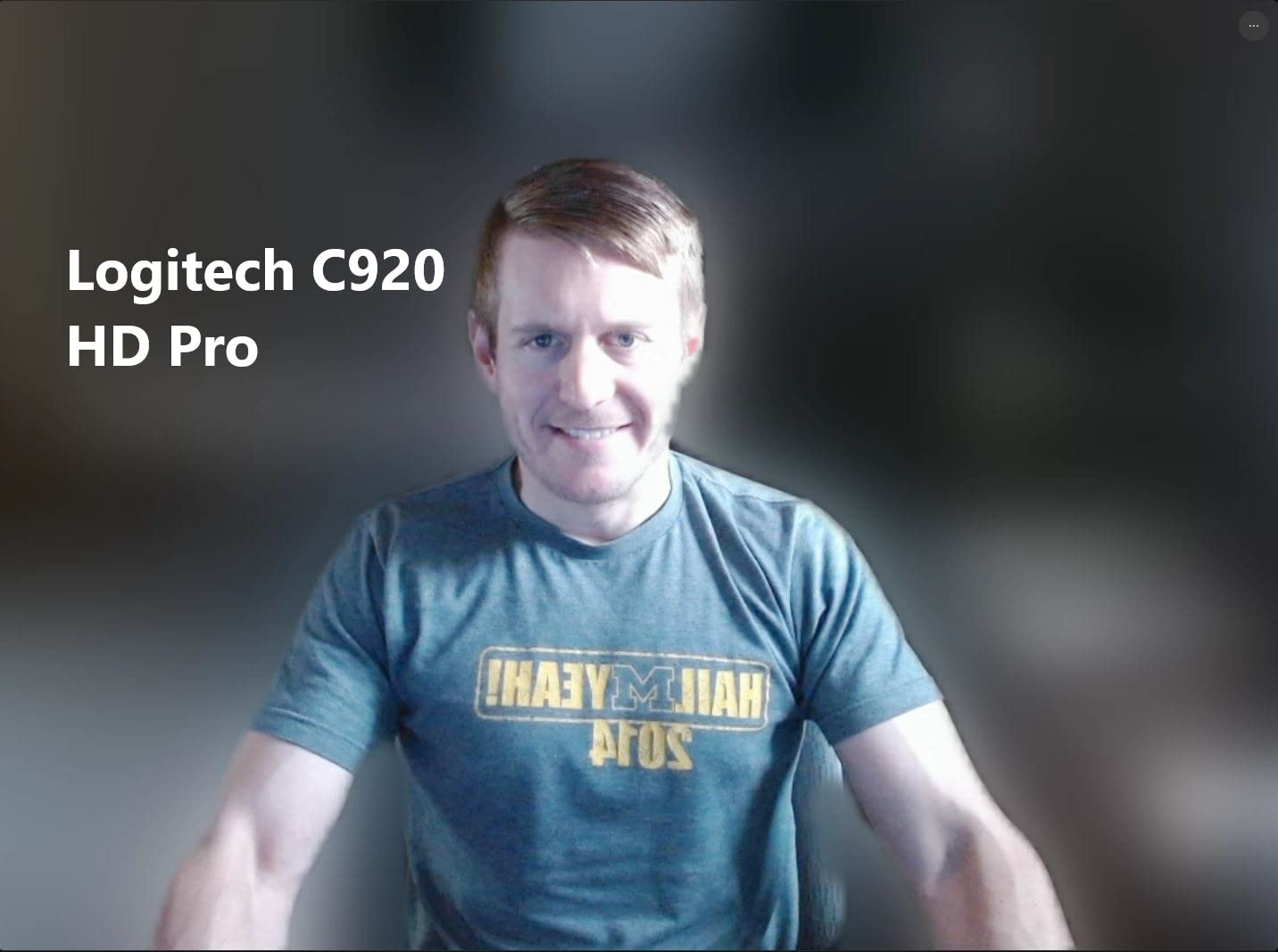
Image quality is clean rather than exciting. The 1/2.9 inch CMOS sensor handles daylight and a well-lit office well, and the automatic HD lighting adjustment lifts a dim room without turning the image milky. In a genuinely dark room it produces visible noise, which is normal for a camera at this level, and reviewers report that running several of these on one machine can be demanding on system resources.
Its dual stereo microphones handle a normal one-to-one call at a desk without complaint. They do not handle a hard-surfaced room, and the C920 series is not immune to the echo that r/LogitechG and r/macmini owners have reported when a C920-family camera is used on a Mac mini in an untreated space. Pair it with a separate microphone if your room is reflective or if you are the only speaker on a large call.
The one hardware omission that matters for a Mac desktop is the privacy cover. There is none, so you are relying on the macOS camera permission and on yourself to close applications. Several owners work around this with a clip-on third-party cover, and for a desk in a shared or client-facing space that is a reasonable addition.
What you get for the money
You get a camera that has been sold and supported for years, with a review base large enough that almost any failure mode you worry about has already been described by someone else. The body is small, weighs 5.7 ounces, and mounts on a monitor, a laptop or a small tripod without any adapter.
The included three-month XSplit VCam licence is a small extra for anyone who wants background blur, though the macOS build of that tool is less capable than the Windows one. Basic video works with no software at all, which is what matters on a Mac.
Where it falls short
There is no privacy shutter, and the 78 degree framing is fixed with no software control over the field of view. If you regularly sit far back from a large display, or you need a physical guarantee that the lens is covered, this is the wrong camera.
It is also a 30 fps camera, so it is not the right tool for anyone producing slow-motion or high-frame-rate stream material. For calls and meetings, none of that matters.
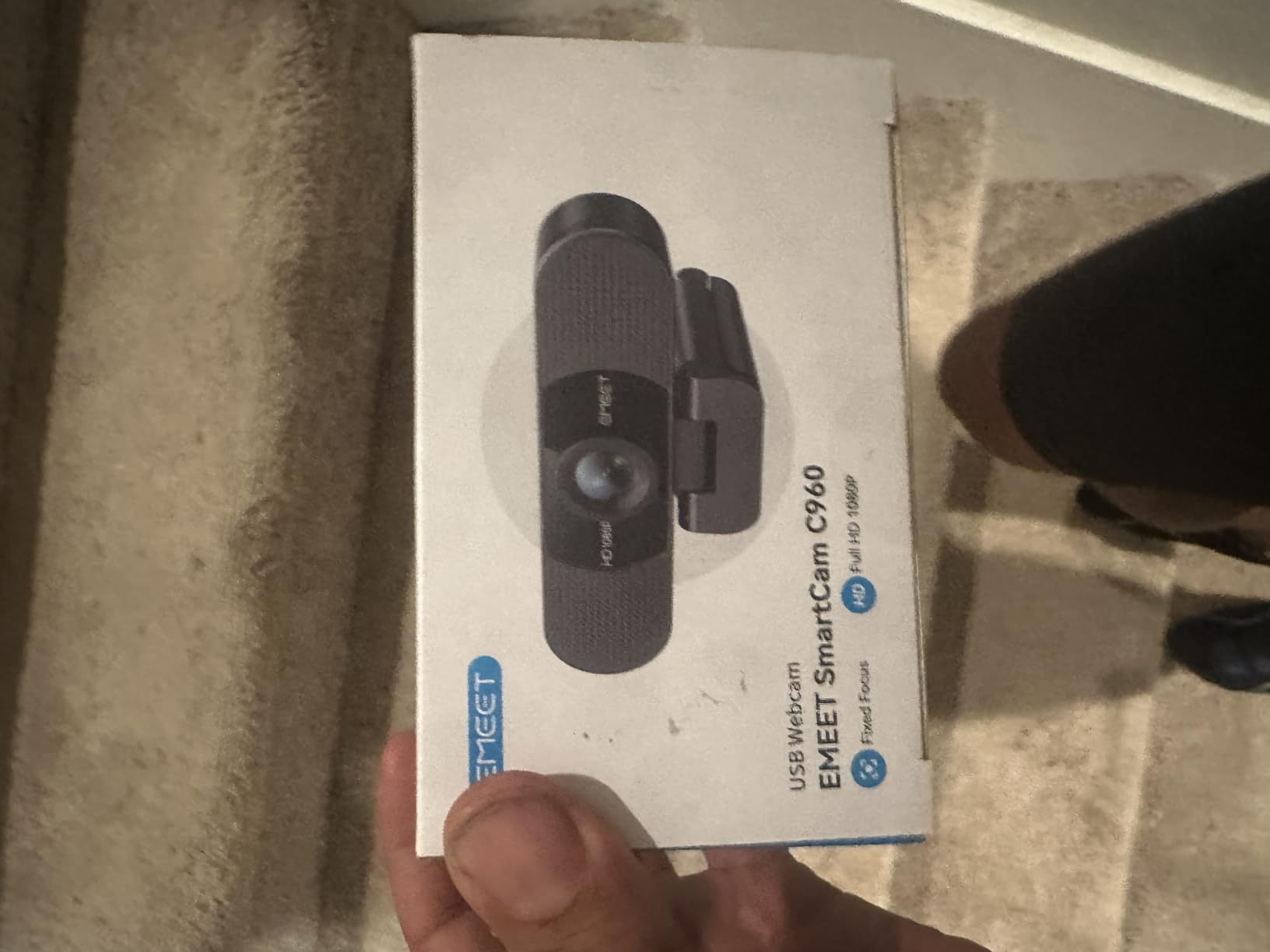
2. EMEET 1080P C960: The Best Value Pick
EMEET 1080P Webcam with Microphone, C960 Web Camera 2 Mics Streaming Webcam
- Wide 90 degree field of view for a desk
- Removable privacy cover included
- Driver-free on macOS 10.14 and later
- Folds flat for travel
- Dual noise-reducing microphones
- Fixed focus with no manual adjustment
- Effective focal range of 11.8 to 118.1 inches
- Fewer on-camera settings than premium models
The C960 is the answer when the brief is “make calls work” and the second brief is “keep it simple”. It has the largest review count of any camera in this roundup, and on a Mac desktop it needs nothing more than a USB connection, with macOS 10.14 and later listed as supported.
Its 90 degree lens is one of the widest fixed fields of view here, and that is genuinely useful in two specific Mac situations. It suits a Mac mini user who sits back from a large display, and it suits anyone who wants a whiteboard or a second person visible without a digital crop. The trade is distortion: faces near the edges of the frame stretch, and the framing is not adjustable because the focus and the angle are both fixed.
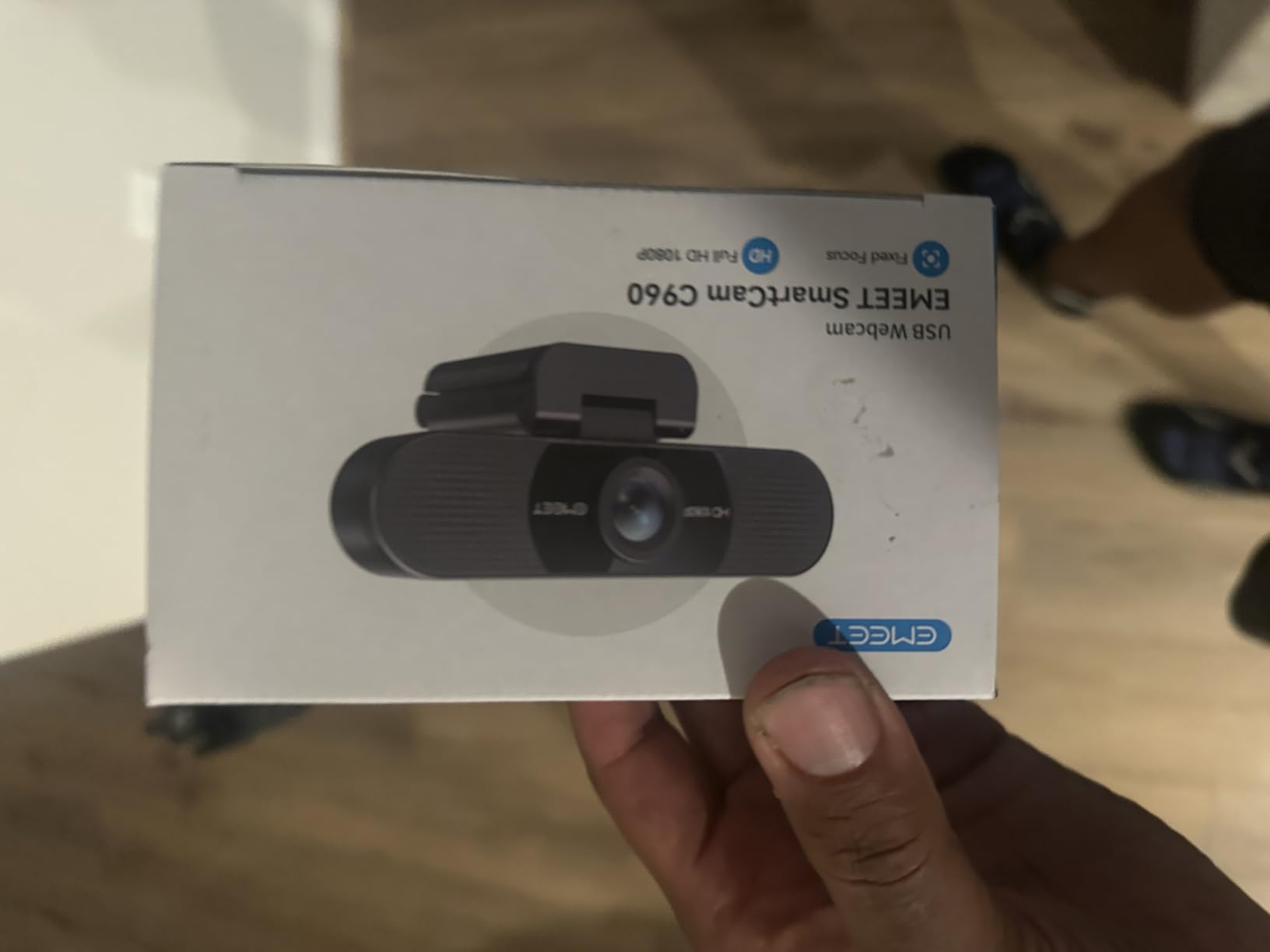
Automatic low-light correction, colour boost and exposure adjustment are handled in hardware and software together, and reviewers consistently report that the image holds together in a dim room better than the price suggests. The five-layer anti-glare lens does more for a home office with overhead lighting than any amount of extra resolution would.
Two omnidirectional noise-reducing microphones sit either side of the lens. Owners describe them as filtering background noise well enough for everyday calls, though they remain webcam microphones rather than a substitute for a desk mic. The stated effective focal distance runs from 11.8 to 118.1 inches, so it wants to be roughly an arm’s length to a few feet away, not across a room.
The removable privacy cover is the standout feature at this level, since most cameras in its class have nothing. It is a small plastic cap that snaps over the lens, which is a real physical guarantee rather than a software setting. It is also the first thing to go missing in a drawer.
Where the 90 degrees helps on a Mac desk
A Mac mini frequently ends up beneath or beside the monitor with the seat a little further back than it would be with a laptop. A wider lens gives you room to breathe in the frame without leaning forward, and it captures a shared desk or a second monitor edge that a 78 degree lens would crop out.
It is also the camera we would hand to someone teaching or presenting from a Mac, because a whiteboard mode is not needed when the field of view already includes the board. The distortion at the frame edges is the price you pay, and it is noticeable only on wide-angle video calls where someone sits at the very side.
Where it falls short
Fixed focus is the main limitation. There is no manual focus, no zoom, and no way to narrow the field of view, so if you move the camera between positions you are re-learning the framing each time. The narrow effective focal range compounds that, since the camera is only at its best within about a foot to ten feet of your face.
There is also no Windows Hello support, which matters only for face-recognition login. On macOS that is irrelevant. Everything else, from Zoom to FaceTime to Google Meet, works out of the box.
3. Anker PowerConf C200: Best for Low-Light Rooms
Anker PowerConf C200 2K Webcam for PC/Laptop/Mac, Low-Light Correction
- Strong low-light performance
- Sharper 2K detail than 1080p cameras
- Field of view adjustable in software
- Sliding privacy cover
- Works on macOS 10.11 and later
- Framing changes require the desktop software
- 2K capture runs at lower frame rates
- Smaller 2MP still sensor
The PowerConf C200 is the camera we recommend for anyone working from a room that is not well lit. Its 2K sensor gathers more light than the 1080p cameras in this list, and the low-light performance is the single most praised feature in its reviews. Owners repeatedly describe it holding up in a dim evening room without reaching for a light.
It also solves the framing problem that fixed-lens budget cameras create. Through the desktop software you select between 65, 78 and 95 degree fields of view, which means one camera can serve a tight head-and-shoulders call in the morning and a wider view including your desk in the afternoon. On a Mac desktop this is a software dependency rather than a hardware switch, which is the main compromise.
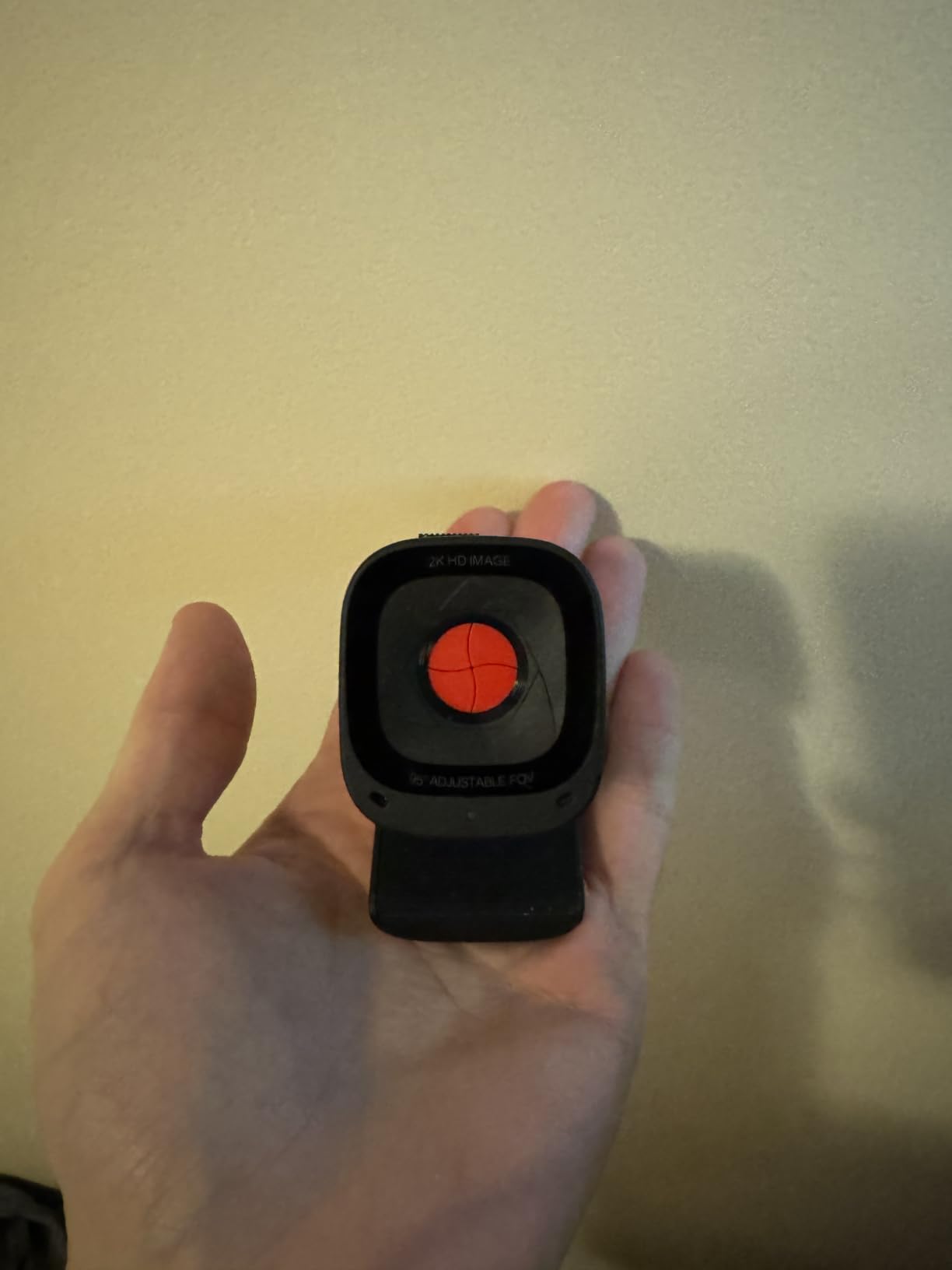
The dual microphones come with AI noise cancellation, and reviewers call out how well they hold a voice in a room with a fan or a keyboard. As with every webcam mic here, they are fine for calls and inadequate for narration, but they are among the better ones at handling a home-office environment with a Mac mini, a keyboard and whatever else is running nearby.
Connection is USB with a USB-C cable in the box, and macOS 10.11 or later is listed as supported. It appears as a standard camera without any driver work, so the software is only needed when you want to change framing, exposure or noise settings. An integrated sliding privacy cover moves across the lens without a removable cap, so it cannot be lost.
One specification to note before you commit: 2K capture runs at lower frame rates than 1080p. For meetings that is irrelevant. For streaming, check the frame rate you actually need before assuming the higher resolution helps you.
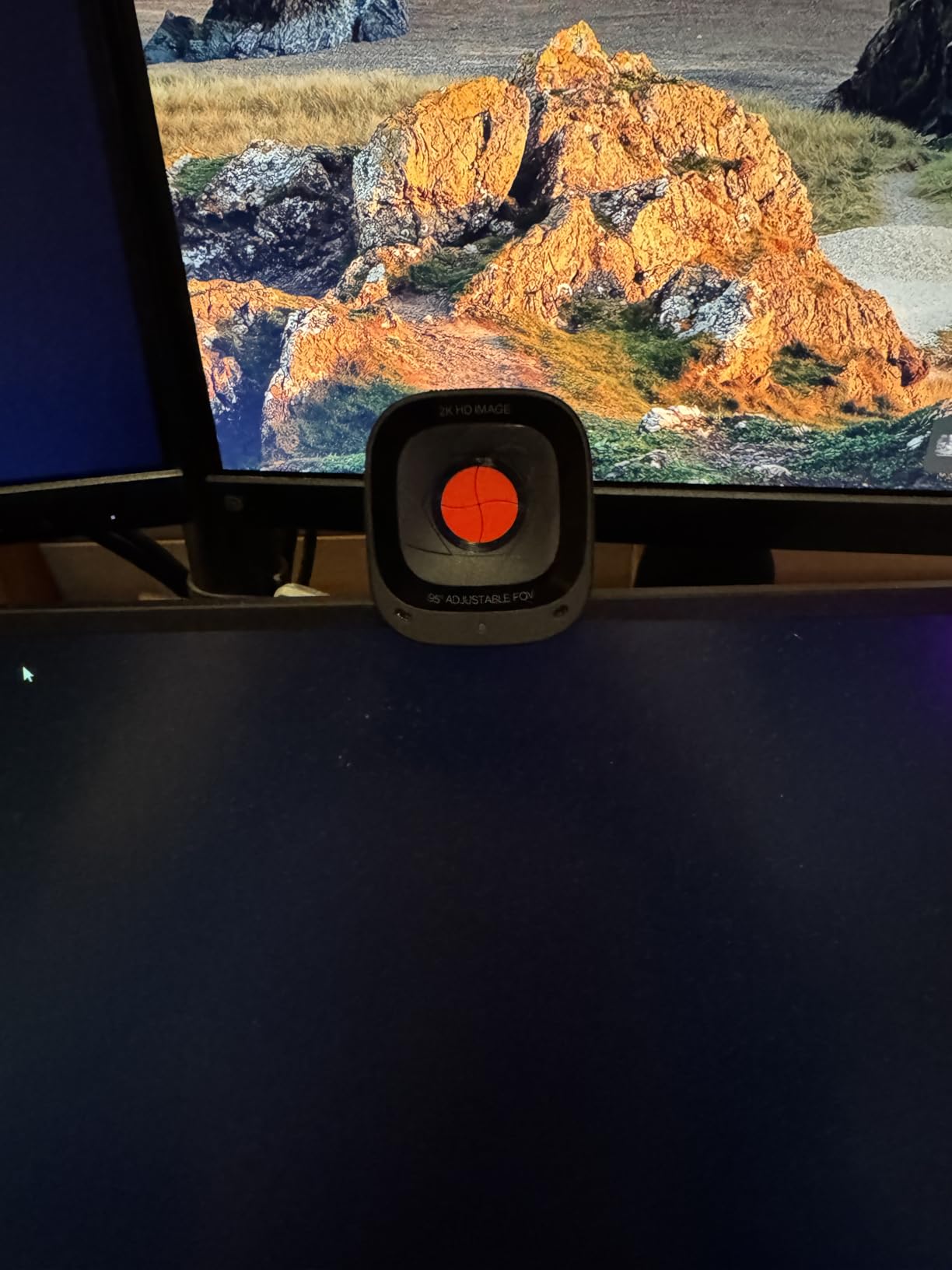
Why the adjustable field of view matters on a Mac
A Mac desktop is often shared between work and personal use, and a single fixed lens rarely serves both. The 65 degree option is the right choice for a camera high on a monitor where you want a clean, tight head-and-shoulders frame, and the 95 degree option is the right choice when you sit further back or want a second person in shot.
That flexibility also helps when a Mac mini is driving a very wide display and you are not sure how far back you will end up sitting. Being able to change the angle after the desk is built, without moving the camera, saves real friction. The catch is that the setting lives in the Anker desktop utility, so it needs installing on the Mac you use for calls.
Where it falls short
The still image sensor is 2MP, so a captured photo from this camera is much weaker than its live video looks. Nobody buying a webcam for calls is affected, and anyone recording stills for content should look elsewhere on this list.
The privacy cover slides rather than detaches, which is a genuine advantage over the C960’s loose cap, but it still leaves the lens exposed by a fraction when open. And on a Mac, the Anker utility is the only route to the framing controls, so the software is not optional if you want them.
4. Logitech Brio 101: The Budget Pick
Logitech Brio 101 Full HD 1080p Webcam for Streaming and Meetings – Black
- Affordable route to a working call
- Integrated sliding privacy cover
- Auto-Light Balance lifts brightness by up to 50 percent
- Plug-and-play on macOS
- Built-in microphone
- 60 degree field of view is tight for a desk setup
- Grainy in dim rooms
- Fixed lens with no zoom
- Logi Options+ needed for full control
The Brio 101 answers the question a new freelancer on r/macmini actually asked: what is the simplest way to look credible on client calls. It is 1080p, it plugs in, and it shows up in FaceTime immediately. Multiple-unit purchases for small offices are common, which says something about how it performs as a fleet camera.
The 60 degree field of view is the one to think carefully about. It is the tightest in this roundup, and it works well when the camera sits on top of a monitor and you sit close and square to the screen. Sit further back, or off to one side because the Mac mini is under the desk, and you will be cropping your own shoulders out of the frame with no way to zoom out.
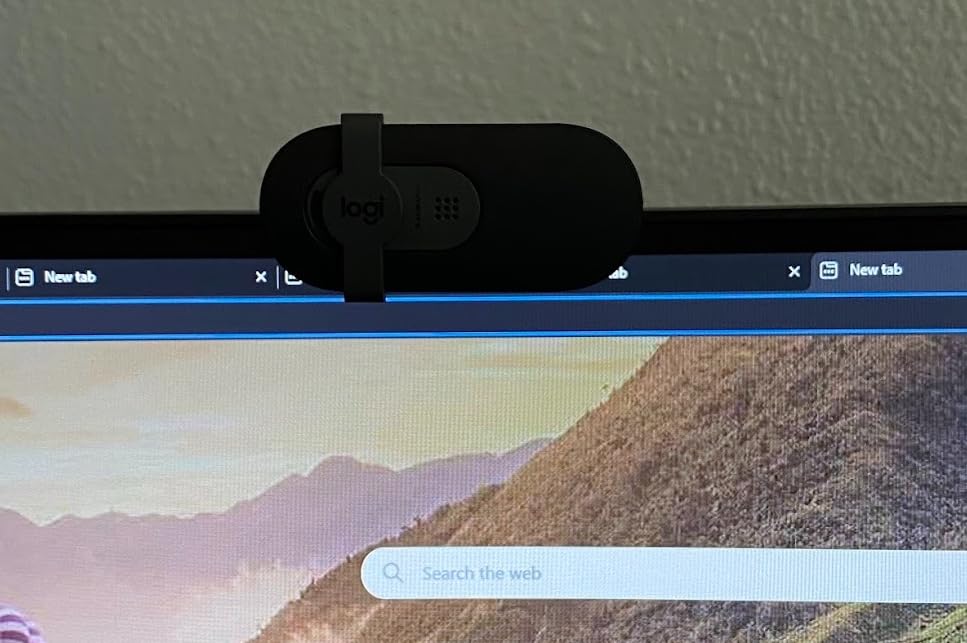
Auto-Light Balance is the useful feature. It raises brightness by up to 50 percent and reduces shadows, which does more for a home office in the evening than the resolution does. Reviewers still describe the image as slightly grainy in dim rooms, and several suggest adding a cheap diffuser light, which remains the cheapest way to improve any of these cameras.
The sliding privacy cover is better than nothing and better than many cameras above it, and the built-in microphone is clearly audible on calls, which is all you need if you are the only voice on the line. The connection is a built-in USB-A cable, so on a Mac desktop with no USB-A port you need an adapter, and macOS 10.10 or later is the stated minimum.
Logi Options+ runs on macOS and adds settings control, but the camera works without it. That is the appeal: this is genuinely driver-free and driver-optional rather than a device that needs its ecosystem to function.
Who the tight lens suits
Anyone whose camera sits on top of a display with their face roughly 50 to 70 centimetres from the lens. In that position 60 degrees gives a clean, well-filled frame with headroom, and the resulting image looks tighter and more professional on a call than a wide lens at the same distance.
It also suits a small home office where the desk is against a wall and you cannot physically move back, and a multi-monitor desk where the camera is clipped to a smaller secondary panel rather than perched above a wide screen.
Where it falls short
The fixed lens cannot zoom out. That is the most-cited complaint in the reviews and it is structural, not a settings problem, so no software update will fix it. Grain in low light is the second limitation, and it is exactly the weakness that a small light solves.
The USB-A cable is the practical annoyance for a current Mac desktop. It works through an adapter, but the Brio 101 does not include one, so budget for that if your machine has no USB-A port.
5. Logitech StreamCam: Best for Streaming on a Mac
- The one pick here with a native USB-C cable
- 1080p60 gives smooth motion on stream
- Auto-framing keeps you centred
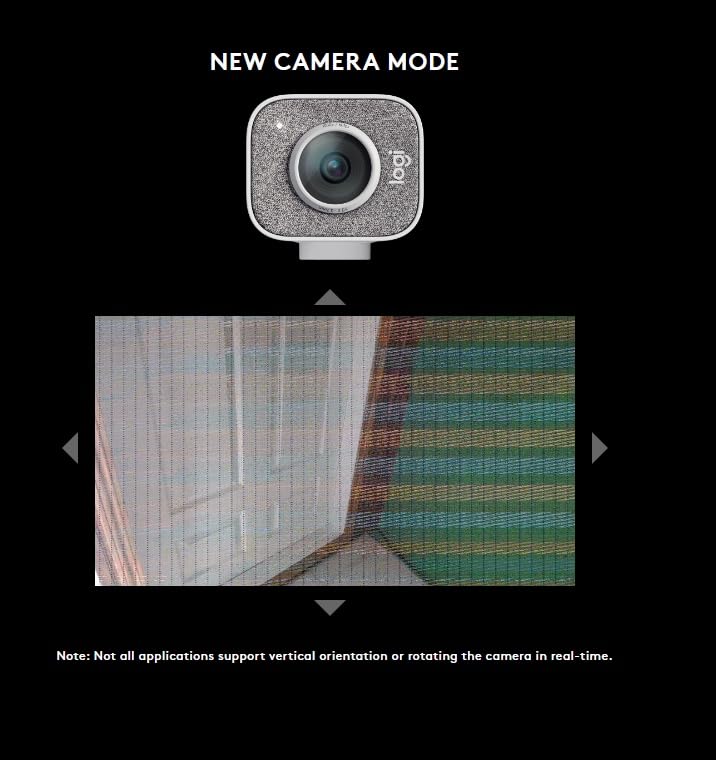
- Mounts horizontally or vertically
- Optimised for OBS and Streamlabs
- No integrated privacy shutter or lens cover
- Advanced controls need Logitech Capture installed
- Heavier than typical desk webcams
The StreamCam is the pick for anyone producing rather than just attending, and it is also the tidiest physical setup on a Mac desktop. It is the one camera in this roundup that connects over a native USB-C cable as a single-cable setup, rather than shipping a USB-A lead with an adapter alongside it, which is why users on r/macmini single it out as the option that needs no adapter. The rest of the list can be made adapter-free, but this one is designed that way from the start.
60 fps at 1080p is the specification that matters here. FaceTime and Zoom will not use the full rate, but OBS and Streamlabs will, and the difference between 30 and 60 fps is obvious the moment you move your hands or turn your head. A 30 fps camera on a stream looks like a slideshow in comparison.
The glass lens and smart autofocus produce colour that reviewers describe as natural rather than processed, and auto-framing keeps you centred when you move side to side, which is genuinely useful when you are presenting from a Mac rather than sitting still. Intelligent exposure handles the changing light of a day-in-the-life stream, and Logitech Capture automates focus and exposure so you are not adjusting settings mid-scene.
Mounting is the other strength. It clips to a monitor or a laptop, rotates to a horizontal or vertical orientation, and accepts a tripod, so you can angle a Mac mini camera for a vertical face-cam layout without a separate bracket. The included monitor mount and universal mount cover most desk arrangements.
There is no privacy shutter, and the body is heavier at over 10 ounces than most desk webcams, which is a consequence of the glass lens assembly. Advanced settings are also gated behind Logitech Capture being installed on the Mac, though the raw UVC feed works without it.
When 60 fps is worth it
It is worth it the moment you are recording rather than calling. Fast gestures, hand typing, anything involving food or a moving object, and any layout where your face occupies a small part of a large canvas all reveal the stutter that a 30 fps sensor introduces. On a video call at typical bandwidth, the extra frames are thrown away.
It is also the right camera if you record at 1080p and want headroom for cropping. With twice the frame data you can crop tighter for a talking-head layout and still have smooth motion, where a 30 fps source becomes visibly uneven once you scale it up.
Where it falls short
The lack of a privacy cover is a genuine issue on a Mac desktop, because a Mac mini often sits in a shared or open-plan room and a laptop lid does not exist to close. The body is also heavier, so a lightweight monitor clip is a better mount than the adhesive option on some slim panels.
Finally, the software dependency is real. Auto-framing and intelligent exposure are features of Logitech Capture, so if you decline the install you get a good 1080p60 camera without the smart features. macOS 10.14 or later is the stated minimum.
6. EMEET NOVA 4K: Best 4K Pick for Teaching and Recording
EMEET NOVA 4K Webcam for PC, Ultra 4K HD, PDAF Autofocus, Dual Omni Mics
- Genuine 4K at 30 fps from a CMOS sensor
- Fast PDAF autofocus
- Physical privacy cover
- 360 degree rotation with a tripod thread
- Good low-light performance
- Two-year warranty
- Video defaults to 1080p and 4K must be selected in software
- Older or low-powered USB ports may need a hub
- Colour can wash out with strong backlight
The NOVA 4K is the most interesting specification on paper in this roundup, and on a Mac desktop it is a strong recommendation for anyone teaching, recording walkthroughs, or producing anything where detail matters more than frame rate. Four times the pixels of a 1080p camera at 30 fps gives you room to crop in post without losing sharpness.
Autofocus is phase-detection rather than contrast-detection, and reviewers consistently report that it stays stable with movement instead of hunting. The 73 degree field of view is on the narrower side for a desk, which is a deliberate choice that suits a single speaker and produces a natural, undistorted frame.
The mount is the standout for a Mac mini. It offers 360 degree horizontal rotation, 15 degrees of vertical tilt, an 180 degree adjustable stand and a 1/4 inch tripod thread, so you can reposition it without re-clipping anything, which matters when the camera is not attached to a monitor. Two built-in microphones are reported to capture voice clearly for calls, and the physical privacy cover is a full cover rather than a slider.
Two things to know before you buy. The camera outputs 1080p by default and only switches to 4K when you select it, which on a Mac means finding the setting in the camera control panel or the EMEETLINK software. And the connection is USB 2.0, so an older or low-powered port may need a powered hub to sustain 4K.
Under strong directional light or a window behind you, owners report colour balance can wash out. That is a placement problem rather than a defect, and the same backlighting affects every camera in this list, though 4K sensors tend to show it more.
Why 4K matters on a Mac desktop
Because a Mac desktop is often the machine you already have plugged into a large display, the camera is the cheapest upgrade available. A 4K source gives you a real 4K recording, and it gives you a 1080p crop that still holds detail, which is useful when you want a tight talking-head frame from a wider desk shot.
It is also the right pick for demonstrations. Recording a keyboard, a whiteboard, or a device on a desk at 4K means a viewer on a small screen can still read what you are pointing at, and the higher resolution preserves fine detail in low light better than upscaling a 1080p source.
Where it falls short
The 4K mode is not automatic, which produces a first-run experience of “why does this look like every other webcam” for anyone who does not read the manual. It also depends on the port: a machine with only USB 2.0 bandwidth may drop resolution, and a powered hub becomes a likely requirement on older hardware.
It is incompatible with Windows Hello, which is irrelevant on macOS, and there is no manual focus, facial tracking or field of view adjustment. If you want the camera to follow you around, this is the wrong pick.
7. UGREEN 4K: Best Plug-and-Play Pick
UGREEN 4K@30fps Webcam for PC Ultra HD Web Camera with Noise-canceling Mics
- USB-A to USB-C adapter included in the box
- Sharp 4K output with natural skin tones
- Dual mics described as better than pricier rivals
- Auto exposure handles bright windows
- True driver-free setup on Mac
- Falls back to 1080p60 if 4K30 is not supported
- Some noise in dim conditions
- Few on-camera settings options
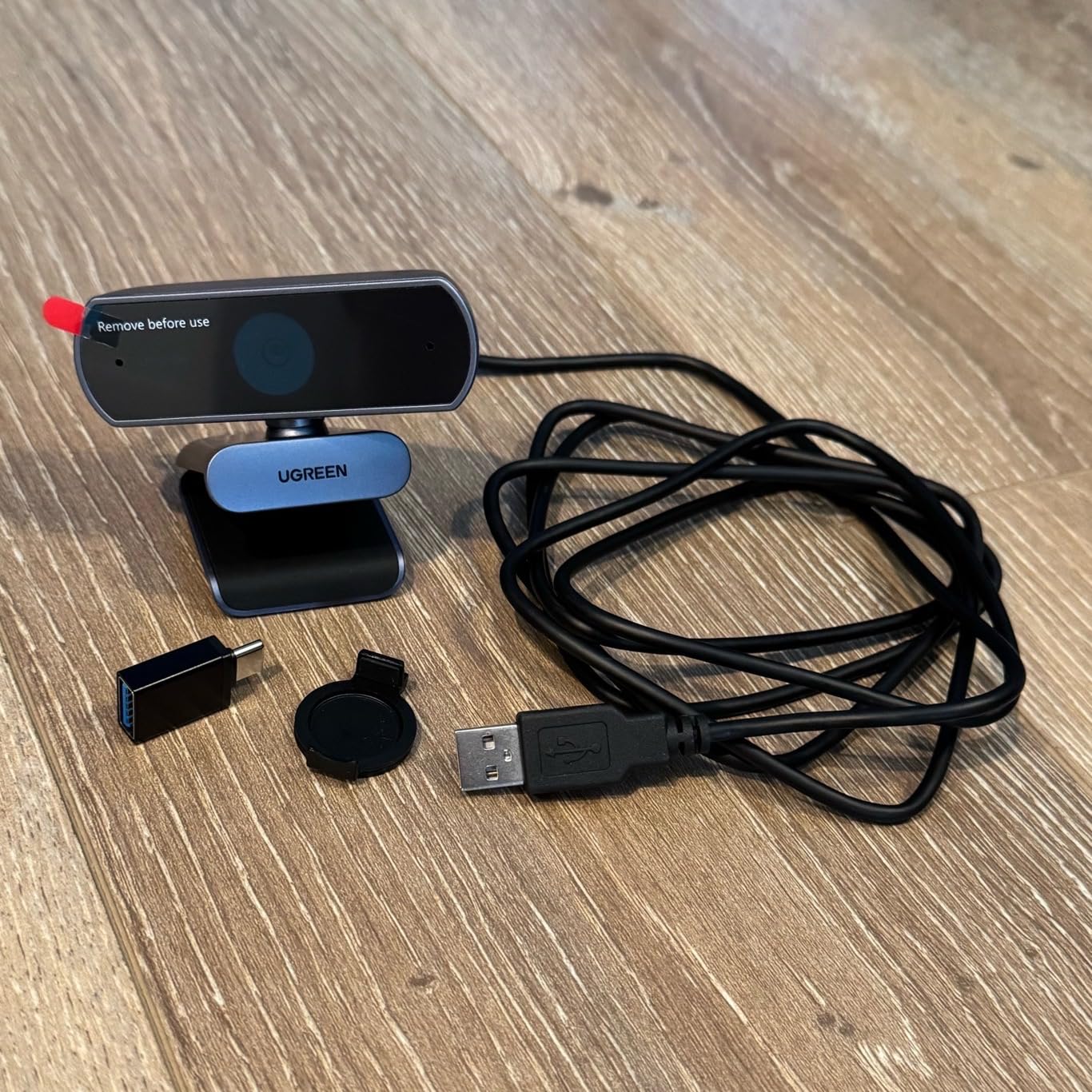
The UGREEN 4K removes the single most common Mac desktop friction point before you have even opened the box. It includes both a USB-A connection and a USB-C adapter, so it connects to a current Mac desktop directly, works on an older or hub-equipped Mac without a purchase, and needs no driver on Mac OS X 10.6 and later.
The 8MP CMOS sensor produces sharp 4K at 30 fps, and reviewers describe the image as a large upgrade from a built-in laptop camera with natural skin tones. Phase-detection autofocus tracks from roughly 0.3 to 16 feet and snaps back to the subject rather than drifting, which is what you want when a person leans forward to read something on screen during a call.
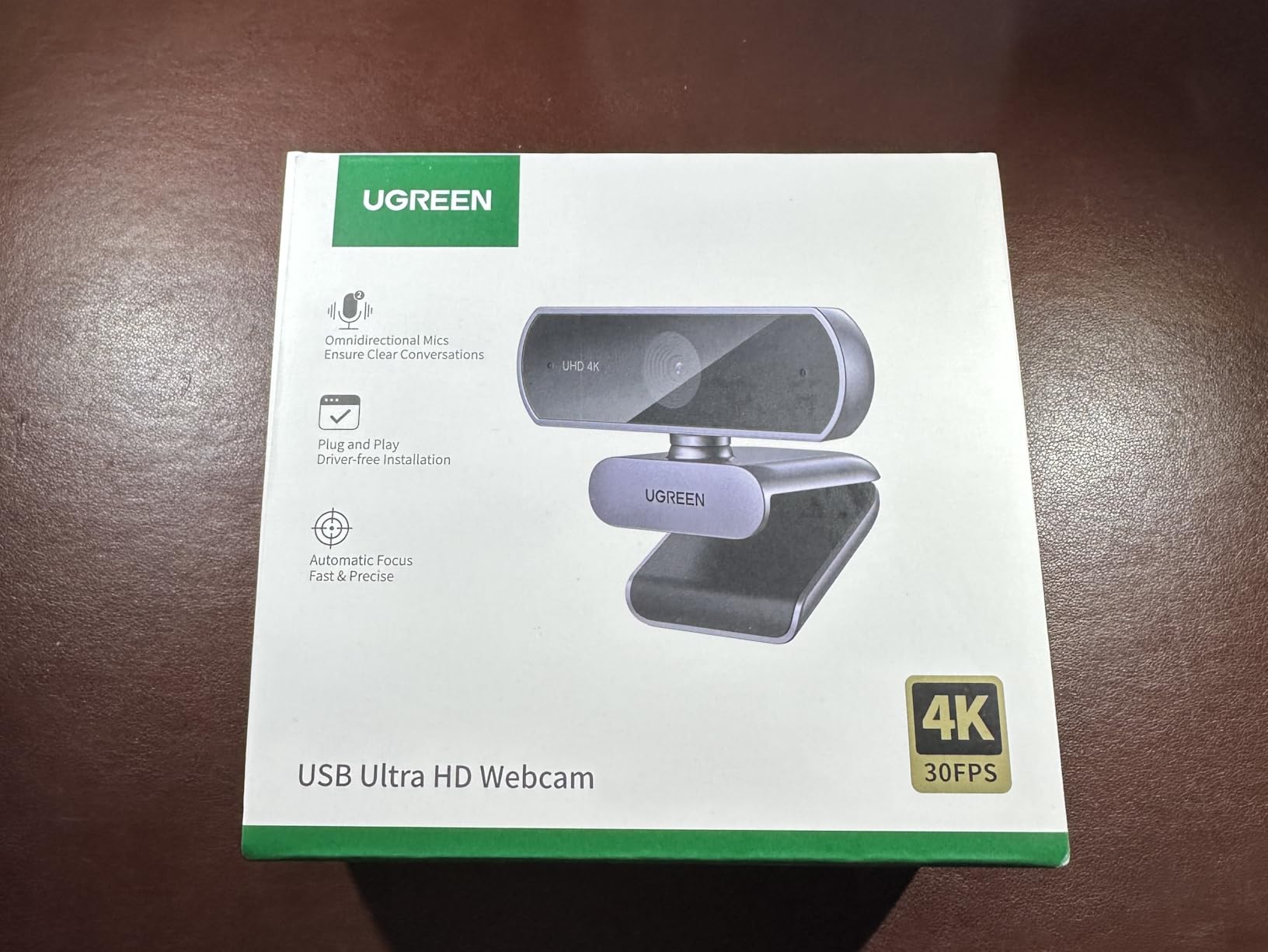
The microphones are the underrated part. Multiple reviews single them out as sounding better than microphones on more expensive cameras, and auto exposure adjusting colour temperature and lifting low light means the camera handles the window-bright, room-dim combination that defines most home offices. A built-in sliding privacy cover handles the physical side of privacy.
Be aware of one fallback behaviour: when hardware or software cannot sustain 4K at 30 fps, the camera drops to 1080p at 60 fps. That is a reasonable trade and most people will not notice it happen, but it explains why a spec sheet reading 4K does not always match a recording.
The trade is customisation. There are fewer on-camera settings than on the Anker or the Logitech models, and some noise appears in dim conditions. Compatibility is broad, covering Windows, Mac, Linux, Android, and iPadOS 17 and above, which also makes it the easiest camera to move between machines.
The adapter question, answered
This is the pick to buy if you have ever bought a webcam and then discovered you needed something else to use it. The USB-A to USB-C adapter is in the box, so there is no second purchase, no second cable to keep track of, and no risk of leaving it at the office when you take the Mac mini home.
For a Mac desktop owner who travels between a machine with USB-A ports and one without, this is the lowest-friction option in the roundup. It also works with two USB-C cables if you prefer to keep one permanently attached to the camera and one permanently attached to the desk.
Where it falls short
The 1080p60 fallback can be confusing if you are recording and expecting 4K, and image noise is visible in dim rooms, which is where the Anker PowerConf C200 performs better. A small amount of noise in an evening home office is rarely visible once it is compressed for a video call, but it shows in a recorded stream.
Control options are limited, so if you want manual exposure or a selectable field of view you are looking at a different camera. The privacy cover slides across the lens, which is better than nothing but leaves the lens slightly exposed when open.
8. EMEET PIXY: Best for Tracking and Hands-Free Framing
- Motorised pan-tilt-zoom keeps a moving subject framed
- Very fast 0.2 second autofocus
- Dual-camera design tunes focus and exposure
- Gesture control works without touching the camera
- Three sound modes including noise canceling
- Field of view locked in 4K30 and 1080p60
- Remote control sold separately
- Framing and audio features need EMEET STUDIO
- Bulkier than a basic clip-on webcam
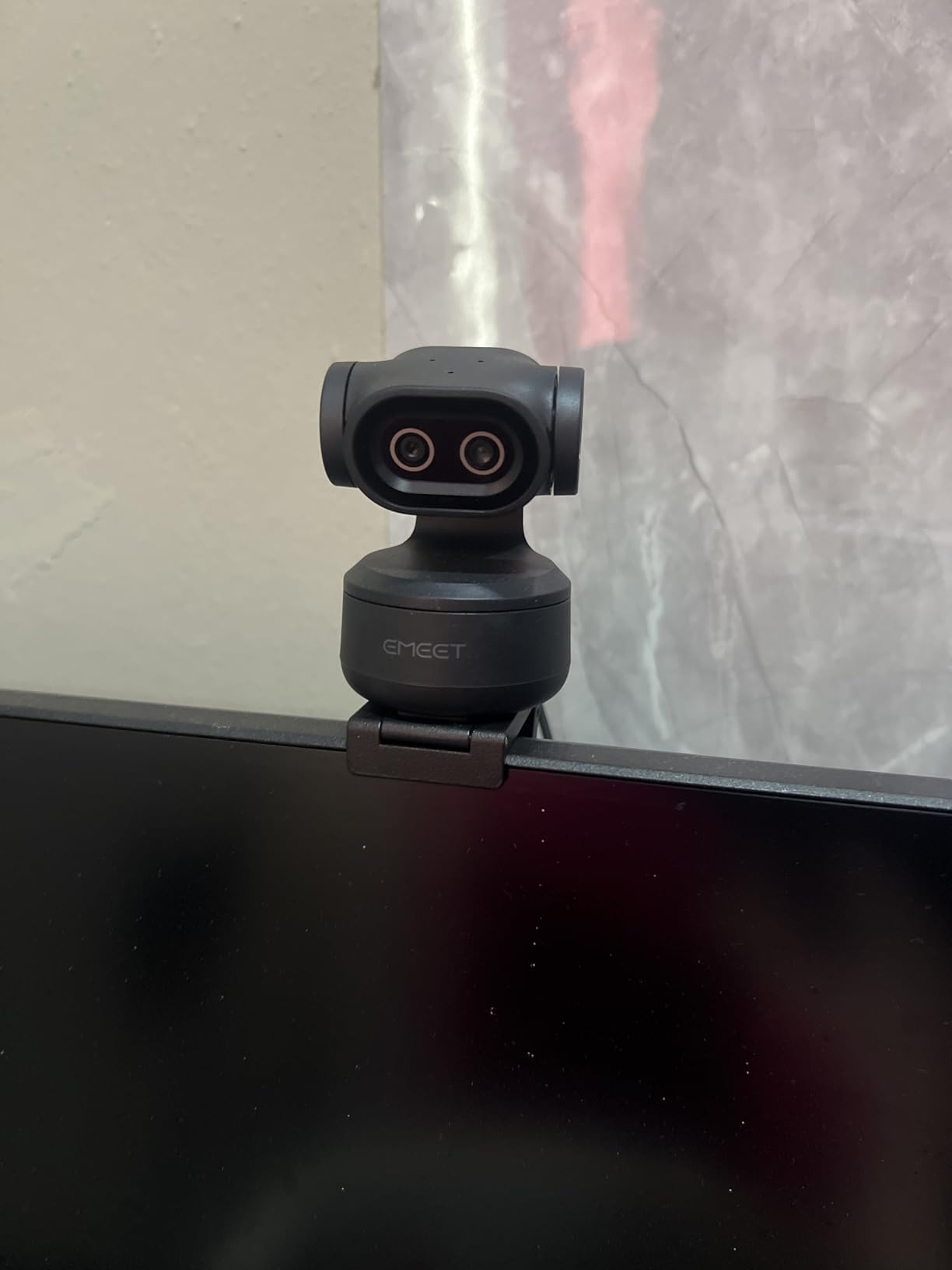
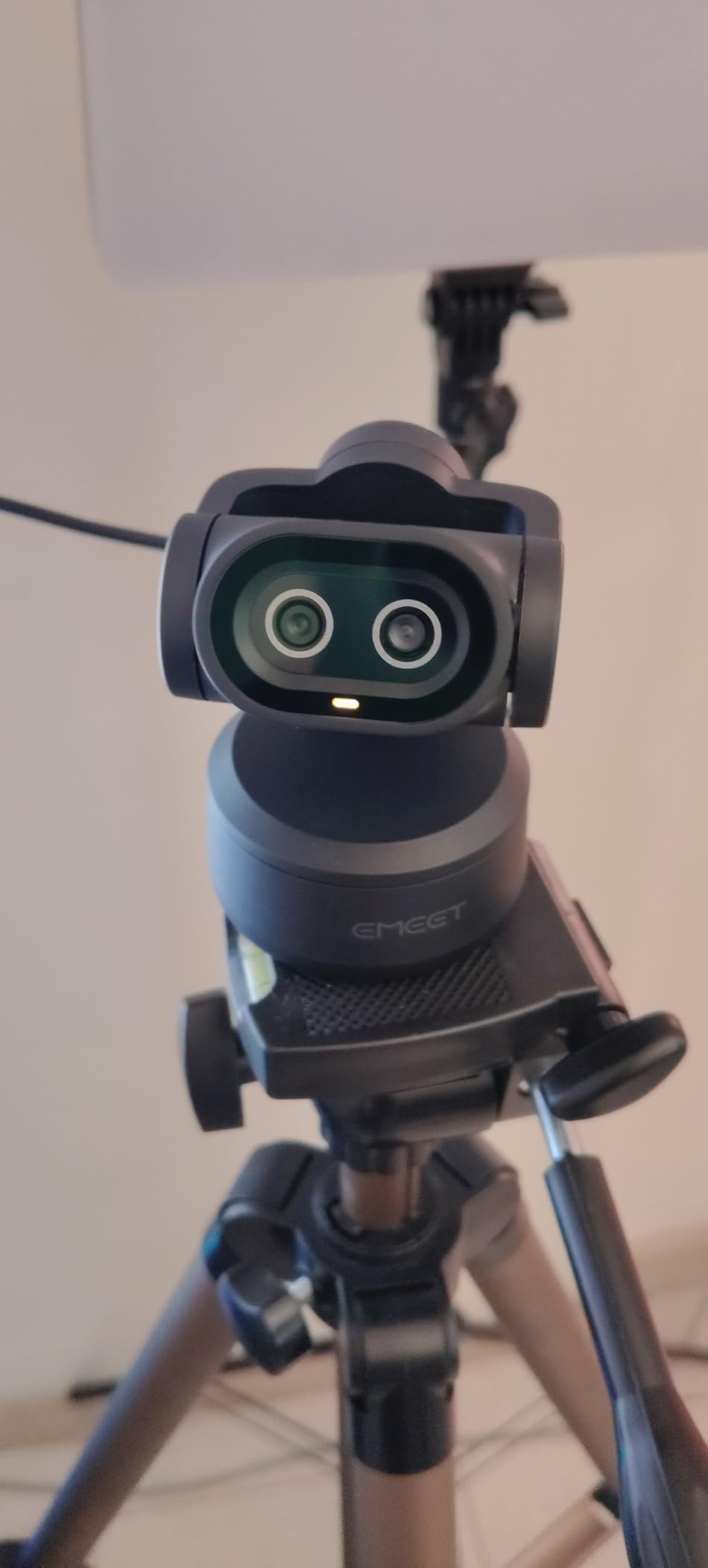
The PIXY is the only camera here with a motorised pan-tilt-zoom gimbal, and on a Mac desktop that solves a problem the others cannot. If you teach, present, or run a call where you move around the room, the camera physically follows you across 310 degrees of pan and 180 degrees of tilt instead of leaving you half out of frame.
The dual-camera design pairs a 4K main sensor with a second camera that handles focus and exposure, and autofocus is reported at 0.2 seconds. Three-chip tracking keeps a moving subject centred, and the open-palm gesture control reframes the shot without touching the camera, which is a small touch that becomes essential once you are presenting.
The audio side is unusually thorough for a webcam. A three-mic array offers Live, Noise Canceling and Original Sound modes, and EMEET STUDIO adds presets, a whiteboard mode and a privacy mode. On macOS 10.14 and later the connection is a USB-C cable with a Type-C to Type-A adapter included, so no separate purchase is needed.
There are real constraints. The field of view is only adjustable at 1080p and 2K at 30 fps, and is locked at 4K 30 fps and 1080p 60 fps, so the widest framing and the highest resolution cannot be used together. The remote control is sold separately, and the tracking and audio modes need the EMEET STUDIO software installed on the Mac.
It is a substantial body at roughly 131 grams, heavier than most of the clip-on cameras in this roundup, which matters if you intend to move it between a monitor mount and a tripod. It is a studio device, not a minimal desk camera.
When a moving subject justifies it
Tracking pays for itself the first time you stand up and move during a call. A fixed-lens camera in this roundup either crops you out or forces you to stay seated, and a whiteboard mode that reframes onto a shared surface removes the physical walking entirely. For teaching, tutoring, or a standup in a home office where you are constantly shifting, the gimbal is the feature.
It is also useful for anyone recording hands-on demonstrations where both hands are in the frame, since the camera tilts to follow the work. On a Mac mini setup, that removes the need to reach over and adjust a fixed camera every time you reposition.
Where it falls short
The locked field of view in the top resolution modes is the most annoying limitation, because 4K is the reason to want this camera. If you need both maximum resolution and maximum framing, there is no mode that provides both, and no software setting changes it.
The software dependency is heavier than with the other cameras here, the remote is an extra purchase, and the body is large enough that a sturdy mount is needed. If you sit still at a desk and make video calls, you are paying for capability you will not use.
9. AOC 4K AC310: Best for Wide Framing
AOC 4K Webcam for PC, Streaming Computer Camera with Noise-Canceling Mic
- Very wide field of view for the size
- True driver-free setup with nothing to configure
- 360 degree swivel makes positioning easy
- Physical sliding lens cover
- Included USB-A to USB-C adapter
- Sensor type not specified
- Fewer advanced settings than higher-end models
- Smaller review base than established models
The AOC AC310 is the shortest pick in this roundup to describe, and that is its selling point. It is 4K, it is driver-free, it has a physical lens cover, and an adapter is included. On a Mac desktop that is a complete, working camera within a minute of opening the box, with no software to install and no configuration to reverse-engineer.
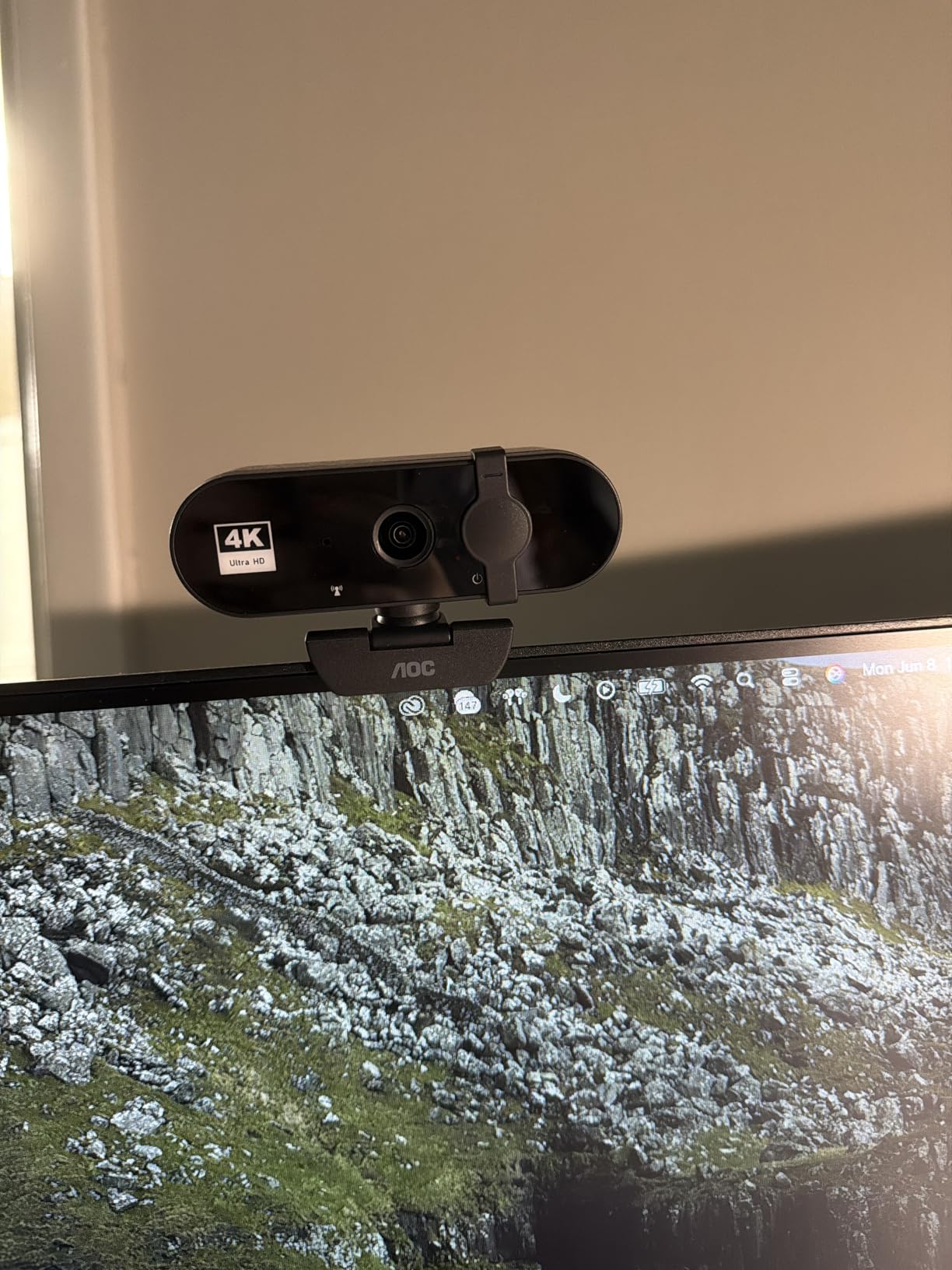
The 80 to 90 degree field of view sits at the wide end of what is listed here, and with 180 degrees of tilt and 360 degrees of swivel you can position it almost anywhere without a mount that has an articulation problem. That flexibility suits a Mac mini tucked under a wide or curved display where the ideal camera position is awkward.
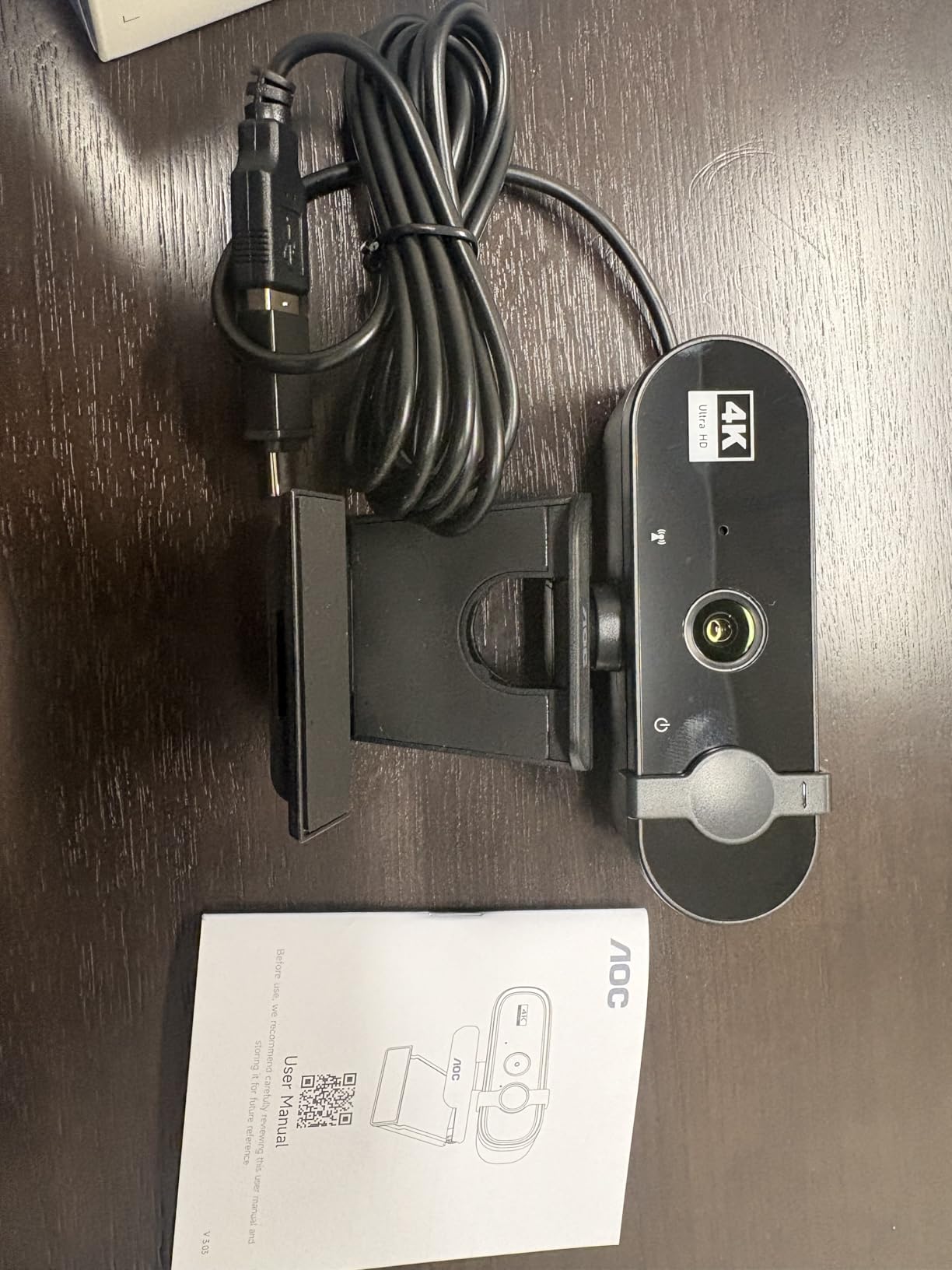
The built-in noise-reducing microphone and automatic light correction cover the basics for everyday calls, and the 4K resolution leaves room for cropping. Mounting works on a monitor, on a desk, or on a tripod, and the sliding physical lens cover means the privacy guarantee is a physical movement of plastic rather than a permission toggle.
Two honest caveats. The sensor type is not specified in the product data, so claims about image quality at the sensor level are guesswork, and the review base is small for a product in a category where longevity matters. Owners also report fewer advanced settings than on cameras in the mid-range tier.
Connection is USB-C with a USB-A adapter included, so it reaches both current and older Mac desktops without a separate purchase, and it works with Zoom, Teams and FaceTime as a standard camera. A three-year manufacturer warranty is longer than most in this list.
Where a 90 degree lens earns its place
A wide lens matters when the camera cannot be close to your face. That happens on a Mac mini desk more often than on a laptop, because the monitor may be 27 inches or wider and the machine may be somewhere else entirely. At 80 to 90 degrees you can sit back, lean naturally, and still fill the frame.
It also helps with a shared desk. A second person, a whiteboard, or a stack of notes can enter the frame without a digital crop that would cut your own face out. The cost is edge distortion, which is visible on anyone sitting at the very side of the frame, so it is a case where you should test your actual seat position.
Where it falls short
The unspecified sensor is the real gap. Two cameras on this list state their sensor size, which tells you something about how much light they gather, and this one does not, so low-light performance is harder to predict in an evening home office.
The smaller review base means less long-term reliability data, and there are fewer settings than on the Anker or the Logitech options. It is a camera for someone who wants it to work immediately, not for someone who wants to tune it.
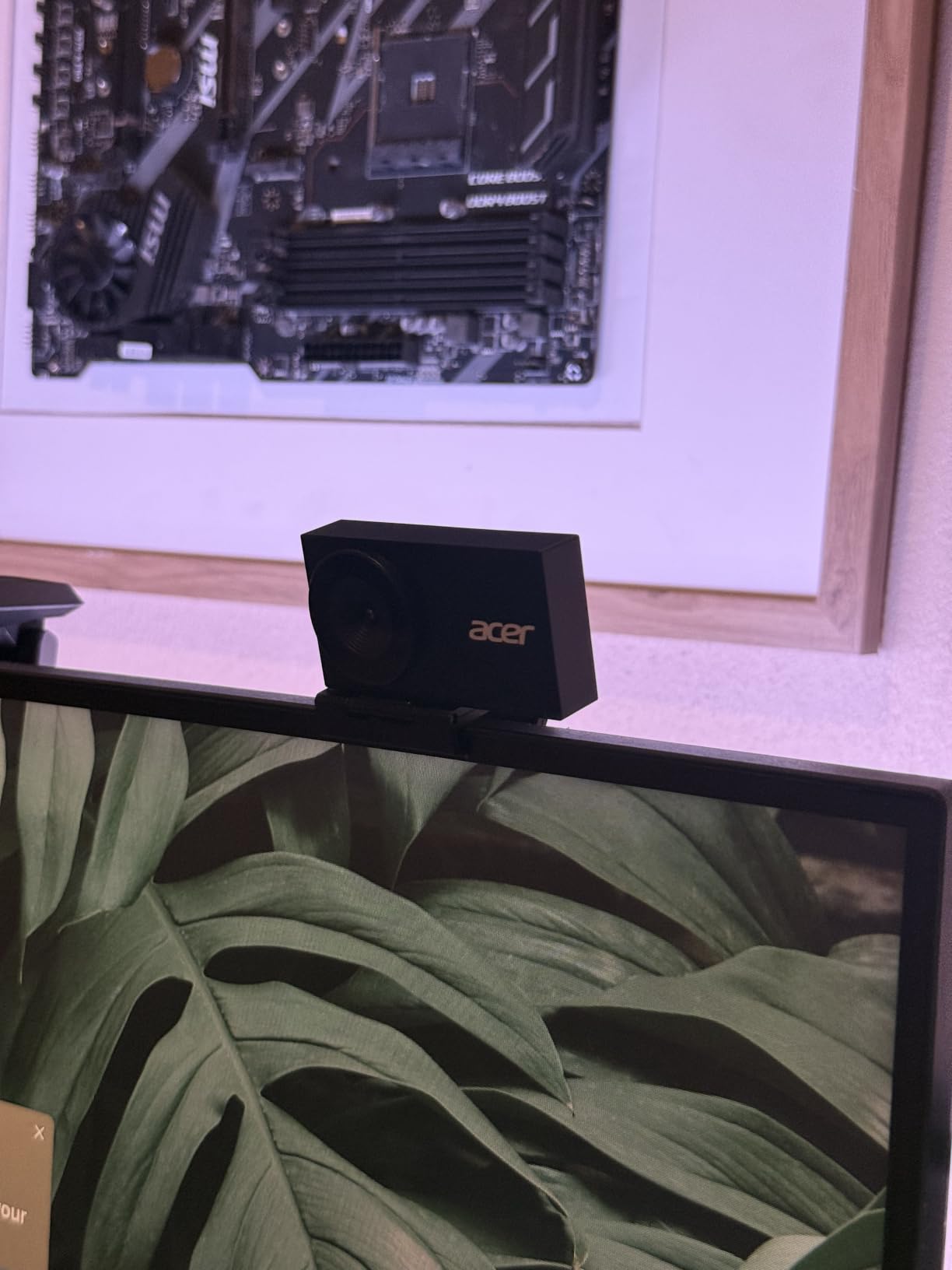
10. Acer 4K: Best for Portability and Build Quality
- Largest specified sensor here at 1/2 inch
- Metal unibody dissipates heat for long sessions
- Only 57 grams
- Magnetic privacy cover with 12 magnets
- Owners confirm it works on Mac desktops
- Detached magnetic privacy cover is easy to lose
- Limited documented software options
- Smallest review base in this roundup
The Acer 4K is a very light 57 grams, and the build is the reason. An aerospace-grade aluminium unibody with CNC machining and a sandblasted matte finish feels like a different product category from the plastic clip-on cameras it competes with, and the metal body also dissipates heat, which matters for anyone leaving a camera running through a long session.
The sensor is the other reason to look here. It is specified as a Sony 1/2 inch CMOS, the largest sensor size stated by any camera in this roundup, and that size is what determines how much light is gathered. Reviewers describe the image as crisp in 4K with natural colour, and several owners specifically confirm using it on Mac desktops, Mac Studio and MacBook Air with a much clearer picture than a built-in camera.
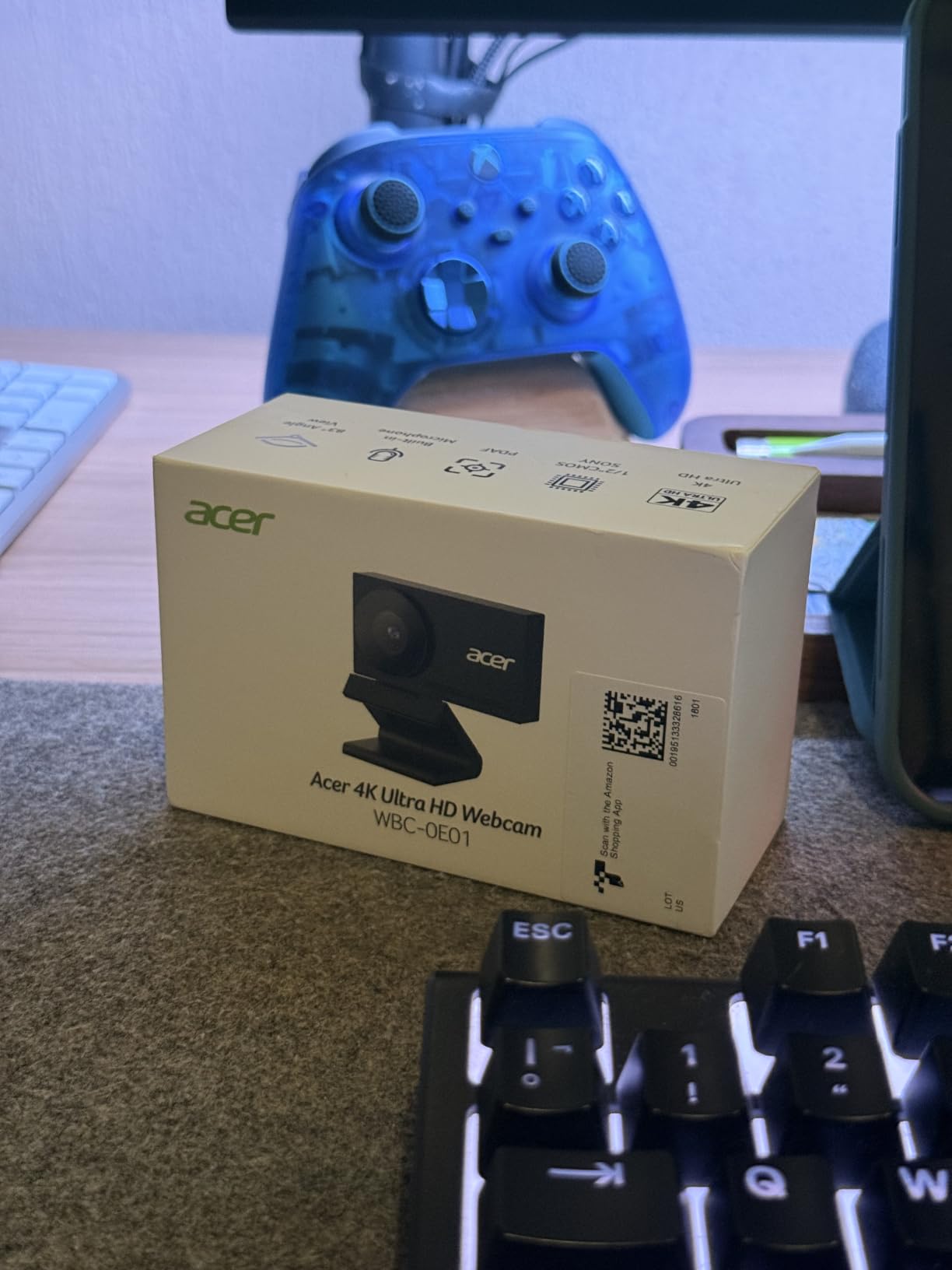
Phase-detection autofocus stays crisp when the subject moves, and dual high-sensitivity digital microphones pick up voice from up to 2.5 metres with noise filtering, which makes it a reasonable two-person call camera rather than a single-speaker one. Connection is USB-C with a USB-A to USB-C adapter included, and it works with Windows, Mac and Chrome OS alongside Teams, Zoom, Twitch, FaceTime, YouTube and Google Meet.
The magnetic privacy cover uses 12 built-in magnets to snap over the lens, which is a satisfying solution to a problem, and it is also the main complaint. Because the cover detaches completely, owners report losing it, and a camera that ends up uncovered defeats its own privacy feature.
Software customisation is the other limitation, and this has the smallest review base in the roundup, so there is less long-term reliability data available. For a Mac desktop that is a fair trade, because the hardware is verified to work on the platform and the weight makes it easy to move between desk and a second machine.
Why sensor size beats resolution on a Mac desk
Two 4K cameras on this list state their sensor size, and the one with the larger specified sensor is the one that tends to look better in a dim room. Resolution tells you how much detail a frame contains when the light is good. Sensor size tells you how much light the camera can collect to build that detail, which is why a 4K camera with a small sensor can look worse in the evening than a 1080p camera with a large one.
On a home office desk that alternates between a bright window and a single lamp, that difference shows up every day. It is also why the Acer is the camera we would pick for a Mac mini in a room that is not a dedicated office.
Where it falls short
The detached magnetic privacy cover is easy to lose, and a lost cover means an uncovered lens, which is a small but annoying failure. Keep it attached when not in use or treat it as part of the camera rather than an accessory.
Documented software options are limited, and with the smallest review base here, long-term reliability reports are thinner than for the established models. If you want a camera you can fine-tune in software, this is the wrong one.
Buying Guide: Choosing a Webcam for a Mac Desktop
Start with the port, because it is the only factor that can make a camera unusable. A USB-C webcam connects directly to a current Mac desktop. A USB-A webcam needs an adapter on a machine without USB-A ports, and four picks here include one in the box. A USB-A to USB-C adapter is the fix users suggest most often on r/macmini, and it is a small cost, but it is one you can avoid entirely.
Next, field of view. A 60 degree lens suits a camera on top of a monitor with you sitting close and square to the screen. A 73 to 78 degree lens is the general-purpose choice for a desk at normal distance. A 90 degree lens suits a Mac mini under a wide display, a second person in shot, or a whiteboard. Wide lenses distort faces at the edges, and adjustable lenses are better than wide ones if software is involved.
Resolution matters less than most comparisons suggest. For calls and meetings, 1080p at 30 fps is genuinely sufficient, and 1080p at 60 fps is the right target if you record. 4K pays off when you crop, when you record hands-on material, or when you need detail a viewer can read. It is not a visible improvement on a standard video call at typical bandwidth.
Low-light performance is where budget cameras separate fastest, and it depends on sensor size more than resolution. If your room is dim in the evening, prioritise a larger stated sensor and automatic exposure over a 4K headline. A small light near the camera will improve every camera on this list more than any of them will improve themselves.
Do you need a separate microphone? For calls, no. For streaming, recording narration, or long meetings in an untreated room, yes. Webcam microphones are small, mounted far from your mouth, and pick up whatever else is in the room. The C920 series echo reported by owners on a Mac mini is a good example of the failure mode, and it is about the room and the microphone, not the camera.
What are the common problems with Logitech webcams on a Mac? The recurring ones are the absence of a physical privacy shutter on several models, dependence on Logi Options+ or Logitech Capture for advanced settings, and echo from the built-in microphones in a bare room. None of these are deal-breakers, and all three are avoidable by choosing a model with a cover, accepting the defaults, or adding a separate microphone.
Is a MacBook webcam good enough? For a video call, a recent MacBook camera is adequate in good light and struggles in a dim room with a wide group. It is also unusable in the common desktop arrangement where a MacBook is closed or used lid-down with external monitors, since the camera either points at the wrong angle or is not available at all. That arrangement is the strongest argument for an external webcam on a Mac desktop.
Finally, privacy. macOS permissions are the first layer, and a camera disabled in System Settings cannot record. The second layer is physical, and a sliding or removable cover is the only guarantee that works when the machine is switched on and a call ends without you. Seven of the ten picks here include one, and the three that do not are the C920x, the StreamCam and the PIXY.
Frequently Asked Questions
Do Mac desktops have a built-in webcam?
No. Mac mini, Mac Studio and Mac Pro ship with no camera and no microphone at all, so an external webcam is a required accessory rather than an upgrade. A MacBook has a built-in camera, but a MacBook running lid-down with external monitors cannot use it, which creates the same need. The Mac Studio Display is a display, not a computer, and its camera question depends on the machine attached to it.
Can you connect a webcam to a Mac mini?
Yes, in four steps. First, plug the webcam into any USB port on the Mac mini, using a USB-A to USB-C adapter if the camera has a USB-A cable. Second, open System Settings and go to Privacy and Security, then Camera and Microphone, and allow the apps you want to use. Third, open FaceTime, Zoom, Teams or Google Meet and choose the webcam as the camera source. Fourth, confirm macOS has picked it up before you start. No drivers are needed for any UVC camera.
What is the best USB-C webcam for Mac desktops?
The Logitech StreamCam is listed with USB-C connectivity and connects directly to a current Mac desktop with no adapter, which is why it is the cleanest single-cable setup. If you want a 4K sensor, the UGREEN 4K and the Acer 4K both ship a USB-A to USB-C adapter in the box, so they are also adapter-free out of the box. Any USB-A camera works on a Mac desktop with a USB-A to USB-C adapter.
Will a Windows webcam work on a Mac?
Yes, as long as it is a UVC device, which every camera in this roundup is. macOS will see it as a standard camera with no driver installation. What does not transfer is Windows-only software: controls such as background replacement or a physical framing switch may exist on the Windows build and be missing on the macOS one, so check the macOS feature list before buying for a specific capability.
Is a MacBook webcam good?
A recent MacBook camera is adequate for a one-to-one video call in good light, and it gets noticeably worse in a dim room or with more than one person in frame. It is also unusable in the common desktop arrangement where a MacBook is closed or runs lid-down with external monitors, since the camera is either angled wrong or unavailable. For calls at a desk, an external webcam produces a clear improvement.
Do I need a separate microphone with a Mac desktop webcam?
For calls, the built-in microphone on any of these cameras is enough. For streaming, narration, or long meetings in a room with hard surfaces, a separate microphone is a clear upgrade, because webcam microphones sit far from your mouth and pick up the whole room. The C920 series echo reported by owners on a Mac mini is a good example of that failure mode, which comes from the room and the microphone rather than the camera.
Conclusion
The best webcams for Mac desktops come down to one honest constraint: your Mac has no camera, so something has to be plugged in. For most people that something is the Logitech C920x, which connects without software, focuses reliably and has a review base large enough to be confident in. Pick the Anker PowerConf C200 instead if your room is dim, the Logitech StreamCam if you are recording at 60 fps and want a single USB-C cable, and the UGREEN 4K or Acer 4K if you want 4K detail and an adapter in the box.
Check the port before you check anything else, mount the camera at eye level rather than beside the machine, and add a light before you add a more expensive camera. A Mac desktop setup that is correctly mounted and lit will beat a more expensive camera sitting on the desk beside your monitor. Our guide to the best webcams for remote work covers the lighting and software side of that same desk. This roundup was last checked in 2026.