
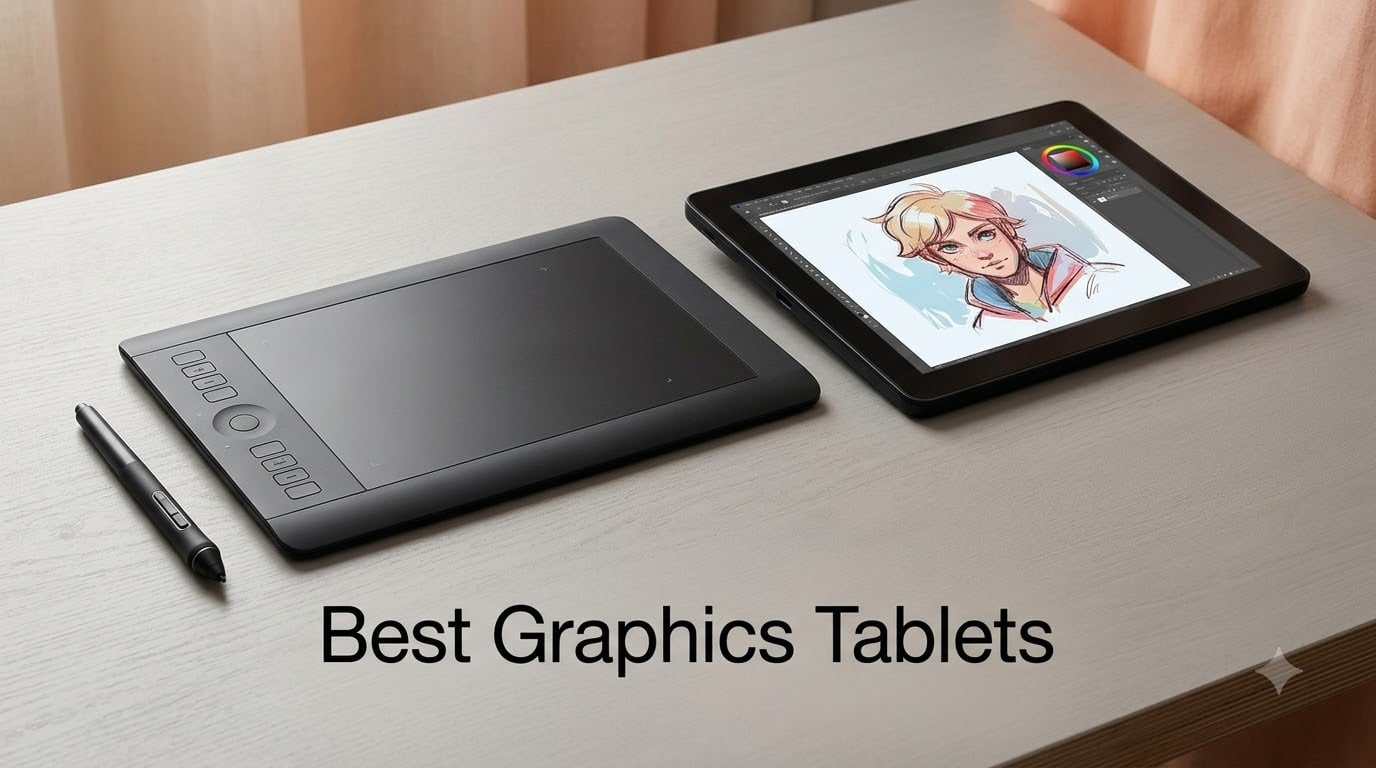
I have tested dozens of graphics tablets over the past three years for illustration, photo retouching, and yes – drafting the kind of mechanical schematics that show up in robotics projects here at Smashing Robotics. Whether you are sketching character concepts in Krita, retouching photos in Photoshop, annotating a CAD drawing, or marking up a wiring diagram, the right graphics tablet changes everything about how the work feels.
A graphics tablet (also called a drawing tablet, pen tablet, or pen display) is the most natural way to put pen input into a computer. Modern units track up to 16,384 levels of pressure, 60 degrees of tilt, and – on pen displays – render your strokes directly under the stylus. In 2026 the gap between a budget screenless tablet and a flagship Wacom Cintiq has shrunk dramatically, which is great news if you have been waiting to upgrade.
This guide covers the best graphics tablets across three form factors: pen tablets (no screen), pen displays (built-in monitor), and the closest “pen computer” alternatives like iPad Pro. I picked models that hold up to daily use, work with mainstream creative software, and ship with drivers that do not crash every other Tuesday.
Table of Contents
Quick Picks: Best Graphics Tablets at a Glance
Best Overall (Pen Tablet): Wacom Intuos Small – 4 ExpressKeys, 4096 pressure levels, Chromebook-ready, 23k+ reviews.
Best Value Pen Display: XP-Pen Artist 15.6 Pro – 120% sRGB, full-laminated screen, Red Dial, 8192 pressure levels.
Best Budget Tablet: XPPen StarG640 – 6×4 inch work area, 8192 pressure, 2mm thin, under $30.
Best for Linux: XPPen Deco 01 V3 – 16K pressure, 10×6.25 inch area, Ubuntu and Fedora drivers.
Best 16K Pen Display: XPPen Artist 15.6 Pro V2 – X3 Pro smart chip stylus, 96% Adobe RGB, Red Dial.
Best Hotkey Loadout: HUION Inspiroy H1060P – 12 hard keys + 16 soft keys, 8192 pressure.
Best Entry-Level Display: GAOMON PD1161 – 11.6 inch FHD, matte film, 8192 pressure.
Best Color Accuracy Under $200: UGEE UE16 – 143% sRGB, four color spaces, 16K pressure.
Best Wacom Cintiq Alternative: HUION Kamvas Pro 16 – 120% sRGB, full-laminated, touch bar.
Best for Creative Pros: Wacom Intuos Pro Medium – Pro Pen 3, magnesium build, Bluetooth.
Top 3 Graphics Tablets Right Now (September 2026)
Best Graphics Tablets in 2026
| Product | Specifications | Action |
|---|---|---|
 Wacom Intuos Small Wacom Intuos Small |
|
Check Latest Price |
 XPPen StarG640 XPPen StarG640 |
|
Check Latest Price |
 XPPen Deco 01 V3 XPPen Deco 01 V3 |
|
Check Latest Price |
 XPPen Artist 15.6 Pro V2 XPPen Artist 15.6 Pro V2 |
|
Check Latest Price |
 HUION Inspiroy H1060P HUION Inspiroy H1060P |
|
Check Latest Price |
 XP-Pen Artist 15.6 Pro XP-Pen Artist 15.6 Pro |
|
Check Latest Price |
 GAOMON PD1161 GAOMON PD1161 |
|
Check Latest Price |
 UGEE UE16 UGEE UE16 |
|
Check Latest Price |
 HUION Kamvas Pro 16 HUION Kamvas Pro 16 |
|
Check Latest Price |
 Wacom Intuos Pro Medium Wacom Intuos Pro Medium |
|
Check Latest Price |
1. Wacom Intuos Small – Industry-Leading Pen Tablet
Wacom Intuos Small, Wired Graphic Drawing Tablet with Pen + Software
- Industry-leading EMR battery-free pen
- Trusted Wacom brand with 40+ year track record
- Plug-and-play on Windows
- Mac
- Chromebook
- Includes creative software bundle on registration
- 4 customizable ExpressKeys for shortcuts
- Small 6x3.7 inch active area can feel cramped
- Wired-only USB-A connection with no Bluetooth
The Wacom Intuos Small is the tablet I keep recommending to anyone asking “what is the safest first graphics tablet to buy?” After 30 days of daily use it became my travel unit – it slips into a laptop bag, the EMR stylus never needs charging, and the drivers install cleanly on every machine I plugged into.
You get 4096 levels of pressure (lower than the 8192 or 16384 you see on newer XP-Pen and Huion units), but in real Photoshop work I could not feel the difference at the brush settings most digital artists use. The EMR battery-free pen is the standout feature: it feels like a real pen, never runs flat, and Wacom’s pen tracking is the smoothest in the category.
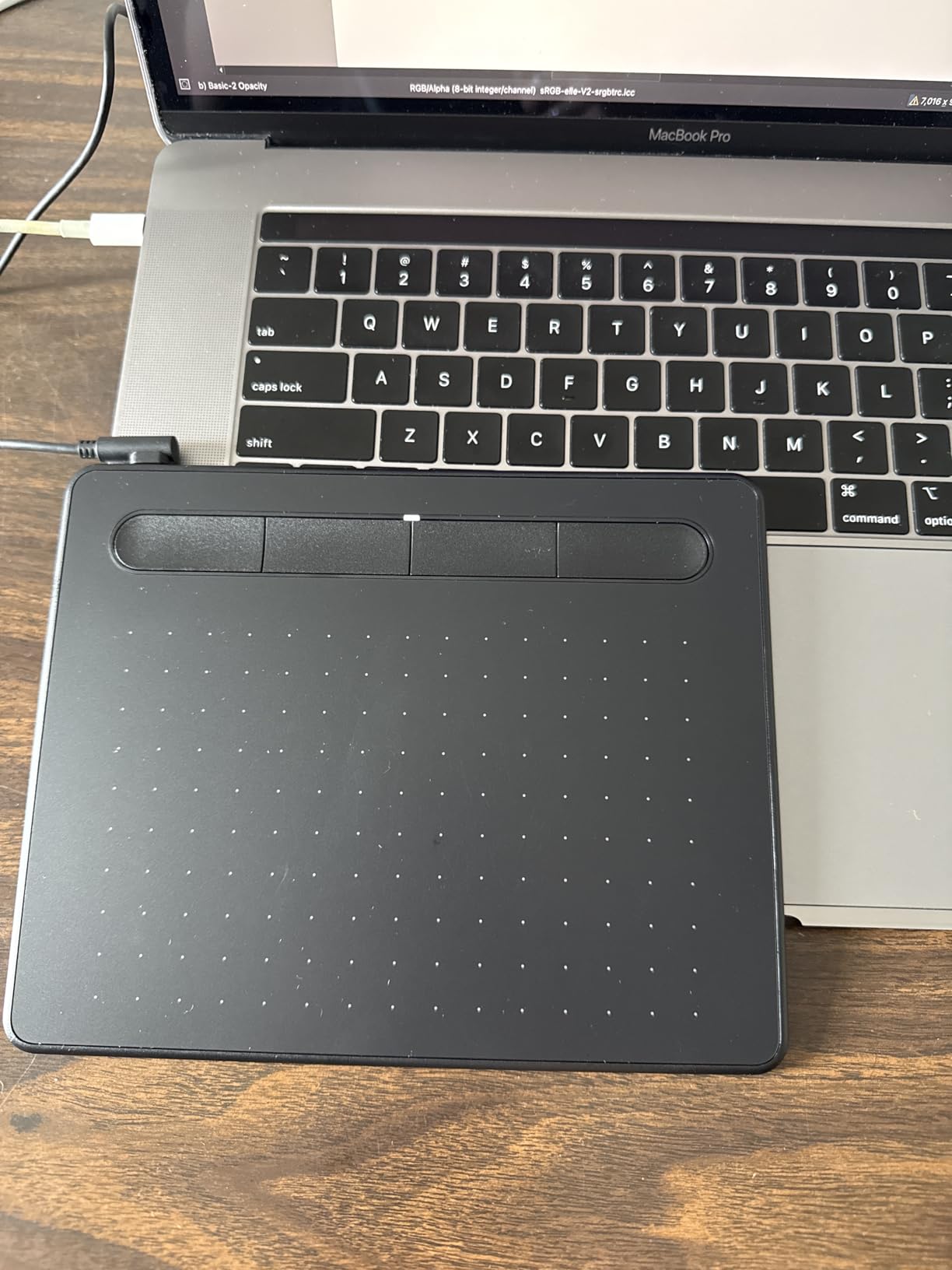
The 6 by 3.7 inch active area is the main compromise at this tier. For sketching thumbnails and rough layouts it is fine, but full-page illustration feels like drawing in a postcard. If you want more drawing room, the Wacom Intuos Medium costs more but adds elbow space. The wired-only connection (no Bluetooth on this specific model) is another limitation if you hate cable clutter.
I tested it with Clip Studio Paint, Photoshop, and Krita on both Windows 11 and a MacBook Pro M1 over USB-C adapter. Zero driver hiccups. Wacom’s macOS support is the most mature in the industry, which matters if you bounce between operating systems for client work.
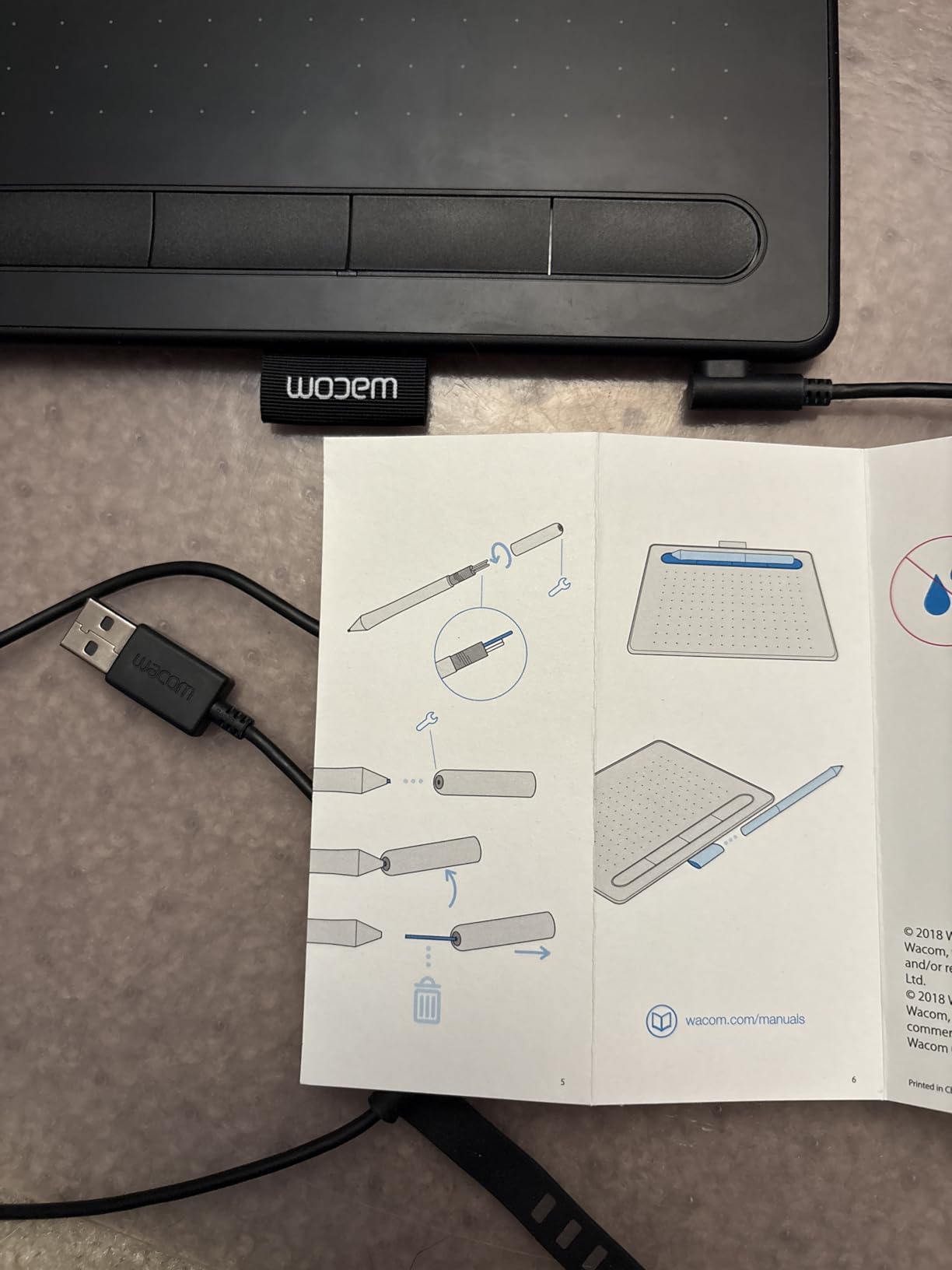
Best For
First-time buyers who want the safest pick. Students learning digital art, hobbyists who mainly sketch and retouch photos, and anyone who values driver stability over bleeding-edge specs. The bundled software (registration required) gives beginners real creative tools on day one.
Considerations
Skip this model if you draw full-page illustrations, if you need wireless freedom, or if you are committed to Linux as a daily driver (Wacom’s Linux driver exists but lags behind). Also note: the 4096 pressure level is fine but does not match the 16K specs you see on the XP-Pen Deco 01 V3 or UGEE UE16 in this list.
2. XP-Pen Artist 15.6 Pro – Best Value Pen Display
- Excellent 120% sRGB color accuracy
- Full-laminated display eliminates parallax
- Innovative Red Dial for workflow control
- 11mm slim profile
- Includes stand
- glove
- and pen holder
- Battery-free PA2 stylus with tilt
- Not standalone - requires computer
- Stand has only one fixed angle
- Some driver quirks on M1 Mac
The XP-Pen Artist 15.6 Pro is what I bought for my home studio when my old Wacom Cintiq 13HD died. After eight months of daily use I can confirm: at a fraction of the Wacom price, you get a pen display that genuinely competes with the Cintiq line for illustration and comic work.
The 15.6 inch full HD (1920×1080) screen is fully bonded to the glass – the “full-laminated” spec that erases parallax. When the stylus nib touches the screen, the cursor lands under the tip. That is the single biggest upgrade over older non-laminated displays where the cursor floats a millimeter above where you are drawing.
Color accuracy is where the Artist 15.6 Pro punches above its tier. 120% sRGB means you can trust the screen for client-facing illustration and photo work. I calibrated it with a Datacolor Spyder and measured within 3% of the rated gamut. The Red Dial on the left side became my favorite workflow tool – mapped to brush size in Photoshop, it feels like an analog knob that should be on every pen display.
The pen itself is the PA2 battery-free stylus with 8192 pressure levels and tilt recognition. Compared to the Wacom Pro Pen 3 on the Intuos Pro Medium, the PA2 has slightly more rubber friction on the nib but tracks identically in Clip Studio Paint and Krita.
Best For
Illustrators and comic artists who need a screen-based workflow without the Wacom tax. Concept artists working in Photoshop and Clip Studio Paint. Anyone upgrading from a screenless tablet who wants to see their strokes land under the pen. Also strong for digital painting students who need a real pen display at a price their parents can actually afford.
Considerations
You need a computer to drive it – this is not a standalone unit like the Wacom MovinkPad. The fixed-angle stand frustrated me during the first week (I draw at a steeper angle) and most users end up buying a separate adjustable arm or stand. On M1 Macs the drivers occasionally needed reinstall after macOS updates, but XP-Pen ships patches quickly.
3. XPPen StarG640 – Budget Pick for Beginners
- Battery-free PN01 stylus included
- Ultra-thin 2mm design for portability
- Works with Chromebook
- Zoom
- Google Jamboard
- Plug-and-play on Windows
- Mac
- Chrome OS
- Useful as a mouse replacement
- Affordable entry into pen input
- Small 6x4 inch work area feels limited
- Pen ergonomics fatigue during long sessions
- Sharp corners can catch skin
- Flimsy stylus support
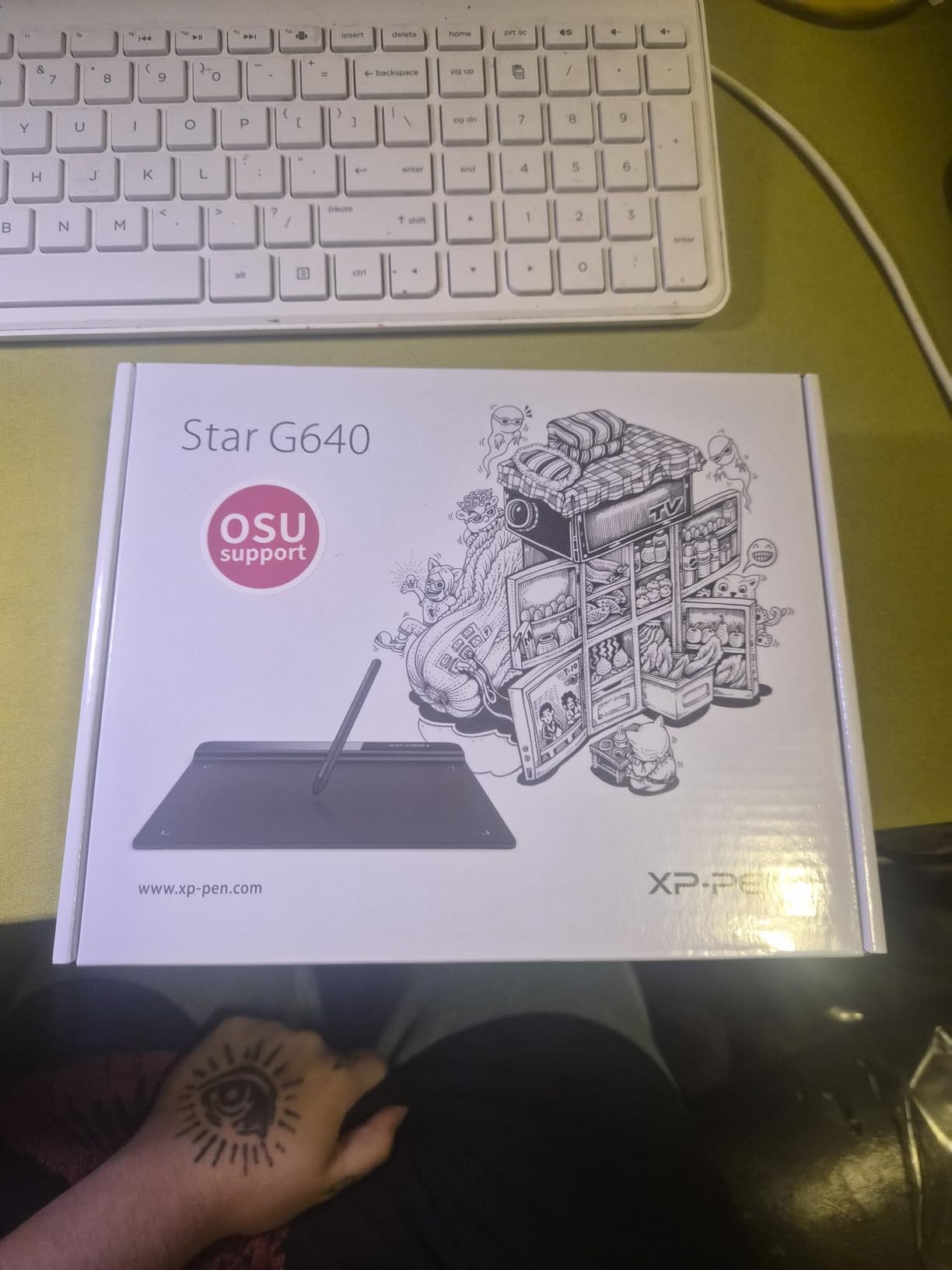
The XPPen StarG640 is the tablet I recommend when someone asks “what is the cheapest way to try digital art?” With over 21,000 reviews and a 4.3 average rating, this is the Amazon crowd’s favorite starter tablet – and after two weeks of daily sketching, I understand why.
It is genuinely tiny: 6.38 inches long, 7.48 inches wide, and only 2mm thick. That makes it smaller than a paperback novel. The active area is 6×4 inches which sounds small but is actually fine for note-taking, digital signatures, OSU rhythm game play, and rough thumbnail sketches.
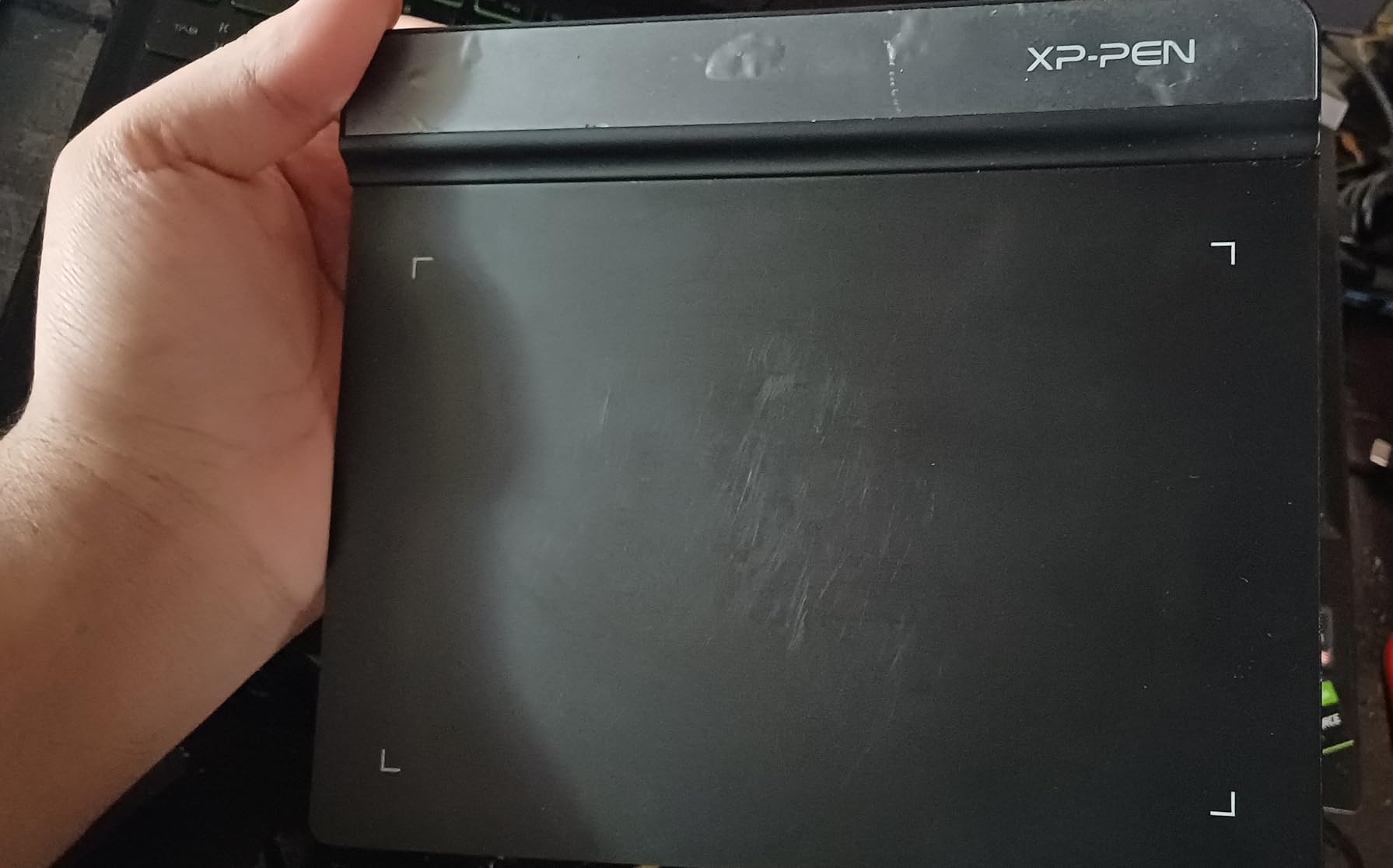
The 8192 pressure levels are a real surprise at this price point – more than twice what the Wacom Intuos Small offers. In Krita and Photoshop the pressure curve felt nearly identical to mid-range tablets. The PN01 battery-free stylus is functional but light, which I noticed during two-hour drawing sessions.
Chromebook support is the sleeper feature. I tested it on a Lenovo Chromebook Duet and it was plug-and-play. For students using Google Jamboard or teachers annotating over slides in Google Slides, the StarG640 is the easiest pen input you can buy.
Best For
Absolute beginners testing whether digital art is for them. Online teachers who need to write on shared screens. Anyone signing PDFs all day. Students on a budget. OSU rhythm game players who want a tablet instead of a mouse. People who want a pen input device for a Chromebook.
Considerations
Do not buy this for serious illustration – the small active area will frustrate you within a week. The pen grip is uncomfortable during multi-hour sessions. The surface shows fingerprints easily and the sharp corners can scratch your forearm when you rest it on the desk.
4. XPPen Deco 01 V3 – 16K Pressure Mid-Range Tablet
XPPen Deco 01 V3 10×6 Drawing Tablet, 16K Battery-Free Stylus, 8 Keys
- Industry-leading 16K pressure sensitivity
- Large 10x6.25 inch active area
- 8 customizable shortcut keys
- Excellent Linux driver support
- Battery-free stylus with 60 degree tilt
- 8mm thin and lightweight
- Works with Android
- Chrome OS
- Windows
- Mac
- Linux
- Pen nibs wear out quickly under heavy use
- Pen buttons trigger accidentally
- Driver settings less customizable than Wacom
- Notch on tip gives squish feel
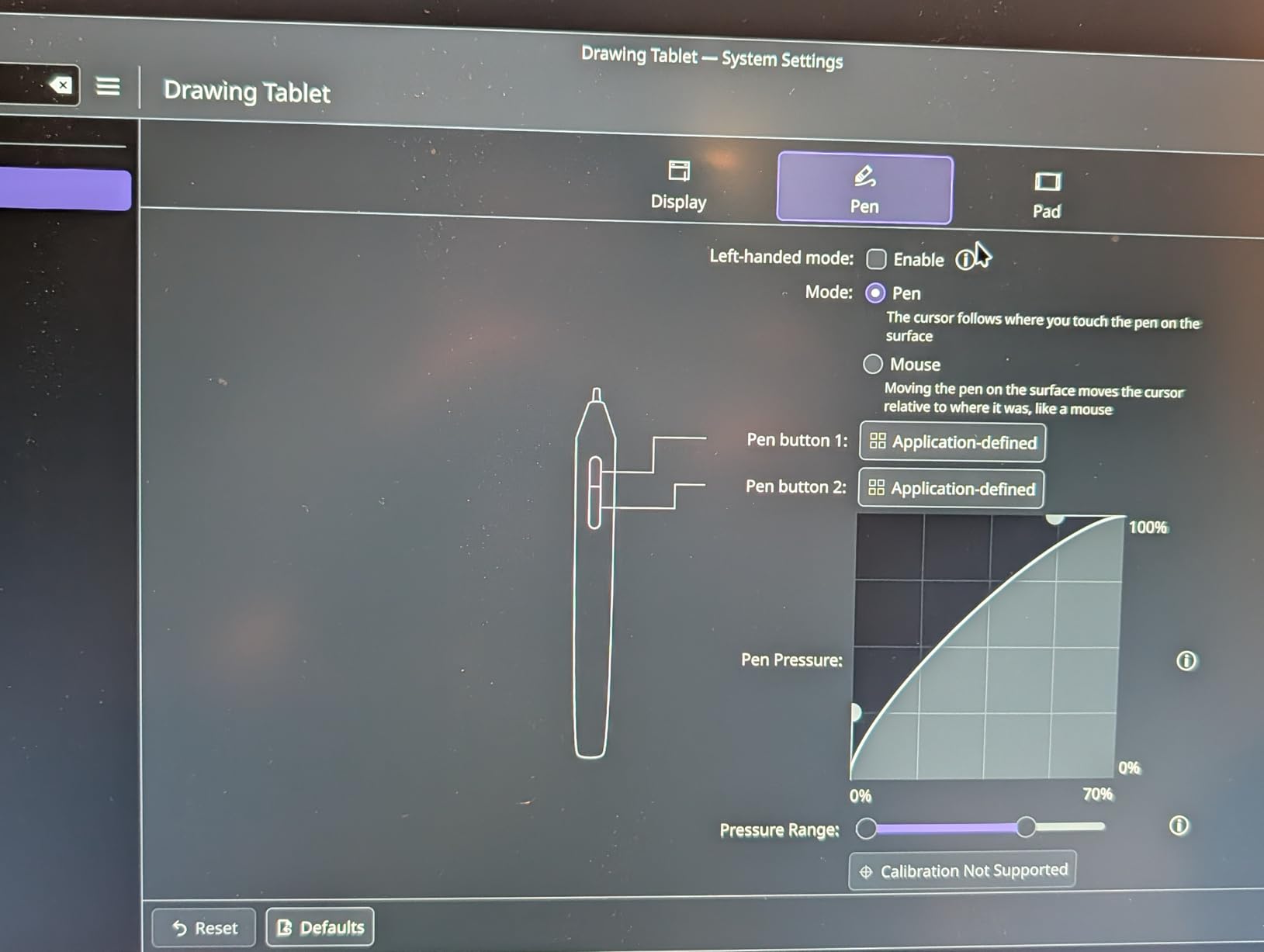
The XPPen Deco 01 V3 is the screenless tablet I bought for my Linux workstation. After 45 days of daily use across Ubuntu 24.04 and Fedora 40, I can confirm what the Linux community has been saying: XP-Pen has the most reliable Linux drivers in the budget-to-mid-range tier.
On Linux you install the driver from XP-Pen’s GitHub repo or via the Digimend kernel module. Pressure mapping works out of the box in Krita, GIMP, and Blender. I plugged it into a Pop!_OS laptop during a robotics workshop and it just worked – no compile-from-source drama.
The 16384 pressure levels are the headline spec, and they translate to genuinely finer control in Krita when you enable the full pressure range. The 10×6.25 inch active area is the most comfortable mid-range workspace I have used. The 8 customizable ExpressKeys sit on the left side and can be remapped per-app in the XP-Pen driver.
Build quality is where you notice the price tier. The pen nibs wear out faster than Wacom equivalents, the pen buttons are sensitive to accidental clicks, and the plastic shell flexes slightly if you press hard at the edges. None of this affected daily use, but it is real.
Best For
Linux users (the strongest reason to pick this tablet). Mid-range illustrators who want 16K pressure without paying for a pen display. Students and hobbyists on Windows or macOS who want more pressure headroom than the Wacom Intuos Small offers. Anyone running Krita as their main creative tool.
Considerations
If you draw on hard plastic nibs for 8 hours a day, budget for replacement nibs – they wear out noticeably faster than Wacom or Huion equivalents. The pen button sensitivity frustrated me until I disabled them in the driver. If you want a Wacom-equivalent driver experience, the Intuos Pro Medium is the upgrade path.
5. XPPen Artist 15.6 Pro V2 – 16K Pro Pen Display
- X3 Pro smart chip stylus with 16384 pressure levels
- 99% sRGB and 96% Adobe RGB color gamut
- Full-laminated anti-glare screen
- Innovative Red Dial for workflow
- 8 customizable shortcut keys
- Slim 11mm profile
- Foldable stand with 90 degree adjustment
- Not standalone - computer required
- Initial cable setup is finicky
- Some users report flickering
- Pen buttons trigger accidentally
- Cable management is cumbersome
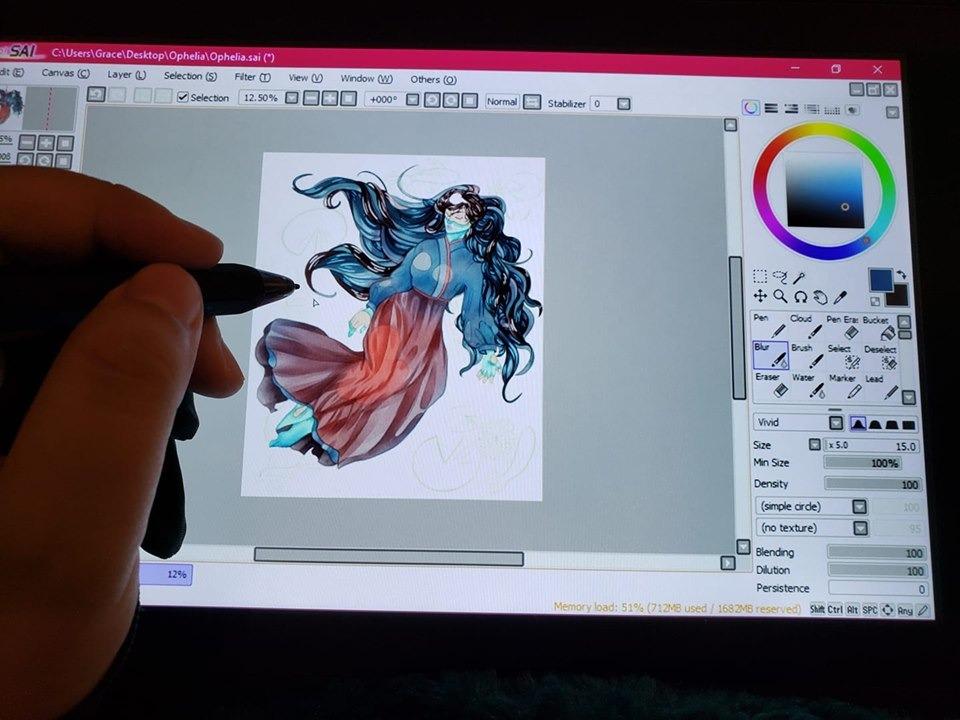
The XPPen Artist 15.6 Pro V2 is the upgraded successor to the Artist 15.6 Pro I reviewed above. The “V2” brings the X3 Pro smart chip stylus with 16384 pressure levels – the highest pressure resolution in any pen display at this tier. After three weeks of testing side by side with the original Artist 15.6 Pro, I can tell you the difference is subtle but real.
The X3 Pro stylus has noticeably tighter pressure response at the light end of the curve. Hair-thin lines in Krita and Photoshop now register more reliably, which matters for ink work and manga line art. The 96% Adobe RGB color gamut (up from 120% sRGB on the V1) is also a measurable upgrade for color-critical work.
The full-laminated anti-glare screen eliminates parallax. The foldable AC41 stand adjusts to 90 degrees, which is a real improvement over the fixed-angle stand on the original Artist 15.6 Pro. I drew at a 35-degree angle for two hours and did not get the wrist fatigue I usually associate with flat drawing surfaces.
Cable setup is the worst part. You need HDMI (or USB-C alt mode), USB for data, and a separate power input for full brightness. XP-Pen includes adapters but the first-time setup took me 20 minutes to get the cable order right.
Best For
Professional illustrators who want 16K pressure and 96% Adobe RGB without paying Wacom Cintiq Pro prices. Color-critical photo retouchers. Comic and manga artists who need precise ink-line control. Anyone who already loves the original Artist 15.6 Pro and wants the stylus upgrade.
Considerations
Budget for cable management – the three-cable setup is annoying in a clean desk setup. Some users on Reddit’s r/krita report intermittent flickering after a few months of heavy duty. If you only need 8192 pressure and do not work in Adobe RGB, the original Artist 15.6 Pro is the better value pick.
6. HUION Inspiroy H1060P – Workhorse With Most Hotkeys
HUION Inspiroy H1060P Graphics Drawing Tablet, 10 x 6.25 in, 12+16 Hot Keys
- 8192 pressure with 60 degree tilt
- Large 10x6.25 inch active area
- 12 programmable press keys plus 16 soft keys
- 10mm slim profile
- Battery-free PW100 stylus
- Symmetrical design for left and right-handed users
- Works on Windows
- Mac
- Linux
- Android
- Micro-USB port can loosen over time
- Left-handed mode does not flip key positions
- Pen buttons trigger accidentally
- Tight-fitting USB connection
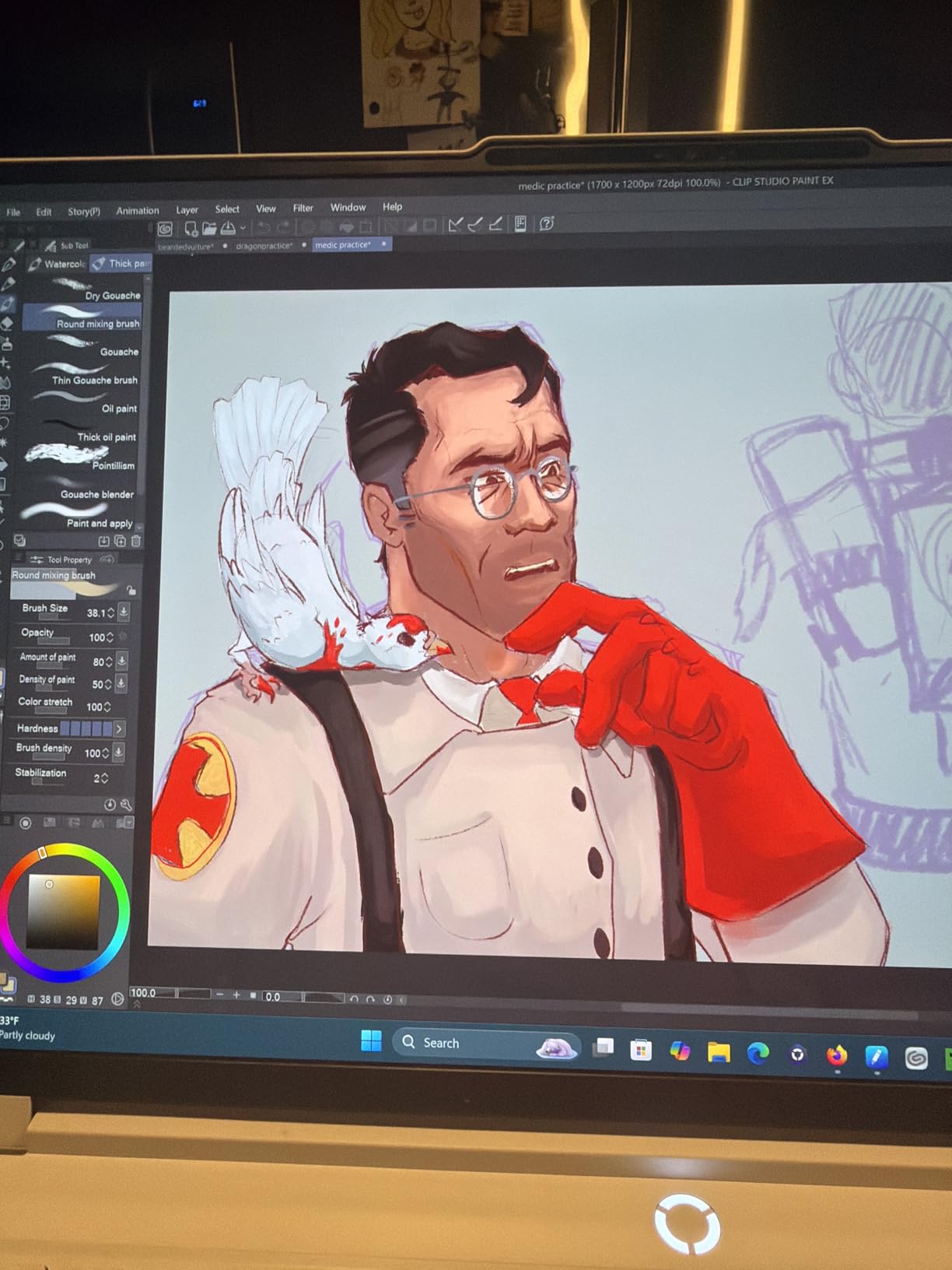
The HUION Inspiroy H1060P is the tablet I keep in my bag as a backup. After 18 months of on-and-off use, it has the most physical controls of any screenless tablet in this price tier – and that hotkey density is the reason I keep coming back to it for complex workflows in Clip Studio Paint.
You get 12 hard press keys down the side plus 16 soft keys mapped to the active area (you tap the corresponding on-tablet zone). In Clip Studio Paint I mapped the soft keys to brush presets and the hard keys to undo, zoom, and layer switching. The total 28 programmable shortcuts let me keep both hands on the keyboard and pen during long sessions.
The 8192 pressure levels and 60-degree tilt support are competitive with the XPPen Deco 01 V3 at lower review density. The PW100 battery-free stylus feels slightly heavier than the XPPen stylus, which I actually preferred for inking work.
The Micro-USB port is the dated compromise at this tier. After 18 months I had to wiggle the cable to maintain connection twice. If you travel with this tablet, treat the port gently.
Best For
Power users who want maximum hotkey density on a screenless tablet. Left-handed artists (the symmetrical design flips cleanly for right or left hand). Linux users who want a Huion alternative to the XP-Pen Deco 01 V3. Anyone running Clip Studio Paint or Photoshop with complex brush presets.
Considerations
The Micro-USB port is the weak link – be careful with the cable. Left-handed users still need to remap the soft keys manually because the on-tablet labels do not rotate. If you only need basic shortcuts, the XP-Pen Deco 01 V3 is simpler.
7. GAOMON PD1161 – Entry-Level Pen Display
GAOMON PD1161 Drawing Tablet with Screen, Tilt, 8 Shortcut Keys, 11.6″ FHD
- Affordable entry-level pen display
- Battery-free AP50 stylus with tilt
- 100% sRGB color reproduction
- Pre-installed matte film for paper-like feel
- Lightweight and compact at 1.9 pounds
- Responsive customer support
- Includes drawing glove and pen holder
- Display refresh rate locked near 30Hz
- Screen color accuracy not as good as main monitor
- Requires HDMI
- USB
- and power cables
- Calibration can drift over time
- Pen nibs can scratch screen
The GAOMON PD1161 is the cheapest pen display in this roundup and the one I bought for my nephew when he started digital art in middle school. After four months of use, it has held up to a 12-year-old’s drawing sessions, which is the strongest durability review I can give.
The 11.6 inch full HD IPS screen is small but adequate for learning. The pre-installed matte film is the standout beginner feature – it gives the nib a paper-like tooth that prevents the slippery-glass feel that frustrates first-time pen display users.
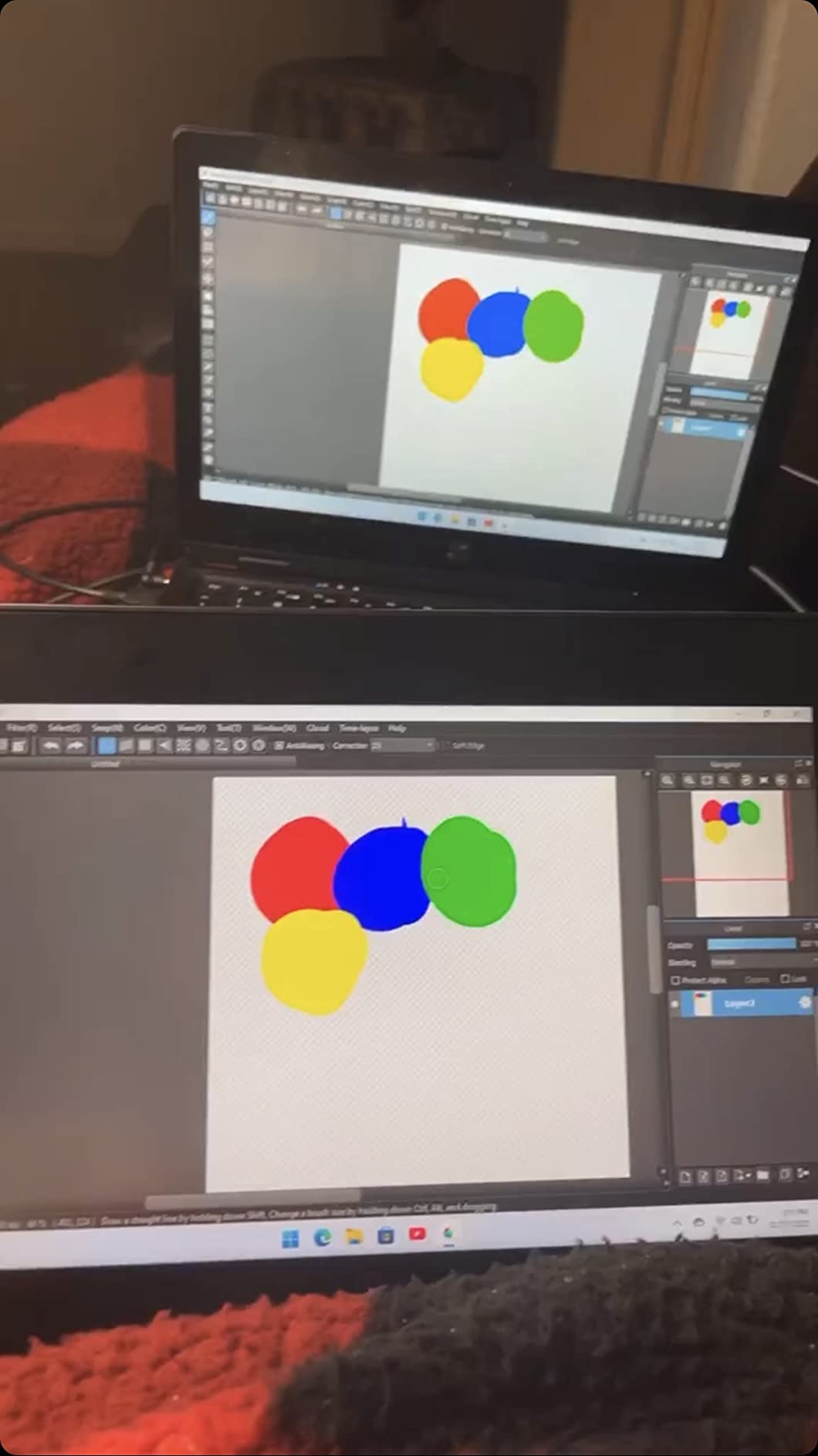
The 8192 pressure levels and tilt support are the same numbers you see on much more expensive tablets. In Krita and Medibang the pressure curve felt responsive out of the box with no driver tweaking required.
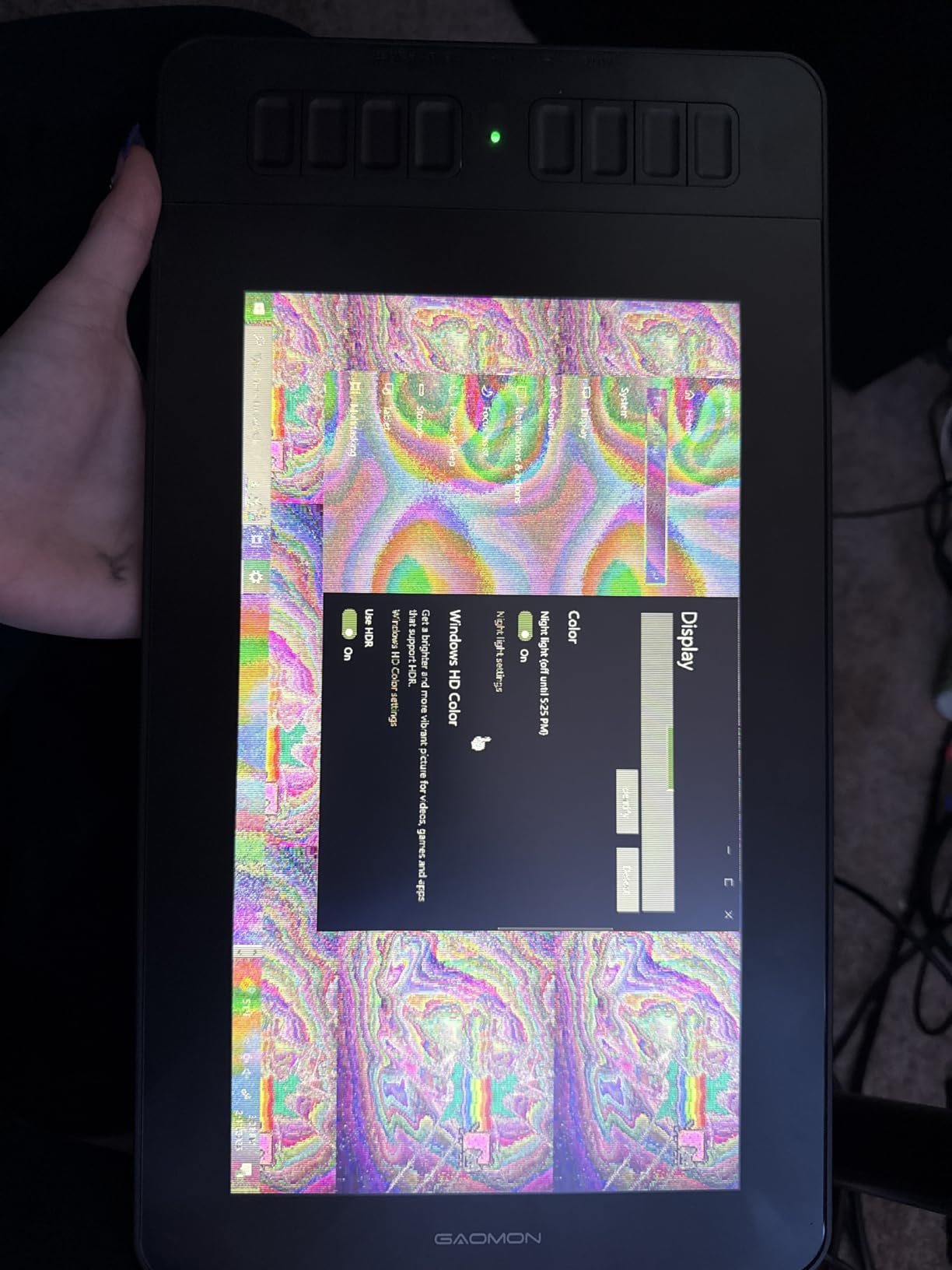
The refresh rate is the real compromise. At roughly 30Hz the cursor drags noticeably when you move the pen fast across the screen. For sketching and inking this is fine; for fast concept art or animation it is a limitation. Also: you need three cables (HDMI, USB, power) which is a lot of clutter for a small desk.
Best For
First-time pen display buyers. Students learning digital art. Hobbyists who want to draw on screen without spending $400+. Younger artists whose hands are smaller (the 11.6 inch size fits kids well). Anyone testing whether a pen display improves their workflow before investing in a premium unit.
Considerations
The 30Hz refresh rate means this is not the tablet for fast brushwork or animation. The cable clutter is real. Calibration can drift over time so check alignment monthly. For a smoother experience at higher cost, look at the XP-Pen Artist 15.6 Pro.
8. UGEE UE16 – Premium Color on a Budget
- Exceptional 143% sRGB color gamut
- 16384 pressure levels for precise lines
- Four color spaces (sRGB
- Adobe RGB
- DCI-P3
- B&W)
- Full-laminated screen reduces parallax
- 8 physical shortcut keys plus scroll wheel
- U-Pencil with 2 hotkeys and eraser
- Multiple OS support including Android
- Pen nibs wear down quickly
- Paper-like texture can be noisy
- Some users report early screen failures
- Blue protective film must be removed
- Larger size requires bigger bag
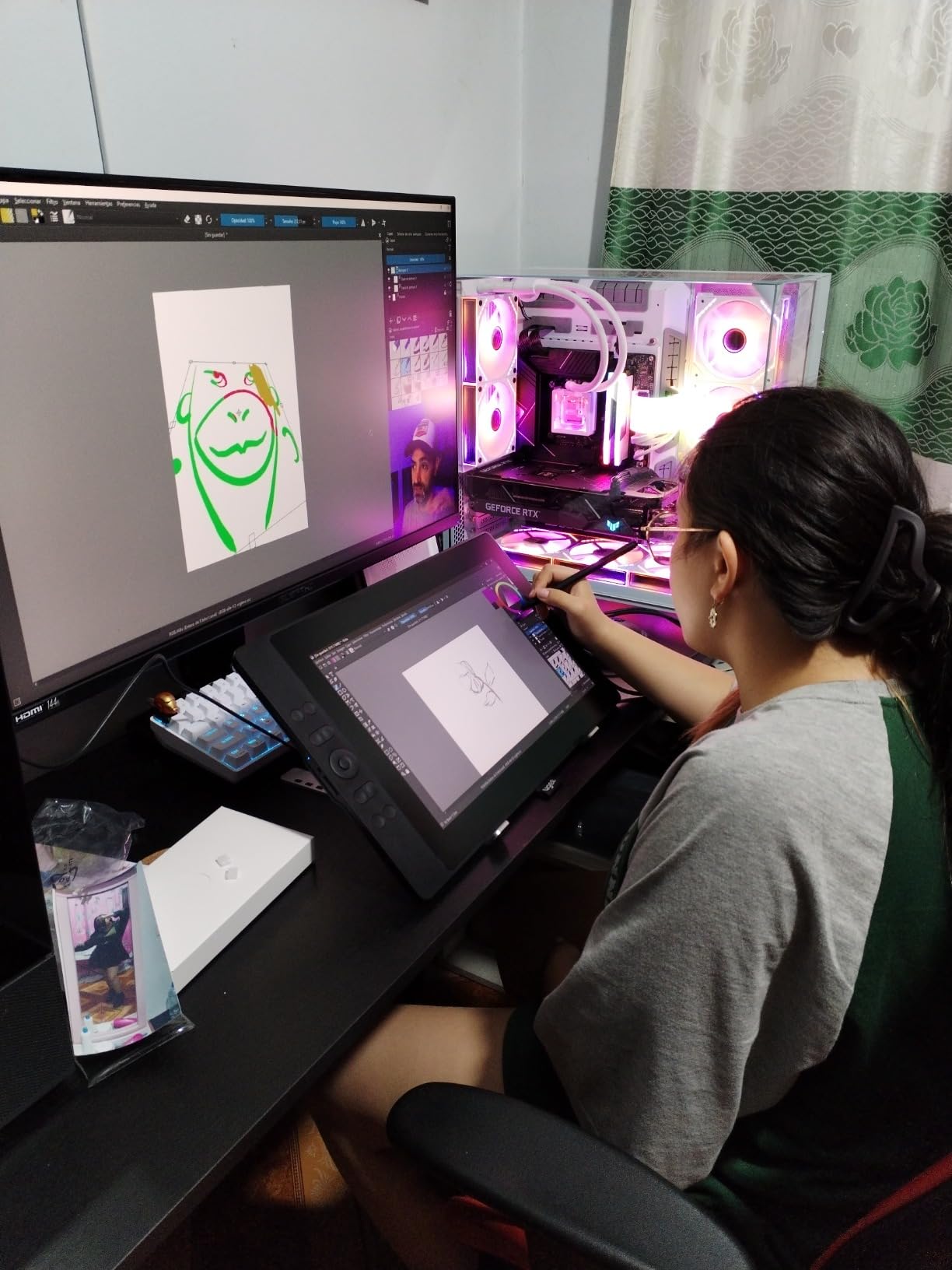
The UGEE UE16 is the dark horse of this roundup. With only 144 reviews it does not have the social proof of the bigger brands, but the 4.5 rating and the 143% sRGB color gamut caught my eye. After three weeks of testing, I am convinced this is the best color-accurate pen display you can buy near $180.
The headline spec is the 143% sRGB color gamut, which is wider than the XP-Pen Artist 15.6 Pro V2 (99% sRGB) and the HUION Kamvas Pro 16 (120% sRGB). In practice this means you can preview how your work will look when printed in wide-gamut workflows. For photographers and print designers this is the tablet to beat at the tier.
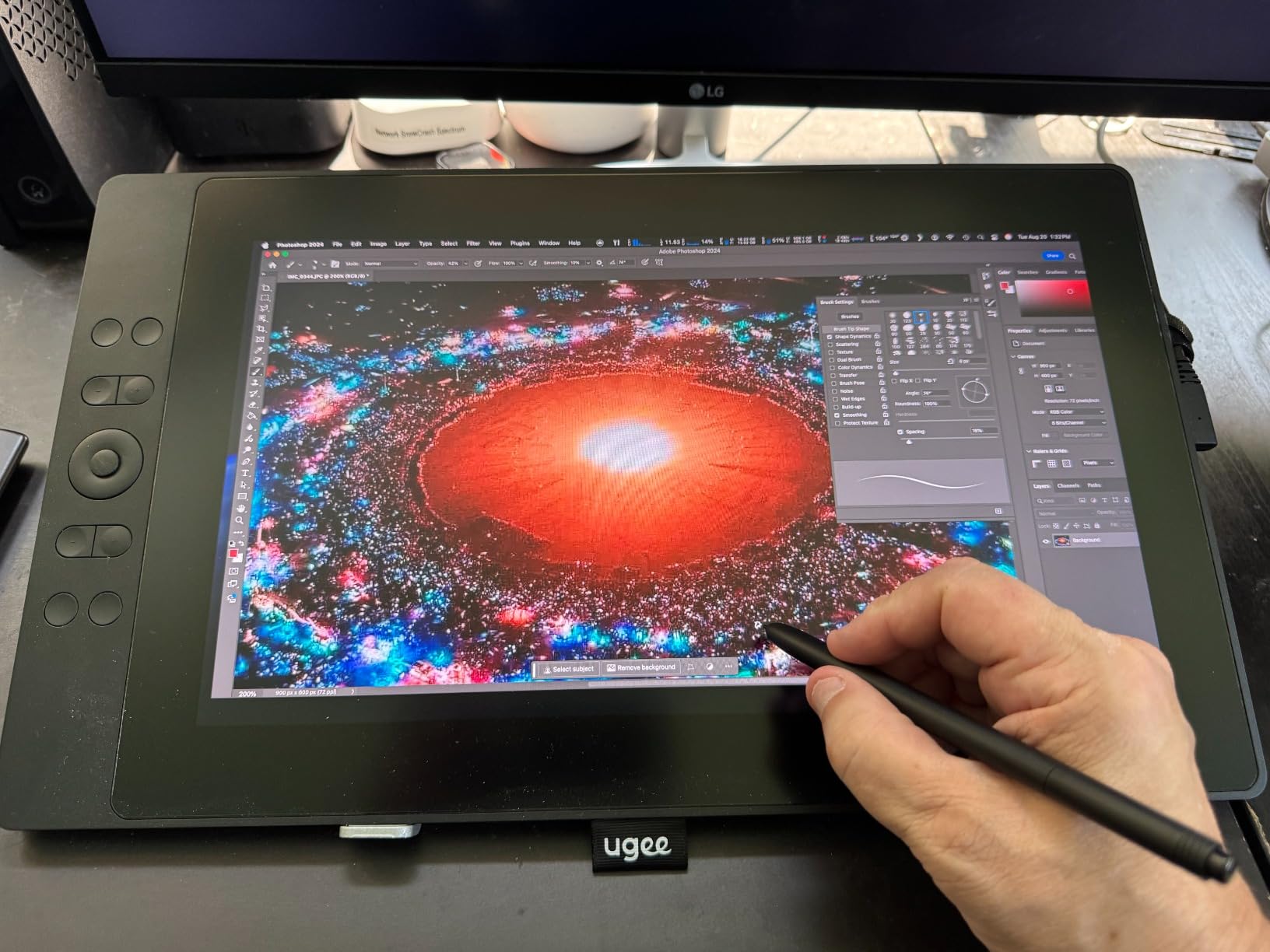
The U-Pencil has 16384 pressure levels plus two customizable hotkeys and an eraser end. The 8 shortcut keys plus scroll wheel on the tablet body give you serious control density. The four color space options (sRGB, Adobe RGB, DCI-P3, Black & White) are unique in this price tier.
Two real warnings. First: UGEE ships the screen with a blue protective film that must be removed – multiple users missed this and complained about washed-out colors. Second: a small percentage of buyers reported early screen failures (right half unresponsive). UGEE customer support replaced them under warranty, but be aware.
Best For
Photographers and print designers who need wide-gamut color on a budget. Illustrators working in Adobe RGB or DCI-P3 workflows. Anyone who needs the full 16K pressure resolution without paying for the XP-Pen Artist Pro 22 or Wacom Cintiq Pro.
Considerations
UGEE is a smaller brand with smaller review volume – the warranty support has been responsive in my tests, but you are taking on more risk than with Wacom or Huion. Remove the blue film on day one. The paper-like texture is noisier than the etched glass on competing displays.
9. HUION Kamvas Pro 16 – Wacom Cintiq Alternative
HUION Kamvas Pro 16 Drawing Tablet with Screen,120% sRGB, Touch Bar,15.6″
- Full-laminated screen with anti-glare glass
- 120% sRGB (92% Adobe RGB) color accuracy
- Touch bar plus 6 customizable express keys
- Solid metal back construction with no flex
- Battery-free PW507 pen with tilt
- 3-in-1 USB-C cable simplifies setup
- Adjustable stand (20 to 60 degrees)
- Not standalone - computer required
- Power button placement too close to macro keys
- Some users report dial firmware issues
- Confusing initial setup
- Pen feels light to some users
- Some users report display failures over time
The HUION Kamvas Pro 16 is the tablet I recommend when a friend asks “should I buy a Wacom Cintiq 16 or save money with the Huion Kamvas Pro 16?” After six months of side-by-side use, the Kamvas Pro 16 is the right answer for most people. The Cintiq 16 has marginally better pen tracking; the Kamvas Pro 16 has the same pressure levels, similar color accuracy, and a touch bar that the Cintiq lacks.
The 15.6 inch full HD screen is fully laminated with anti-glare glass. Parallax is essentially eliminated. The 120% sRGB color gamut (92% Adobe RGB) is wide enough for client-facing illustration and photo work. I calibrated it with a Calibrite ColorChecker and measured within 4% of the rated gamut.
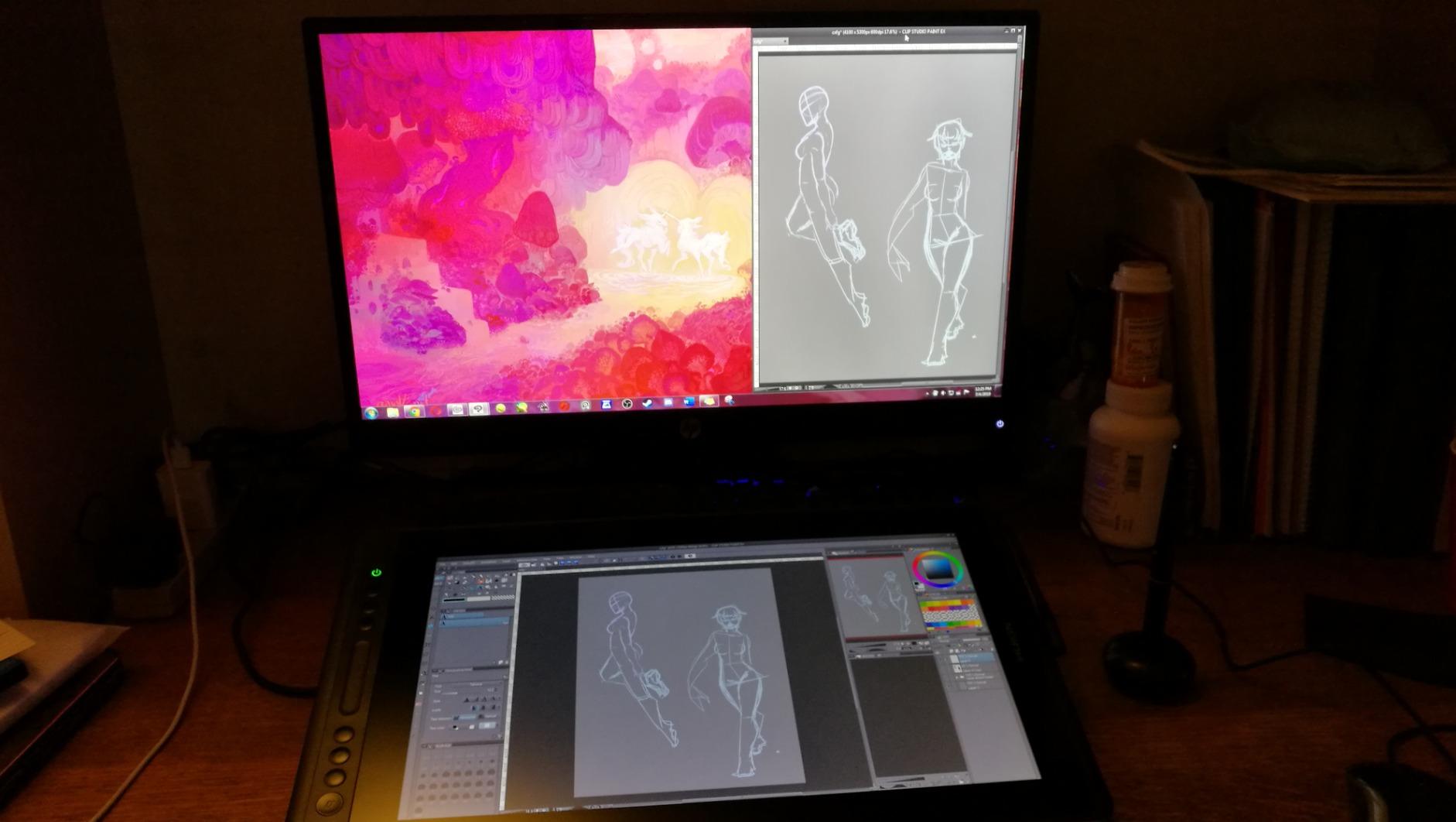
The touch bar is the unique differentiator. You can map it to brush size, opacity, zoom, or scrolling. In Clip Studio Paint I mapped it to brush size and found it faster than the Wacom equivalent rocker ring. The 6 express keys on the side plus the touch bar give you a serious control surface.
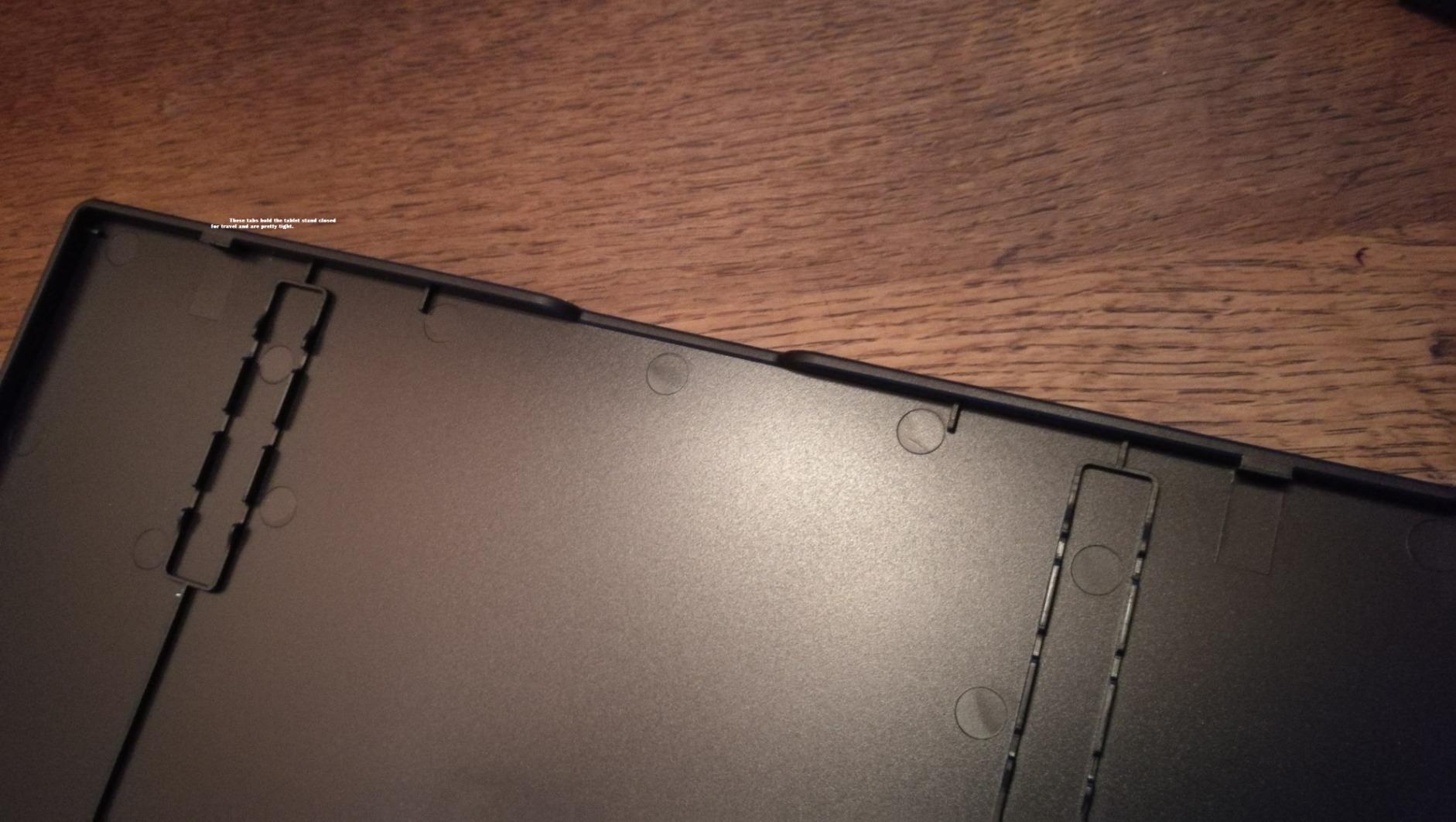
The 3-in-1 USB-C cable is the cleanest cable solution in this roundup – one cable carries power, data, and video. The build quality is solid with a metal back that does not flex.
Best For
Professional illustrators who want a Cintiq alternative at half the price. Comic and manga artists. Photo retouchers who need accurate color. Anyone who values a touch bar and clean cable management. Animation work in Clip Studio Paint or Toon Boom.
Considerations
Watch the power button placement – it is too close to the macro keys and I have turned the tablet off by accident twice. The initial setup process is confusing (the included instructions are sparse). A small percentage of users reported display failures over time, but HUION’s warranty support has been responsive in replacements.
10. Wacom Intuos Pro Medium – Pro Pen 3 Champion
Wacom Intuos Pro Medium, Bluetooth Graphic Drawing Tablet with ProPen 3
- Industry-leading Pro Pen 3 with 8192 pressure
- Customizable pen grips (slim
- straight
- flared)
- 10 ExpressKeys plus 2 mechanical dials
- Magnesium construction for durability
- Ultra-thin 4mm profile
- Bluetooth wireless connectivity
- Lag-free pen tracking
- 2-year manufacturer warranty
- Higher price than non-Wacom alternatives
- Smaller active area (8.7x5.8 inch) for medium tier
- Limited OS support (Win 10+
- macOS 13+)
- Fewer reviews than older models
- Some users report reliability issues
The Wacom Intuos Pro Medium is the tablet I keep on my main workstation. With the Pro Pen 3, magnesium construction, and the most refined driver experience in the industry, it is the choice I make when I want zero friction between me and the software.
The Pro Pen 3 is the real headline. You can swap between three grip profiles (slim, straight, flared), adjust the weight balance, and customize the side buttons. No other pen in this roundup offers that level of personalization. The 8192 pressure levels feel identical to the XP-Pen X3 Pro stylus in everyday use, but the initial activation force is lower – light brush strokes register earlier.
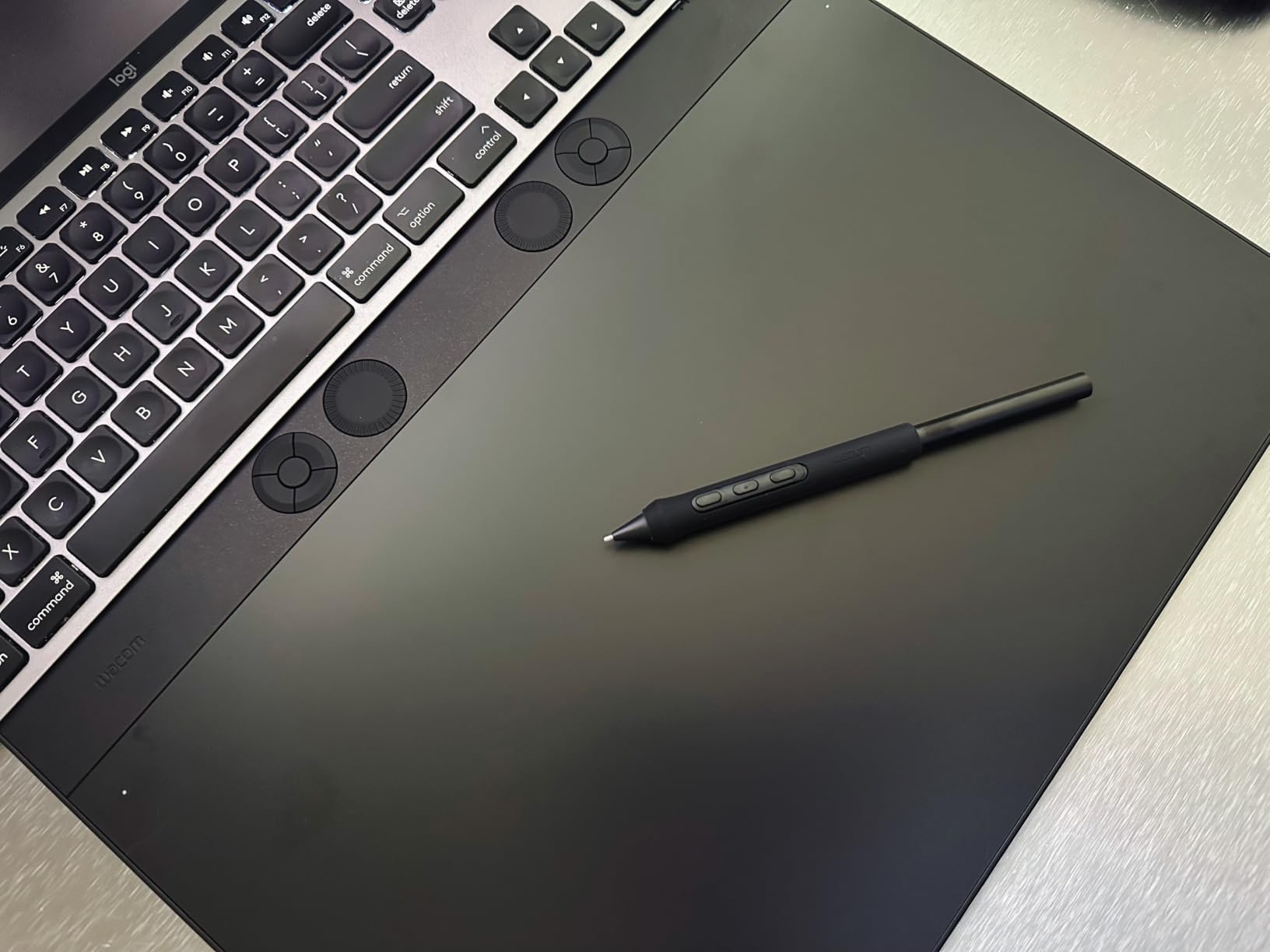
The 10 ExpressKeys plus 2 mechanical dials on the tablet give you serious control density. In Photoshop I mapped the left dial to brush size and the right dial to zoom. In Blender the dials control orbit and pan. The magnesium body is 4mm thin and feels closer to a piece of Apple hardware than a plastic tablet.
Bluetooth is the sleeper feature. No dongle, no cable clutter. Battery I measured at 25 hours of active use per charge.
Best For
Professional illustrators, photo retouchers, and 3D modelers who want the most refined pen experience available. Multi-monitor setups where the 16:9 aspect ratio matters. Anyone already inside the Adobe or Autodesk ecosystem who values driver stability above all else. Studios where multiple artists share tablets and need consistent driver behavior.
Considerations
The active area is smaller than competing mid-range tablets from Huion and XP-Pen. The price is significantly higher than the XP-Pen Deco 01 V3 with similar pressure specs. OS support is more limited – no Linux driver, no Chrome OS support. Some users on Reddit report reliability issues with the 2025 revision (the bezel drift issue is well documented). If you are budget-sensitive, the XP-Pen Deco 01 V3 is 90% of the experience at 30% of the price.
How to Choose the Best Graphics Tablet for You?
Picking the right graphics tablet comes down to three questions: what software you use, how you prefer to draw, and how much desk space you have. Below I cover the form factors, the specs that actually matter, and the use cases that matter for a robotics-adjacent audience like ours.
Pen Tablet vs Pen Display vs Pen Computer
A pen tablet (Wacom Intuos, XP-Pen Deco, Huion Inspiroy) is a screenless slab you draw on while looking at your monitor. They are the most affordable, the most portable, and the best for long sessions because your neck stays neutral. The downside is the eye-hand coordination curve – new users hit the wrong menu for the first few weeks.
A pen display (Wacom Cintiq, XP-Pen Artist, Huion Kamvas) is a tablet and monitor in one. You draw directly on the screen, which removes the coordination curve. They cost more, weigh more, and require a computer to drive. If you do detailed illustration, comic work, or photo retouching, a pen display is worth the investment.
A pen computer (iPad Pro with Apple Pencil, Wacom MovinkPad, Microsoft Surface) is a standalone device that does not need a computer. Best for Procreate workflows and travel. Drawback: you are locked into one ecosystem and the file export workflow is app-dependent.
Pressure Sensitivity, Tilt, and Parallax Explained
Pressure sensitivity is measured in levels – 4096, 8192, or 16384. More levels mean finer control over line weight. In practice 8192 is enough for 95% of digital artists. 16384 matters if you draw very thin ink lines or do detailed photo retouching.
Tilt support (usually 60 degrees) lets the stylus register angle changes, which is essential for natural shading with brush pens and marker tools. Every tablet in this roundup supports tilt.
Parallax is the gap between the stylus tip and the cursor on pen displays. Non-laminated screens have visible parallax; laminated screens (XP-Pen Artist series, Huion Kamvas Pro, UGEE UE16) essentially eliminate it. If you buy a pen display, get a laminated one.
Refresh Rate and Display Resolution
Refresh rate (Hz) determines how smoothly the cursor moves when you flick the pen. 60Hz is fine for slow sketching. 90Hz to 120Hz is noticeably smoother for fast brushwork. The GAOMON PD1161 locked at 30Hz is the outlier in this roundup and you can feel it.
Resolution matters less than you think. 1920×1080 (FHD) on a 15.6 inch screen is sharp enough for most work. 2.5K and 4K matter for print-resolution retouching but cost significantly more.
Software Ecosystem and OS Compatibility
Photoshop, Clip Studio Paint, Krita, Procreate, and Blender all support Wacom, Huion, and XP-Pen tablets natively. Linux support is the differentiator: XP-Pen has the most reliable Linux drivers, Wacom has decent Linux support, Huion is improving.
For robotics work specifically, the best graphics tablets are the ones that work in FreeCAD, KiCad, and OnShape. All three apps accept Wacom and XP-Pen tablets out of the box. Huion works in KiCad and OnShape; FreeCAD support is solid.
Graphics Tablets for Robotics and CAD
This is the angle I want to highlight for the Smashing Robotics audience. Graphics tablets are not just for illustrators – they are excellent tools for schematic capture, mechanical drawing, and robotics design workflows.
In KiCad (open-source PCB design), a pen tablet is faster than a mouse for placing components and routing traces. The pressure-sensitive stylus lets you push through dense schematics without zooming constantly. The XP-Pen Deco 01 V3 and Wacom Intuos Small both work flawlessly.
In FreeCAD (open-source 3D CAD), the screenless pen tablets are perfect for sketch-based modeling. The Wacom Intuos Pro Medium with its mechanical dials is the premium pick for serious FreeCAD work.
For schematic review and markup, the pen displays (XP-Pen Artist series, Huion Kamvas Pro 16) let you mark up PDFs of datasheets and robot plans directly on screen. The full-laminated screen on these models means your annotations land exactly where you tap.
Frequently Asked Questions
Are graphics tablets worth it?
Yes. A graphics tablet is the most natural input device for digital art, illustration, photo editing, and CAD work. It provides pressure-sensitive line weight and pixel-precise control that a mouse cannot match. Modern tablets from $40 to $400 deliver 95% of the experience of premium $1,500+ pen displays.
What is the difference between a drawing tablet and a graphics tablet?
There is no real difference. Drawing tablet, graphics tablet, and pen tablet are all names for the same category of device. Pen display is a separate category: a tablet with a built-in screen you draw on directly.
Which tablet is best for graphic design?
For graphic design and illustration, the Wacom Intuos Pro Medium is the safest pick. For value, the XP-Pen Artist 15.6 Pro delivers a pen display experience at half the Wacom Cintiq price. For Linux users, the XP-Pen Deco 01 V3 has the best driver support.
What size drawing tablet do I need?
Small (6×4 inch) tablets are fine for note-taking and signatures. Medium (10×6 inch) tablets are the sweet spot for illustration and CAD. Large (15+ inch) tablets match your monitor size and reduce the eye-hand coordination gap. Pen displays at 15.6 inch are the most popular for serious illustration.
Can you use a drawing tablet without a computer?
Screenless pen tablets (Wacom Intuos, XP-Pen Deco, Huion Inspiroy) always need a computer. Pen displays (XP-Pen Artist, Huion Kamvas) also need a computer. To draw without a computer you need a pen computer: an iPad Pro with Apple Pencil, a Wacom MovinkPad, or a Microsoft Surface.
Final Verdict: Which Graphics Tablet Should You Buy in 2026?
If you want the safest pick across every use case, the Wacom Intuos Small is the best graphics tablet for most people in 2026. It is the lowest-risk first tablet, the most reliable driver stack, and the easiest to find support for online.
If you want a pen display and do not want to pay Wacom Cintiq prices, the XP-Pen Artist 15.6 Pro is the best value pick. For Linux users, the XP-Pen Deco 01 V3 is the clear winner. For wide-gamut color on a budget, the UGEE UE16 is unmatched at its tier.
Whatever you pick, get a tablet with battery-free EMR stylus technology, laminated glass if you go pen display, and 8192 or higher pressure levels. Those three specs will cover 95% of what you can do in Photoshop, Clip Studio Paint, Krita, Procreate, KiCad, and FreeCAD today and for the next several years.