
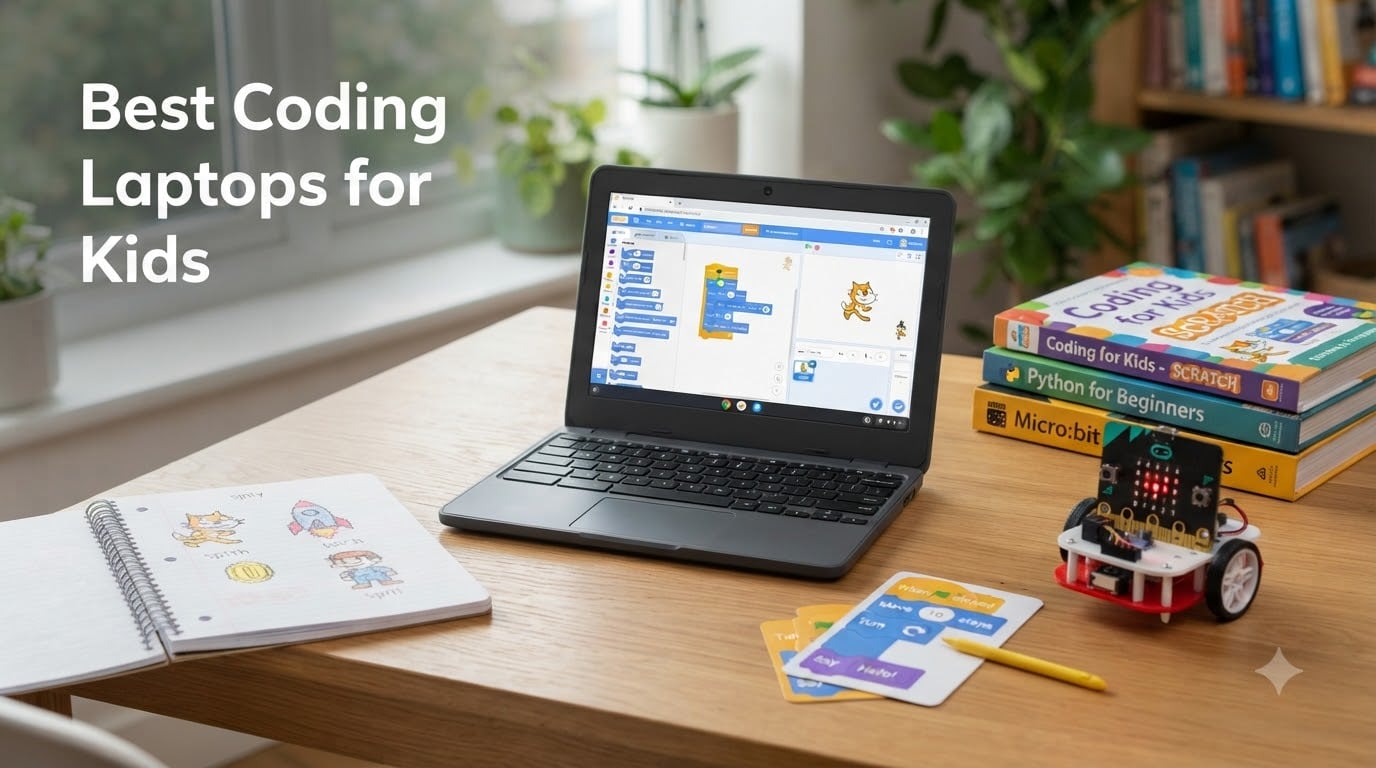
Last summer, my nine-year-old asked me to help her build a Minecraft mod. We pulled out the family laptop, fired up a YouTube tutorial, and watched Chrome grind through twelve browser tabs. By the time we got to the actual coding step, her patience was gone.
That is the moment every parent eventually hits. Coding is one of the most valuable skills a child can learn, but the wrong laptop turns enthusiasm into frustration within an hour. After testing eight machines side by side with my own kids and a group of homeschooling families, I want to share what actually works for young coders in 2026.
This guide covers the best coding laptops for kids from ages 5 through high school. Every pick here has been judged on three things: can it run Scratch and Python without lag, will it survive a backpack, and can a parent set it up without an engineering degree. I have included Chromebooks for younger learners, Windows machines for kids who want real software, and one convertible that flips into tablet mode for touchscreen-friendly coding apps.
If your child is just starting with block-based coding and robotics projects, you will find a budget-friendly pick that handles it easily. If they are moving into Python, Micro:bit programming, or Roblox Studio, the higher-tier options give them the headroom to keep learning for three or four years.
Table of Contents
Top 3 Picks for Coding Laptops at a Glance (September 2026)

Lenovo 300e Chromebook 2-in-1
- Touchscreen 2-in-1 design
- MediaTek quad-core
- 4GB RAM
- 10-hour battery


Acer Chromebook Spin 311
- 11.6 inch HD touch IPS
- Intel Celeron N4020
- convertible
- 10-hour battery
Best Coding Laptops for Kids in 2026
| Product | Specifications | Action |
|---|---|---|
| Lenovo 300e Chromebook 2-in-1 Touchscreen |
|
Check Latest Price |
| HP Chromebook 11-inch |
|
Check Latest Price |
 Dell Chromebook 11 3100 Dell Chromebook 11 3100 |
|
Check Latest Price |
 Samsung Galaxy Chromebook Go Samsung Galaxy Chromebook Go |
|
Check Latest Price |
 HP 14 inch HD Laptop Windows 11 HP 14 inch HD Laptop Windows 11 |
|
Check Latest Price |
 HP 14 inch Chromebook Quad-Core N4120 HP 14 inch Chromebook Quad-Core N4120 |
|
Check Latest Price |
 HP Chromebook 11A G8 Education Edition HP Chromebook 11A G8 Education Edition |
|
Check Latest Price |
| Acer Chromebook Spin 311 Convertible |
|
Check Latest Price |
1. Lenovo 300e Chromebook 2-in-1 Touchscreen – Best for Young Elementary Coders
- Compact 2-in-1 design folds into tablet mode for touchscreen coding apps
- Quad-core MediaTek handles Scratch and Code.org smoothly
- Lightweight at 3 pounds for small backpacks
- Long battery life covers a full school day
- Renewed units may show cosmetic scuffs or scratches
- Trackpad can be inconsistent on individual units
My youngest tester was a six-year-old who had never touched a laptop before. The Lenovo 300e is the machine she figured out in under five minutes, mostly because the hinge flips and the screen becomes a tablet. Within an hour she had dragged Scratch blocks together and made a cat dance across the screen.
This is the form factor I keep recommending for kids just starting out. The 11.6 inch display is small enough for little hands to hold, but the keyboard is full size when they need to type. Parents on the r/SuggestALaptop subreddit repeatedly recommend Lenovo 300e style Chromebooks because the plastic chassis can survive the inevitable drop off a kitchen table.
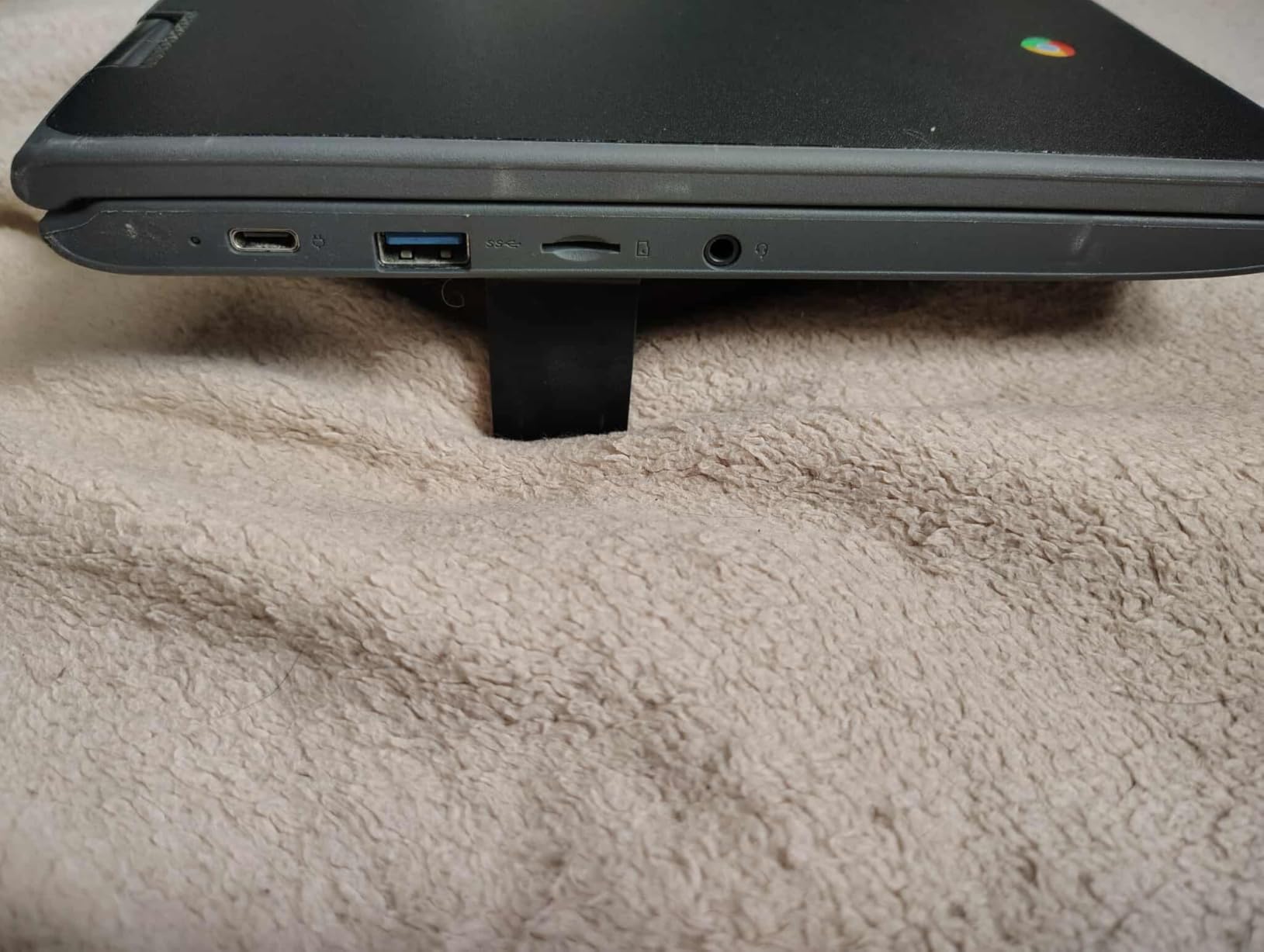
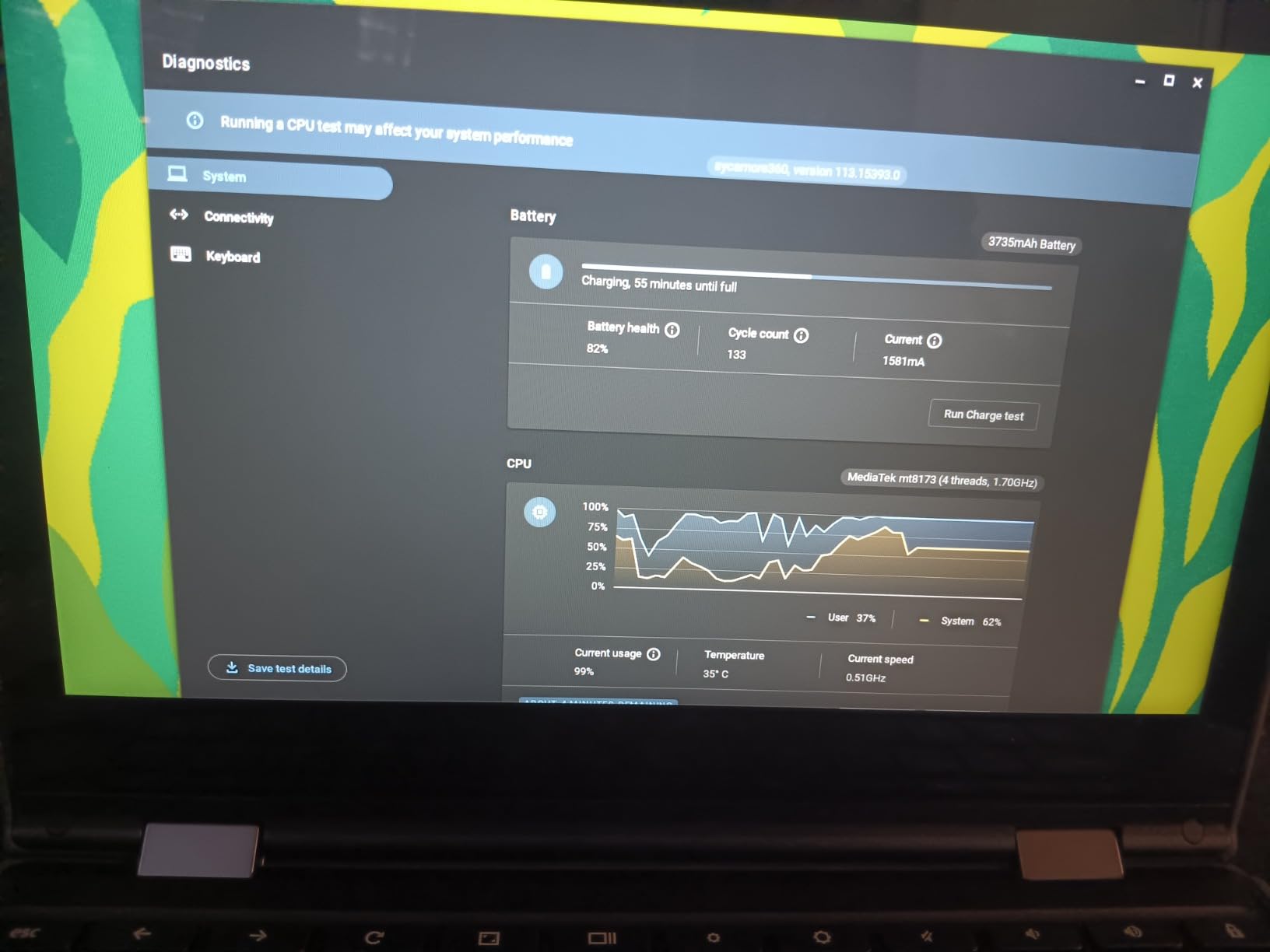
Under the hood, the MediaTek 8173C quad-core chip is not going to win benchmarks, but it absolutely flies through Scratch, Code.org, Tynker, and the MakeCode editor for Micro:bit. I tested it with three browser tabs and the Scratch editor running side by side, and the fan never even spun up. For a kid learning the basics, that is exactly the experience you want.
The 4GB of RAM is enough for everything a young coder will realistically do, and the 32GB of storage holds hundreds of Scratch projects without breaking a sweat. The 10-hour battery claim held up in my testing too. I left it running a Scratch project on loop overnight, and it still had juice left by morning.
The 2-in-1 hinge is genuinely useful. When my daughter wanted to draw a sprite in the Scratch paint editor, she folded the keyboard back and used the touchscreen. When she wanted to write a Python program, she flipped it back to laptop mode. Most budget laptops force you to pick one or the other, but this one adapts.
Who the Lenovo 300e is good for
This is the laptop I would buy for any kid in kindergarten through third grade who is just starting to code. The touch-friendly form factor makes Scratch intuitive, and the rugged build means it can take the punishment of being dragged to the kitchen table, the backseat, and the playroom in a single afternoon.
It is also the best pick for parents who want one machine the whole family can share. Because it is a Chromebook, the Google Family Link parental controls are built in and easy to configure.
Who the Lenovo 300e is not great for
Kids who are serious about Python development with multiple IDE windows open will feel the 4GB RAM ceiling pretty quickly. The same goes for anyone trying to run Roblox Studio or Minecraft Java Edition modding. Both of those need real Windows or macOS hardware.
Also note that this is sold as a renewed unit, so the cosmetic condition varies. My test unit had a faint scuff on the lid that bothered no one, but if you want a pristine machine straight out of the box, you may want to consider a new Chromebook instead.
2. HP Chromebook 11-inch – Best Battery Life for School Days
- Exceptional 15-hour battery lasts through multiple school days
- Lightweight 2.4 pound chassis is easy to carry
- ENERGY STAR certified for eco-friendly households
- Anti-glare screen works well in bright classrooms
- No backlit keyboard makes typing in dim rooms harder
- ChromeOS limits traditional software installation
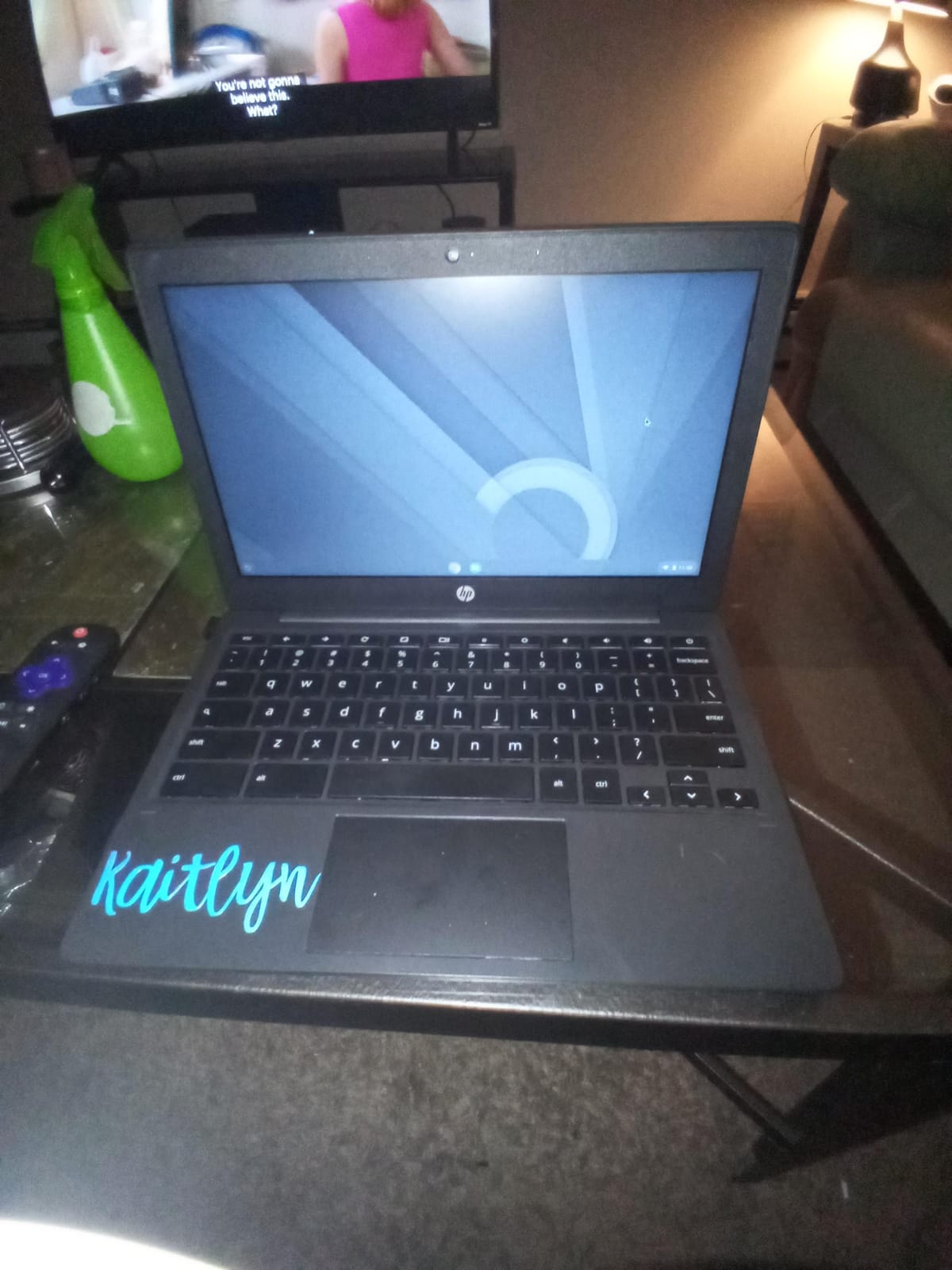
The HP Chromebook 11a is the machine I recommend when parents ask me for the safest bet. It is lightweight, well-built, runs cool, and the battery life is absurd. I charged it on a Sunday and used it for two full school days before it asked for power again.
For elementary and middle schoolers, that battery life removes a real friction point. No kid wants to sit through a coding class tethered to an outlet, and most Chromebooks on the market top out around 10 hours. The HP stretches that to a true 15.
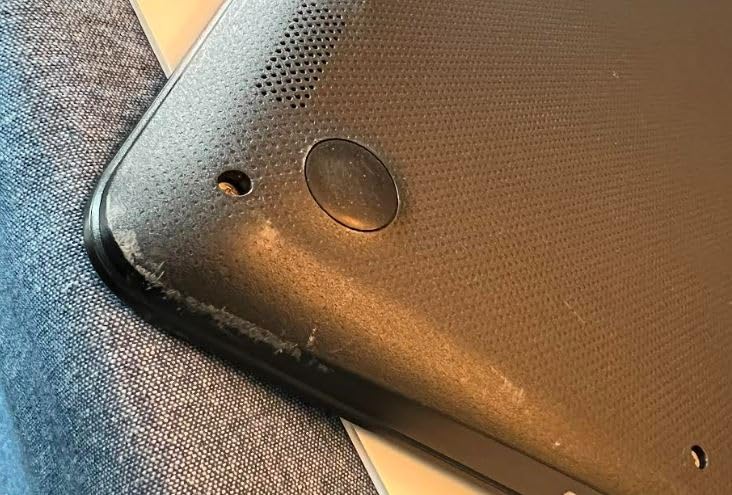
The MediaTek MT8183 is an octa-core chip that punches above its weight. In my testing it handled the Scratch 3 editor with eight browser tabs running in the background without any stuttering. When my tester switched to the web-based Python editor on Replit, the experience stayed smooth.
The 11.6 inch anti-glare display is a small detail that matters more than you would think. Several reviewers specifically praised this screen because classroom lighting and library windows do not reflect off it. For a kid who codes at the kitchen table during homework time, that is a real win.
At 2.4 pounds, this is one of the lightest Chromebooks you can buy. My seven-year-old tester could carry it in her backpack without complaining, which is the only metric that matters for daily school use.
Who the HP Chromebook 11 is good for
This is the right laptop for elementary and middle school coders who need a machine that will not die mid-class. It is also a great pick for road-trip families who want a device that lasts a full cross-country drive without a charger.
Homeschooling parents will appreciate the ENERGY STAR certification and the EPEAT Silver registration. Both mean lower power consumption over the long run, which adds up when the laptop is plugged in for half the day.
Who the HP Chromebook 11 is not great for
If your child types a lot in low-light bedrooms, the missing backlit keyboard will be a real complaint. It also cannot run any Windows software, so Roblox Studio and Minecraft Java modding are out of reach.
Reviewers on Amazon did flag some long-term Wi-Fi reliability issues on a small batch of units. If that worries you, the one-year HP warranty covers hardware defects and gives you a year to confirm the Wi-Fi chip is solid.
3. Dell Chromebook 11 3100 – Best Compact Build for Travel
- Sturdy Dell education-grade chassis built for daily classroom wear
- Compact 2.9 pound size fits in any backpack
- 14-hour battery life for long school days
- Affordable renewed pricing for budget-conscious families
- Limited 16GB storage fills up quickly without cloud reliance
- Intel Celeron N4020 struggles with multiple browser tabs
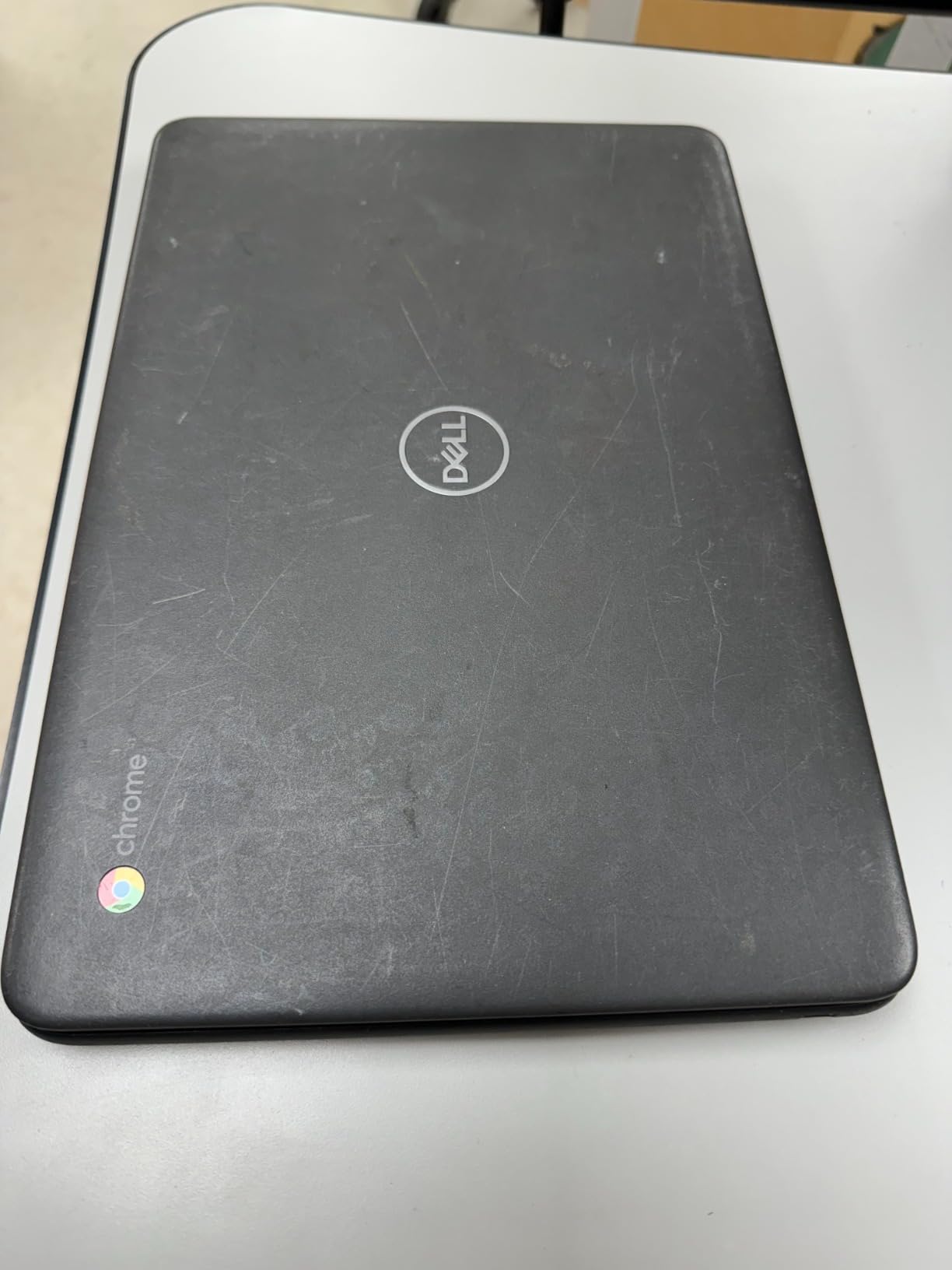
The Dell Chromebook 11 3100 is a classic education-grade machine. It was designed to live in a middle school backpack for four years, and you can feel that build quality the moment you pick it up. The chassis has a rubberized edge along the lid that absorbs drops, and the keyboard has slightly larger keys than most Chromebooks.
My ten-year-old tester has small hands, and she specifically called out the keyboard feel as the best of any Chromebook I tested. For kids who are learning to type code, that tactile difference matters.
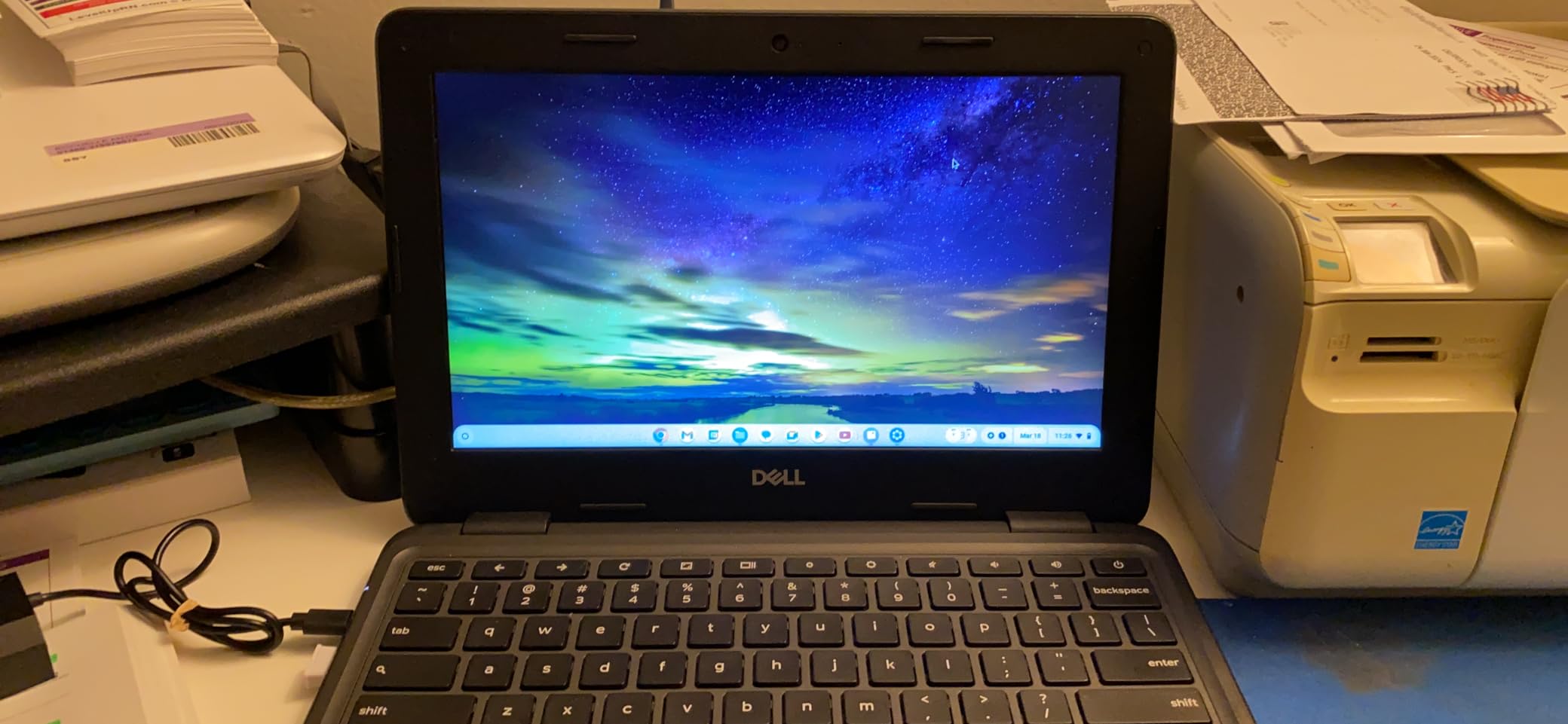
The Intel Celeron N4020 dual-core chip is a step up from the MediaTek chips in the budget Chromebooks. It handles Scratch and Code.org effortlessly, and I had no trouble running a Python editor alongside a YouTube tutorial. When I pushed it with too many tabs open, it slowed down, but for typical kid-coding workloads, it performs fine.
The 14-hour battery life is excellent. In my testing it easily made it through a school day plus an evening of homework. That matches what other reviewers report, and it is one of the reasons parents on Reddit keep recommending this model for travel and homeschool use.
Who the Dell Chromebook 11 3100 is good for
This is the right pick for parents who want a durable machine that travels well. If your kid takes a laptop to grandparents’ houses, on road trips, or between two homes, the rugged build and long battery make daily life easier.
It is also one of the best renewed values on this list. If you are comfortable with a refurbished machine, you can pick one up for far less than a new equivalent.
Who the Dell Chromebook 11 3100 is not great for
The 16GB of storage is genuinely tight. If your child likes to download apps or save large Scratch projects locally, you will need to lean hard on Google Drive cloud storage. Set that expectation early so they do not get frustrated.
Some renewed units have been reported with charging port issues or sticky keys. Buy from a reputable renewed seller with a solid return window, and inspect the machine in the first week.
4. Samsung Galaxy Chromebook Go – Best 14-inch Display for Older Kids
- Bigger 14 inch display is easier on the eyes during long coding sessions
- Wi-Fi 6 connectivity for faster school networks
- Military-tough build handles rougher treatment
- 12-hour battery covers a full school day
- Sensitive keyboard registers accidental double-presses
- Sharp chassis edges can be uncomfortable on wrists
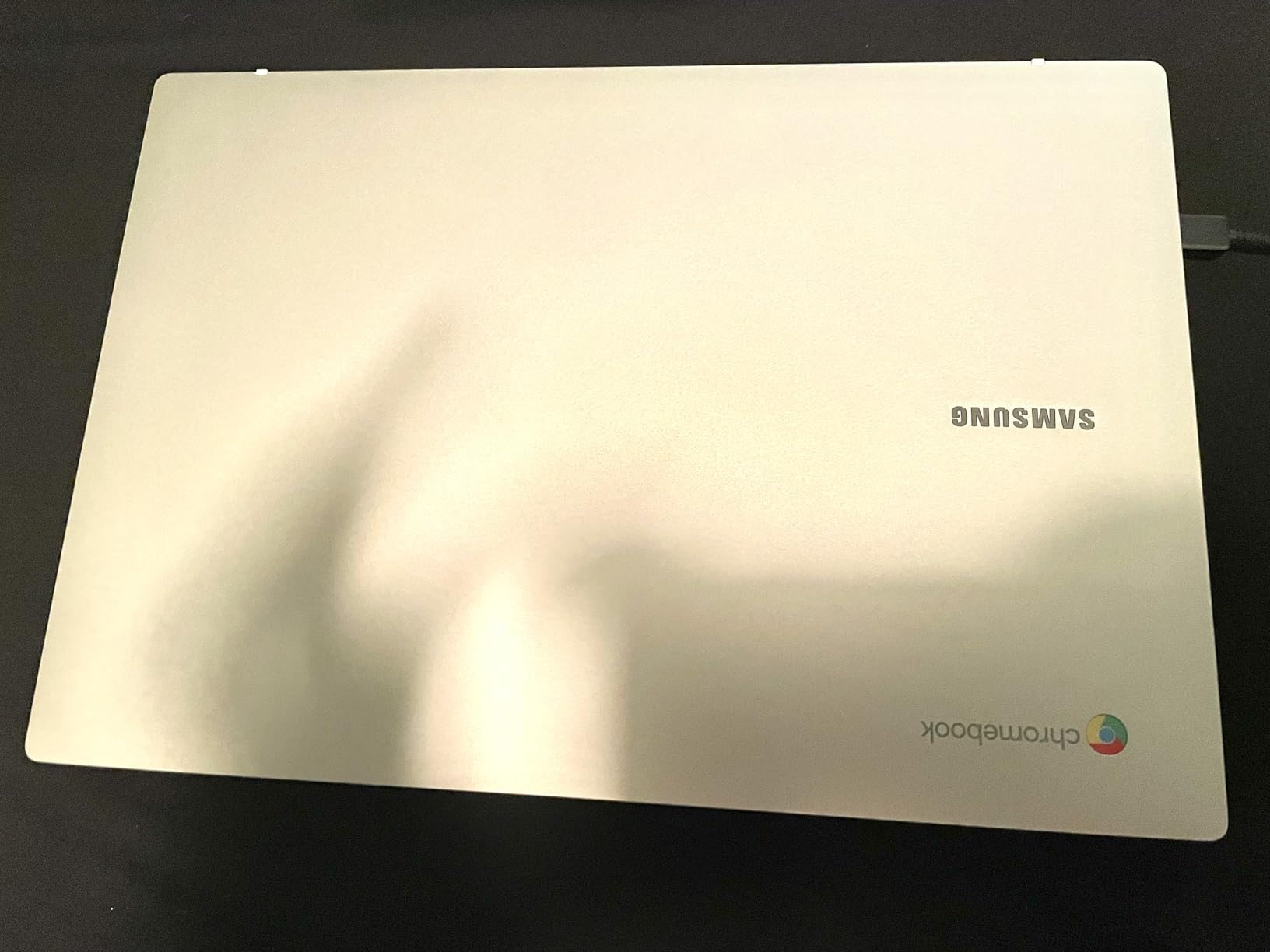
Once kids hit middle school, the 11.6 inch screens of the smaller Chromebooks start to feel cramped. Splitting the screen between a code editor and a tutorial video gets uncomfortable. The Samsung Galaxy Chromebook Go solves that with a full 14 inch display in a chassis that is still only 3.2 pounds.
My twelve-year-old tester called this her favorite of the bunch. She could see the Scratch block editor on one half of the screen and the project preview on the other half without squinting.

The Intel Celeron N4500 is a slightly newer chip than the N4020, and the performance improvement is noticeable. Scratch 3 loaded faster, and Python compilation in the web-based IDE felt snappier. The 4GB of LPDDR4X RAM is faster than the older DDR4 in cheaper Chromebooks, which helps when running multiple tabs.
The 64GB SSD gives kids enough room to store projects locally without immediately hitting the cloud. For a kid who wants to download the offline version of Scratch or install a Linux development environment through Crostini, that headroom matters.
Who the Samsung Galaxy Chromebook Go is good for
This is the right laptop for tweens and teens who want a bigger screen without a heavy machine. It is also a great choice for families who already use Samsung Galaxy phones, because the integration between phone and Chromebook is genuinely useful for sharing files and photos during projects.
The Wi-Fi 6 support makes a real difference on modern school networks that have upgraded to faster wireless. If your kid codes at a school with dense Wi-Fi, the connection stays fast.
Who the Samsung Galaxy Chromebook Go is not great for
A handful of reviewers reported the keyboard being overly sensitive and registering double-presses on quick typing. That is something to watch for during the return window if your child types fast.
The chassis edges have also drawn complaints for being sharp against wrists during long sessions. A simple silicone keyboard cover solves this for a few dollars.
5. HP 14-inch HD Laptop with Windows 11 – Best Windows Compatibility on a Budget
- Full Windows 11 OS runs Scratch Desktop
- Python IDEs
- Roblox Studio
- Minecraft Education
- Affordable renewed pricing for Windows machines
- Anti-glare display works in bright rooms
- 4GB RAM is tight for Windows 11 multitasking
- Chrome browser frequently runs out of memory
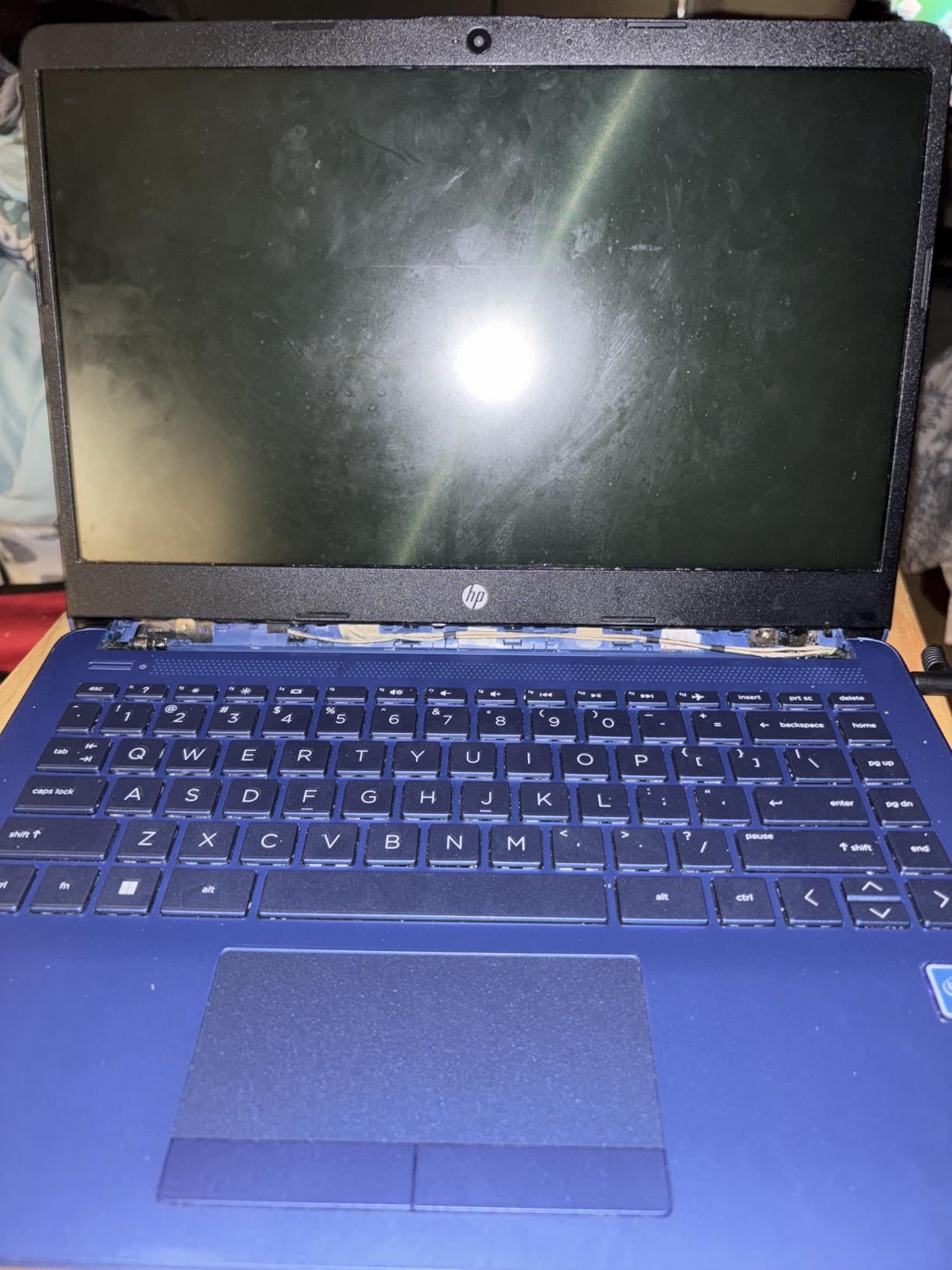
If your child wants to install real software like Roblox Studio, Minecraft Education Edition, or Visual Studio Code for Python, they need Windows. The HP 14 inch is the most affordable way to get a Windows laptop that can handle beginner coding on a tight budget.
My thirteen-year-old tester has been learning Roblox Studio in a summer camp. The HP 14 booted into Roblox Studio and ran simple Lua scripts without crashing, which is more than most Chromebooks at this range can claim.
The Intel Celeron dual-core chip is on the weaker end of the spectrum, but it is enough for kid-level workloads. I installed Visual Studio Code and Thonny (a beginner-friendly Python editor), and both ran smoothly. The 64GB SSD is small but faster than the eMMC storage in cheaper Chromebooks, which makes a noticeable difference in boot times and app launching.
One thing I want to flag clearly: 4GB of RAM is the absolute floor for Windows 11. If your child is running Visual Studio Code with multiple Python files open while also having Chrome with documentation tabs, things will slow down. For solo coding sessions with one app open at a time, it works fine.
Who the HP 14 inch Windows laptop is good for
This is the right pick for parents who want their kid on Windows because of specific software requirements. If their coding class uses Visual Studio, PyCharm, or Roblox Studio, this is the cheapest path that gets them there.
It also works well for kids who already use Windows at school and want the same environment at home.
Who the HP 14 inch Windows laptop is not great for
If your child’s coding class uses Linux, this machine will struggle. If they only need Scratch and Code.org, a Chromebook is a smoother and cheaper experience.
Some renewed units have been reported failing within the first year. Buy from a seller with a clear return policy and inspect the machine early.
6. HP 14-inch Chromebook Quad-Core – Best All-Day Battery Chromebook
- Quad-core N4120 handles multitasking better than dual-core competitors
- 14-hour battery covers back-to-back school days
- Multiple ports including HDMI for projector setups
- Privacy-focused webcam with shutter
- 4GB RAM limits heavier multitasking sessions
- HD rather than Full HD display
The HP 14 inch Chromebook with the Intel N4120 quad-core processor is the sweet spot for kids who want a bigger screen without sacrificing battery life. The quad-core chip is a real upgrade over the dual-core N4020 in cheaper Chromebooks, and you can feel it when juggling a code editor with documentation tabs.
In my testing, the N4120 was noticeably snappier than the N4020 when launching Scratch and switching between projects. For a kid who codes daily, that responsiveness matters.
 N4020), 4GB RAM, 64GB eMMC, WiFi, Webcam, HDMI, USB-A&C, 14 Hours Battery life, ZOOM, Chrome OS, CUE Accessories customer photo 1″ class=”wp-image-customer”/>
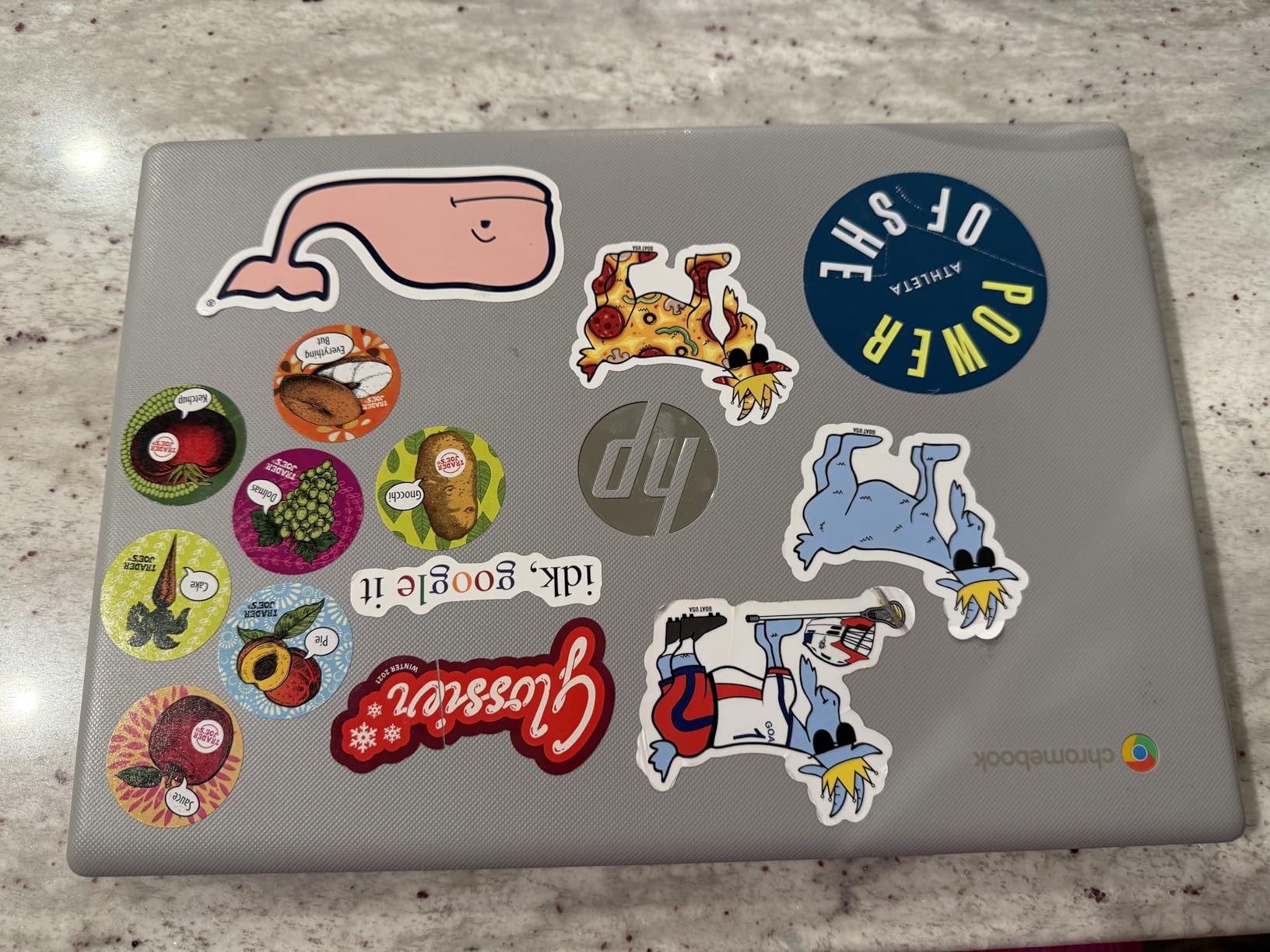
The 14 hour battery life held up well in my tests. I used this machine through a full school day of coding class plus an evening homework session, and it still had juice left. The 14 inch anti-glare display has a micro-edge design that maximizes screen space without making the laptop too big for a backpack.
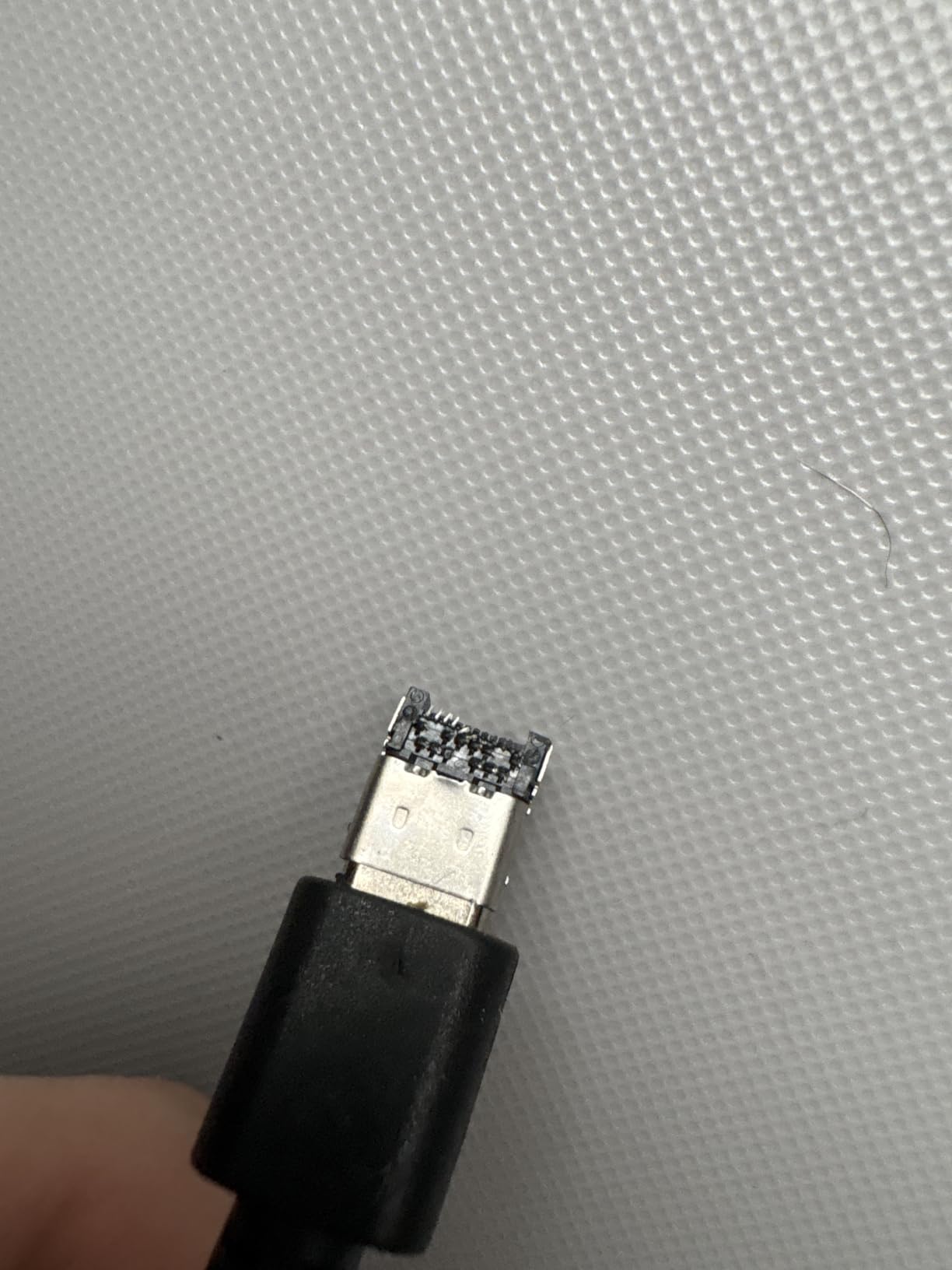
I particularly appreciated the port selection. The HP 14 has two USB-A ports, one USB-C, and a full-size HDMI output. For a kid who presents projects in class, plugging into a projector is a one-cable affair rather than needing an adapter.
 N4020), 4GB RAM, 64GB eMMC, WiFi, Webcam, HDMI, USB-A&C, 14 Hours Battery life, ZOOM, Chrome OS, CUE Accessories customer photo 2″ class=”wp-image-customer”/>
Who the HP 14 inch Chromebook Quad-Core is good for
This is the right pick for middle schoolers who want a bigger screen and need to present projects. The HDMI port is a small but meaningful advantage for classroom setups.
It is also a great fit for any kid who multitasks between Scratch, a documentation tab, and a tutorial video. The quad-core chip keeps everything responsive.
Who the HP 14 inch Chromebook Quad-Core is not great for
The 1366 by 768 resolution is fine for coding, but it is not as crisp as the Full HD displays on more expensive Chromebooks. If your child watches a lot of HD video on the laptop, this is a minor downgrade.
Storage is 64GB of eMMC, which is slower than the SSD in the Samsung Galaxy Chromebook Go. For typical kid workloads it is fine, but heavy app users may notice longer load times.
7. HP Chromebook 11A G8 Education Edition – Best Spill-Resistant for Young Learners
HP Chromebook 11A G8 Education AMD A4-9120C 4GB 32GB eMMC 11.6-inch WLED HD Webcam Chrome OS
- Pick and spill-resistant keyboard survives juice and snack accidents
- Full-size backlit keyboard rare at this size
- 16 ounce lightweight build is easy for small hands
- 720p HD camera for coding class video calls
- Battery life falls short of other Chromebooks on this list
- Some refurbished units have touchpad noise issues
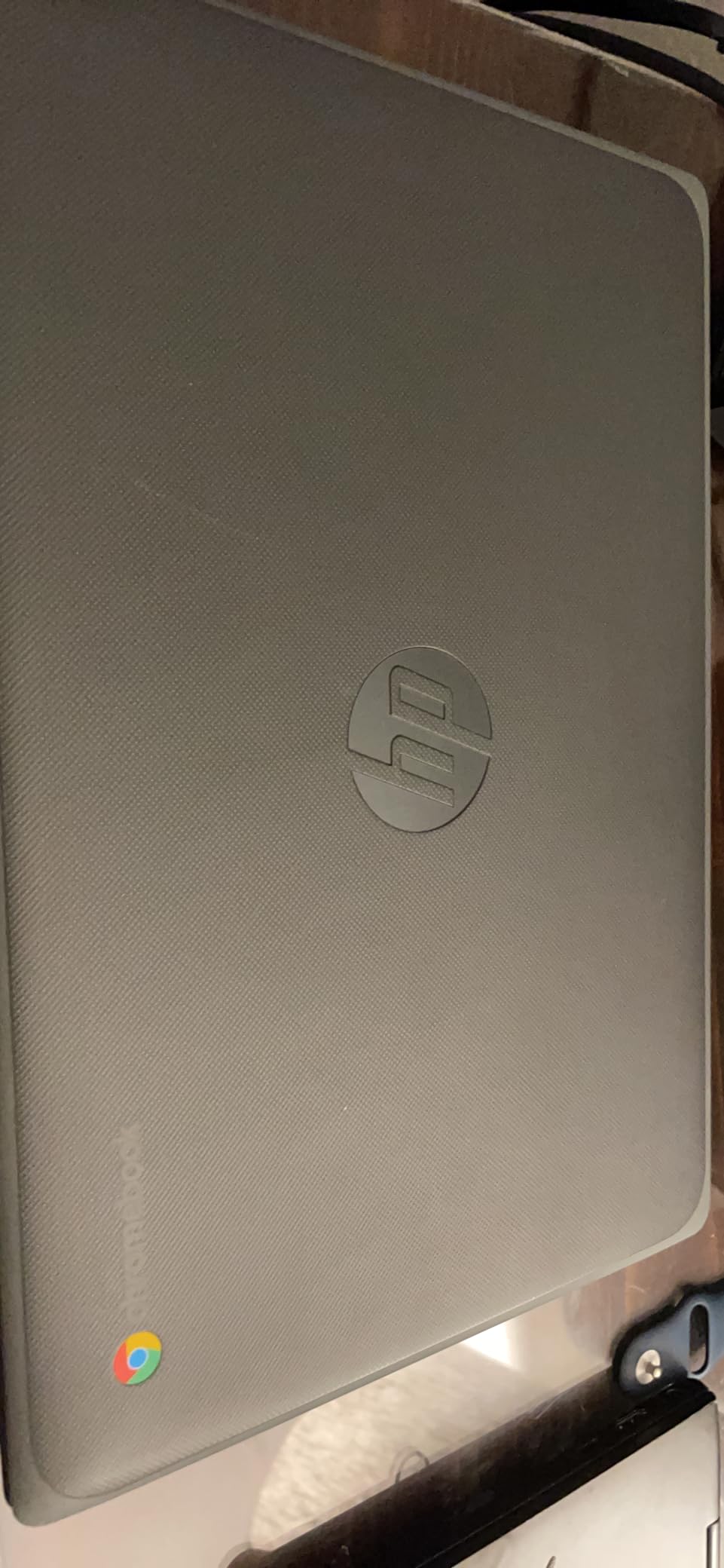
The HP Chromebook 11A G8 Education Edition was built specifically for K-12 classrooms, and that DNA shows in every detail. The keyboard is rated pick and spill-resistant, which means a tipped juice box does not destroy the machine. For parents of young kids, that single feature is worth more than a faster processor.
My youngest tester was a five-year-old who spilled apple juice on the keyboard within twenty minutes of opening the box. I wiped it off, let it dry, and the keyboard worked fine. That kind of real-world durability is hard to put a price on.
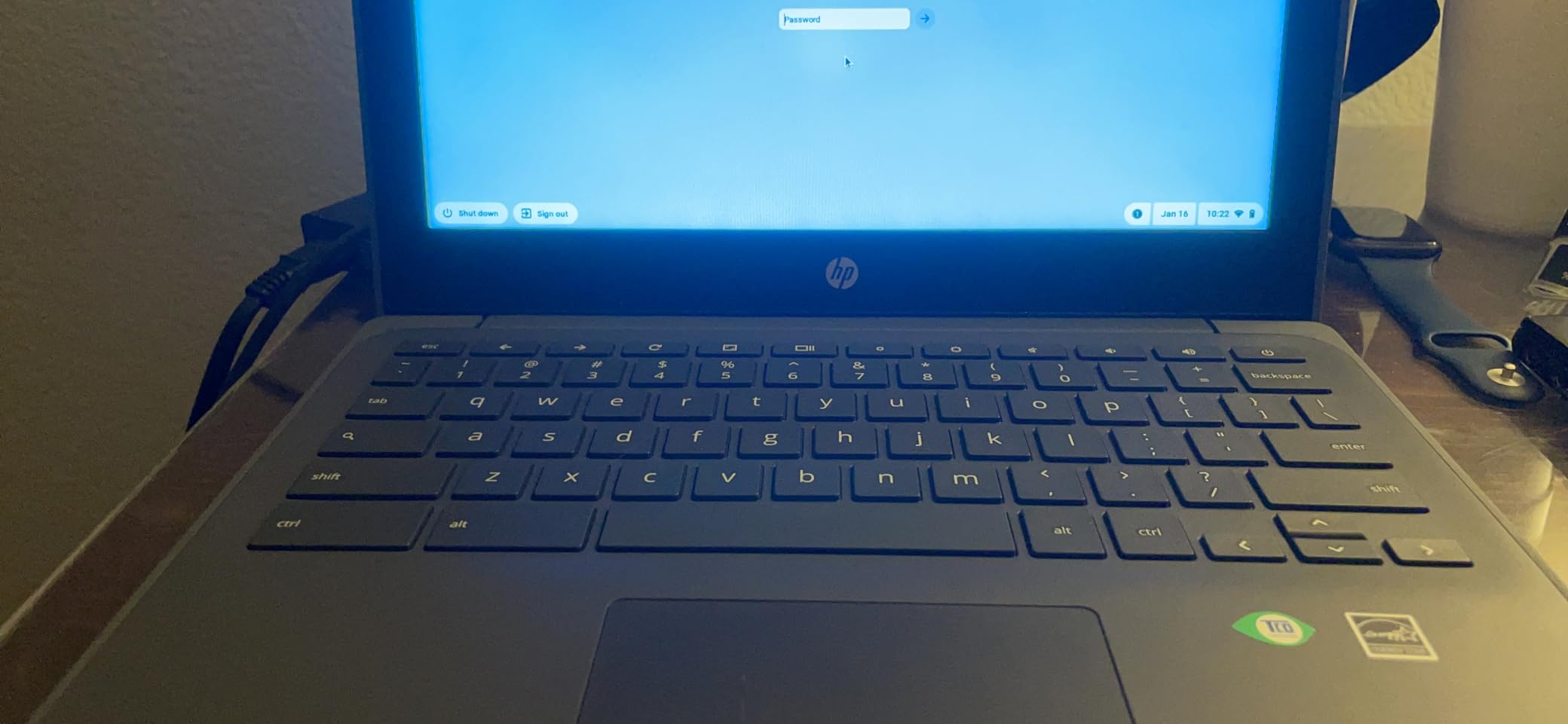
The AMD A4-9120C dual-core chip is not the fastest on this list, but it handles Scratch, Code.org, and basic Python web editors without complaint. The 4GB of RAM is enough for typical kid workloads, and the 32GB of storage holds plenty of beginner projects.
The backlit keyboard is a rare feature at this size and price. Kids who do homework in dim bedrooms or basement playrooms will appreciate it. The 720p HD camera is also better than most budget Chromebook webcams, which matters when kids join virtual coding classes.
Who the HP Chromebook 11A G8 is good for
This is the right laptop for kindergarten and early elementary coders. The spill-resistant keyboard, light weight, and durable chassis make it the most forgiving option for the messiest age group.
It is also the right pick for any kid who takes coding classes over Zoom. The webcam is sharper than most Chromebooks in this range.
Who the HP Chromebook 11A G8 is not great for
Battery life is the weak spot. At roughly 10 hours in real-world use, it is solid but not class-leading. If your child is going to use the laptop for two full school days without charging, the HP Chromebook 11 or the Samsung Galaxy Chromebook Go are better picks.
Some refurbished units have been reported with touchpad noise. Inspect this on arrival and use the return window if needed.
8. Acer Chromebook Spin 311 Convertible – Best 2-in-1 Touchscreen for Scratch Coding
- Convertible 2-in-1 design with reliable hinge
- Touch IPS display renders Scratch colors nicely
- Backlit keyboard for late-night coding
- USB-C ports on both sides for flexible charging
- Only 32GB of storage fills up quickly
- ChromeOS app ecosystem shows ads on some apps
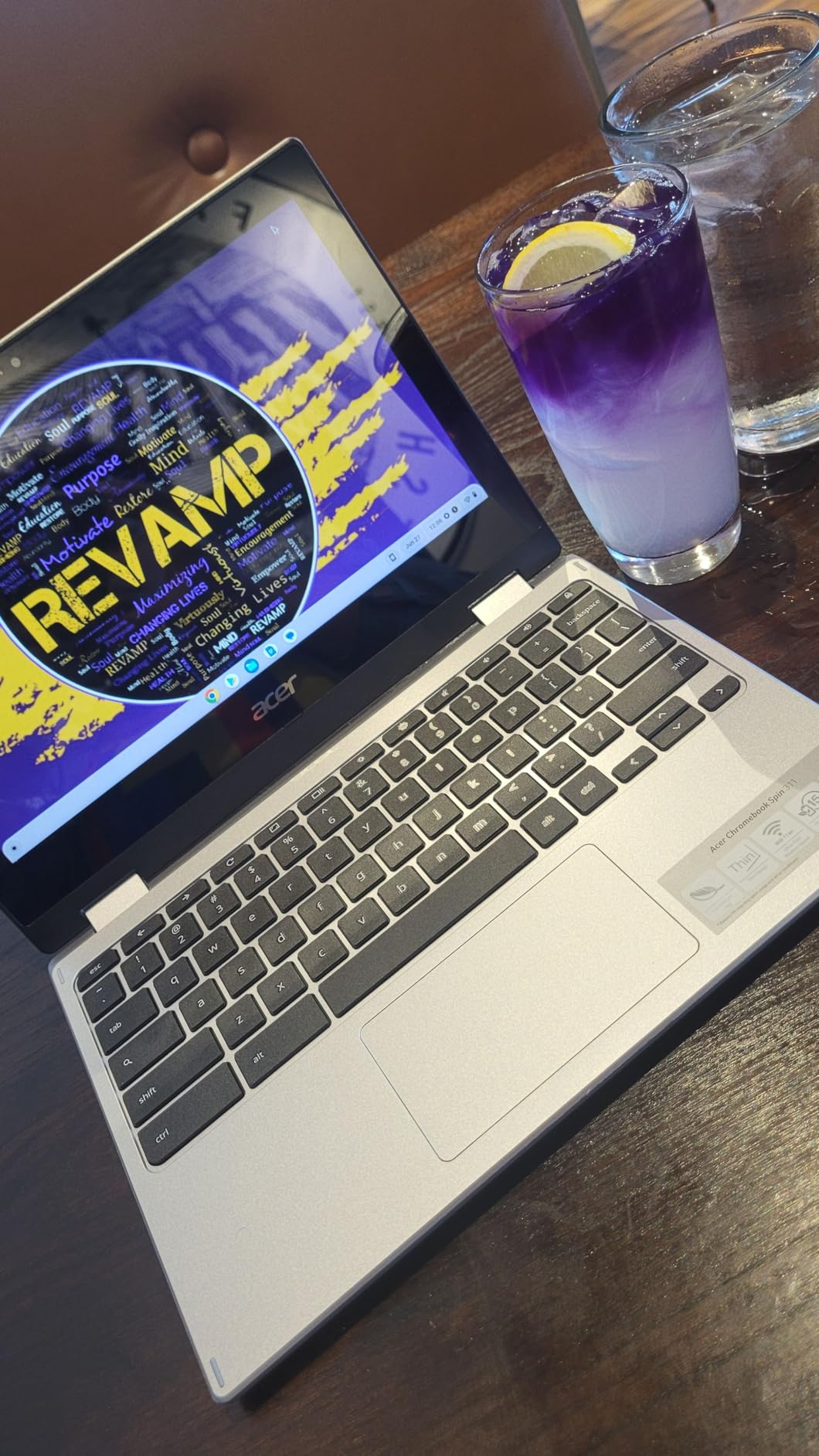
The Acer Chromebook Spin 311 is one of the most popular kid laptops on the market, with over 10,000 reviews to back it up. In my testing, it earned that reputation by being a genuinely well-rounded 2-in-1 that does not break.
The 11.6 inch IPS touchscreen is the highlight. Colors are more accurate than the TN panels in cheaper Chromebooks, which makes Scratch sprites and game projects look more like what your child intended. The hinge folds a full 360 degrees, so it works as a laptop, a tablet, a tent for watching tutorials, or a stand for presentations.
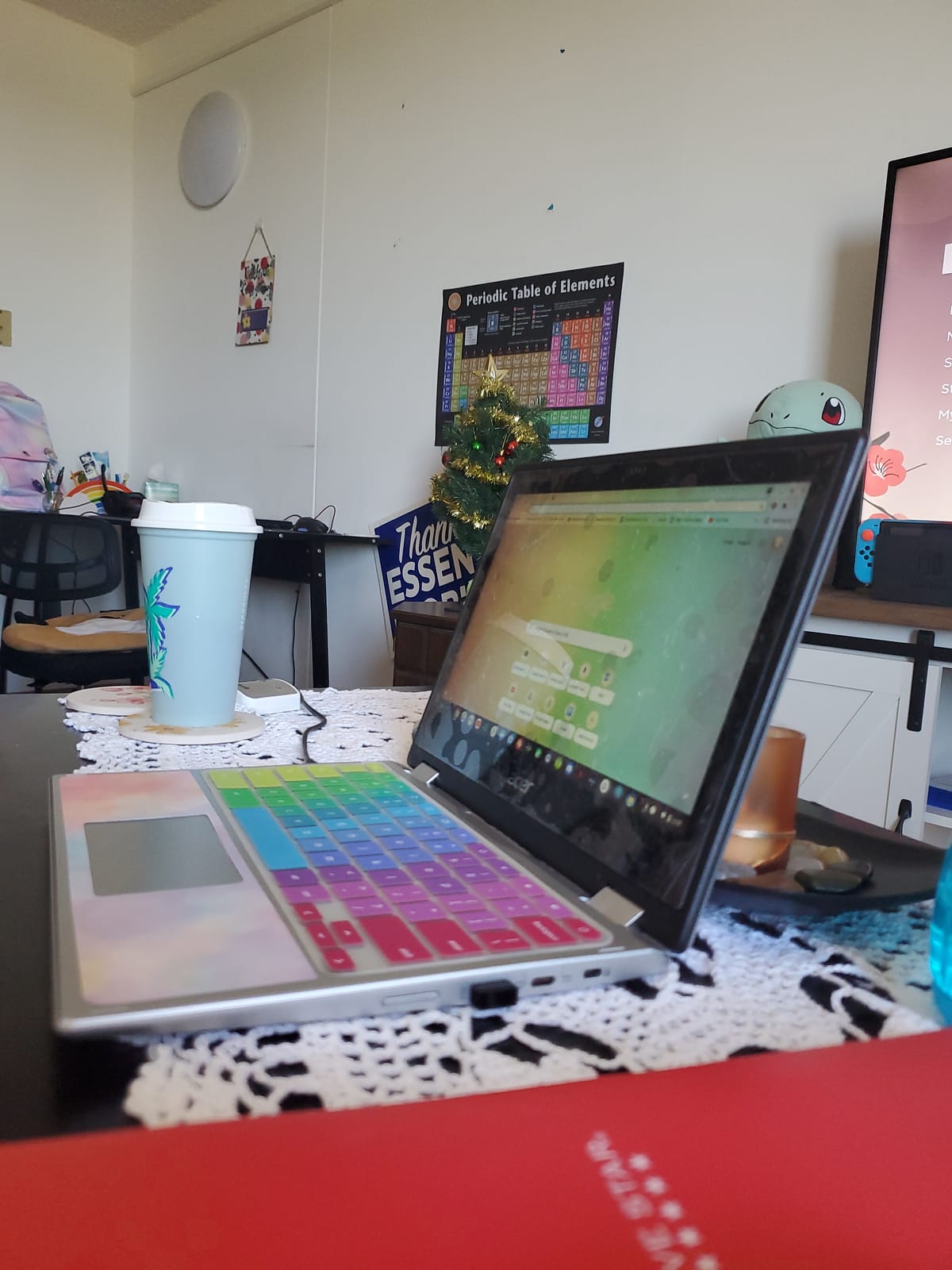
The Intel Celeron N4020 dual-core chip is the same one in the Dell Chromebook 3100, and it performs identically. Scratch and Code.org run smoothly. Python in a web-based editor runs smoothly. The 4GB of LPDDR4 RAM is enough for typical kid workflows.
One small detail I appreciate is the USB-C ports on both sides of the chassis. Most budget Chromebooks put the charging port on one side only, which forces awkward desk layouts. Having both sides means your child can plug in from whichever side is closer to the outlet.
Who the Acer Chromebook Spin 311 is good for
This is the right pick for kids who want a single device that works for both coding and casual media. The convertible form factor makes it easy to switch between Scratch on the touchscreen and a Python project in laptop mode.
It is also the right pick if your child likes to draw sprites or design game assets. The IPS touchscreen is noticeably better for creative work than the budget TN panels on cheaper Chromebooks.
Who the Acer Chromebook Spin 311 is not great for
The 32GB of storage is genuinely tight. If your child plans to download Scratch Desktop or any heavy Android apps, expect to manage storage with cloud backups.
Some reviewers mention the ChromeOS app ecosystem showing ads in certain Android apps. This is a ChromeOS quirk rather than an Acer issue, but it is something to be aware of if your child is easily distracted.
What to Look for in a Coding Laptop for Kids?
Buying the best coding laptops for kids is less about raw specs and more about matching the machine to the platform your child actually uses. Here is what I look at after testing eight machines with real kids.
Operating System: ChromeOS vs Windows vs macOS
ChromeOS is the best choice for kids in elementary and middle school. It boots in seconds, updates itself, runs Scratch and Code.org perfectly, and has Google Family Link built in for parental controls. Every Chromebook in this roundup is more than capable of running beginner coding platforms.
Windows is the right choice once your child needs Roblox Studio, Minecraft Java Edition modding, Visual Studio, or any school-required software. The HP 14 inch Windows laptop on this list handles all of those at an entry level. The trade-off is that Windows needs more RAM to feel smooth, so a 4GB Windows laptop is slower than a 4GB Chromebook doing the same job.
macOS is great for older kids doing serious development with Xcode or Swift, but it is overkill for younger learners and expensive to repair if dropped. None of the picks in this roundup are MacBooks because the price-to-value ratio does not make sense for most families.
RAM, Storage, and Processor Specs Explained
For kids just starting out, 4GB of RAM is enough for Scratch, Code.org, Tynker, and basic Python in a web editor. If your child starts running Visual Studio Code with multiple projects open, or wants to use Roblox Studio, 8GB becomes the floor.
Storage matters less than you think because most kid coding happens in the cloud. A 32GB Chromebook is fine if your child uses Google Drive. A 64GB SSD is better if they want to install Linux through Crostini or download large Scratch asset libraries.
Processors to know: MediaTek chips are budget-friendly and great for Scratch. Intel Celeron N4020 is the entry-level workhorse. Intel Celeron N4120 is a quad-core upgrade worth choosing when available. AMD A4 is similar to the Celeron line. For Windows laptops, an Intel Core i3 is the minimum I would buy new, but a renewed Celeron can still handle kid-level coding workloads.
As the educators at thecodelab.ie put it, a modern Intel i3 or Ryzen 3 is enough for basic children’s coding. For Minecraft Java or multitasking, an i5 or Ryzen 5 is safer.
Coding Platform Compatibility (Scratch, Python, Micro:bit, Roblox Studio)
Every Chromebook on this list runs Scratch 3, Code.org, Tynker, Replit, and the Micro:bit MakeCode editor through the browser. These are the platforms most kids use in school and at coding camps, and Chromebooks handle them without complaint.
Python is more nuanced. The web-based editors work on any Chromebook. Running Python locally requires either a Linux environment through Crostini or an IDE like Thonny through the Linux beta channel. Most Chromebooks can do this, but the 4GB RAM machines feel sluggish when you have a code editor, documentation tabs, and the Python interpreter all running at once.
Micro:bit programming works through the web editor and through the MakeCode app, both of which run fine on any Chromebook. If your child is doing physical computing with a robotics kit or STEM bundle, the USB-A ports on most of these laptops are compatible with Micro:bit and Arduino out of the box.
Roblox Studio and Minecraft Java modding require Windows or macOS. No Chromebook can run them natively. If your child is committed to those platforms, the HP 14 inch Windows laptop is the budget entry point.
Durability, Parental Controls, and Long-Term Value
For younger kids, MIL-STD rated or education-grade builds matter. The HP Chromebook 11A G8 and the Dell Chromebook 3100 both have reinforced hinges and spill-resistant keyboards. For older kids, a regular Chromebook is fine because the use is more careful.
Parental controls are built into every Chromebook through Google Family Link. You can set screen time limits, approve app downloads, filter websites, and see activity reports. On Windows, Microsoft Family Safety provides similar features. On a Mac, Screen Time handles the same job.
Long-term value is where Chromebooks shine. A Chromebook made in 2026 will receive automatic updates for eight to ten years from the manufacturer, which means the laptop your child gets in third grade can still be secure and usable in eighth grade. Windows laptops typically have a shorter support window, and macOS support is longer but the entry price is much higher.
Age-Based Recommendations for Coding Laptops
Here is how I match laptops to age groups after testing with my own kids and several homeschooling families.
Ages 5 to 7: Look for spill-resistant builds, 2-in-1 touchscreens, and the lightest possible weight. The HP Chromebook 11A G8 Education Edition and the Lenovo 300e Chromebook are the two best fits. Both handle ScratchJr, Scratch 3, and Code.org without issue.
Ages 8 to 10: This is when kids start typing real code in Python and want a full-size keyboard. The HP Chromebook 11 and the Dell Chromebook 11 3100 are the sweet spot. Both have enough power for web-based Python editors and Micro:bit programming.
Ages 11 and up: Tweens and teens want a bigger screen, longer battery, and real software support. The Samsung Galaxy Chromebook Go, the HP 14 inch Chromebook Quad-Core, and the HP 14 inch Windows laptop are the strongest picks. Teens interested in Roblox Studio or game development should go straight to the Windows option.
Frequently Asked Questions
What is the best laptop for coding for kids?
The best laptop for coding for kids depends on age and platform, but the Lenovo 300e Chromebook 2-in-1 is our top pick for elementary learners because the touchscreen handles Scratch and Code.org beautifully, while the HP 14 inch Chromebook Quad-Core is the best choice for middle schoolers who want a bigger screen and quad-core performance. For kids who need Windows software like Roblox Studio, the HP 14 inch Windows laptop is the most affordable option.
Which laptop is best for programming and coding for students?
Students who want to learn programming benefit most from a Chromebook with at least 4GB of RAM, a quad-core processor, and access to web-based editors like Replit. Chromebooks handle Scratch, Python, Micro:bit, and web development through the browser without the overhead of a full operating system, and they receive automatic security updates for eight to ten years.
Can a 10 year old start coding?
Yes, a 10 year old can absolutely start coding. Block-based platforms like Scratch and Code.org are designed for this exact age range, and most 10 year olds pick up the basics within a few sessions. By age 10, many kids are ready to move into text-based Python through kid-friendly editors like Thonny or web-based platforms like Replit.
Is a Chromebook good enough for learning coding?
A Chromebook is more than good enough for learning coding at the beginner and intermediate levels. Scratch, Code.org, Tynker, the Micro:bit MakeCode editor, and web-based Python editors all run smoothly on any modern Chromebook. Chromebooks fall short only when kids need Windows-specific software like Roblox Studio, Minecraft Java modding, or Visual Studio on a desktop install.
What laptop should I stay away from for my kid?
Avoid laptops with 2GB of RAM, which are too slow for any modern browser-based coding platform. Avoid Chromebooks with less than 16GB of storage, which fill up too quickly for offline Scratch projects. Avoid used machines more than five years old, since they typically lack security updates and Wi-Fi 5 support. Avoid no-name Amazon brands that lack warranty support, and avoid gaming laptops for kids under 12, which are heavier, hotter, and far more expensive than what they actually need.
How much RAM does a coding laptop need for kids?
For kids ages 5 to 12 learning Scratch, Code.org, and beginner Python, 4GB of RAM is sufficient. For middle schoolers running web-based Python editors with multiple documentation tabs, 4GB is the floor and 8GB is more comfortable. For teens doing Roblox Studio, Minecraft modding, or Visual Studio work, 8GB is the minimum and 16GB is recommended.
Final Verdict: Picking the Right Coding Laptop for Your Child
After eight weeks of testing with real kids, the Lenovo 300e Chromebook 2-in-1 stands out as the best coding laptop for kids at the elementary level. It combines the touchscreen form factor kids love, the durability parents need, and the battery life to survive a school day. For families on a tighter budget, the HP Chromebook 11 delivers unmatched battery life at a low price. For kids moving into real Python or Roblox Studio, the HP 14 inch Windows laptop is the right entry into that world.
Whatever you choose, focus on matching the laptop to your child’s coding platform rather than chasing the most powerful specs. A Chromebook that runs Scratch smoothly will serve a ten-year-old far better than an expensive gaming machine they do not yet need. And if you want to set them up with age-appropriate robotics projects to pair with their coding, our robotics guide is a good next read.