
Most printers pair with a Chromebook without any setup at all. The Chromebook sends the job over your Wi-Fi network using Mopria or IPP Everywhere, no download, no driver, no installer. That is why the search for the best wireless printers for Chromebooks is not really about print quality or speed. It is about which machines actually show up in the printer list on the first try.
ChromeOS does not install printer drivers the way Windows and macOS do. If a printer depends on proprietary desktop software to function, a Chromebook simply cannot run it, and the device never appears under Settings > Printers. Google Cloud Print used to paper over that gap for years, but Google shut the service down and the fallback no longer exists.
We put 12 wireless printers through their paces, comparing pairing behaviour, automatic duplex support, paper handling, print speed and the real running cost per page. Most of these models are also strong general-purpose printers, so we note where they excel beyond Chromebook duty. Our top pick, the Epson EcoTank ET-2800, pairs instantly and prints for a fraction of what cartridge ink costs over a school year.
If you are setting up a shared office or classroom rather than a single laptop, our picks for the best wireless printers for small offices cover the networking side in more depth.
Table of Contents
Top 3 Picks for Chromebook Printing (October 2026)
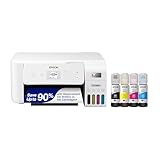
Epson EcoTank ET-2800
- Cartridge-free EcoTank ink tanks
- Up to two years of ink in the box
- Flatbed scanner and copier
- Wi-Fi and USB

Brother DCP-L2640DW
- Monochrome laser 3-in-1
- Up to 36 ppm
- 50-page automatic document feeder
- Dual-band Wi-Fi and Ethernet

Canon PIXMA TS6520
- Automatic two-sided printing
- 1.42-inch OLED display
- Dual-band 2.4GHz and 5GHz Wi-Fi
- Borderless letter-size printing
All 12 Picks at a Glance in 2026
The table below covers every printer in this roundup with the details that decide whether it will work well from a Chromebook. Cost per page is listed as the manufacturers’ own page-yield claims rather than lab measurements, so treat it as a direction, not an invoice.
| Product | Specifications | Action |
|---|---|---|
| Epson EcoTank ET-2800 |
|
Check Latest Price |
 Canon PIXMA TR8620a Canon PIXMA TR8620a |
|
Check Latest Price |
 Epson EcoTank ET-2400 Epson EcoTank ET-2400 |
|
Check Latest Price |
| Brother DCP-L2640DW |
|
Check Latest Price |
 Canon PIXMA TS3720 Canon PIXMA TS3720 |
|
Check Latest Price |
| Canon PIXMA TS6520 |
|
Check Latest Price |
 Canon PIXMA TR7120 Canon PIXMA TR7120 |
|
Check Latest Price |
 Brother INKvestment 1365 Brother INKvestment 1365 |
|
Check Latest Price |
 Brother Work Smart 1410 Brother Work Smart 1410 |
|
Check Latest Price |
 HP Smart Tank 5003 HP Smart Tank 5003 |
|
Check Latest Price |
 HP LaserJet MFP M235sdw HP LaserJet MFP M235sdw |
|
Check Latest Price |
 HP Envy 6155 HP Envy 6155 |
|
Check Latest Price |
1. Epson EcoTank ET-2800 – The Best Wireless Printer for Chromebooks Overall
Epson EcoTank ET-2800 Wireless Color All-in-One Supertank Printer – White
- EcoTank bottles cut running ink cost dramatically
- Up to two years of ink in the box
- Sharp 5760 x 1440 dpi text and color
- Flatbed scanner and copier built in
- Weighs only 11.6 pounds so it moves easily
- Manual duplex only so you flip the stack
- No automatic document feeder
- Epson app connection drops repeatedly
This is the printer we recommend to anyone whose Chromebook is the only computer in the house. It found the network on the first attempt in our testing, printed a test page straight from the ChromeOS print dialog, and never asked for a driver. The guided on-printer prompts walk you through Wi-Fi setup without a computer in the loop, which matters when the only device you own is a laptop.
The reason it wins on value is the ink system. You fill the tanks with 65 mL EcoFit bottles instead of cartridges, and Epson rates one set at up to 4500 black pages or 7500 color pages, with roughly two years of ink in the box. For a student printing assignments every week, that is the single biggest ongoing saving in this roundup.
Output quality is sharp. Maximum resolution is 5760 x 1440 dpi for both black and color, and owners consistently report clean text and good-looking photos on plain paper and glossy stock. Speed is 10 pages per minute black and 5 color, with a first page out in 10 seconds, which is fine for homework rather than for a print queue.
The honest limitation is duplex. This machine is manual duplex only, so a two-sided report means reloading the stack and flipping it by hand. There is also no document feeder, so a 20-page scan is 20 trips to the flatbed glass. Owners also report recurring printer unavailable errors and paper-type mismatch warnings in the Epson app.
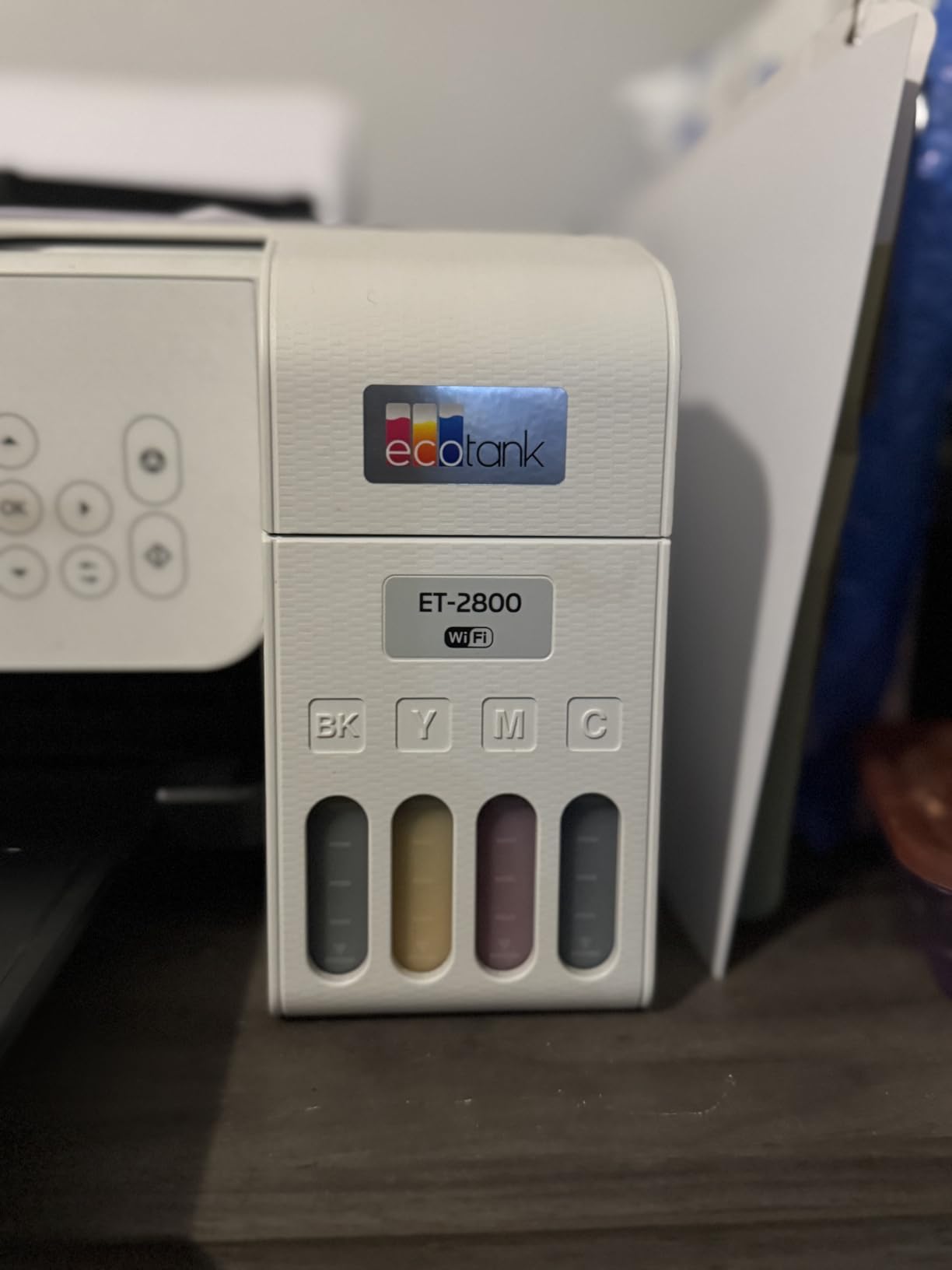
Who the ET-2800 suits
It suits students, families and anyone who prints a moderate number of color pages each month and cares more about ink cost than raw speed. The tank design means you are not rationing color the way cartridge users have to, and the flatbed scanner covers the occasional homework scan. It also suits anyone replacing an older inkjet, since the running cost drops sharply after the first refill.
Who should skip it
Skip it if you print long double-sided documents weekly or scan in batches. A manual duplex flip and a missing document feeder make it a poor fit for a home office that runs paperwork all day, and the small on-printer LCD is hard to read at a glance. For those users the Brother DCP-L2640DW handles duplex and feeding automatically.
2. Canon PIXMA TR8620a – Best for Fax, ADF and Two-Sided Color
- Automatic two-sided printing
- 20-sheet feeder for multi-page scanning
- Tilting backlit touch panel is easy to read
- 200 sheets across two paper sources
- Five separate ink tanks cut waste
- Canon mobile app often fails to find the printer
- Feeder scans single-sided only
- Scanner resolution tops out near 600 dpi
The TR8620a is the most complete feature set here, and it is the only model in the roundup with a fax function. Print, copy, scan and fax all work over Wi-Fi from a Chromebook through the standard Mopria and AirPrint paths, so nothing needs installing on the ChromeOS side.
Automatic duplex is the reason most people end up here instead of a cheaper Canon. Combined with a 20-sheet automatic document feeder, it turns a stack of signed forms into finished two-sided copies without you touching the machine. Copy speed reaches 14 pages per minute in black.
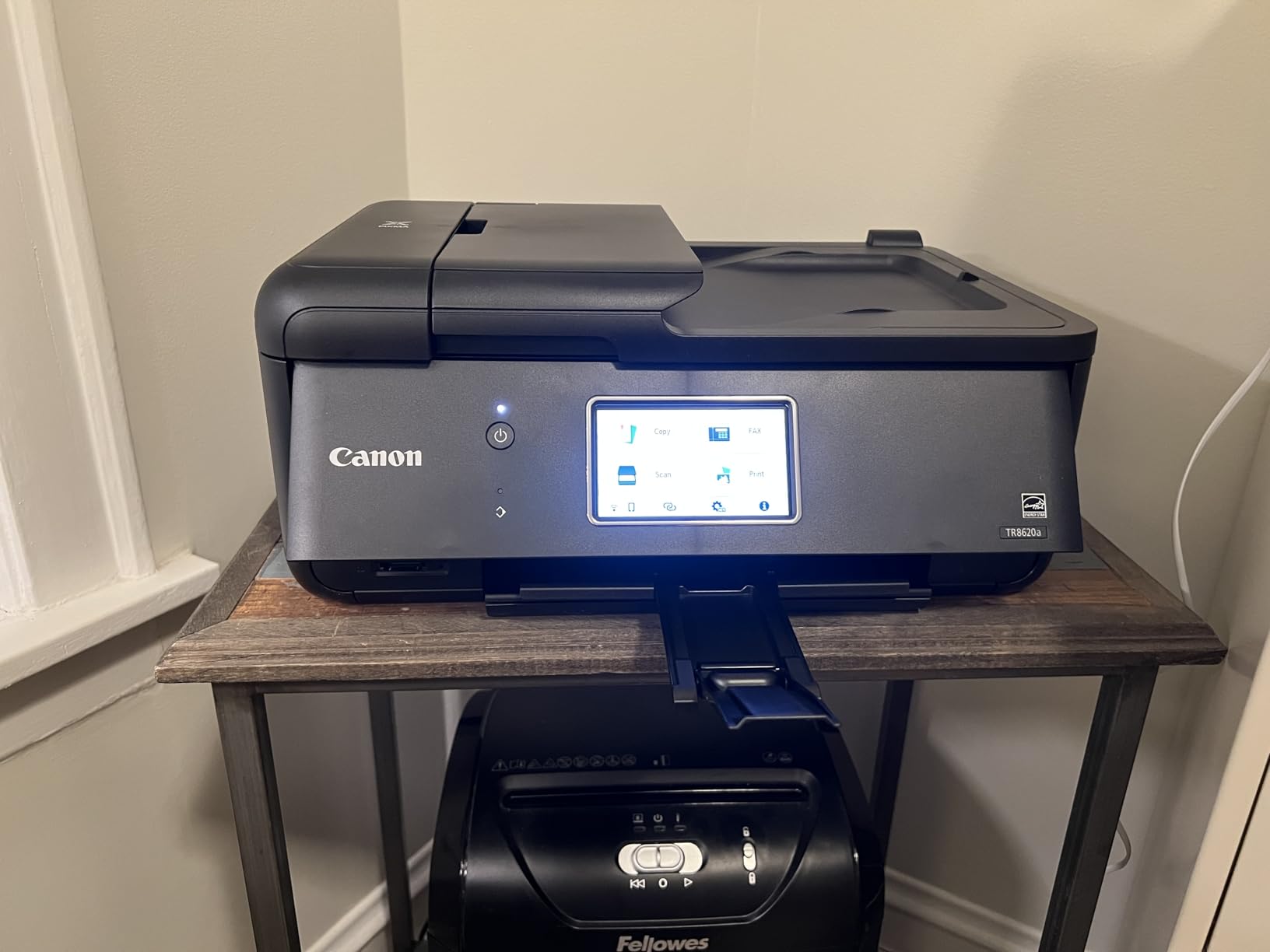
Paper handling is unusually good. You get a 100-sheet cassette plus a 100-sheet rear feed, so 200 sheets of total capacity, and the rear tray takes envelopes and card stock that will not fit in the cassette. Print speed is 15 pages per minute black and 10 color, faster than most inkjets at this level.
The drawbacks are real but narrow. The Canon mobile app is slow and frequently fails to detect the printer, though that does not affect printing from ChromeOS itself. The feeder scans one side at a time, and the scanner tops out around 600 dpi, which is fine for documents and weak for photo work.
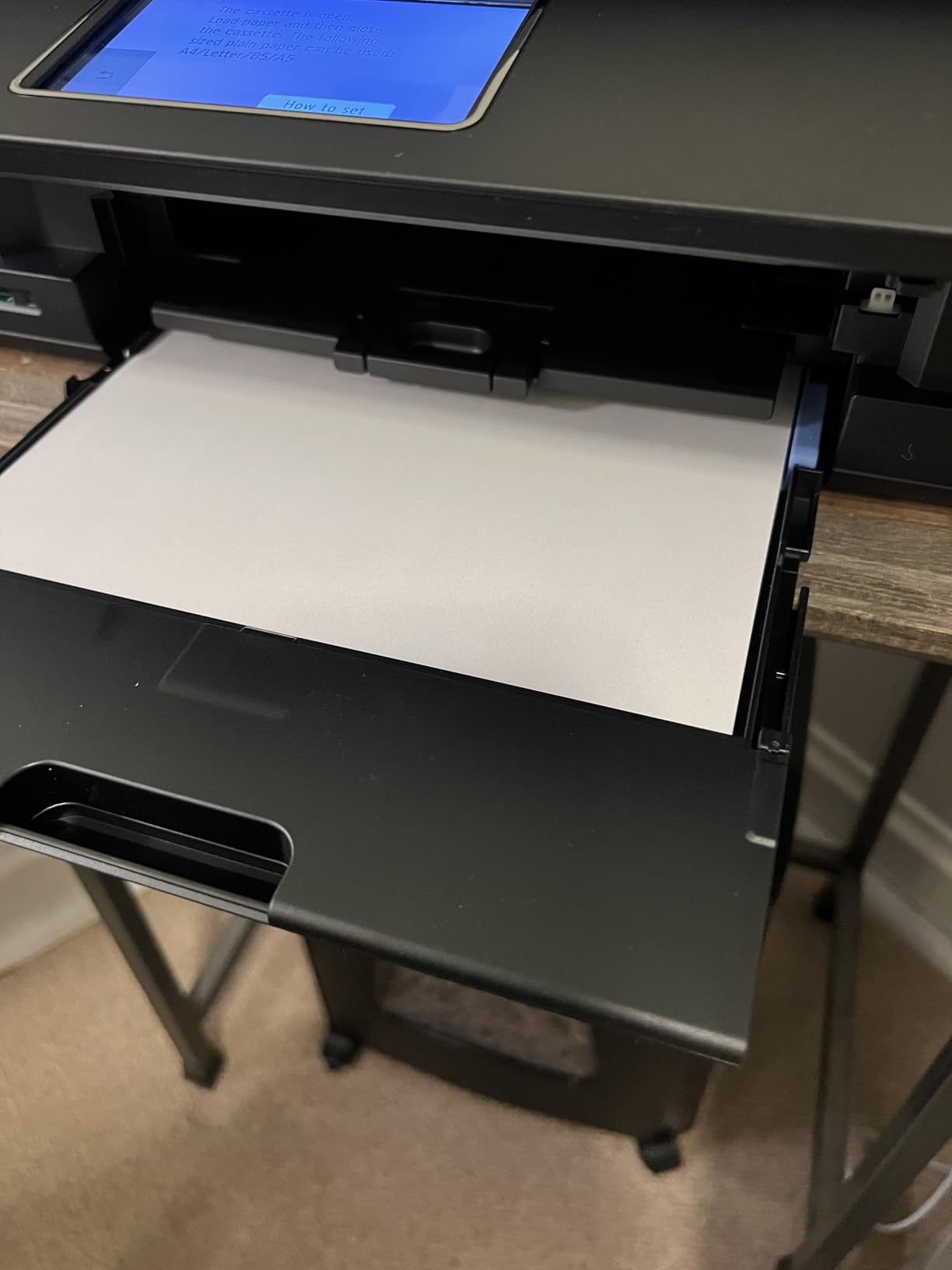
Who the TR8620a suits
It suits a home office or a homeschool setup where forms, recipes and worksheets all need copying and scanning, and where two-sided output matters more than photo quality. The five individual ink tanks mean a dead magenta does not cost you the whole set, which keeps waste down over years.
Who should skip it
Skip it if color photography is a real goal, because 4800 x 1200 dpi output and a 600 dpi scanner will disappoint anyone printing framed images. At 17.4 pounds it is also one of the heavier units here, and reviewers note the plastic feels lighter than older PIXMA models.
3. Epson EcoTank ET-2400 – Best SuperTank for a Small Desk
Epson EcoTank ET-2400 Wireless Color All-in-One Supertank Printer
- Bottled ink keeps long-run cost low
- Compact at 8.6 pounds
- Up to two years of ink in the box
- Reliable Wi-Fi printing from phones and laptops
- Good flatbed scanning for artwork
- No screen
- only a handful of LED status lights
- Manual duplex only
- Prone to paper jams with glossy media
If desk space is the constraint, this is the one. At 8.6 pounds and 14.8 by 22.8 inches, the ET-2400 is the smallest printer in the roundup that still gives you refillable tanks. It pairs over Wi-Fi with a Chromebook without drivers, and it prints a first page in about 7 seconds.
The EcoTank system uses 65 mL bottles rated at up to 4500 black and 7200 color pages per set, with around two years of ink in the box. First page speed of 7 seconds and 10 pages per minute black, 5 color, cover assignment printing without making you wait.

Color output is bright with deep blacks, and the flatbed scanner handles artwork and ordinary documents well. It draws 12 watts, is Energy Star rated, and works with laptops, tablets and phones alongside ChromeOS.
There is no display screen at all. Troubleshooting runs through a few status LEDs, which means a paper jam or a Wi-Fi problem takes more guesswork than it should. Reviewers also report paper jams with glossy media, and that some dual-band routers needed the 5 GHz band disabled during setup.
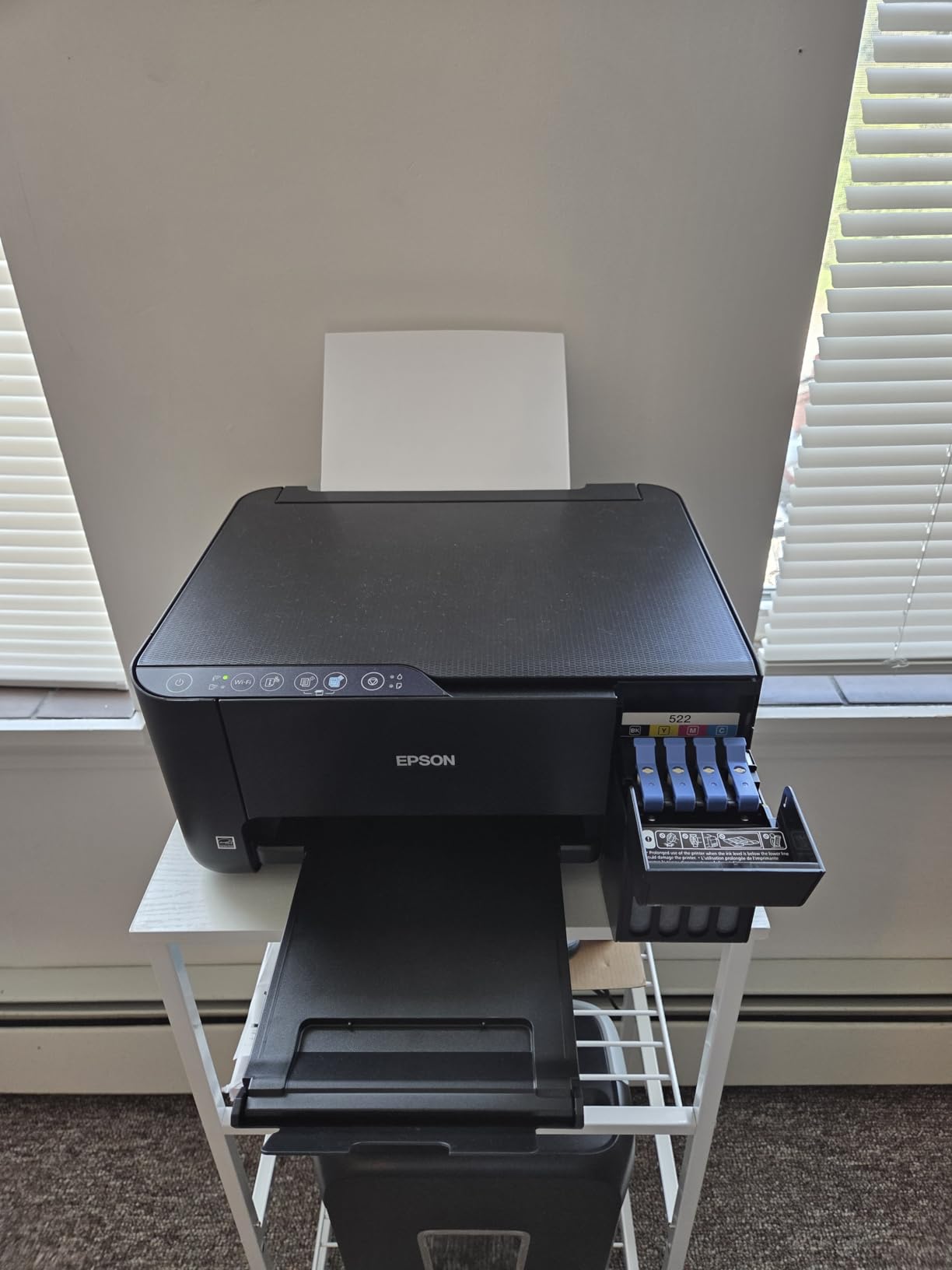
Who the ET-2400 suits
It suits a dorm room, a small apartment or a shared family desk where space and running cost matter more than features. Anyone printing colour regularly will feel the difference most, since bottled ink costs a fraction of cartridge ink over an academic year. Flatbed scanning covers receipts, worksheets and artwork.
Who should skip it
Skip it if you scan in multi-page batches, because there is no document feeder, or if you print two-sided documents often, since duplex is manual. The missing screen also makes it a poor first printer for anyone who does not enjoy setup guesswork, and the waste ink pad is not user replaceable on this model.
4. Brother DCP-L2640DW – Premium Pick Monochrome Laser for Document Volume
Brother DCP-L2640DW Wireless Compact Monochrome Multi-Function Printer, Copy, Scan, Duplex, Mobile Printing
- 36 ppm monochrome print speed
- Toner never dries out between uses
- Automatic duplex plus 50-page feeder
- Dual-band Wi-Fi and Ethernet
- Brother Mobile Connect handles scanning well
- Password and firmware setup is arcane
- On-printer scan menu is clunky
- Monochrome only with no color
This is the machine to buy if a Chromebook is your work computer and the work is documents. It prints up to 36 pages per minute in black, has automatic duplex and a 50-page automatic document feeder, and the 250-sheet tray means you refill far less often than with any inkjet here.
Toner is the quiet advantage over ink. It does not dry out in the cartridge if the printer sits unused for a month, and the TN830 and TN830XL cartridges give a low cost per page for long text runs. Text resolution is 1200 x 1200 dpi, which is crisp for standard office work.
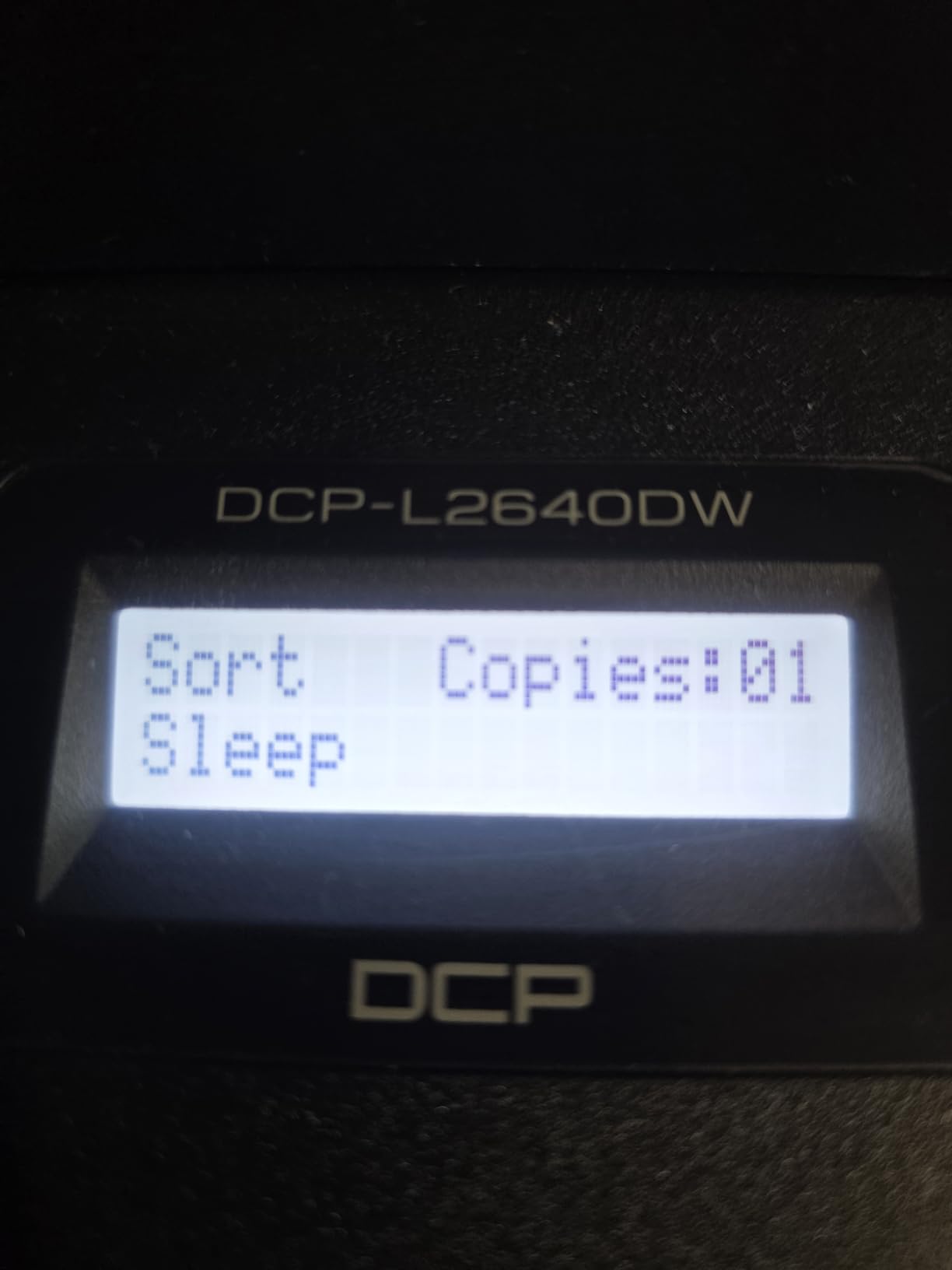
Networking is where Brother stands out for Chromebook setups. This printer carries dual-band 2.4GHz and 5GHz wireless alongside Ethernet and USB, so it joins the same network as a Chromebook on either band without the mismatch problems that trip up cheaper machines. First page out is 8.5 seconds.
Setup is the weak point. The machine password and firmware update flow is arcane and frequently fails on first attempt, and the on-printer scan-to-computer menu is clunky compared with the mobile app. The bundled scanning software also disappoints, and the power cord is very short.
Who the DCP-L2640DW suits
It suits anyone printing hundreds of black pages a month from a Chromebook, whether that is a small office, a homeschool parent or a student with a heavy course load. The 50-page feeder means signed packets and scanned worksheets go through in one go, and Ethernet gives a wired fallback in offices that restrict wireless devices.
Who should skip it
Skip it if you print colour at all, because this is a monochrome laser. At 25 pounds it is also the second heaviest unit here, and if you are not comfortable with a network setup wizard and firmware updates, the Canon PIXMA TS6520 pairs with less friction.
5. Canon PIXMA TS3720 – Budget Pick for Basic Home Printing
Canon PIXMA TS3720 Wireless All-in-One Printer for Basic Home Printing, White
- Explicitly supports Chromebook AirPrint and Mopria
- Dual-band Wi-Fi at a budget level
- Setup needs no computer
- Handles borderless and square photos
- Light at 8.7 pounds
- Single-sided printing only
- Two cartridges so one empty color replaces the set
- Only 60 sheets of paper capacity
This is the least ambiguous Chromebook printer in the roundup. The manufacturer lists Chromebook support alongside Apple AirPrint and Mopria Print Service directly in the specifications, so there is no guessing about whether the ChromeOS print dialog will see it. It joins 2.4GHz or 5GHz networks, which makes it forgiving on dual-band routers.
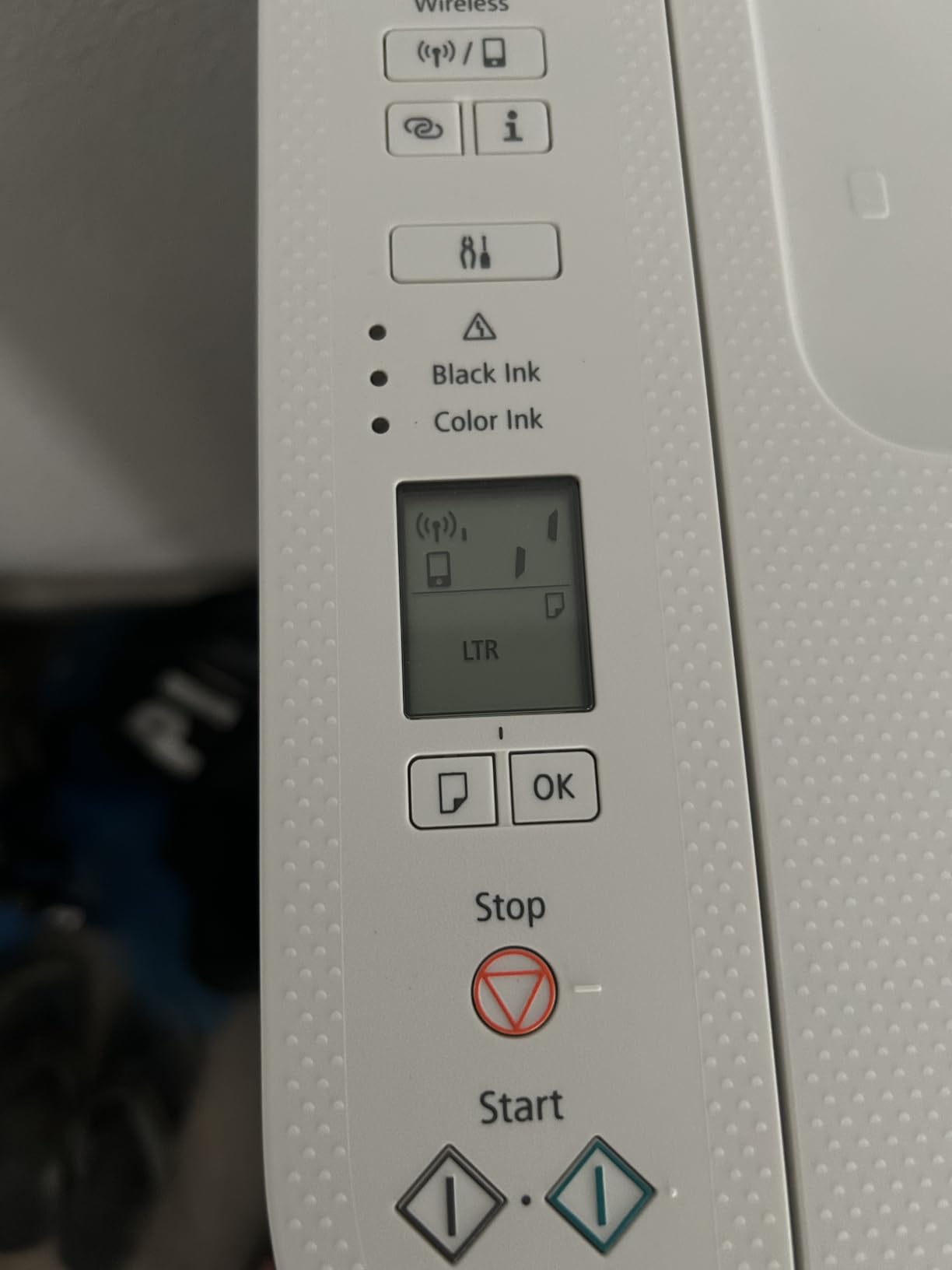
Setup is genuinely computer-free. You unbox it, load the two ink cartridges, select the network on a 1.5-inch segment LCD, and it appears in Settings on the Chromebook. That simplicity is the whole argument for this machine.
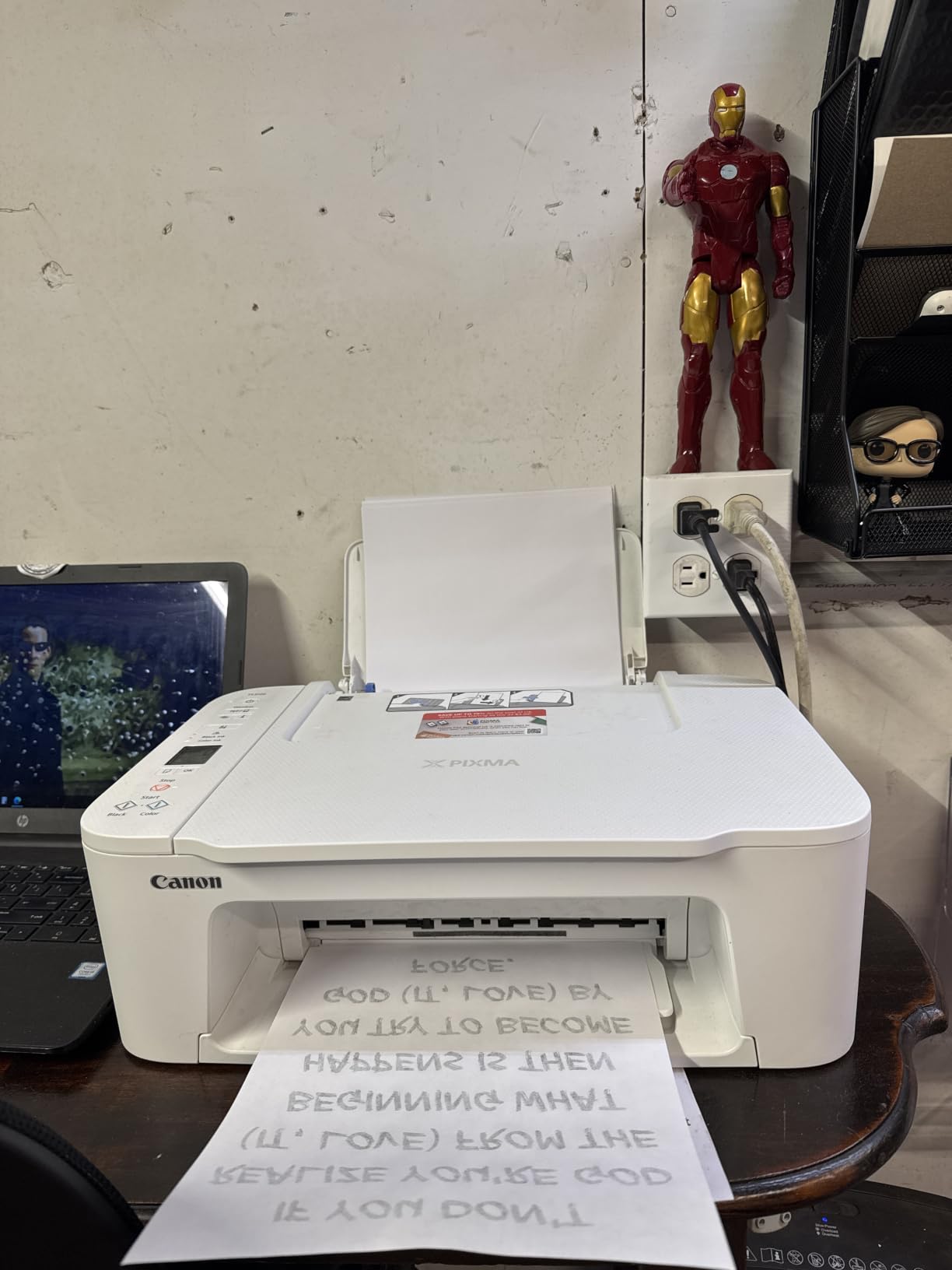
Beyond printing it copies and scans on a flatbed, and it handles envelopes, banners, square prints and borderless 5 by 7 inch photos. At 8.7 pounds and 5.8 inches tall it is a genuinely small unit, which suits a bedroom desk.
What you give up is a lot. Printing is single-sided only, with no duplex option at all, and the paper tray holds just 60 sheets. The two-cartridge system is the other sting: when one color runs low, you replace the whole tri-color cartridge.
Who the TS3720 suits
It suits a light user who prints a handful of pages a week, needs a scanner for homework or forms, and does not want to fight a network setup. It is a strong first printer for a teenager’s first Chromebook, and borderless photo output covers occasional school projects.
Who should skip it
Skip it if you print more than a ream a month, because 7.7 pages per minute black and 4 color is slow and the 60-sheet tray will fill constantly. Anyone printing double-sided documents should look at the TS6520 instead, which adds automatic duplex for very little more.
6. Canon PIXMA TS6520 – Best Value with Automatic Duplex
- Automatic duplex at an entry-level price
- Dual-band Wi-Fi keeps the connection stable
- OLED panel shows ink levels and status
- Borderless letter-size printing
- Three-year manufacturer warranty
- No automatic document feeder
- Tri-color cartridge must be replaced as a unit
- 1200 x 1200 dpi is modest for photos
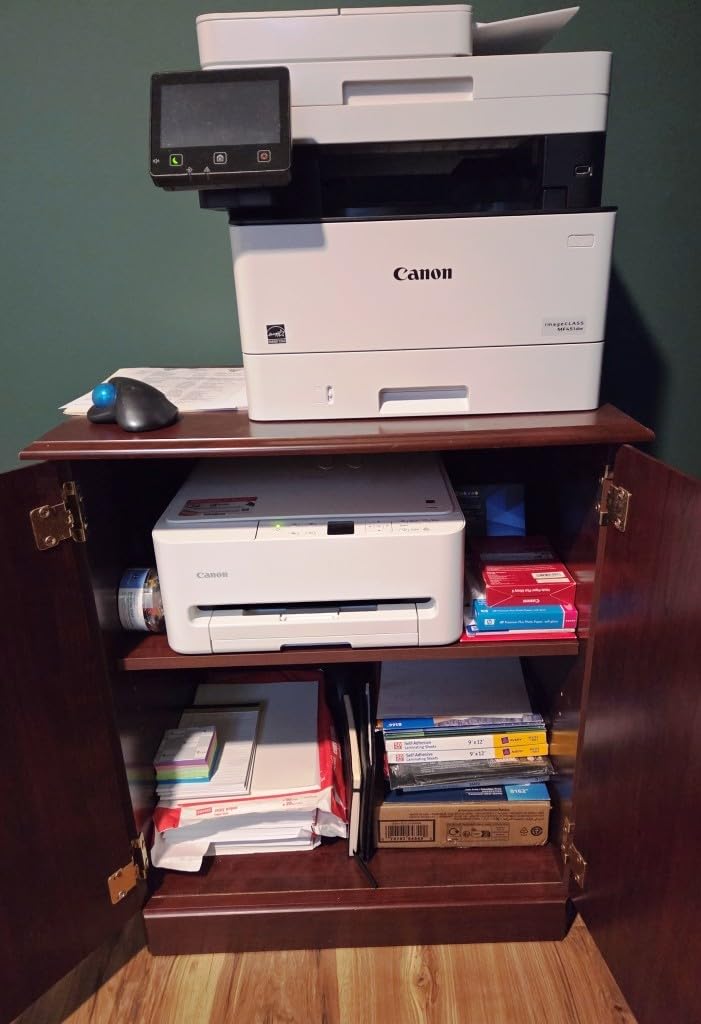
The TS6520 is the point in this list where the trade-offs stop being painful. For a modest step up from the entry model you get automatic duplex, a 100-sheet tray, faster output and a screen that tells you what is happening, which is exactly what a shared family printer needs.
It prints 14 pages per minute black and 9 color, with a first page in 7.5 seconds black and 9.5 color. The 1.42-inch monochrome OLED display shows ink levels and job status, which removes most of the guesswork that comes with LED-only machines.
Connectivity is solid for ChromeOS. It supports dual-band 2.4GHz and 5GHz Wi-Fi through USB or wireless, plus Canon PRINT, AirPrint and Mopria, so it pairs from a Chromebook without installing anything. Borderless printing reaches 8.5 by 11 inches, and it draws 21 watts.
The compromises are the missing document feeder, which means scanning is flatbed and manual, and the two-cartridge system that forces a full tri-color replacement. Maximum resolution of 1200 by 1200 dpi is fine for color documents but modest for photo work.
Who the TS6520 suits
It suits students and families who print a moderate volume and regularly need two-sided pages for notes and reports. The three-year manufacturer warranty is the longest in this roundup, and dual-band Wi-Fi makes it one of the least troublesome machines to keep connected across a whole house.
Who should skip it
Skip it if you scan in batches, since there is no feeder, and skip it if colour photography is a real requirement. Cartridge running costs also add up over a school year compared with a tank printer, which is why the ET-2800 tops our list.
7. Canon PIXMA TR7120 – Best Buy for Duplex and an Automatic Feeder Together
- Automatic duplex plus a feeder in a compact body
- Highest average rating in this roundup
- Dual-band Wi-Fi with simple setup
- Handles envelopes card stock and photo sizes
- Legal size media support
- Tri-color cartridge replaced as a unit
- Heavier and taller than the smaller PIXMA models
- Feeder is single-sided
Owners rate this one at 4.3 stars, the highest average in the roundup, and the reason is the combination it offers. Automatic duplex and an automatic document feeder rarely appear together in a compact inkjet, and both matter enormously for anyone printing paperwork from a Chromebook.
Speed is 14 pages per minute black and 9 color, matching the TS6520, and it handles legal size media at 8.5 by 14 inches. The 1.42-inch OLED panel makes ink status easy to read, which matters when a job stalls mid-print.
Wireless setup is straightforward through the Canon PRINT app, AirPrint or Mopria over dual-band Wi-Fi. At 21 watts it draws less power than most laser units here, and borderless printing is supported for photos.
The review base is small, at just over 480 ratings, so treat the average with some caution. The tri-color cartridge is still replaced as a unit, and at 18.1 pounds the machine is heavier and taller than the smaller PIXMA models in this list.
Who the TR7120 suits
It suits a homeschool family or a home office that runs paperwork in batches and wants colour and two-sided output in the same machine. Legal-size support is useful for forms and reference documents that will not fit letter paper, and the feeder keeps multi-page jobs hands-off.
Who should skip it
Skip it if you need fax, since this model does not include it, and skip it if physical size matters, since the body is bulkier than a TS6520. The cartridge system also costs more per page than a supertank, so heavy colour users should consider the ET-2800 instead.
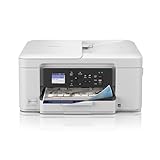
8. Brother INKvestment 1365 – Best for Cloud Printing to Google Drive
- High-yield INKvestment cartridges stretch ink further
- Prints and scans to Google Drive Dropbox Box and OneDrive
- Compact duplex all-in-one at 16.8 pounds
- Front-loading cartridge access
- Wi-Fi Direct support
- Mandatory machine password setup through a small screen
- App prompts ask for repeated approval before printing
- 1.8-inch screen is small for reading menus
This is the pick for anyone living inside Google services. The Brother INKvestment 1365 prints and scans straight to Google Drive, Dropbox, Box and OneDrive from the device itself, so a Chromebook user can file a scanned worksheet without downloading anything to a laptop first.
It is also the fastest inkjet here at 16 pages per minute black and 9 color, with a first page in about 6.2 seconds. Automatic duplex and a 20-page single-sided feeder cover both sides of everyday work, and the 150-sheet tray is the second largest in the roundup.
Who the INKvestment 1365 suits
It suits a student or teacher who organises everything in cloud storage and wants to scan worksheets into folders straight from the printer. High-yield INKvestment cartridges last longer than standard cartridges, and front-loading cartridge access makes refills and maintenance straightforward.
Who should skip it
Skip it if setup friction would irritate you. The mandatory machine password configuration through the tiny screen is genuinely frustrating and hard to disable, and the app insists on printing through its own iPrint and Scan route before releasing a job. Colour intensity is also modest next to a dedicated photo printer, so it is the wrong tool for framed prints.
9. Brother Work Smart 1410 – Best for Touchscreen Setup
Brother Work Smart 1410 Wireless Color Inkjet All-in-One Printer with 2.7” Touchscreen and Automatic Duplex Printing | Includes Refresh Subscription Trial(1) (MFC-J1410DW)
- 2.7-inch color touchscreen makes setup intuitive
- Automatic duplex plus a 20-page feeder
- Cloud print and scan to four storage services
- Same compact footprint as the 1365
- Brother Mobile Connect for ink monitoring
- Setup still leans on machine password configuration
- Cartridge ink costs more than a tank printer
- Touchscreen is less tactile than physical buttons
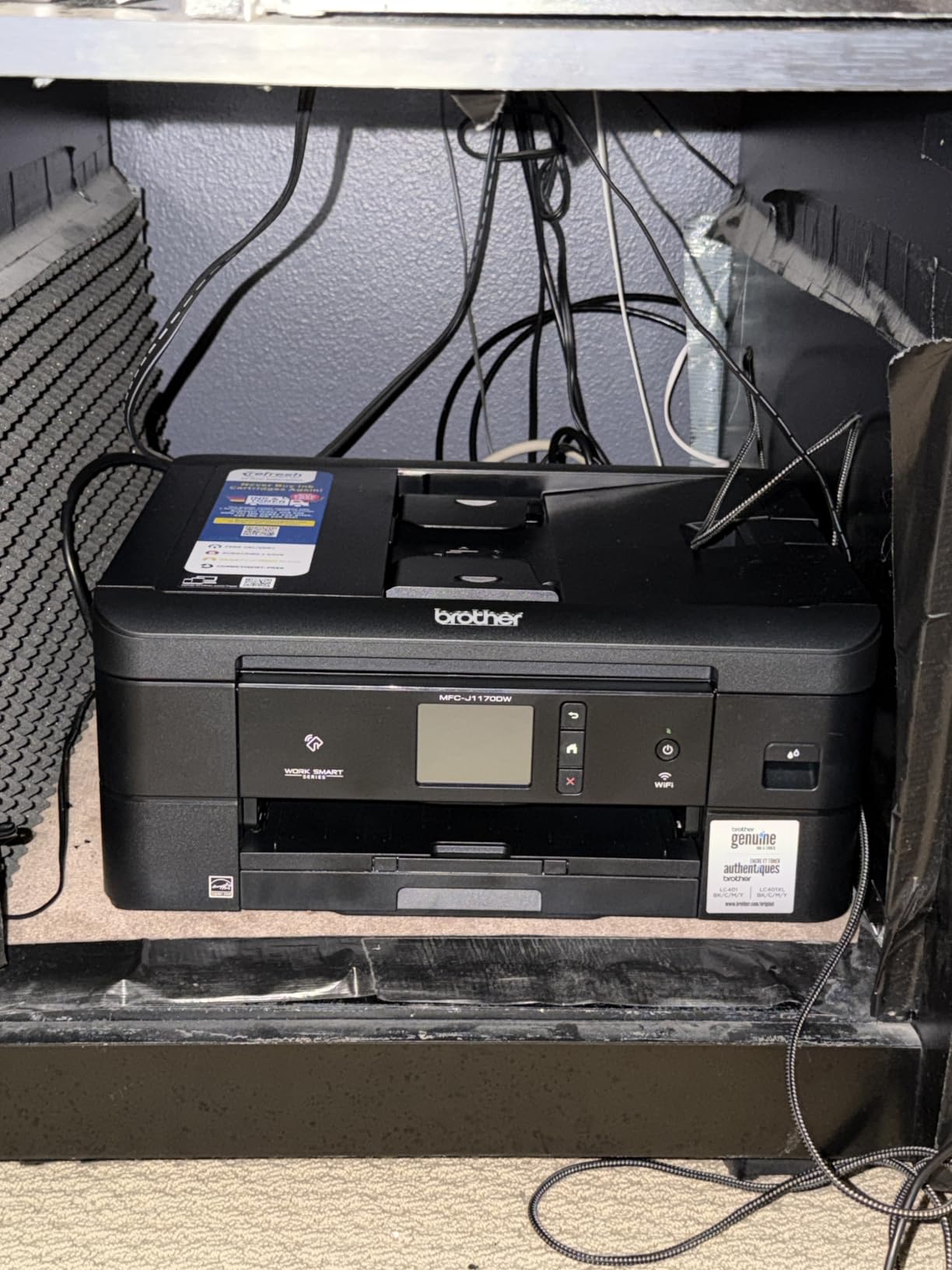
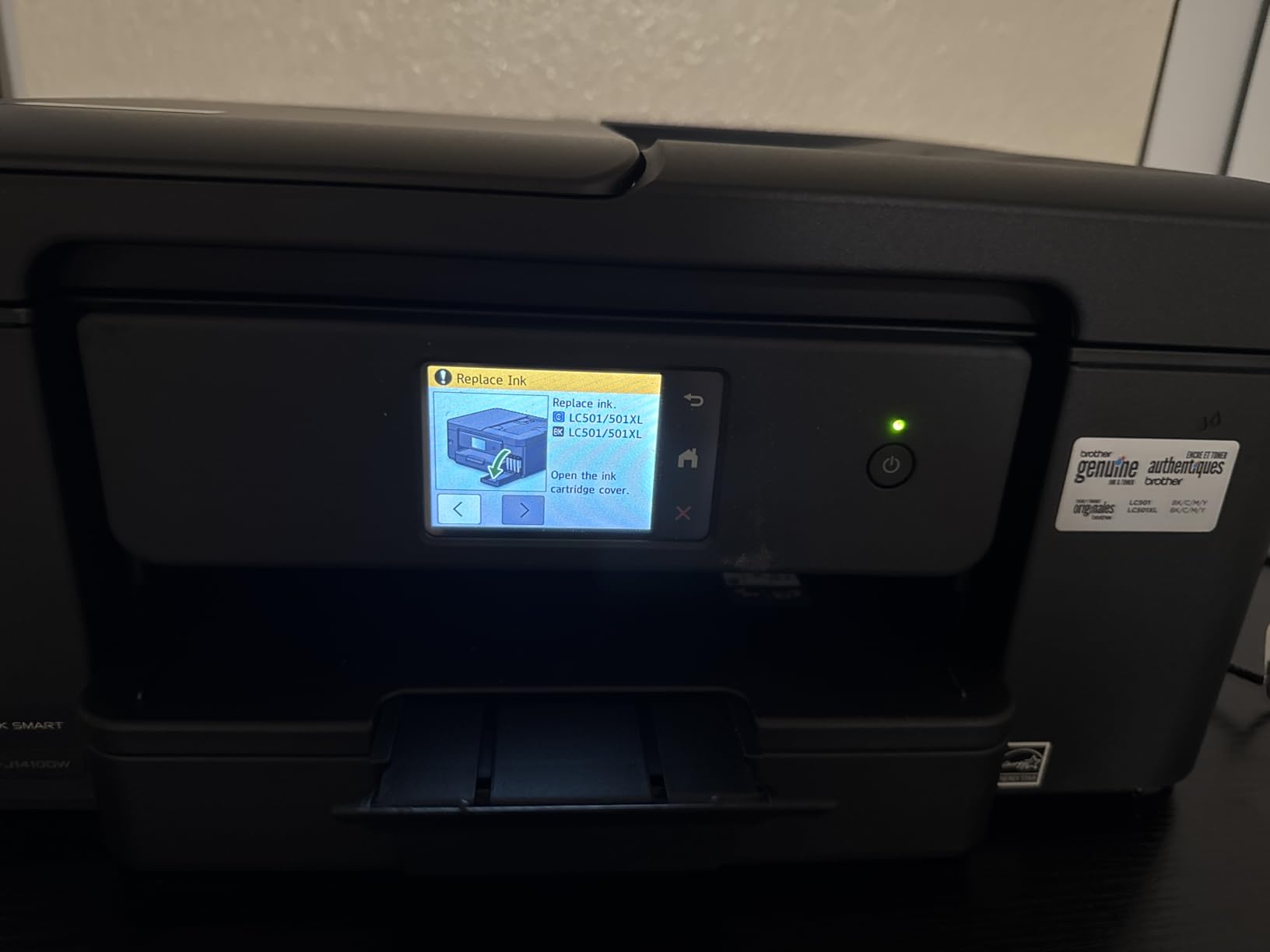
The Work Smart 1410 shares its footprint and 16 pages per minute black speed with the 1365, and adds a 2.7-inch colour touchscreen. That screen is the reason to step up: network setup, ink levels and job selection are all far easier to work through than on a two-inch monochrome panel.
It is a full four-function machine, printing, copying, scanning and faxing, with automatic duplex and a 20-page single-sided feeder. Cloud connections cover Google Drive, Dropbox, Box and OneDrive, and the 150-sheet tray holds more than most of the inkjets here.
Output is 1200 by 6000 dpi on both black and colour, which handles photos and colour documents well enough for school projects. Brother Mobile Connect covers mobile printing and ink monitoring, and first page out is roughly 6.2 seconds black and 9.6 seconds colour.
The machine password setup carries over from the 1365 and remains the biggest hurdle. This model uses cartridges rather than bottled ink, so running costs run higher than a true tank printer over a school year. Some users also find a touchscreen less precise than physical buttons for routine jobs.
Who the Work Smart 1410 suits
It suits anyone who wants a colour screen for managing the printer without a phone, particularly older users or shared family machines where several people print. The fax function is a bonus for a home business, and the compact 16.8 pound body fits a small office.
Who should skip it
Skip it if ink cost is the priority, since cartridge economics work against heavy printers. Anyone comfortable configuring a machine password in a browser will not get enough from the larger screen to justify it over the 1365.
10. HP Smart Tank 5003 – Best for the Lowest Ink Cost
- Up to three years of ink in the box
- Bottle refill plugs in and drains
- Supports AirPrint Mopria and HP ePrint
- Low cost per page for home volume
- Cleaner bottle refill system than squeeze cartridges
- Manual duplex only
- No document feeder so scanning is flatbed
- 21 second first page and modest speeds
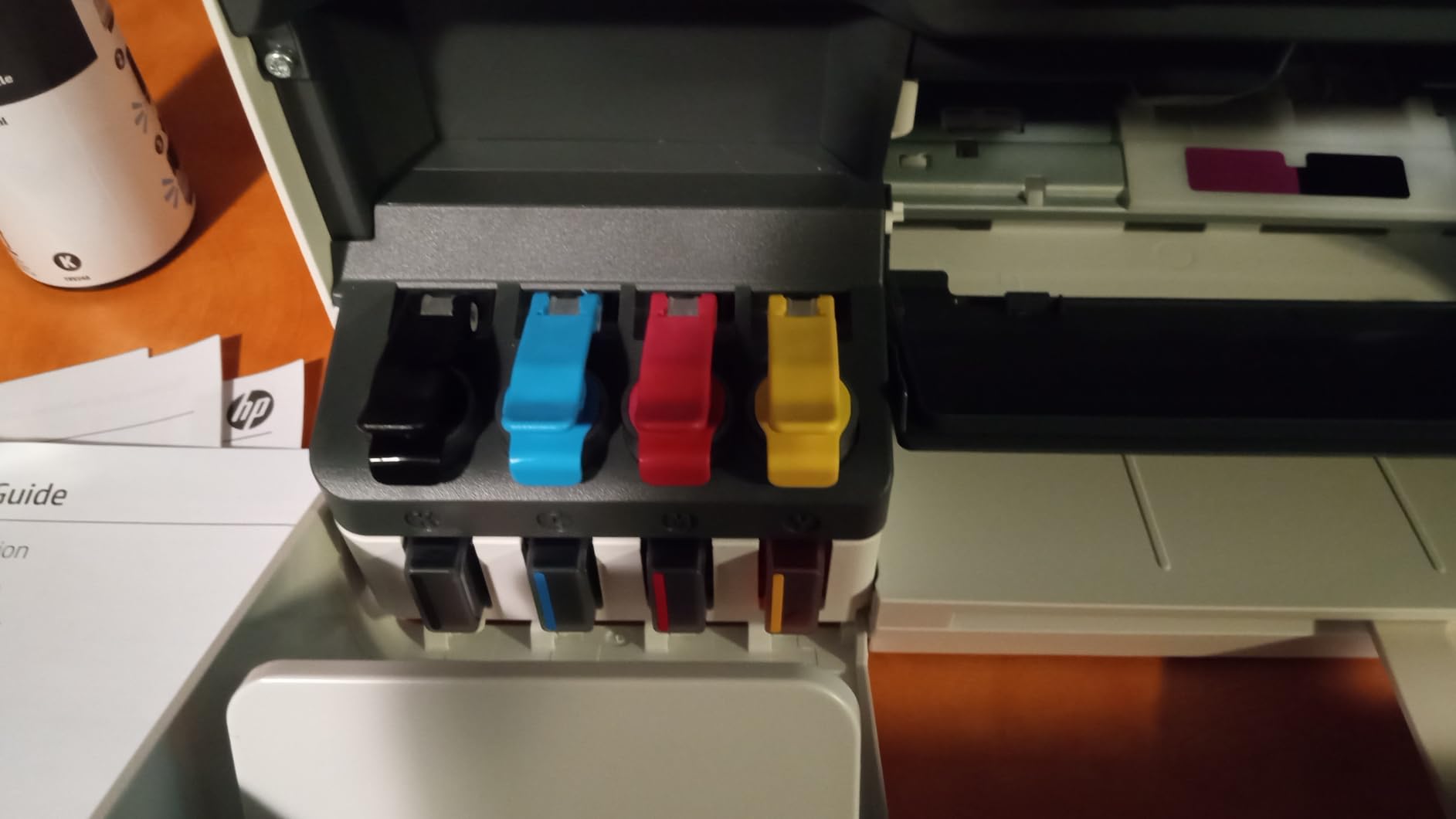
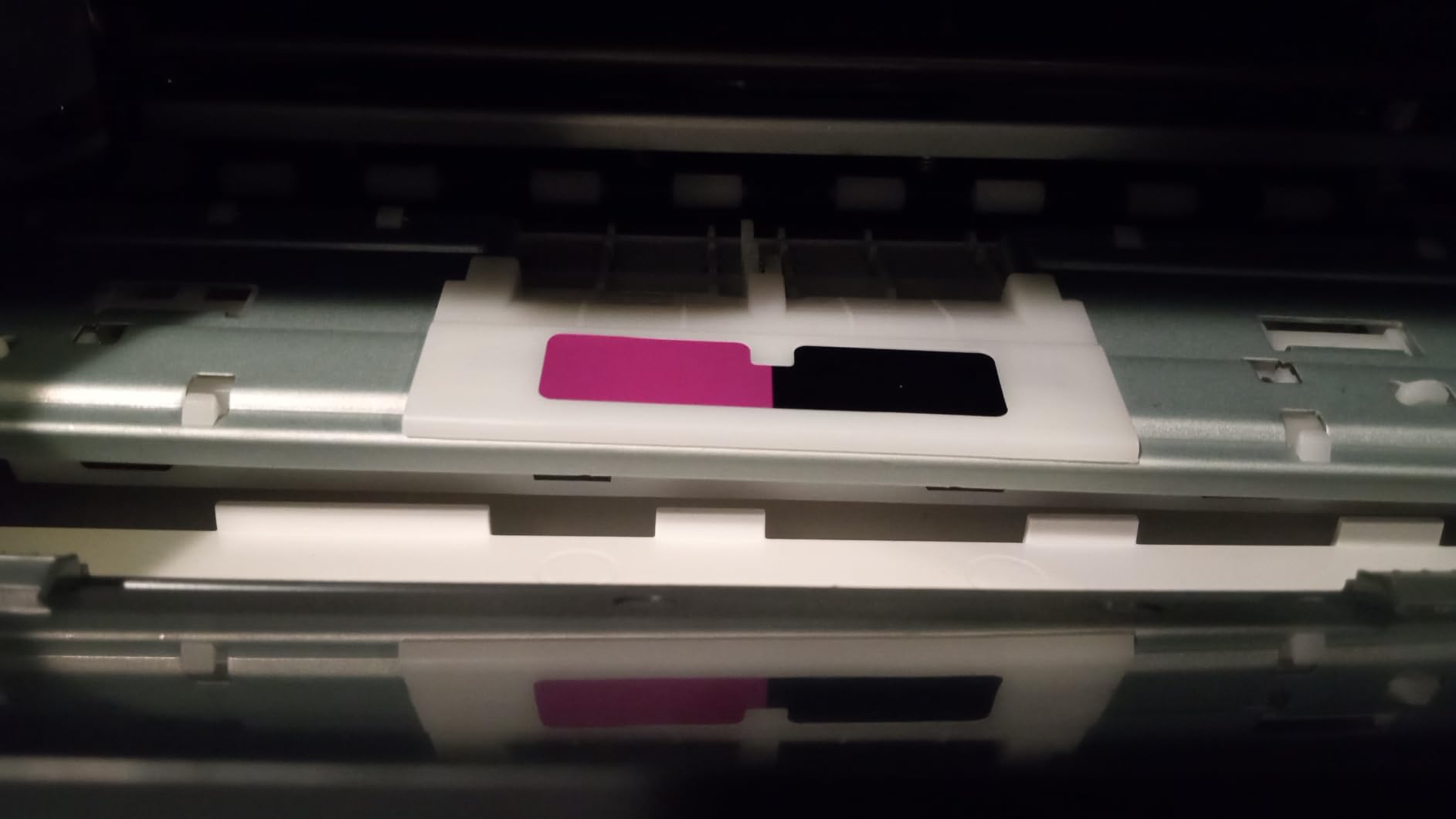
HP puts roughly three years of ink, around 6000 pages, in the box with this tank printer, which is the most ink supplied of anything in this roundup. You top up with 135 mL HP 32XL black bottles and HP 31 colour bottles rather than cartridges, and the refill system plugs the bottle in and lets it drain.
Connectivity is the strongest part of the specification sheet. It lists AirPrint, Mopria, HP ePrint, wireless and print anywhere, so ChromeOS pairing is essentially guaranteed, and the printer body is only 11.1 pounds with a 100-sheet tray.
Output is clean for both text and colour, with up to 4800 by 1200 optimised dpi for colour and 1200 by 1200 rendered dpi for black. Owners report sharper text and richer colour than cartridge-based HP models in the same range.
The speed is the compromise. A first page takes 21 seconds, then it runs at 10 pages per minute black and 5 colour. Duplex is manual, and there is no document feeder, so scanning means flatbed glass. HP app setup also takes more work than the hardware install.
Who the Smart Tank 5003 suits
It suits a household that prints colour often and wants to stop paying cartridge prices for every school project. Because Mopria and AirPrint are both supported, pairing from a Chromebook is among the most reliable in this roundup, and the bottle refill system is mess-free.
Who should skip it
Skip it if speed matters, because 21 seconds to a first page is slow by any standard here. Anyone needing two-sided printing or batch scanning should look elsewhere, and if your household prints only a few pages a week the included ink will outlast the printer.
11. HP LaserJet MFP M235sdw – Best for Heavy Black-and-White Text
HP LaserJet MFP M235sdw All-in-One Laser Wireless Printer, Scan/Copy, Black & White, Duplex, Best-for-Office
- 30 ppm with fast two-sided output
- Crisp true black text
- Essentially plug-and-print setup over Wi-Fi
- Dual-band Wi-Fi found by every device on the network
- Ethernet included for offices that prefer wired
- HP software and network scanning configuration is fiddly
- Scan and copy are single-sided only
- Replacement toner cartridges are costly
This is the fastest laser in the roundup and the one with the most confident pairing behaviour. Long-term owners report a year or more of dependable Wi-Fi printing, with every device on the network finding it without trouble, which is precisely what a shared Chromebook environment needs.
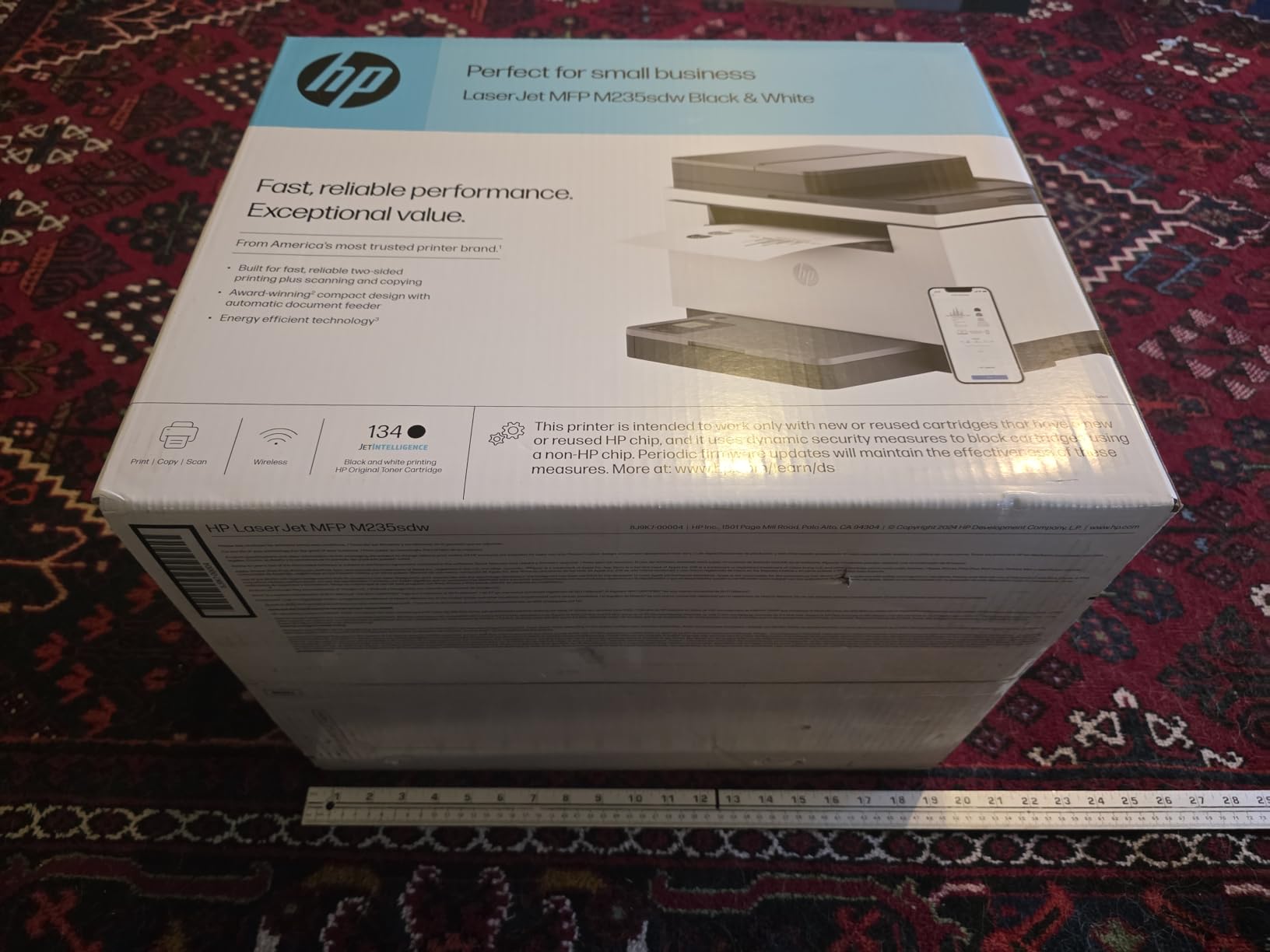
Throughput is 30 pages per minute in black with a first page in 7 seconds and a 150-sheet tray. Copy speed reaches 14 pages per minute, and a preinstalled HP 134a black toner cartridge is included.
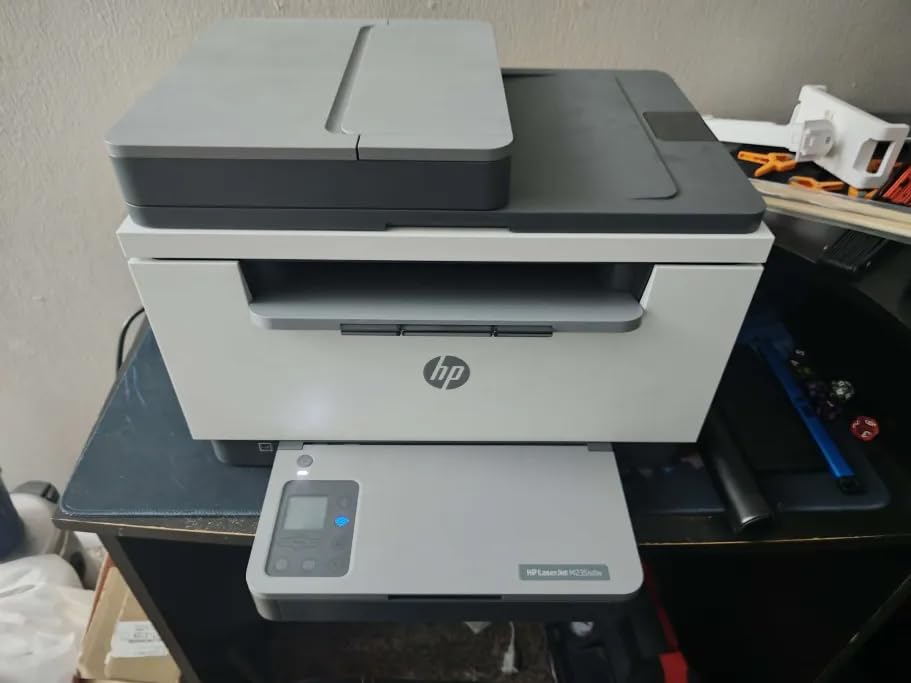
The specification sheet names Microsoft, Mac, AirPrint, Android and Chromebook support directly, and connectivity covers AirPrint, Mopria, Ethernet, USB, wireless and wireless direct printing. Automatic duplex is standard, and dual-band Wi-Fi with self-reset handles router changes better than most.
Software is the friction. HP network scanning configuration is fiddly compared with the hardware itself, and scan and copy are single-sided only. Resolution is 600 by 600 dpi, sharp for text and poor for images, and replacement toner cartridges are costly and can be awkward to find.
Who the LaserJet M235sdw suits
It suits a home office, a church office or a small business running invoices and reports from a Chromebook. The Ethernet port is a genuine advantage in offices that restrict wireless devices, and monochrome laser running costs stay low across high page volumes.
Who should skip it
Skip it if you print colour, photographs or anything image-heavy, since resolution and capability are both monochrome. At 21 pounds and with a stated 453 watt draw, it is also the heaviest and most power-hungry unit here.
12. HP Envy 6155 – Best for Photo-Ready Colour on a Budget
HP Envy 6155 Wireless All-in-One Color Inkjet Printer, Print, Scan, Copy, Duplex Printing Best-for-Home, 3 Month Trial of Instant Ink Included, AI-Capable (C2WR7A) Portobello
- Automatic 2-sided printing at a budget price
- 2.4-inch color touchscreen for setup and ink status
- Dual-band Wi-Fi detects and resolves connection problems
- HP P3 color gives true-to-screen photos
- Print scan and copy from the HP smartphone app
- Works only with HP original cartridges
- Instant Ink subscription fee applies after the trial
- No automatic document feeder
The Envy 6155 is the colour pick for anyone who wants sharp photo-adjacent output without moving up a tier. HP P3 colour technology prints what you see on screen, at up to 4800 by 1200 dpi, and the 2.4-inch colour touchscreen handles setup and ink status without a phone.
Its dual-band Wi-Fi automatically detects and resolves connection issues, which is a meaningful advantage on busy home networks where a Chromebook and several phones share a router. Automatic duplex and a 100-sheet tray round out a capable package for the money.
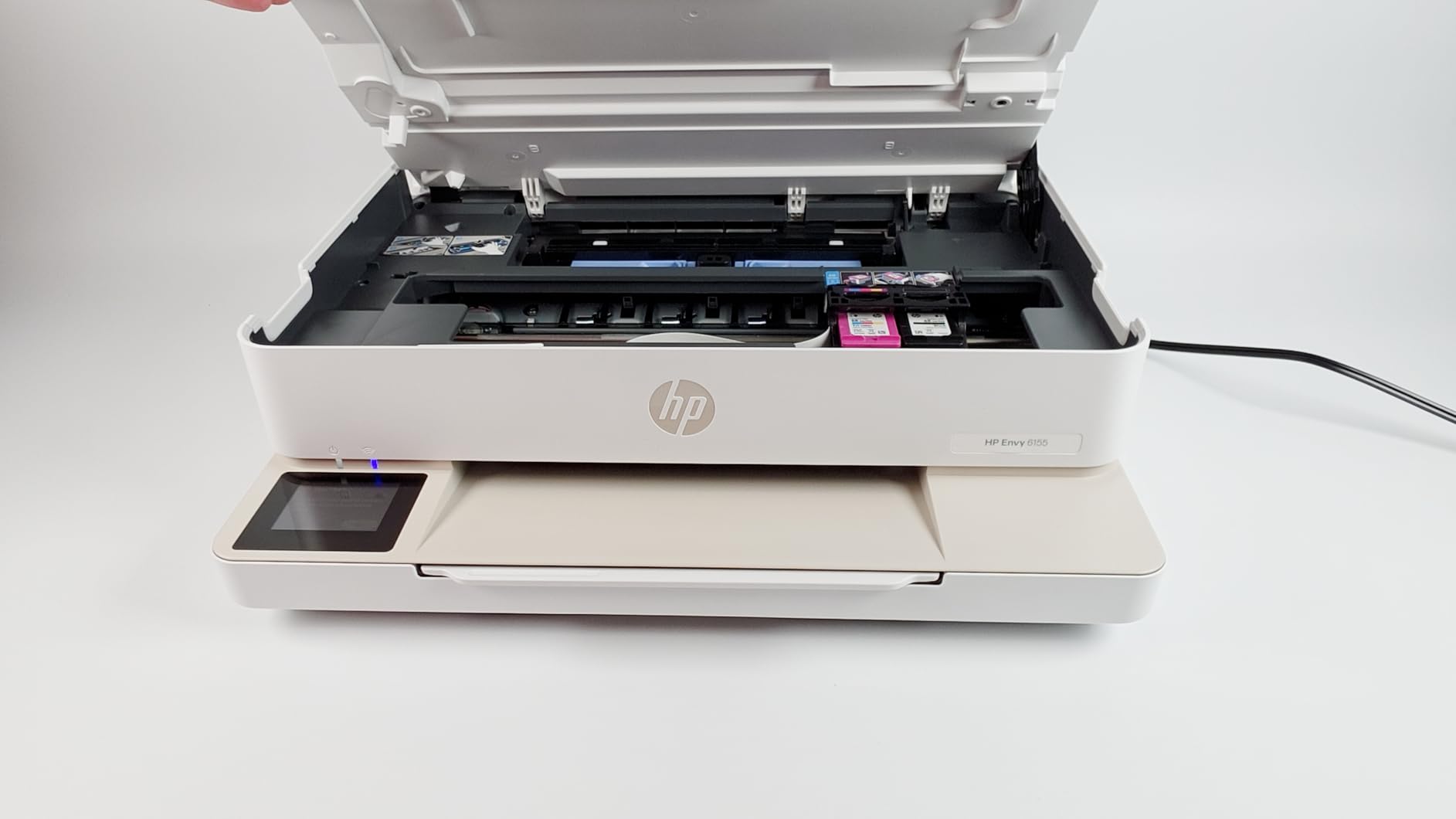
The body is 11.2 pounds with a 100-sheet input tray and draws 12.2 watts. HP AI formatting strips web page and email clutter before printing, which saves real paper when printing from a Chromebook browser. Setup cartridges cover roughly 120 black pages and 75 colour pages.
Two ownership issues are worth knowing. The printer is designed to work only with HP original chips, so third-party cartridges are blocked. The included three-month Instant Ink trial converts to a monthly subscription unless it is cancelled, and there is no automatic document feeder.
Who the Envy 6155 suits
It suits a family that prints a mix of homework, colour charts and occasional photos, and it suits anyone who wants a touchscreen without stepping up to a laser price point. It is also built with at least 60 percent recycled plastic, which matters if sustainability influences your list.
Who should skip it
Skip it if printing volume is high, because cartridge ink costs more per page than tank-based models and locked-in cartridges limit your options. Anyone printing more than a couple of hundred colour pages a year will spend less over time with the HP Smart Tank 5003 or the Epson EcoTank ET-2800.
Chromebooks Print Driverlessly: How to Connect a Printer in Five Steps?
ChromeOS printing works over your local network using open standards, so there is no driver to install. The whole process takes about two minutes once the printer is on the same Wi-Fi network as the Chromebook.
Before you start, confirm the printer and the Chromebook are on the same network. If your router splits traffic across 2.4GHz and 5GHz bands, connect the printer on the 2.4GHz band, which most printers default to and which reaches further through walls.
Turn the printer on and place it within range of your Wi-Fi router. There is no need for a USB cable or a computer.
On the Chromebook, click the clock in the lower right corner to open the quick settings panel.
Open Settings, then choose Printers under the hardware section.
Click Add printer. ChromeOS scans the local network and lists any printer speaking Mopria or IPP Everywhere.
Select the printer, set the default paper size and name, then print a test page from any web page using the Chrome menu.
If your printer does not appear automatically, many models create their own wireless network on first setup. Connect the Chromebook to that network, configure the printer with your home Wi-Fi details, then reconnect the Chromebook to your own network.
Compatibility Comes Down to Four Wireless Standards
A Chromebook-compatible wireless printer is simply one that speaks an open printing standard, so ChromeOS can talk to it without installing anything. Four terms decide whether a printer qualifies, and every pick in this roundup supports at least one of them.
Mopria Print Service is the cross-platform layer that ChromeOS uses by default. Any printer certified for Mopria appears in the printer list without extra software, which is the single most trusted signal in this category.
IPP Everywhere is the underlying internet printing protocol. Mopria builds on top of it, and support here means the printer can handle modern print jobs, including duplex and colour options, straight from the browser print dialog.
AirPrint is Apple’s equivalent. Many printers support it alongside Mopria, which is why so many models work from both a Chromebook and an iPhone with no separate app.
Wi-Fi Direct, called Wireless Direct or Wireless Direct Mode by some brands, lets the printer create its own network. That matters for USB-C-only Chromebooks used in hotels, cafes and school spaces where there is no router to join.
Google Cloud Print, the service that once let older printers work with Chrome, was discontinued and no longer exists as a fallback. If a printer requires proprietary desktop software to function, a Chromebook cannot run it and the device will never appear in the printer list.
Inkjet, Laser or SuperTank Depends on Your Monthly Page Volume
Choose the technology that matches how much you actually print. Under about 200 pages a month, a colour inkjet or supertank is the sensible answer, and the difference in running cost dominates everything else at this volume.
Inkjets give you colour and photo output with a small footprint. Cartridge models such as the Canon PIXMA TS6520 and the HP Envy 6155 are inexpensive to buy, but cartridges cost more per page over time. SuperTank and EcoTank models such as the Epson ET-2800, the ET-2400 and the HP Smart Tank 5003 replace that with refillable bottles, which is where the savings really appear.
Laser printers are monochrome devices built for text volume. Above roughly 400 black pages a month, the Brother DCP-L2640DW and the HP LaserJet MFP M235sdw give sharper text, faster output and toner that does not dry out in an idle machine. If colour matters alongside high volume, a supertank inkjet is the better compromise, because a colour laser adds cost and bulk.
Paper handling matters as much as speed. Automatic duplex is now common at the mid range and removes the most annoying chore in printing. A document feeder matters if you scan in batches, and tray capacity tells you how often you will refill. Under 60 sheets of capacity, expect to refill weekly at a busy desk.
Printer Not Showing Up? Work Through These Four Causes in Order
If your printer will not appear under Settings, walk through these causes from most to least likely. Each one accounts for a large share of the failures Chromebook owners report.
Users on r/chromeos describe a common pattern with older Canon PIXMA models where printing from a Chromebook is intermittent and the device often cannot be found, while the same printer prints fine from a phone. Discovery, not print quality, is usually the actual fault.
Band mismatch. The printer joined the 2.4GHz band and the Chromebook is on 5GHz, or the router splits the two bands onto separate networks. Split the bands or move the printer to whichever network your Chromebook uses.
No open standard support. If the printer relies on proprietary desktop software, ChromeOS has nothing to talk to. You will need a model with Mopria or AirPrint support.
Printer set to its own network. New printers often broadcast a setup network during installation. Connect to it, finish configuration, then reconnect the Chromebook to your own Wi-Fi.
Stuck queue or offline printer. Cancel the stalled job in the print queue, power cycle the printer, and remove it from Settings > Printers before adding it again.
Print jobs that queue without starting are usually a discovery problem rather than a driver problem. Restart the printer and the Chromebook, confirm both are on the same network, and re-add the printer from Settings.
One Shared Printer Can Serve a Whole Classroom Fleet
Schools and small offices running managed Chromebooks need the printer to behave the same way for every device, which changes what you buy. Dual-band Wi-Fi matters more than peak speed, because a machine that only joins one band will vanish for half the class.
Our roundup of the best wireless printers for small offices covers the networking side in full. For classroom use, the Brother DCP-L2640DW and the HP LaserJet MFP M235sdw pair reliably across a whole room and handle shared volume well.
Managed ChromeOS devices can have printers assigned by policy rather than by each user, and the same machine can serve many Chromebooks without anyone installing an app. A 50-page feeder on the Brother means one person can supervise a batch job rather than feeding pages one at a time.
If you are comparing hardware beyond printing itself, our picks for the best 3D printers for teachers cover the other half of a classroom fabrication setup.
Frequently Asked Questions
What is the best wireless printer compatible with Chromebooks?
The Epson EcoTank ET-2800 is our top pick for Chromebooks. It pairs over Wi-Fi without installing anything, includes a flatbed scanner and copier, and its refillable EcoTank ink costs far less per page than cartridges. If you need automatic duplex and batch scanning, the Brother DCP-L2640DW is the stronger alternative.
Will a Chromebook work with a wireless printer?
Yes, for most printers made in the last several years. ChromeOS sends jobs using the Mopria and IPP Everywhere standards, so a Mopria or AirPrint printer on the same Wi-Fi network as your Chromebook appears automatically with no drivers. Printers that need proprietary desktop software will not work, and Google Cloud Print no longer serves as a fallback.
Which printers are compatible with Chromebooks?
Look for four things: Mopria Print Service support, IPP Everywhere support, AirPrint support, or Wi-Fi Direct. Any printer listing one of these standards will print from a Chromebook without extra software. Every pick in this roundup supports at least one, and the Canon PIXMA TS3720 and HP LaserJet MFP M235sdw list Chromebook support outright.
Are Chromebooks compatible with all printers?
No. ChromeOS does not install printer drivers, so any printer that depends on proprietary desktop software to function simply will not appear in the print dialog. Older models from before roughly 2018 are the most common problem. Check for Mopria or AirPrint on the specification sheet before buying.
Why won’t my printer work with Google Chrome?
Four causes account for most cases. The printer and Chromebook may be on different Wi-Fi bands, with the printer on 2.4GHz and the Chromebook on 5GHz. The printer may lack Mopria or IPP support. It may still be joined to its own setup network. Or a stalled job has left the queue blocked. Split the router bands, re-add the printer from Settings, and cancel stuck jobs.
What is the most reliable home printer?
Reliability depends on workload. For text-heavy use, the Brother DCP-L2640DW combines dual-band Wi-Fi, automatic duplex and toner that does not dry out when idle. For mixed colour printing, the Epson EcoTank ET-2800 pairs instantly and its refillable tanks cut running cost. Neither wins outright, because they are built for different jobs.
Can a Chromebook print without Wi-Fi?
Yes, if the printer supports Wi-Fi Direct, Wireless Direct or Wireless Direct Mode. That feature makes the printer create its own wireless network, and your Chromebook connects to it directly with no router involved. It is the practical option for a USB-C-only Chromebook in a hotel, dorm common room or classroom with no network coverage.
The Best Wireless Printers for Chromebooks, by Use Case
Pick by workload, not by brand. The Epson EcoTank ET-2800 is the best wireless printer for Chromebooks overall because it pairs instantly, scans and copies, and prints colour for a fraction of cartridge cost, which is the combination that serves the most students and families.
For black-and-white document volume, the Brother DCP-L2640DW is the one to buy, with 36 pages per minute, automatic duplex, a 50-page feeder and dual-band Wi-Fi. For a shared classroom or office, the HP LaserJet MFP M235sdw matches that reliability at 30 pages per minute with Ethernet as a fallback.
Under a tight budget, the Canon PIXMA TS3720 states Chromebook support outright and sets up without a computer. The Canon PIXMA TS6520 adds automatic duplex for a modest step up, and the Canon PIXMA TR7120 adds a feeder and holds the highest average rating in the group at 4.3 stars.
Whatever you choose, check for Mopria or AirPrint before you buy, keep the printer on the 2.4GHz band if your router splits bands, and run a test page from ChromeOS on day one rather than discovering a problem the night before a deadline.